



Setting up inbox ruleson Front
Front
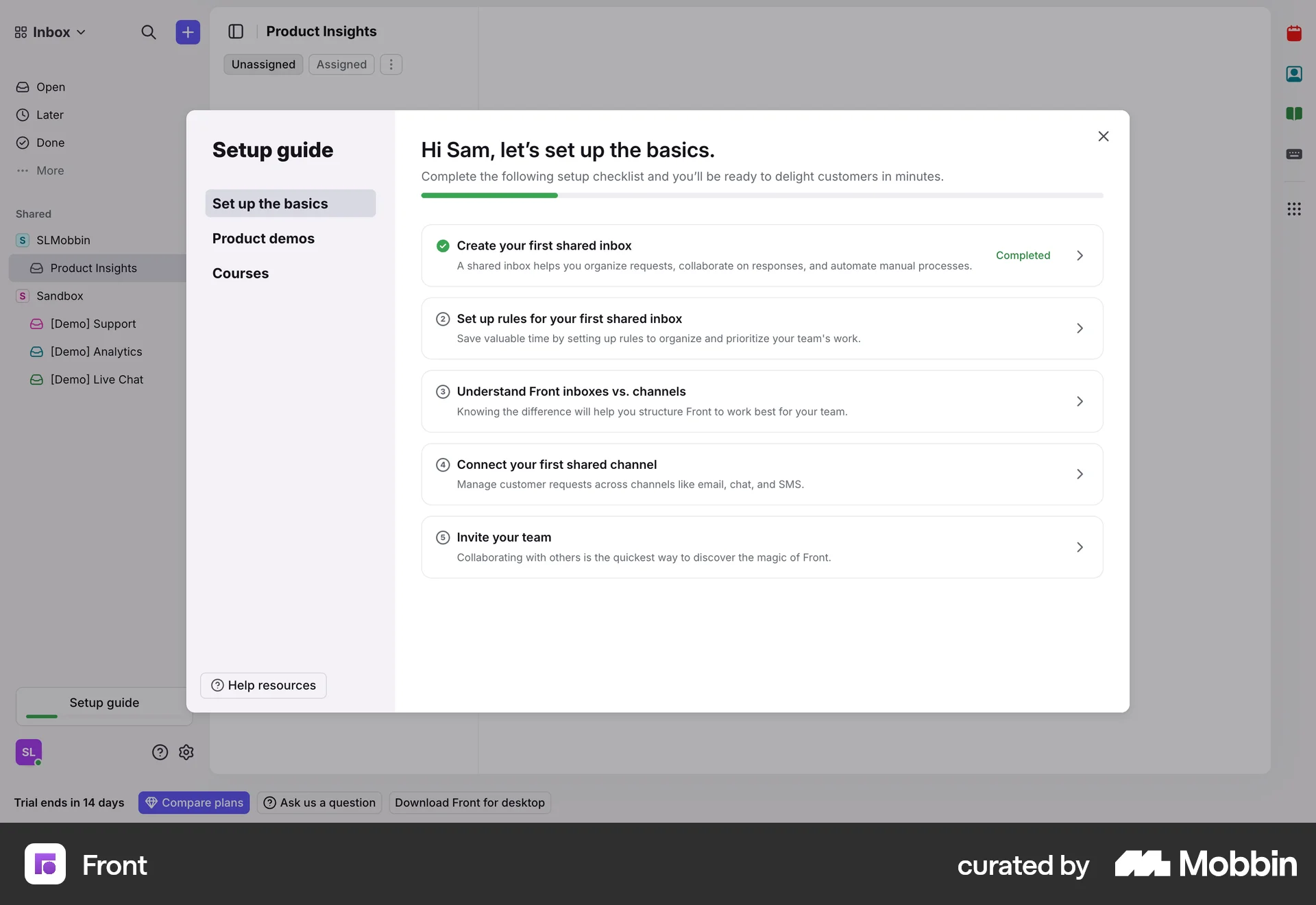
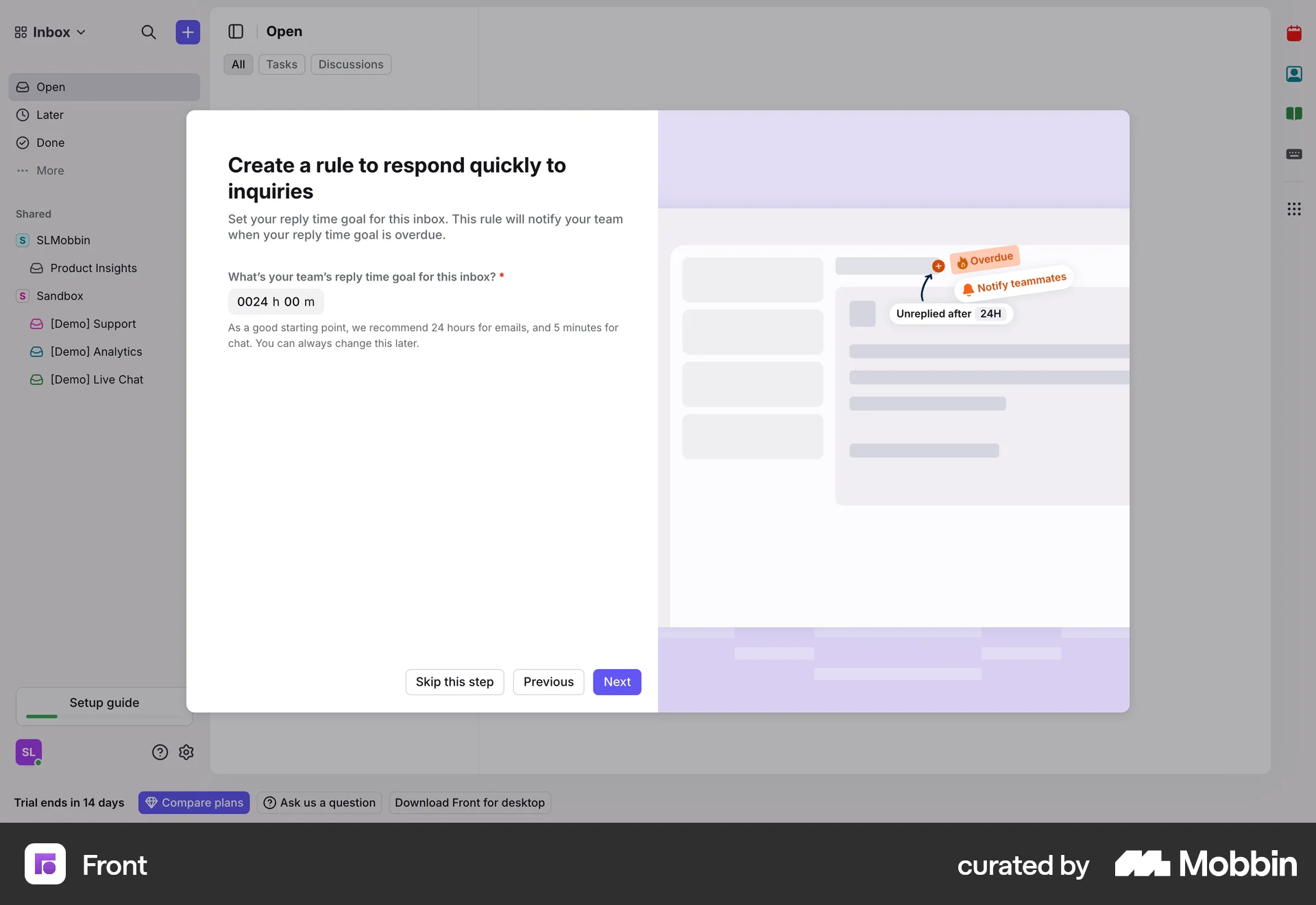
The user sets up inbox rules by specifying goals, setting a reply time, and selecting tags. The setup guide modal is updated to reflect the progress.
Discover best website designs for Setting Up flows. Get inspired by the best apps in the world.
The user sets up inbox rules by specifying goals, setting a reply time, and selecting tags. The setup guide modal is updated to reflect the progress.
The user creates a new account by filling out a form and views the account details. The user also interacts with a setup panel to configure the account.

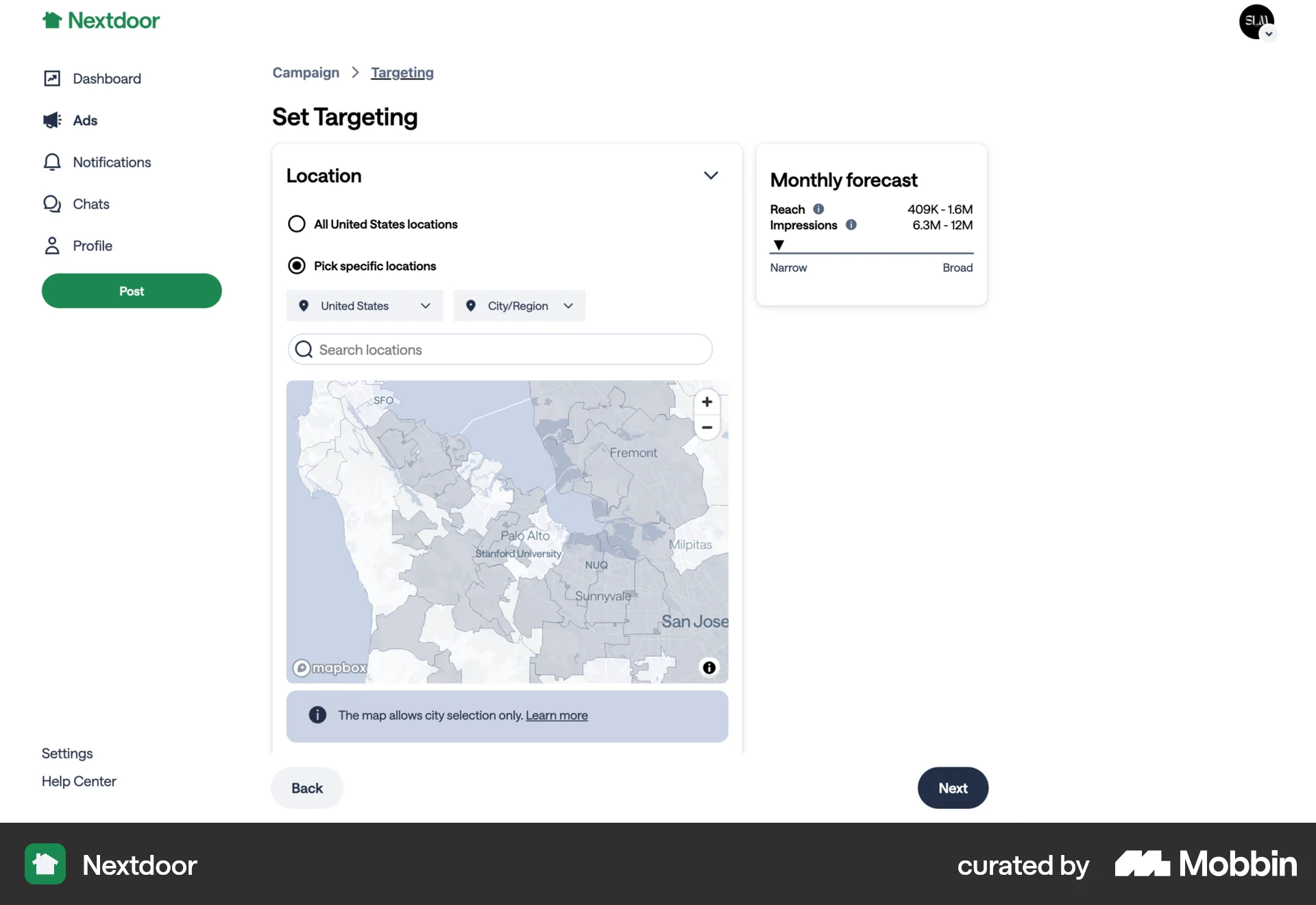
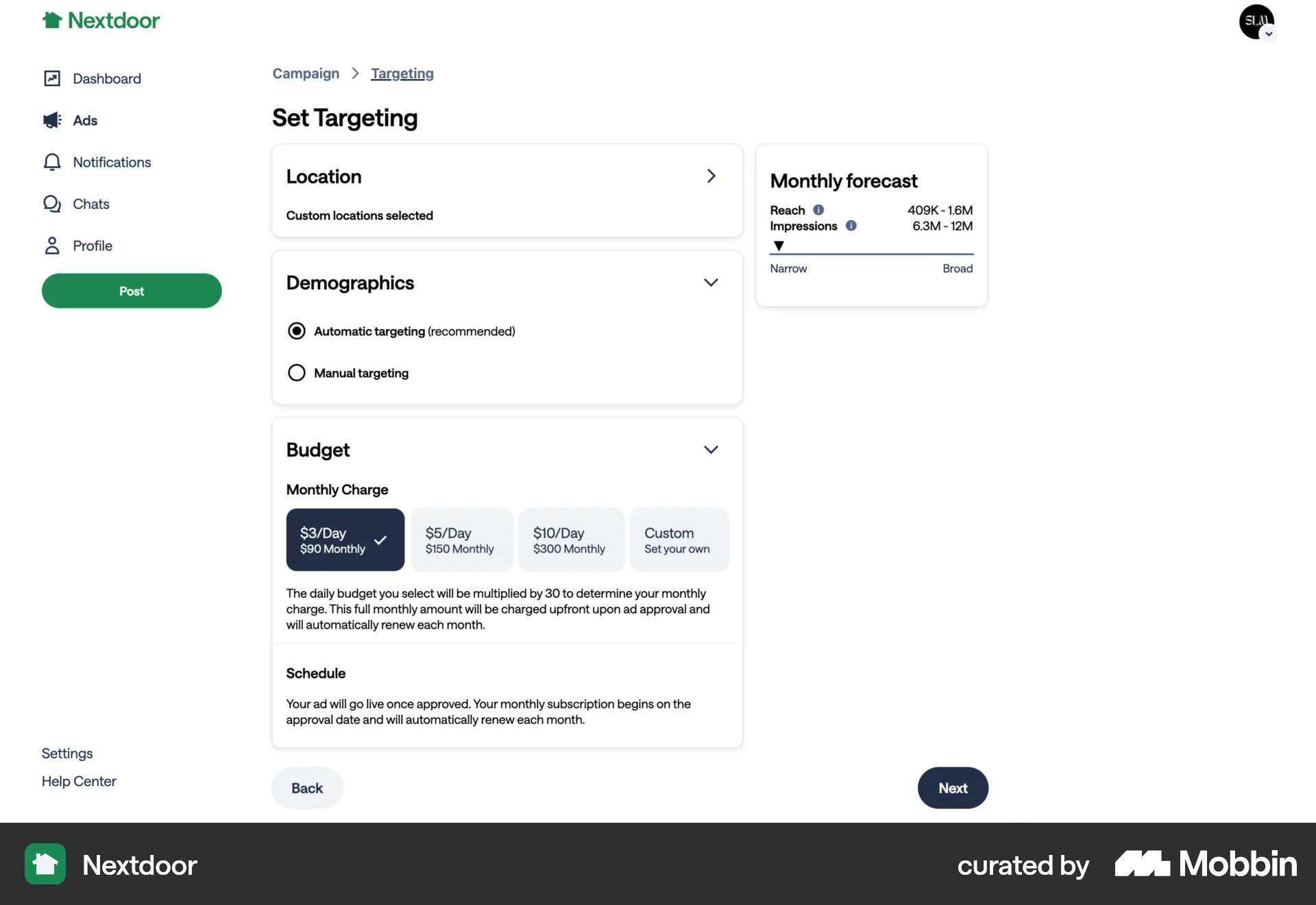
The user flow demonstrates setting up a campaign target by configuring location, demographics, and budget. The user selects specific locations and automatic demographics before choosing a budget.

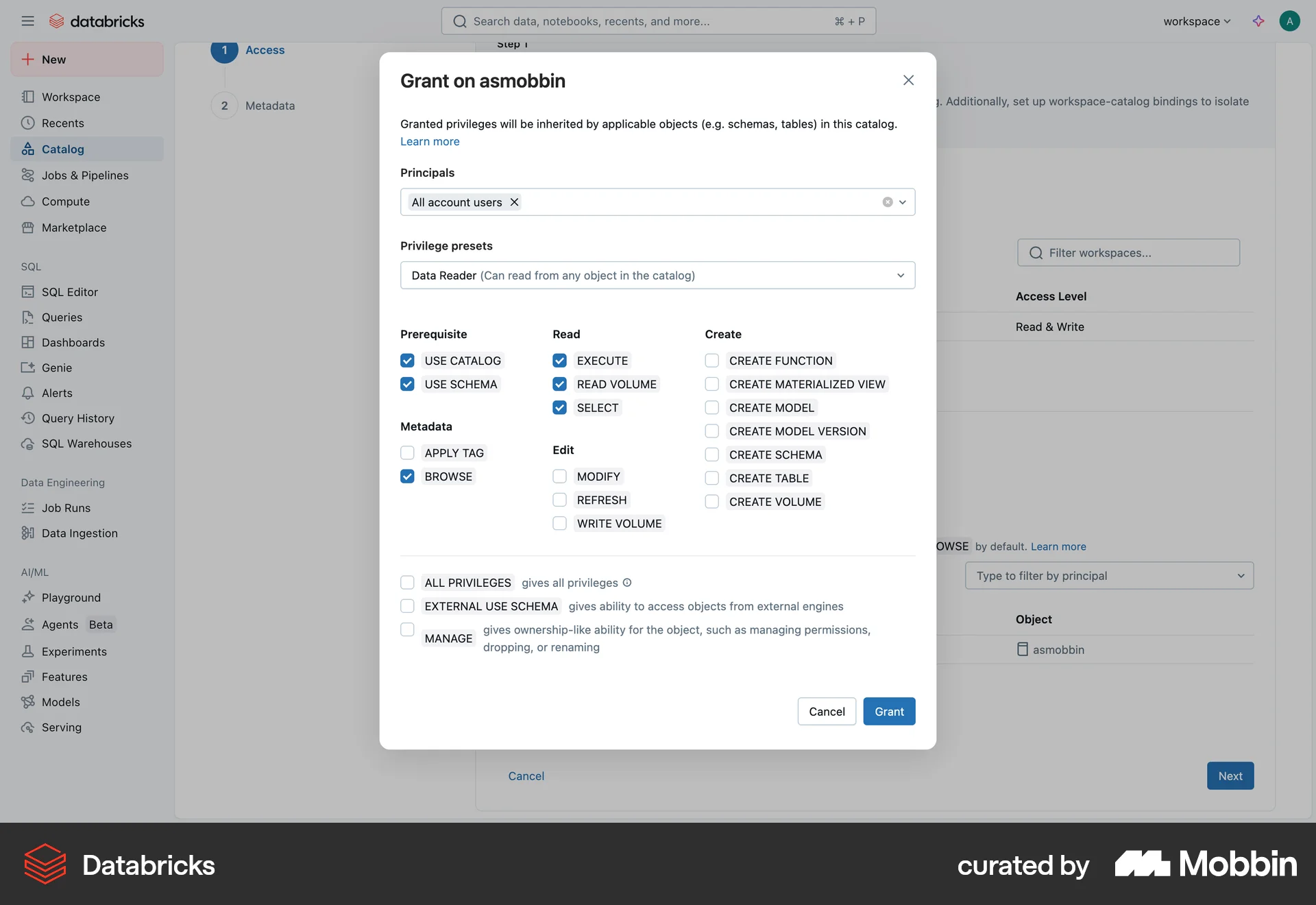
The user flow demonstrates setting up a catalog by configuring access permissions and metadata. It concludes with viewing the catalog in the catalog explorer.

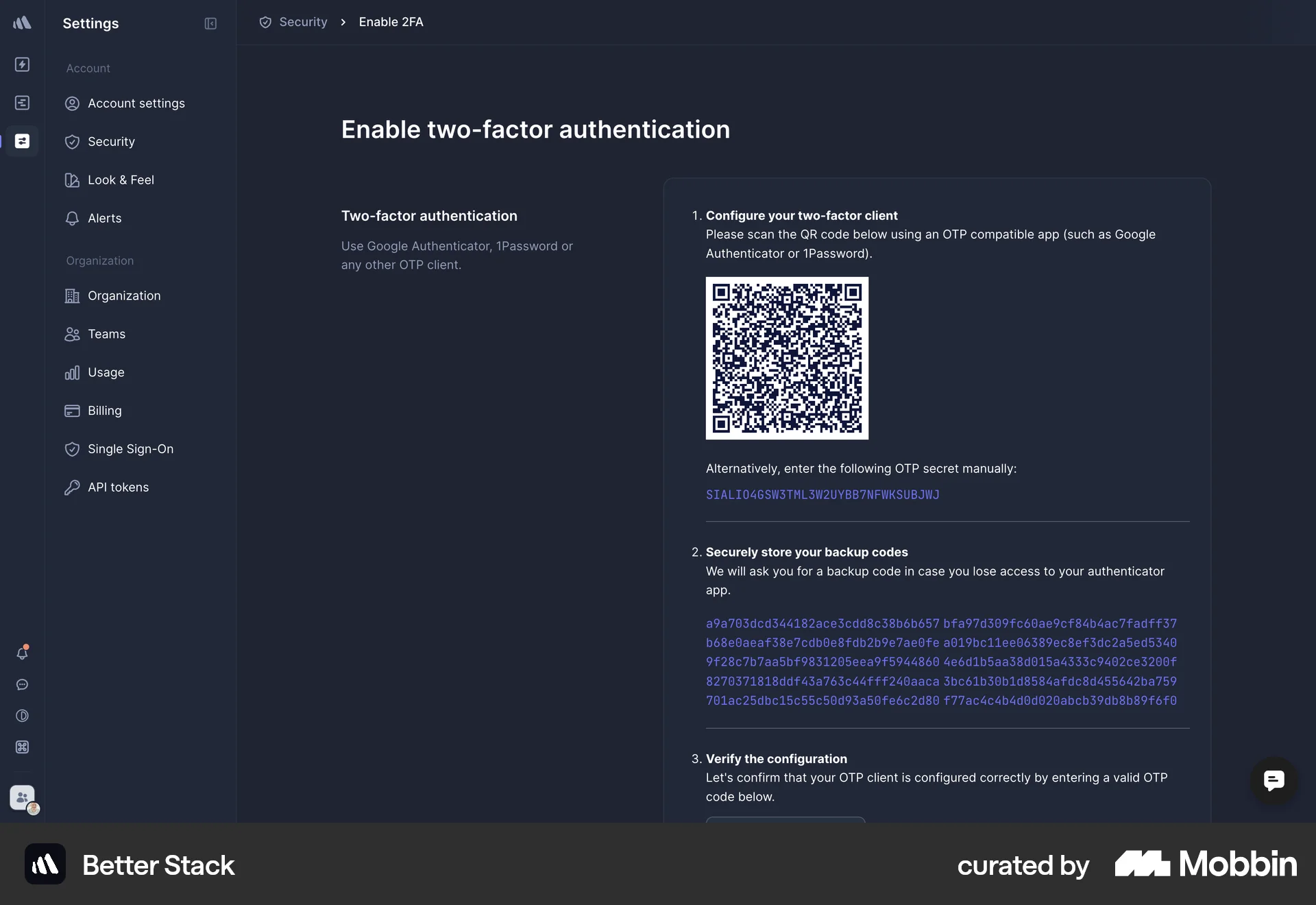
The user enables two-step verification using an authenticator app. They then save backup codes and confirm the successful setup.
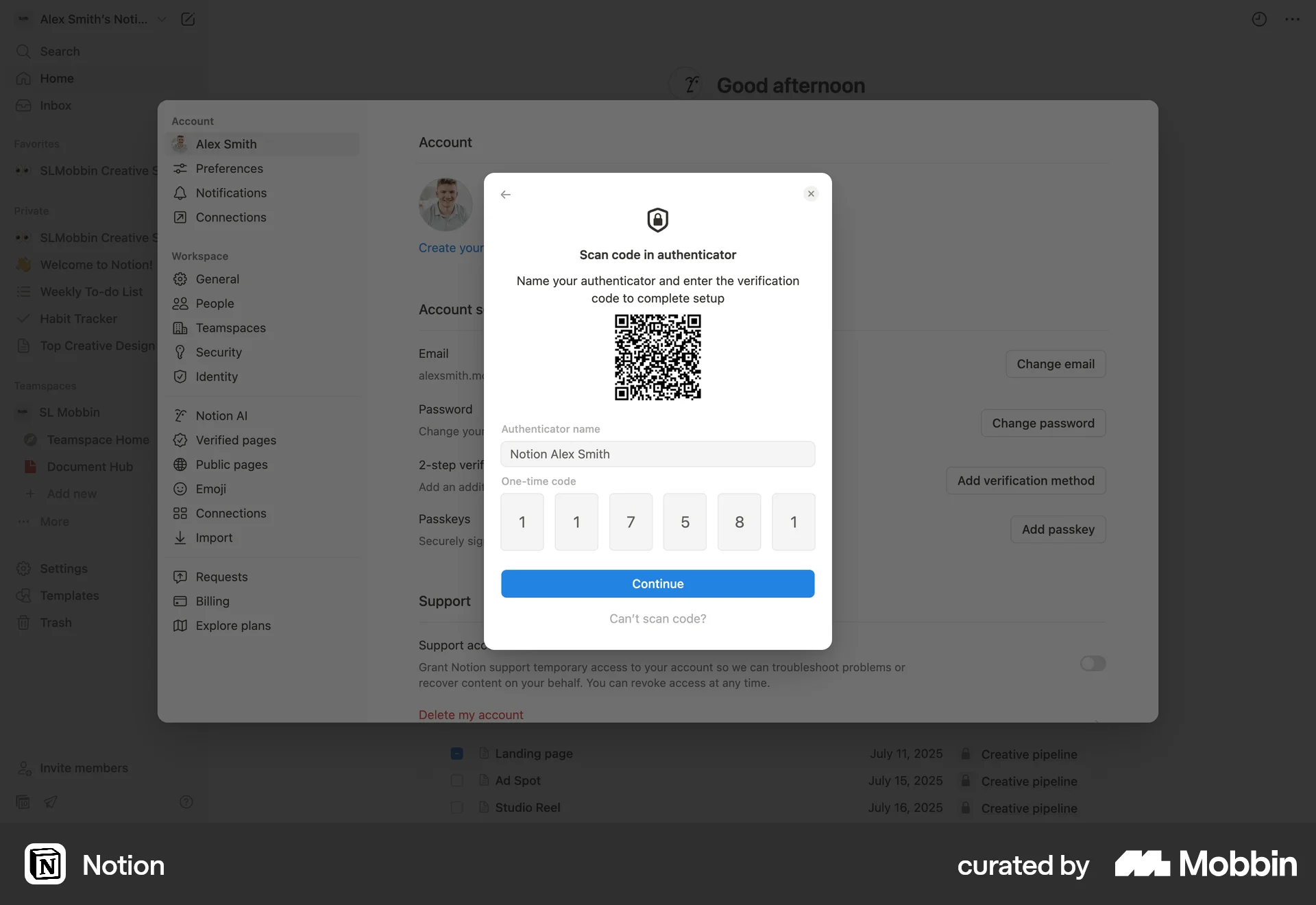
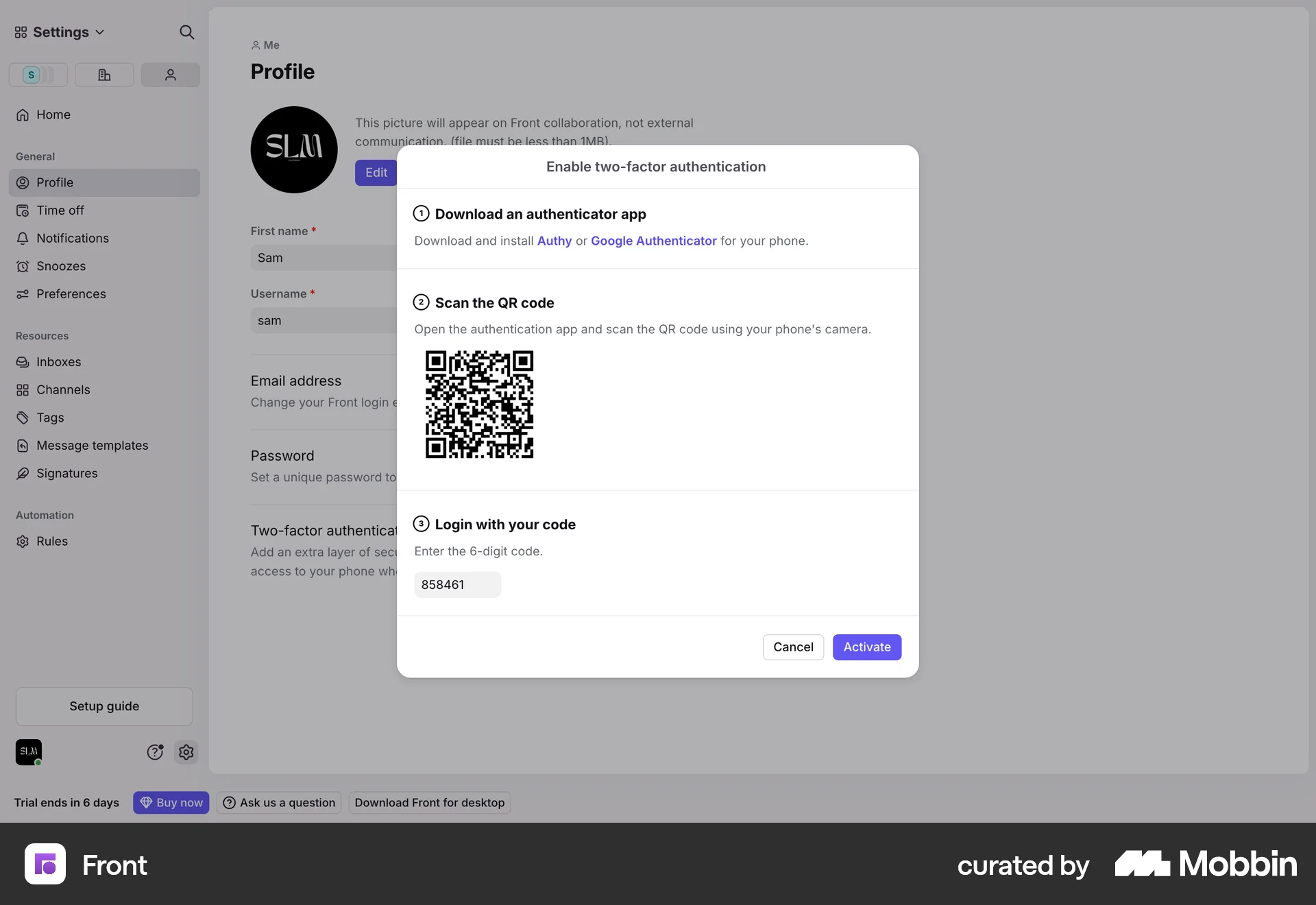
The user flow shows how a user enables two-factor authentication. It involves password verification, scanning a QR code, and entering a code from an authenticator app.
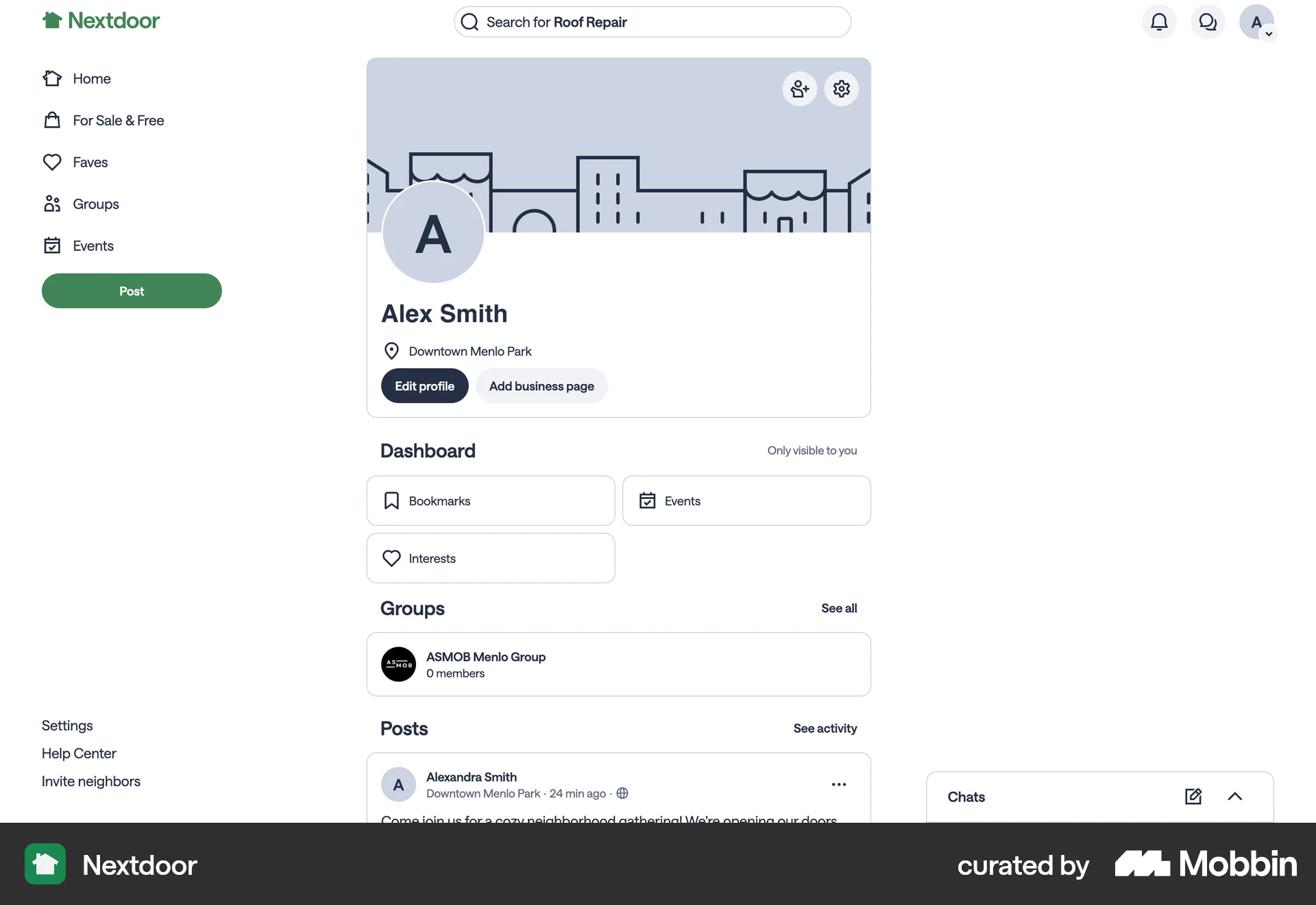
The user navigates from their dashboard to select and save their interests. The updated dashboard confirms the saved interests.
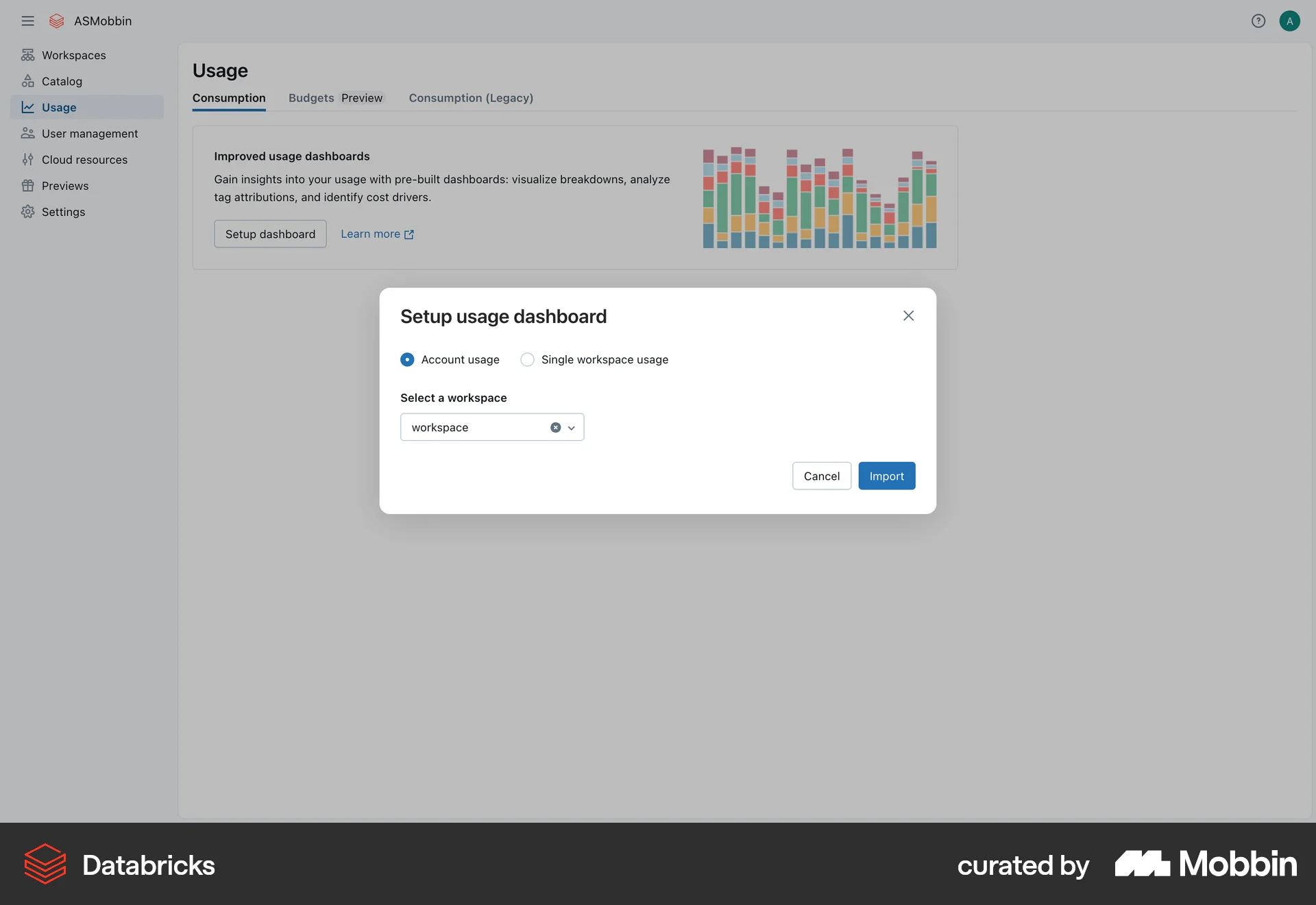
The user sets up a usage dashboard by selecting a workspace. A confirmation message appears with a link to the new dashboard.
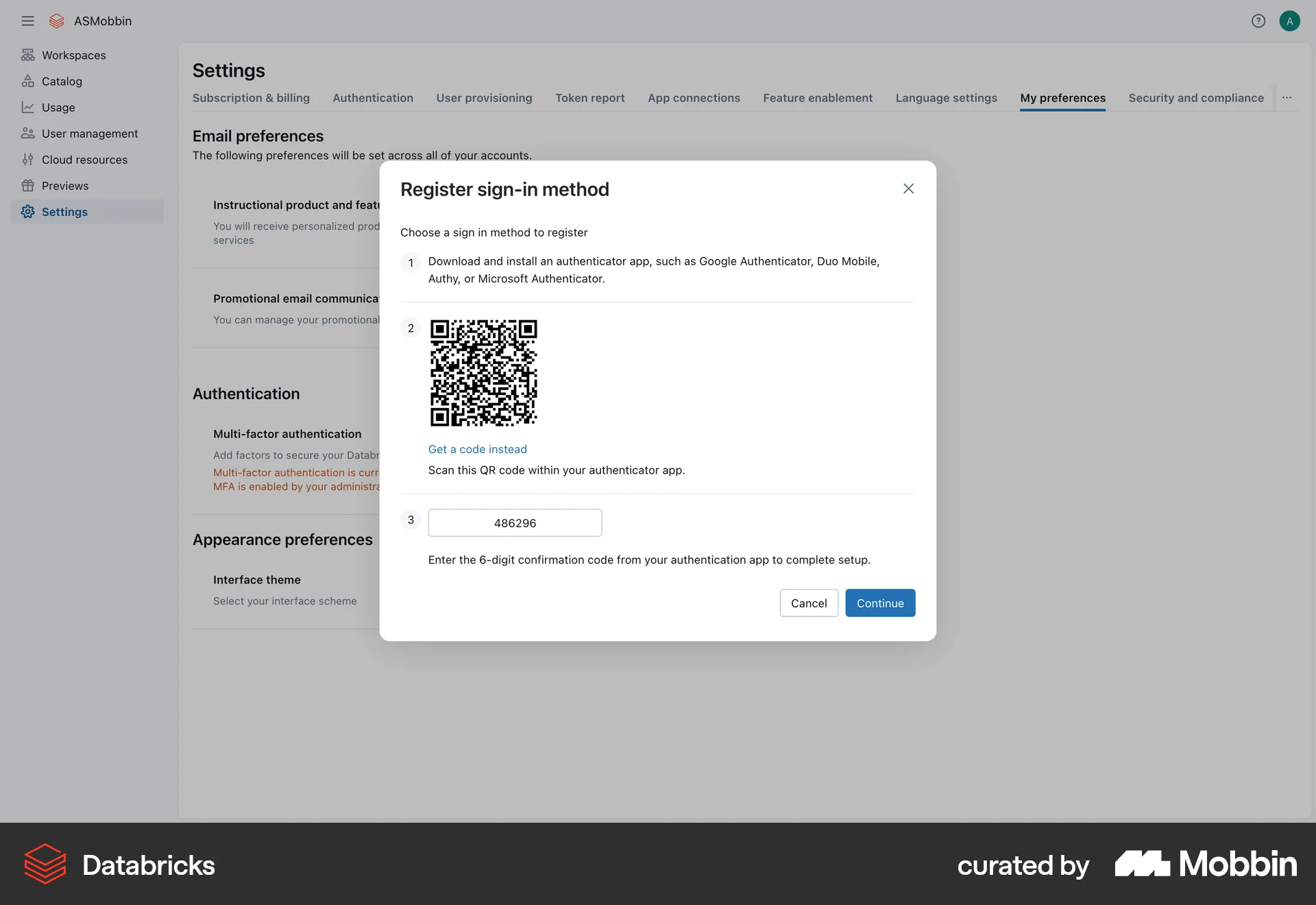
The user flow demonstrates setting up two-factor authentication using an authenticator app. It involves navigating to settings, selecting the authenticator app, and confirming the setup.

The user sets up a preview for a brand voice by configuring the audience, language, topic, and outline. They then generate the preview to see sample blog posts.

The user enables two-factor authentication by scanning a QR code, entering an OTP, and confirming the setup. The flow concludes with a success message and the option to disable it.

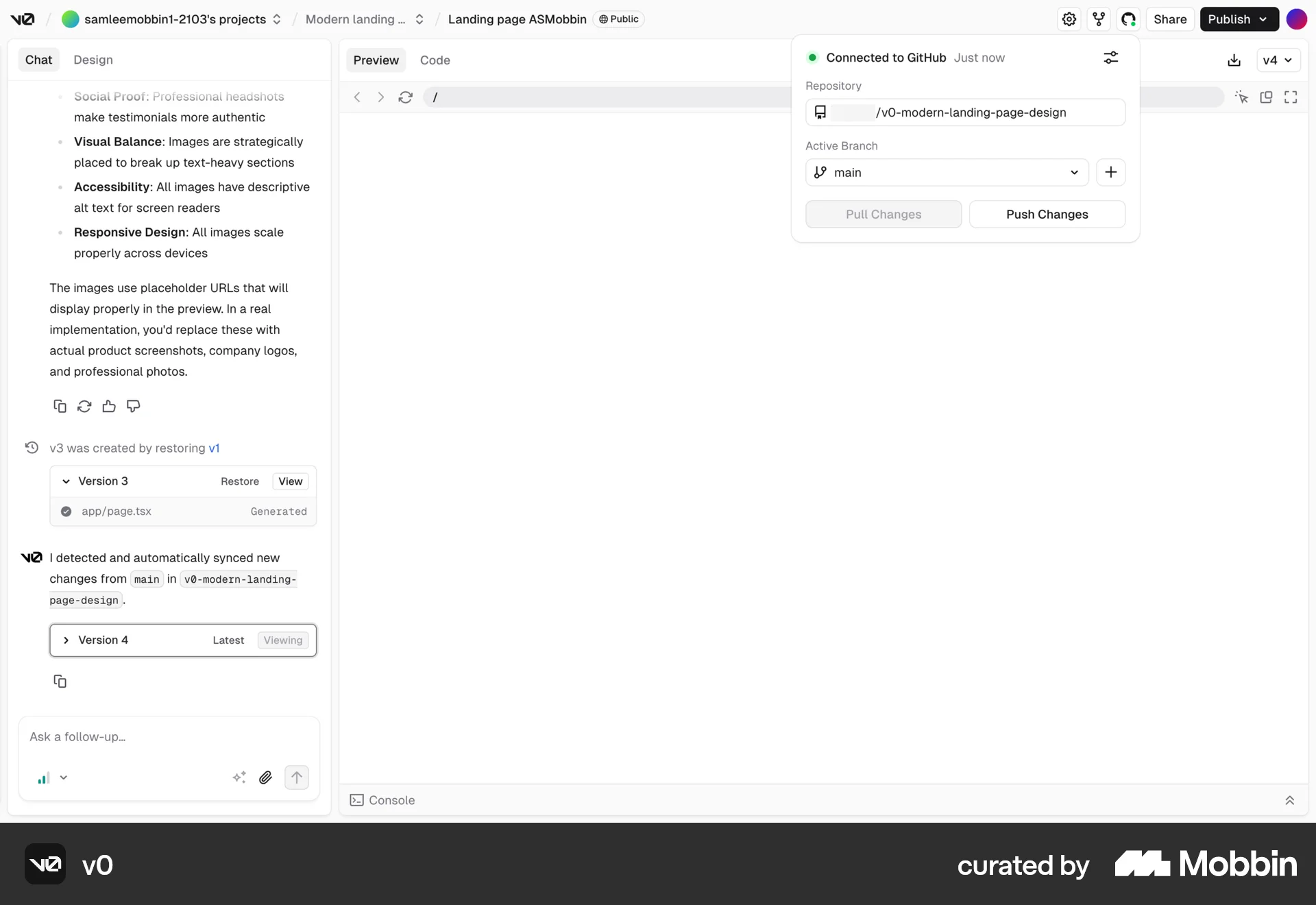
The user flow involves selecting a branch for a project and connecting it to GitHub. The user can then pull or push changes.
674 Flows
682 Flows
428 Flows
987 Flows
793 Flows
292 Flows