


Importing a contacton Front
Front
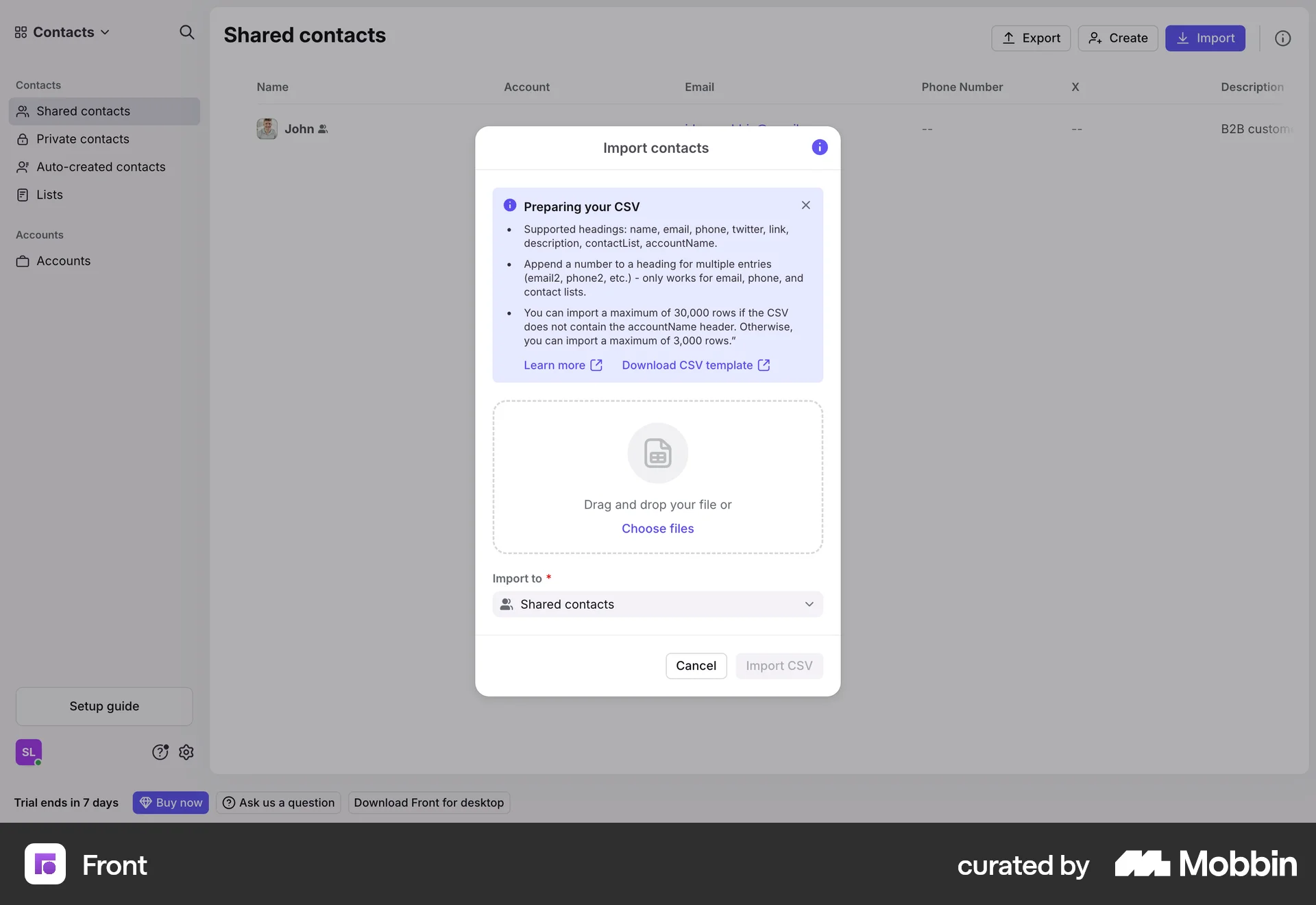
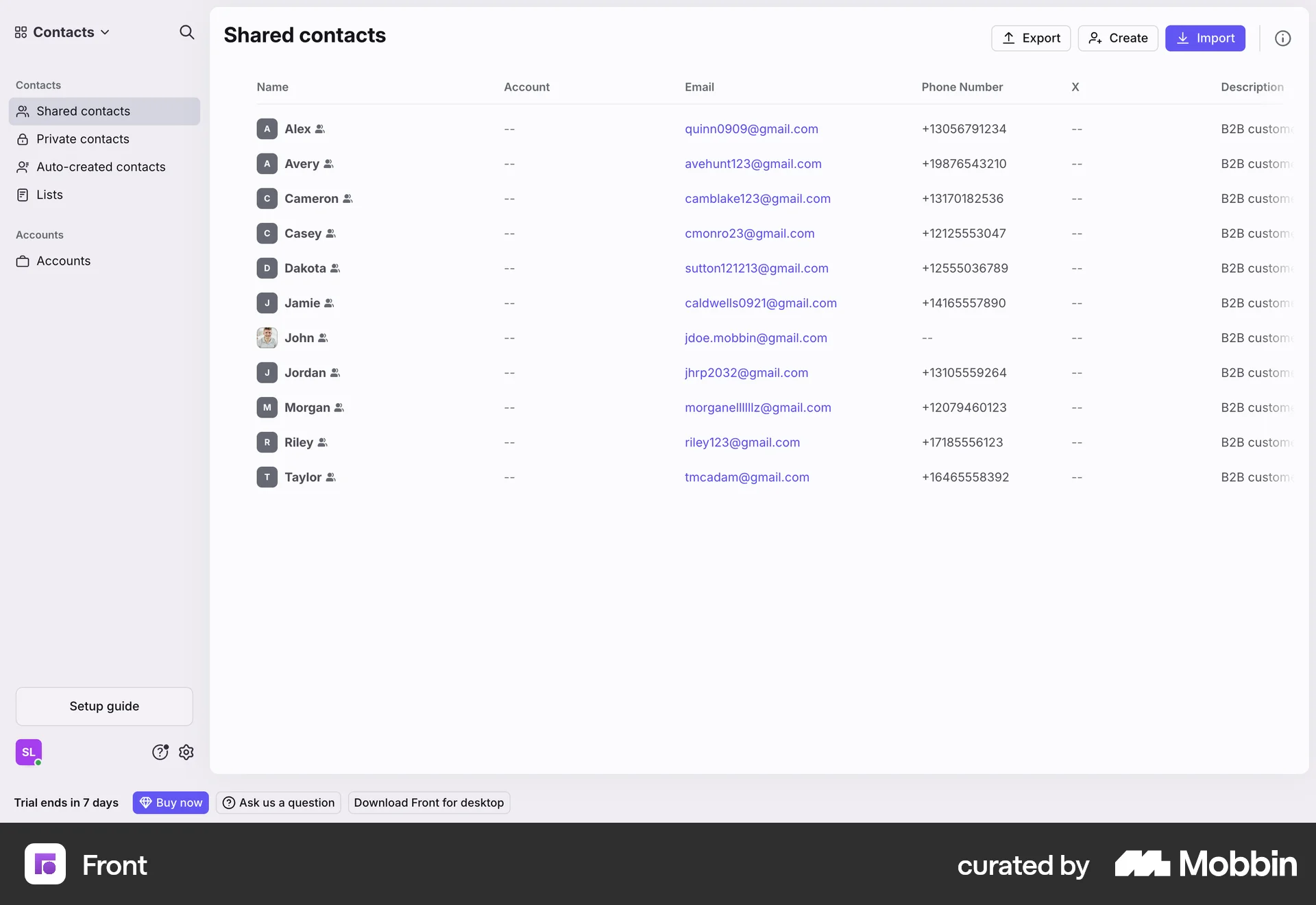
The user imports contacts into the "Shared contacts" section by uploading a CSV file. The imported contacts are then displayed in a list.
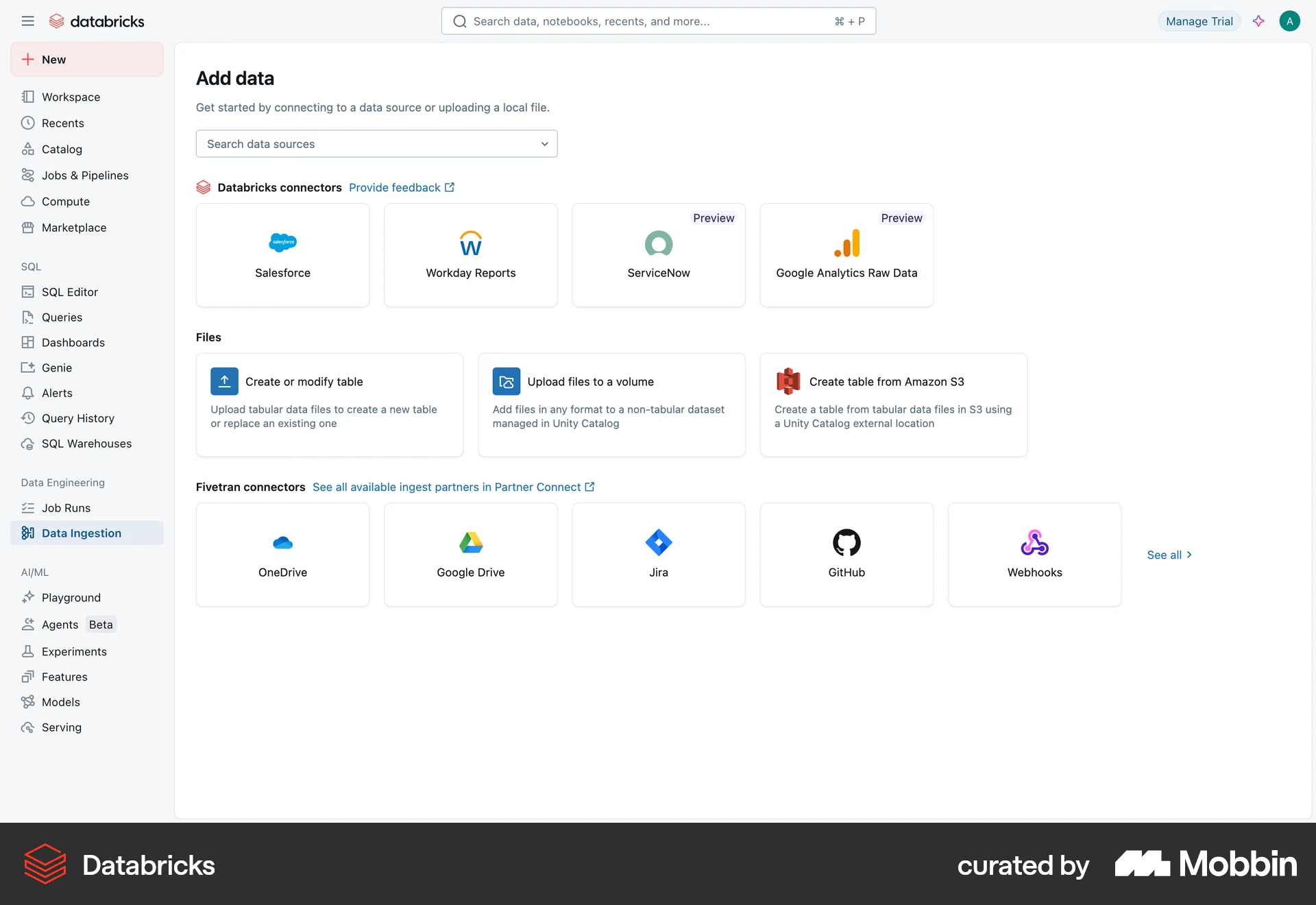
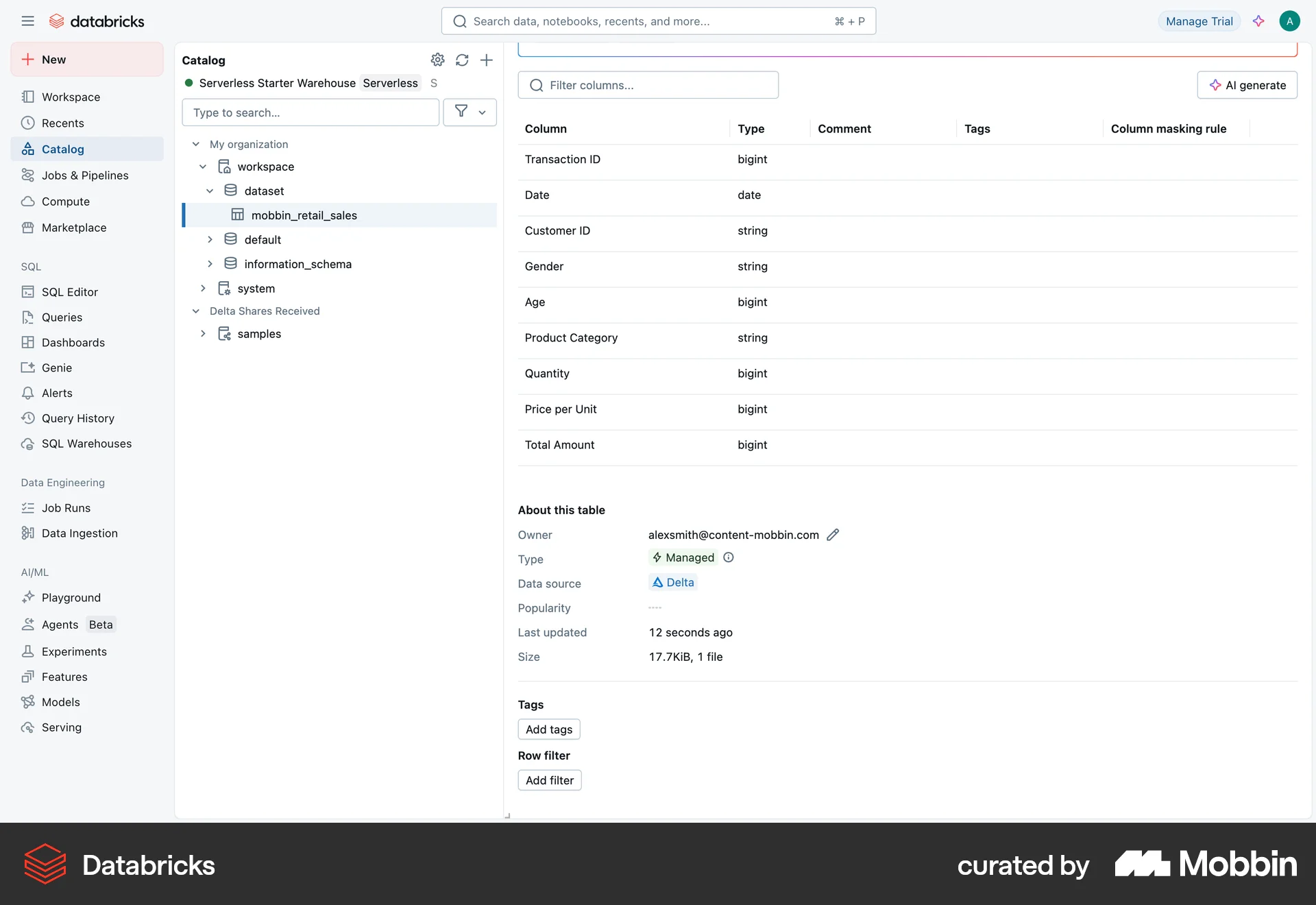
Discover best website designs for Importing & Exporting flows. Get inspired by the best apps in the world.
The user imports contacts into the "Shared contacts" section by uploading a CSV file. The imported contacts are then displayed in a list.
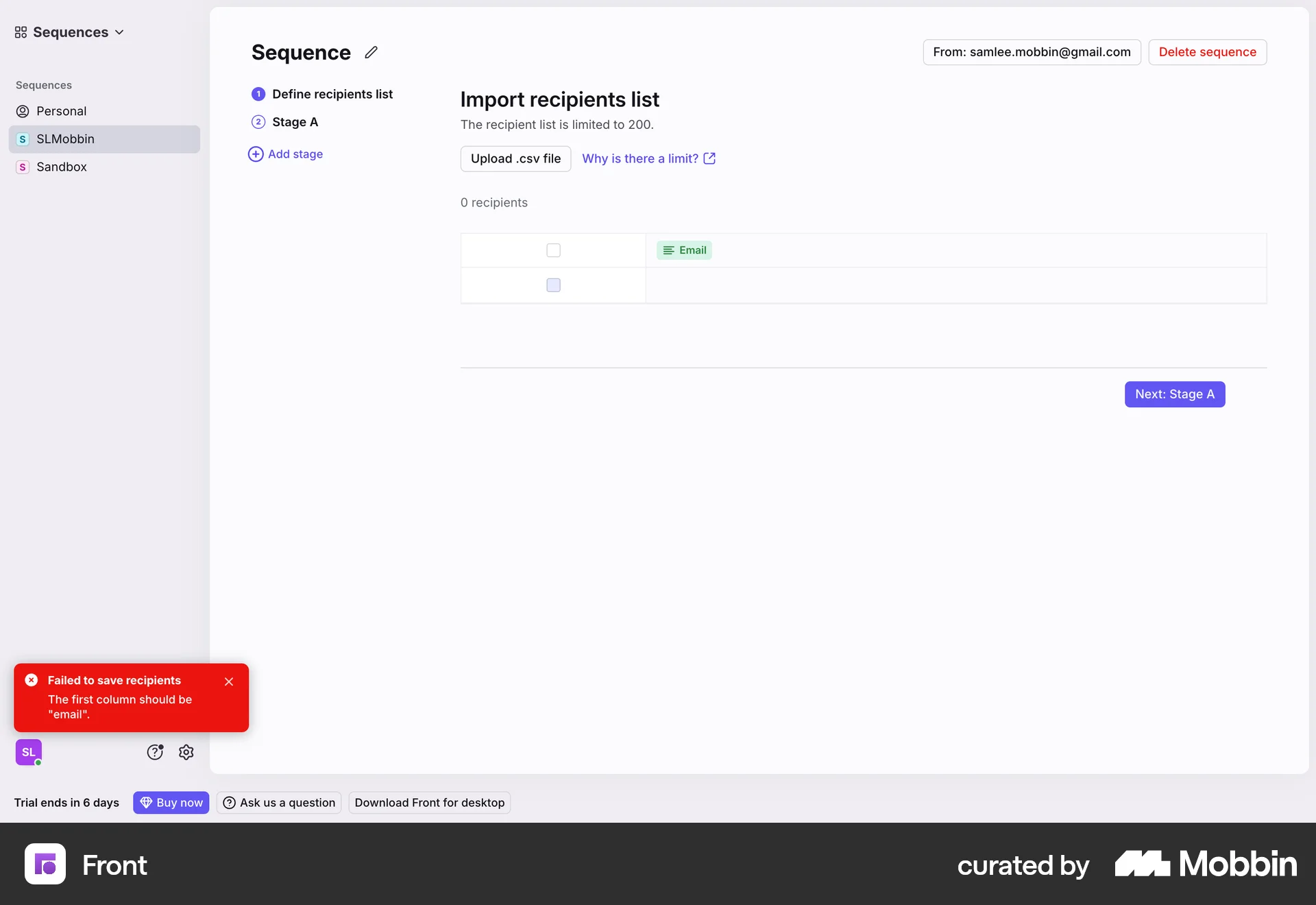
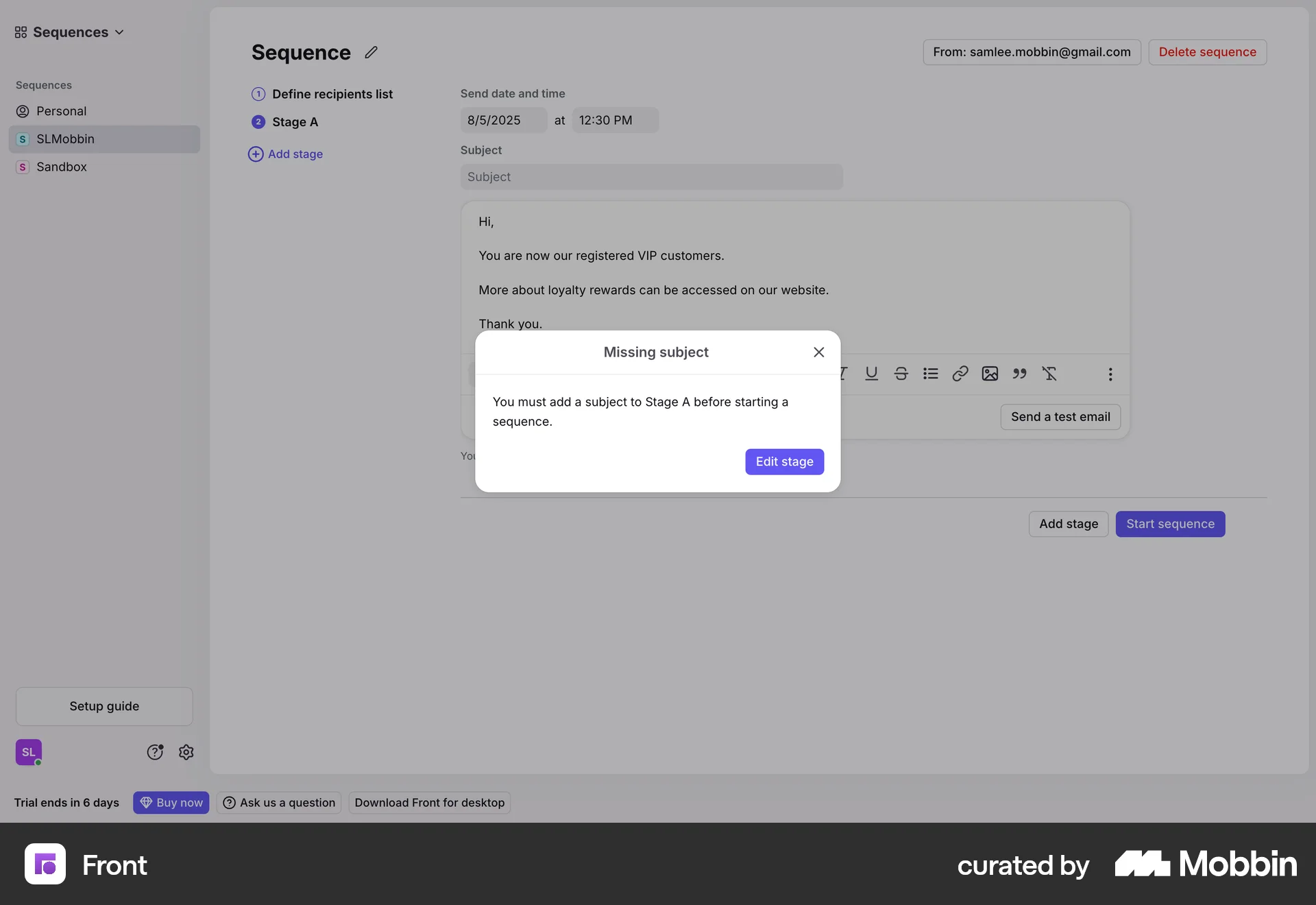
The user creates a sequence by defining recipients and email content. They then start the sequence, which sends emails to the recipients.
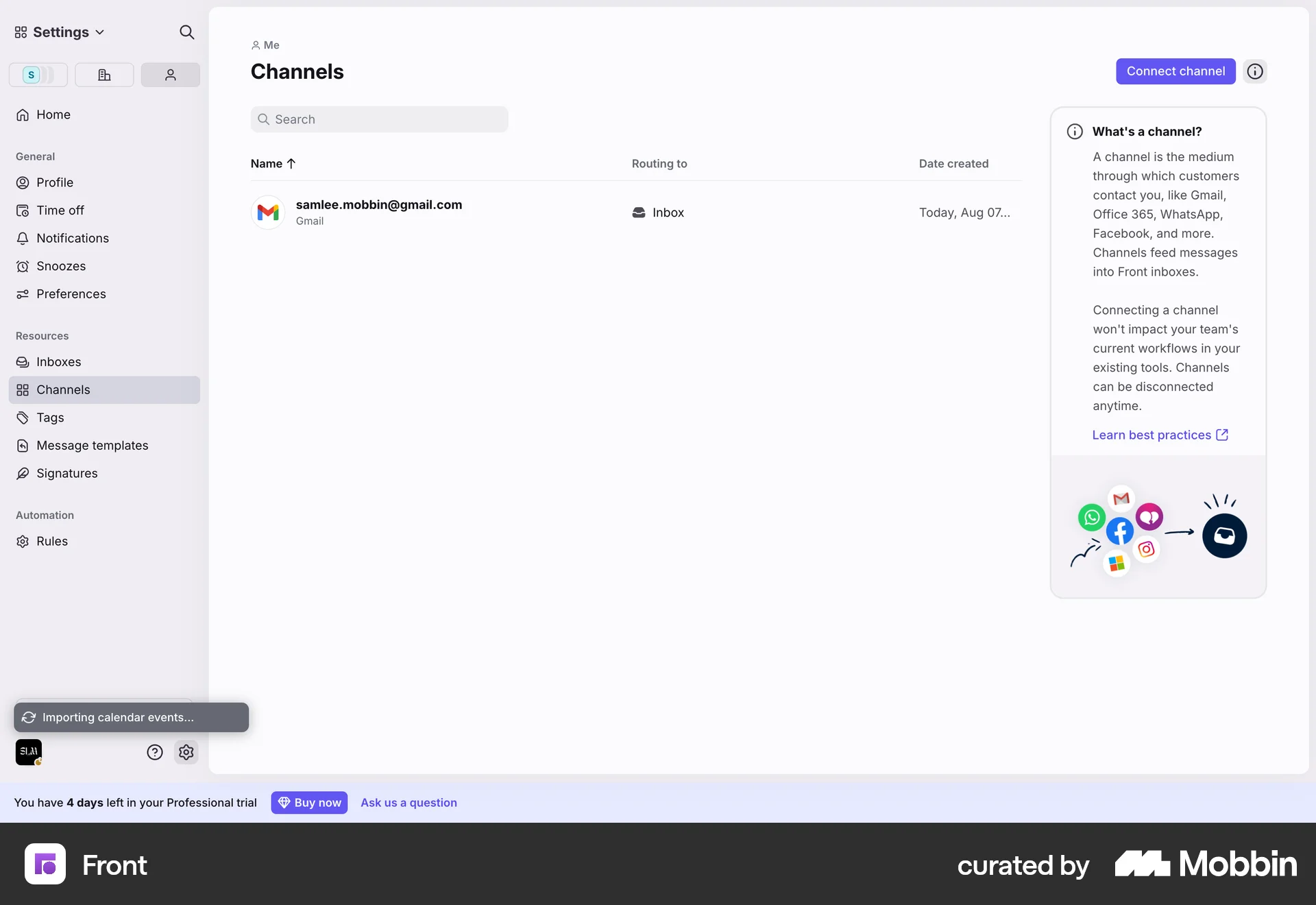
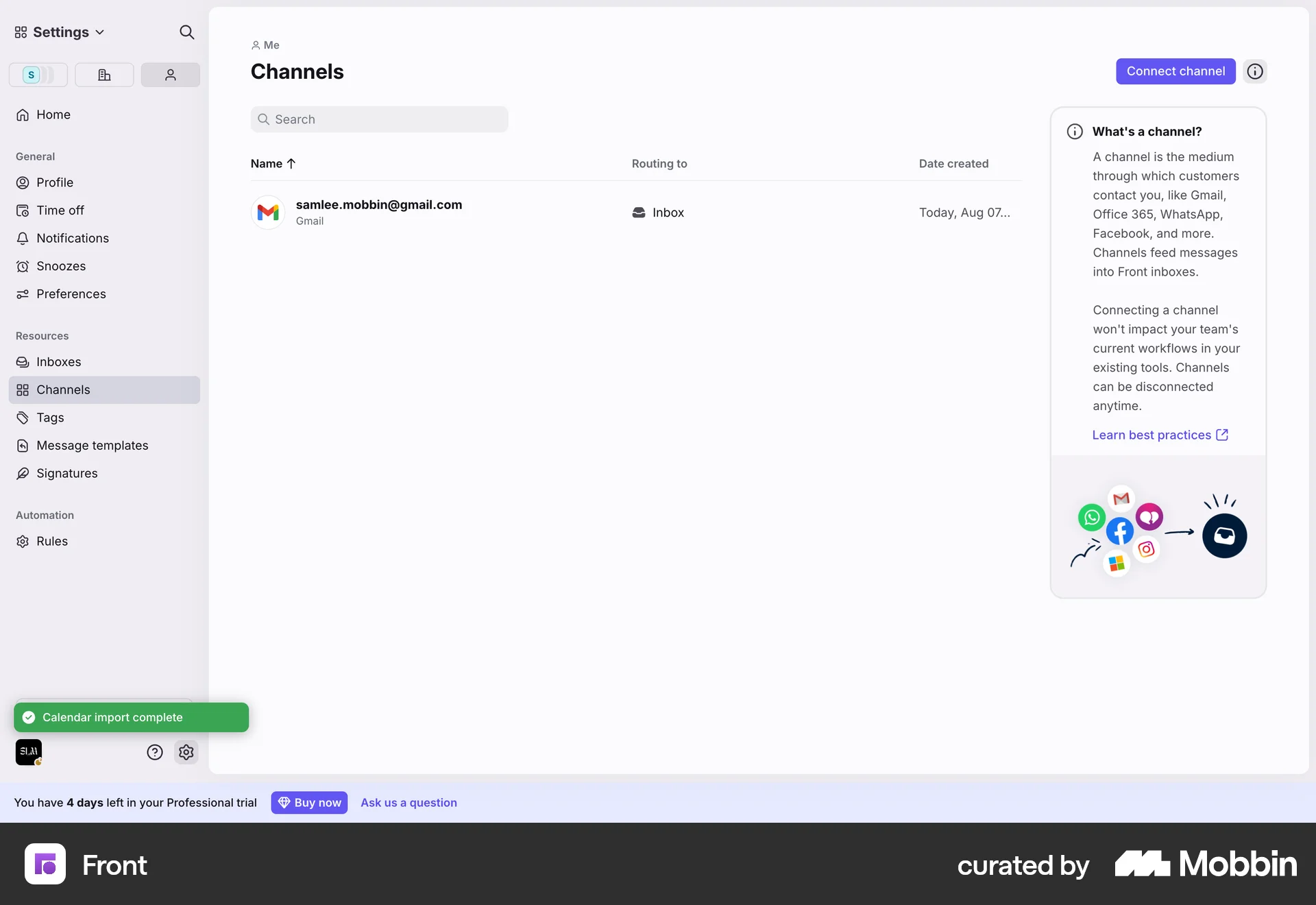
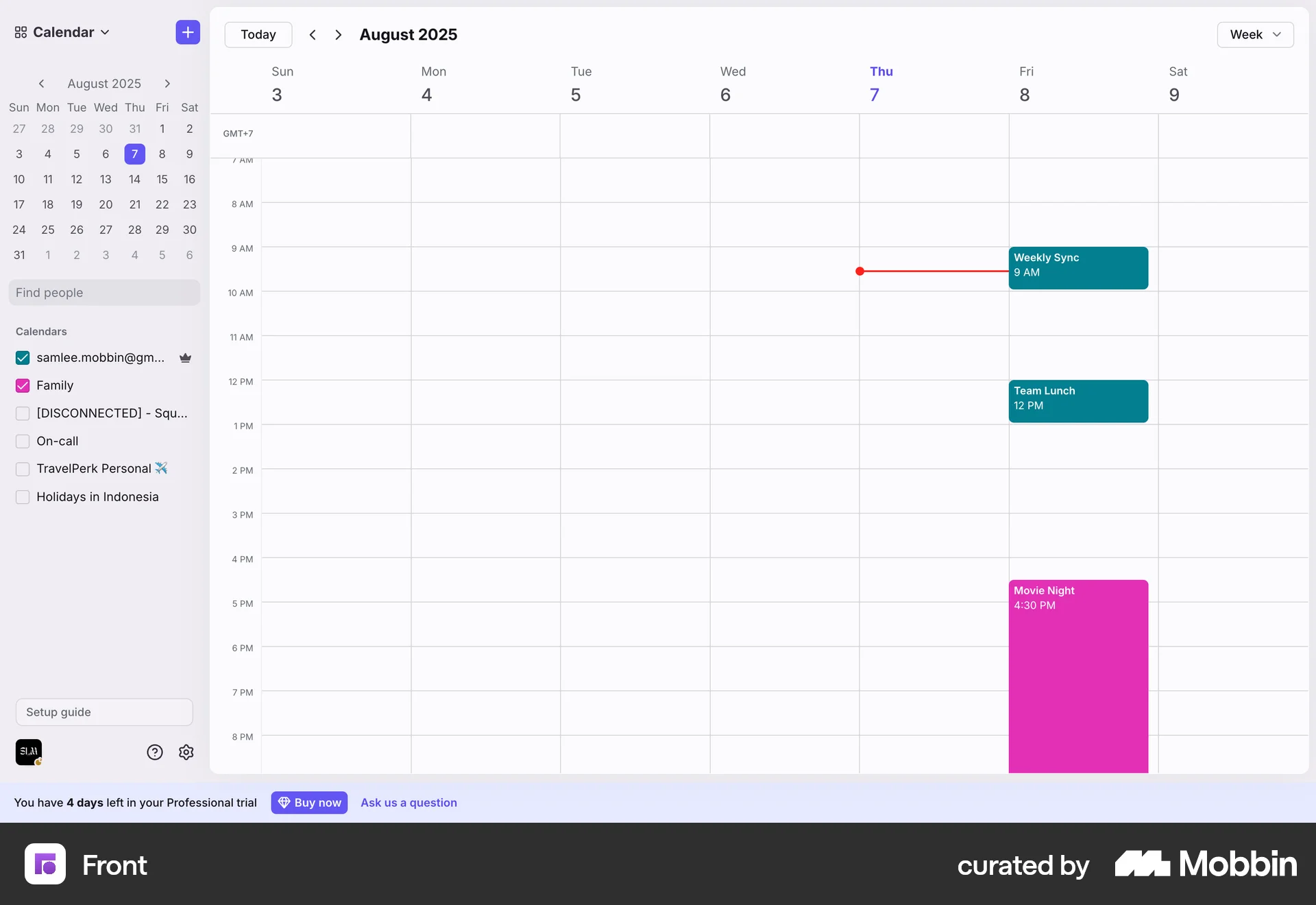
The user connects their Gmail account to import calendar events. The calendar view then displays the imported events.
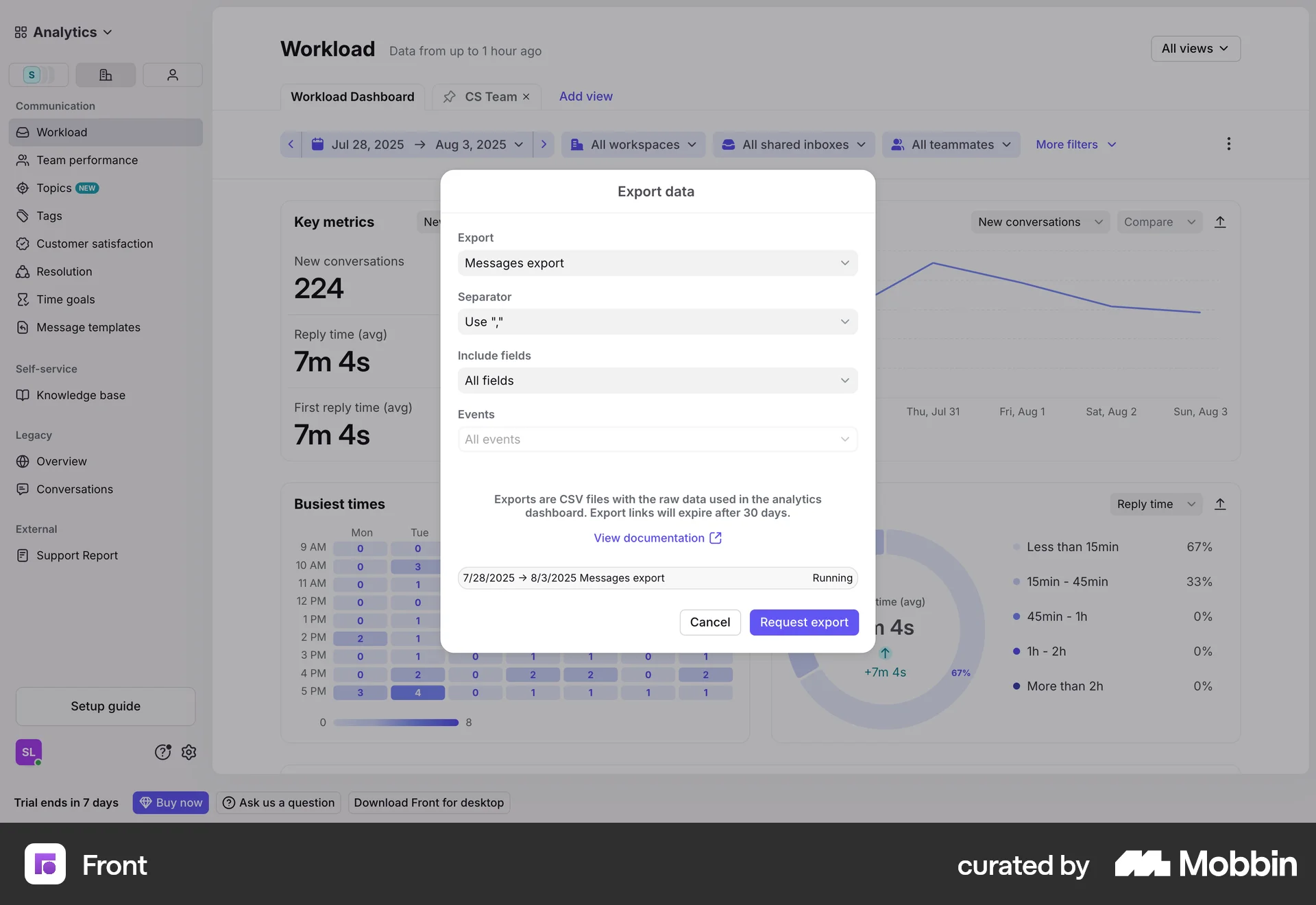
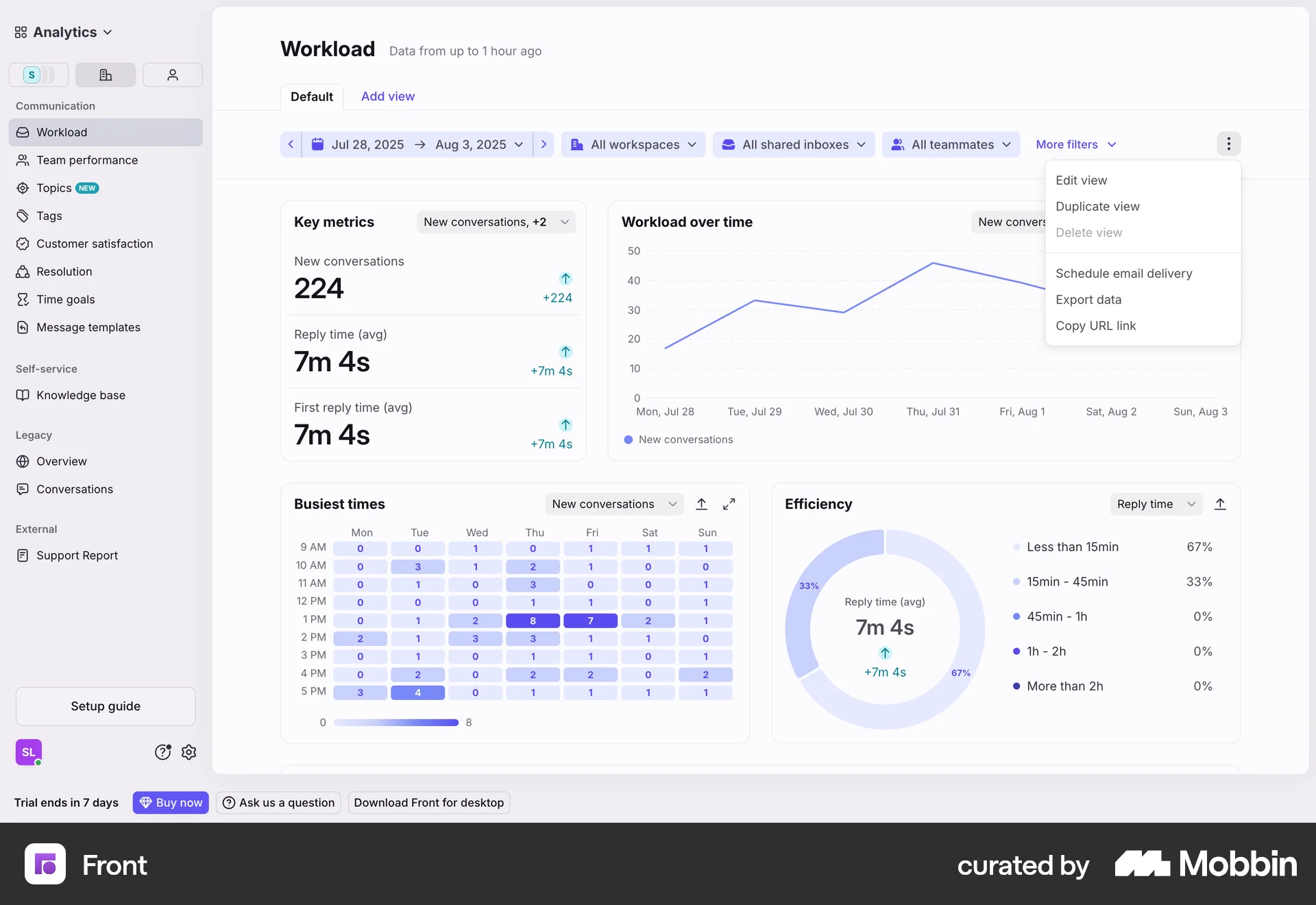
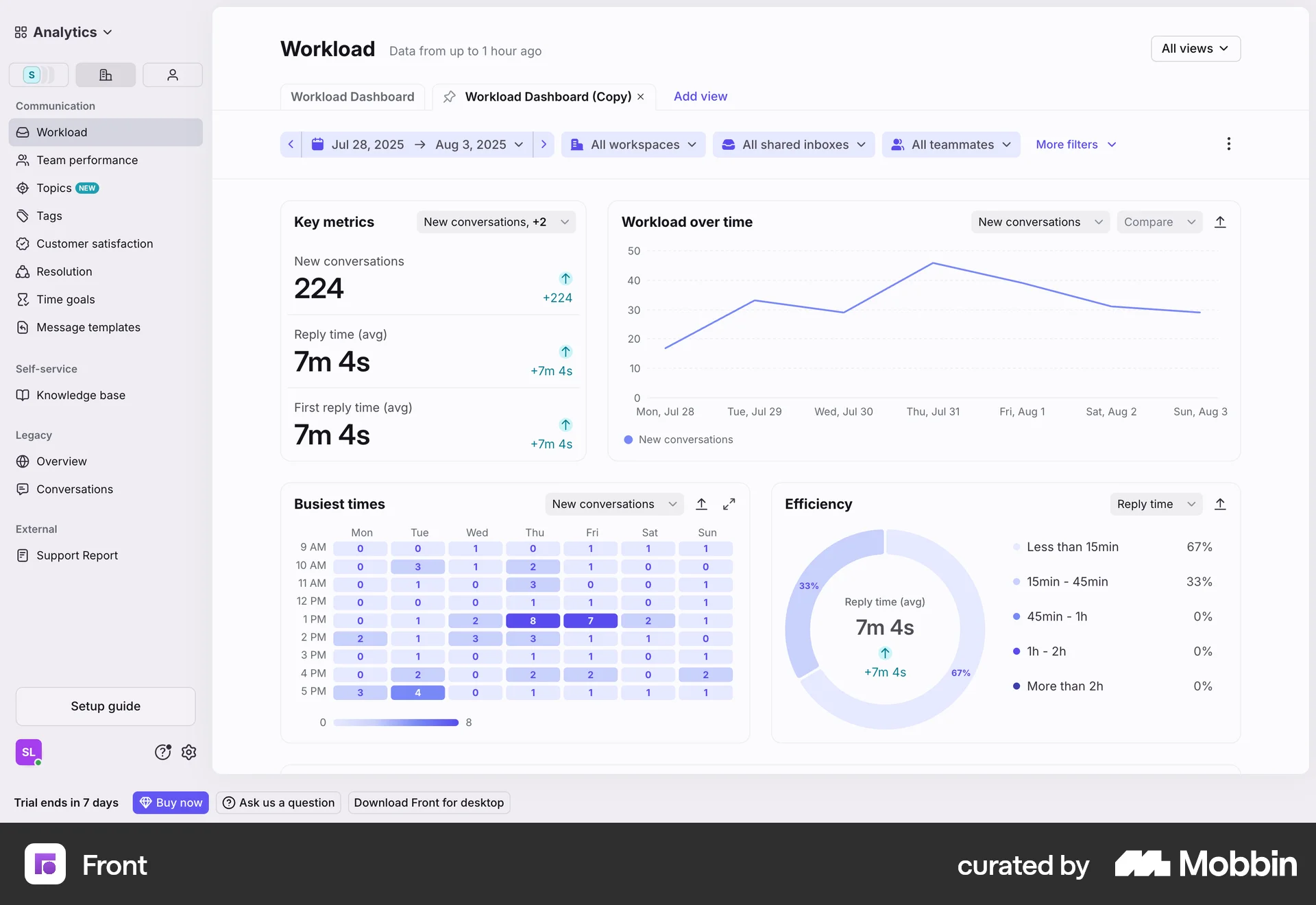
The user navigates to the workload dashboard and exports data. The export data modal shows the progress and completion of the export.
The user flow shows how to export contacts. It involves selecting contacts, generating the export, and downloading the exported file.

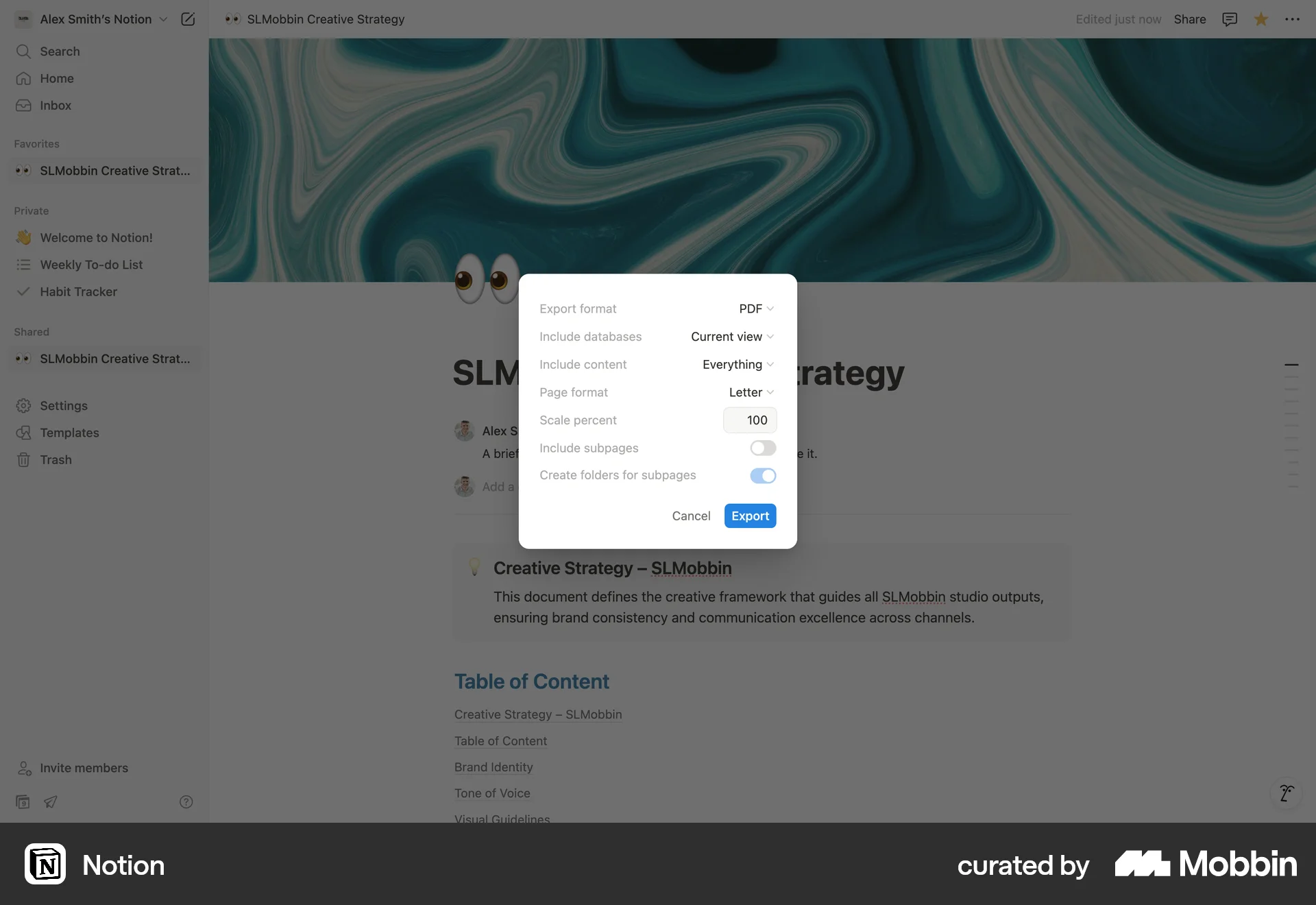
The user configures and initiates the export of a document. The flow involves opening the options panel, selecting export, configuring settings, and returning to the document view.
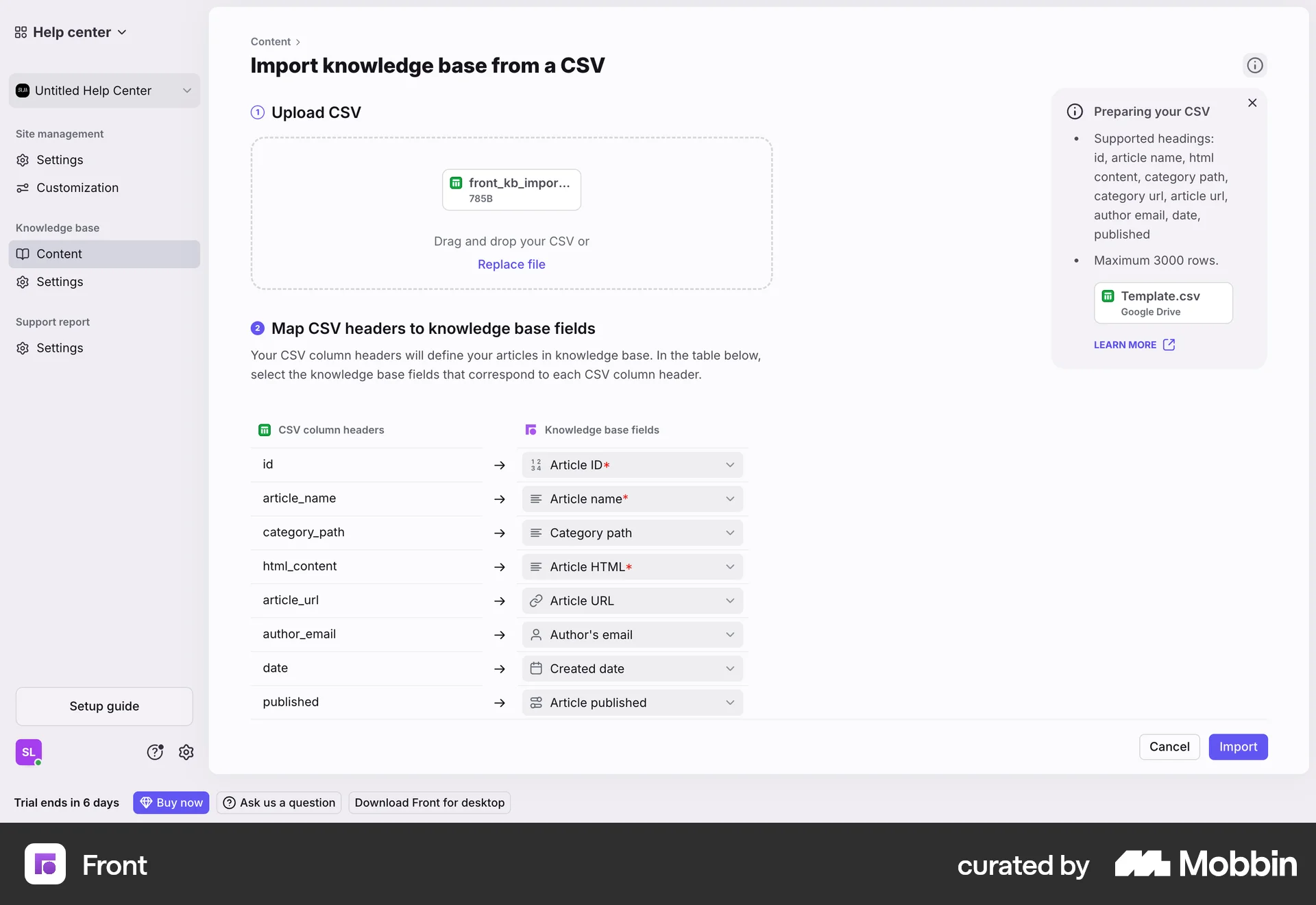
The user imports articles into the knowledge base by uploading a CSV file and mapping the headers. The imported content is then displayed on the content page.

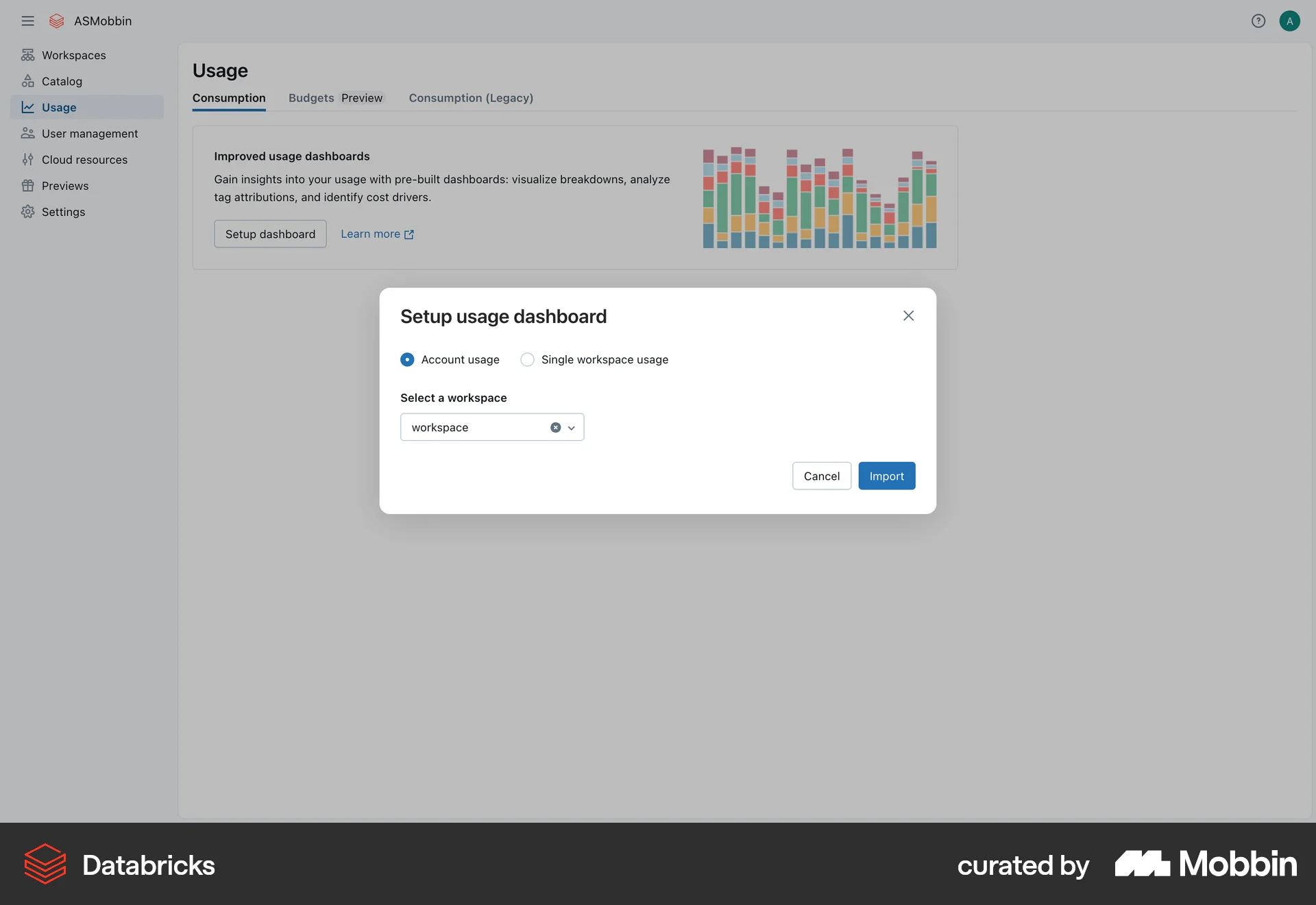
The user sets up a usage dashboard by selecting a workspace. A confirmation message appears with a link to the new dashboard.
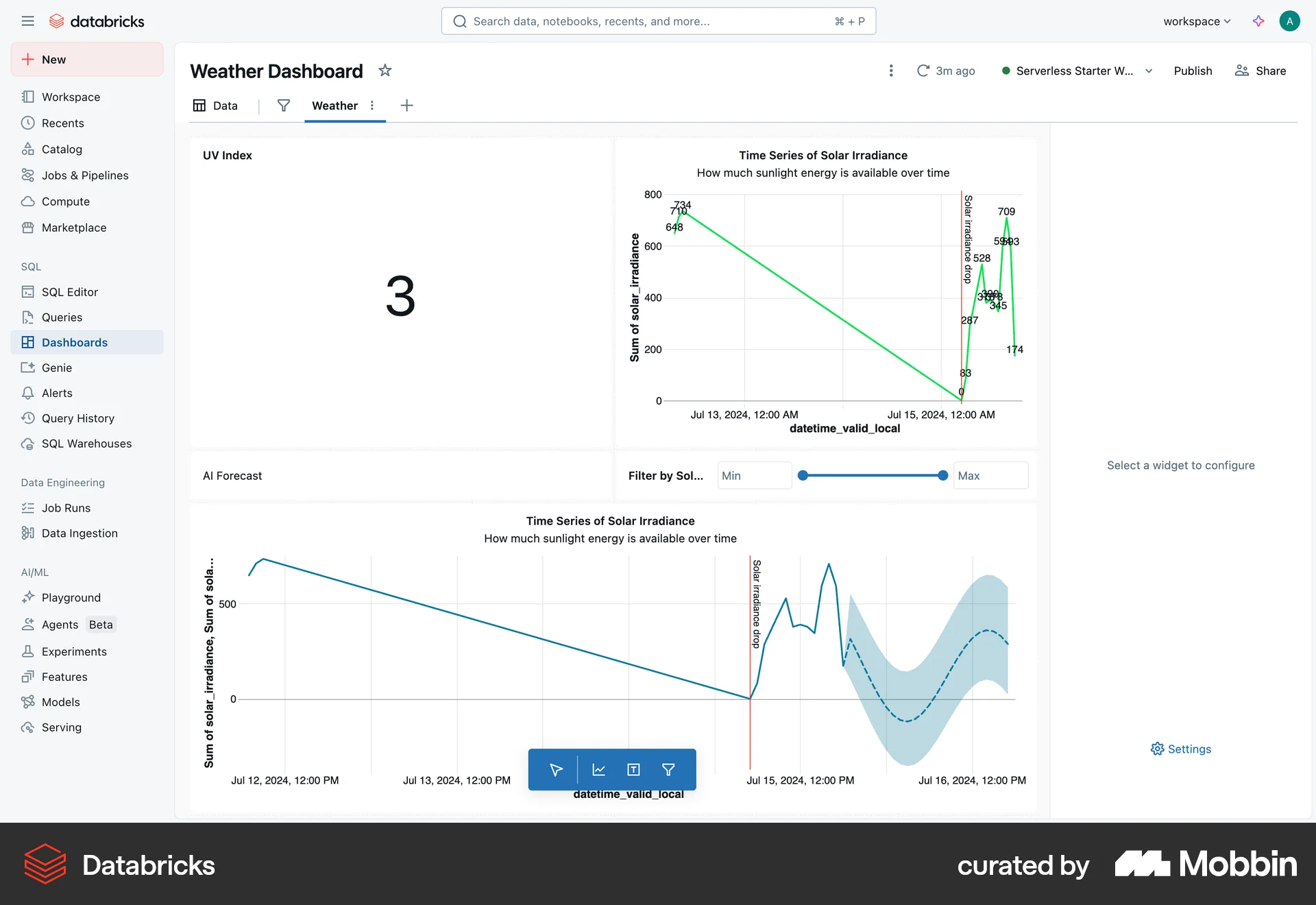
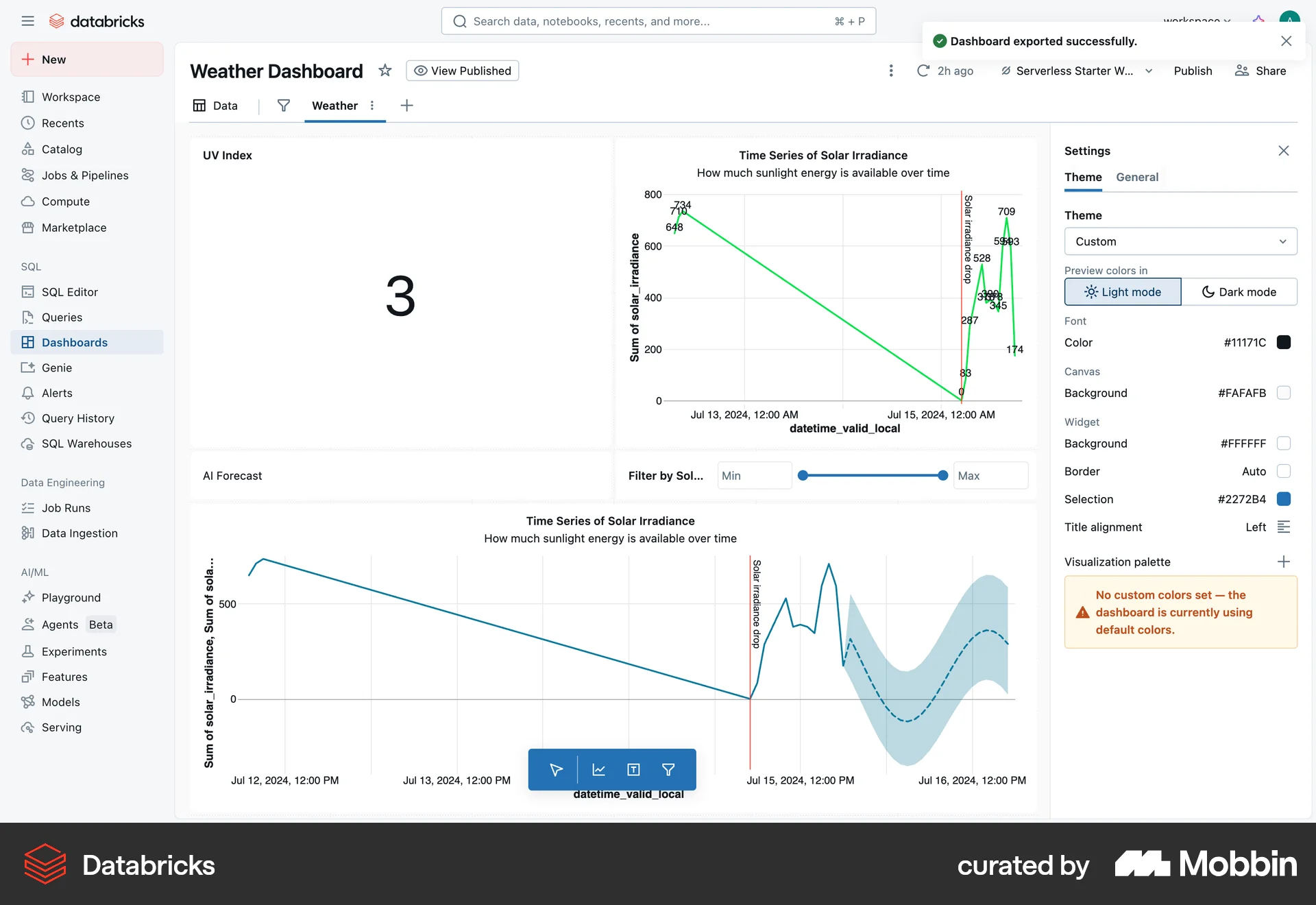
The user views a weather dashboard, exports it via a dropdown menu, and then accesses the settings panel to customize the dashboard's appearance.

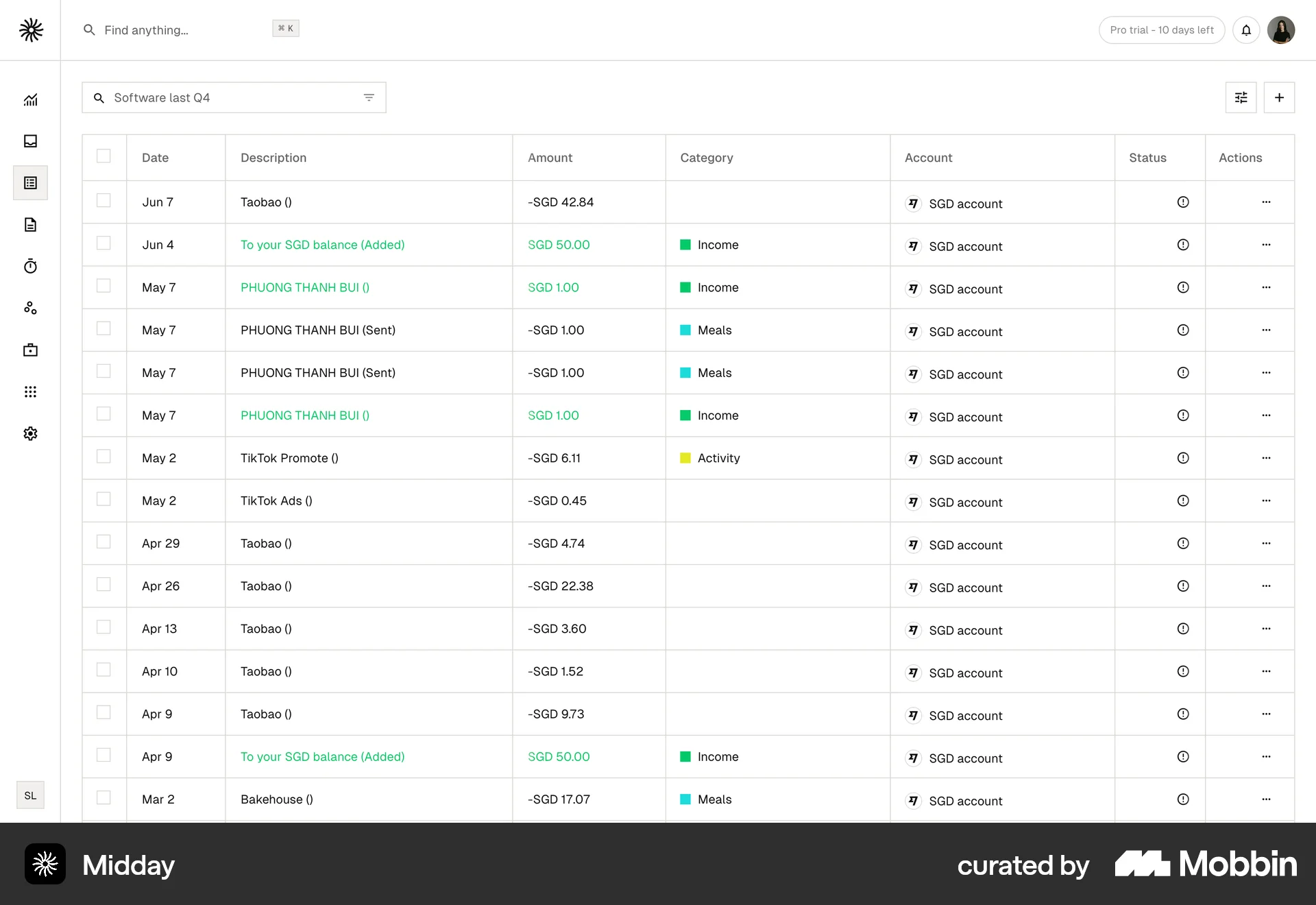
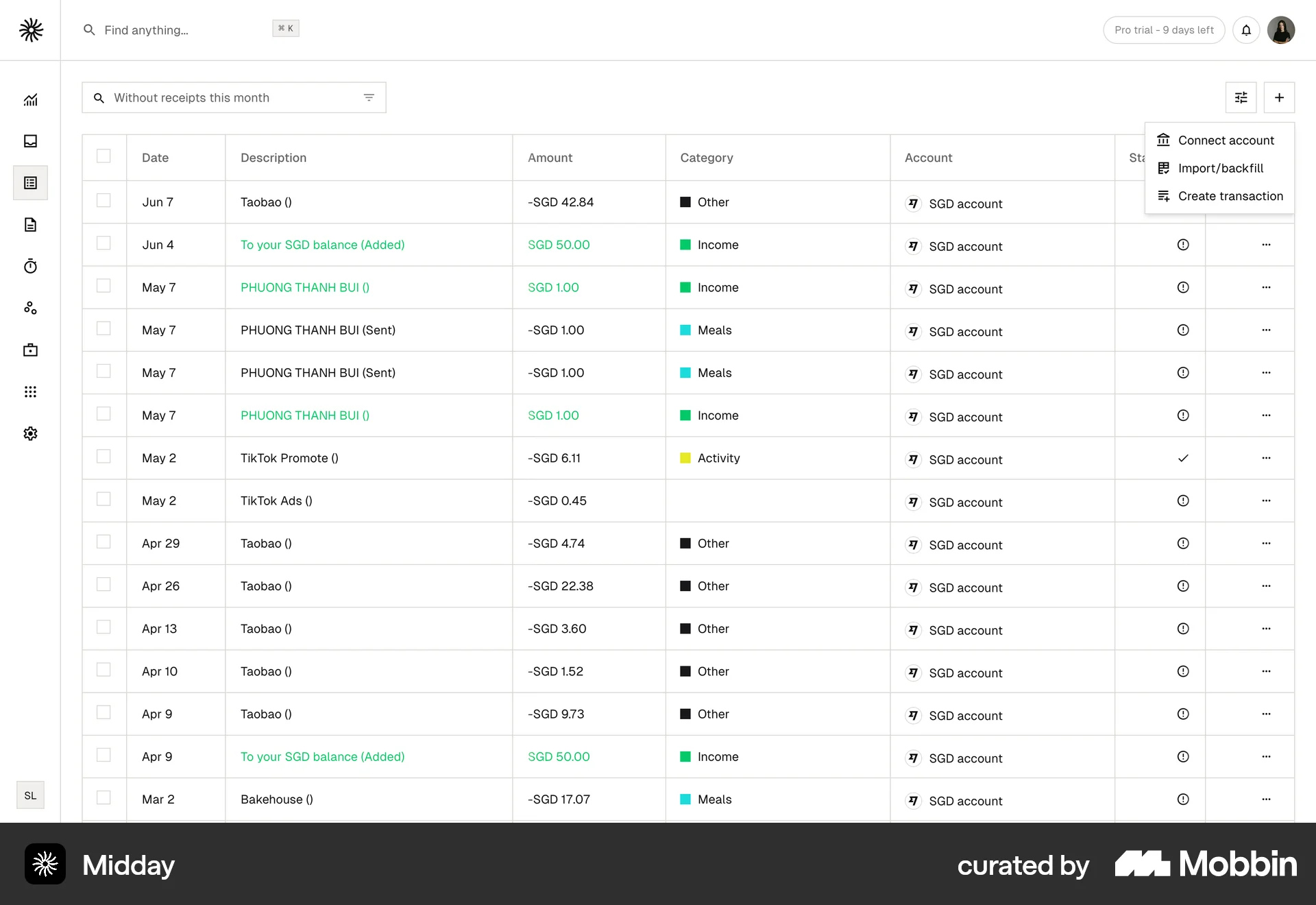
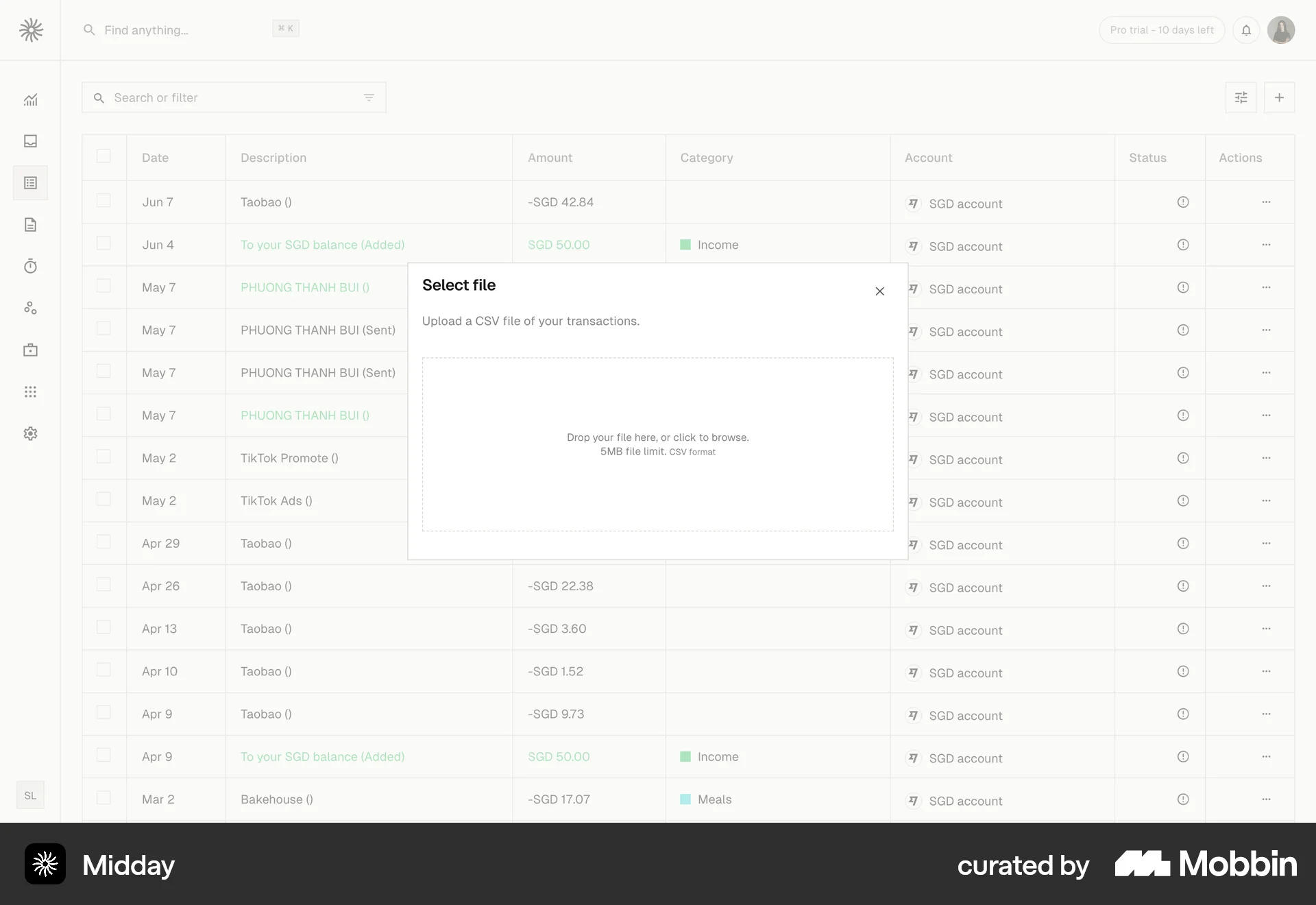
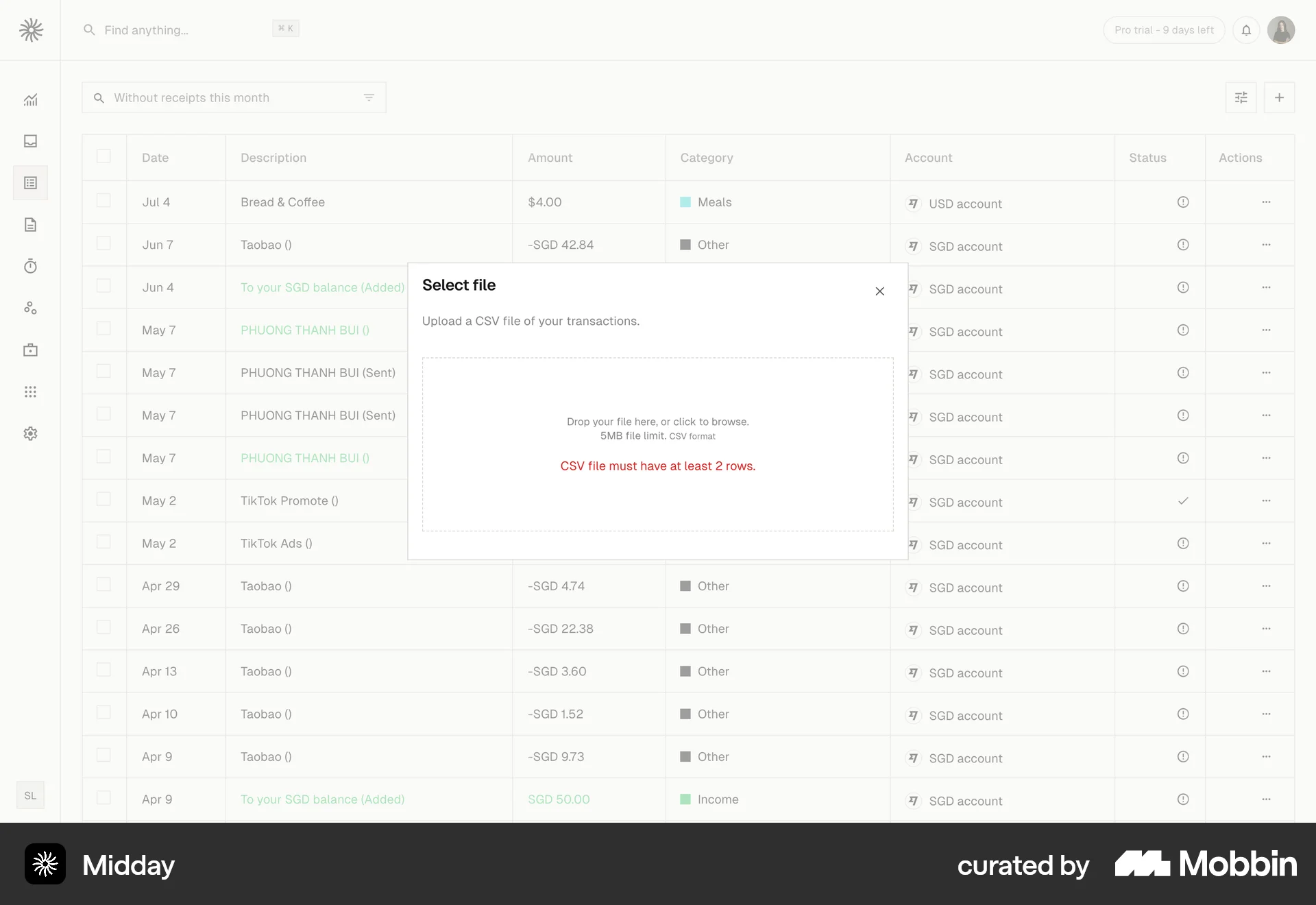
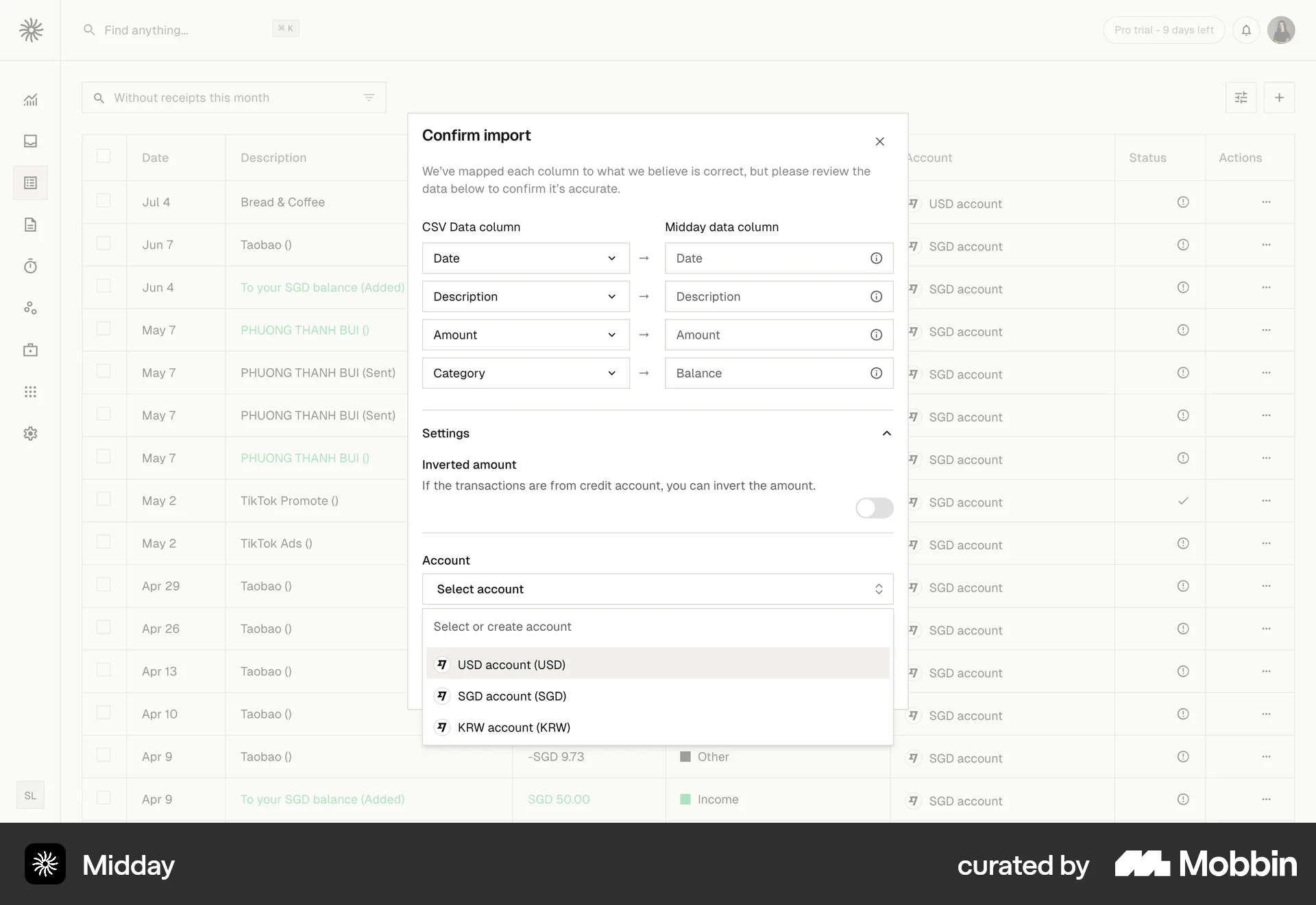
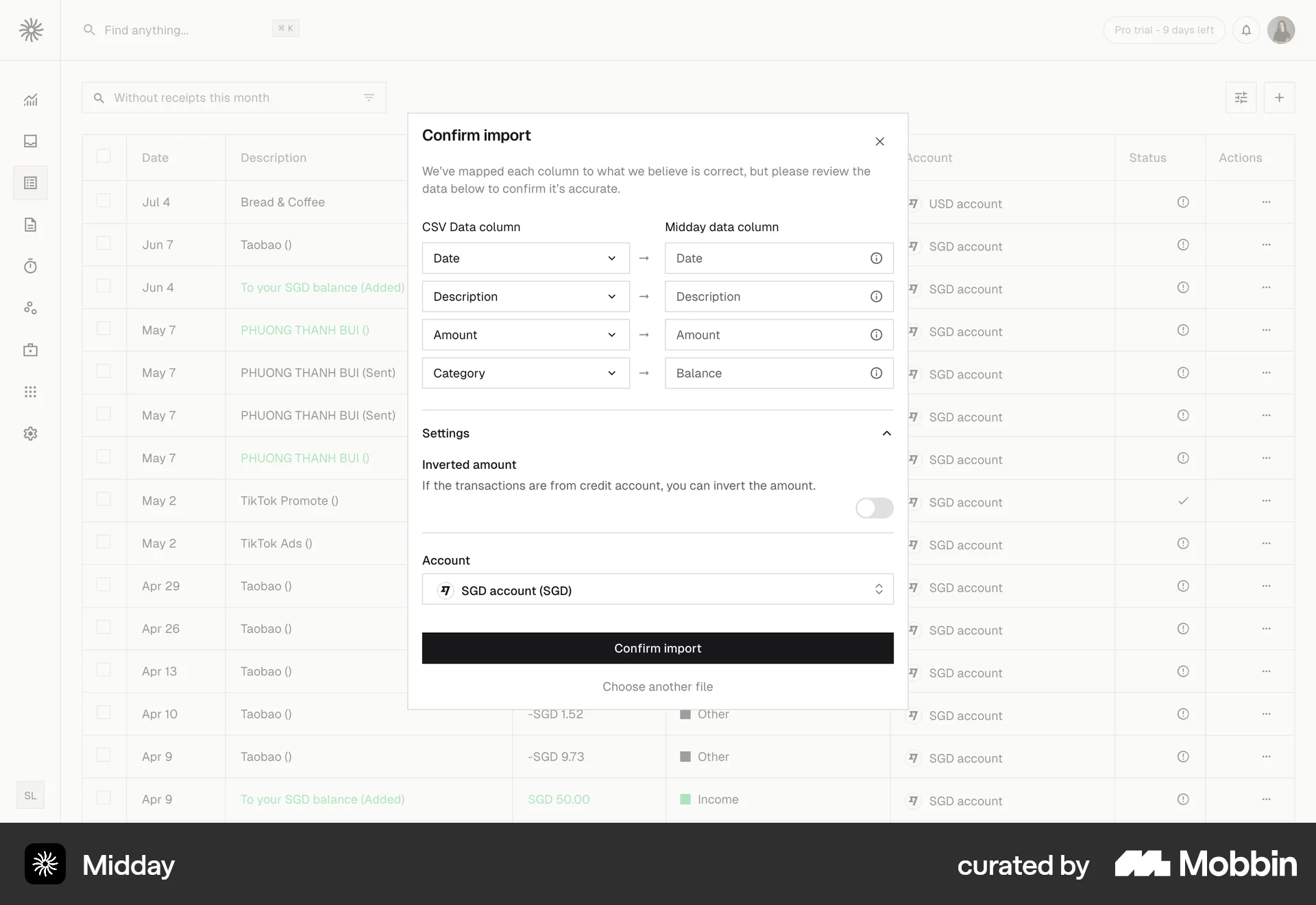
The user imports transactions from a CSV file by mapping columns and selecting an account. A success message confirms the import.

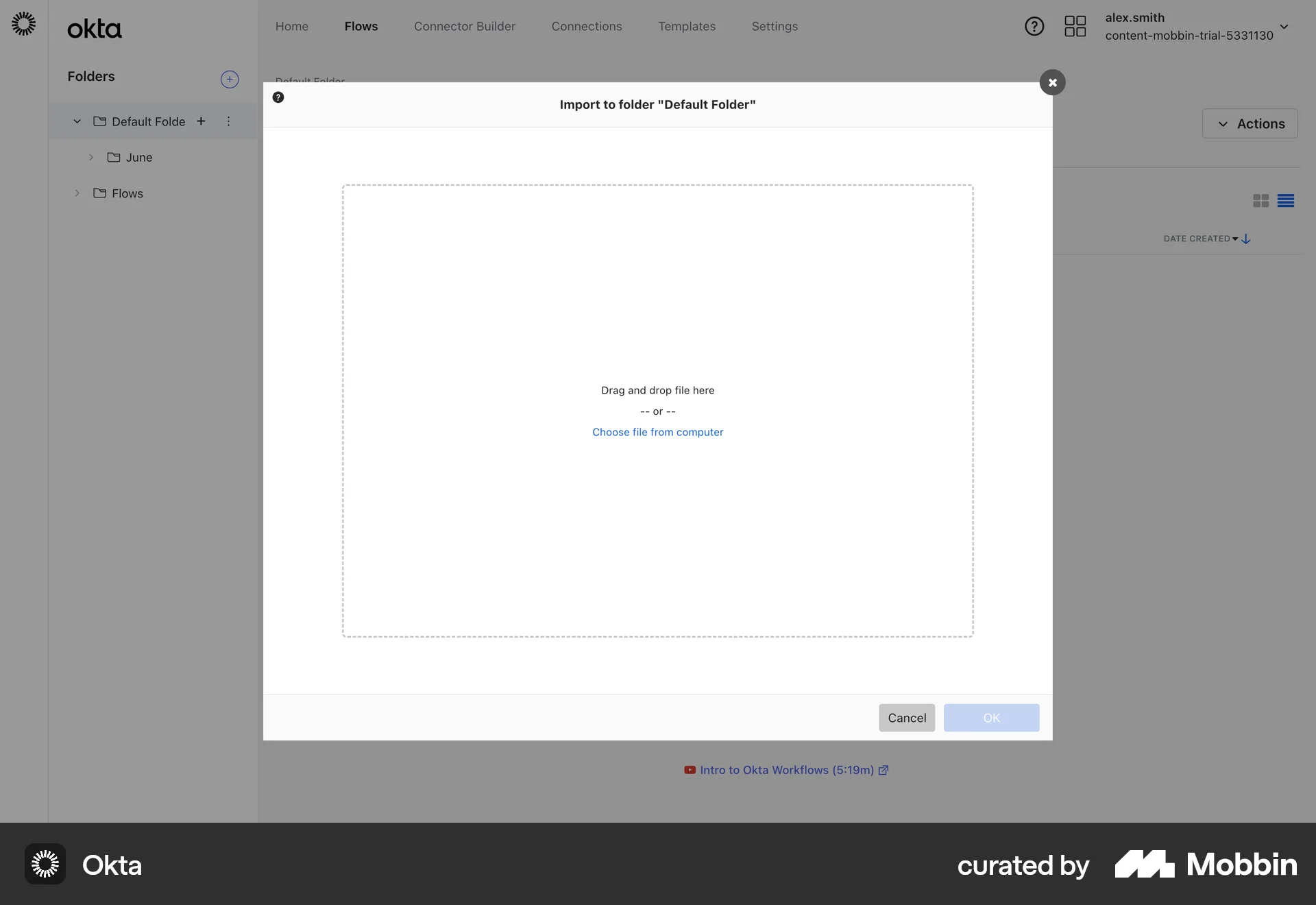
The user imports flows into a folder. The flow goes from an empty folder, to importing a file, to a folder containing the imported flows.
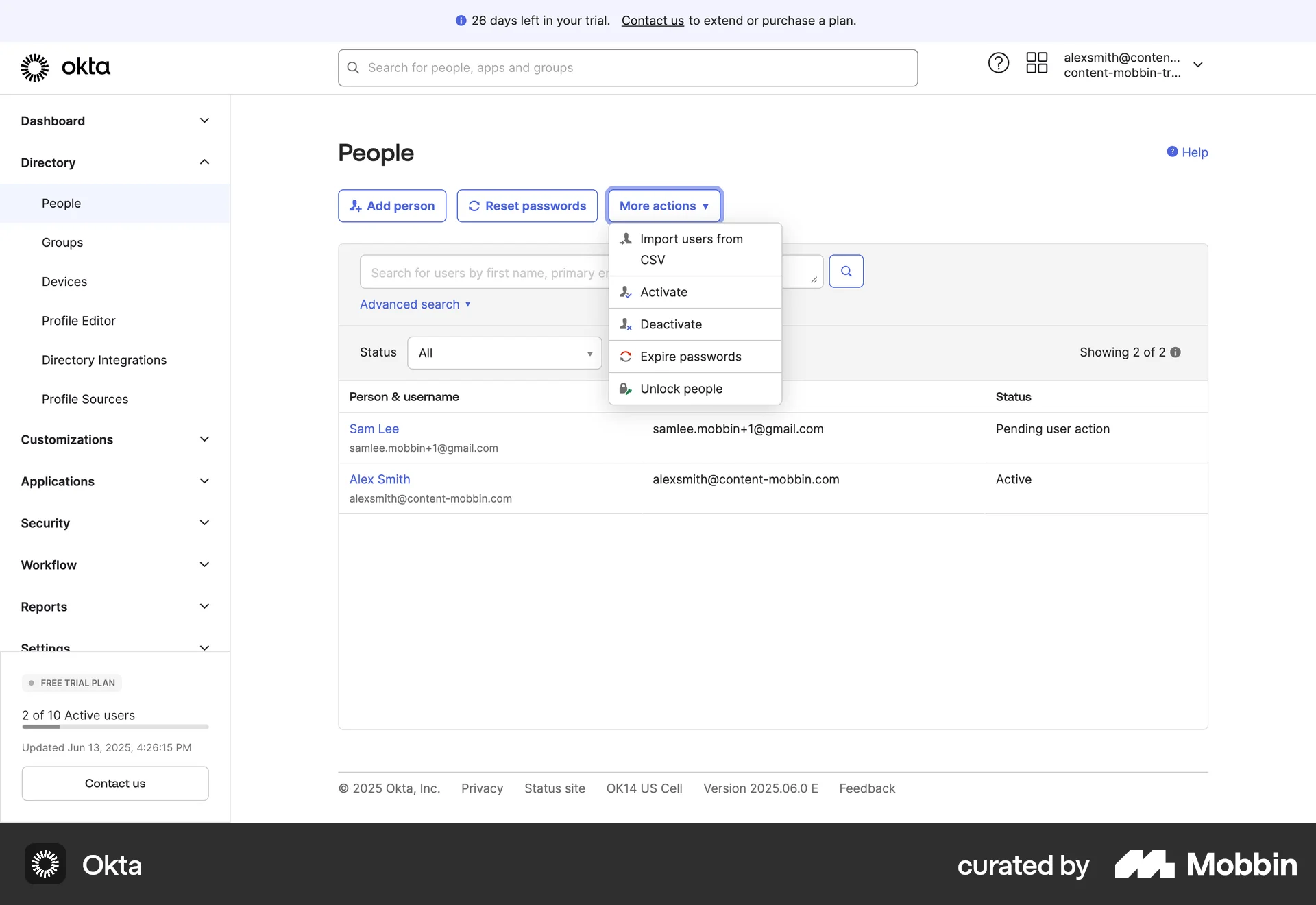
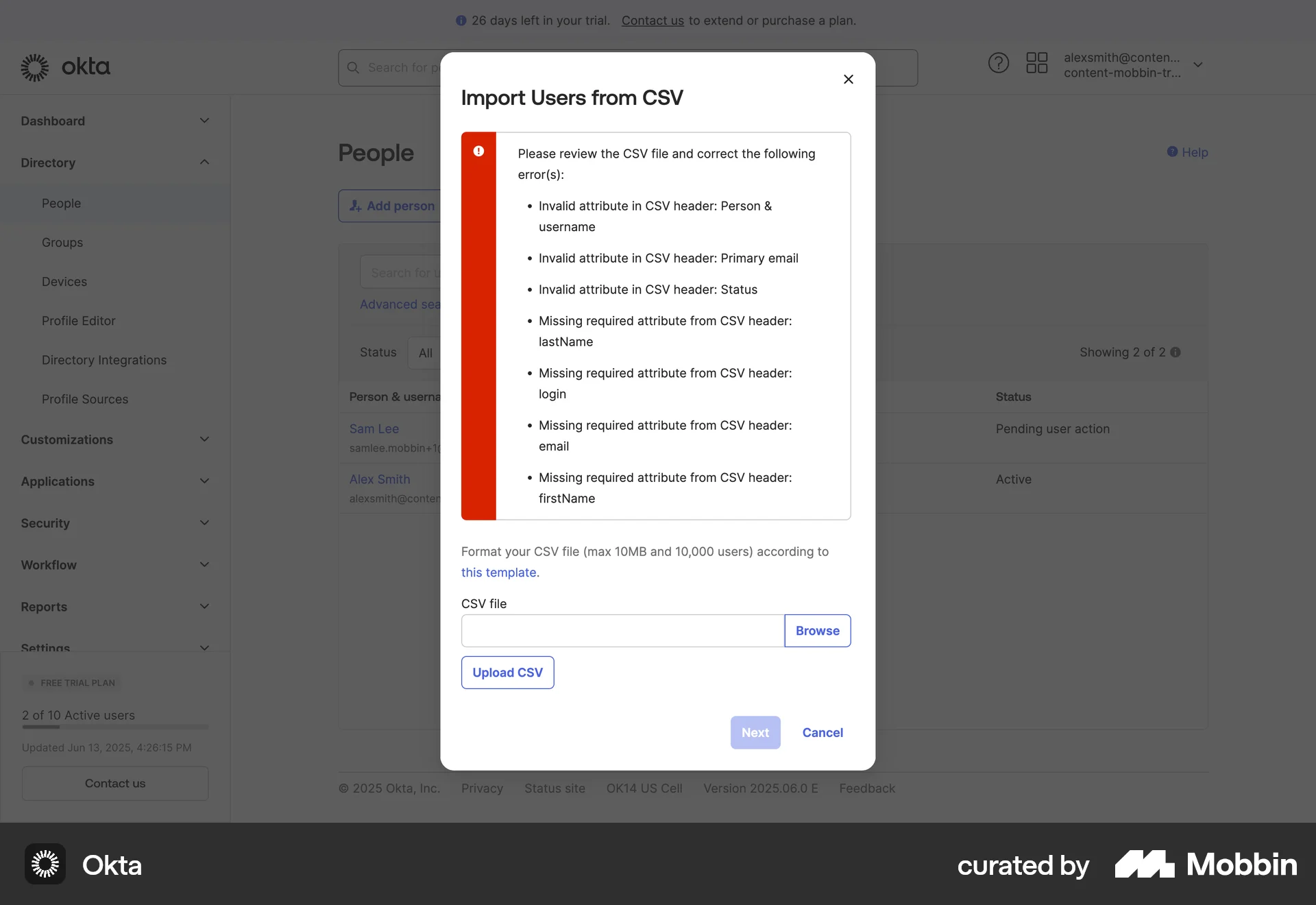
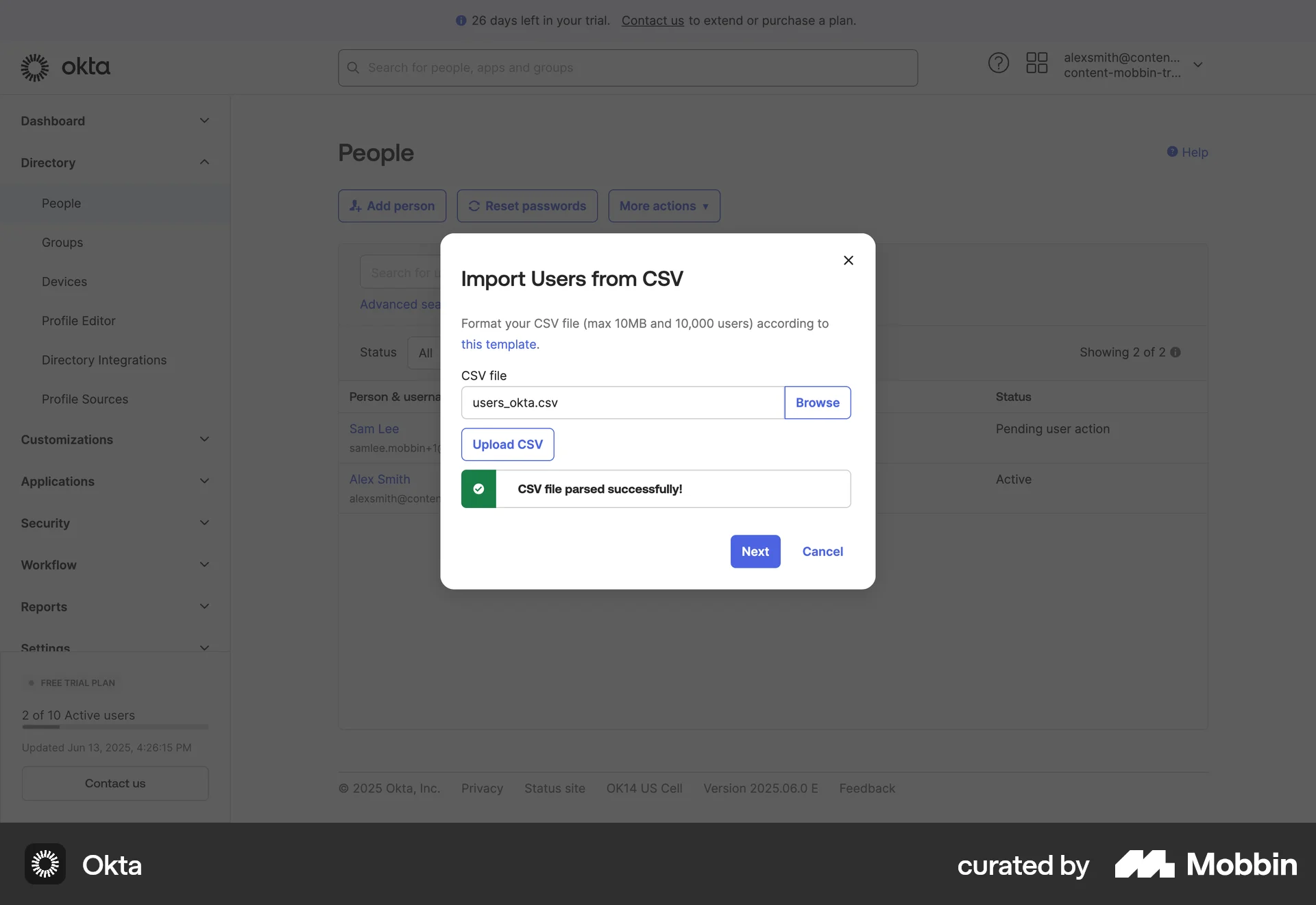
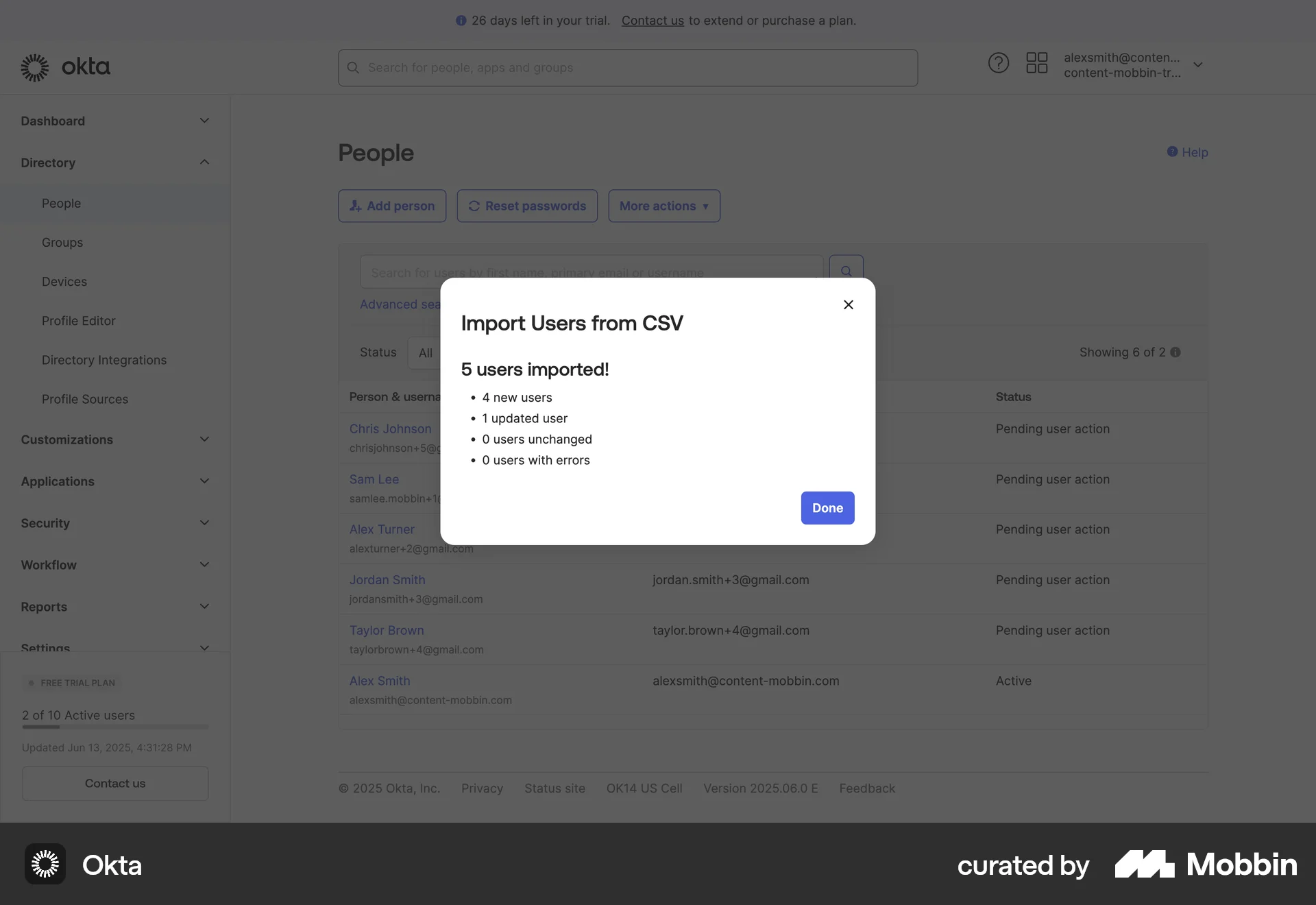
The user imports users from a CSV file, handling errors and configuring options. The updated user list is then displayed.
2065 Flows
1222 Flows
9184 Flows
553 Flows
4901 Flows
314 Flows