Enabling an appon Front
Front
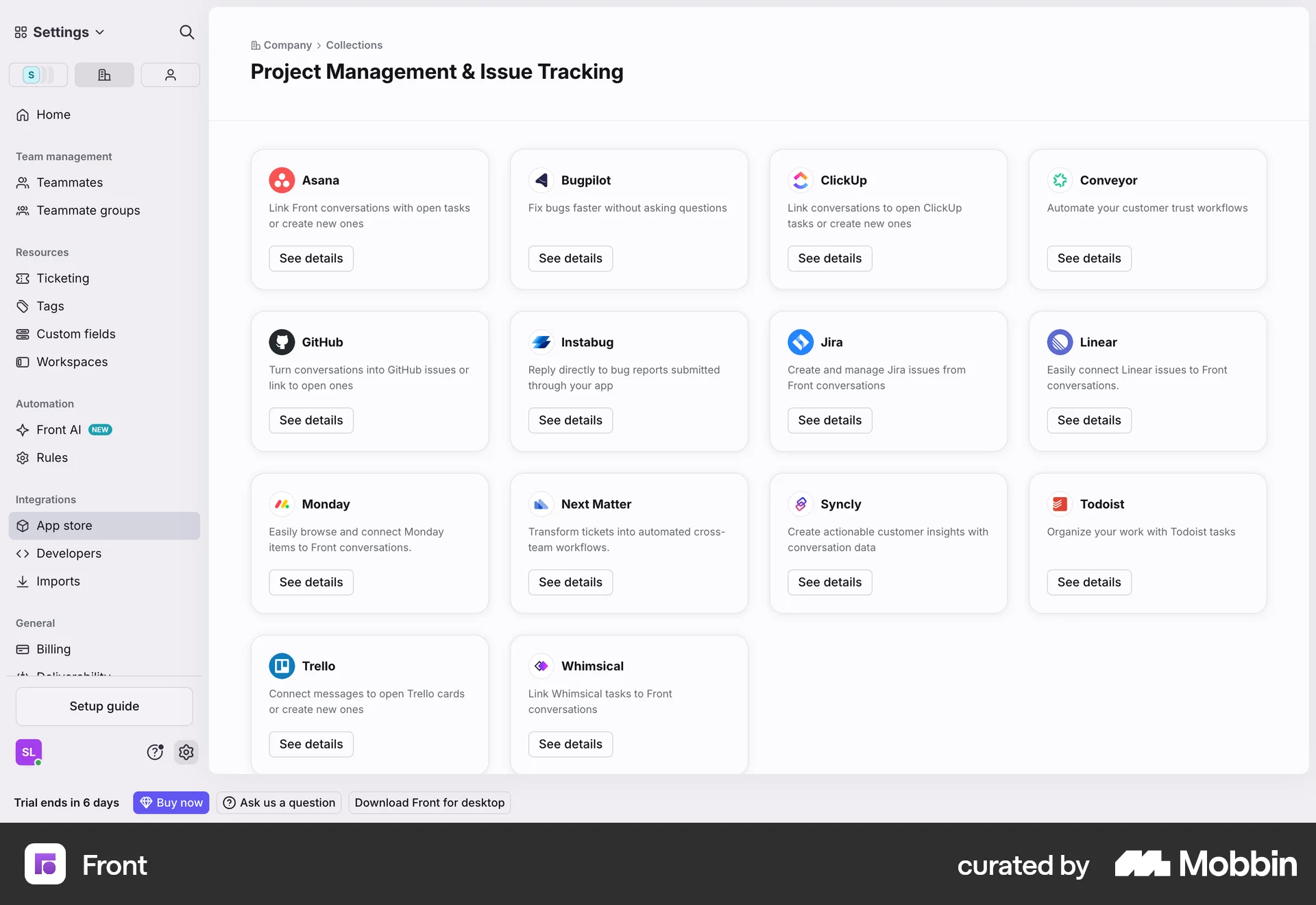
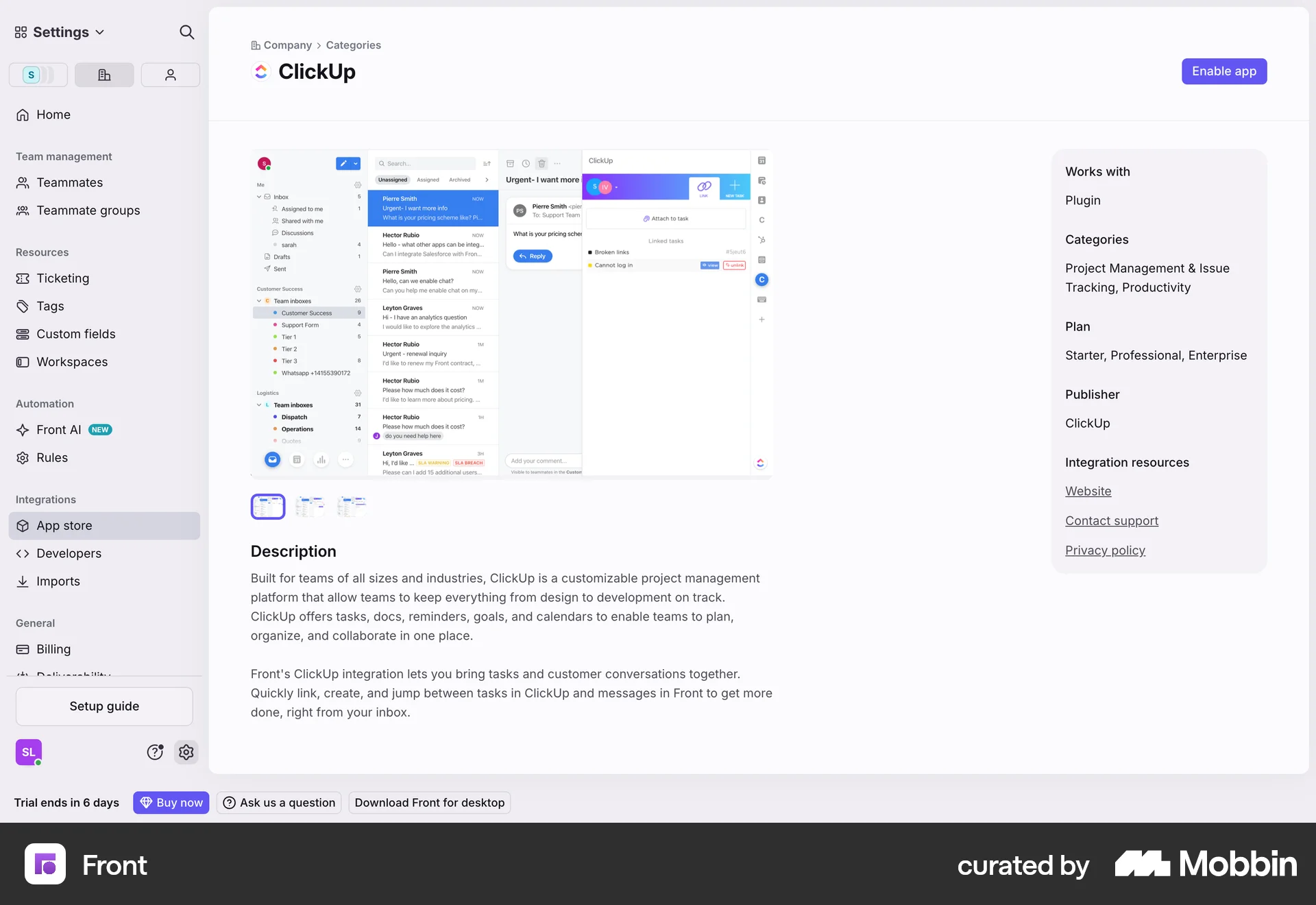
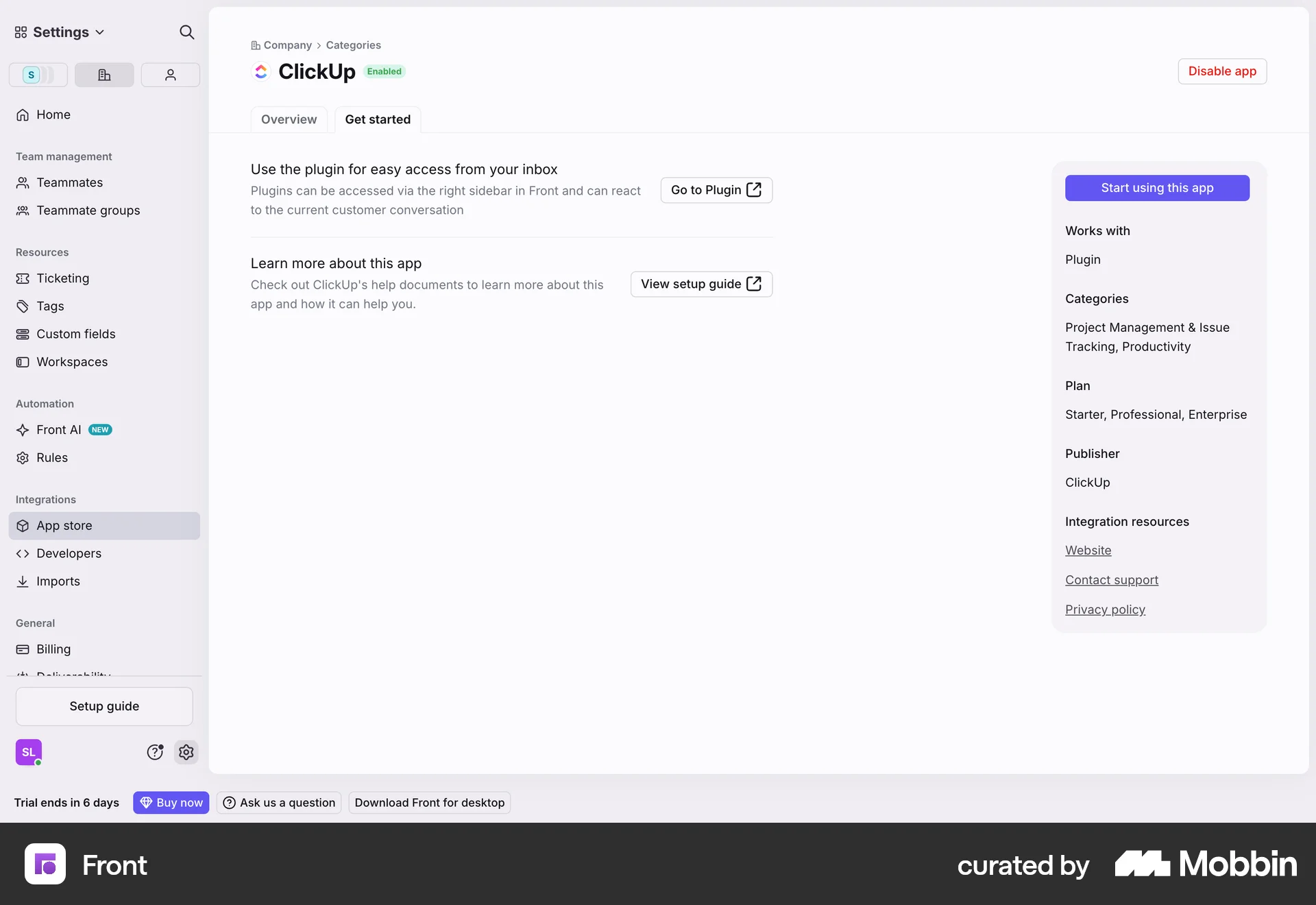
The user browses the app store, selects the ClickUp app, and enables it. The user is then presented with the app's settings.
Discover best website designs for Enabling & Disabling flows. Get inspired by the best apps in the world.
The user browses the app store, selects the ClickUp app, and enables it. The user is then presented with the app's settings.

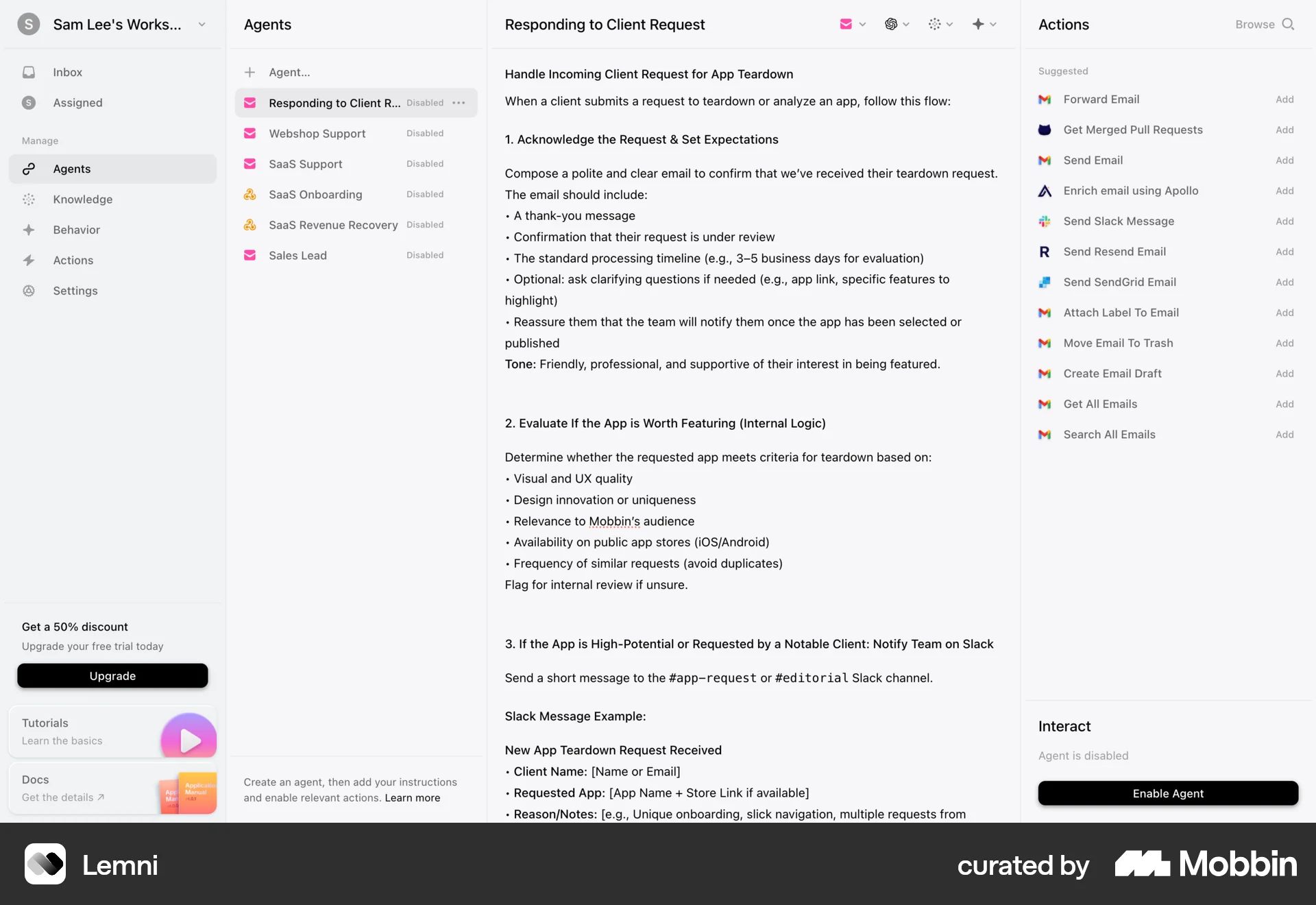
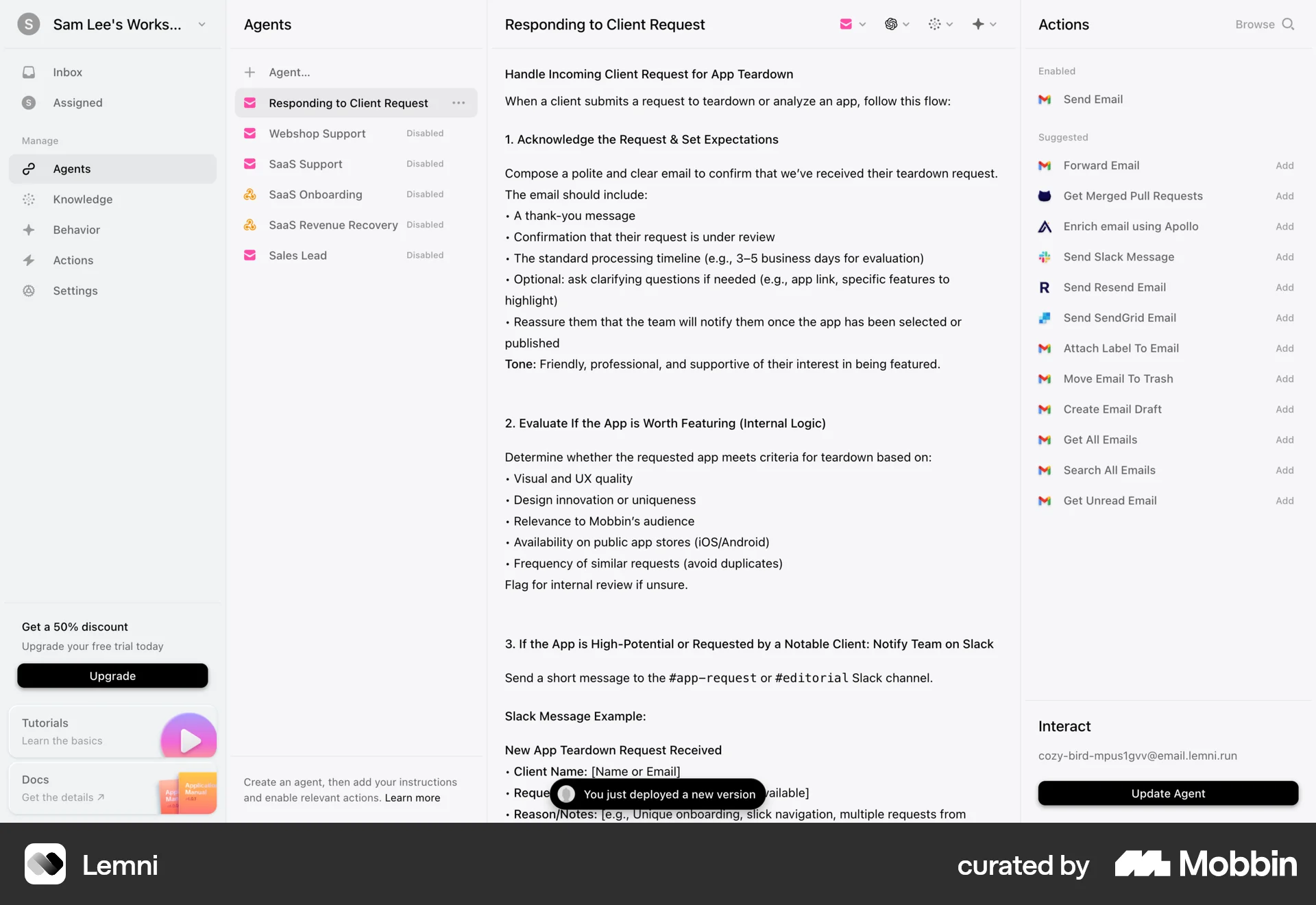
The user views guidelines for handling client requests and then enables an agent. The agent can then be updated.
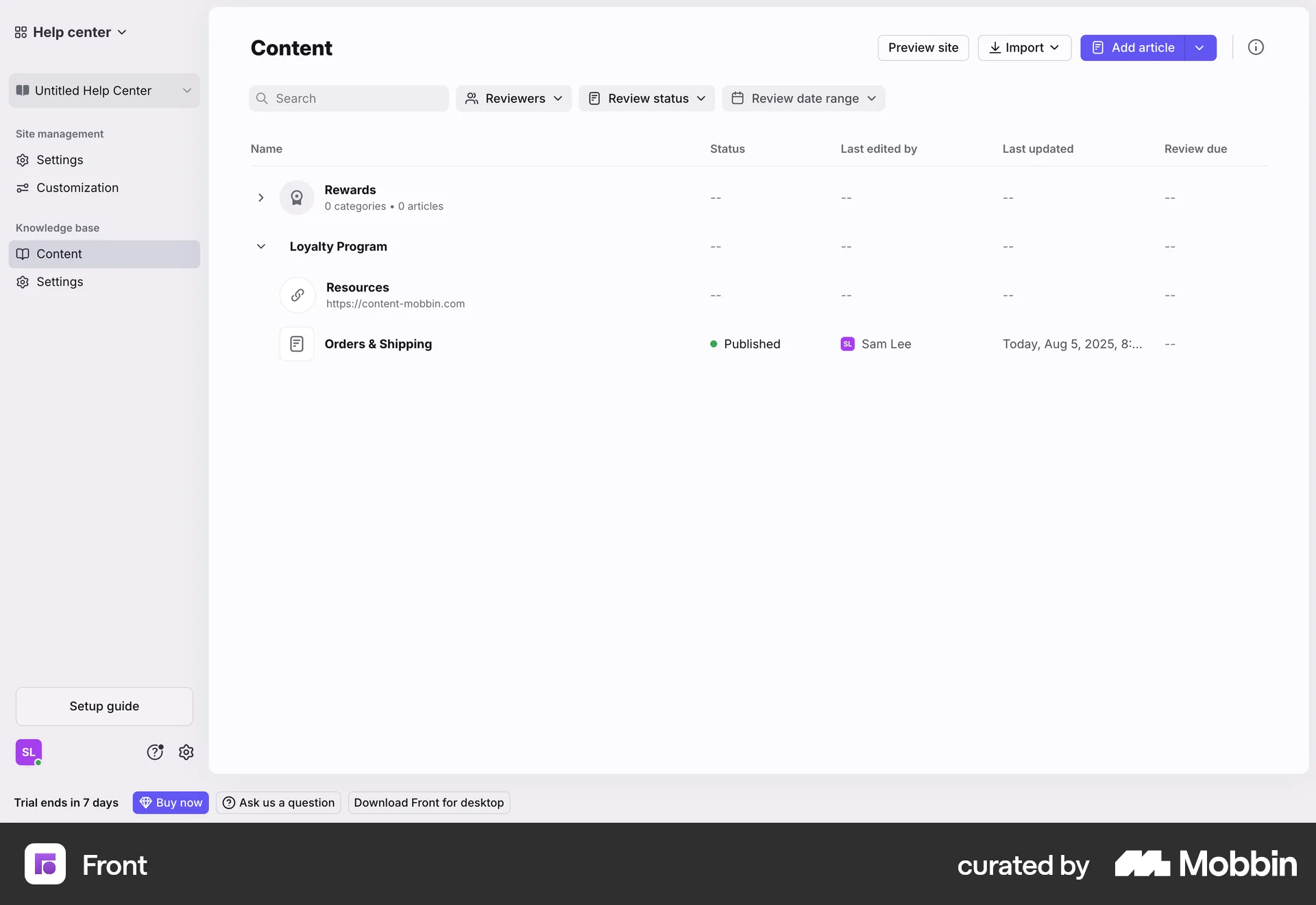
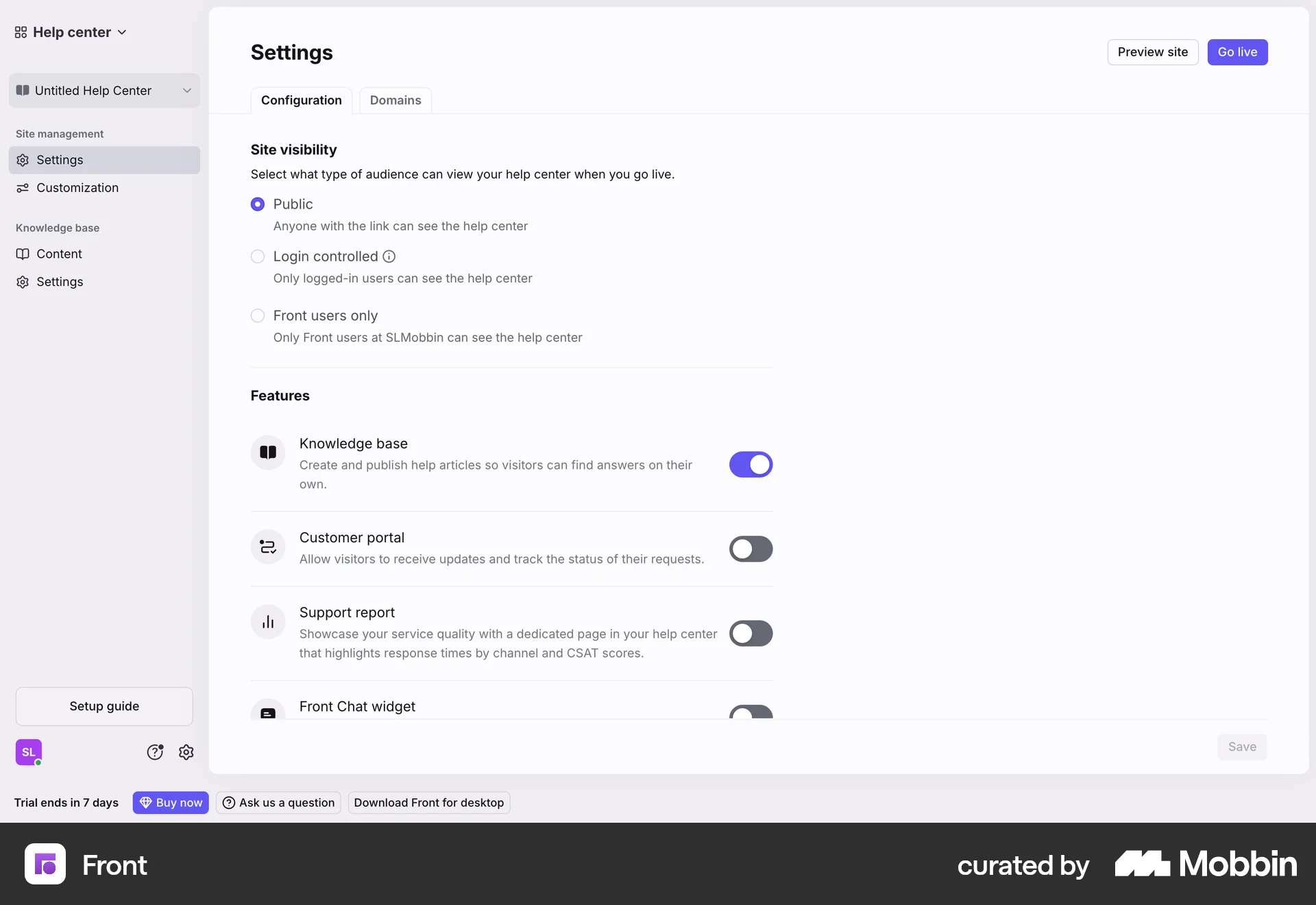
The user navigates to the settings and enables the 'Support report' feature. A confirmation message appears after saving the changes.
The user navigates to the settings to enable article reactions. After saving, a confirmation message appears.

The user navigates to the details tab to enable data quality monitoring for a selected dataset. The flow demonstrates how to turn on data quality monitoring.
The user navigates to the authentication settings and enables multi-factor authentication. A success notification confirms the action.

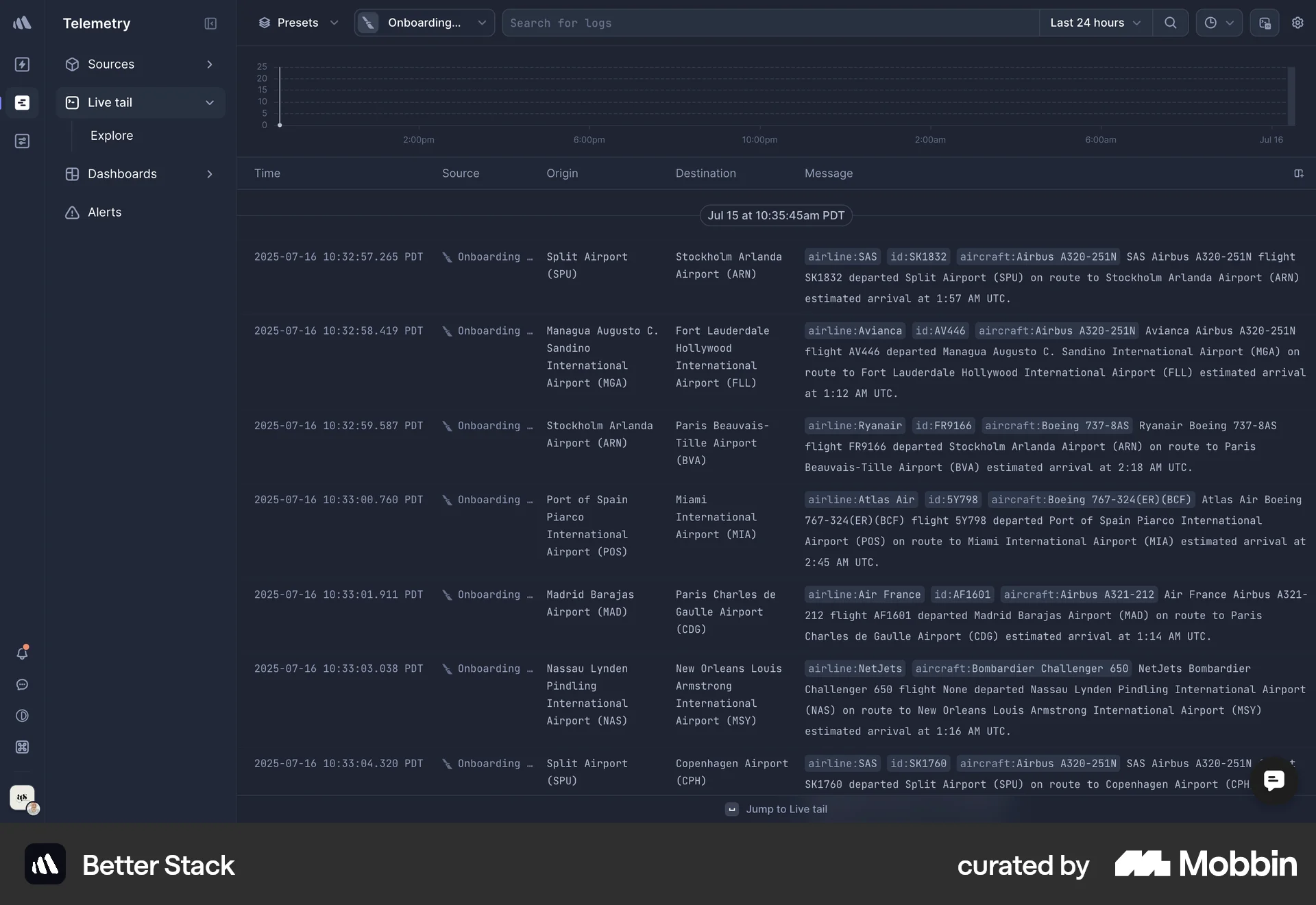
The user views a table of logs, opens a configuration menu, and disables word wrap. The log messages are then displayed without wrapping.

The user flow demonstrates activating an automation. The user changes the status from inactive to active through a dropdown menu.

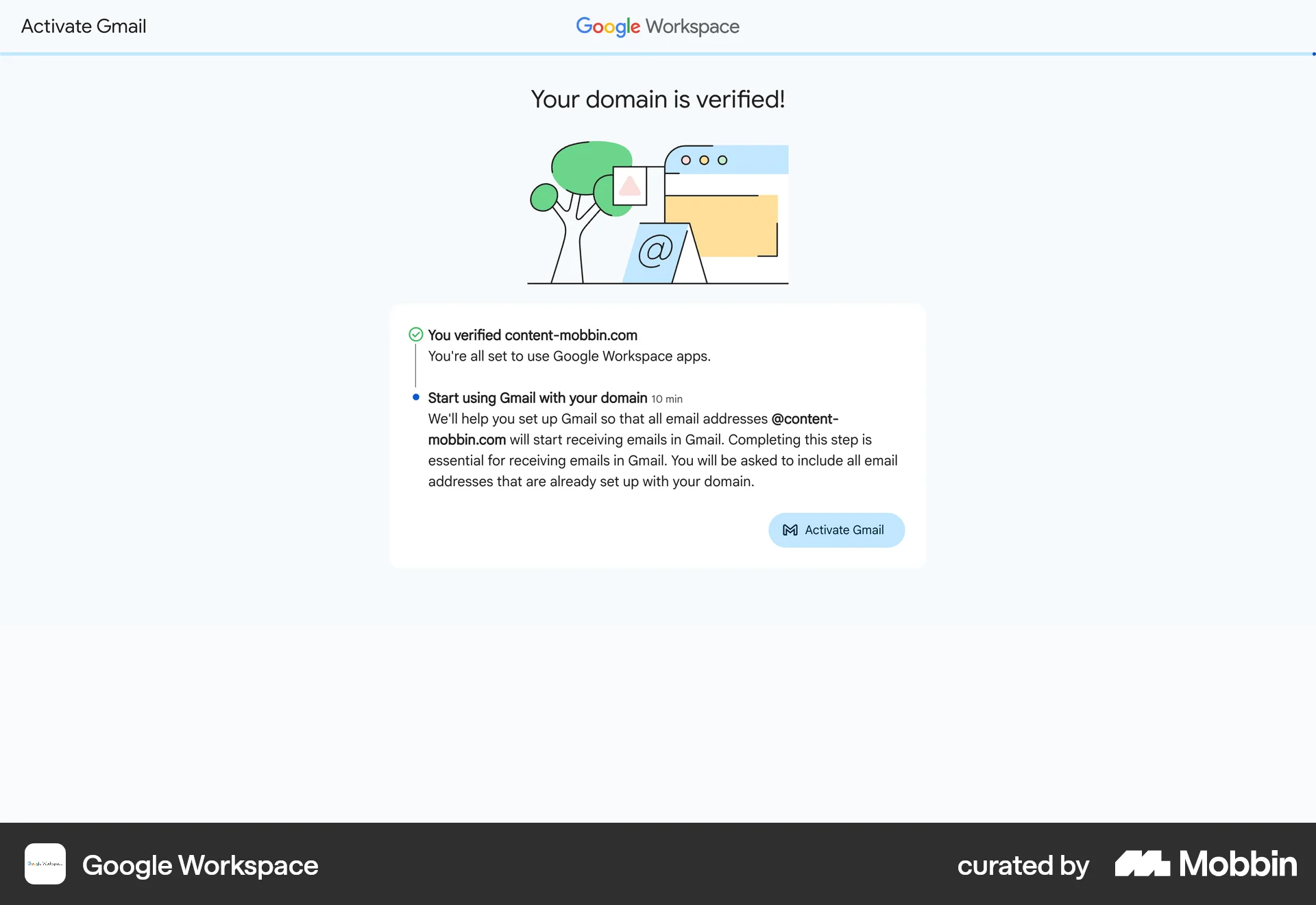
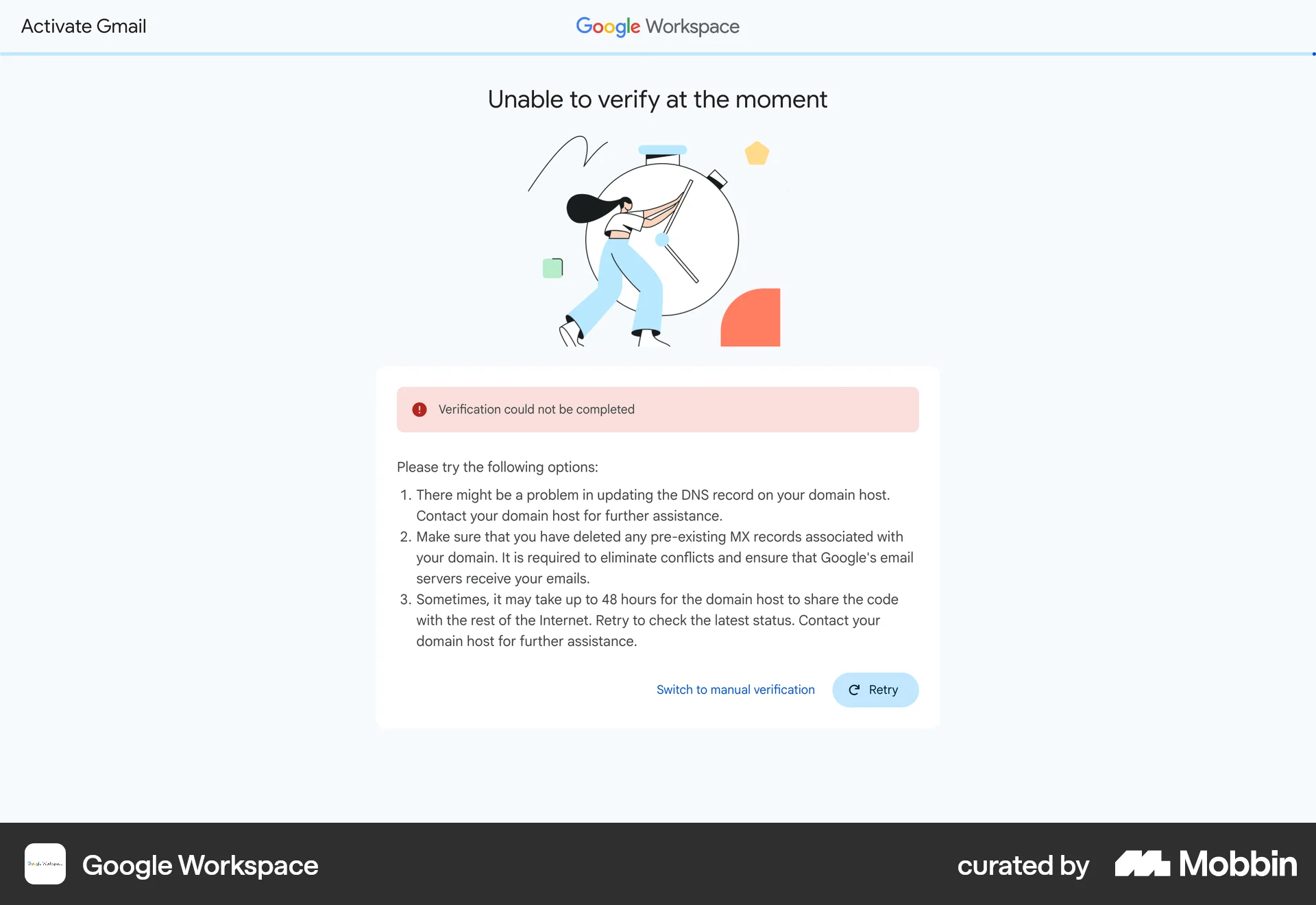
The user flow guides the user through activating Gmail with their domain, including domain verification and DNS configuration. Despite an initial verification failure, the process ultimately succeeds.
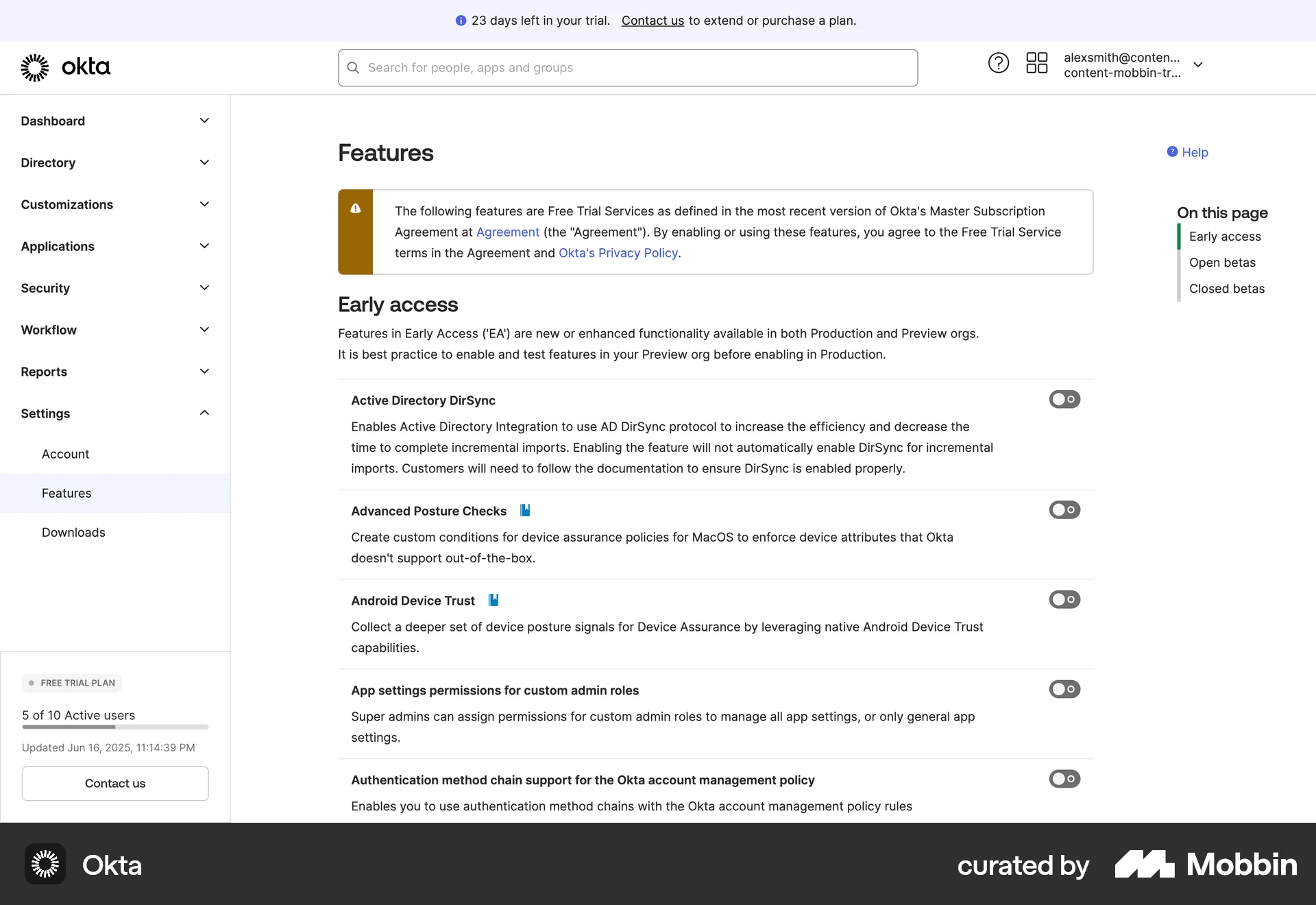
The user enables features on the "Features" page. Success messages confirm the features are enabled.

The user navigates to the email auto-reply settings and enables the feature. A confirmation message appears, indicating the changes were saved.

The user flow guides the user to enable online booking for Square Appointments. It showcases the steps to set up and configure the online booking channels.
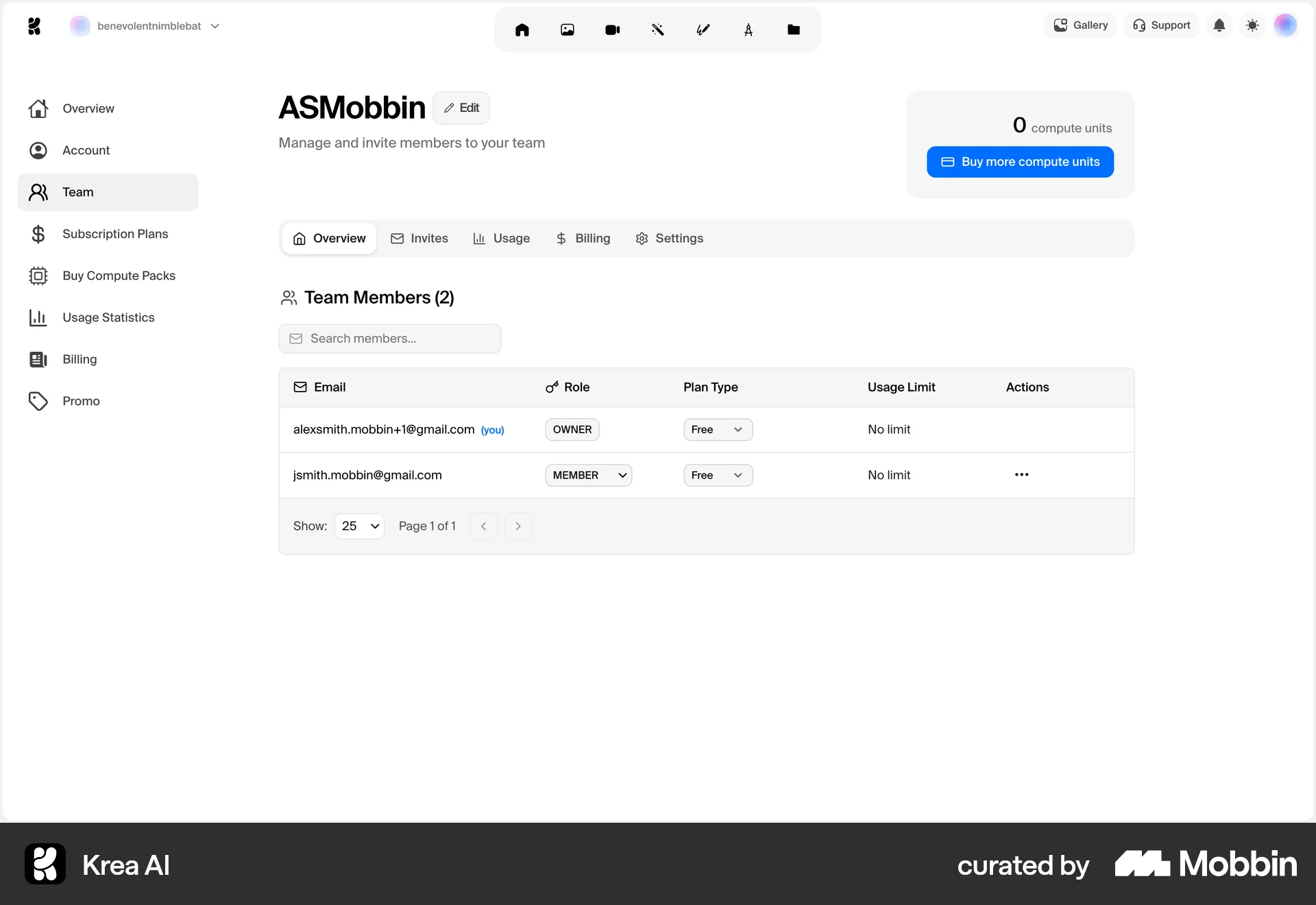
682 Flows
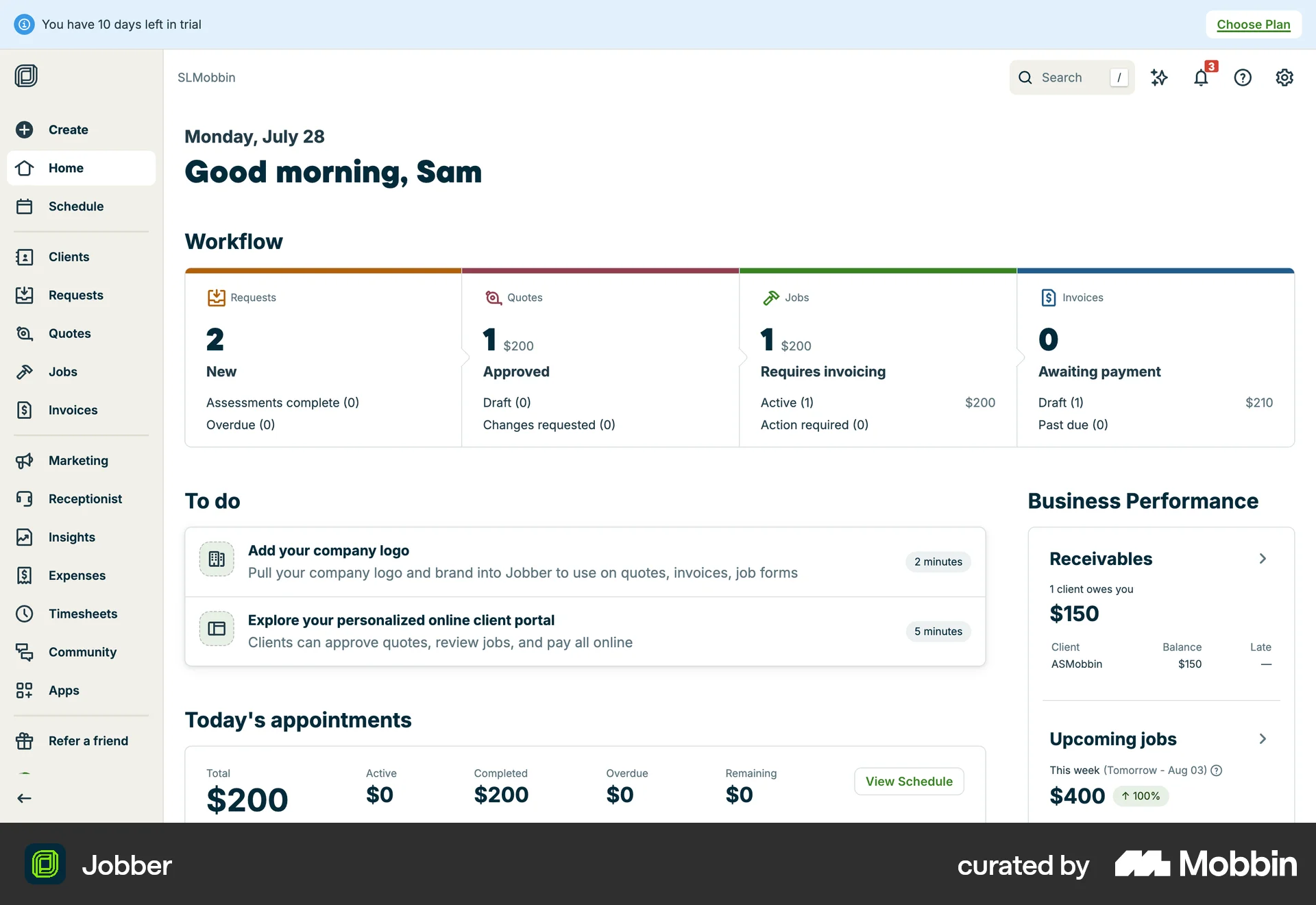
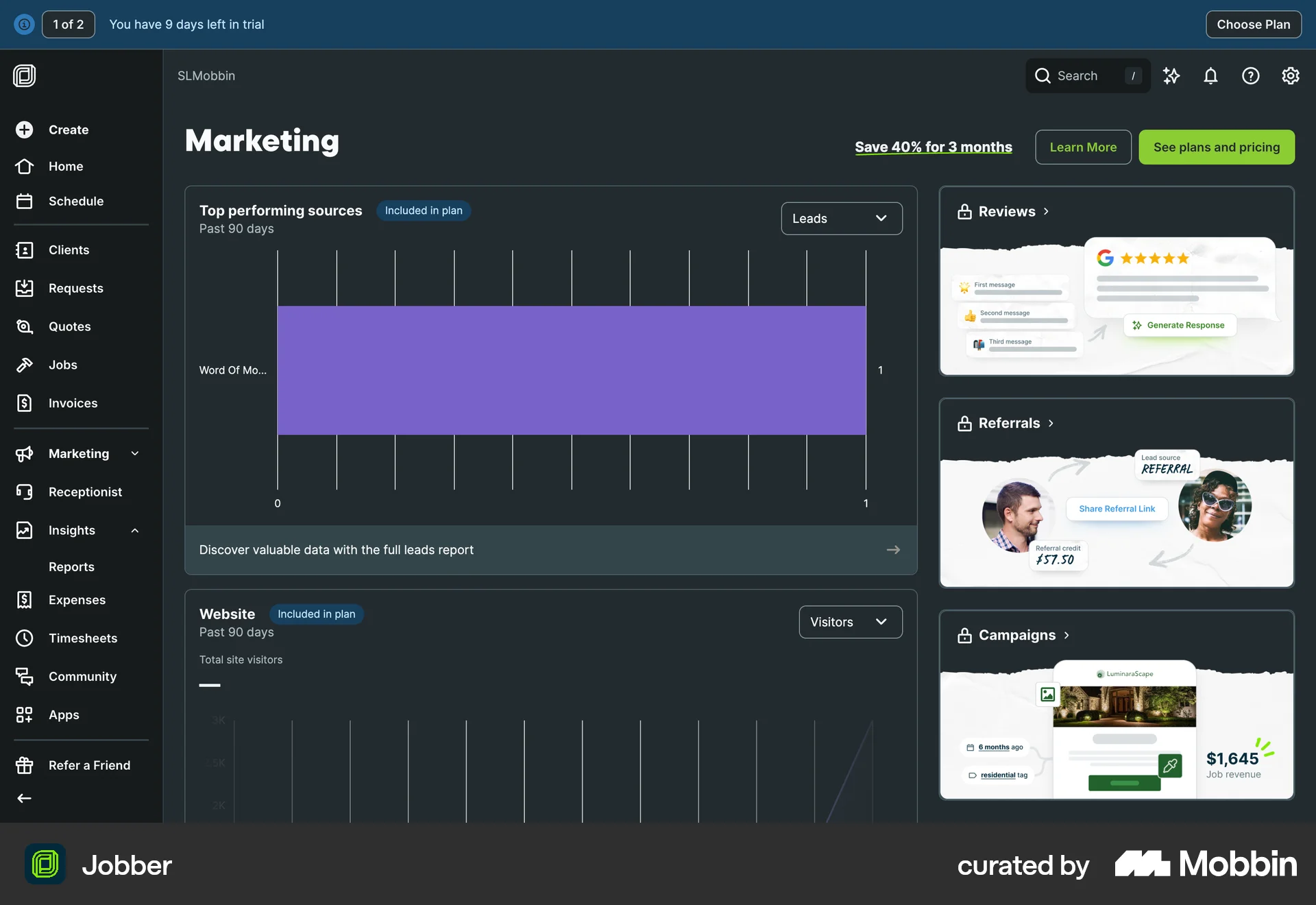
292 Flows
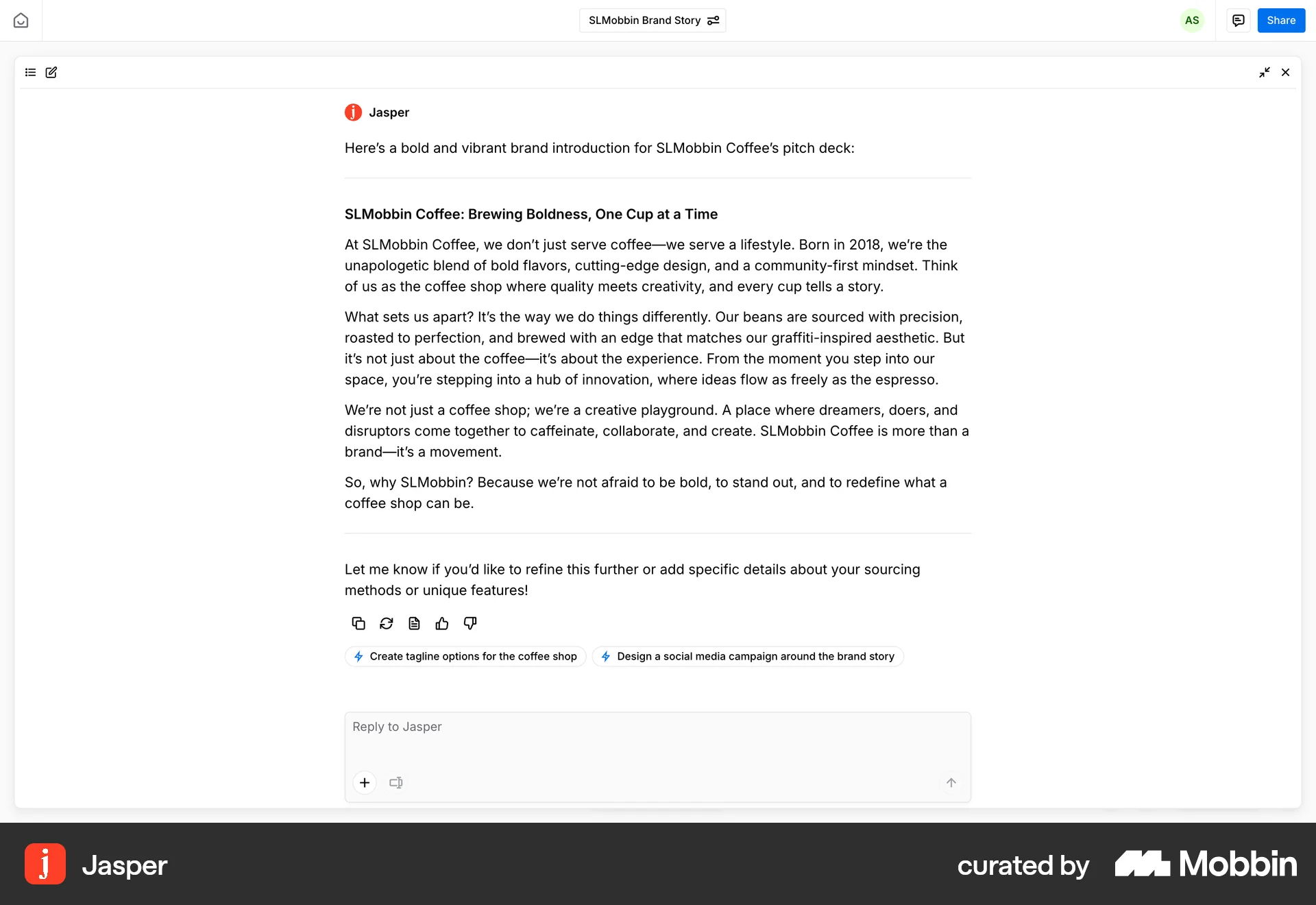
987 Flows
428 Flows
657 Flows
793 Flows