Marking as reviewedon Front
Front
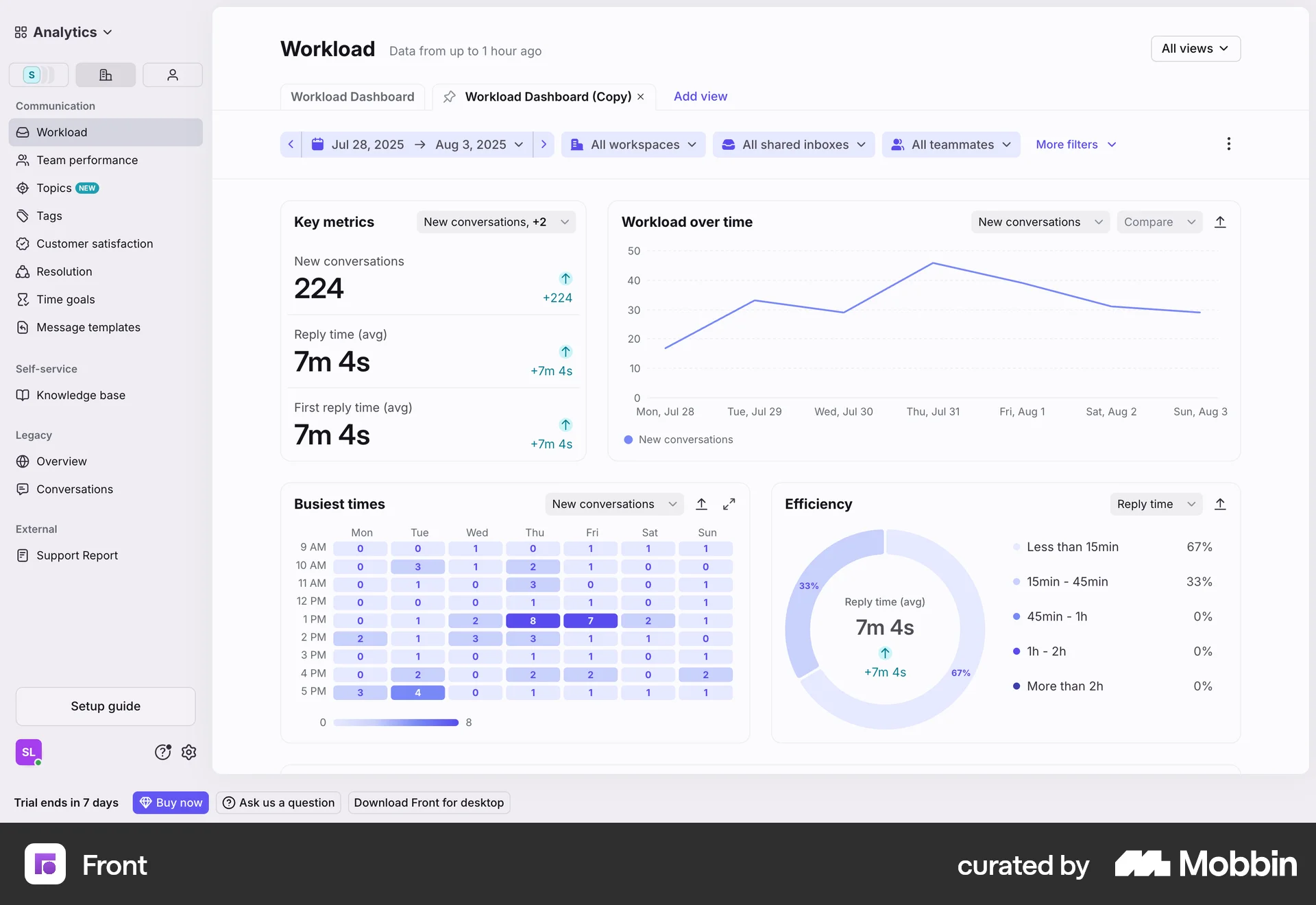
The user flow shows how to mark an article as reviewed. The user clicks 'Preview changes', selects 'Mark as reviewed', and sees a confirmation.
Discover best website designs for Marking flows. Get inspired by the best apps in the world.
The user flow shows how to mark an article as reviewed. The user clicks 'Preview changes', selects 'Mark as reviewed', and sees a confirmation.
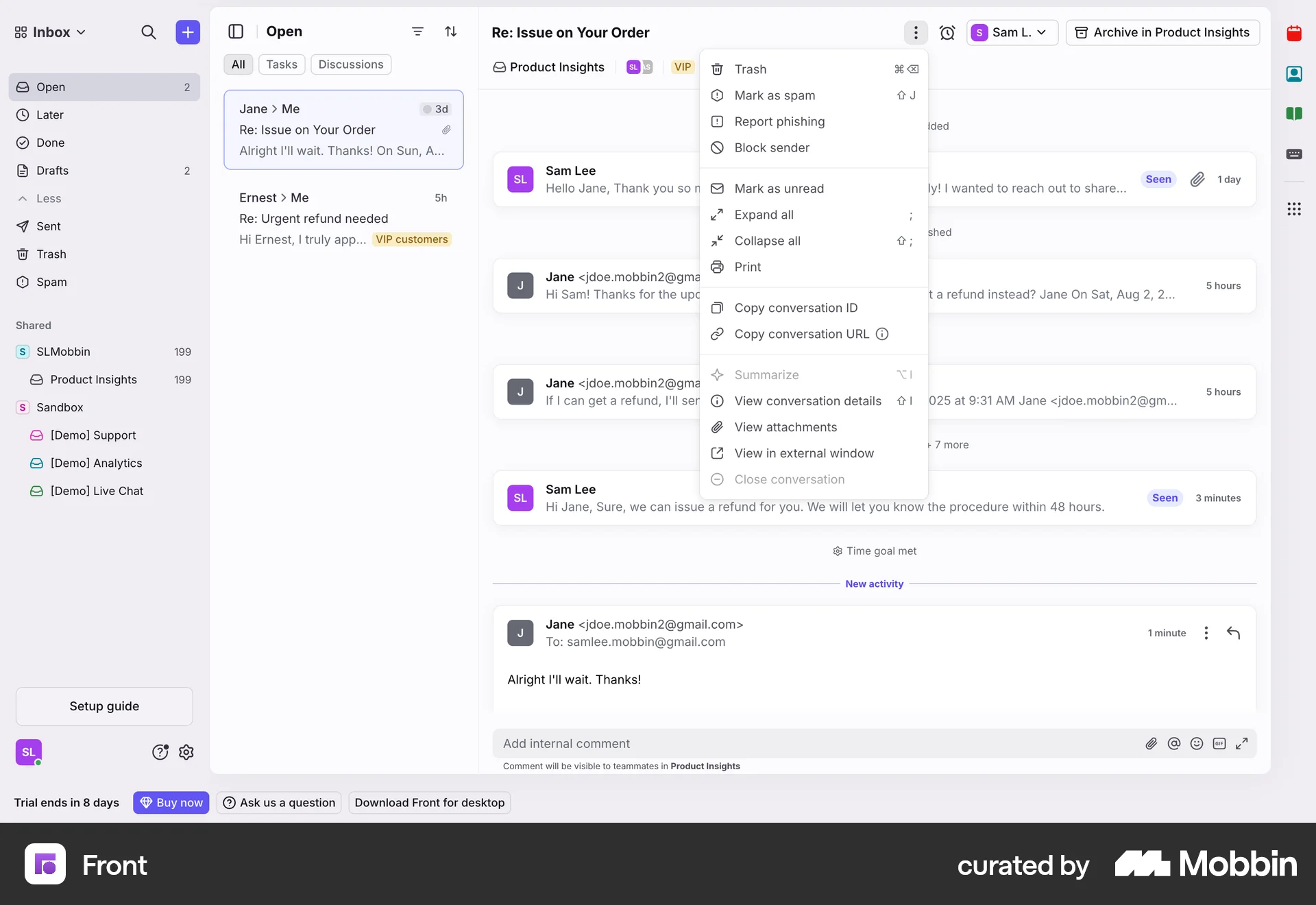
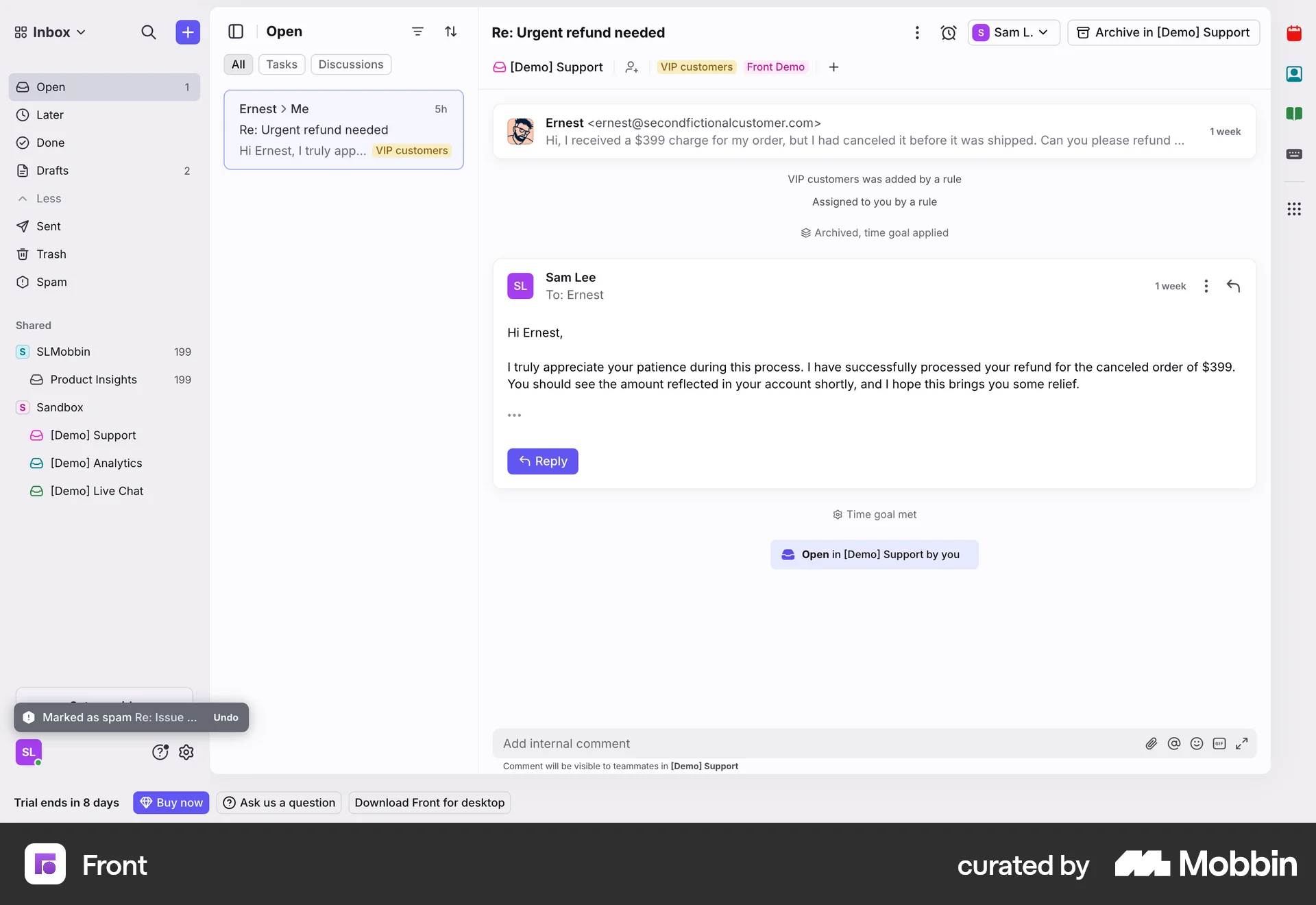
The user marks an email as spam from a dropdown menu. A confirmation message then appears to indicate the action was successful.

The user marks a listing as sold. They are then prompted to specify the sale location, and the listing updates to show it is sold.

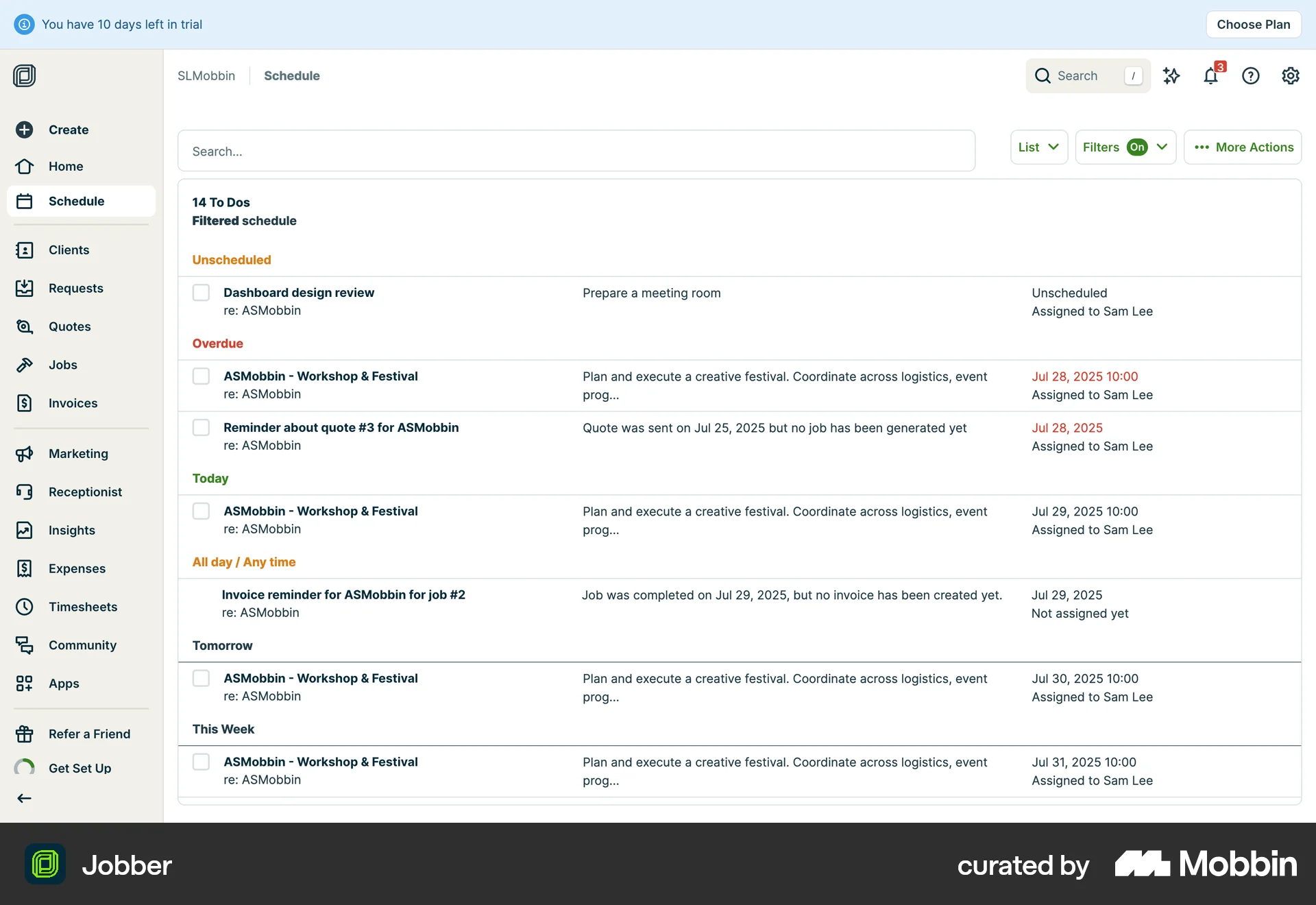
The user views a task on the client dashboard, marks it as complete, and sees the updated status on the dashboard.
The user switches from a calendar view to a list view to see their to-dos. The list view then updates to show completion timestamps.

The user marks a location as booked in the itinerary. The itinerary updates to confirm the booking.
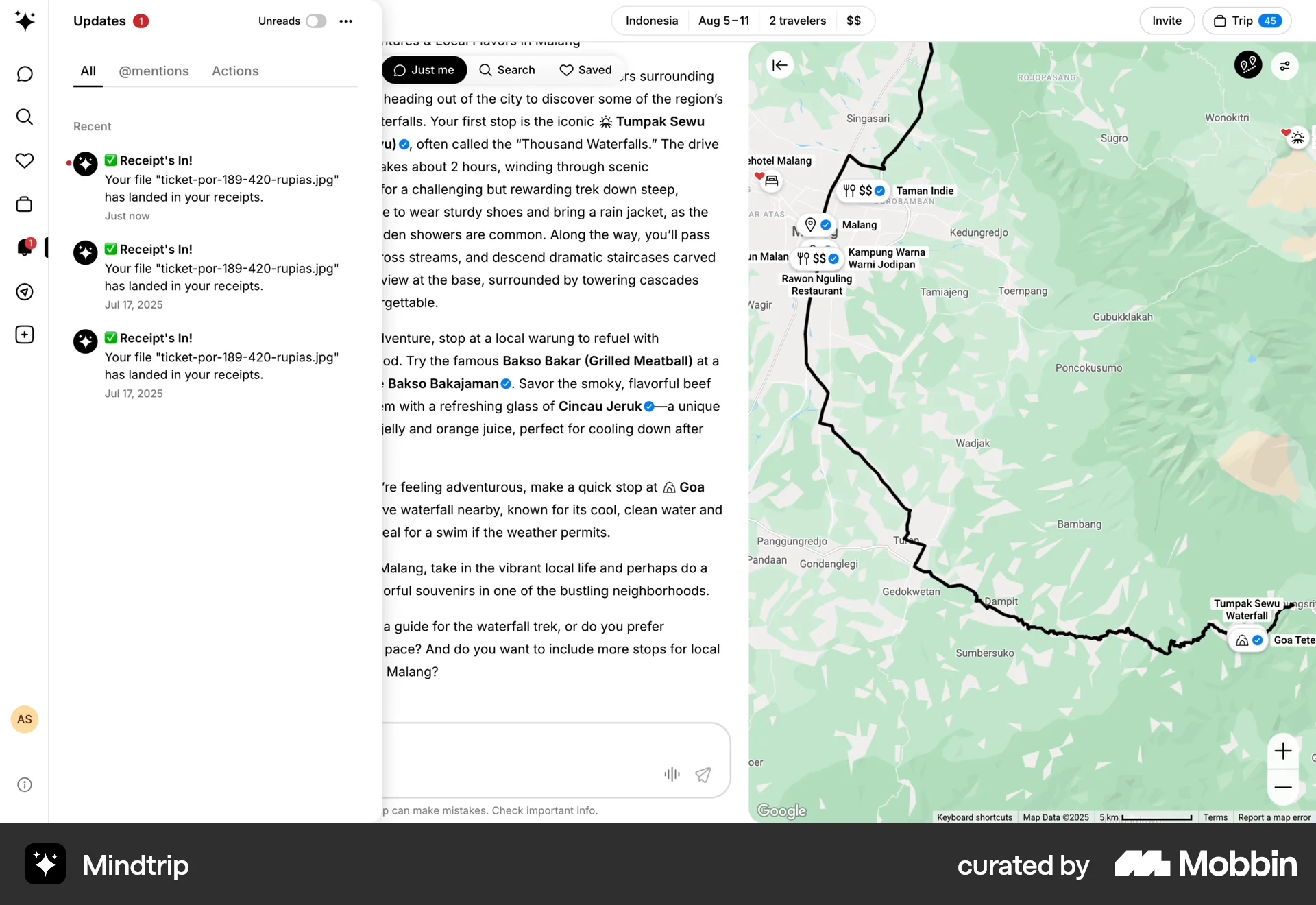
The user views a list of updates and marks an unread item as read. The updates count changes from one to zero.

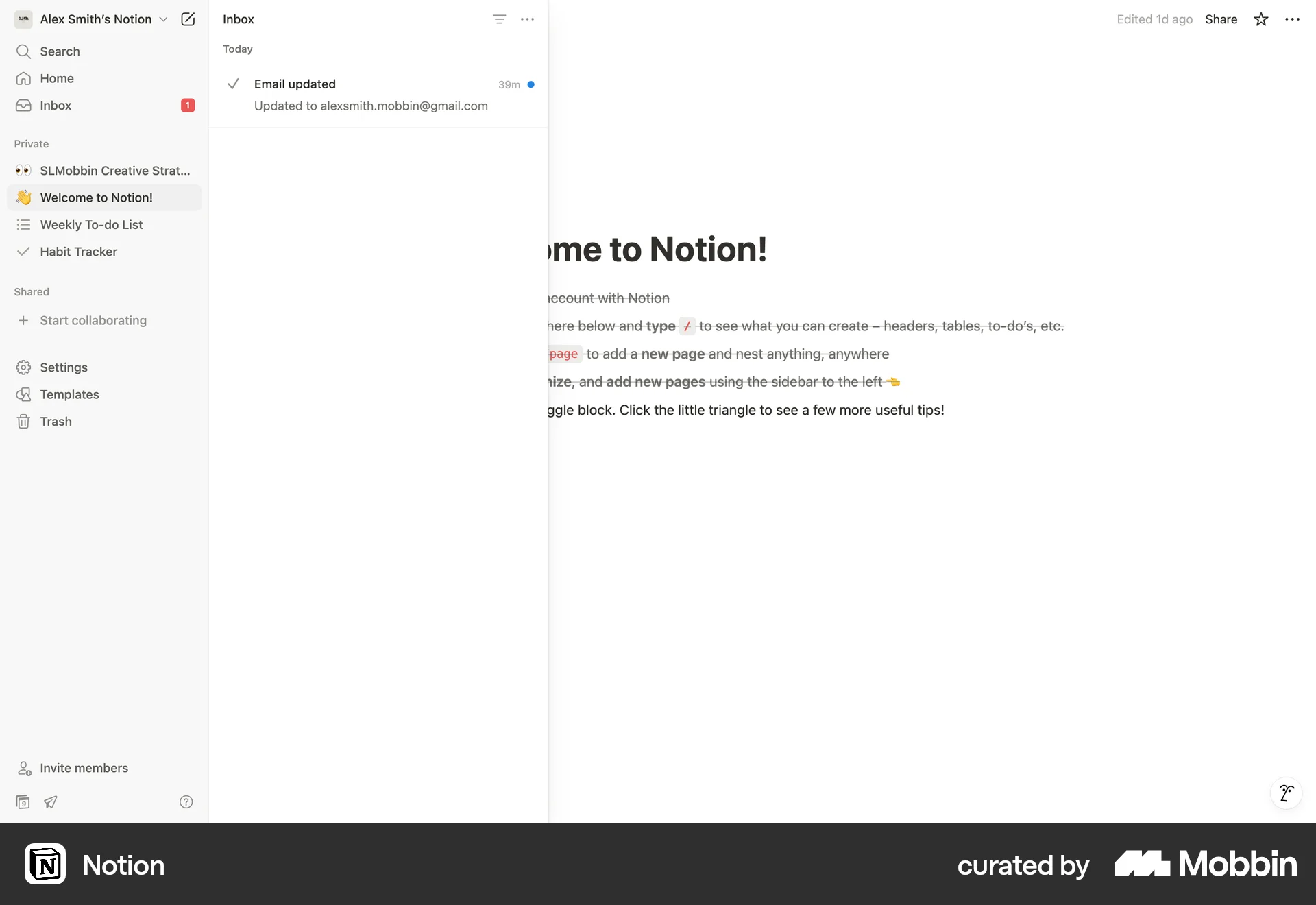
The user flow demonstrates marking an email as read within the Notion inbox. It shows the transition from an unread notification to a read state.

The user flow demonstrates marking a SQL query as reviewed. It shows the transition from review request to review confirmation.

The user views an incident, acknowledges it, and then resolves it. The timeline captures the incident's history.

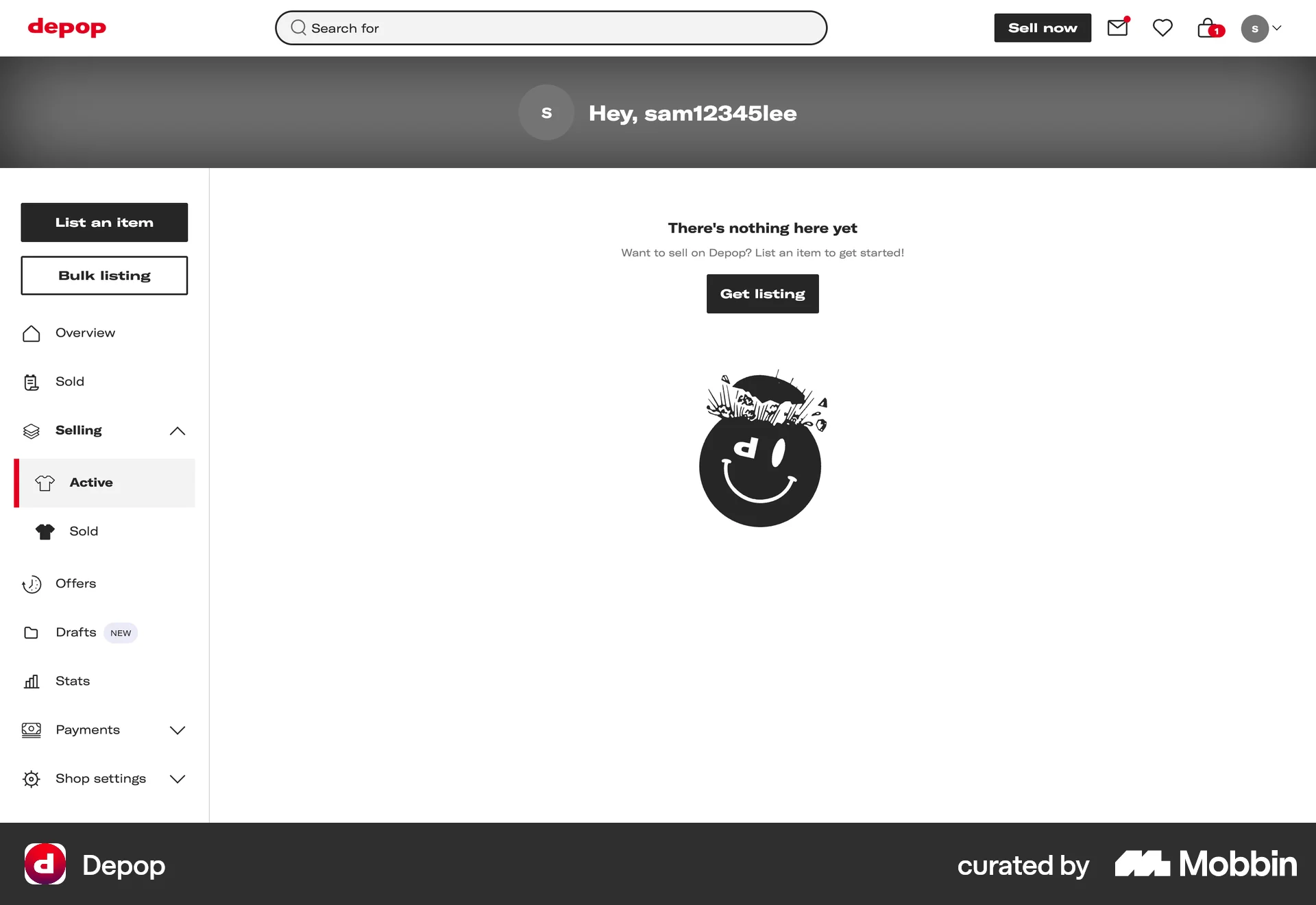
The user marks an item as sold. After confirmation, the item disappears from the active items list.
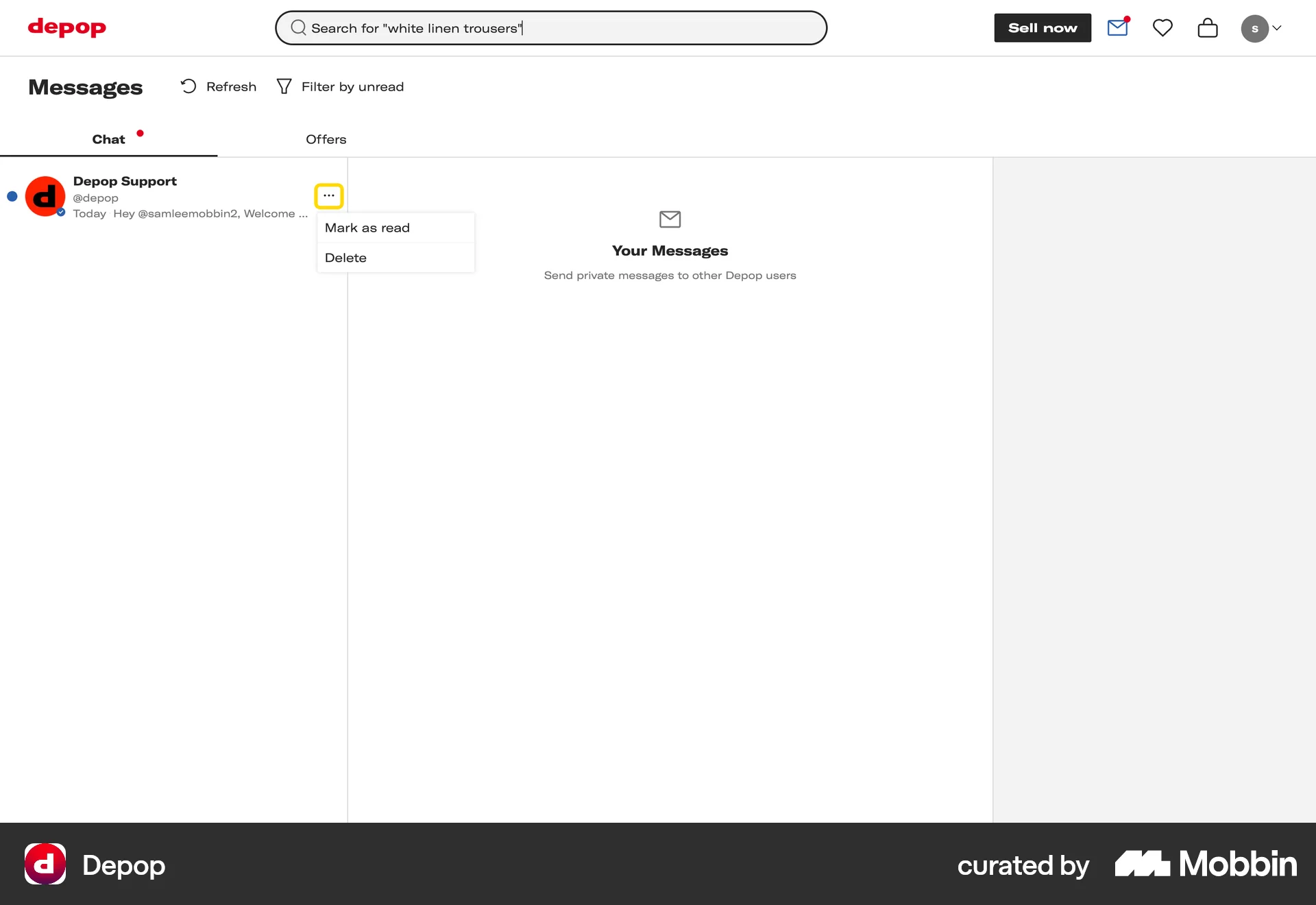
The user opens the message options and marks a message as read. The flow demonstrates how to manage messages within the Depop application.
1222 Flows
9184 Flows

157 Flows
31 Flows
553 Flows
368 Flows