Blocking a senderon Front
Front
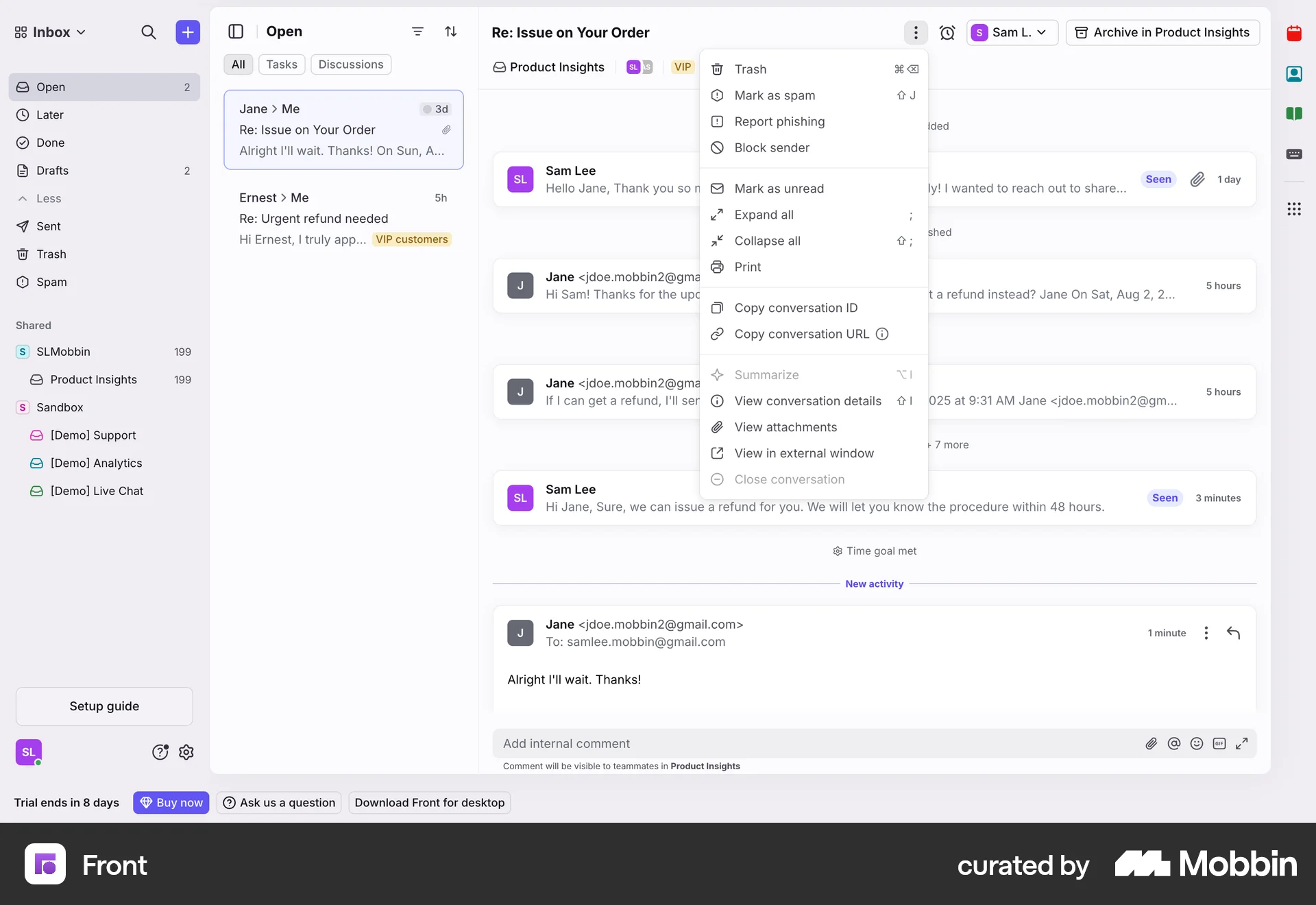
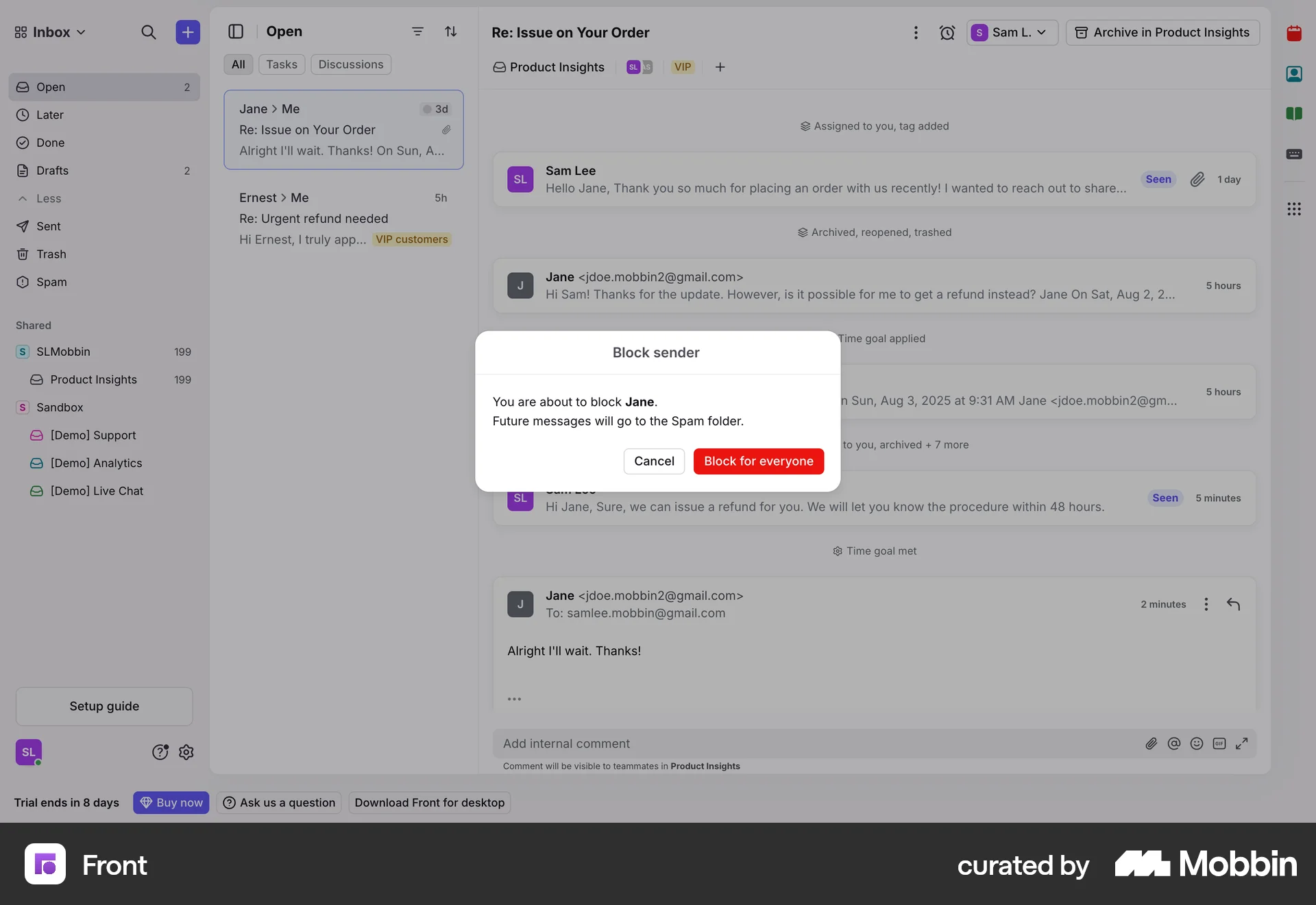
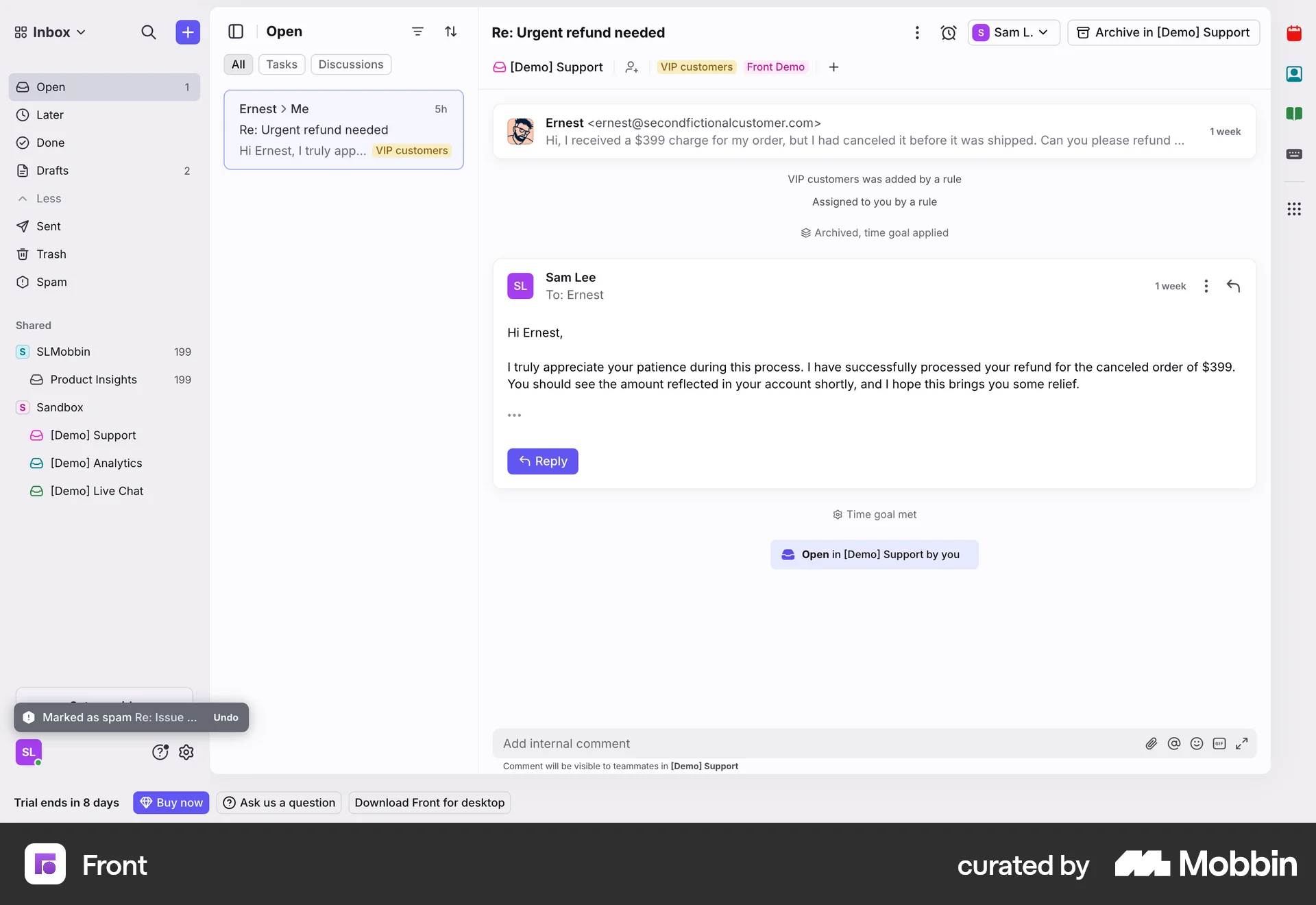
The user flow shows how to block a sender. The user opens the options menu, confirms the action, and sees the updated inbox.
Discover best website designs for Banning & Blocking flows. Get inspired by the best apps in the world.
The user flow shows how to block a sender. The user opens the options menu, confirms the action, and sees the updated inbox.

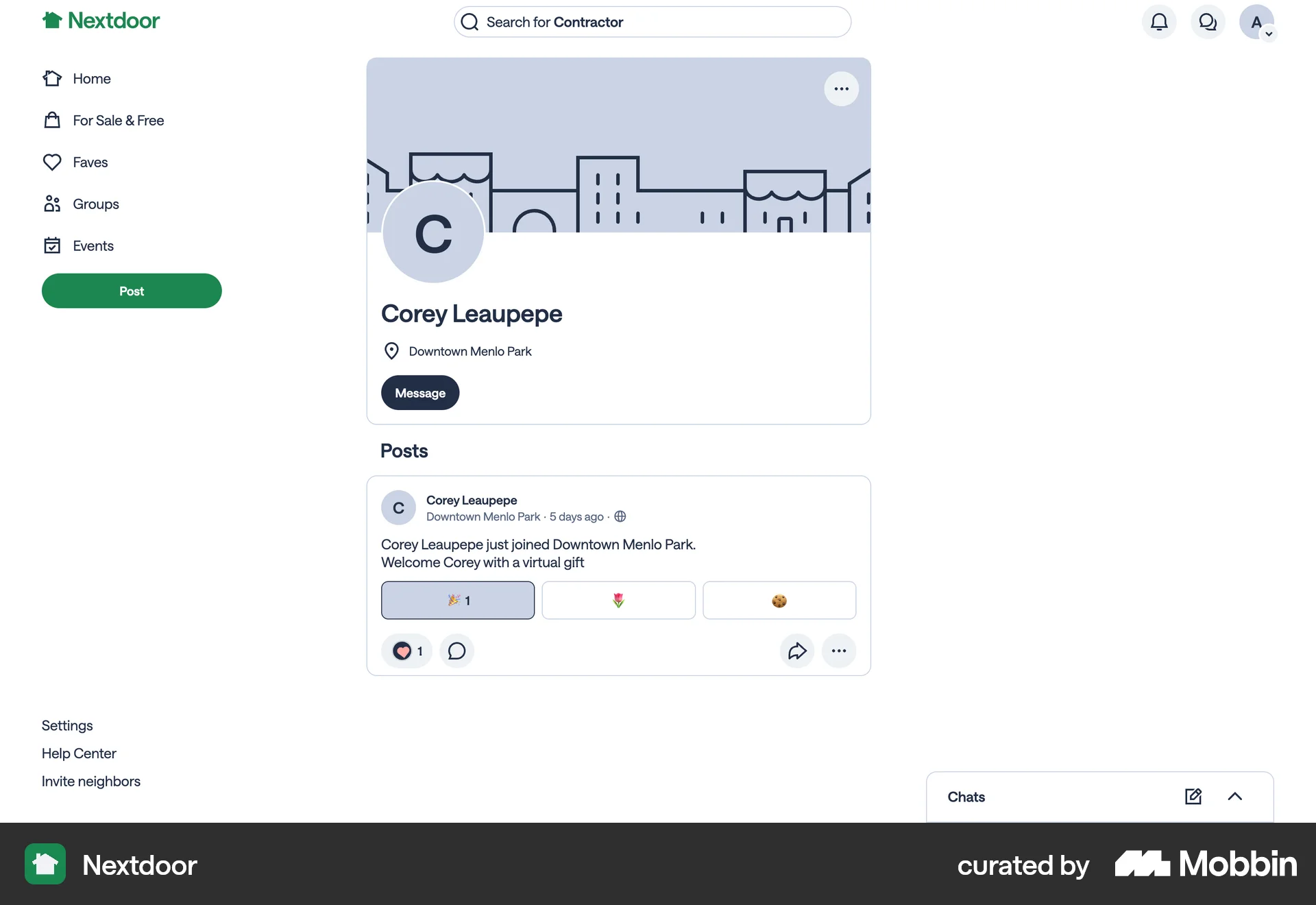
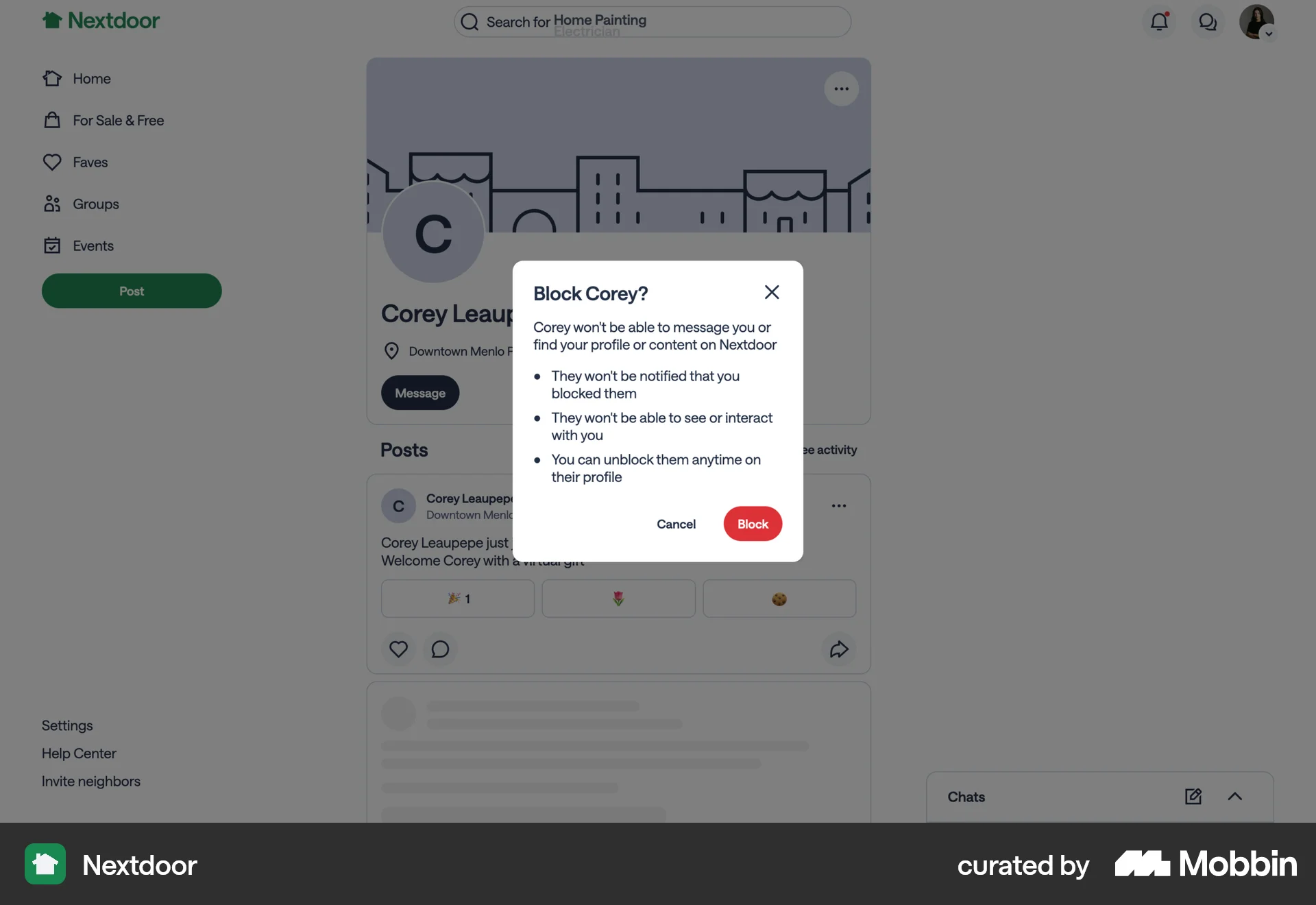
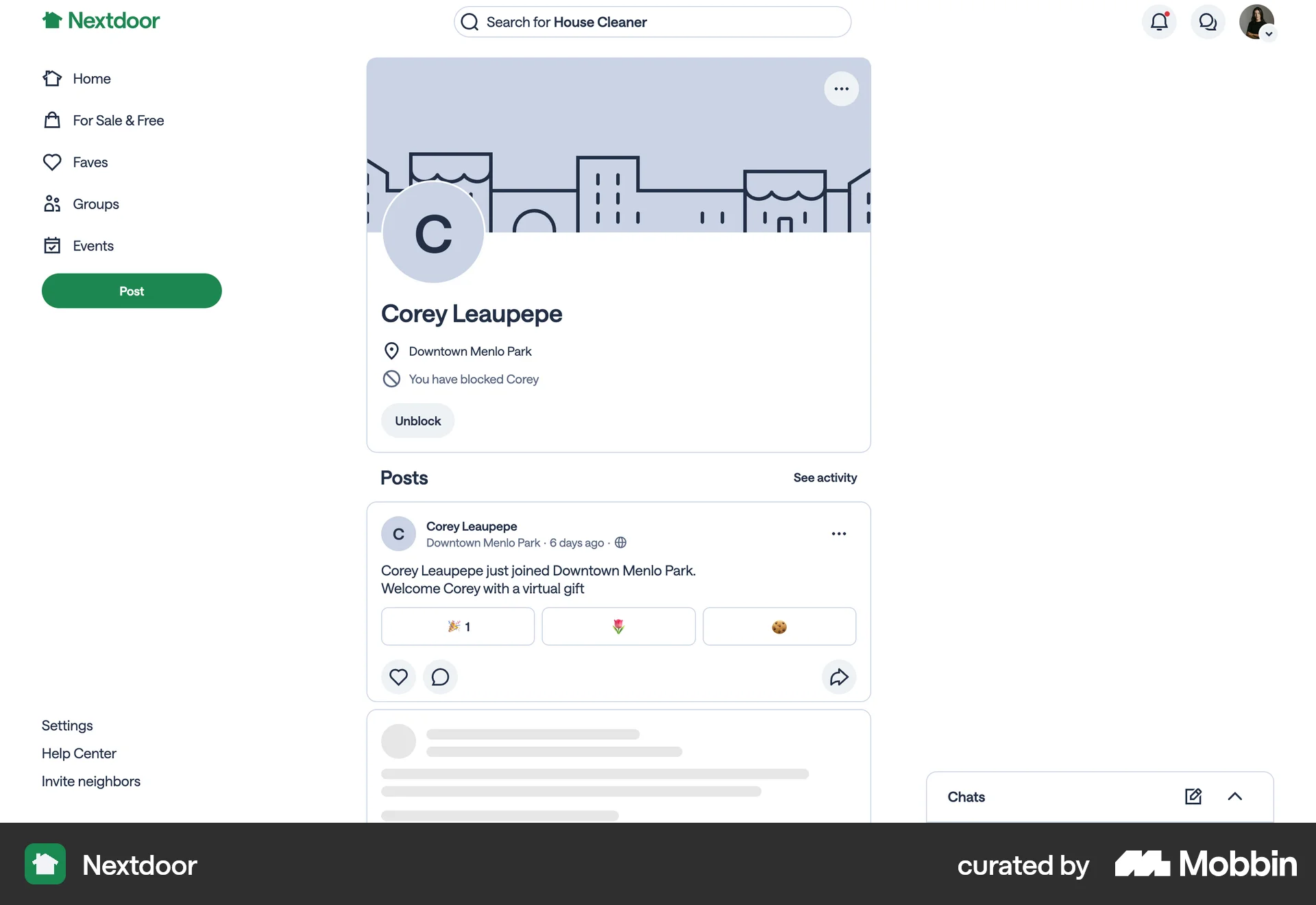
The user flow demonstrates blocking a user. It involves opening a menu, confirming the action, and then seeing the updated profile page.

The user navigates through settings to block a contact. They access privacy, blocked contacts, and then selects a contact to block.

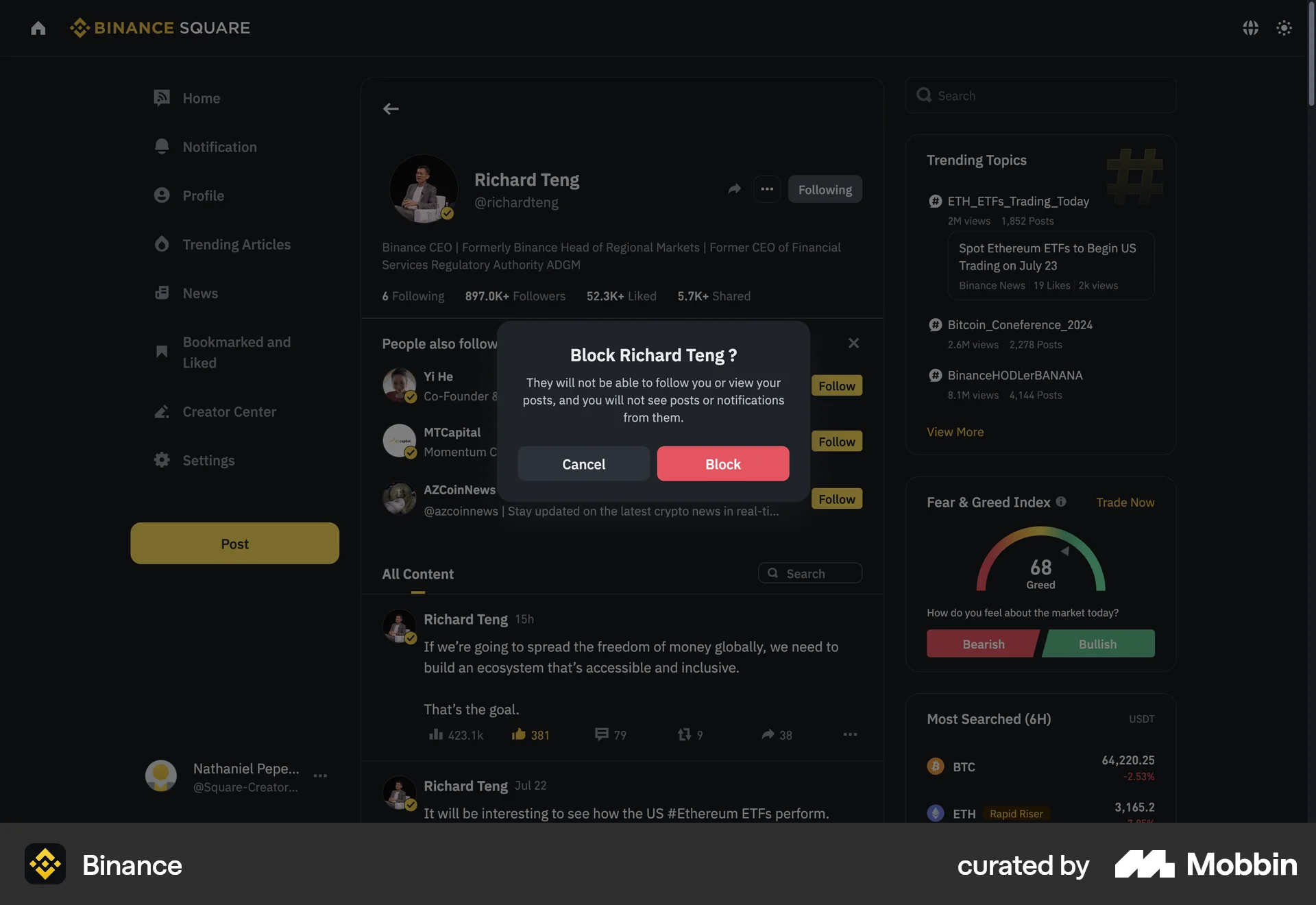
The user flow demonstrates blocking a user. It involves navigating to the user's profile, selecting the block option, and confirming the action.

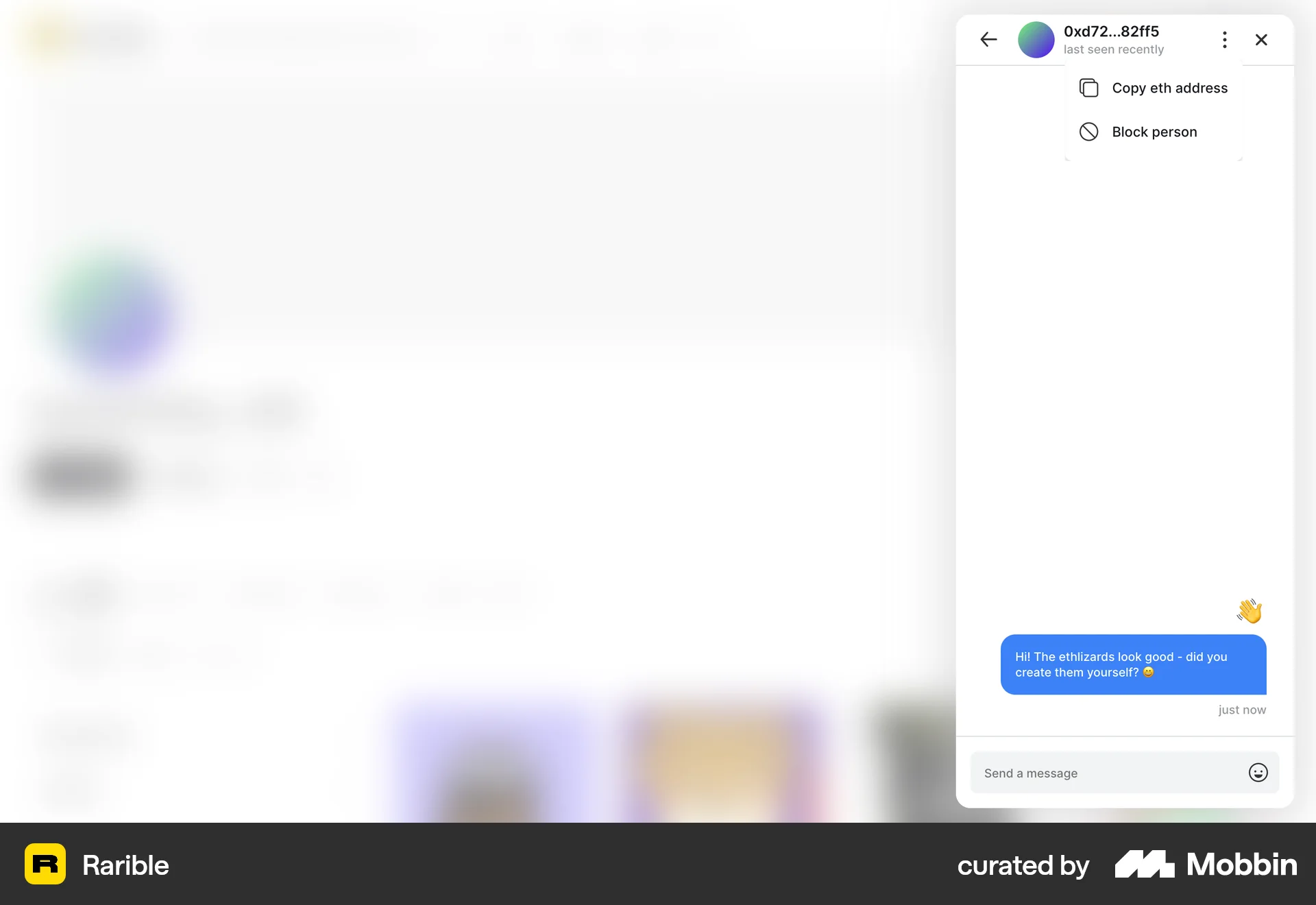
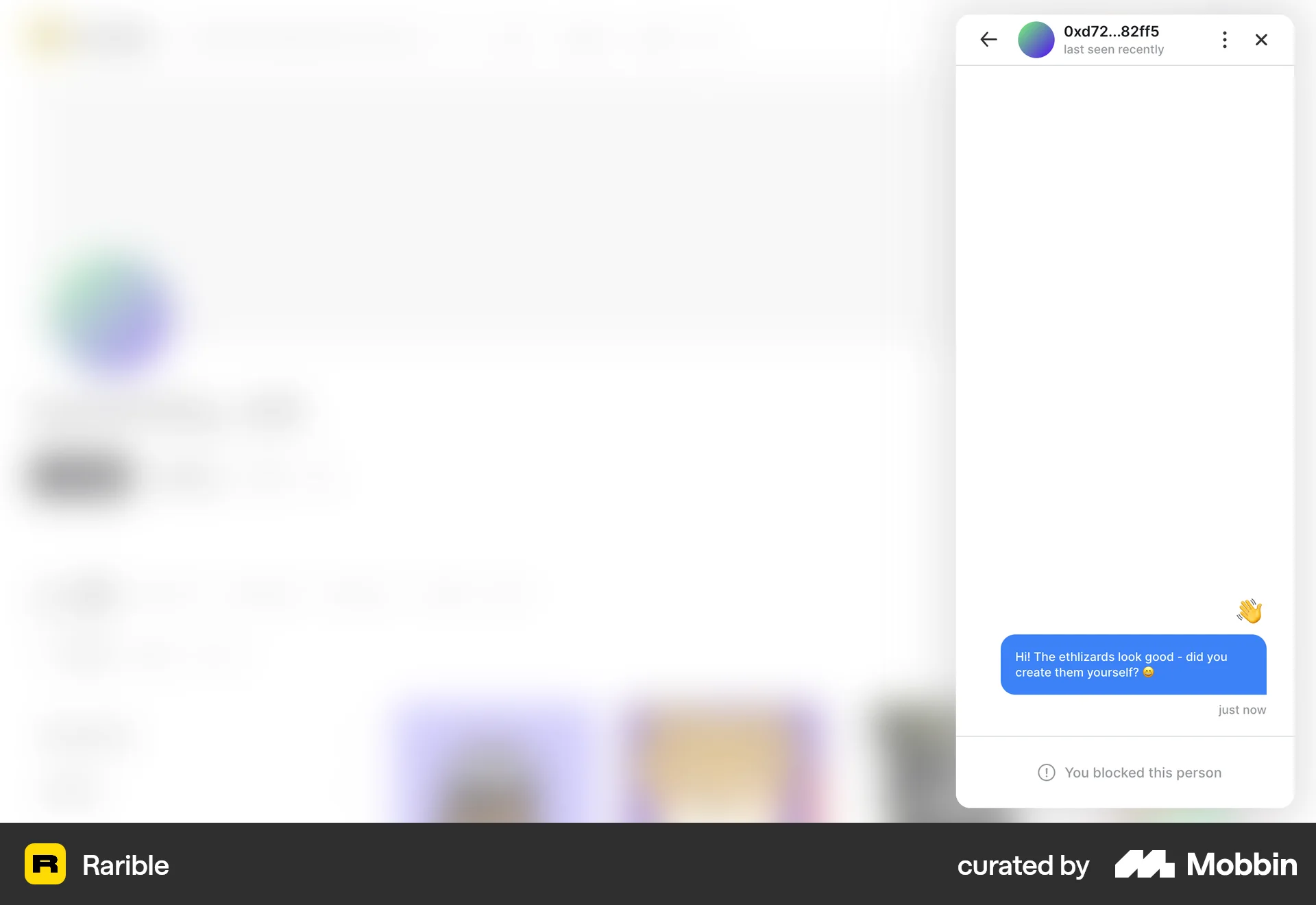
The user flow demonstrates blocking a person from a chat interface. The user selects the block option, and the system confirms the action.
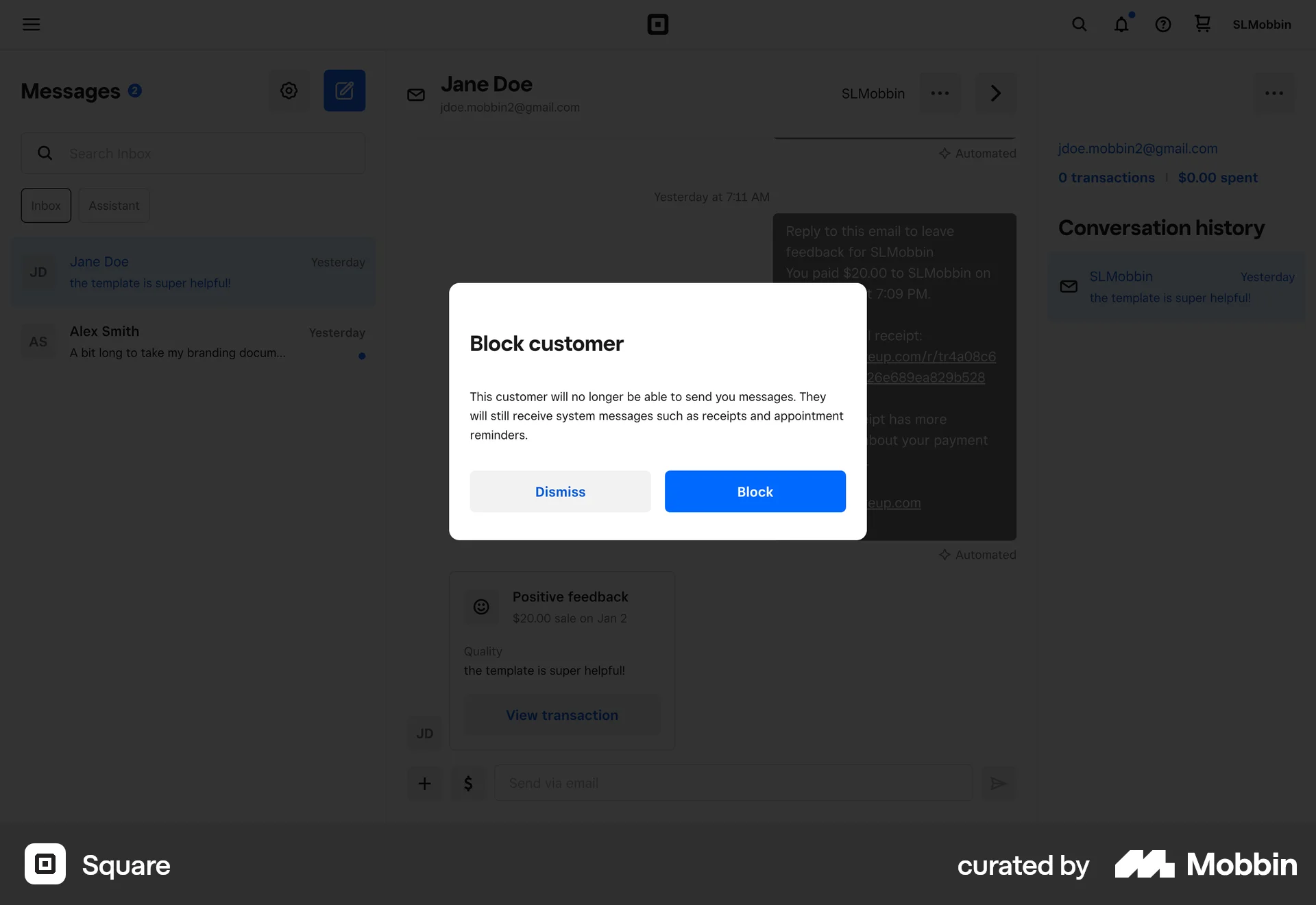
The user flow demonstrates blocking a customer from a messaging interface. It involves opening a context menu, confirming the action, and receiving a confirmation message.

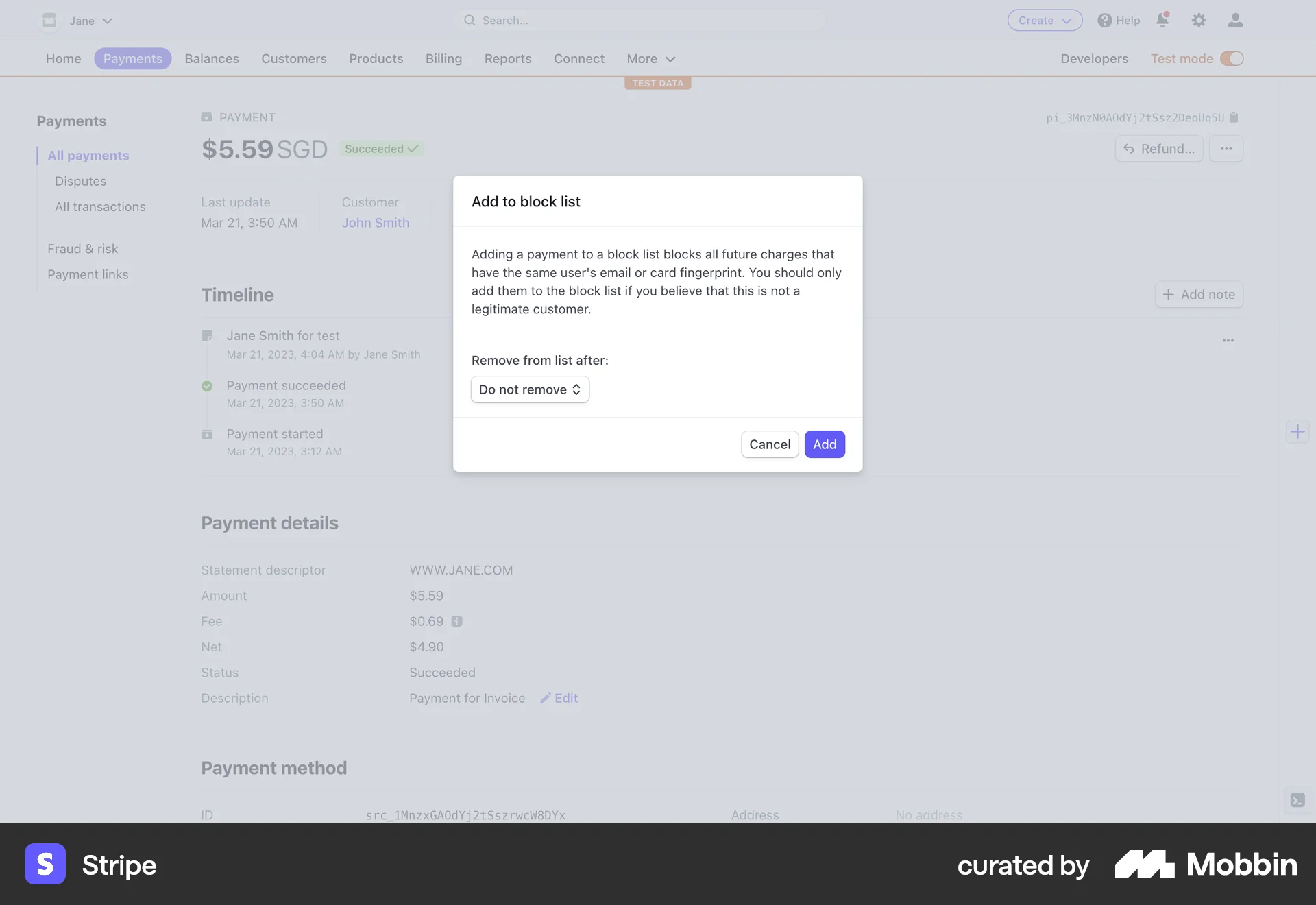
The user views payment details and adds the payment to a block list. A confirmation message appears after the payment is added.
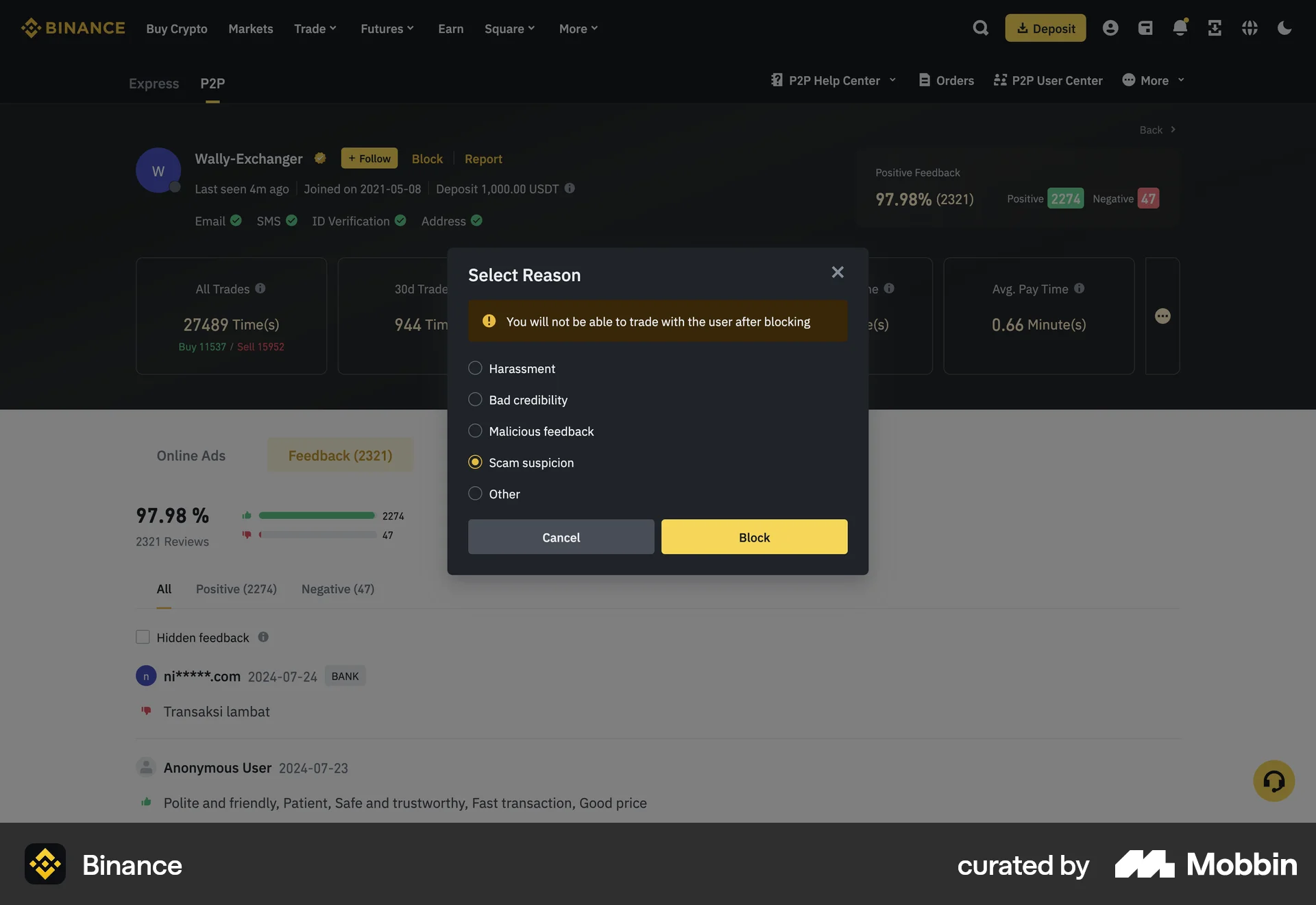
The user views a merchant profile, blocks the merchant by selecting a reason, and receives confirmation. The flow showcases blocking a merchant.

The user blocks an author from their feed via the context menu. Blocked posts are replaced with a message.

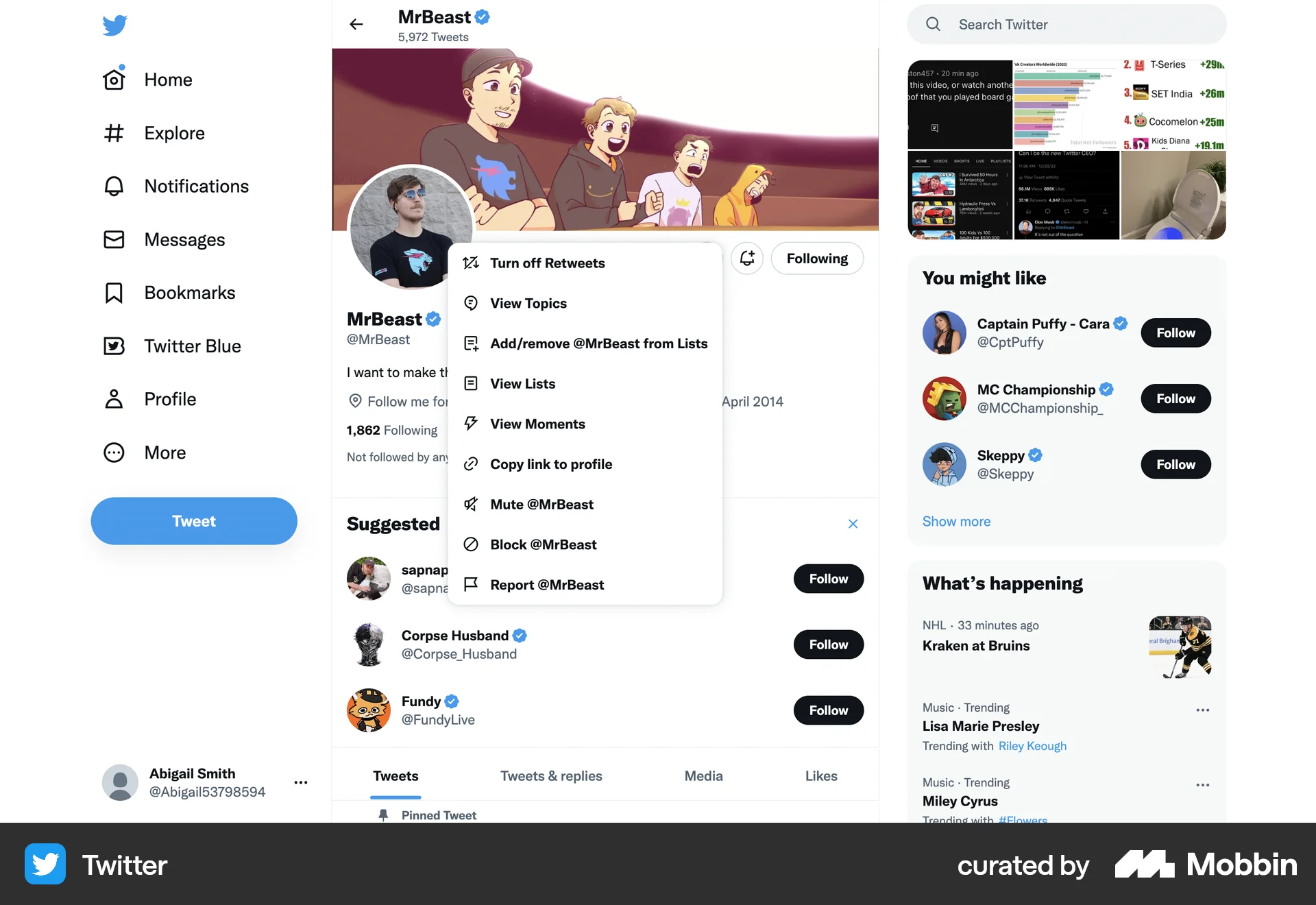
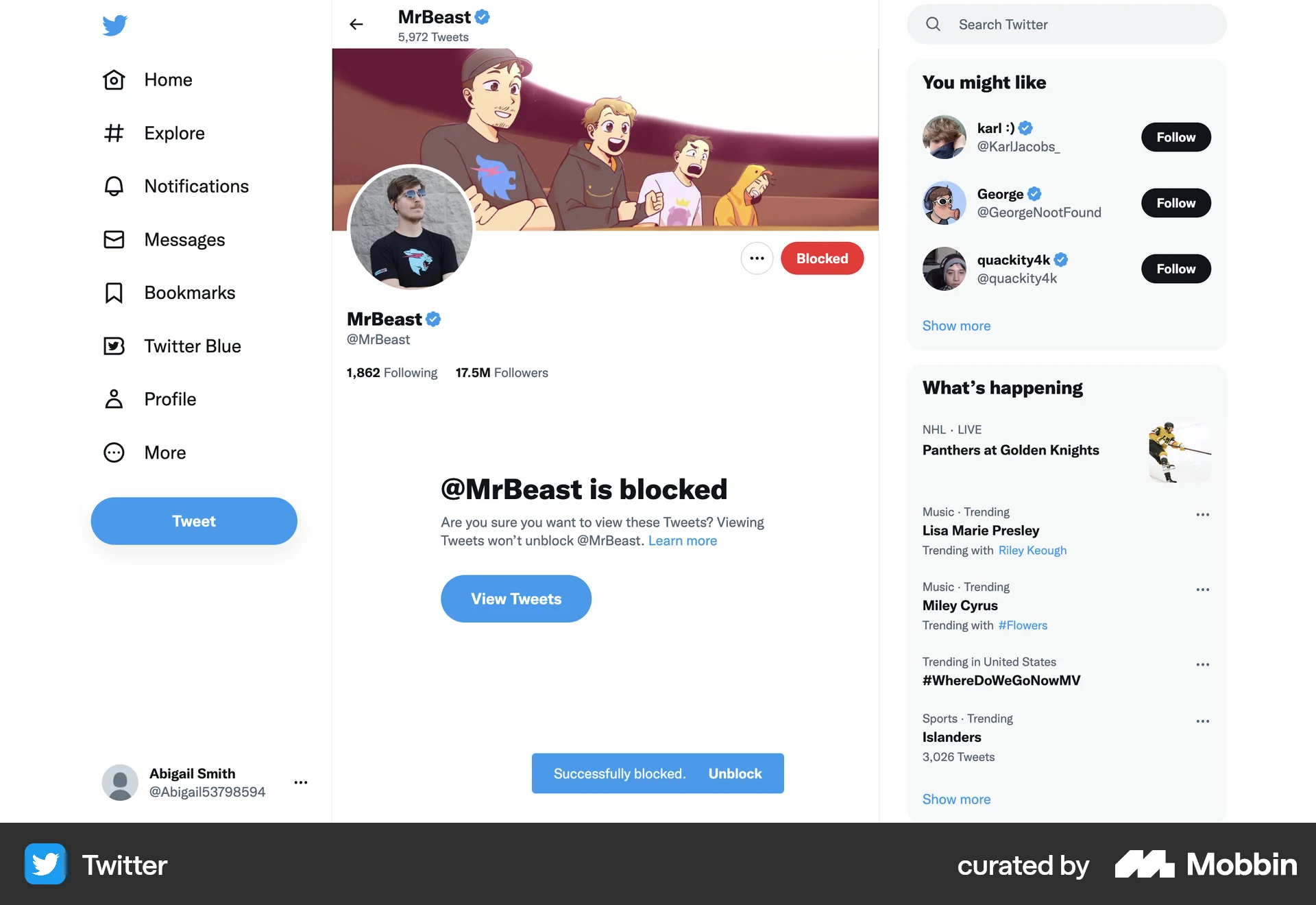
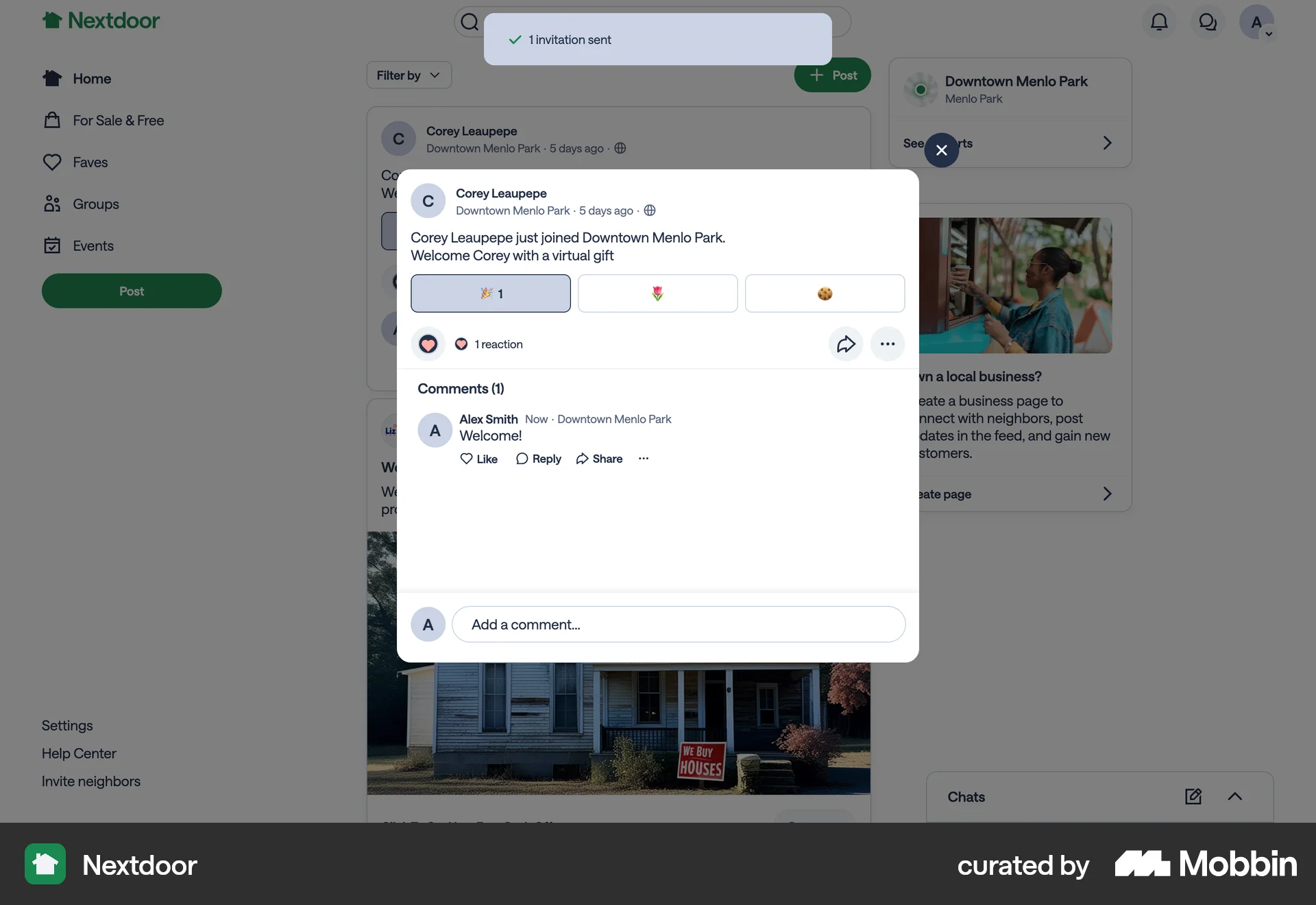
The user navigates to a profile and blocks the account. A confirmation is shown, and the profile updates to show the blocked status.
The user navigates to the blocked accounts settings and unblocks a user. The blocked accounts modal then confirms that nobody is blocked.

The user navigates from a customer list to a customer's details and suspends the customer. A confirmation message confirms the suspension.
77 Flows


197 Flows
714 Flows
655 Flows
246 Flows
88 Flows