







Onboardingon Ultrahuman
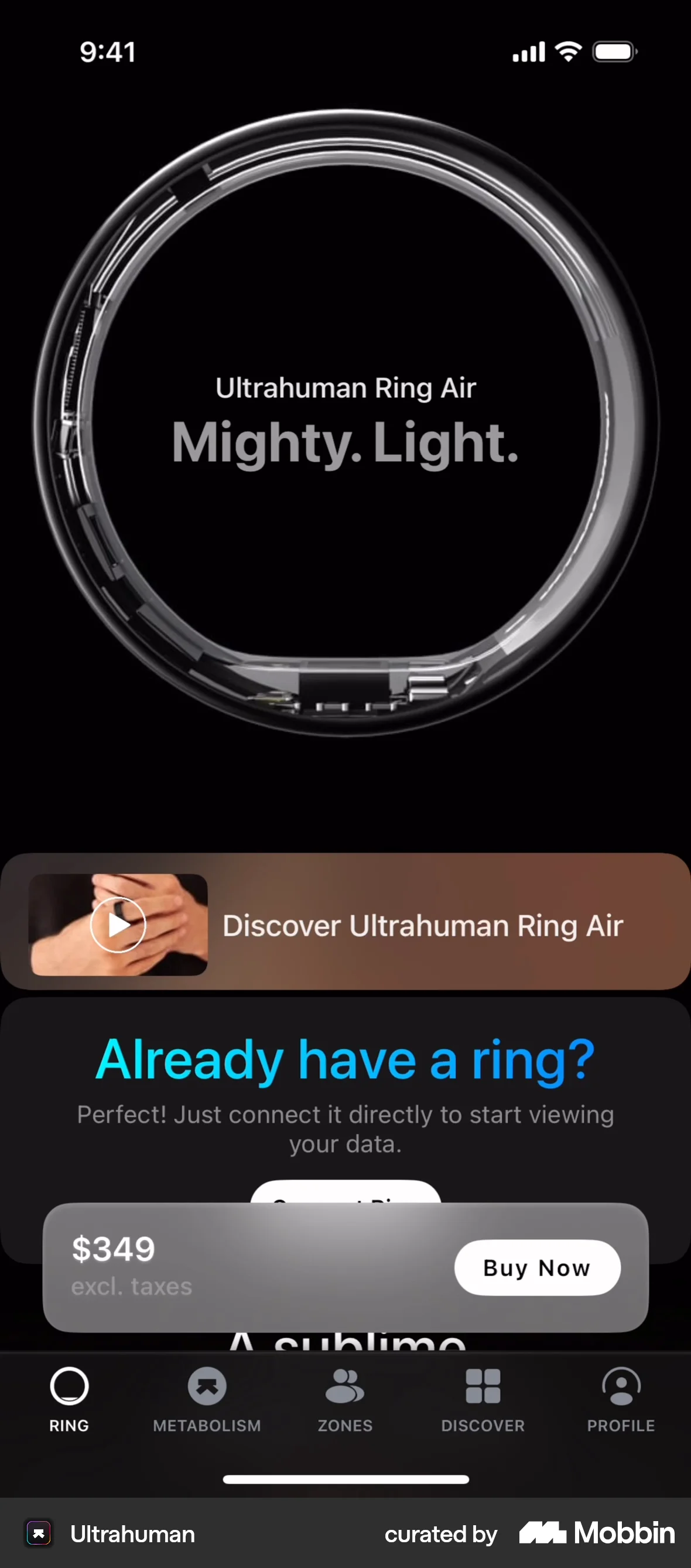
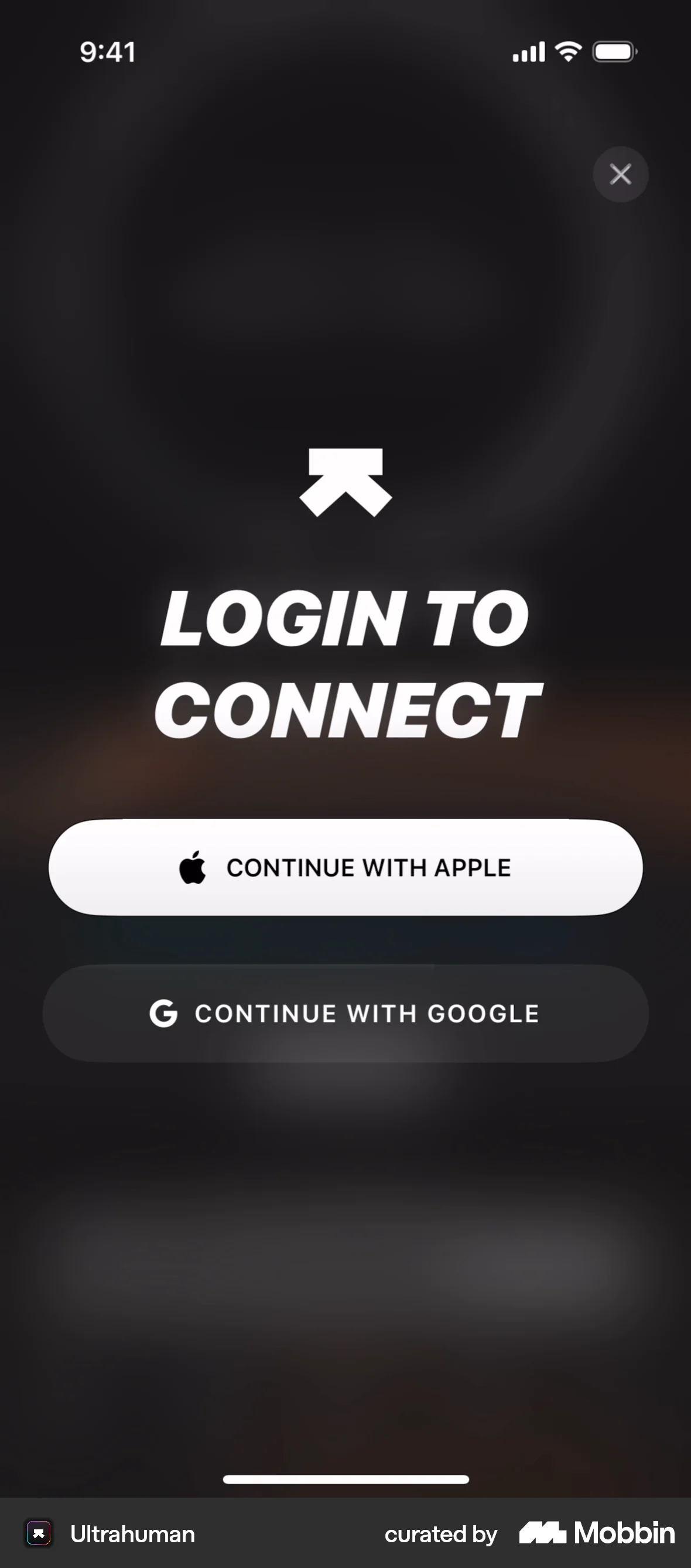
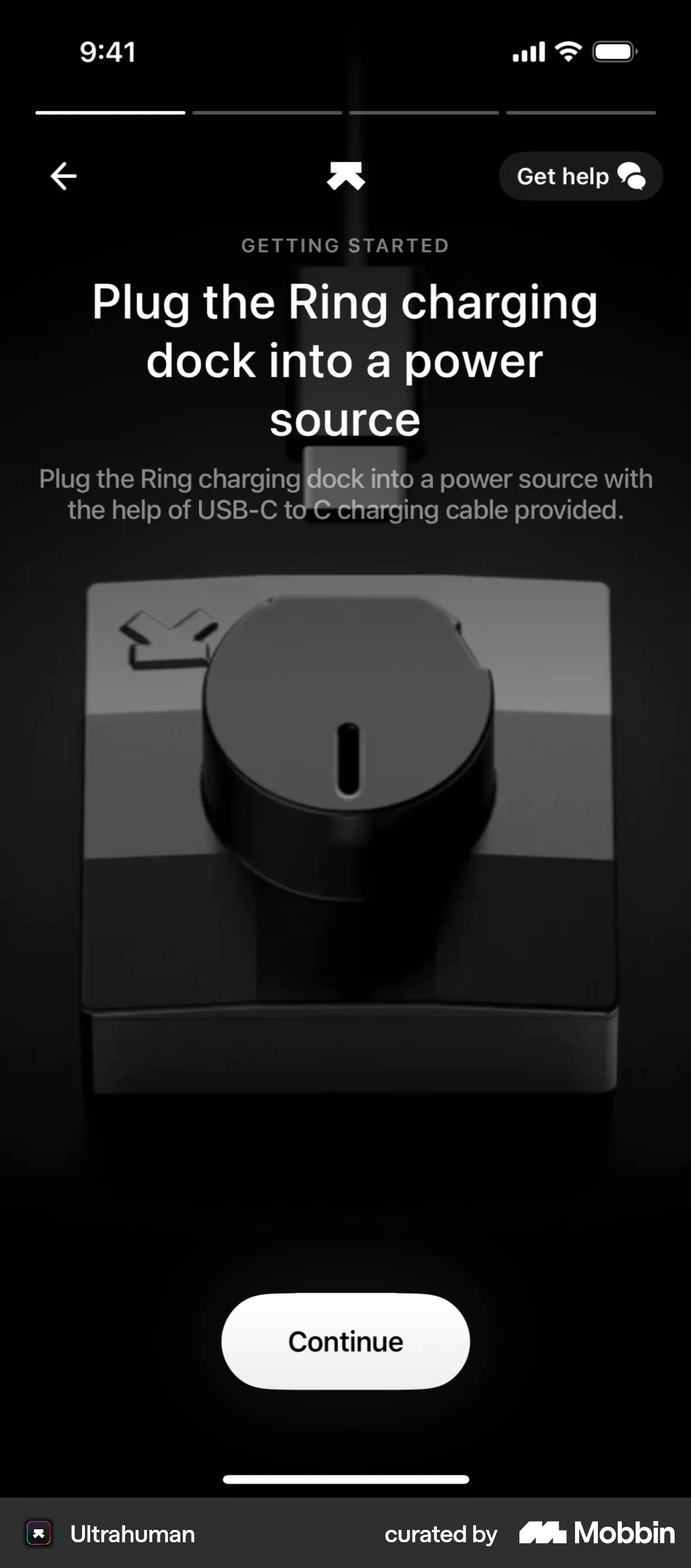
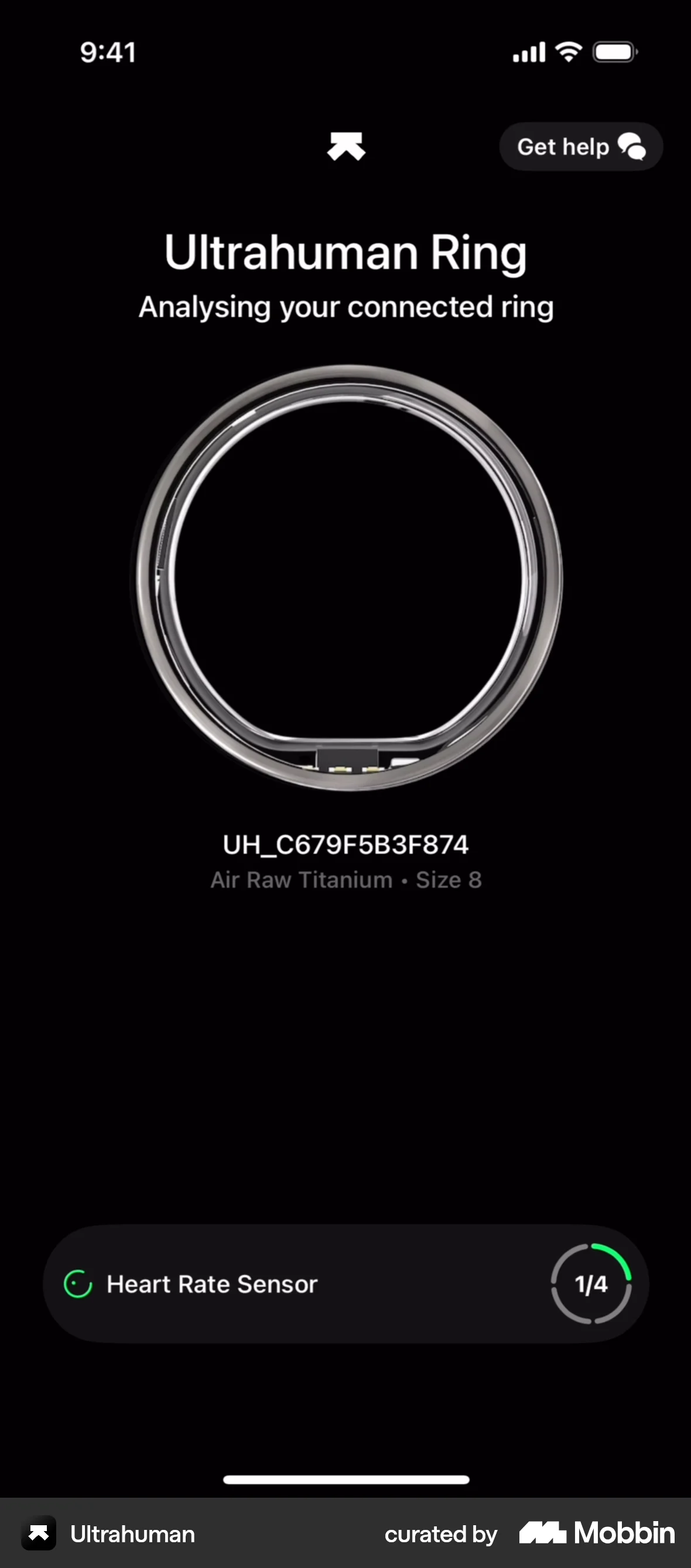
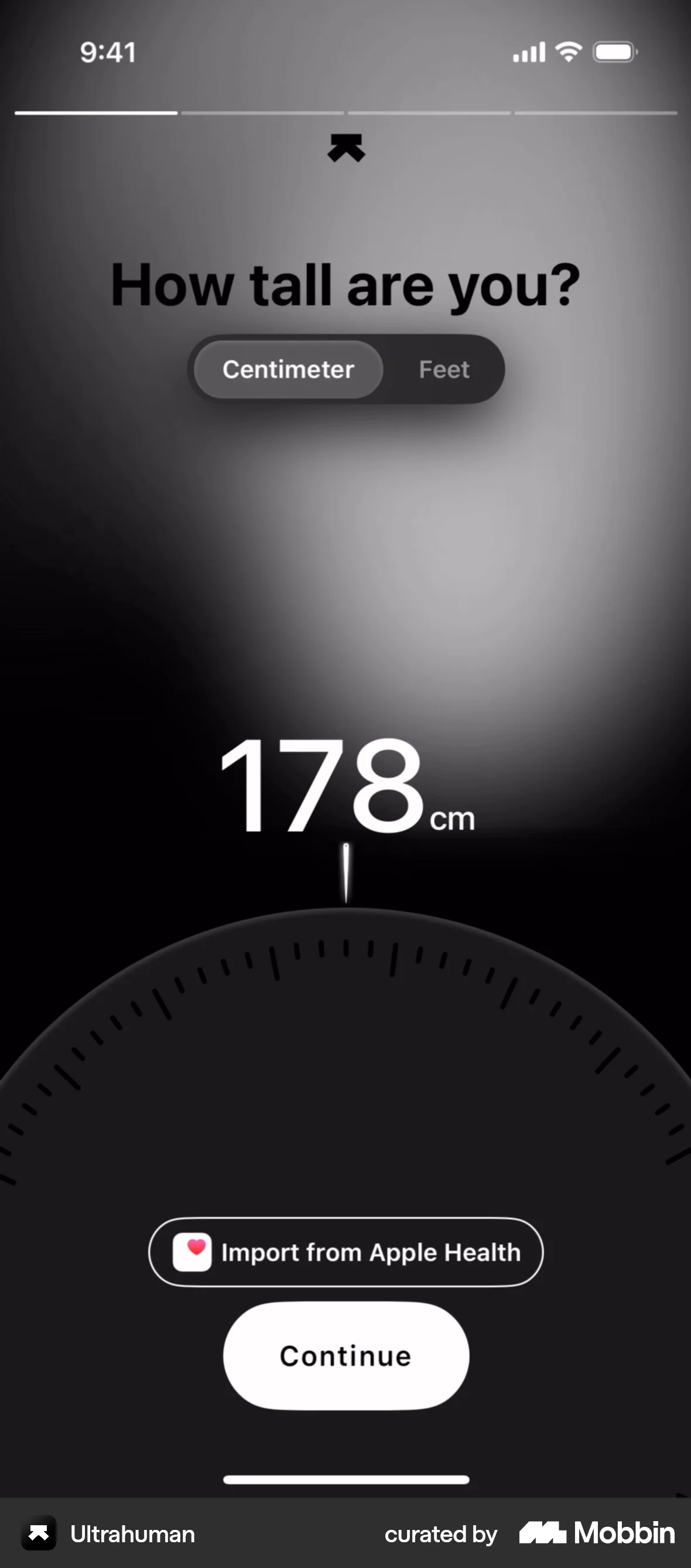
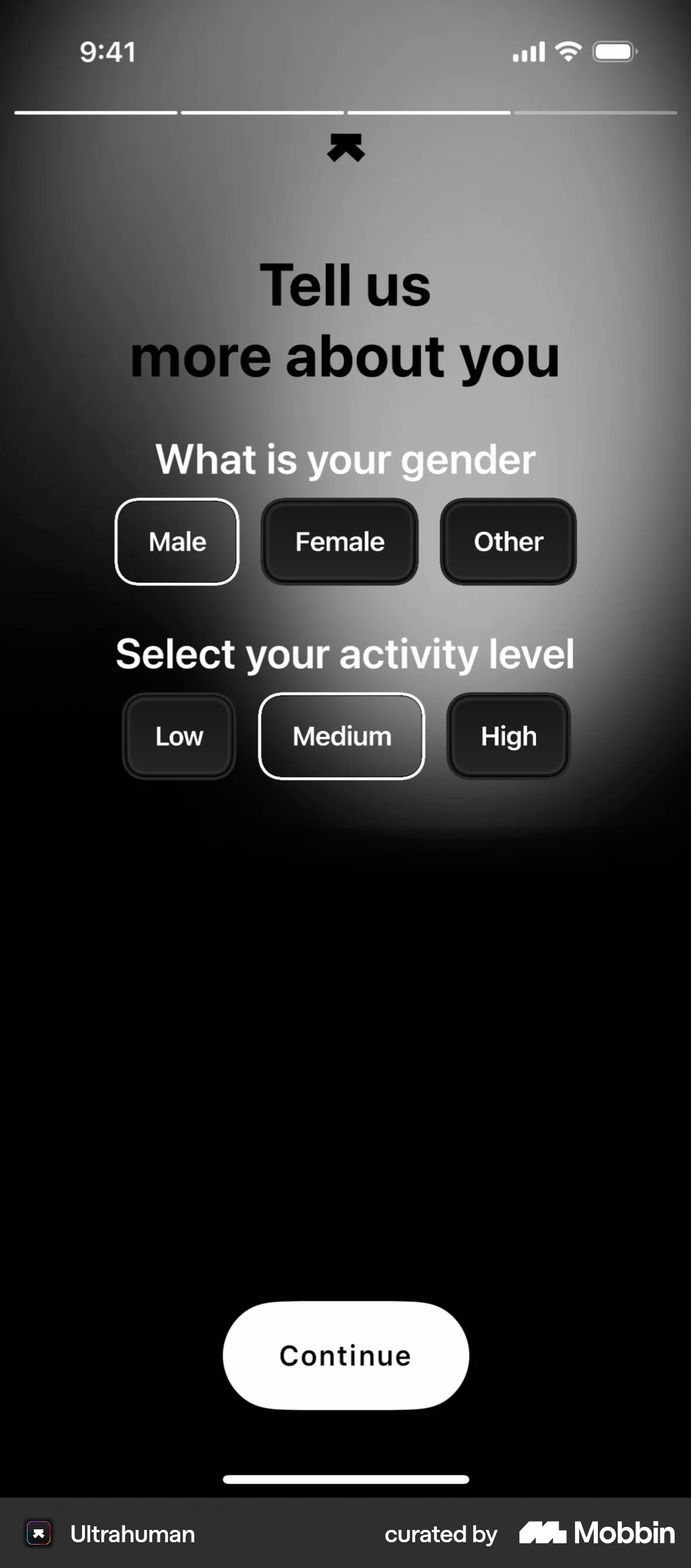
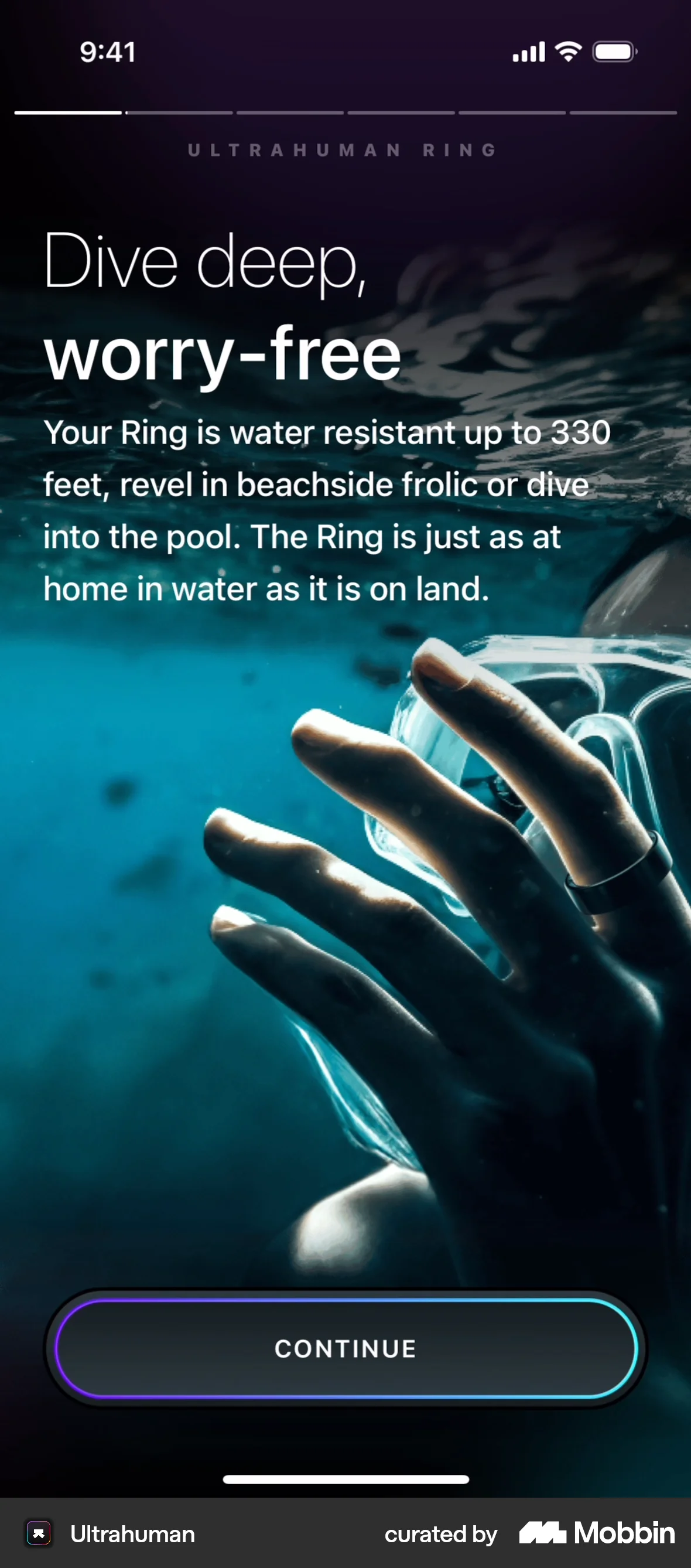
The user connects an existing Ultrahuman ring by logging in, following setup instructions, and providing personal information to reach the main dashboard.
Discover best mobile app designs for Connecting & Linking flows. Get inspired by the best apps in the world.
The user connects an existing Ultrahuman ring by logging in, following setup instructions, and providing personal information to reach the main dashboard.

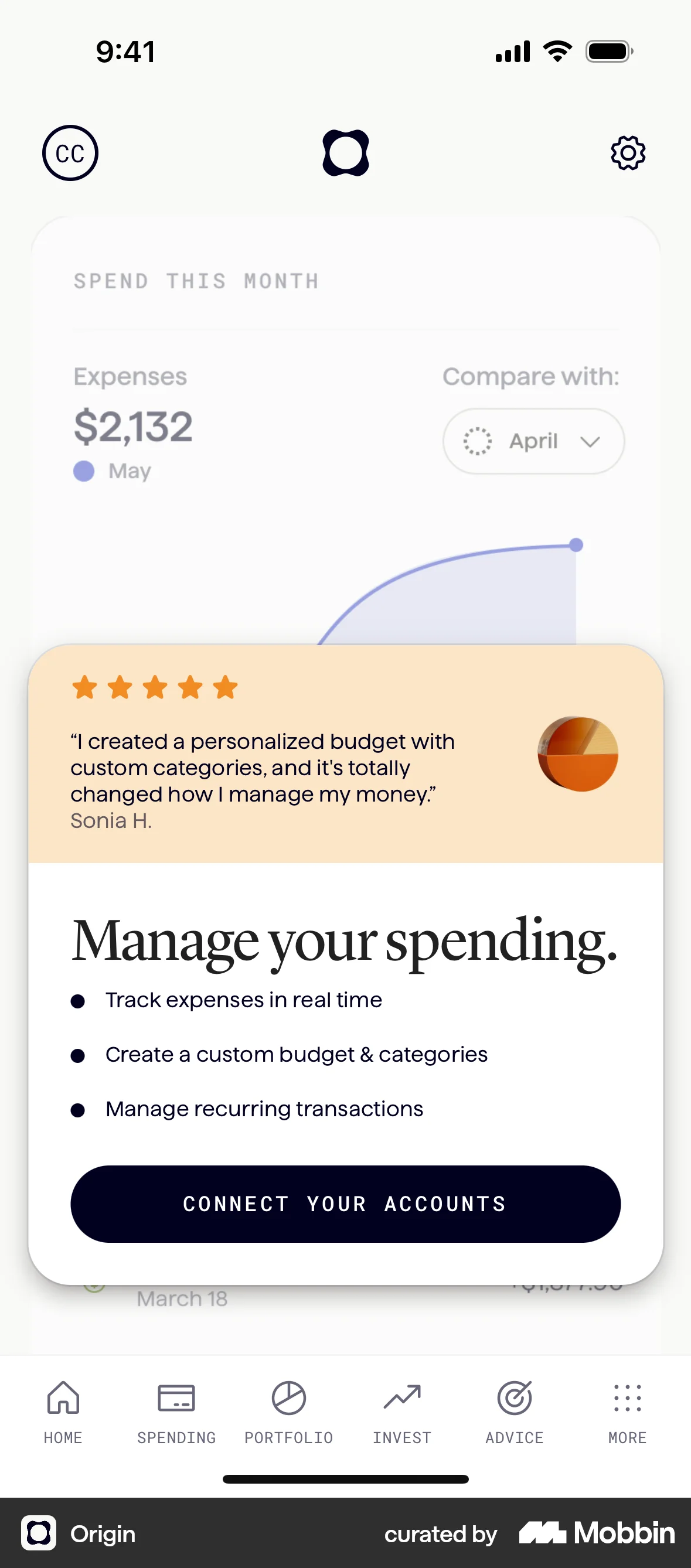
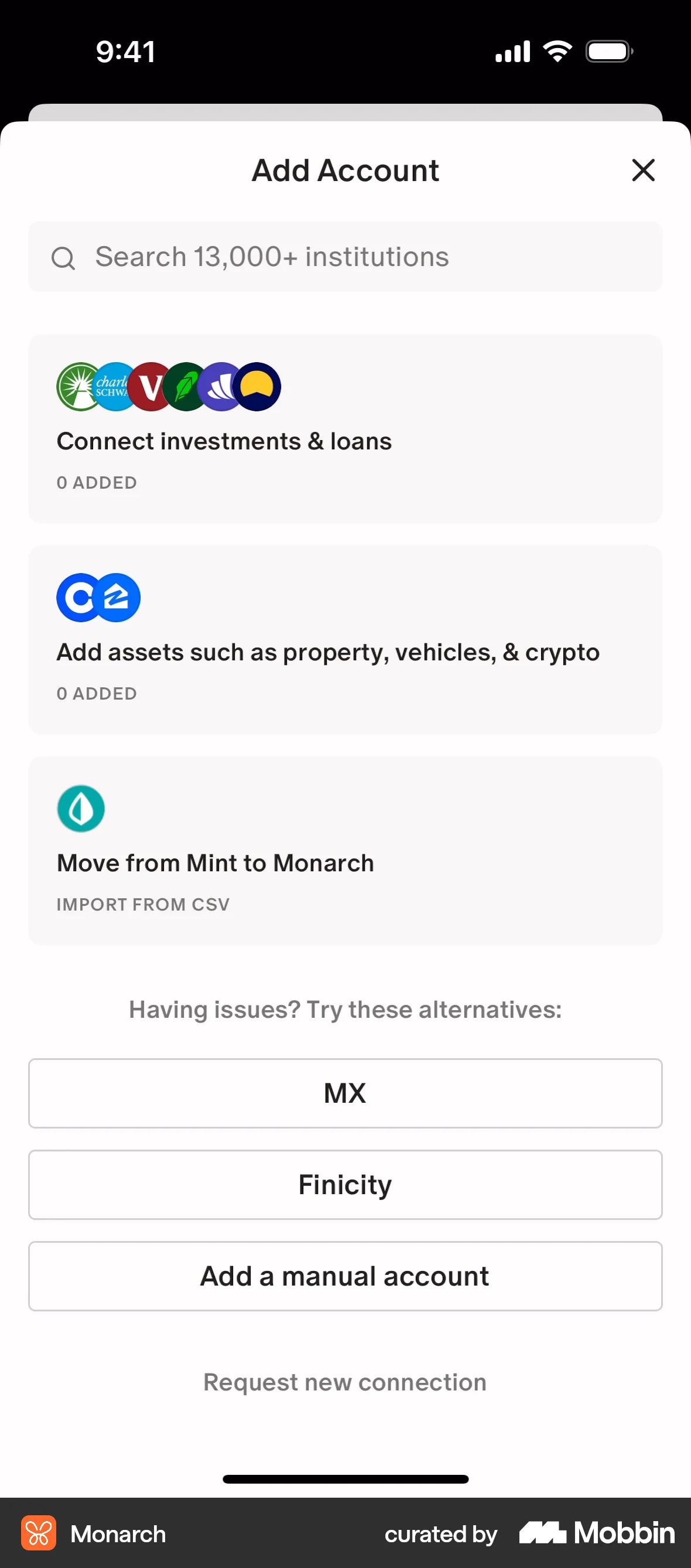
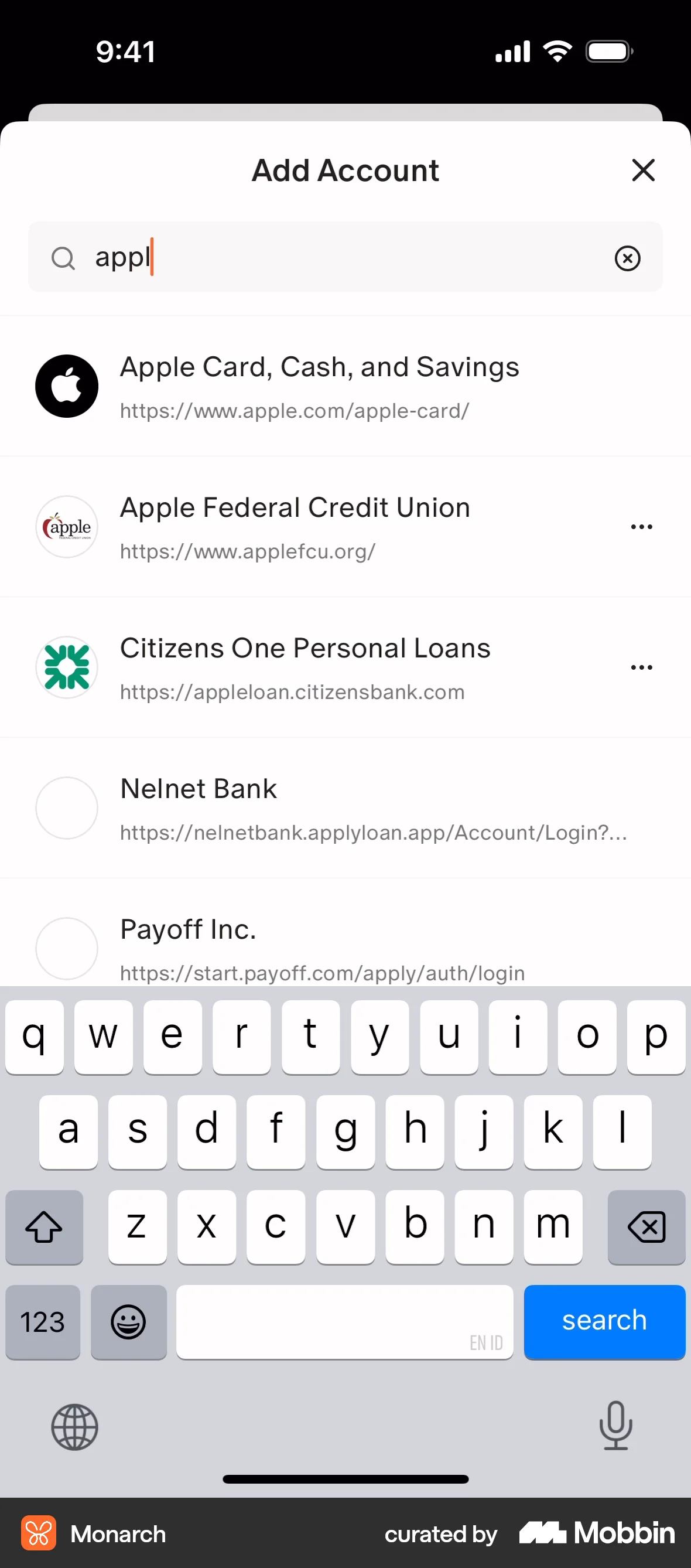
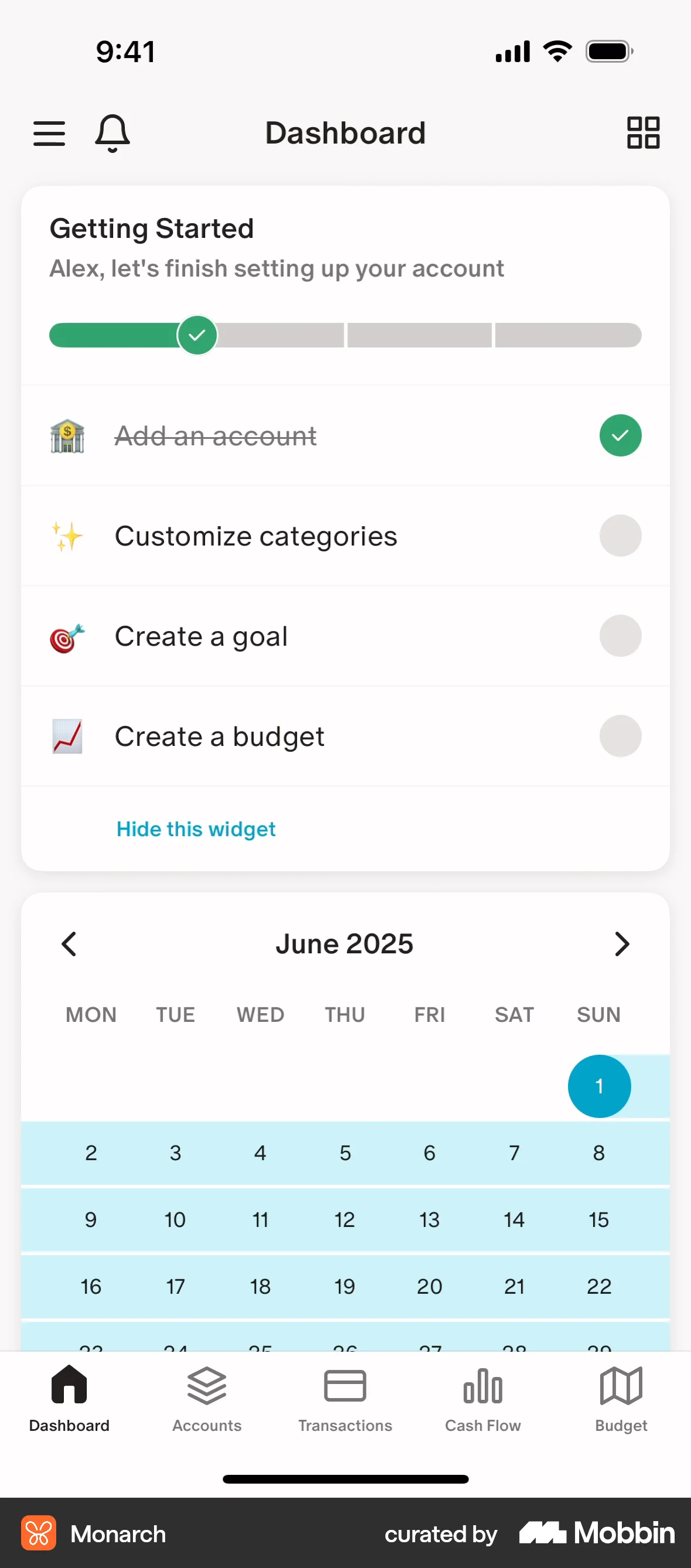
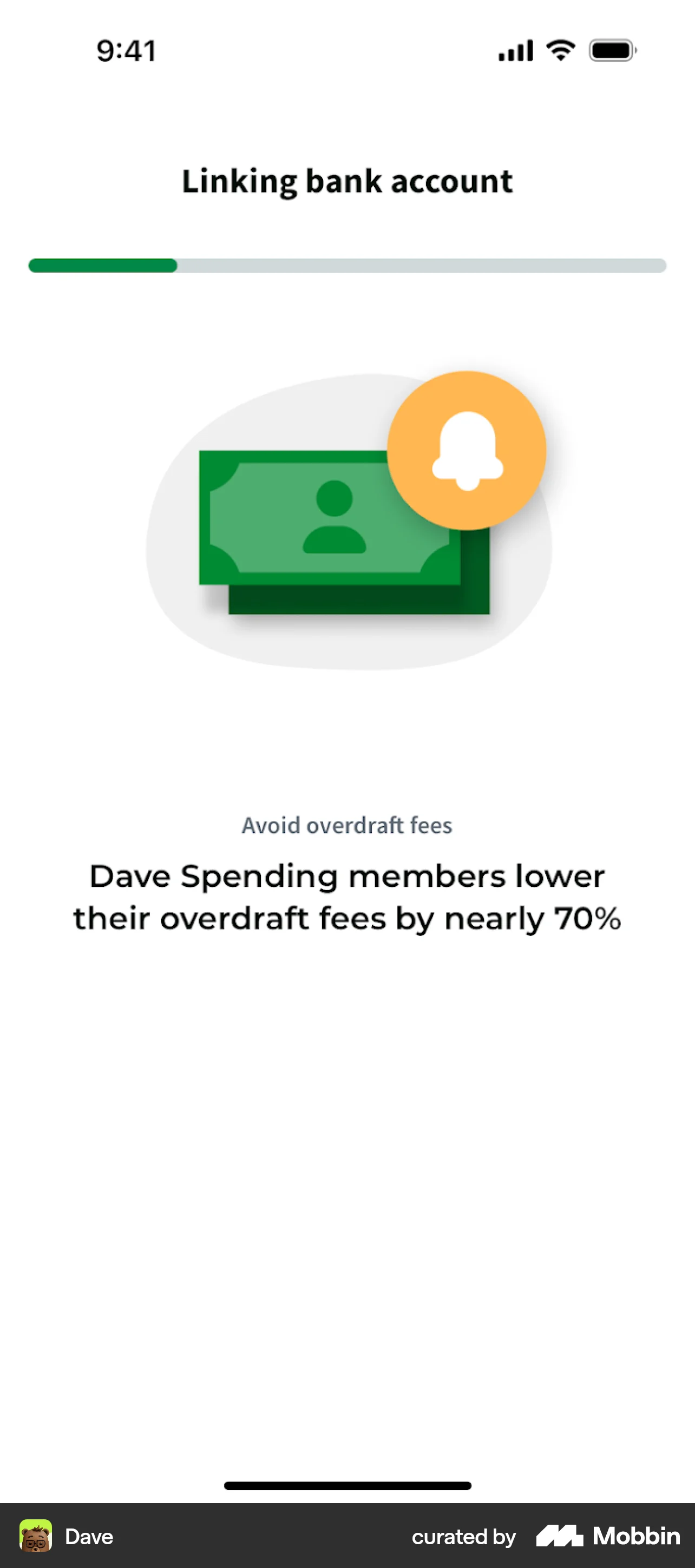
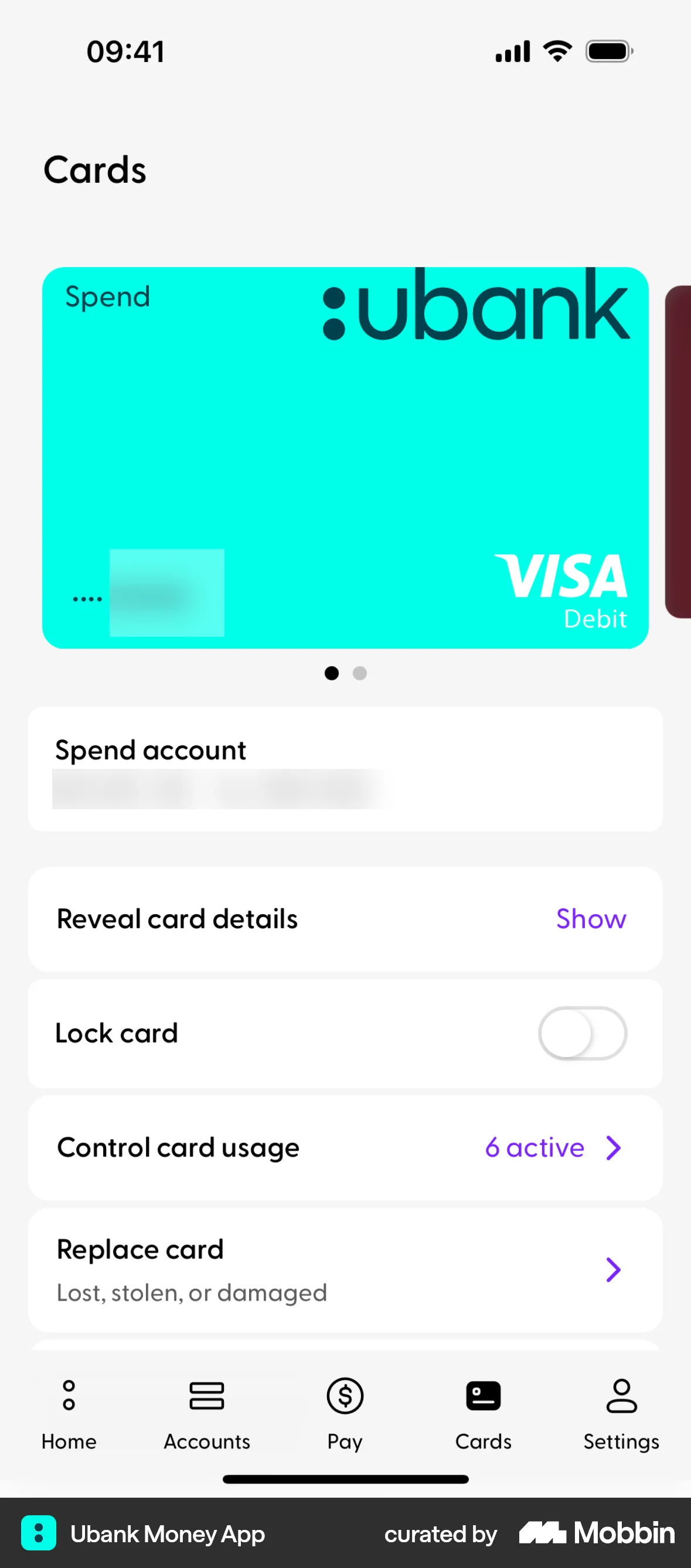
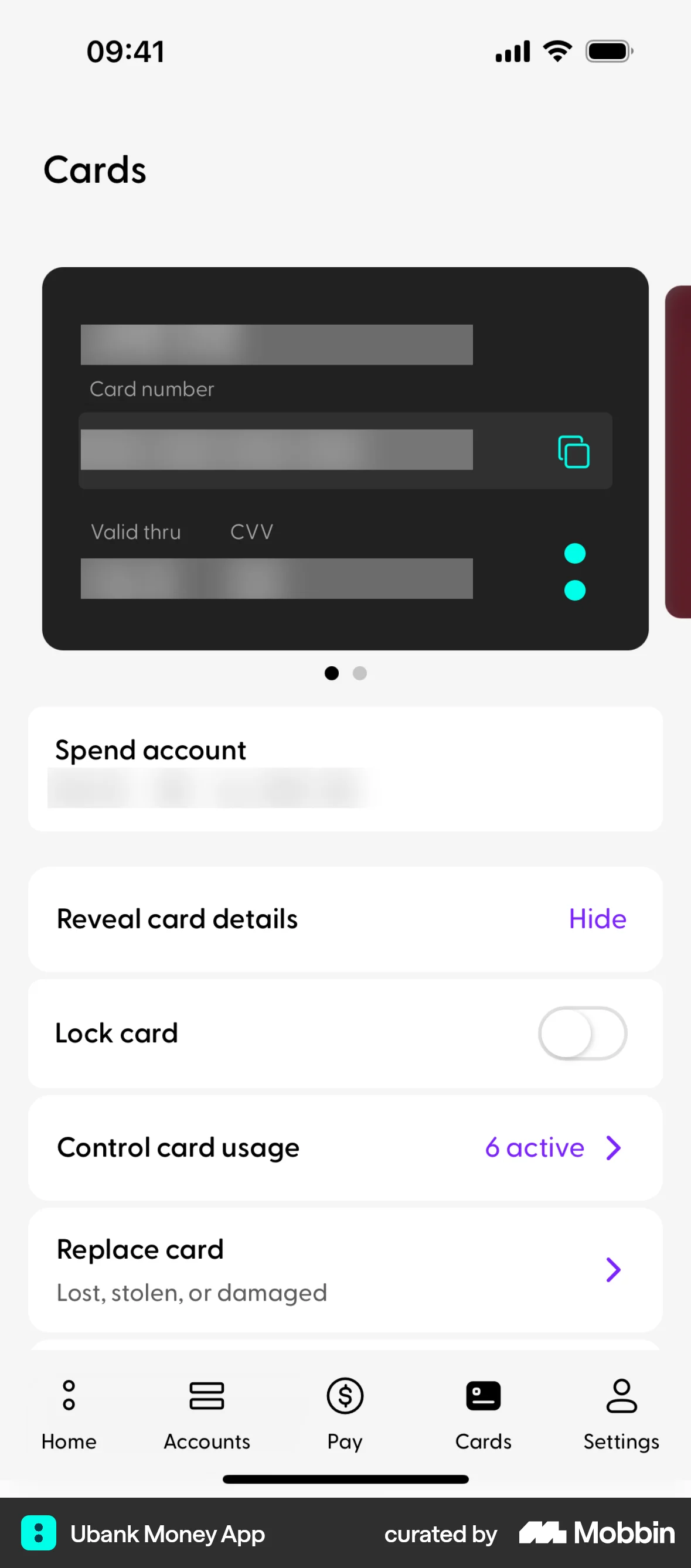
The user connects their bank account to the app. They navigate from the dashboard, authenticate with their bank, and return to the dashboard with the connected account.

The user connects their bank account, configures notifications, and views the updated account on the dashboard. The flow guides the user through the account connection process.

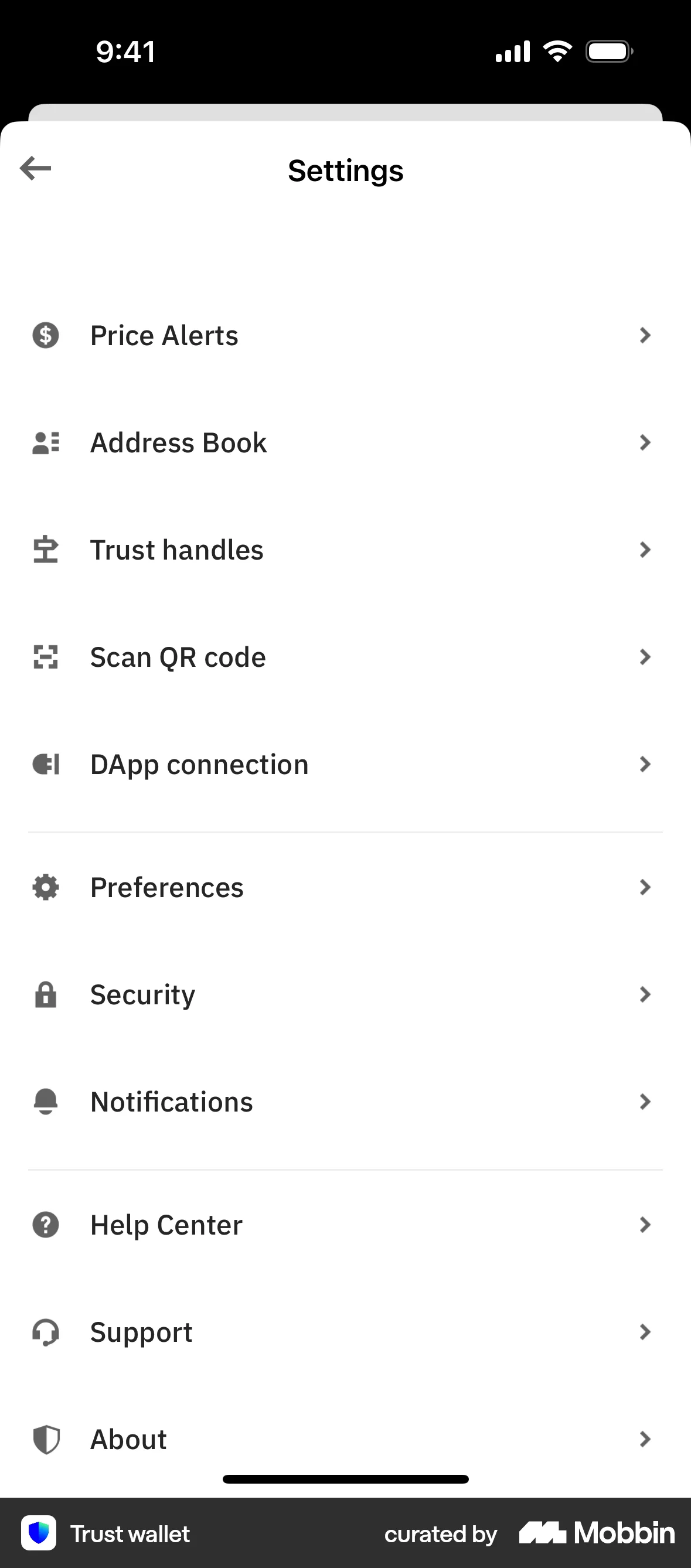
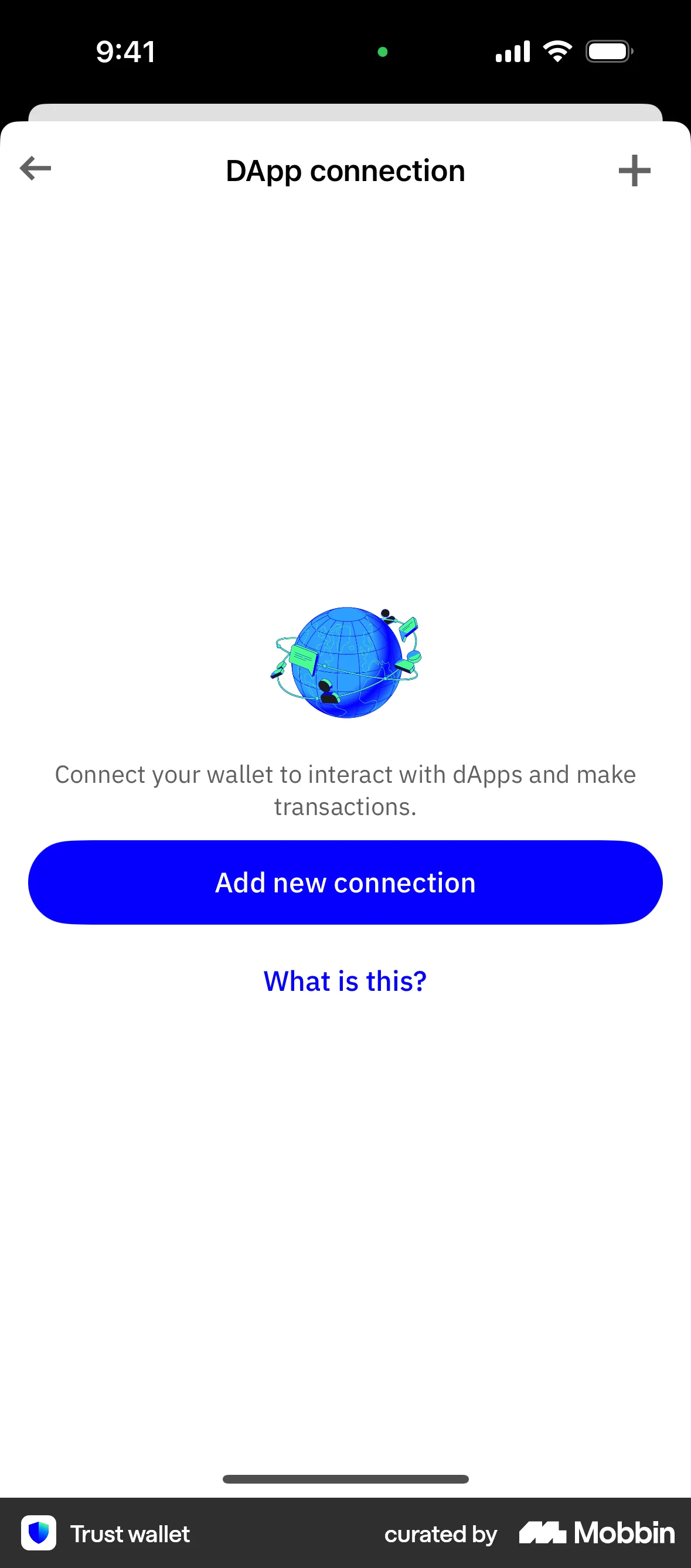
The user navigates through settings to connect a DApp. They authorize the connection and view it in their DApp connection list.

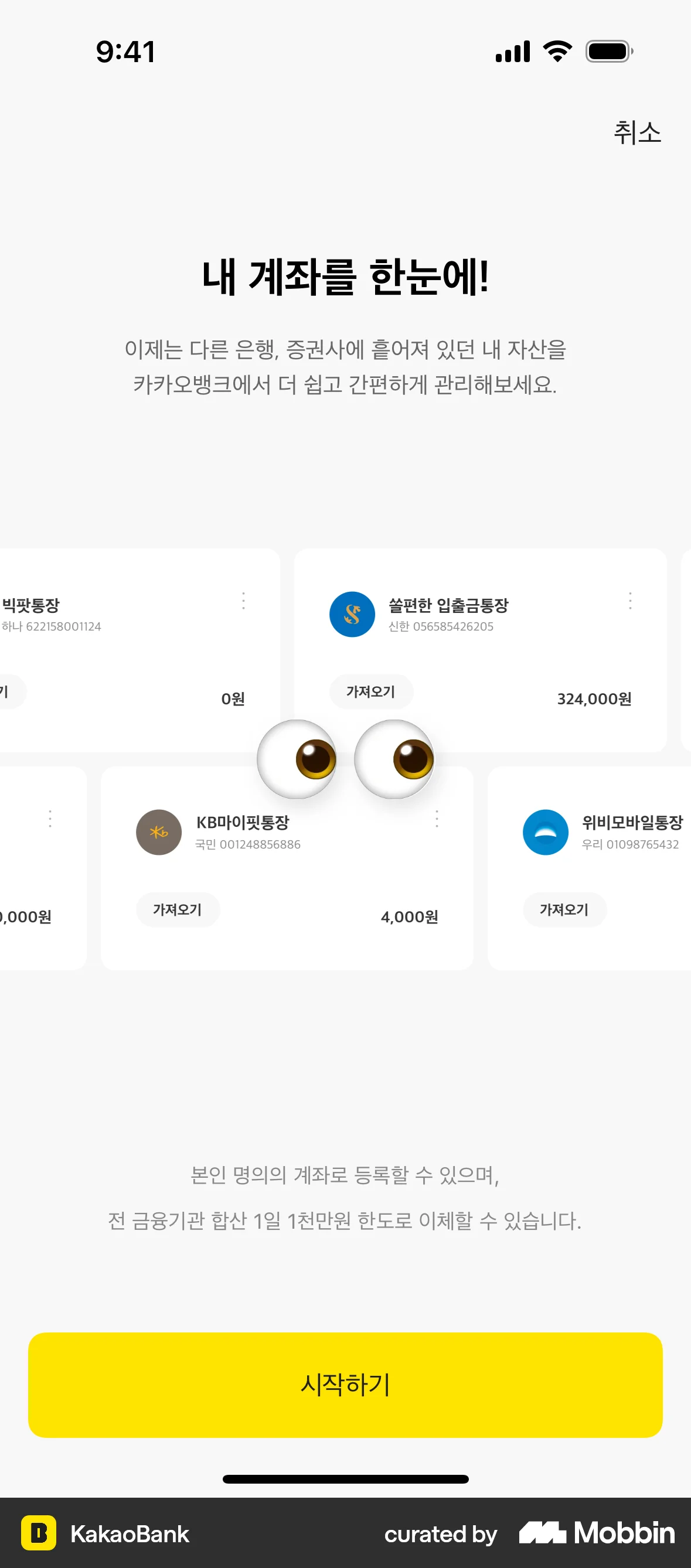
The user links external bank accounts by agreeing to terms, selecting accounts, and entering a PIN. The flow concludes with a registration confirmation.
The user flow demonstrates linking to a travel wallet, requiring consent and information verification before confirming the top-up service application.
The user disconnects their Travel Wallet. The flow involves navigating to the connection management screen, confirming the disconnection, and receiving a confirmation message.

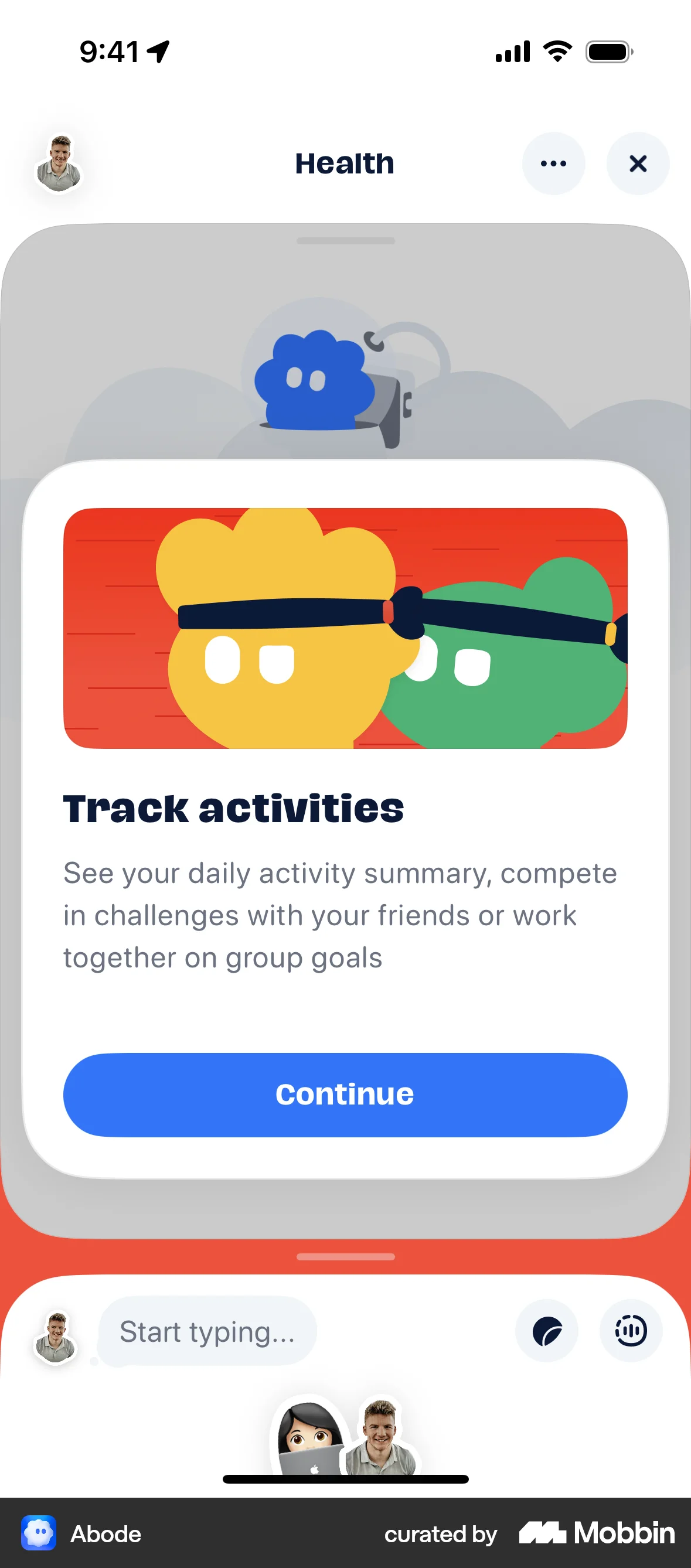
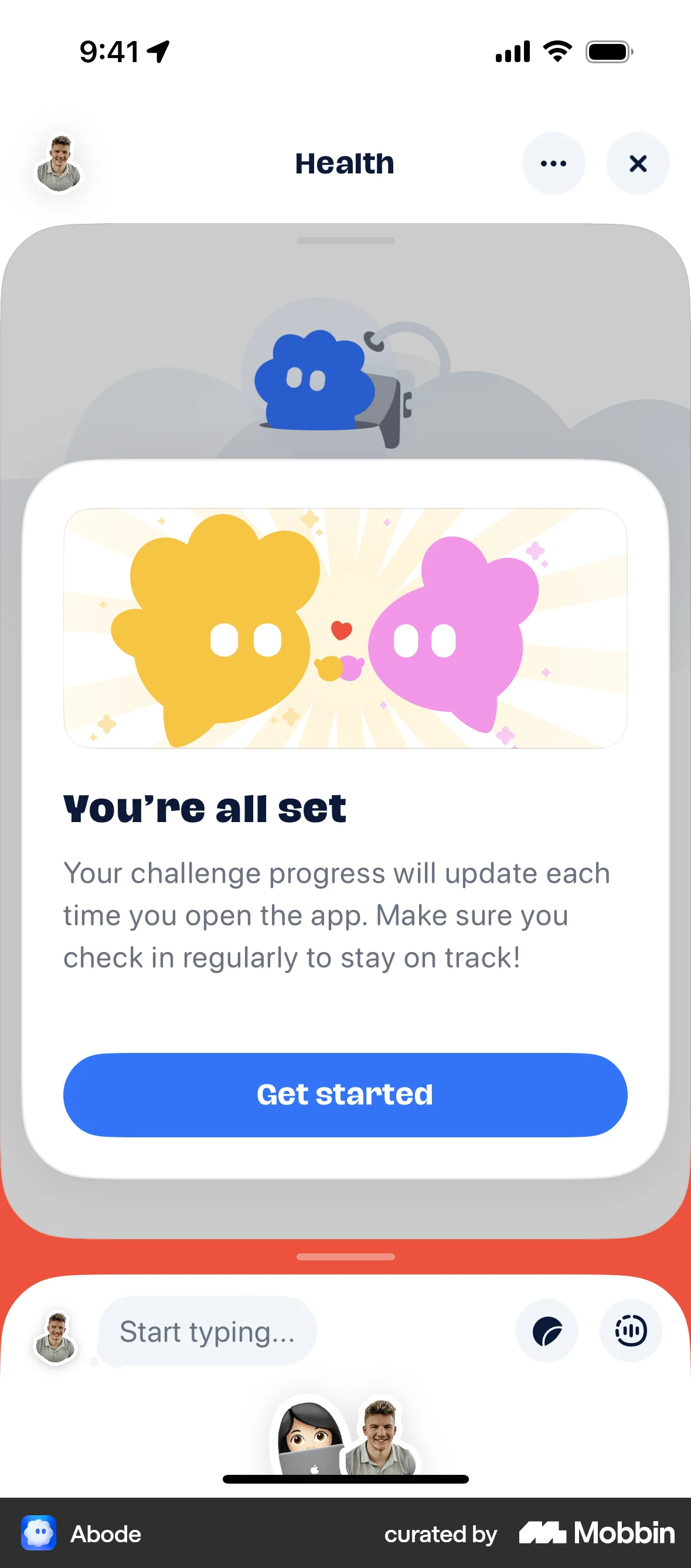
The user flow demonstrates linking with Apple Health. It involves granting permissions and viewing the health dashboard.

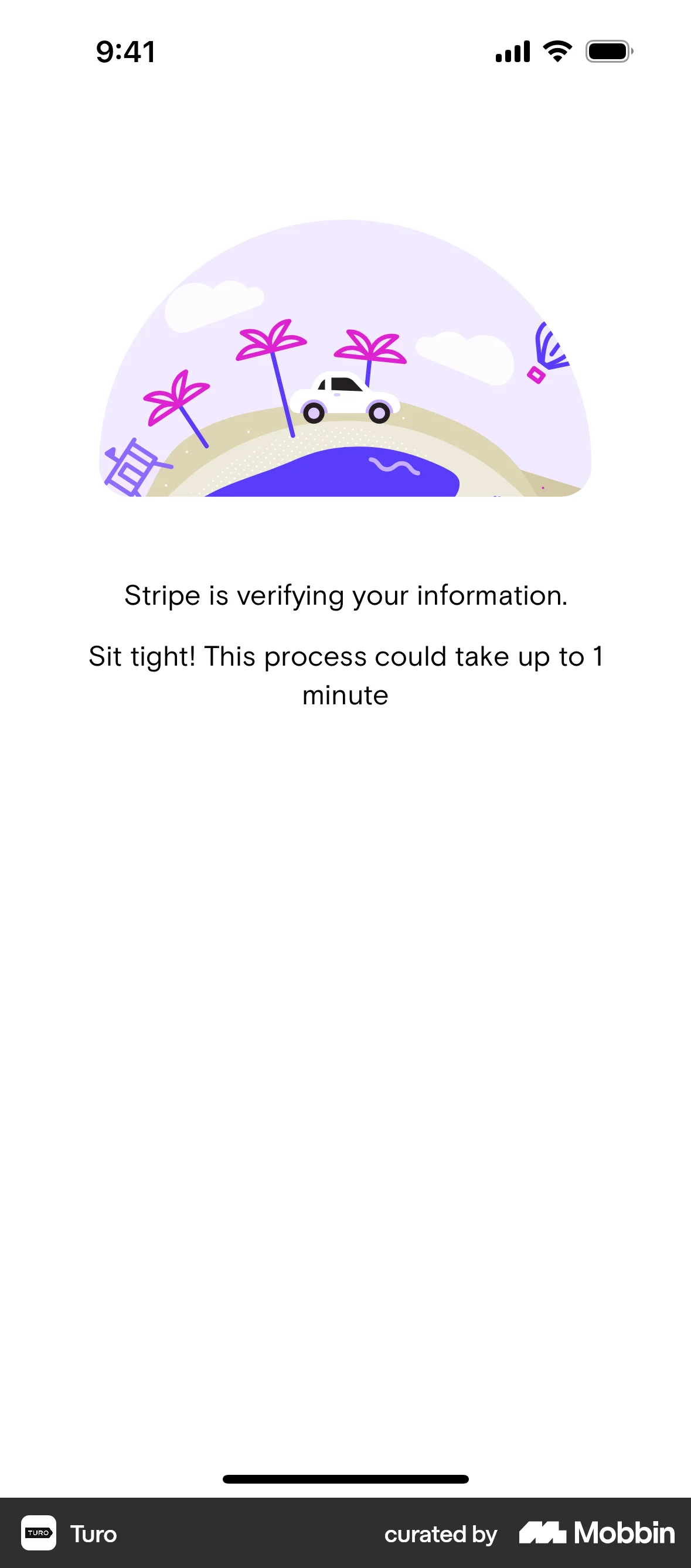
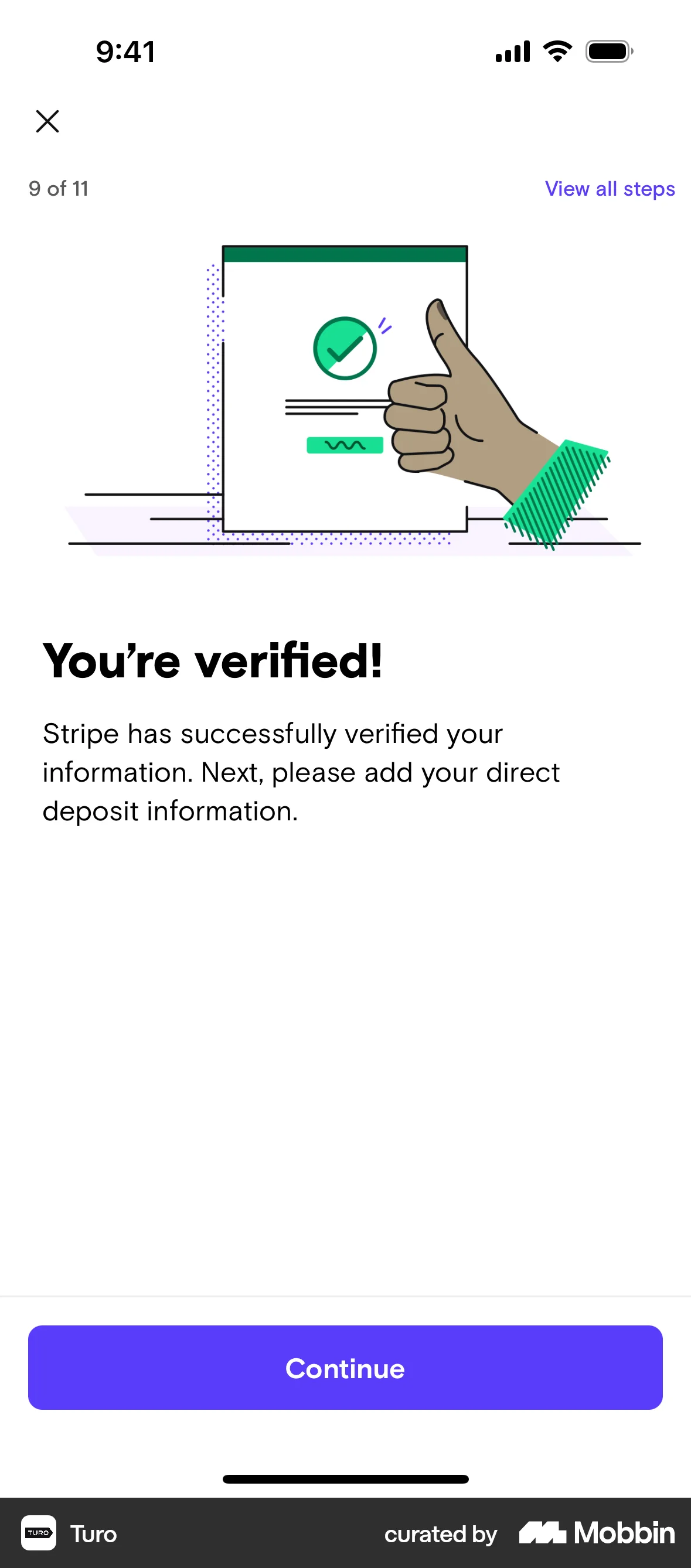
The user flow guides a user through connecting to Stripe. It involves providing necessary information and awaiting verification.
The user navigates through settings to connect their Kakao account. After connecting, the user is presented with the option to disconnect.
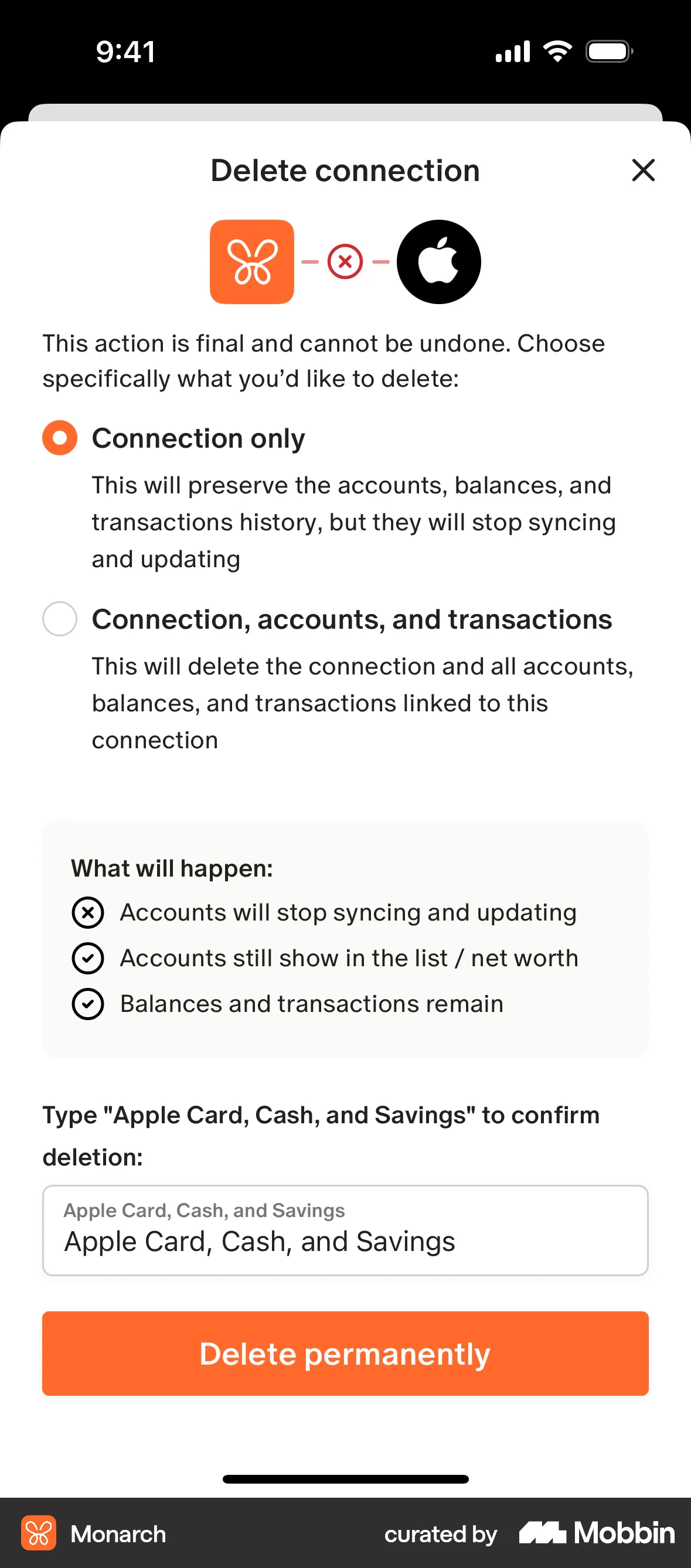
The user flow demonstrates deleting an account connection. It involves navigating to settings, confirming the deletion scope, and verifying the action.

The user flow guides the user to connect their bank account and debit card through Plaid. It ends with the user on the application home screen.
589 Flows

1020 Flows
350 Flows

692 Flows
500 Flows

76 Flows