Switching to grid viewon On
On
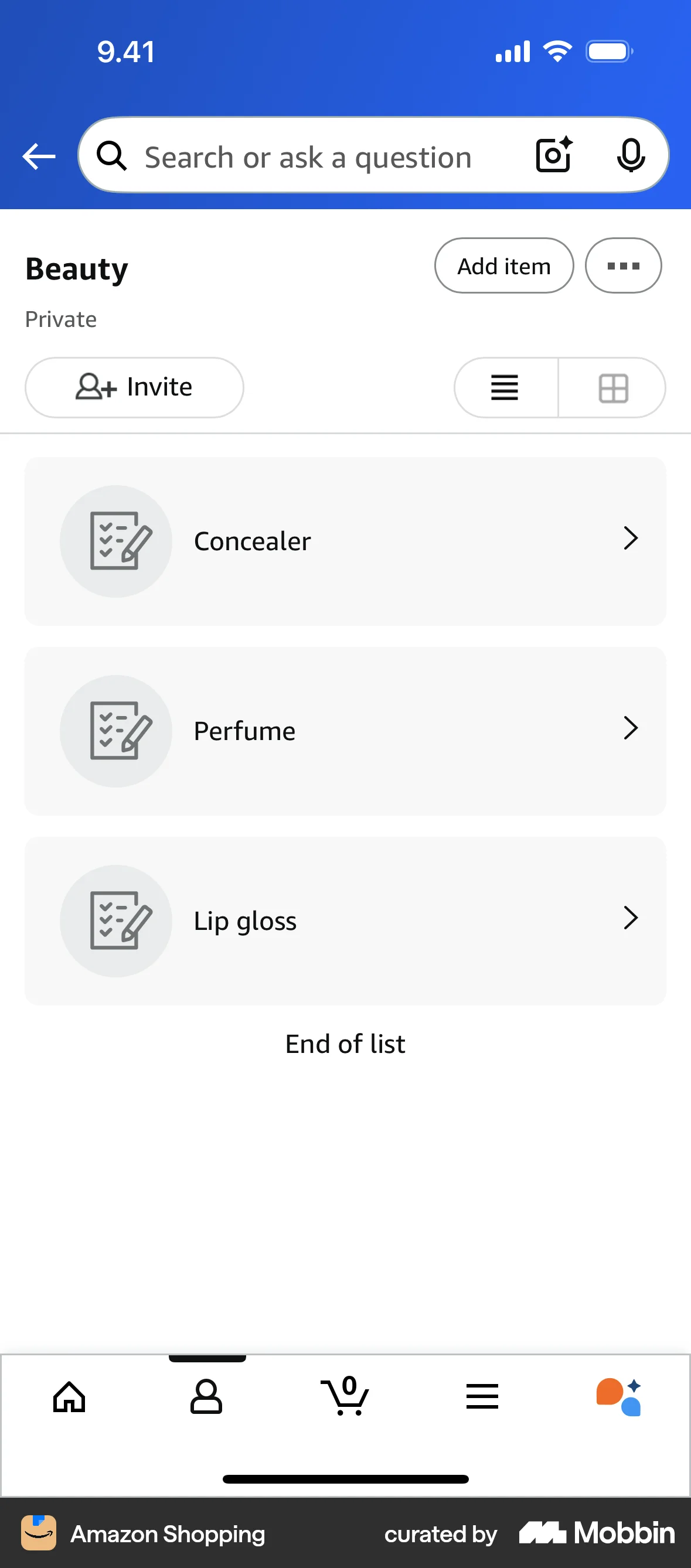
The user switches from a list view to a grid view on a product listing page. This allows the user to browse products in their preferred format.
Discover best mobile app designs for Switching View flows. Get inspired by the best apps in the world.
The user switches from a list view to a grid view on a product listing page. This allows the user to browse products in their preferred format.

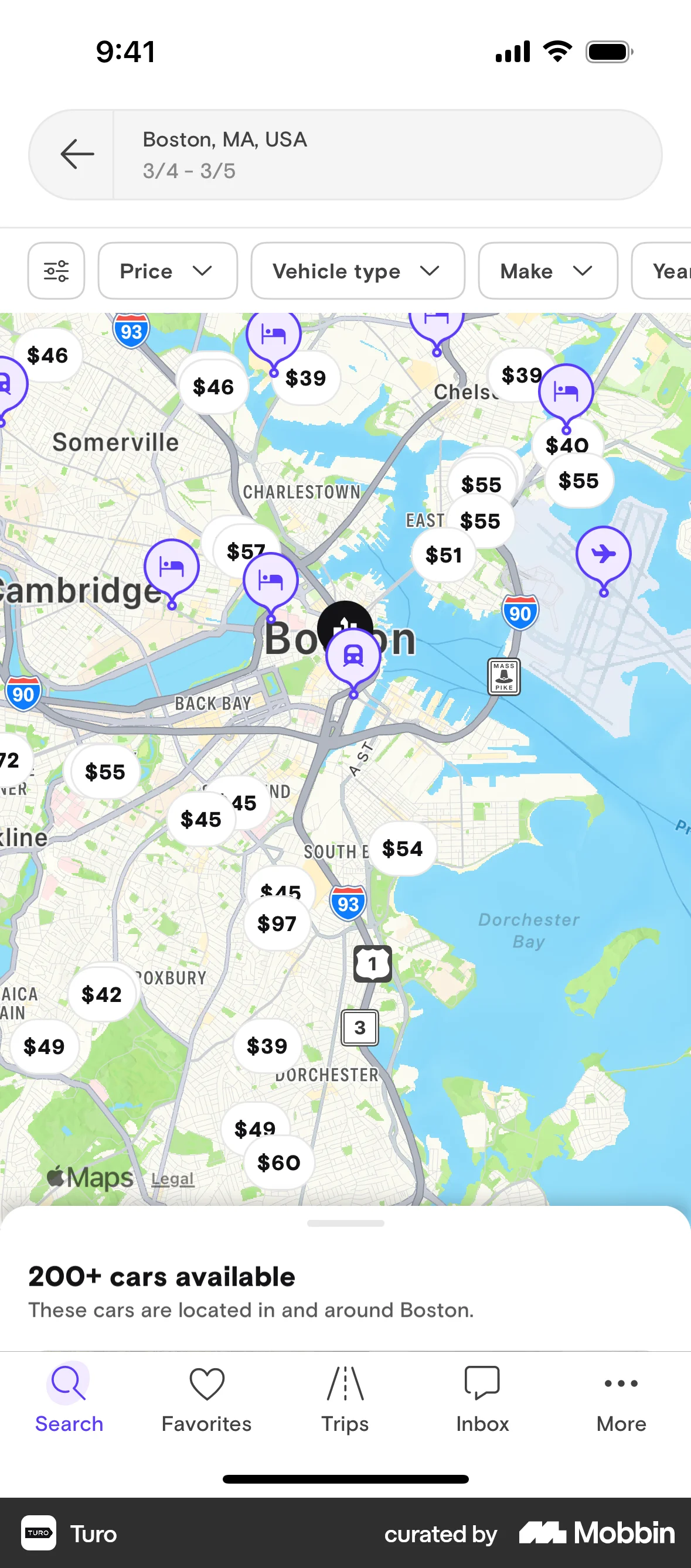
The user switches from a list view of available cars to a map view. They then zoom in and are prompted to search the visible area.

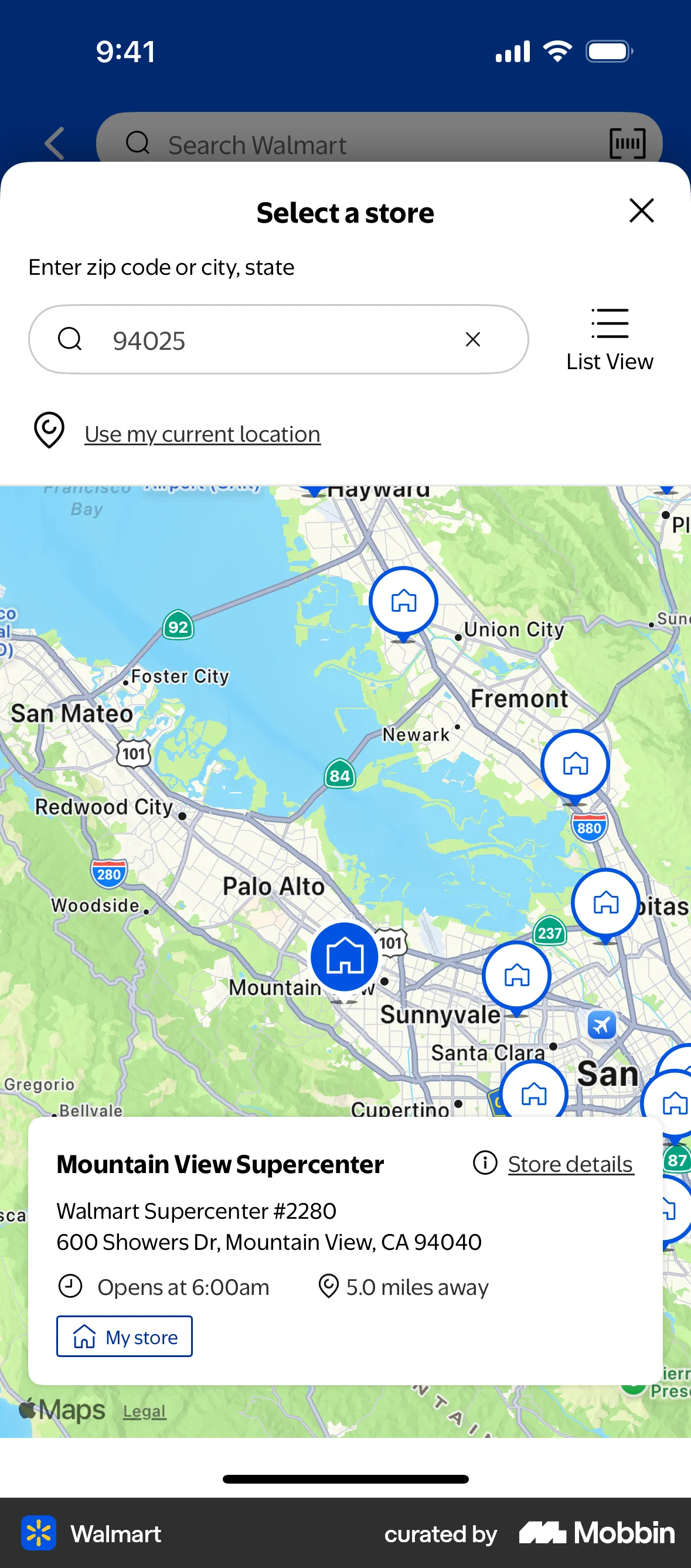
The user searches for stores and switches to map view to see store locations. They then select a store on the map to view its details.

The user listens to an article by first pressing the 'Listen' button and then navigating to the audio player. The user can then control the playback.

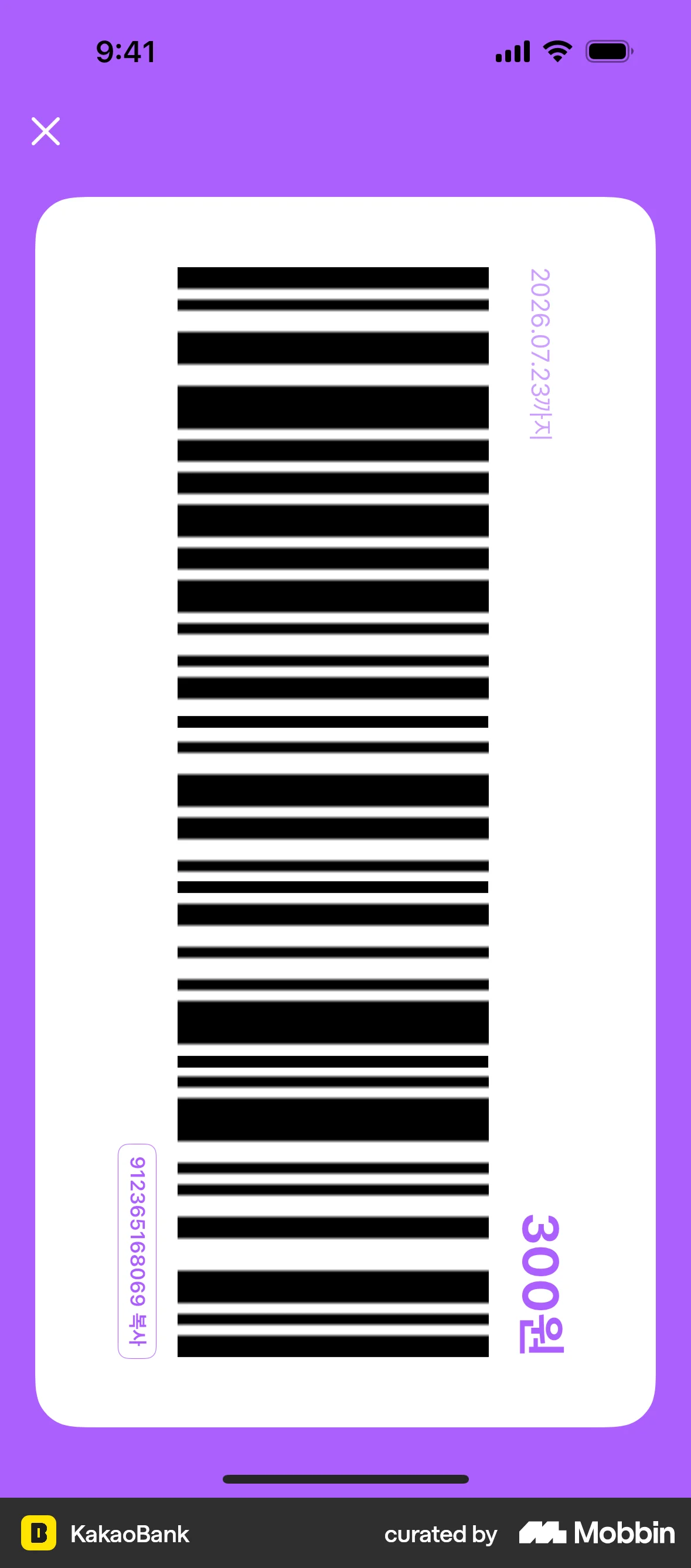
The user flow illustrates buying a coupon, starting from the product detail page, proceeding through payment confirmation, and ending with the display of the purchased coupon.

The user views a product and then interacts with a 3D model by rotating and zooming. The flow showcases the 3D viewing experience.

The user switches from the grid view to the list view by using the toggle button. This changes the way the categories are displayed.
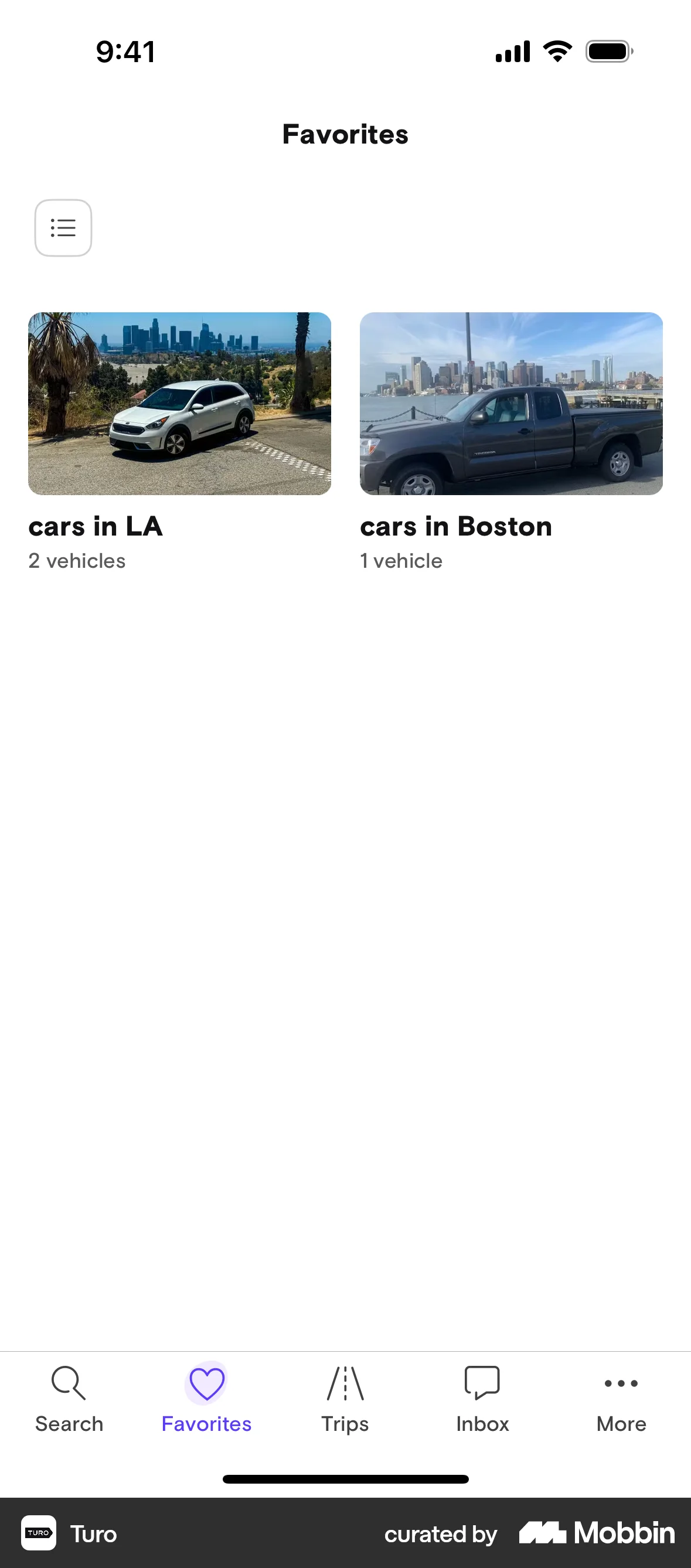
The user switches from list view to grid view on the Favorites screen by tapping the list icon.
The user switches from a list view to a grid view. This is achieved by tapping on the grid icon.

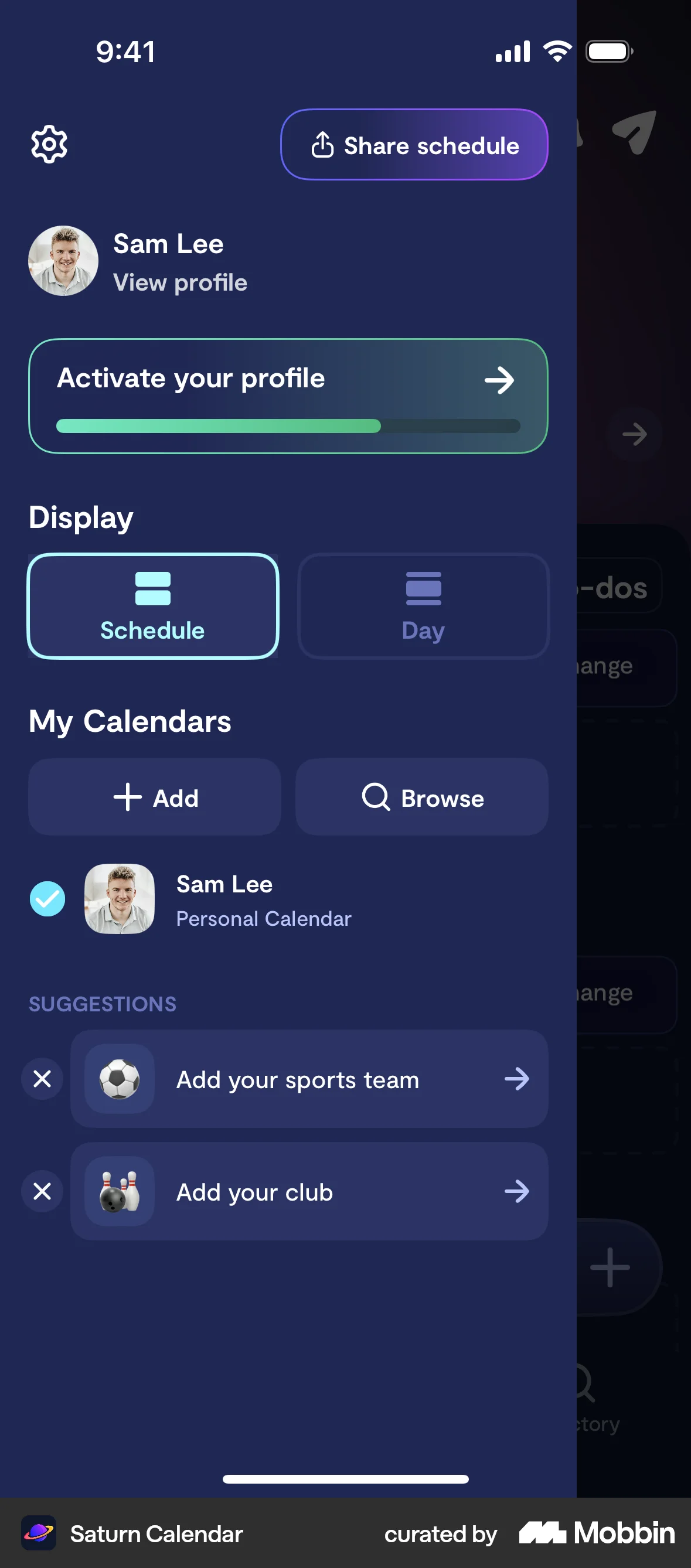
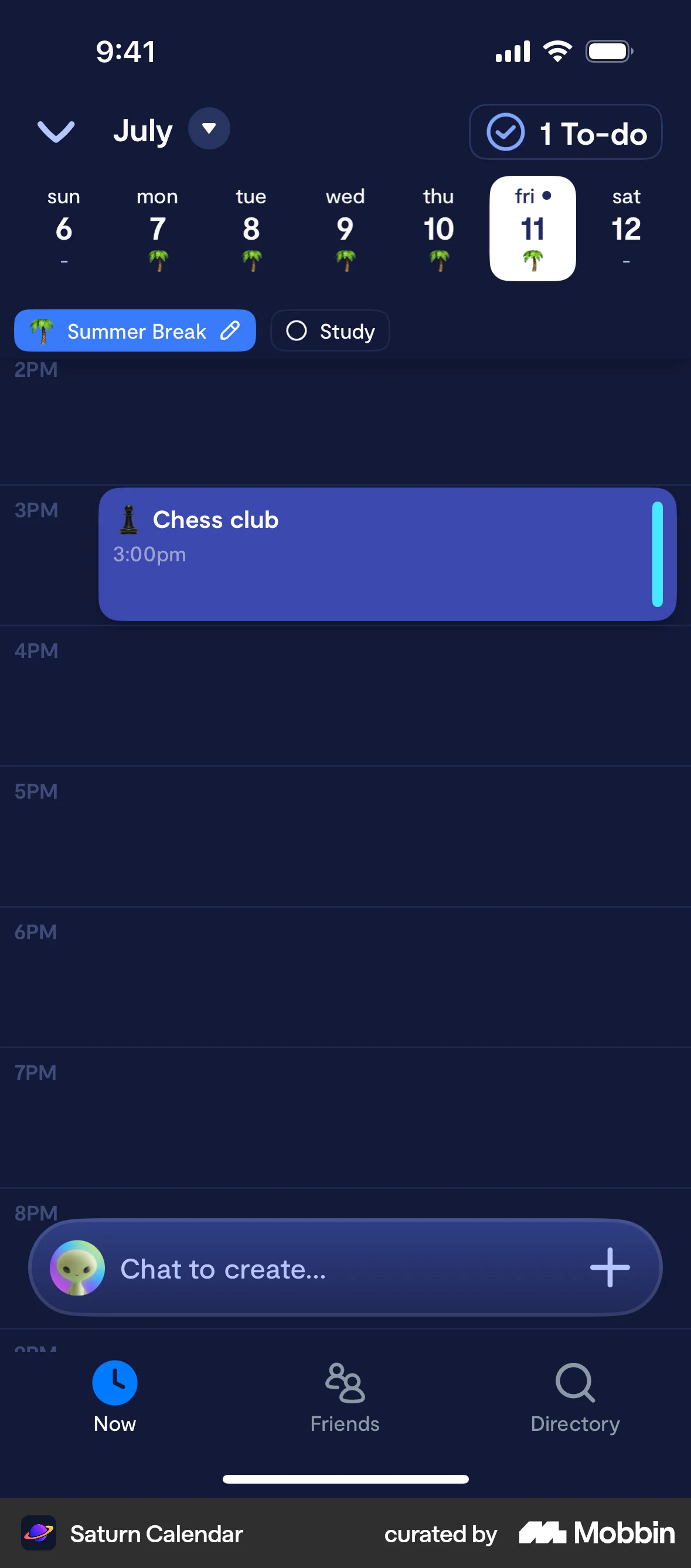
The user switches from the schedule view to the day view in the calendar. The calendar then displays the daily schedule.
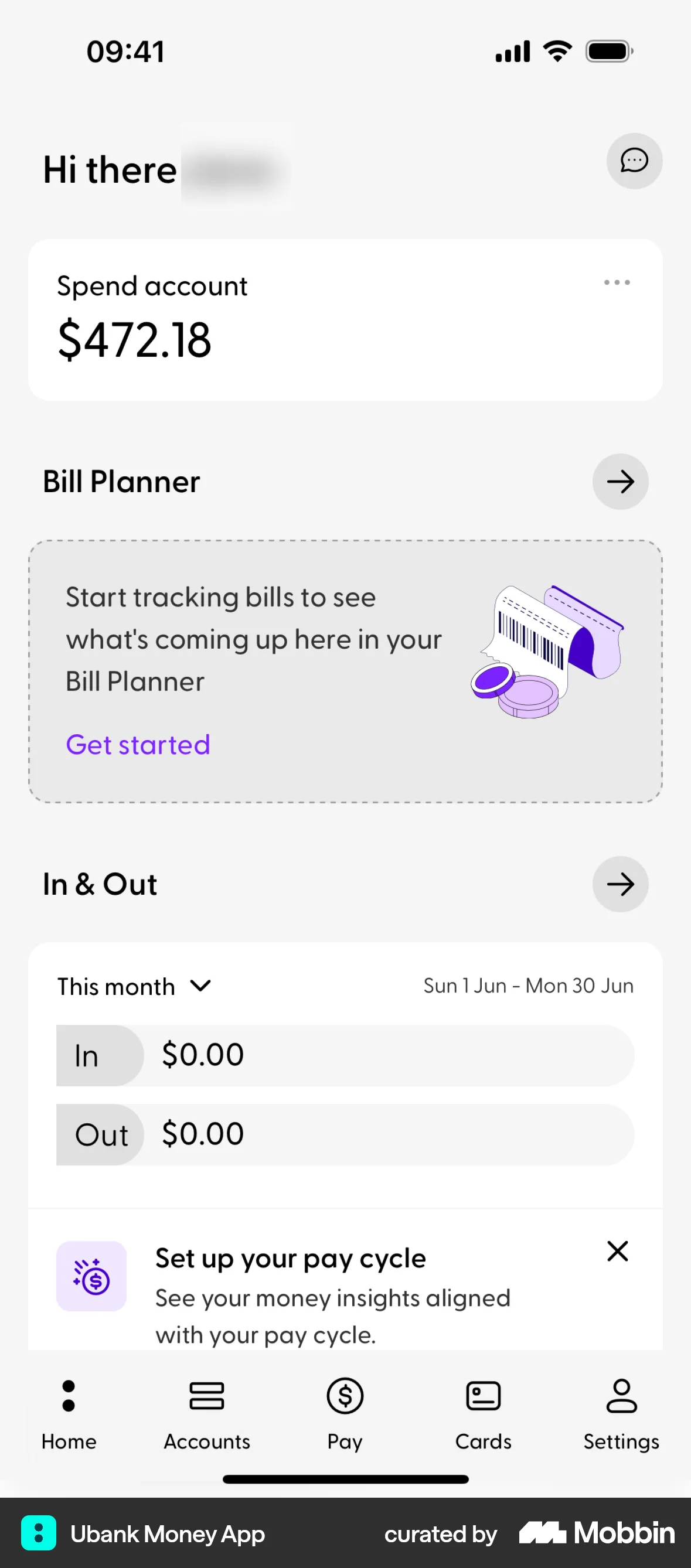
The user is prompted to switch to a simplified home screen, views account details, and sees options to switch between home screen modes.

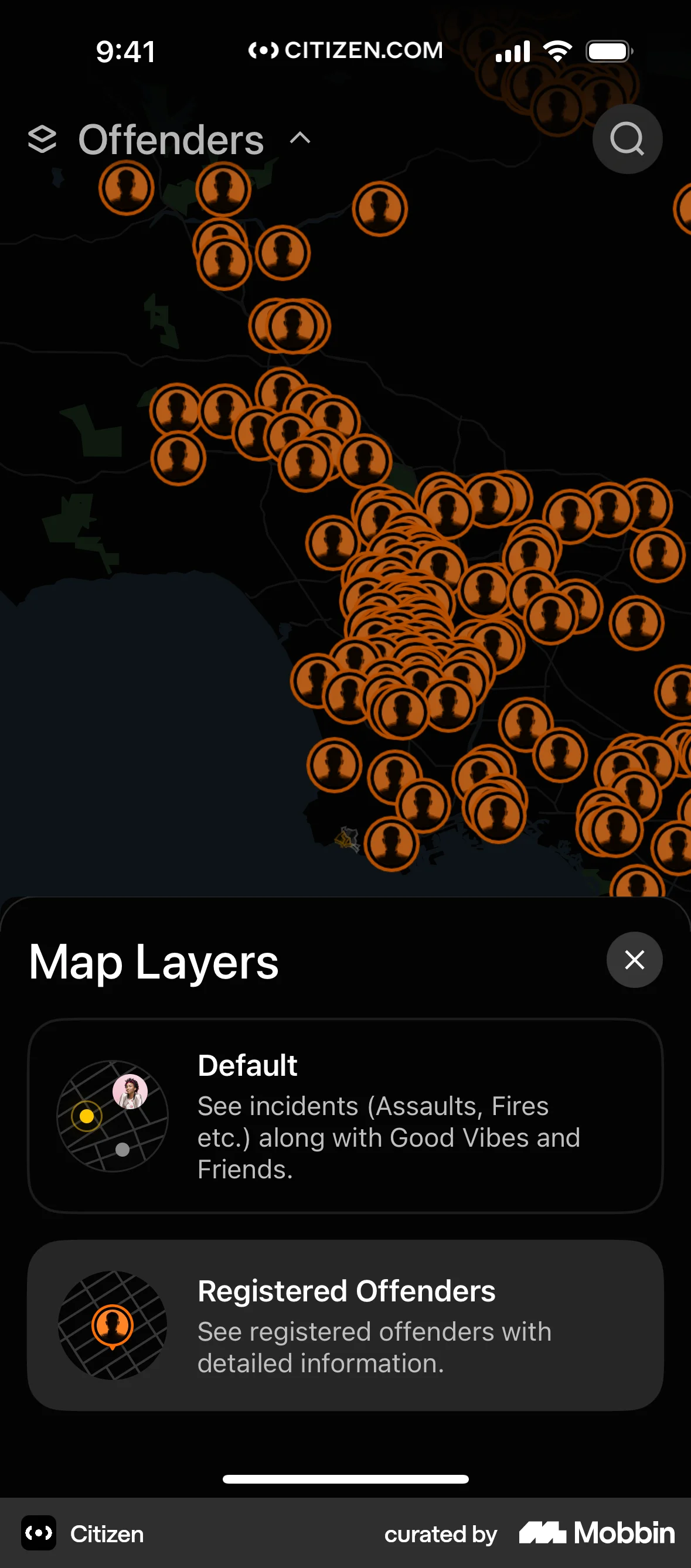
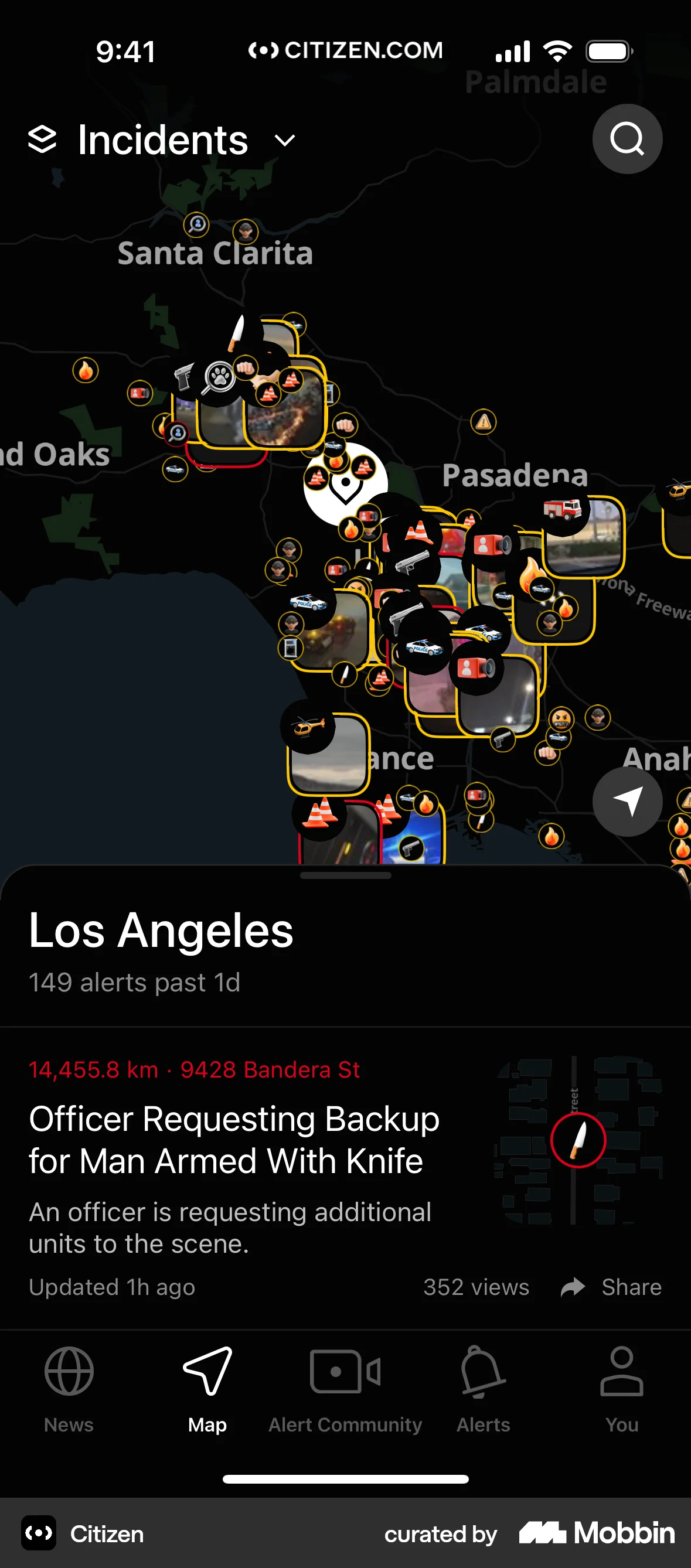
The user switches from viewing registered offenders on a map to viewing incidents. The map updates to display relevant information about the incidents.

441 Flows
350 Flows

1020 Flows
589 Flows


343 Flows