
What is a popover component?
Popover displays information and functions temporarily in a contextual overlay that floats around its trigger (i.e. a button).
A popover component can help to save limited screen space by placing non-essential contextual information in a temporary popover container.
It usually is attached to a specific UI element and is opened on trigger - it can also be closed quickly with the esc key.
A popover component is very similar to other non modal dialog components like tooltips and menus, with slight differences on what they are typically used for.
Popovers are commonly seen in the following design patterns: Supplementary menus, Help or FAQ sections, Informational messages or tips.
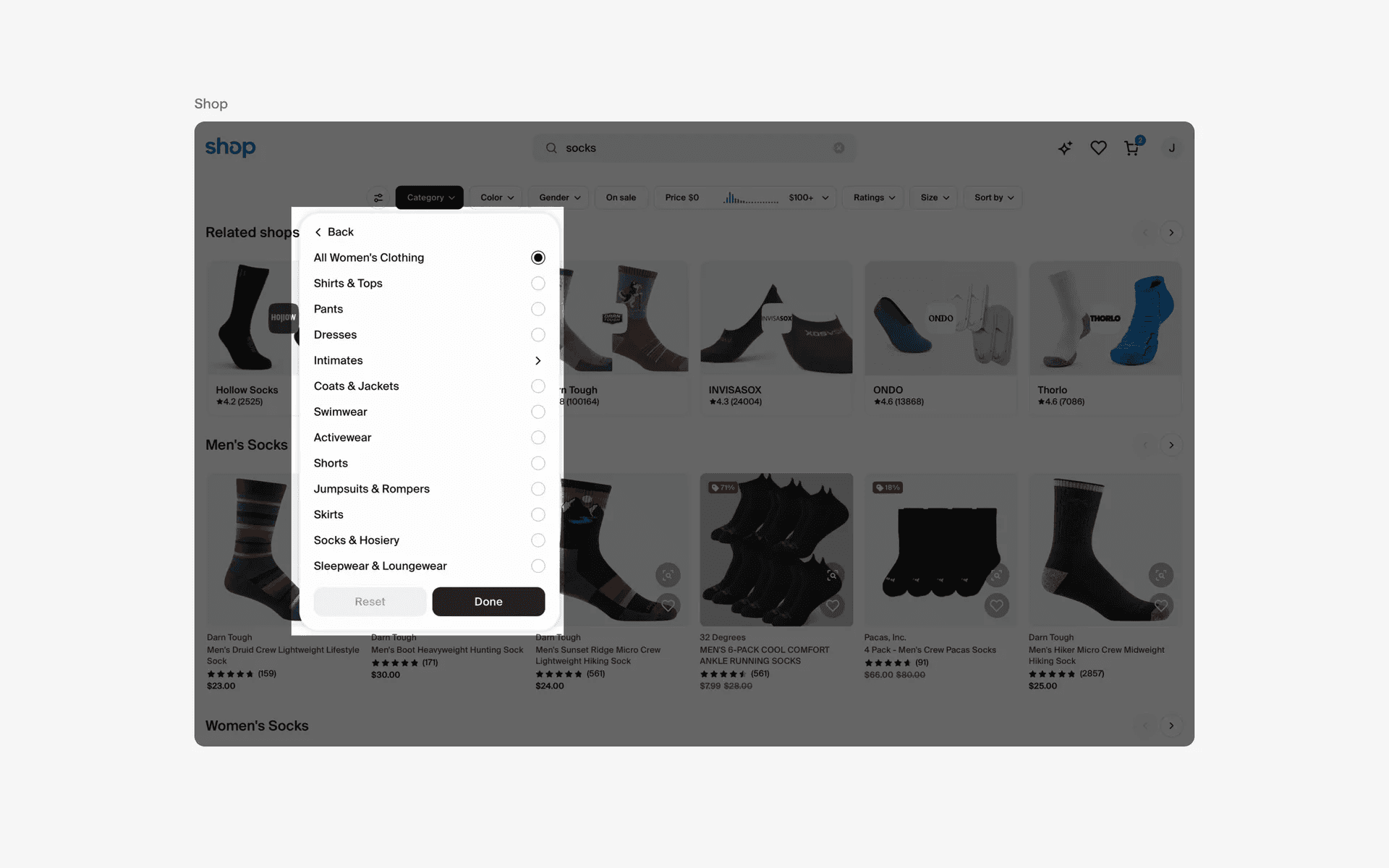
Examples of popovers
What is the anatomy of a popover?
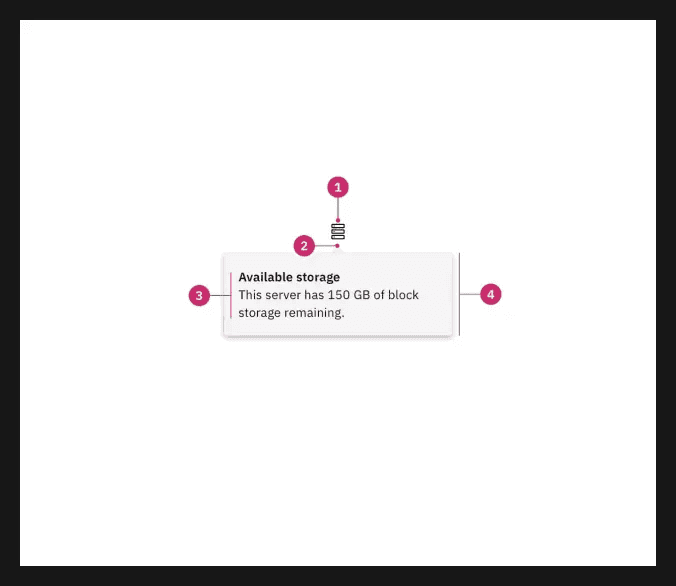
Anatomy of a popover
What are the design variants of a popover?
We studied over 1,700+ popover UI components on Mobbin, from real-world examples and found the following variants.
1. Popovers can come with or without a caret tip
A caret tip might be useful as it shows what UI element a popover container is attached to.
This is especially helpful if the interface is cluttered with multiple UI elements that are contesting for attention and it might not be clear which UI element a popover is attached to.
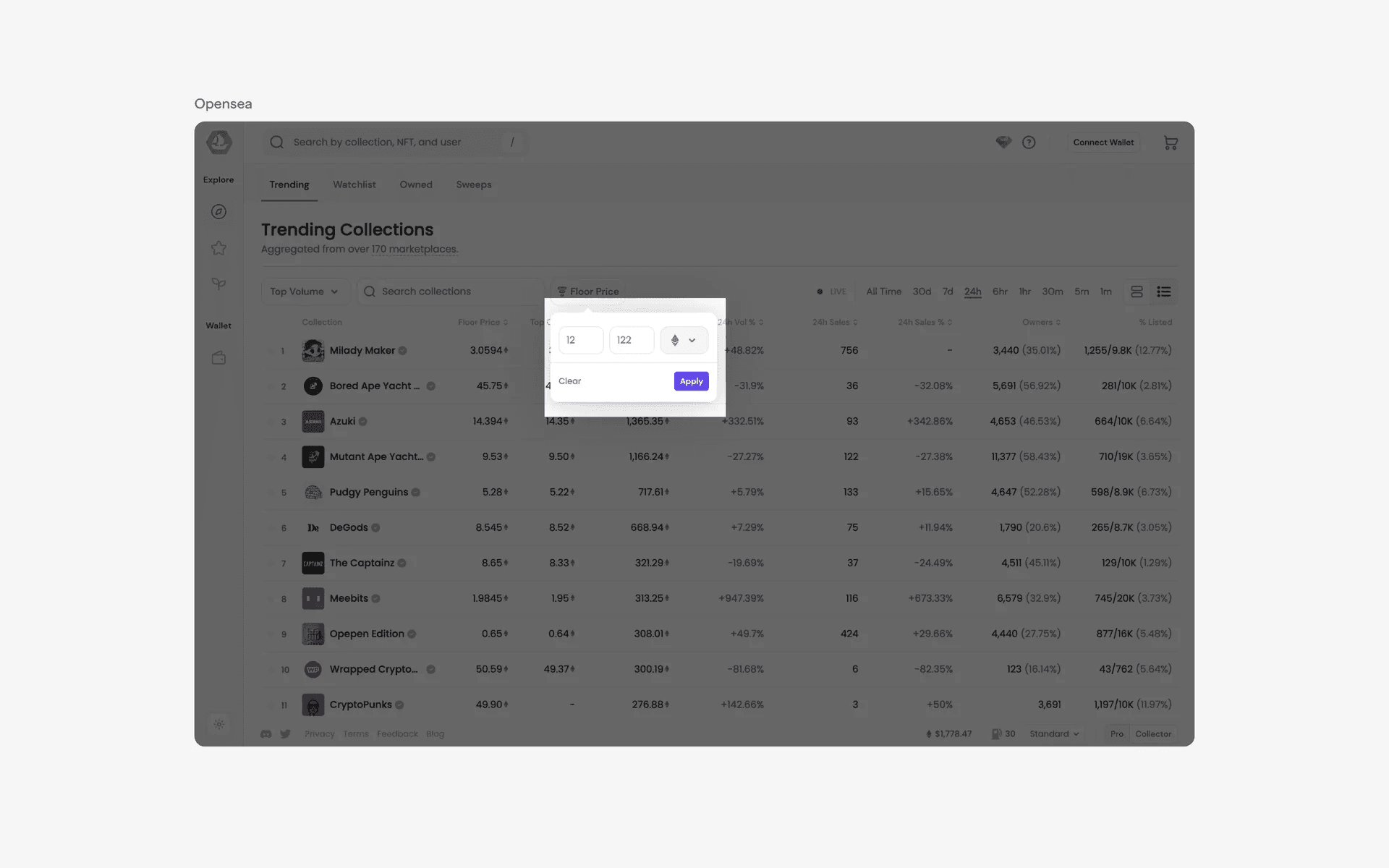
Examples of popovers with caret tips
Alternatively, you can also choose use a popover container without a caret tip.
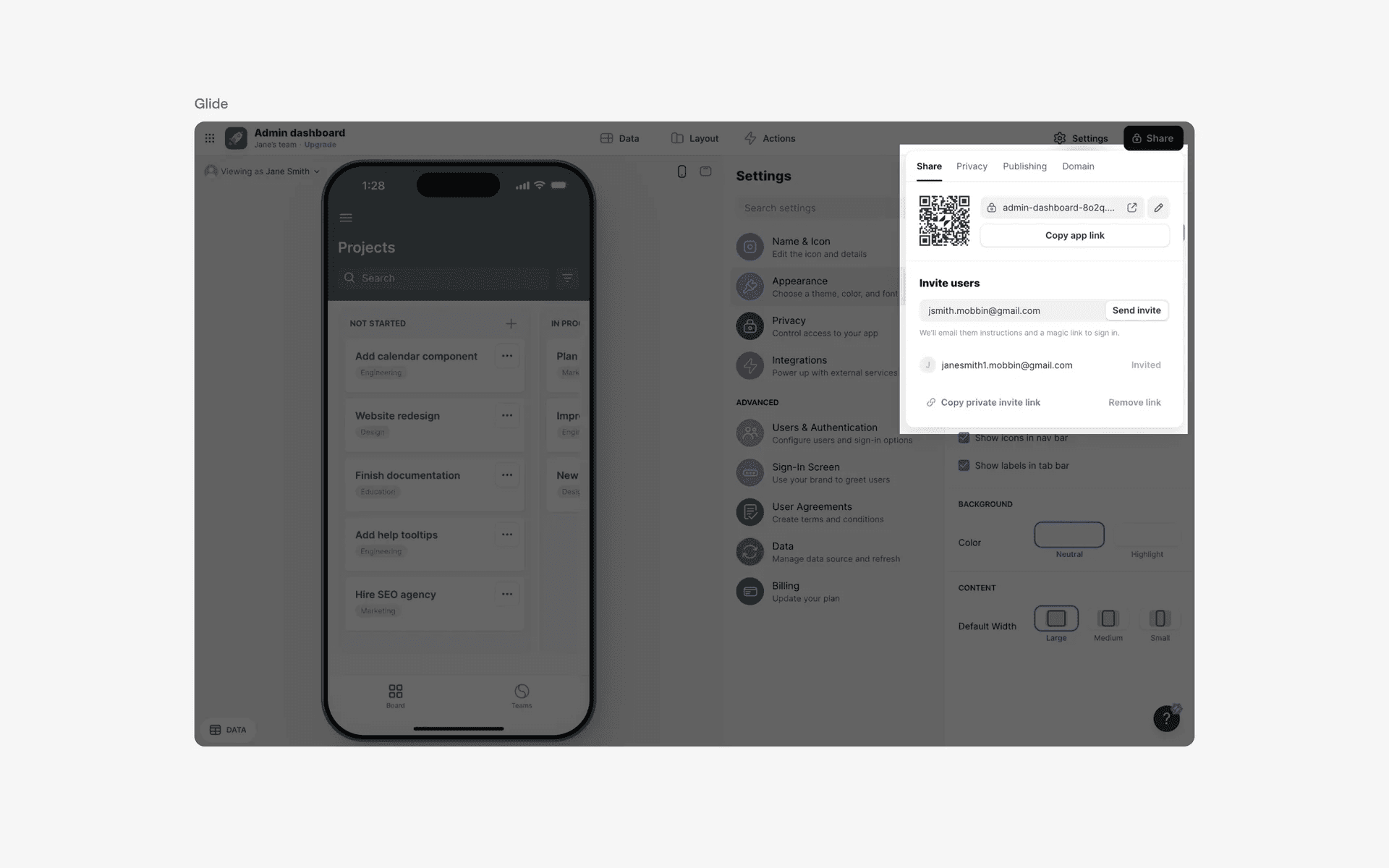
Examples of popover without caret tips
2. Popovers sometimes come with close button
Popover containers are quite frequently used on web interfaces - users are quite familiar with how it works and that you can use the escape key to exit a popover container.
Despite that, we've still seen popovers come with a close button, most commonly on the top right hand corner.
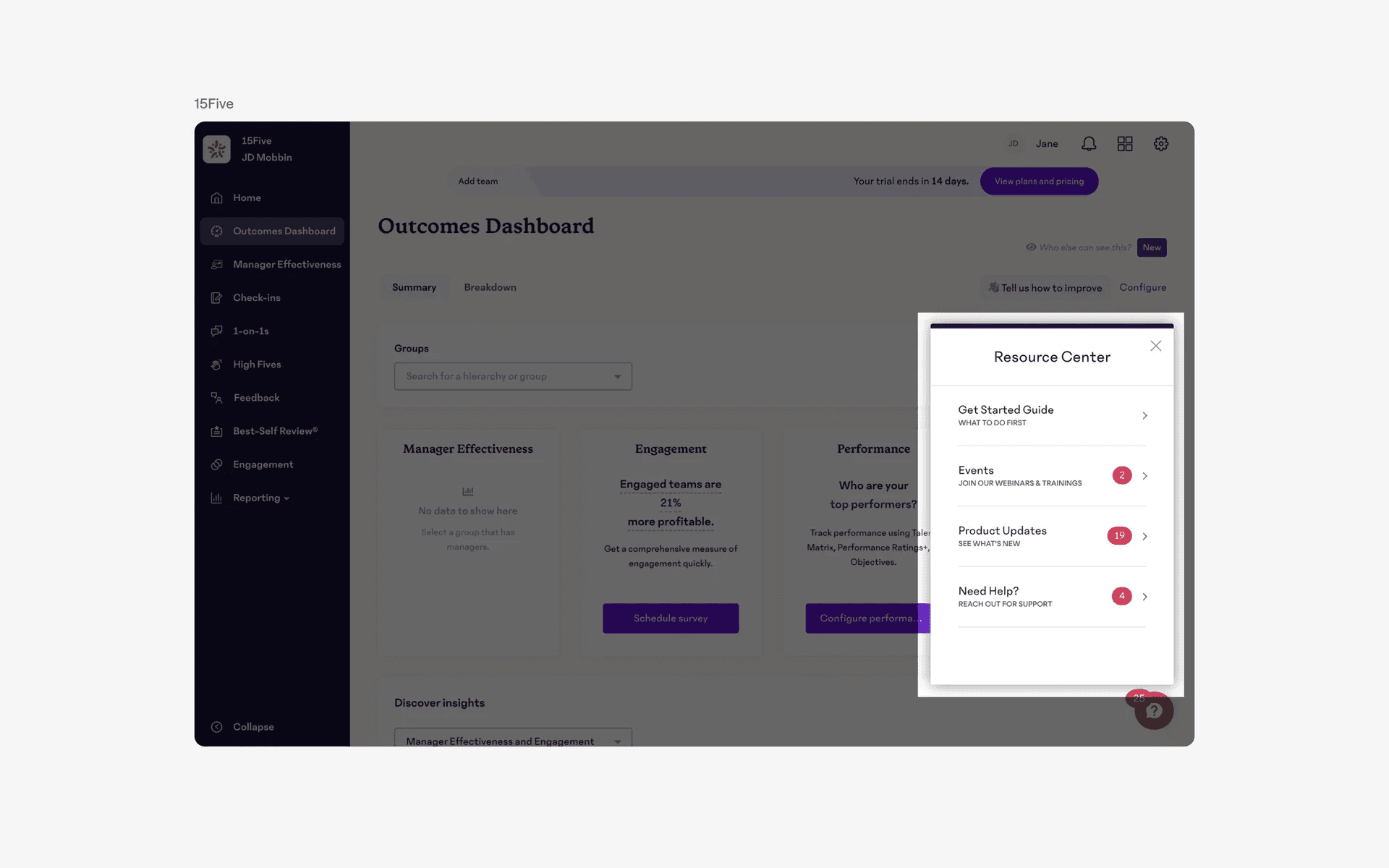
Examples of popover with close button
When to use a popover component?
1. Supplementary menus or information
Popovers can be used to provide the user with more access to the trigger they are interacting with, expanding content that was previously hidden.
We've seen many different types of popover content - it can be used for a large variety of user flows, as seen in the examples below.
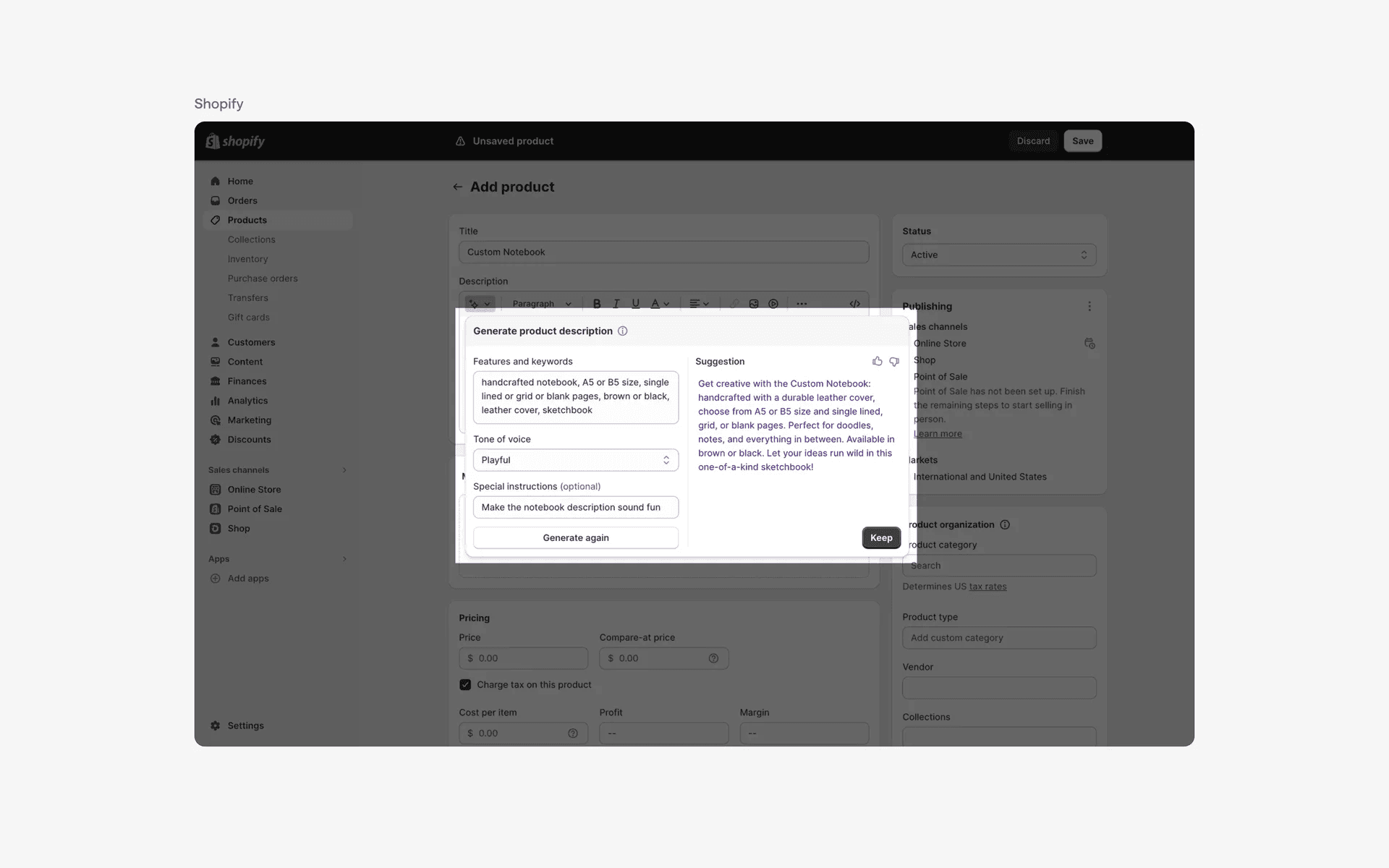
Examples of popovers in supplementary menus or information
2. Help or FAQ sections
Popovers can also be used to provide helpful information or frequently asked questions within a section of the website. This allows the user to easily access relevant information without having to navigate to a different page.
In websites, these popovers are frequently attached to a floating action button anchor element at the bottom right hand corner.
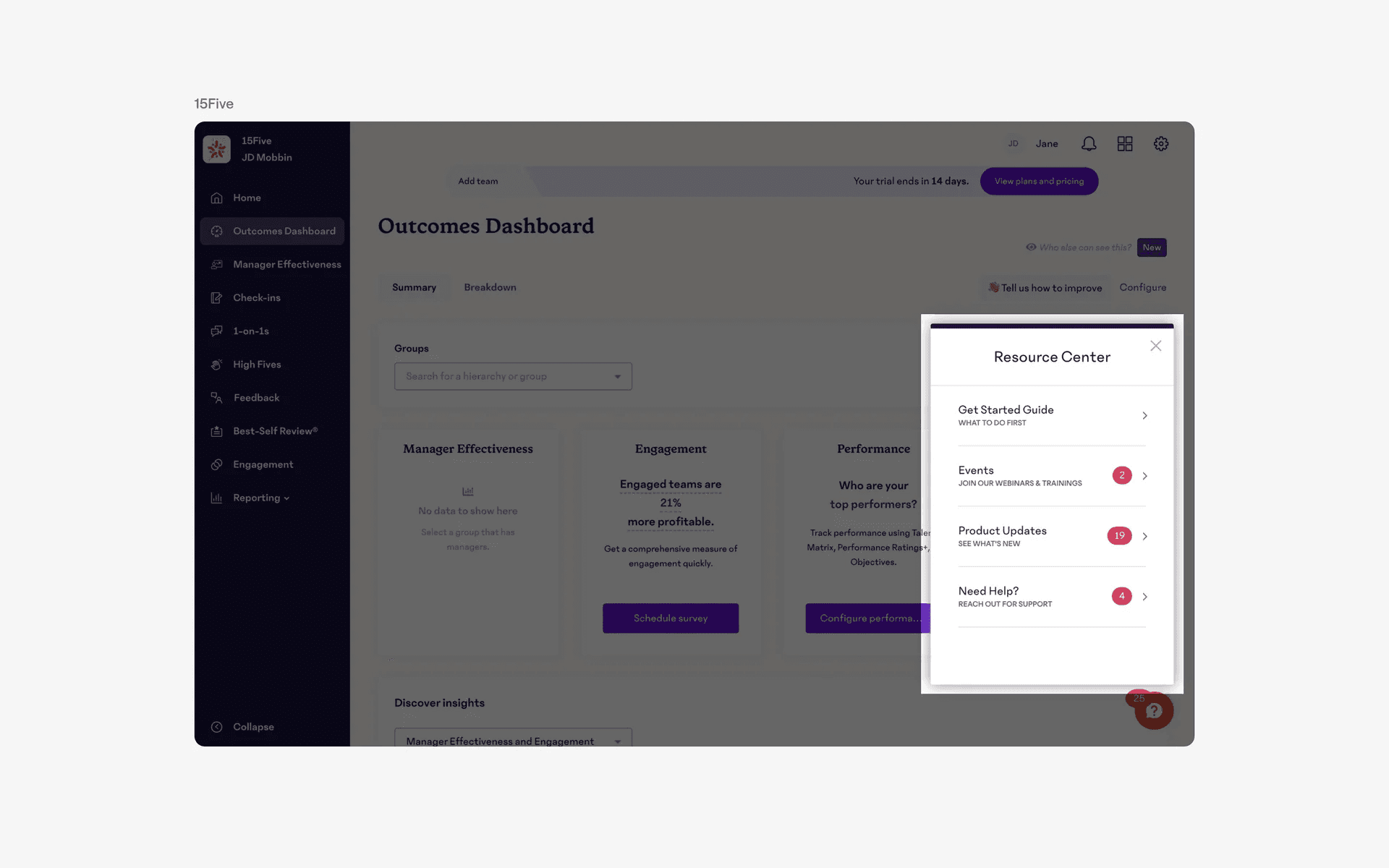
Examples of popovers in help or FAQ sections
3. Informational messages or tips
Popovers are often used to display short, informational messages or tips when a user hovers over or clicks on a specific element on the website.
This can help guide the user and provide additional context or instructions. This is commonly seen in onboarding flows.
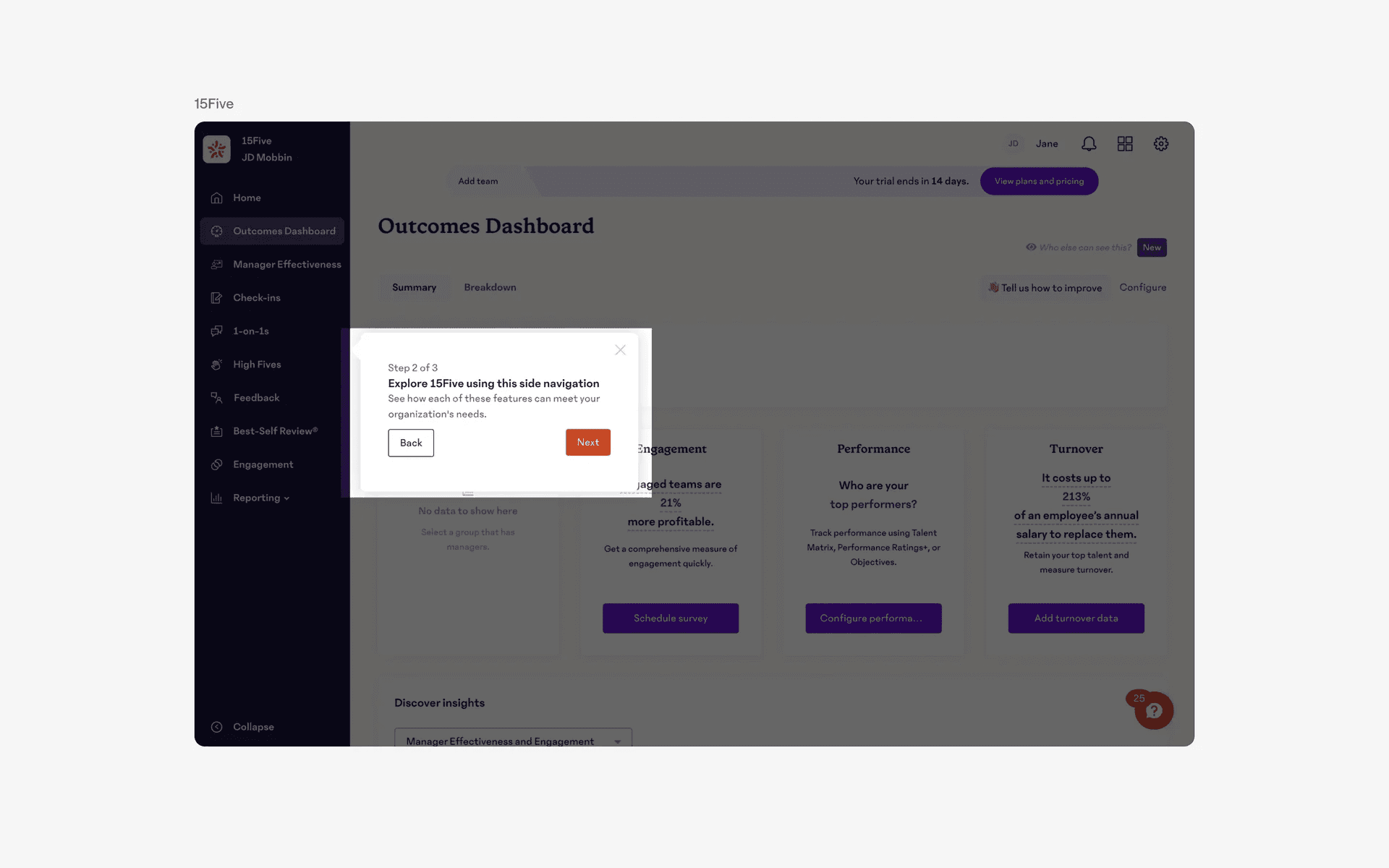
Examples of popovers in informational messages or tooltips
Conflicting UI elements: Dialogs, Menus, Tooltips
1. Popovers v.s. Dialogs
In web apps, a dialog is a larger window that appears on top of the current content and prevents you from interacting with anything else, usually with a title and a close button that prompts the user for a specific action or decision before proceeding with a task.
A popover on the other hand does not have the requirement for user input before continuing with the task - it can simply be used to provide additional information.
A popover can also be seen as a type of non modal dialog.
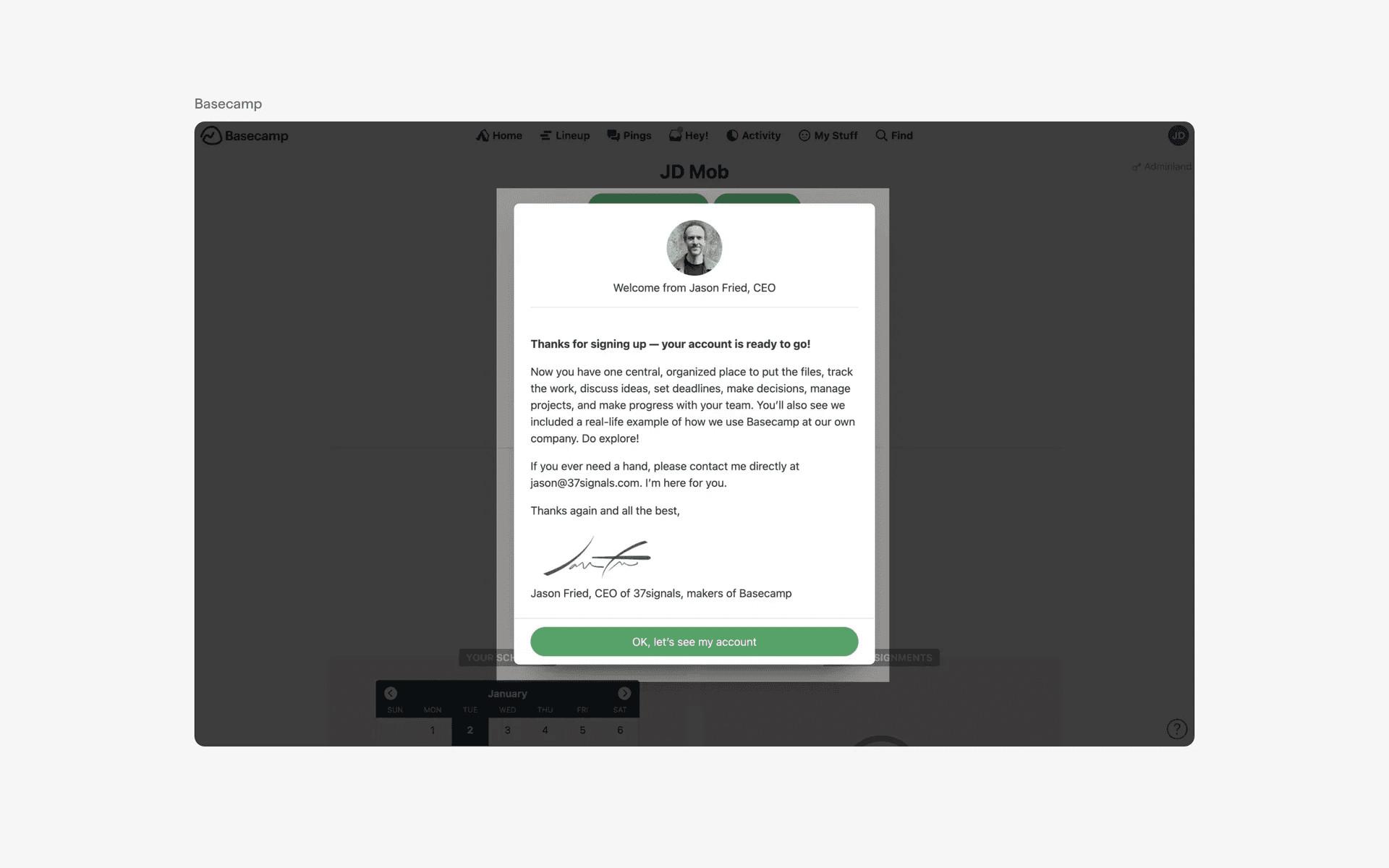
Examples of dialog
2. Popovers v.s. Dropdown Menus
In web apps, dropdown menus are used to organize a large number of options in a compact and organized way, making it easier for the user to select the desired option. The options are always organized in a list form.
Popovers may contain more than just a list of options, and might include other information or functionalities.
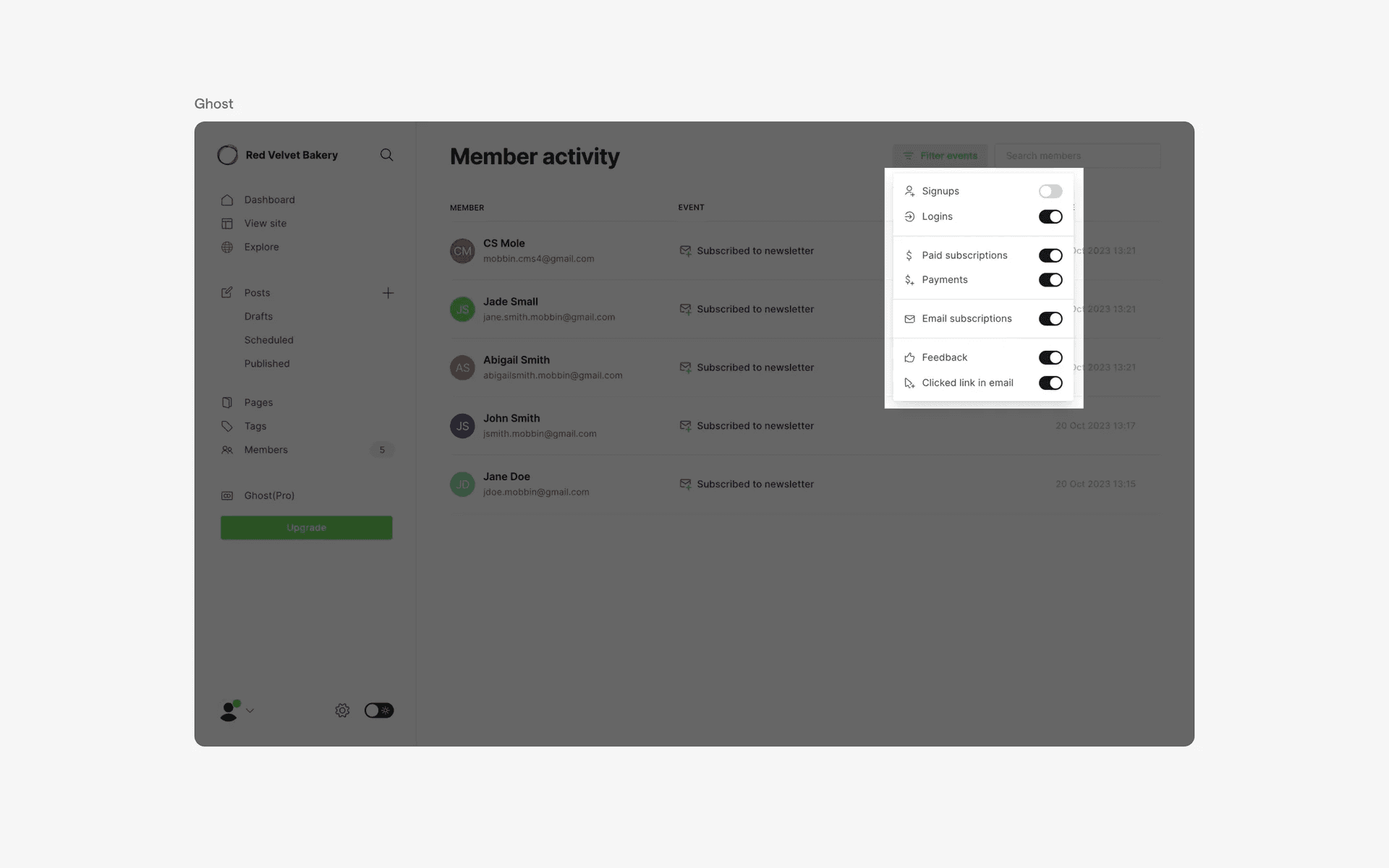
Examples of menus
3. Popovers v.s. Tooltips
In web apps, tooltips are used to provide brief and contextual information about an element on a webpage.
When the user hovers over the designated element, a small tooltip will appear with a brief message.
For popovers, the user needs to click the designated element to trigger them.
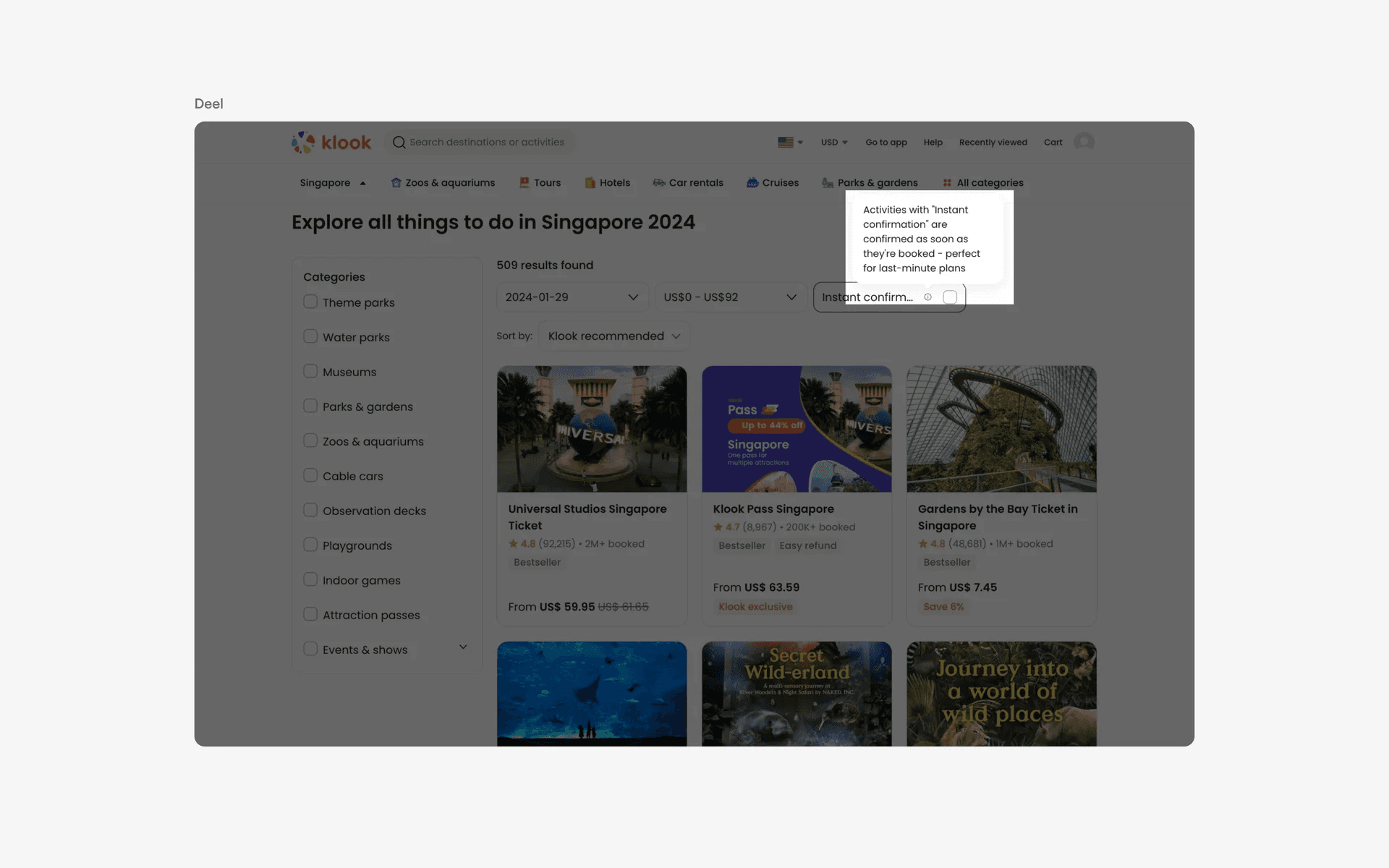
Examples of tooltips