Page Control UI

What is a page control component?
A page control displays a row of indicator dots, each of which represents a page in a flat list.
Page controls help users to navigate the list of items to find the page they want.
The most common variant is where the page control is a series of small indicator dots, representing the number of available pages. A filled dot denotes the current page.
Page controls are best for lightweight, linear navigation but should be avoided if users need a more detailed or flexible navigation system.
Page controls are commonly seen in the following design patterns: Onboarding, Image galleries or carousels, Product catalogs or e-commerce apps.
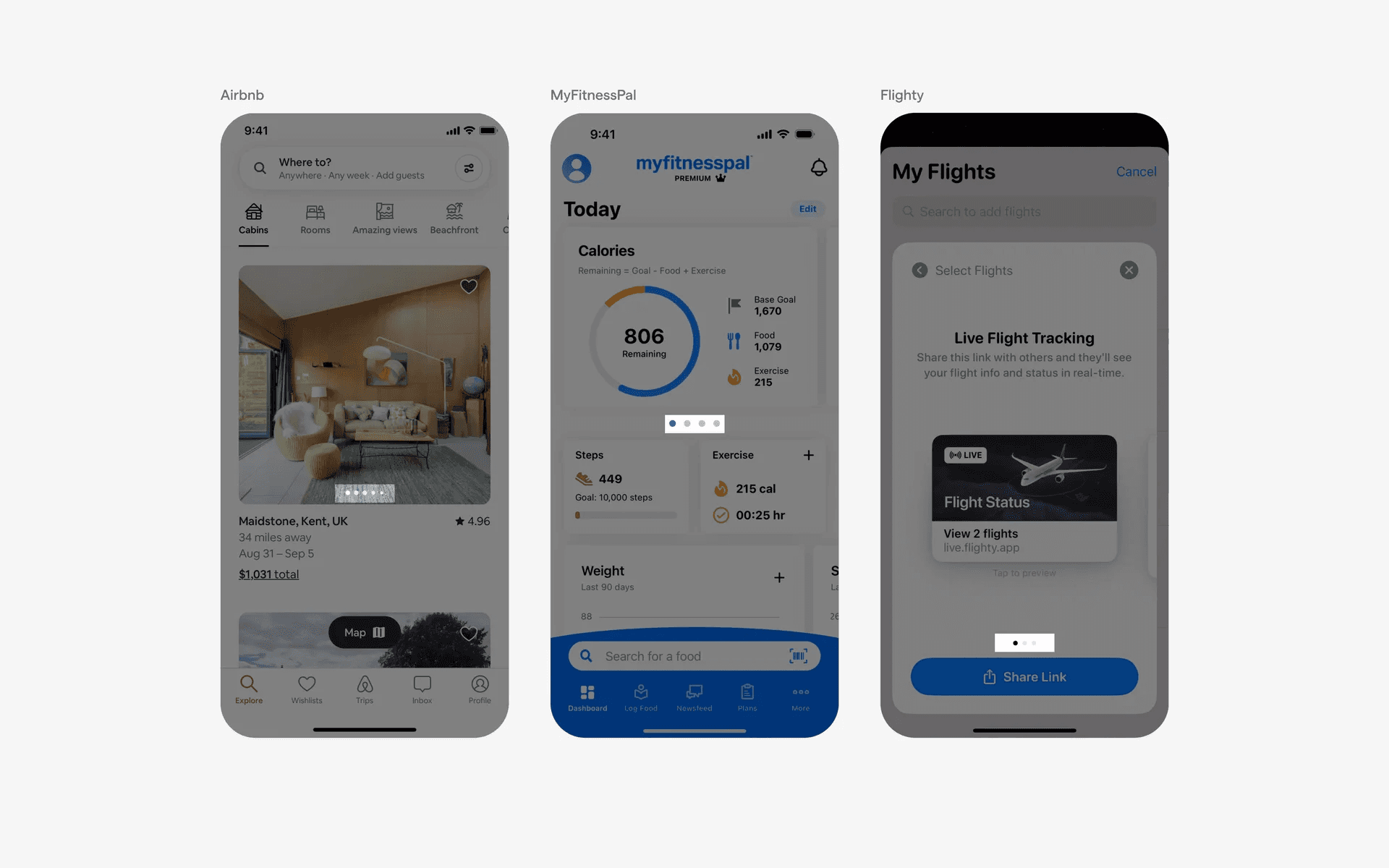
Examples of page controls
What is the anatomy of a page control?
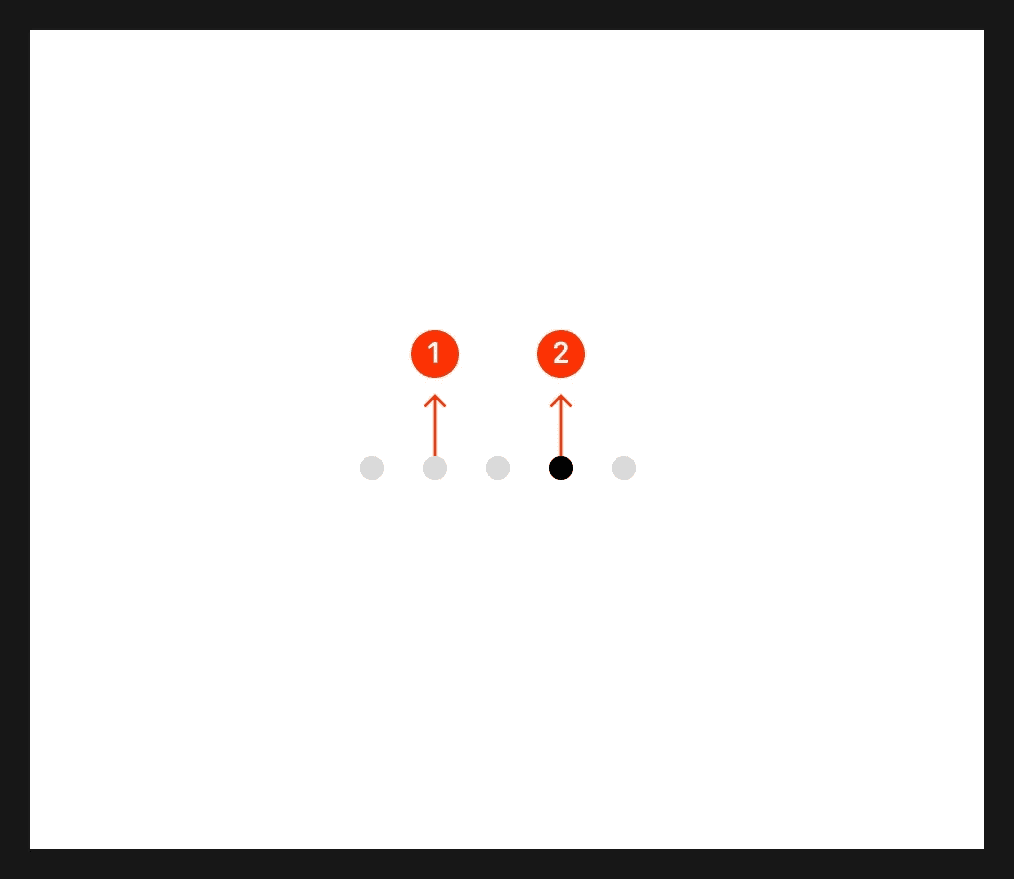
Anatomy of a page control
1
Unfilled dot denotes more pages that you can view
2
Solid dot denotes the current page
What are the design variants of a page control?
We studied over 3,000+ page control UI components on Mobbin, from real-world examples and found the following variants.
1. Solid dot size can vary in page control
The solid dot denotes the active page the user is on while the unfilled dots implies that users can navigate to a next or previous page.
Most commonly, the dot sizes are usually consistent across solid and unfilled dot indicators. As seen below.
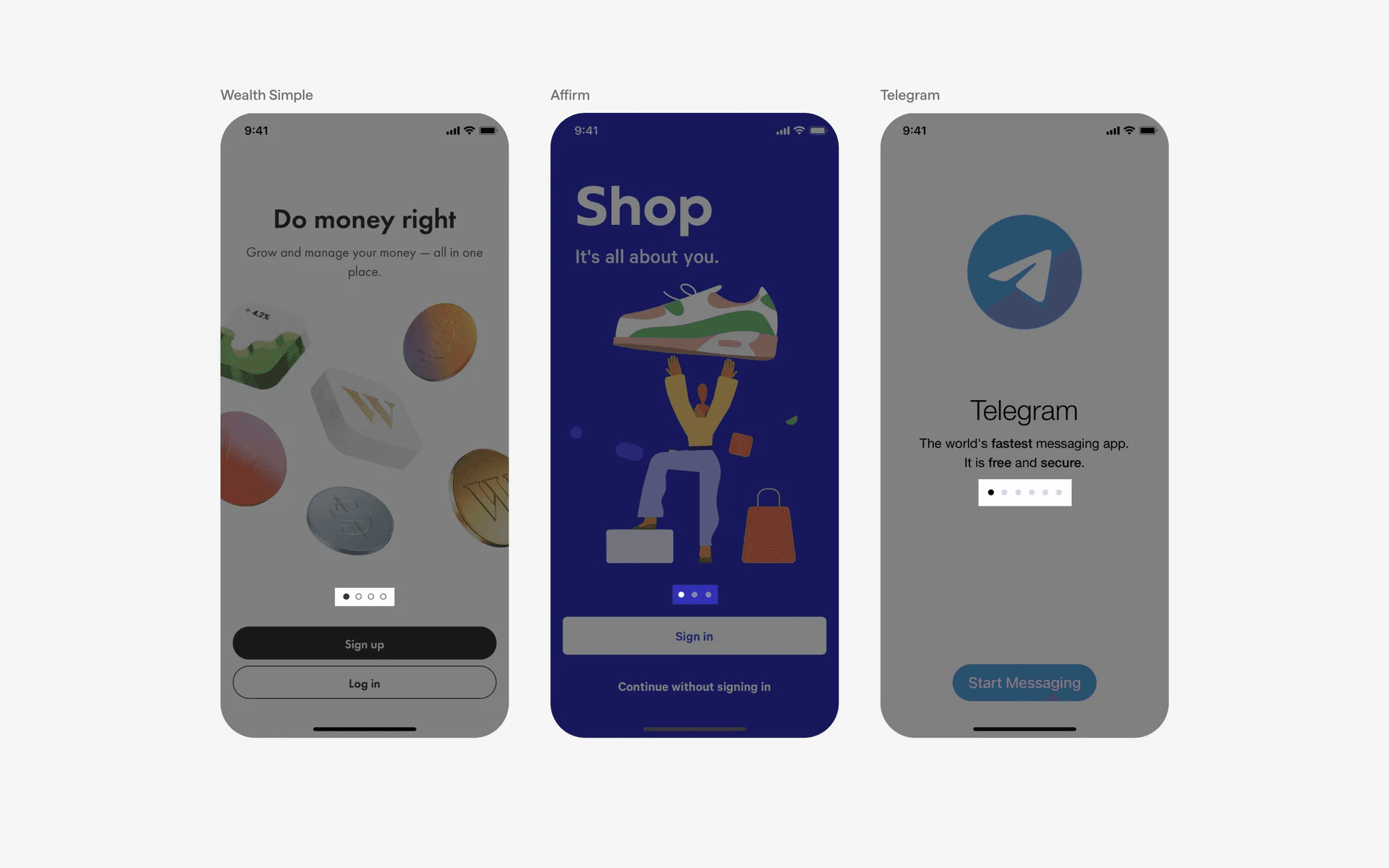
Examples of standard, consistent dot indicators
Alternatively, some apps choose to make the solid dot larger compared to the unfilled dots - presumably, to make the current page indicator stand out even more.
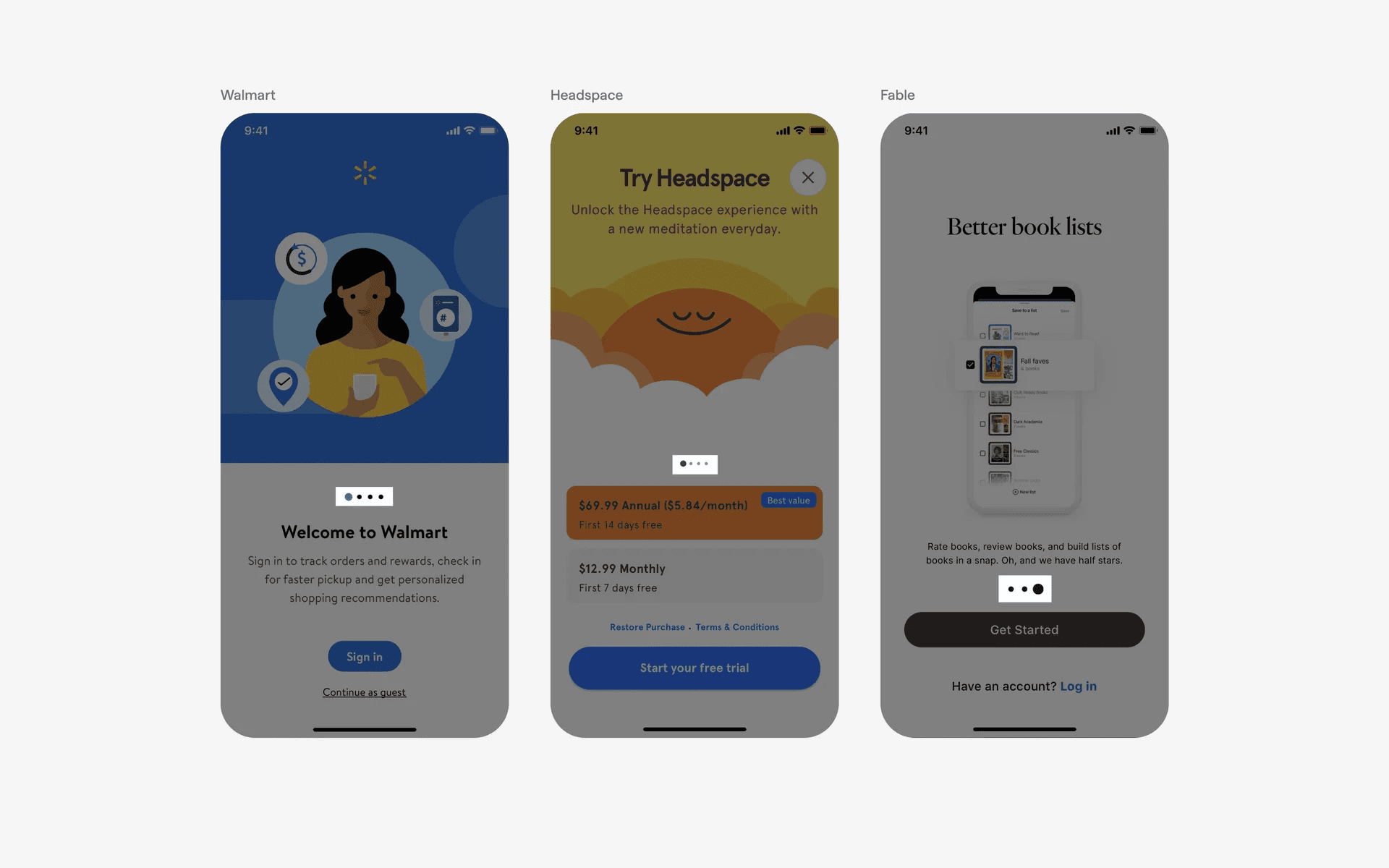
Examples of large, solid dot indicators - which highlights the current page indicator
2. Bars may be used instead of dots
We've also observed bars being used instead of dots to represent page controls.
The most common reason why bars are preferred over dots is because they can be animated to represent movement - similar to how a Progress Bar might work.
The best example would be how Instagram or Snapchat stories work. They feature an animated page control at the top of each story, and the bars fill up and moves to the next page control after a set amount of time. This is known as a discrete animated bar page control.
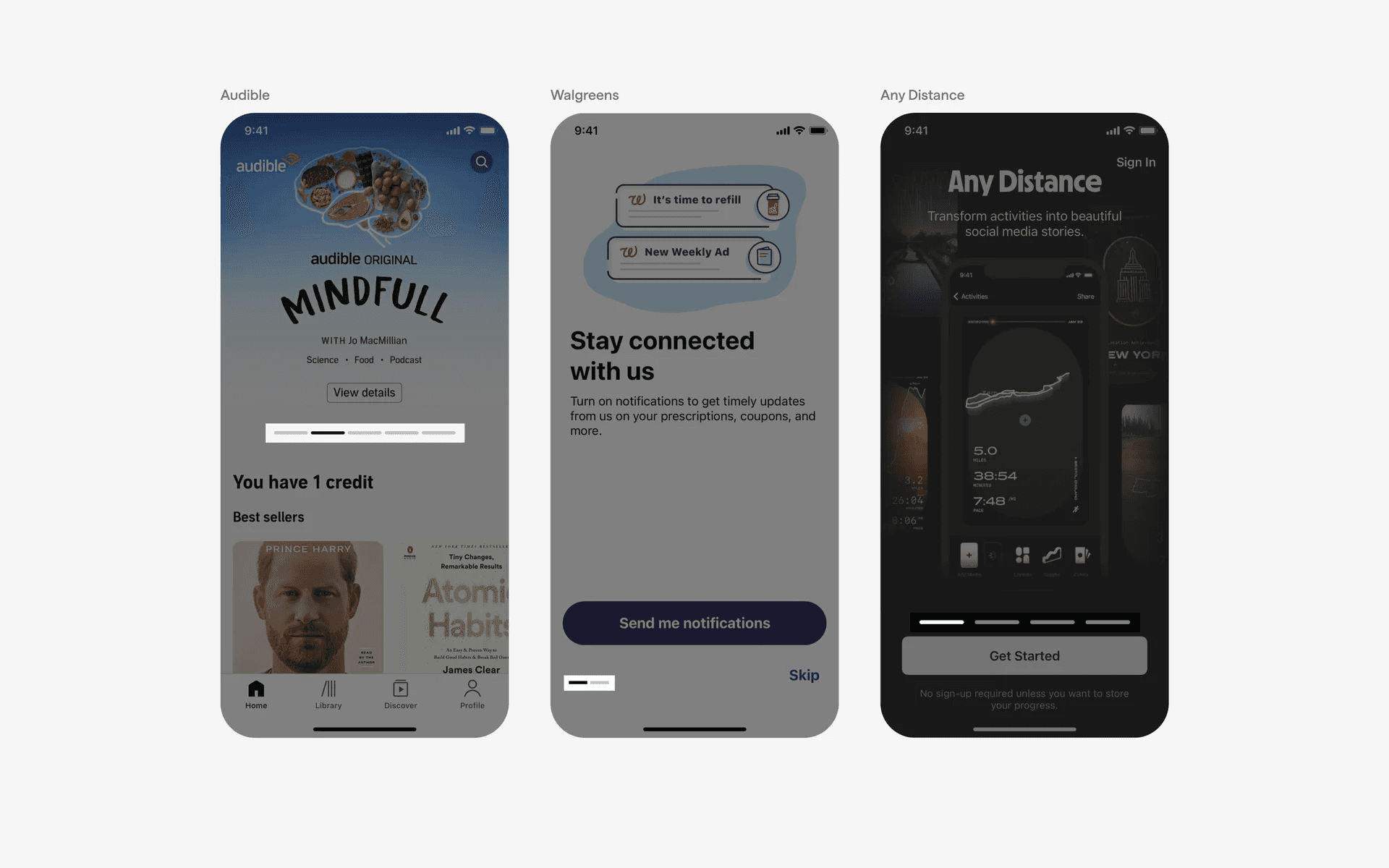
Examples of discrete animated bar page control
Without animation or movement, bar page controls work similarly to dot page controls. This known as a discrete static bar page control.
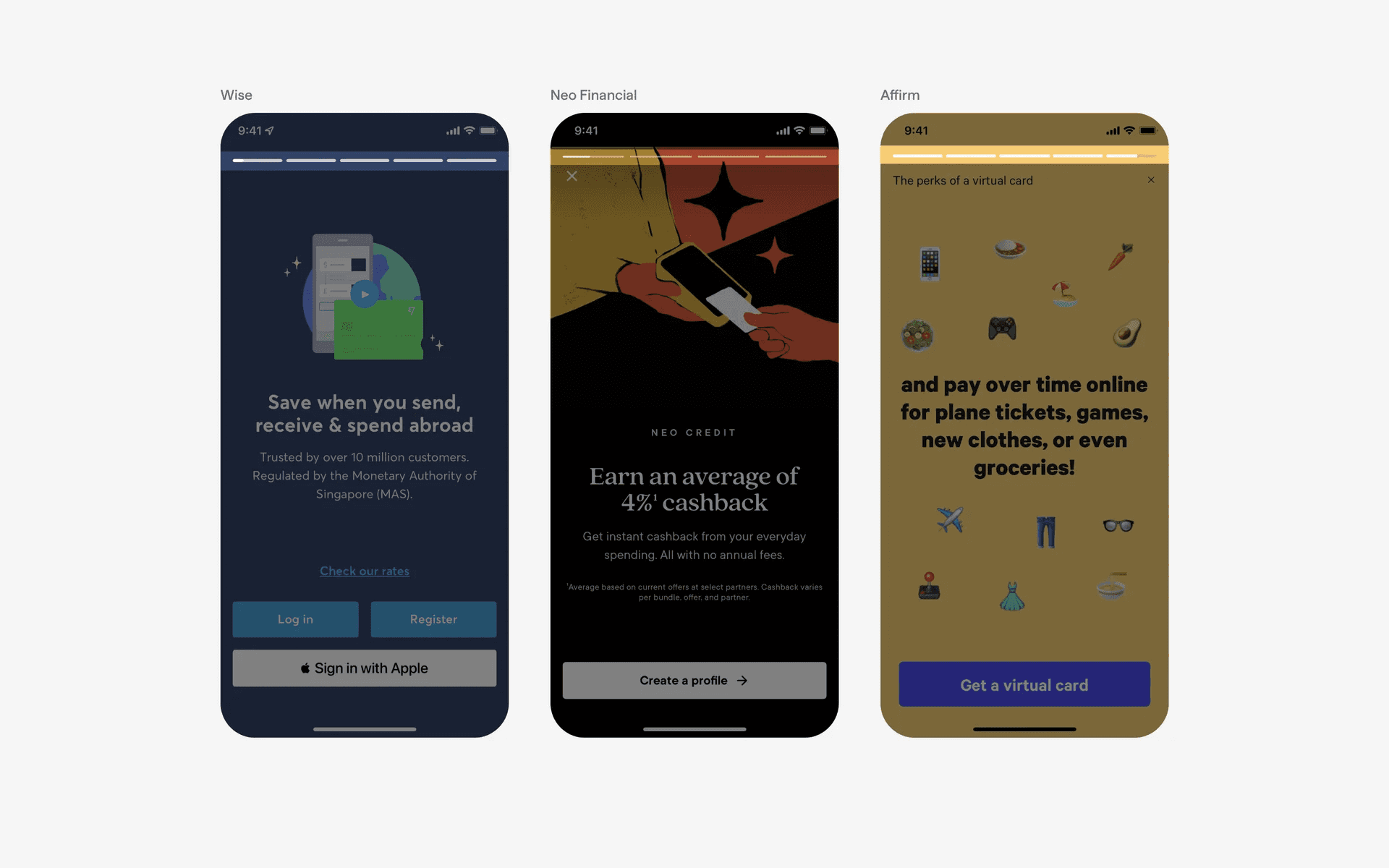
Examples of static bar page control
The last design variant of a bar-based page control is the continuous bar page control. Unlike the discrete bars, a continuous bar does not indicate exactly how many pages there are. But still serves as a form of page control indicator.
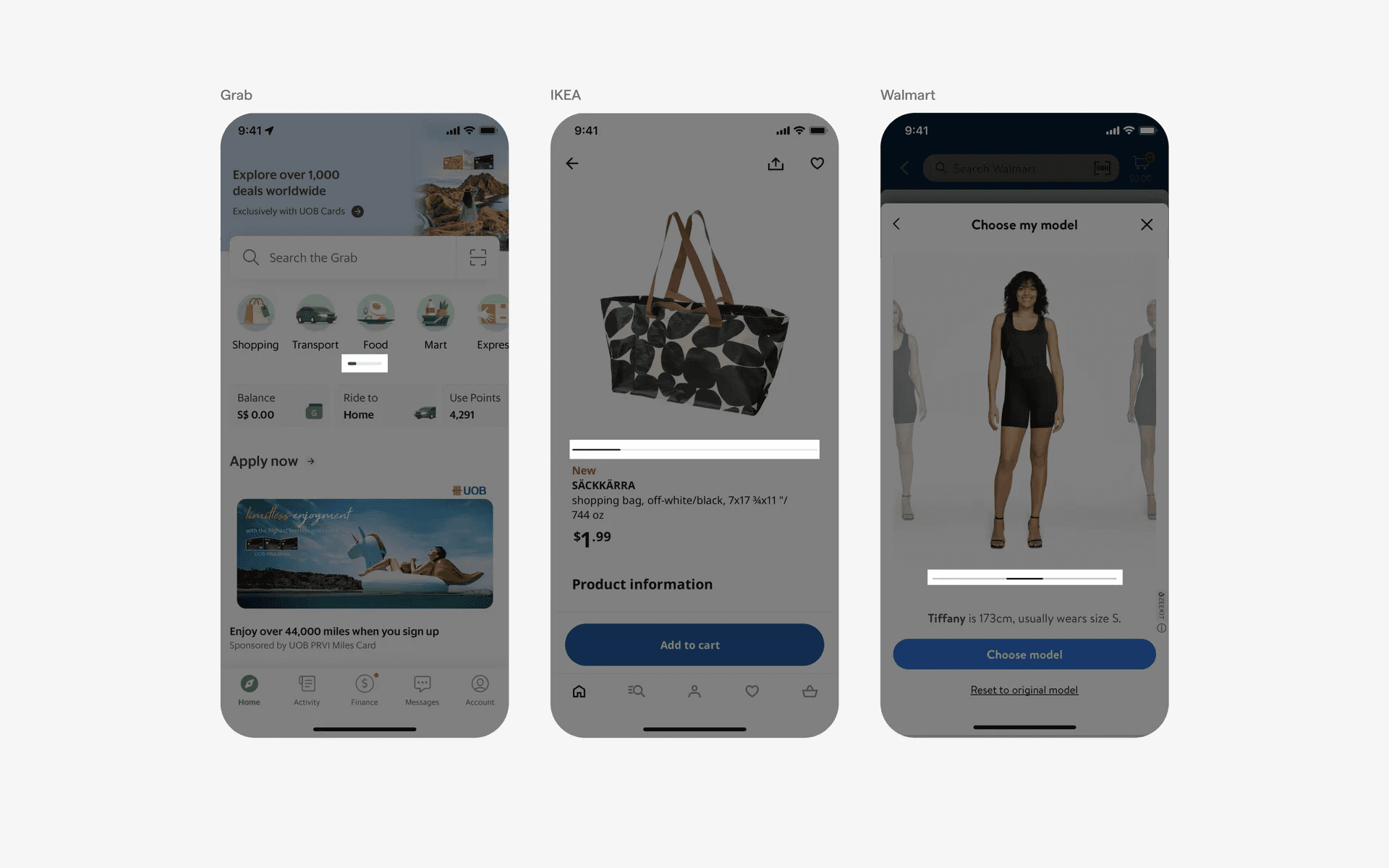
Examples of continuous bar page control
3. Hybrid bar + dots page control
We've also seen versions of page controls where the current page is indicated by a bar while the small indicator dots show how many available pages there are in the carousel. These hybrid variants are commonly animated, similar to the discrete animated bar page control.
This is an alternative way to introduce animated page control carousels while taking up less space on the mobile interface.
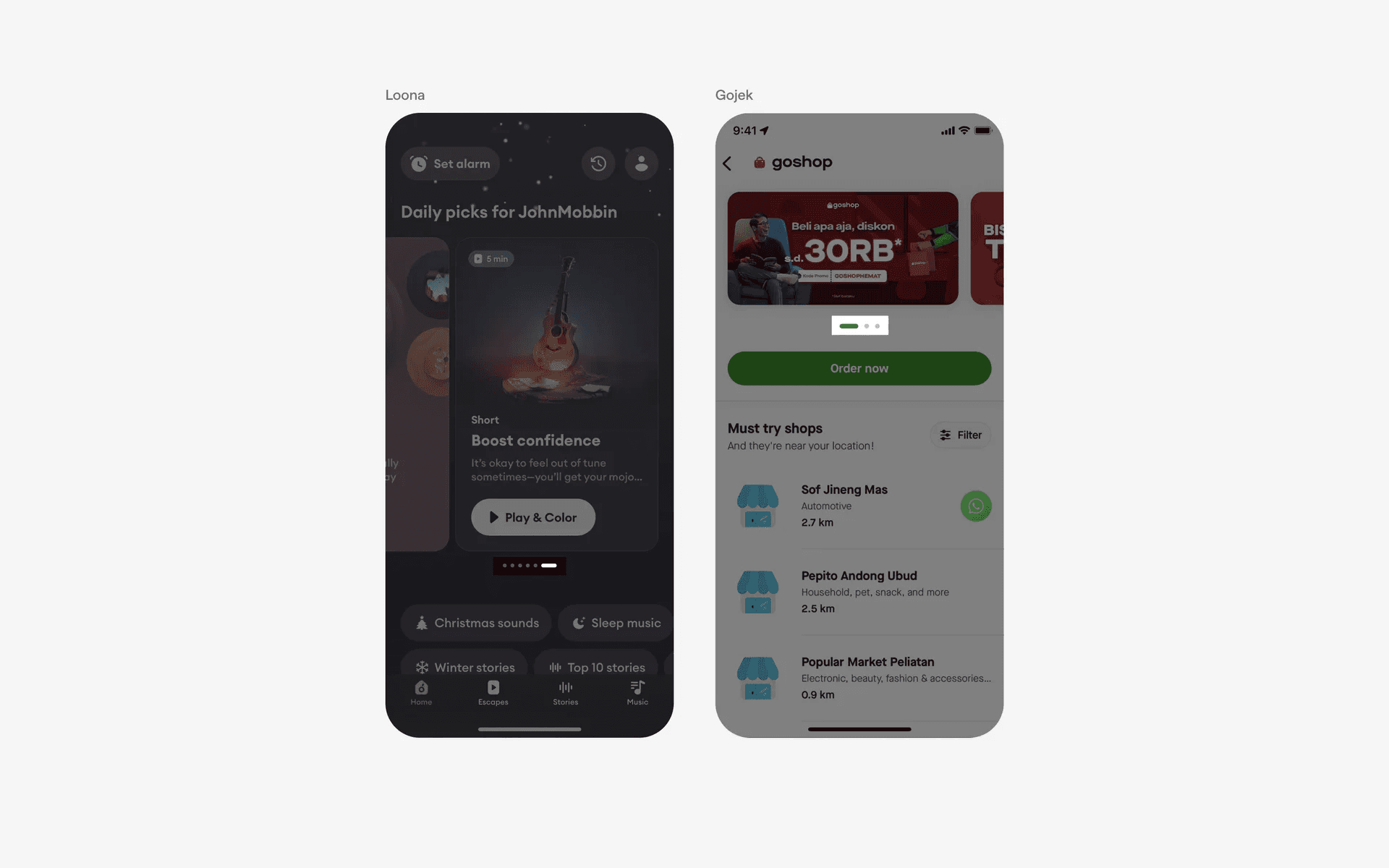
Examples of hybrid bar + dots page control
4. Unique page control icons
Finally, we love seeing apps challenge the conventional norms of 'best practices' in production. Clay, a personal CRM app uses a triangle, circle, and square icon to represent their page controls in a small, playful twist.
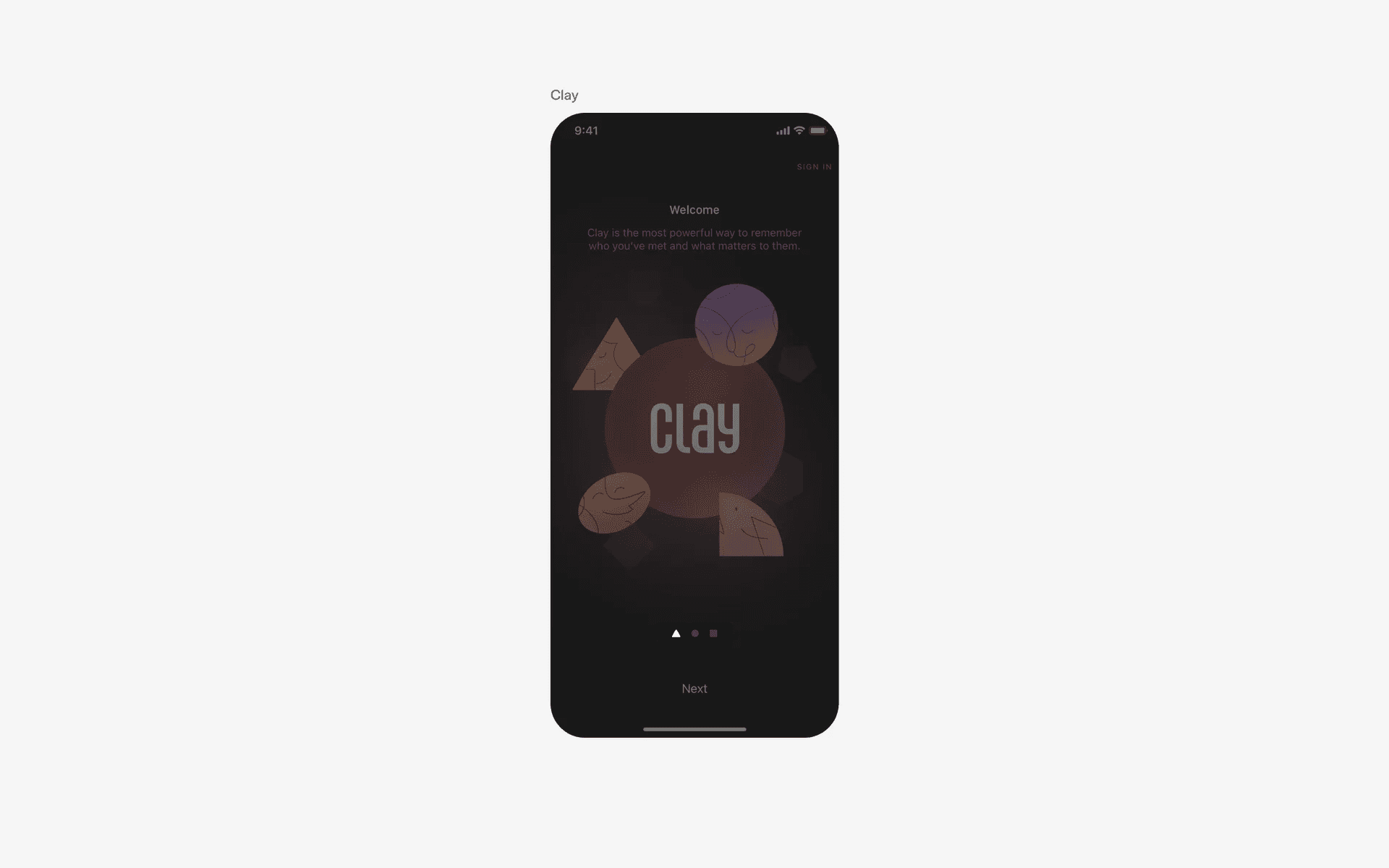
Example of unique page control icons - Clay.earth
When to use a page control component?
Onboarding
When users first launch an app, they are often presented with a series of onboarding screens that introduce its features and functionality.
Page controls are used to indicate the number of screens and allow users to swipe or tap through them.
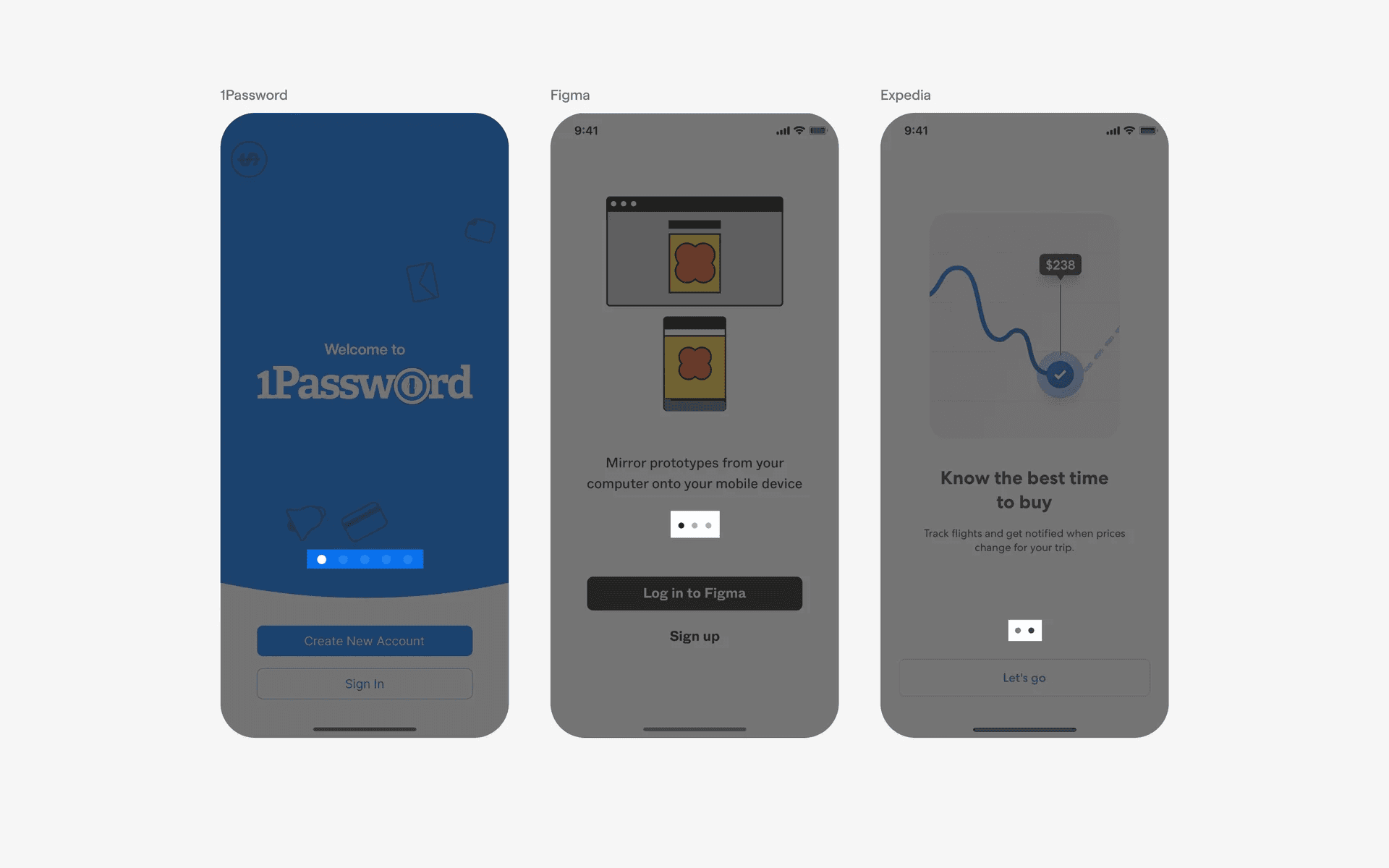
Page controls in onboarding flows
Image galleries or carousels
Page control elements are often used in image galleries or carousels to display multiple images or content cards.
Users can swipe horizontally to view different images or content, and the page control indicates the total number of items and the currently displayed item.
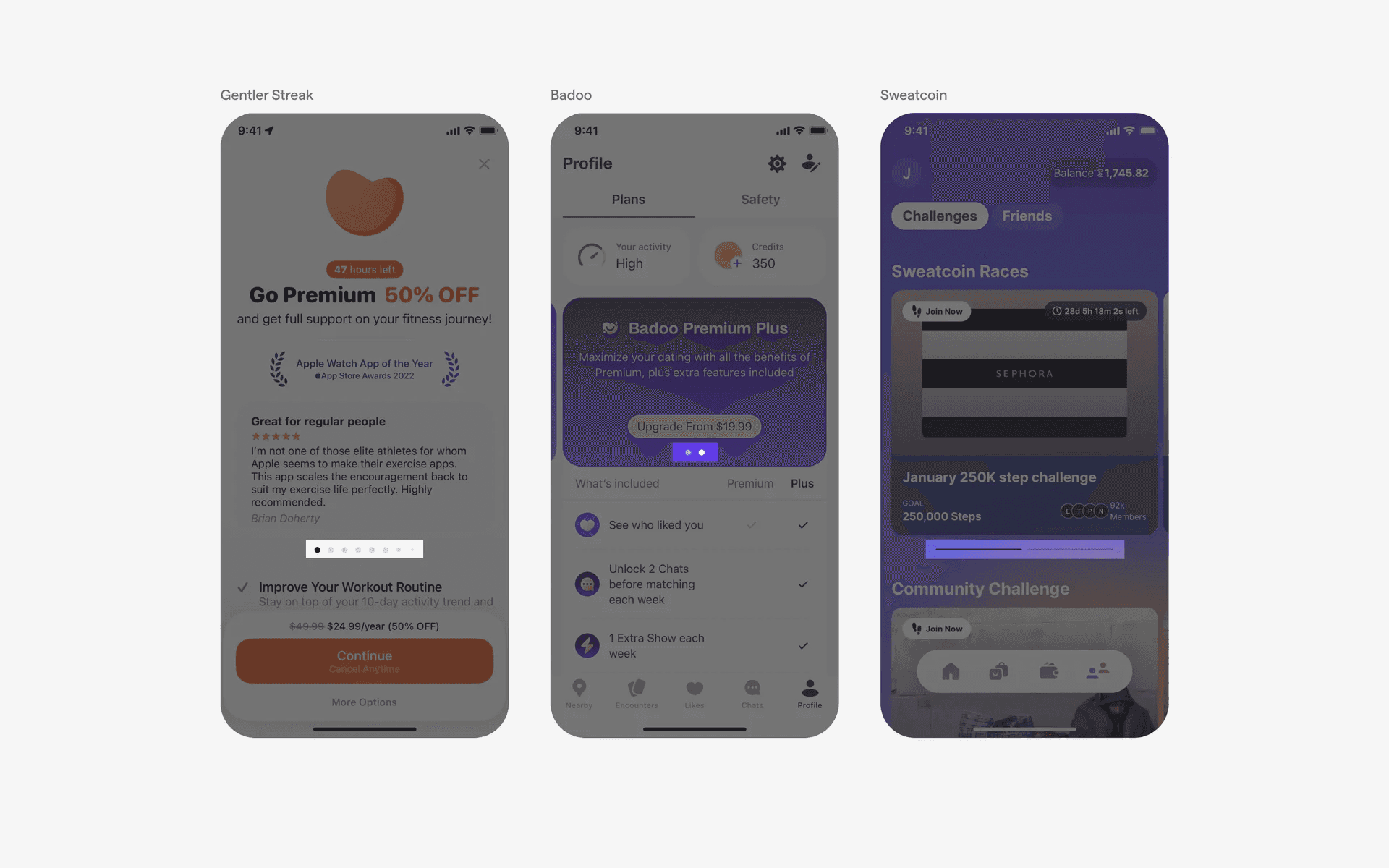
Page controls in image galleries or carousels
Product catalogs or e-commerce apps
Mobile shopping apps often use page control to present product catalogs or categories. Each page can display a group of products, and users can swipe horizontally to browse through different pages of items.
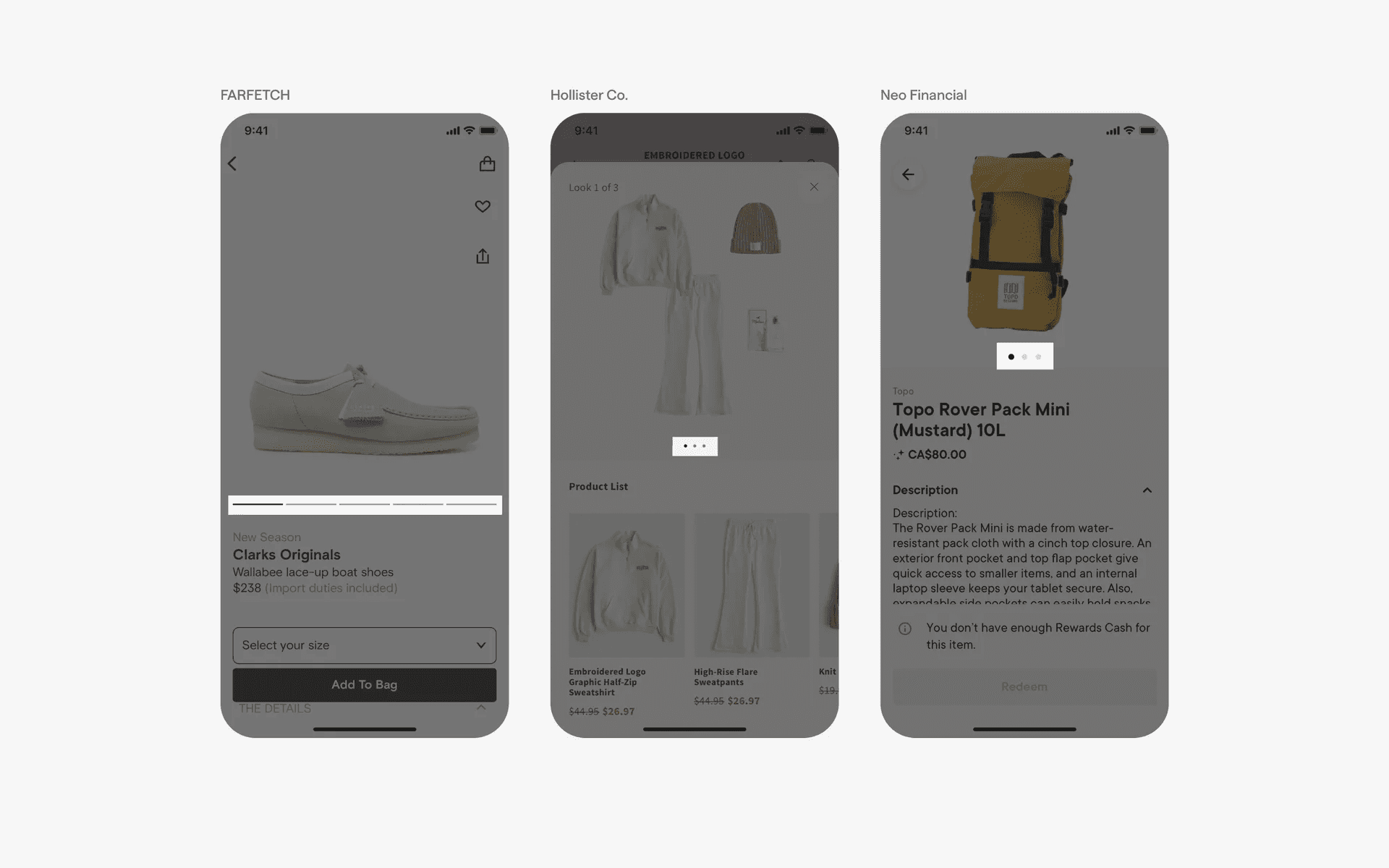
Page controls in product catalogs or e-commerce apps
Conflicting UI elements: Tabs, Progress indicators
Page controls v.s. Tabs
A tab may look like the bar variant of a page control. However, tab controls are used to quickly switch between different views, while page controls are used to divide an app into different sections and organise content.
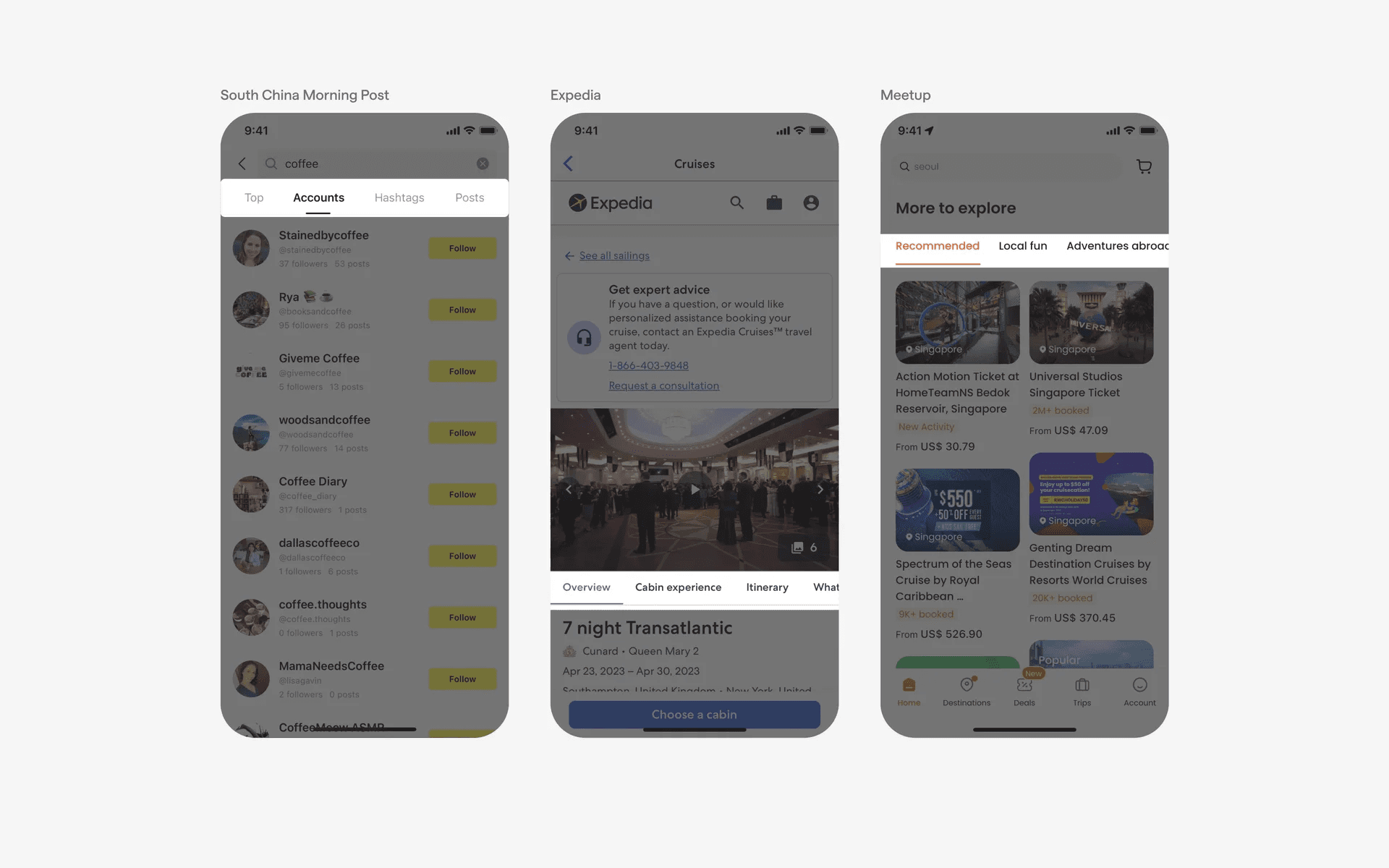
Examples of tabs
Page controls v.s. Progress indicators
A continuous bar variant of page control might be confused with a loading bar. To differentiate between the two, consider the context in which it is used.
A loading bar will always represent a process or action that is ongoing, while a page control is used to organise and present content.
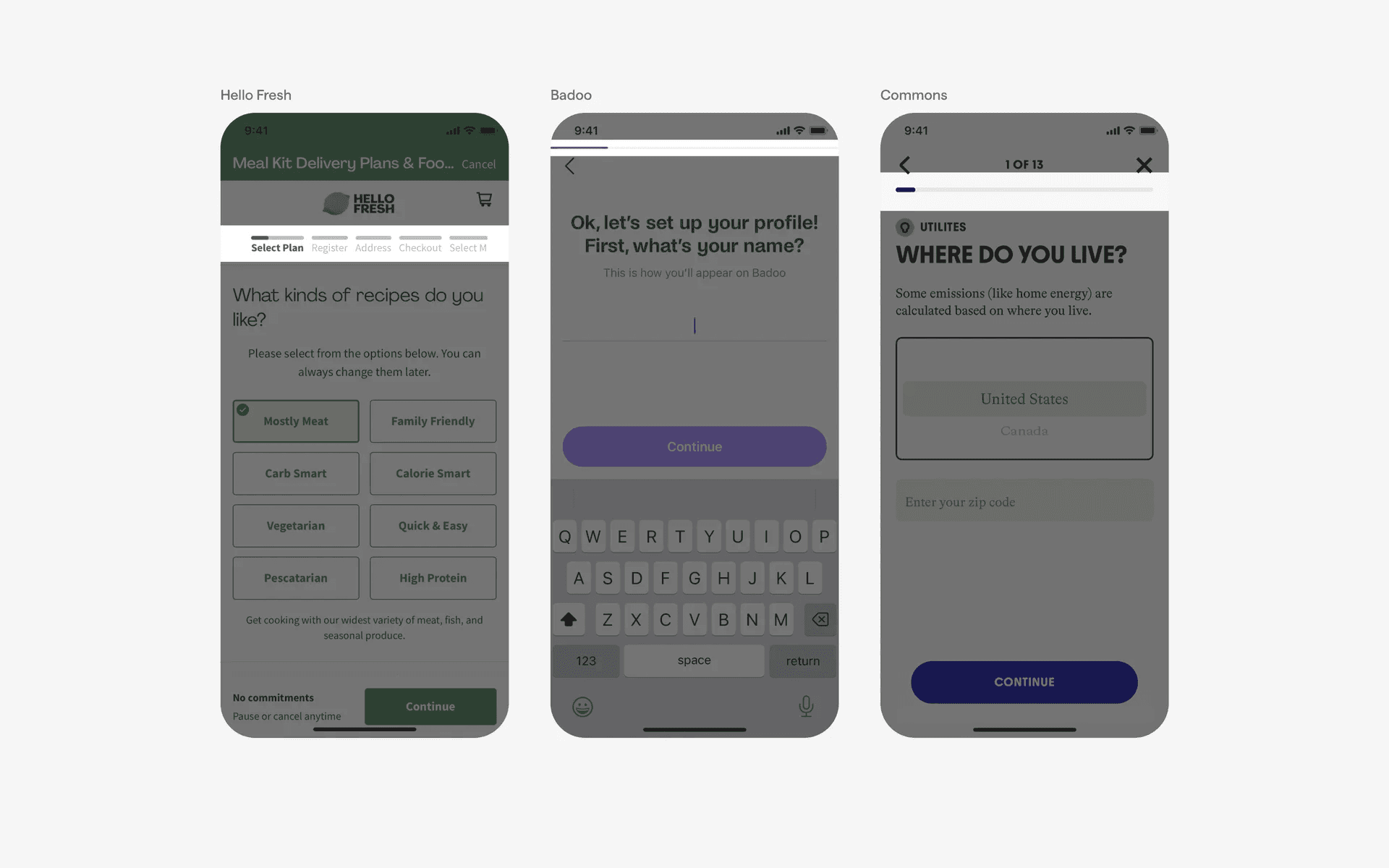
Examples of progress indicators