
What is a drawer component?
Drawer is a panel that enters from the edge of the screen to display supplementary content, it typically has a hamburger menu icon (or navigation menu icon) to indicate its presence.
It can enter from any side of the screen - left, right or from the top.
It makes temporarily important information readily available but also dismissible.
Depending on your needs, the drawer component can be a modal or a non-modal, which is very similar to how a bottom sheet works - except that drawers can come from many different directions.
Drawer (Modal): It is automatically dismissed if users interact with background content.
Drawer (Non-modal): Allows users to interact with the content on both the Drawer & Sheet and in the background.
Drawers are commonly seen in the following design patterns: Filtering & sorting, Notifications Help & support, Chat.
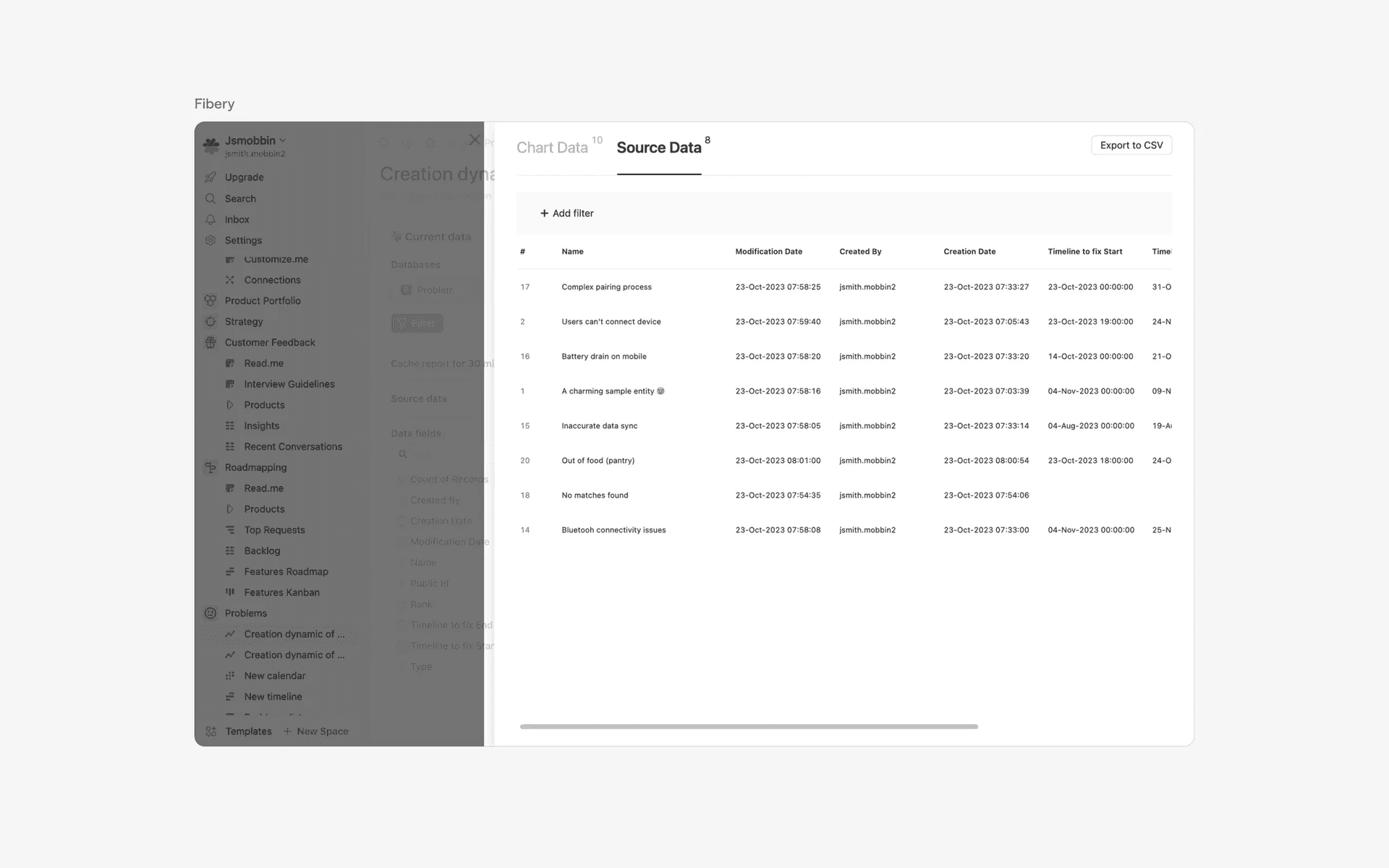
Examples of drawers in web screens
What is the anatomy of a drawer component?
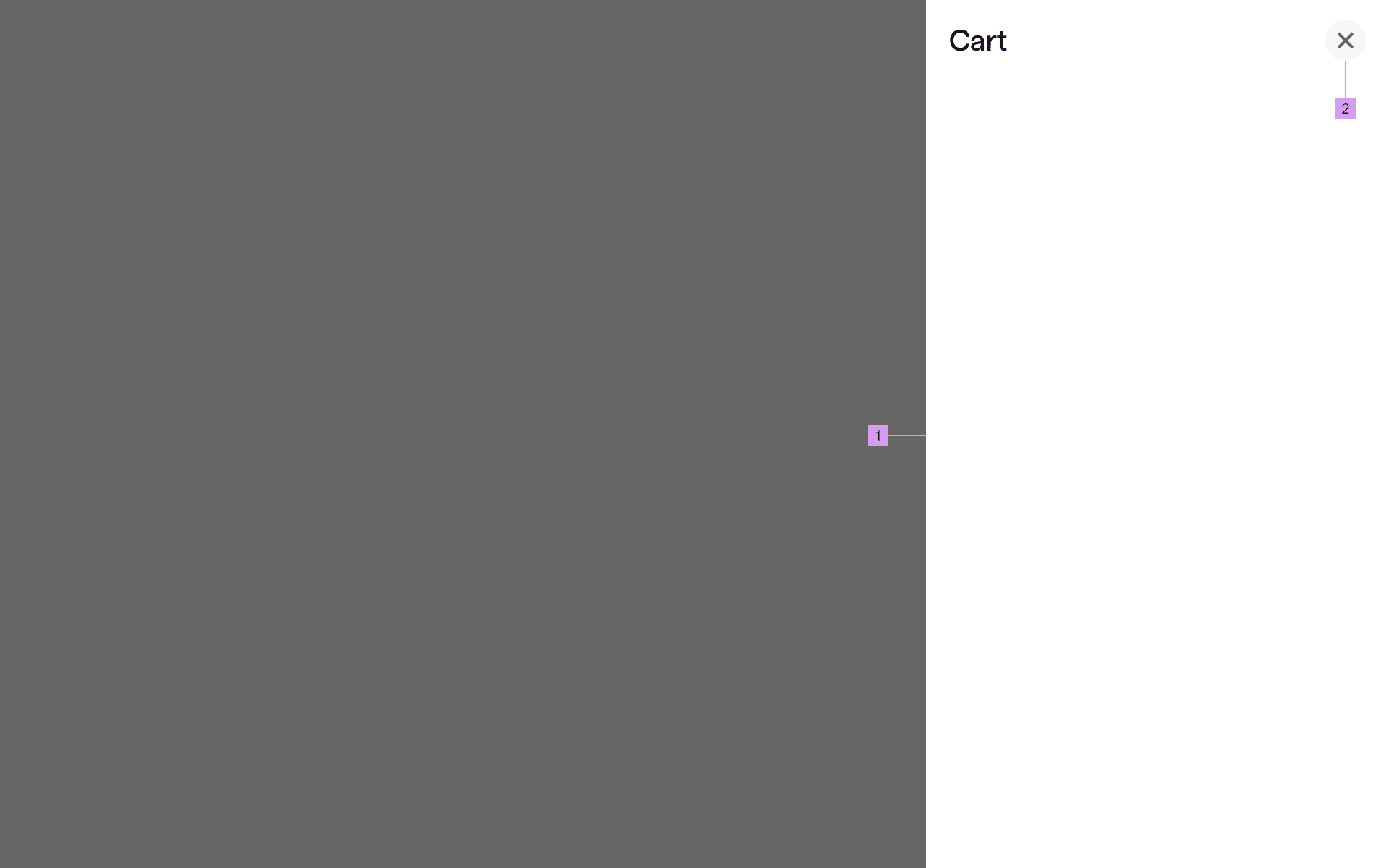
Anatomy of a drawer component
1
Container
2
Close Button (optional)
What are the design variants of a drawer component?
We studied over 1,000+ drawer UI components on Mobbin, from real-world examples and found the following variants.
1. Drawers can slide in from any direction of your choosing
We've looked at many drawer components and have found examples of them sliding from any direction.
Drawers sliding in from the right side of the screen.
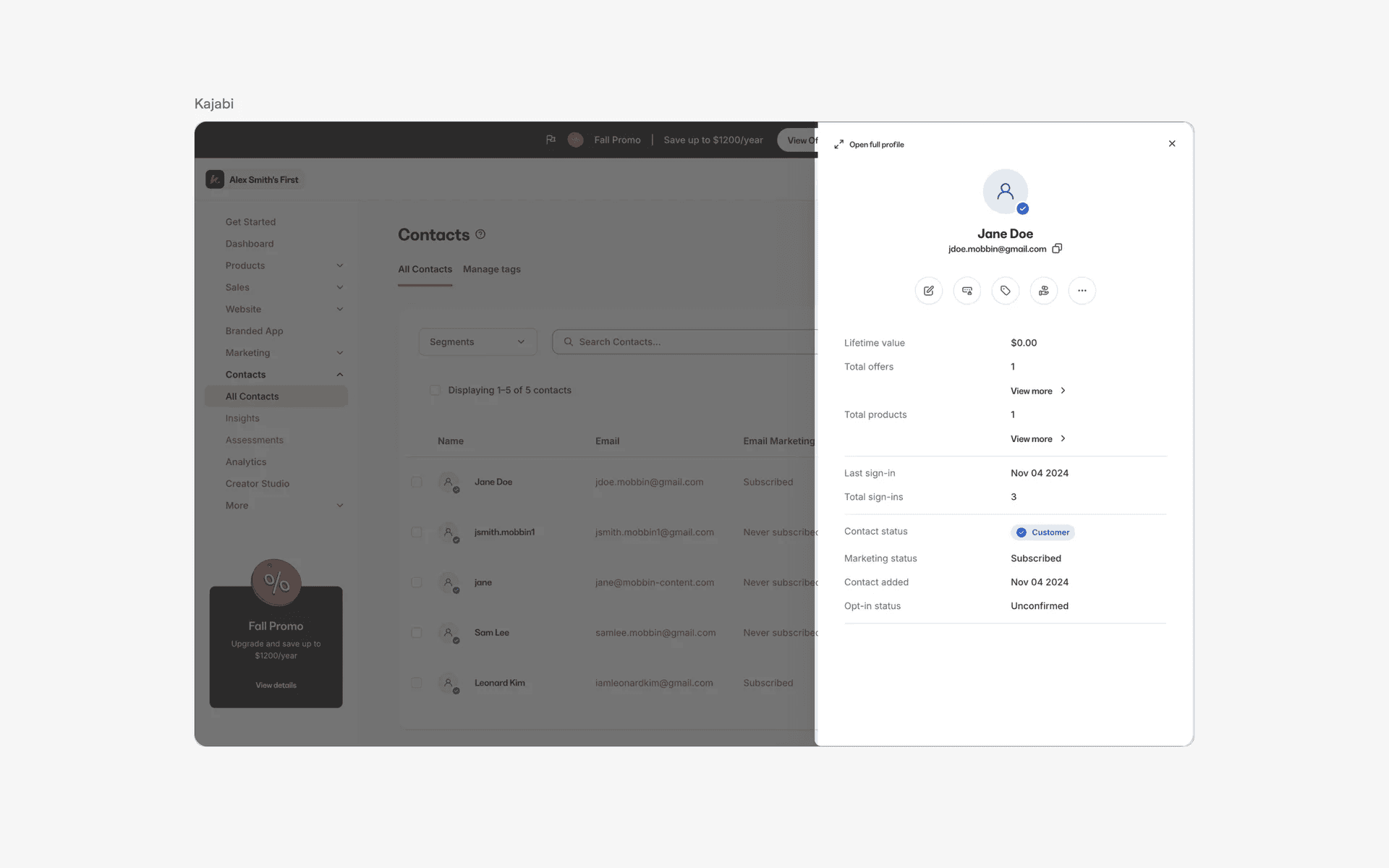
Drawers sliding in from the left side of the screen.
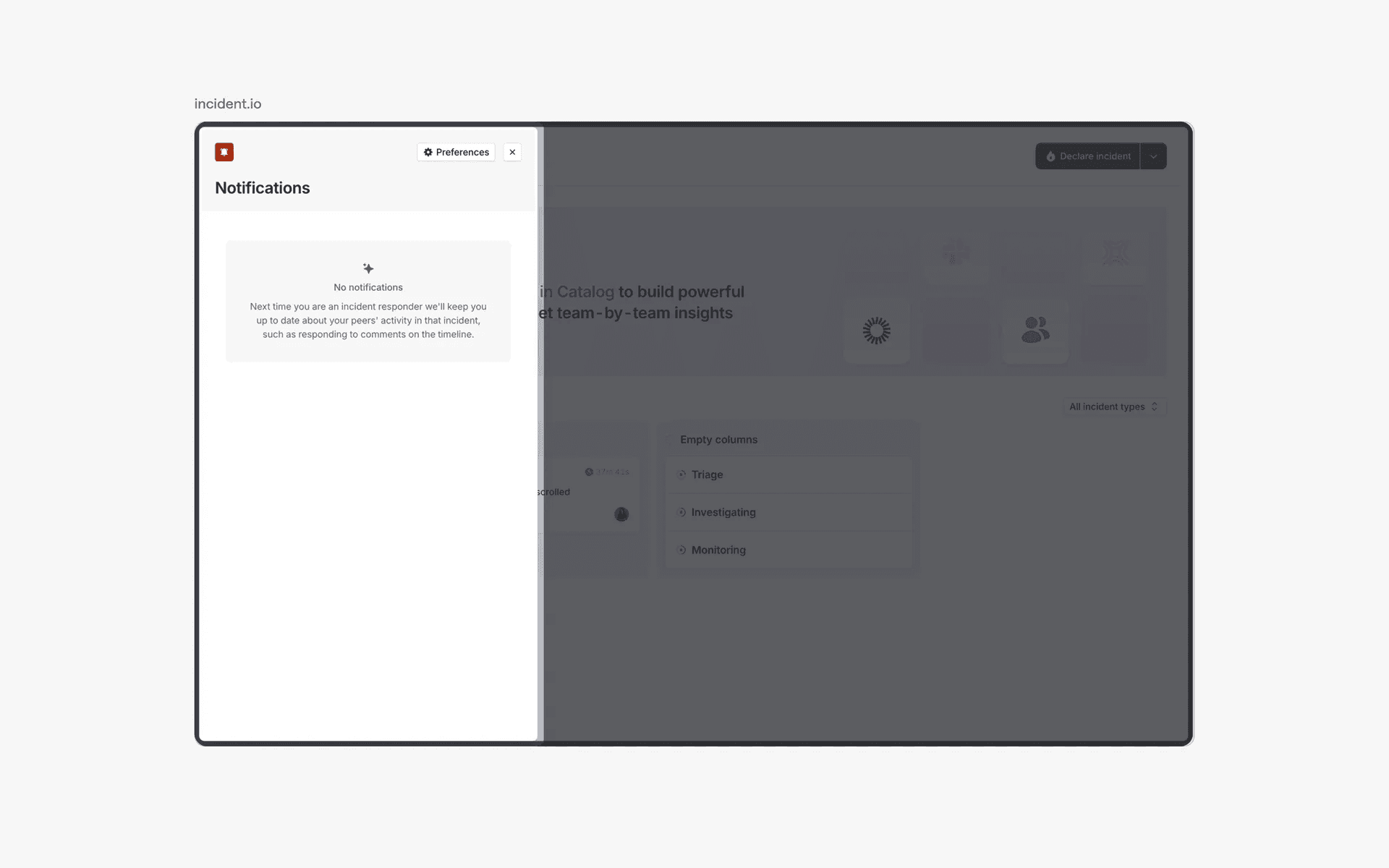
Examples of drawers from the left
Drawers sliding in from the top of the screen.
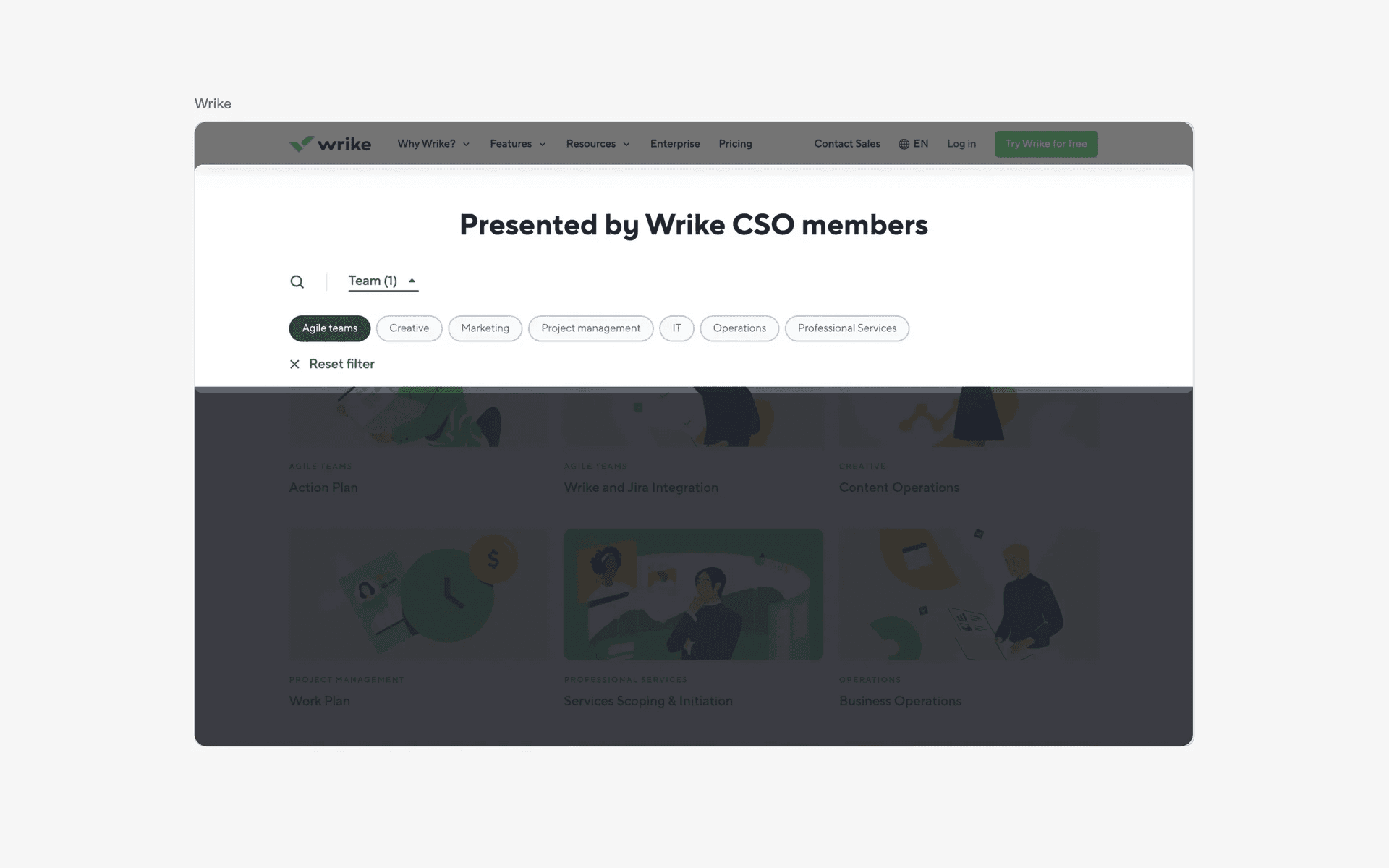
Examples of drawers from the top
Drawers sliding in from the bottom of the screen.
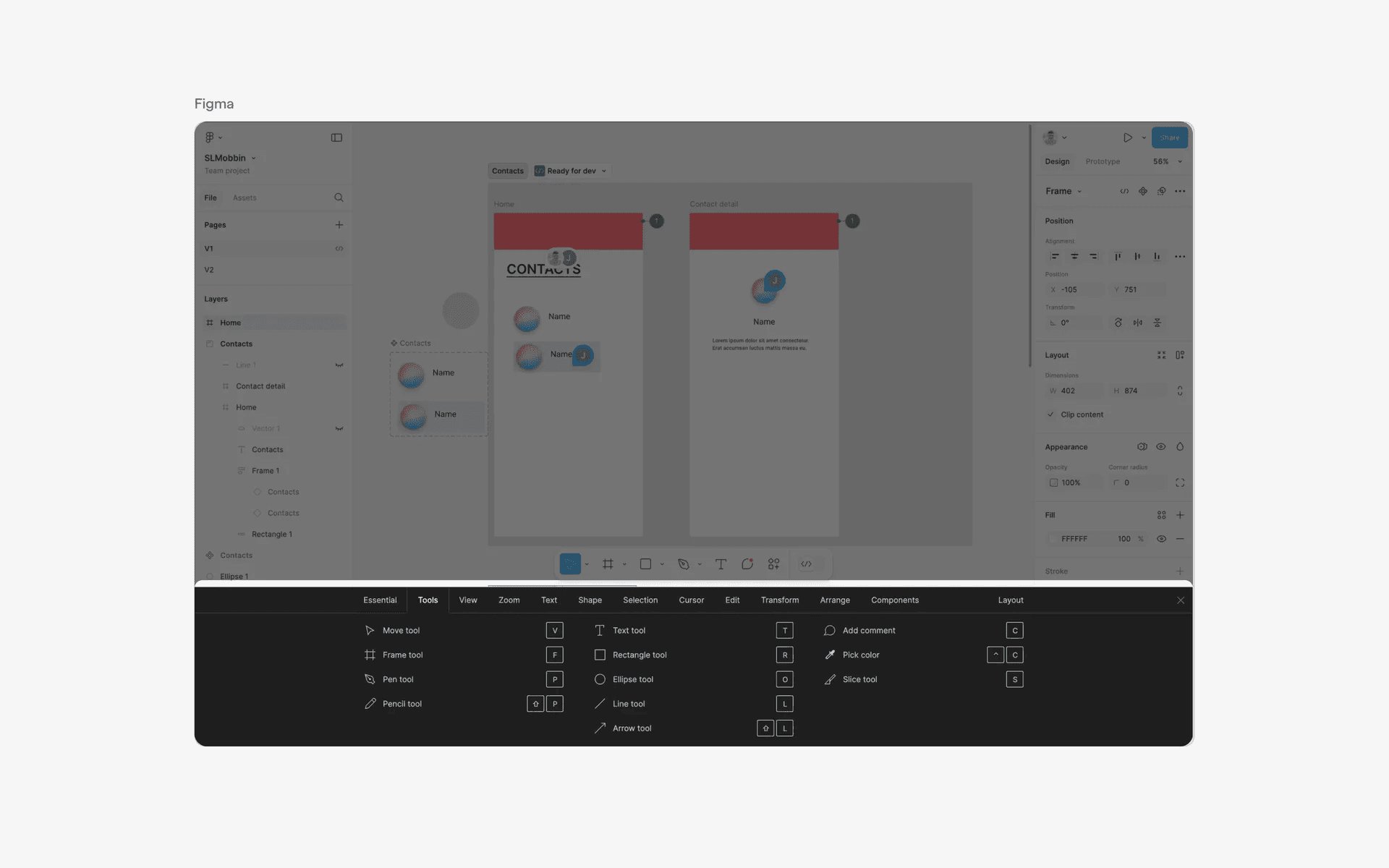
Examples of drawers from the bottom
2. Floating drawers
We've also seen drawers that are 'floating', which means the sides of the drawer component are detached from the side that they are sliding in from.
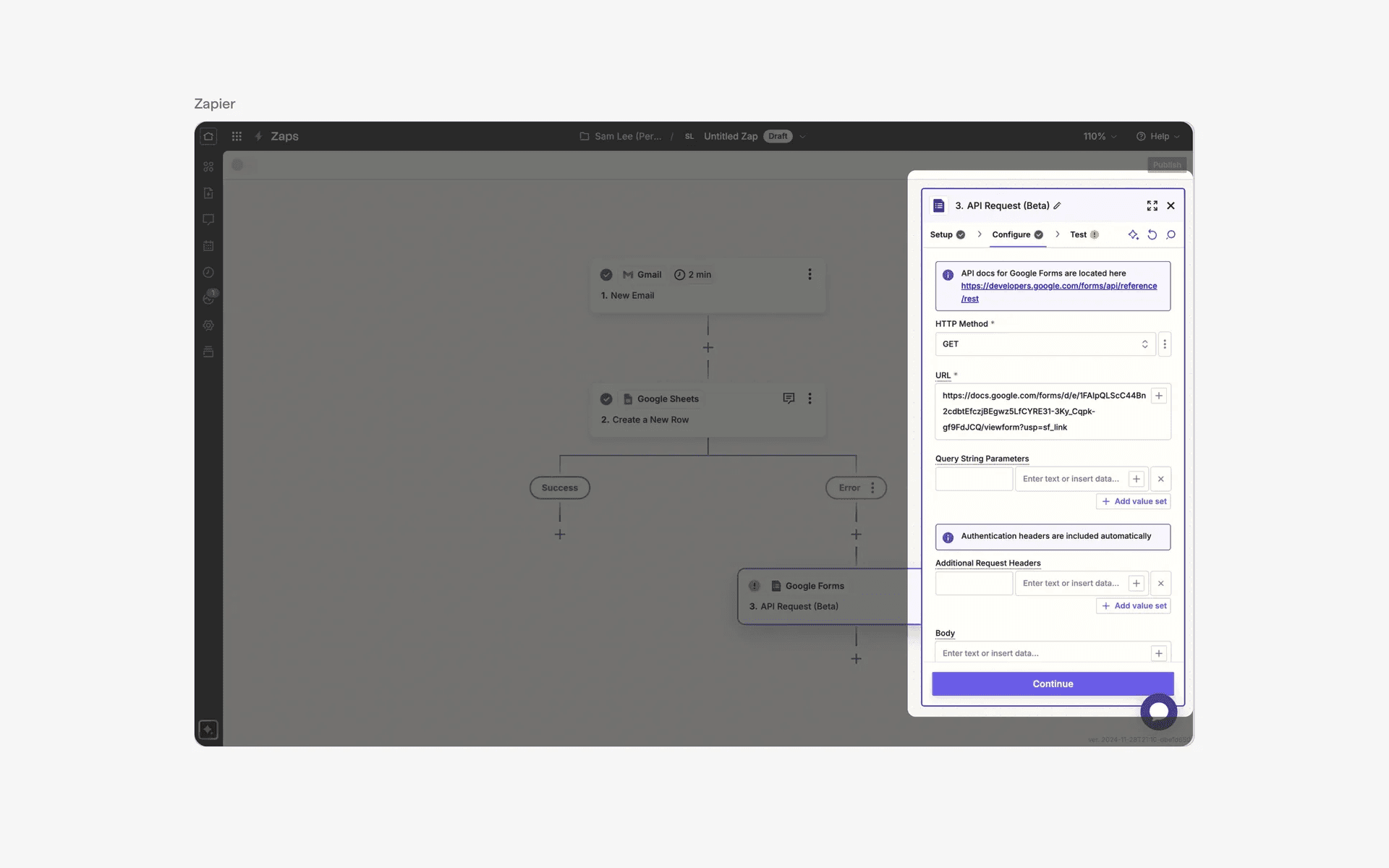
Floating drawer component
3. Drawers pushing content area
We've also seen 'pushy drawers'. Instead of a sliding animation above the content, these drawers push the main content area away instead.
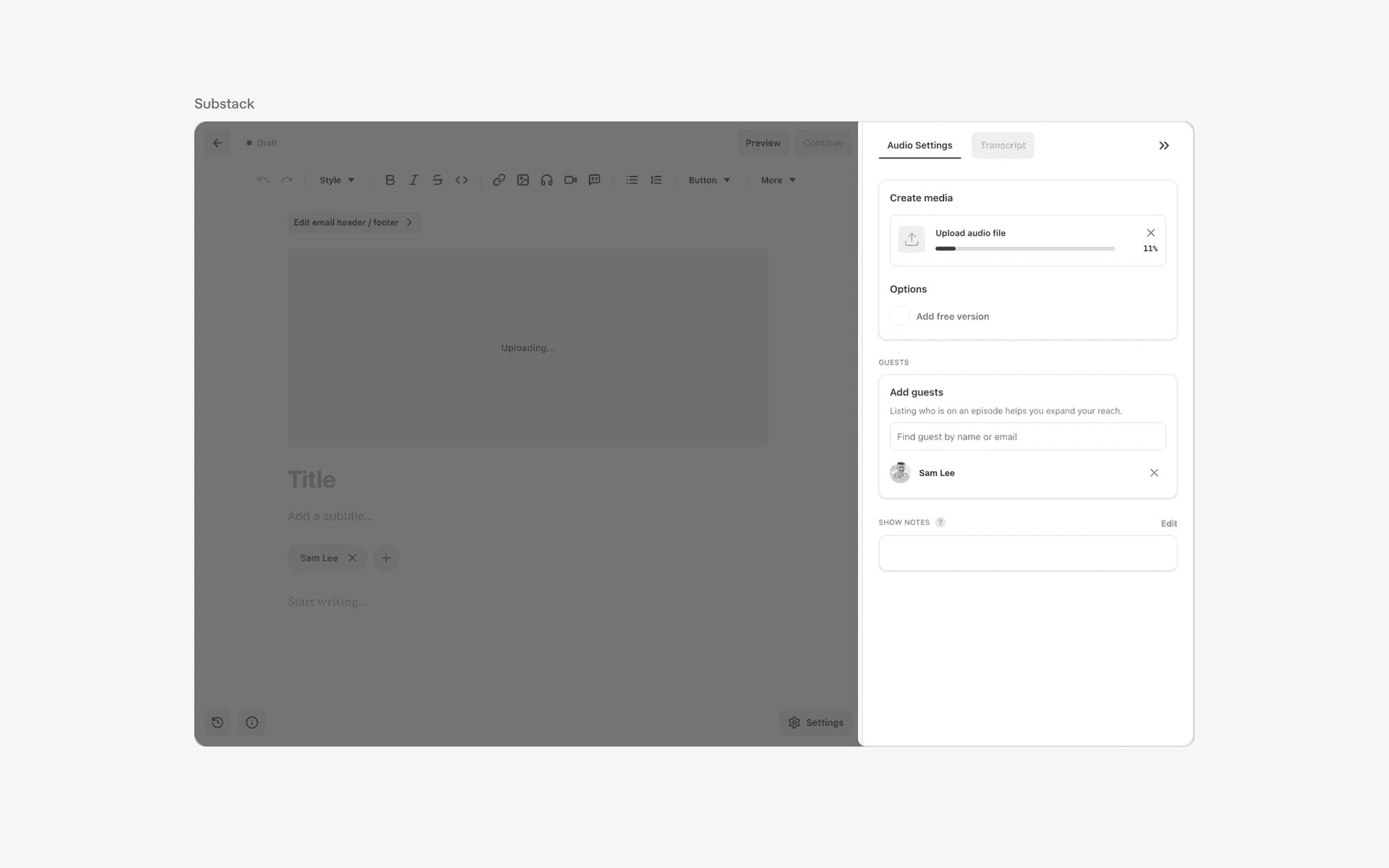
Examples of drawers pushing content area
When to use drawer component?
1. Filtering & sorting
In e-commerce or product listing websites, drawers can be used to display filtering or sorting options for users to refine their search results.
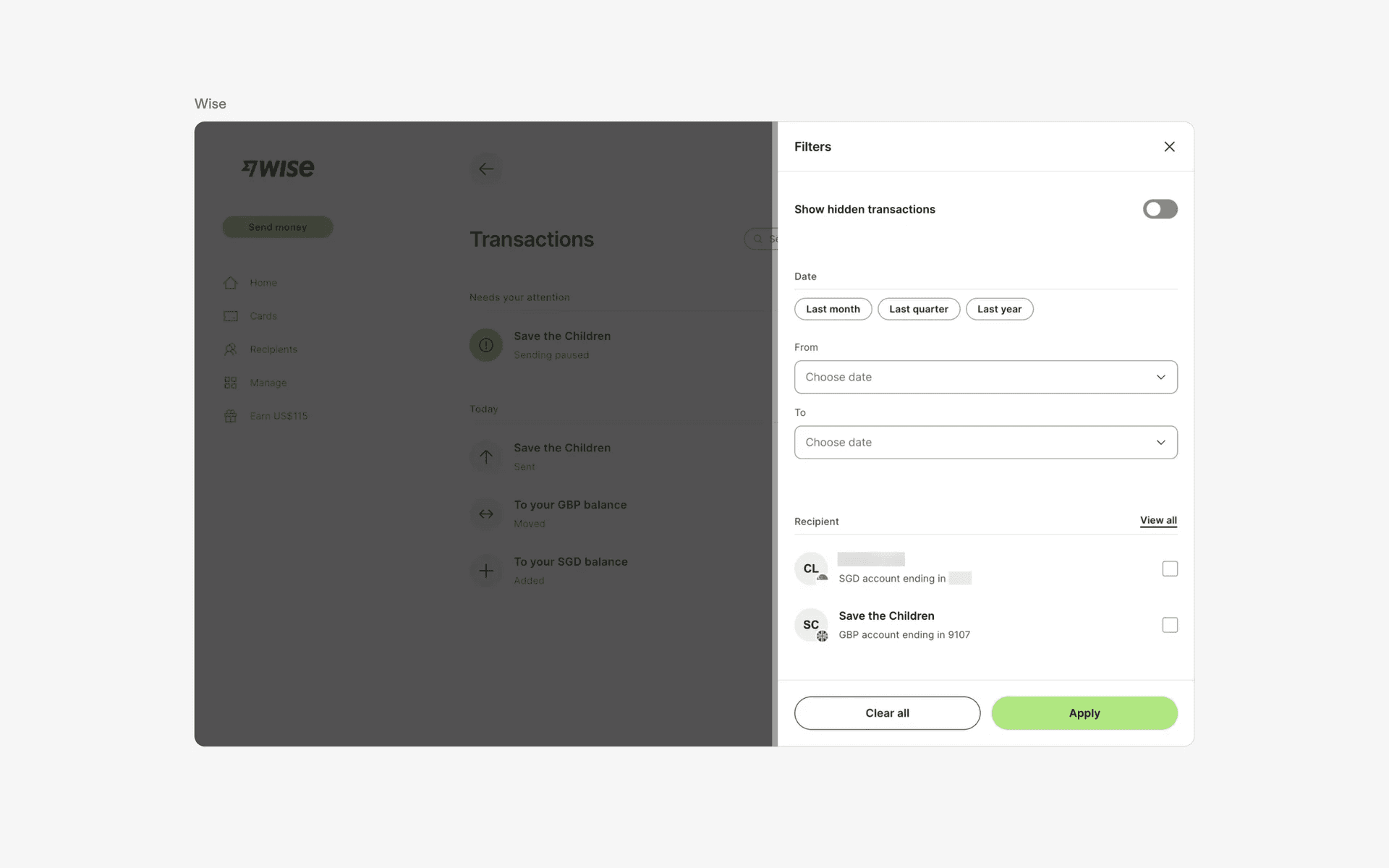
Examples of drawers used in filtering & sorting flows
2. Notifications
Some websites use drawers to display notifications or messages to users. This allows for a non-intrusive way of alerting users to new information.
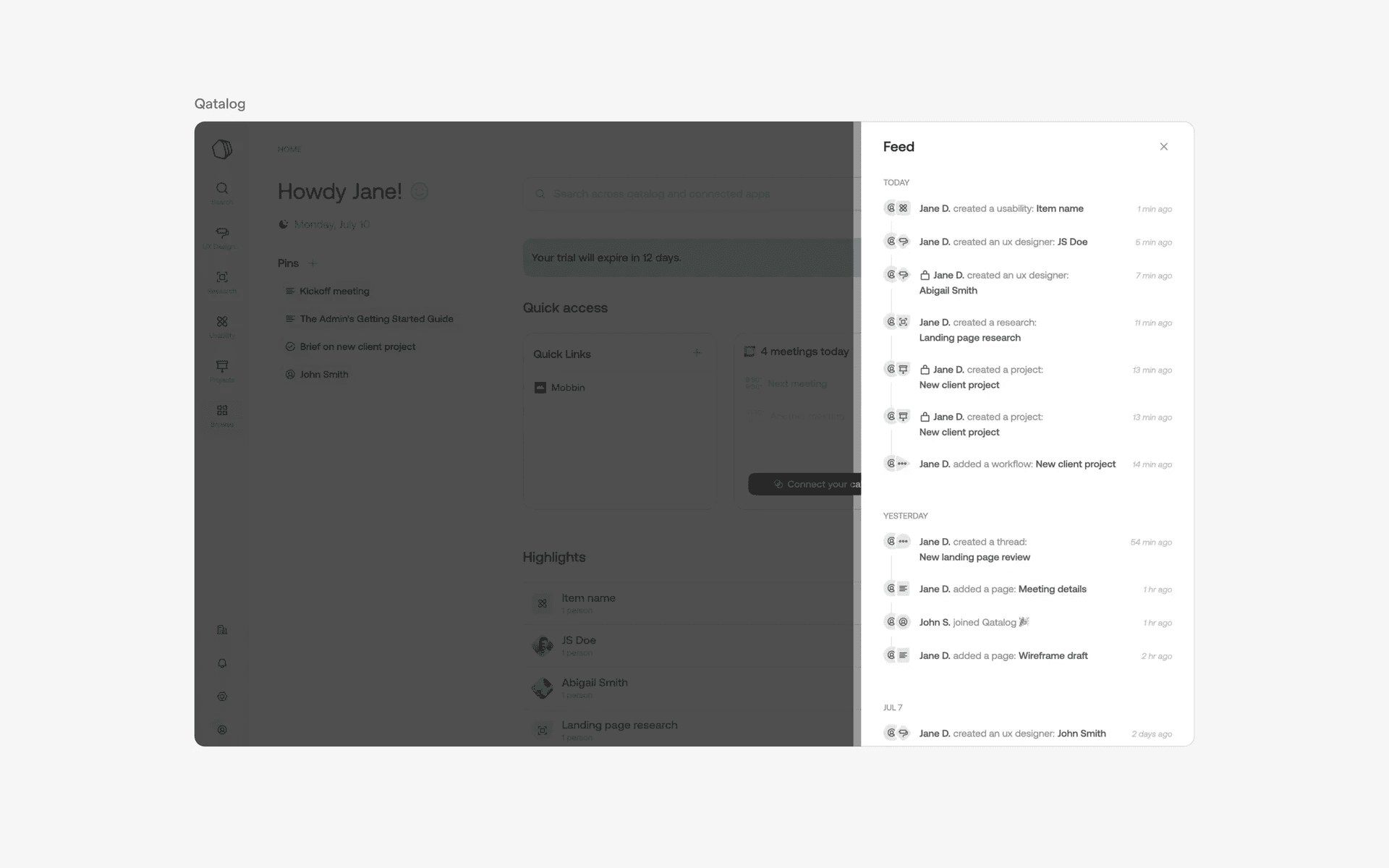
Examples of drawers used in notifications
3. Help & support
Drawers can also be used to display help and support information for users to easily access when needed. This is especially useful for websites that offer services or products that may require support.
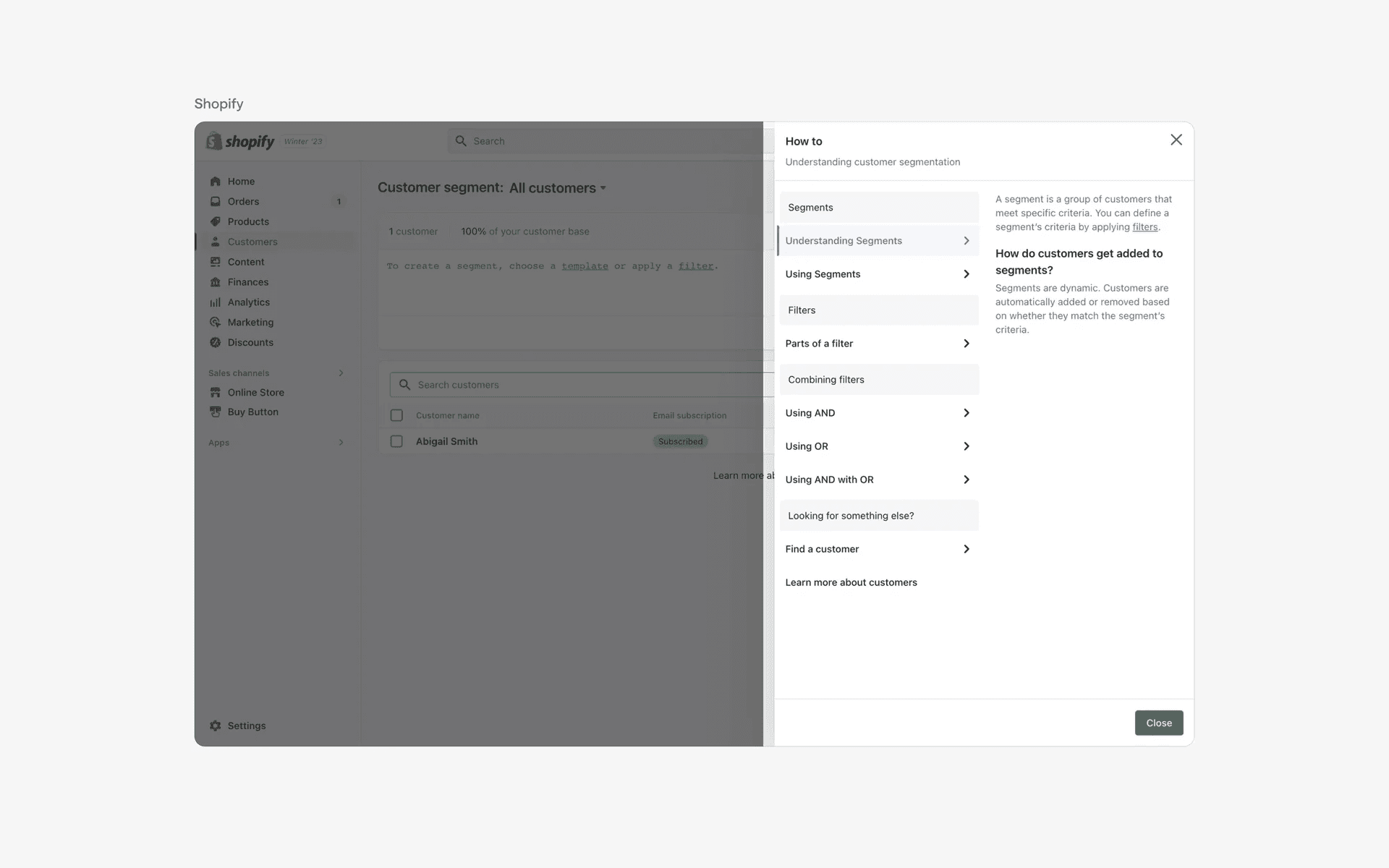
Examples of drawers in help & support
4. Chat
Drawers can also be used to display chat messages between users or support staff, without having to bring the user to an entirely new page.
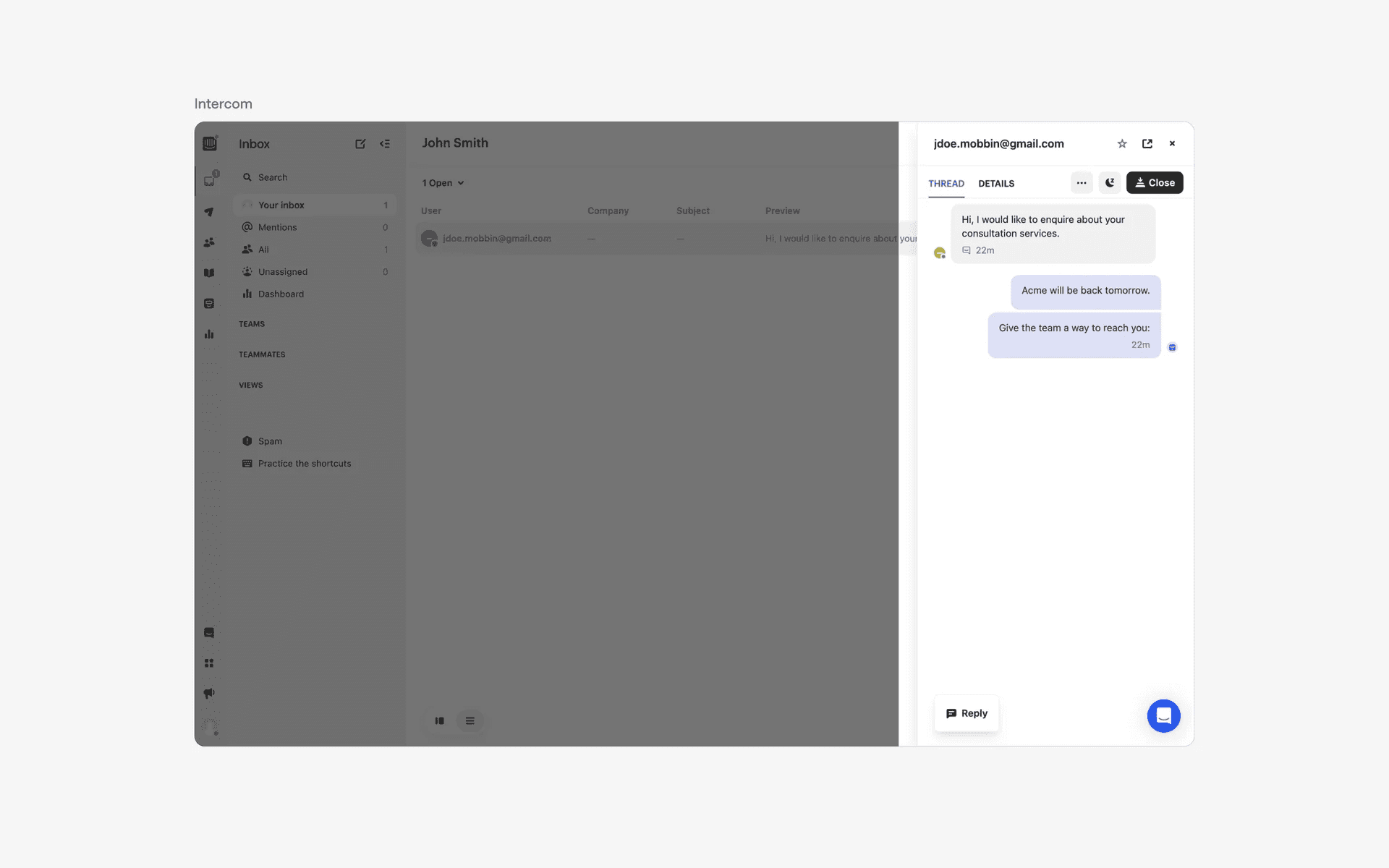
Examples of drawers in chat
Conflicting UI elements: Dialog, Popover, Sidebar
Drawer v.s. Dialog
A drawer is a sliding panel that is usually hidden from view and can be accessed by swiping or tapping on a designated icon or button.
It often appears from the side, bottom, or top of the screen and can be opened and closed as needed.
On the other hand, a dialog is a pop-up window that appears on top of the current screen and requires the user to interact with it before continuing. It usually has a prominent title, descriptive text, and action buttons. A drawer is typically used for navigational purposes or to provide access to additional menu options or settings.
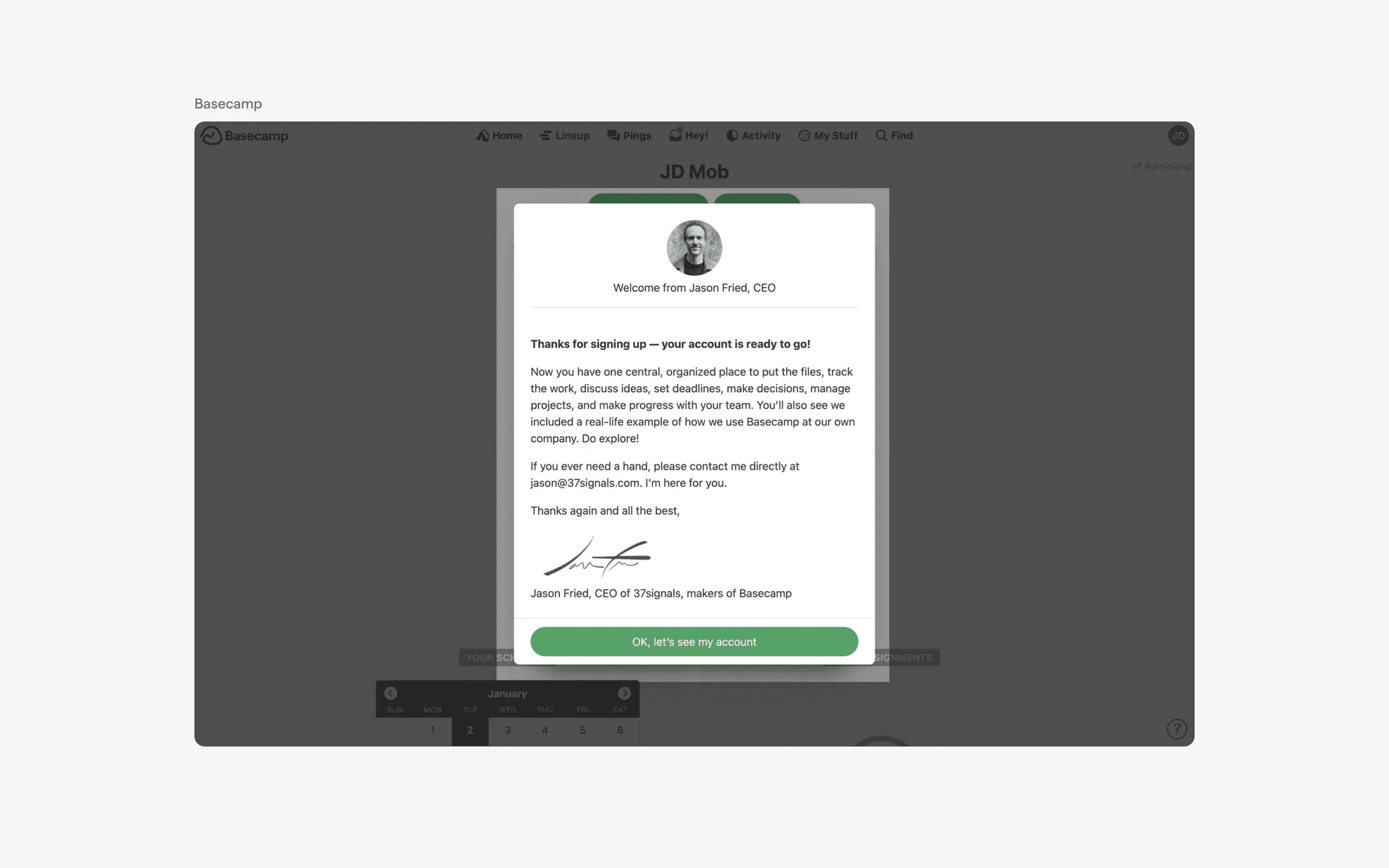
Examples of dialogs
Drawer v.s. Sidebar
A drawer is a hidden panel that slides out from the edge of the screen, while a sidebar is a visible panel that is usually fixed on one side of the screen.
Drawers typically have a Hamburger Menu Icon (or navigation menu icon) to indicate its presence, while sidebars are always visible. More importantly, sidebars exist on the same level as the other contents on the screen, while drawers appear above.
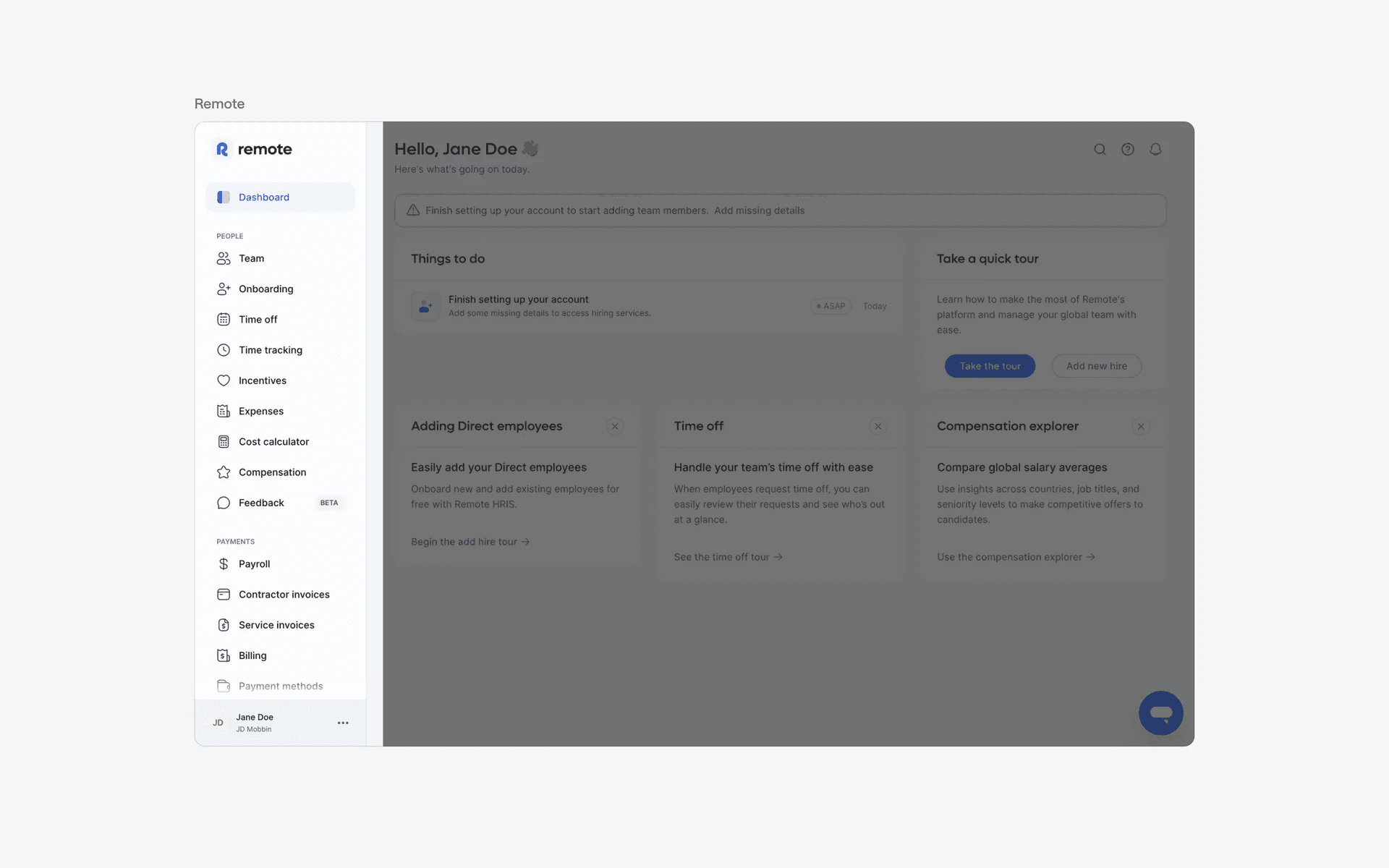
Examples of sidebar