
What is a dialog UI component?
A dialog displays content (e.g. important prompts) that requires user interaction, in a layer above the page or screen.
It focuses a user's attention onto a single-step task, question, or message.
It usually has a dismiss icon to close it (X icon).
Dialogs are commonly used in the following design patterns: Alerts & Notifications, Confirmation, User input.
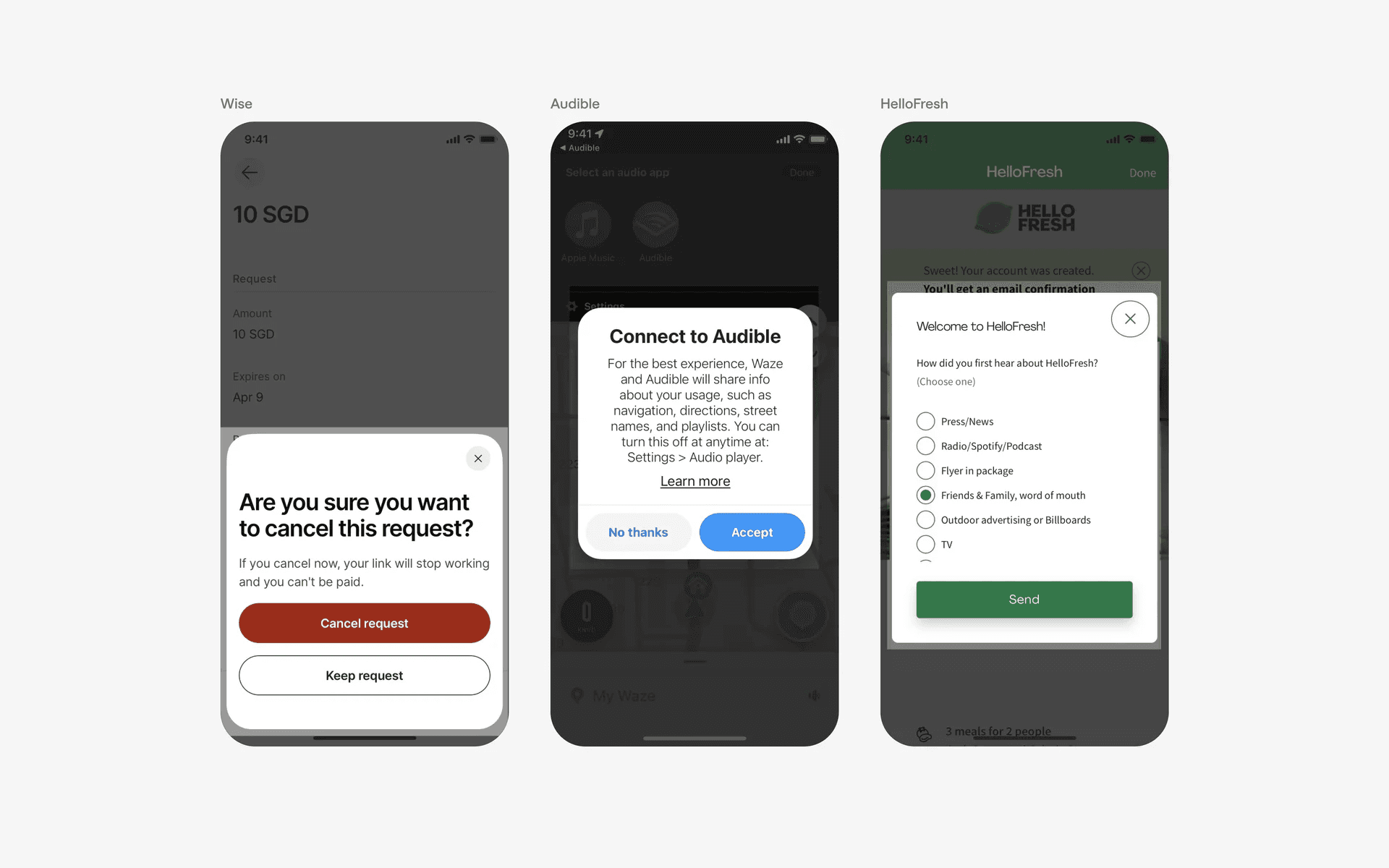
Examples of different types of dialogs.
What is the anatomy of a dialog?
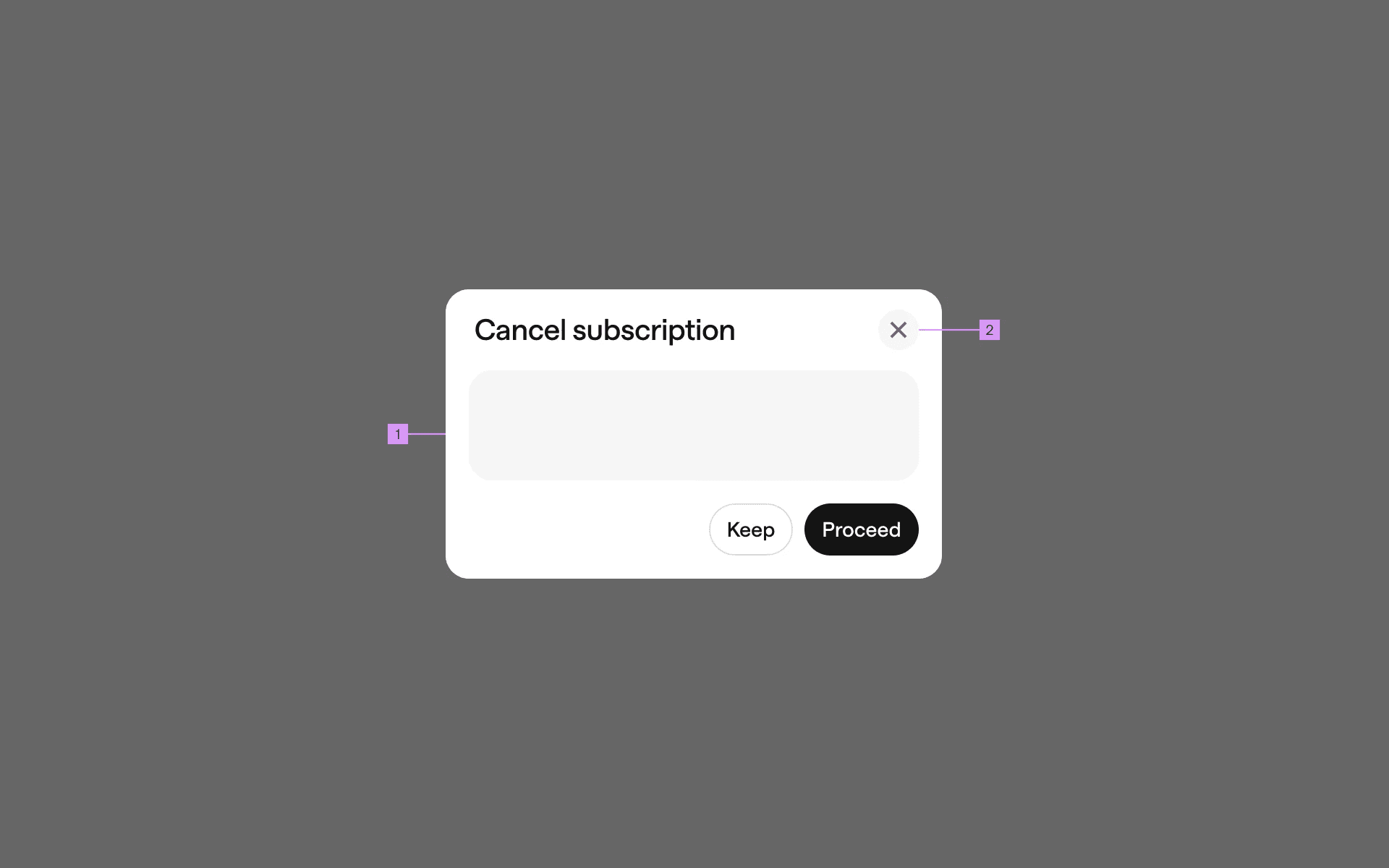
Anatomy of a dialog
1
Container
2
Close Button (optional)
What are the design variants of a dialog?
We studied over 7,000+ dialog UI components on Mobbin, from real-world examples and found the following variants.
1. Native dialog UI
The most common form of dialog in mobile apps are the native iOS dialog. Sometimes also known as system dialog.
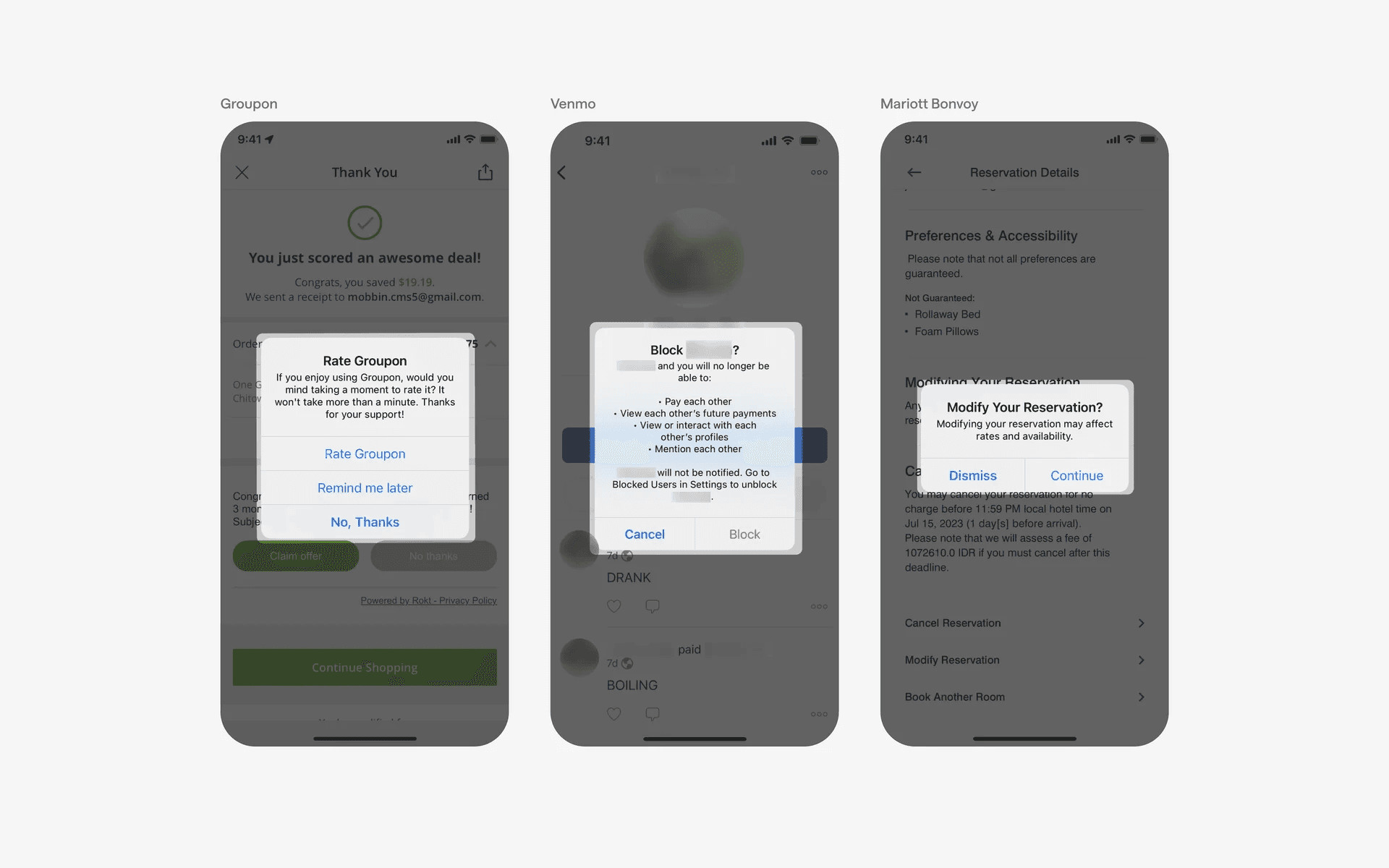
Examples of native iOS dialog UI
Examples of native Android dialog. It has a very familiar but different styling from it's iOS counterpart.
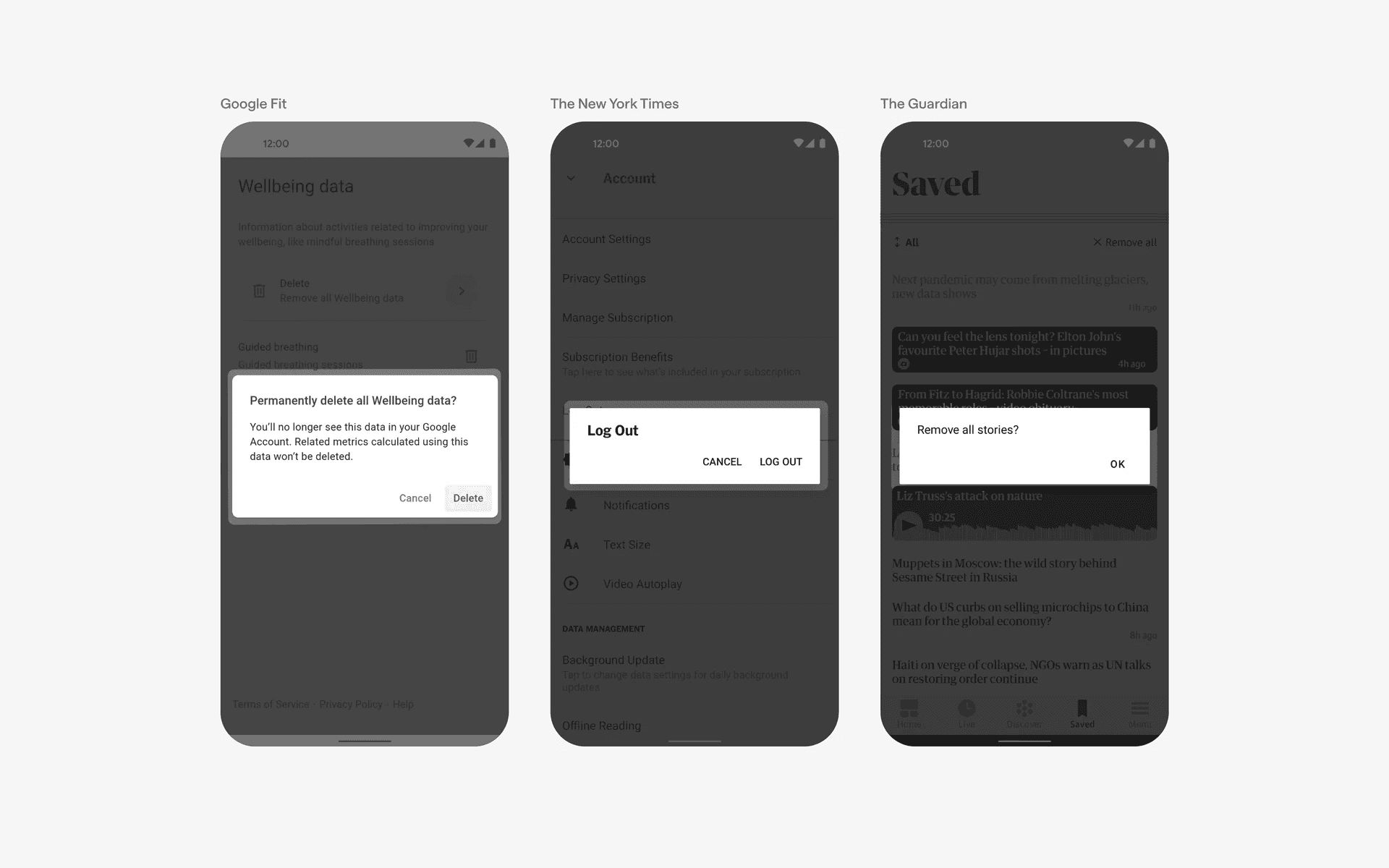
Examples of native android dialog UI
2. Custom dialog UI
Apps that are more established prefer to create their own custom UI dialog.
We've seen dialogs with vertically stacked buttons.
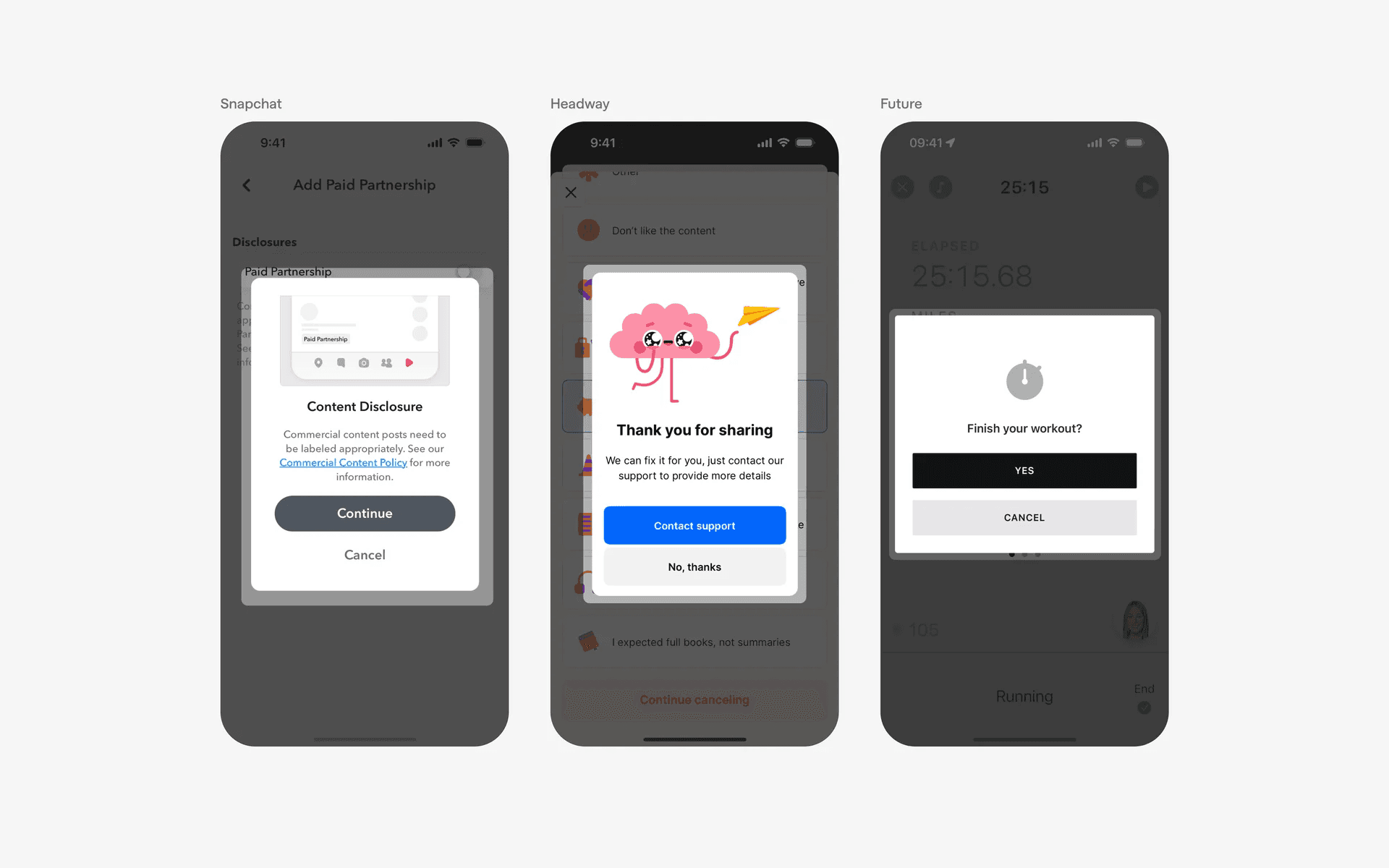
Examples of custom dialog UI with vertically stacked buttons.
Or, dialogs with horizontally stacked buttons.
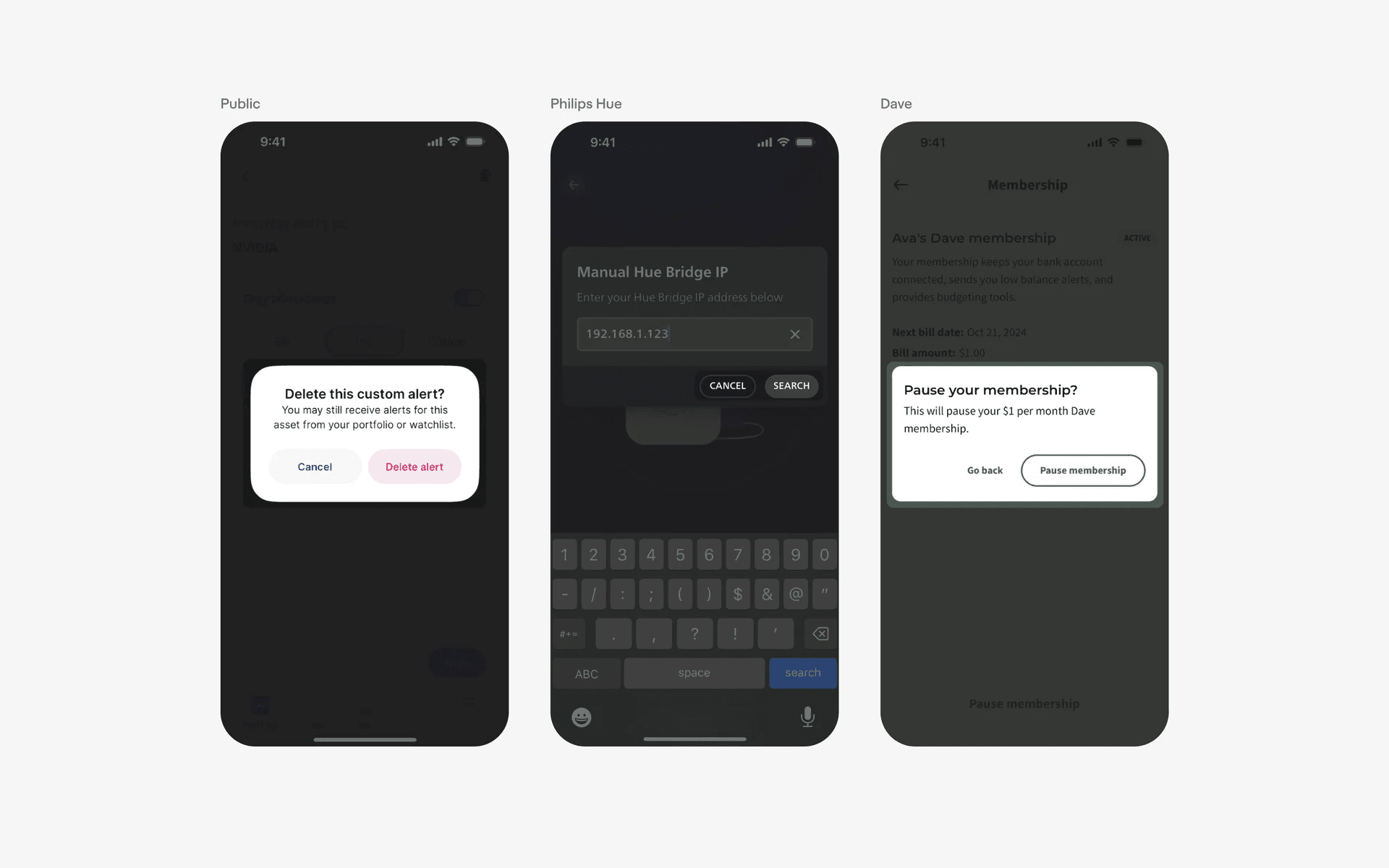
Examples of custom dialog UI with horizontally stacked buttons.
If a dialog is optional in nature (for example, a dialog component asking for user feedback), it is a good practice to add a X icon.
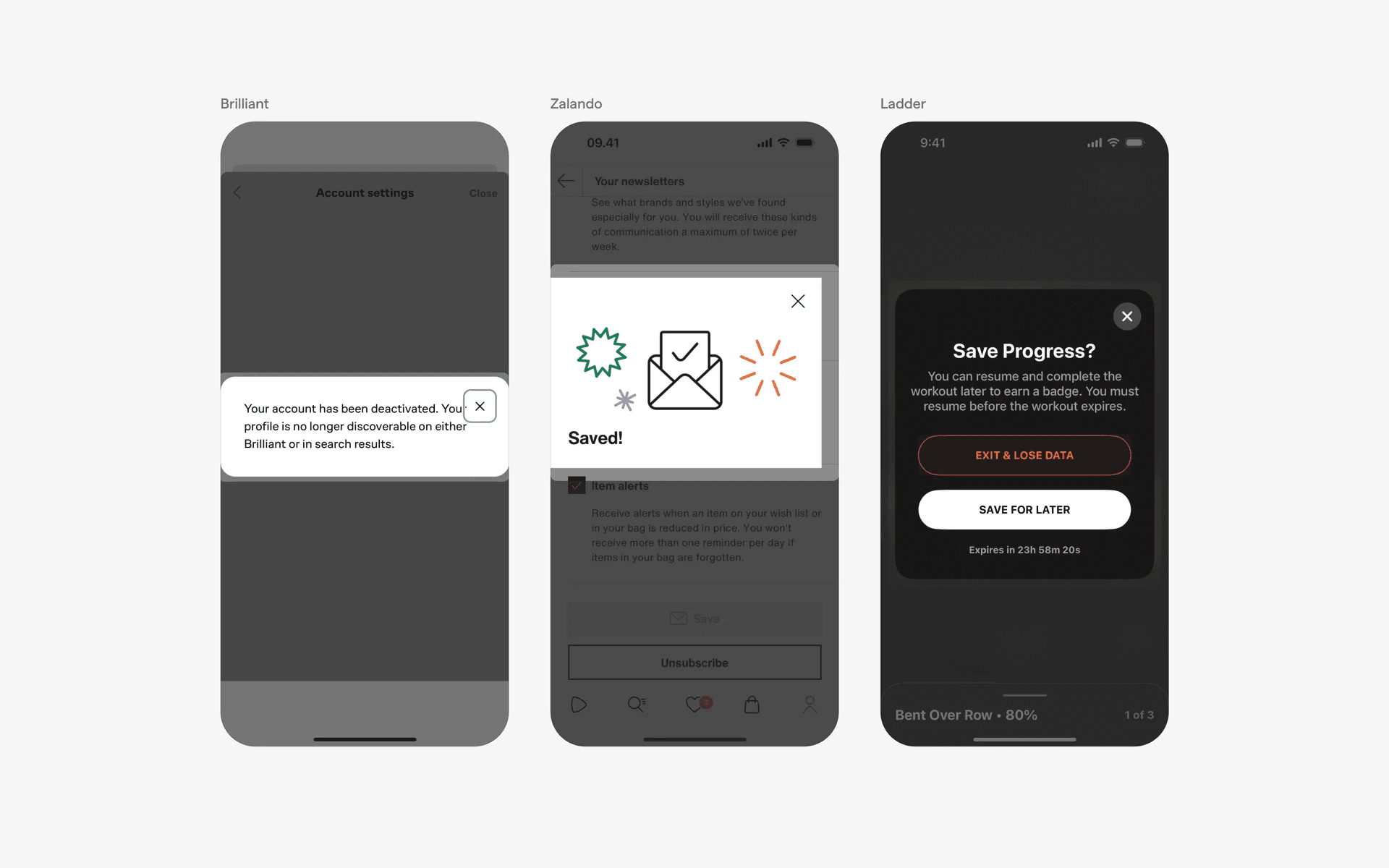
Examples of optional dialogs with X icon.
3. Dialogs can be positioned at the top, center or bottom of the screen
We've looked at thousands of dialogs, and the most common ones are center aligned.
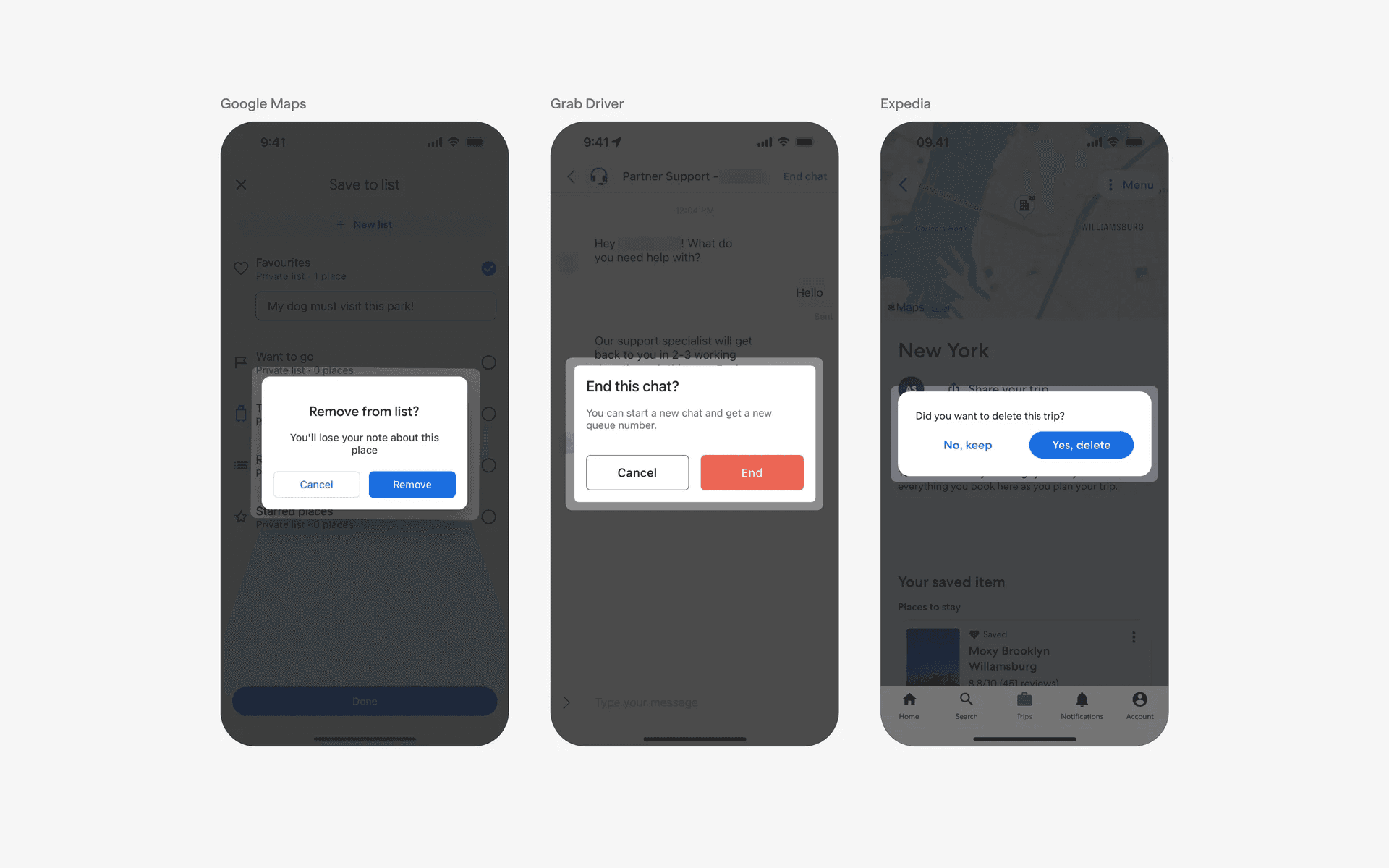
Examples of center aligned dialogs
Followed by bottom aligned dialogs, which are easier for users to reach with one hand. At Mobbin, we tag these screens as bottom sheets instead. But you can think of these as bottom sheets with dialog functionality.
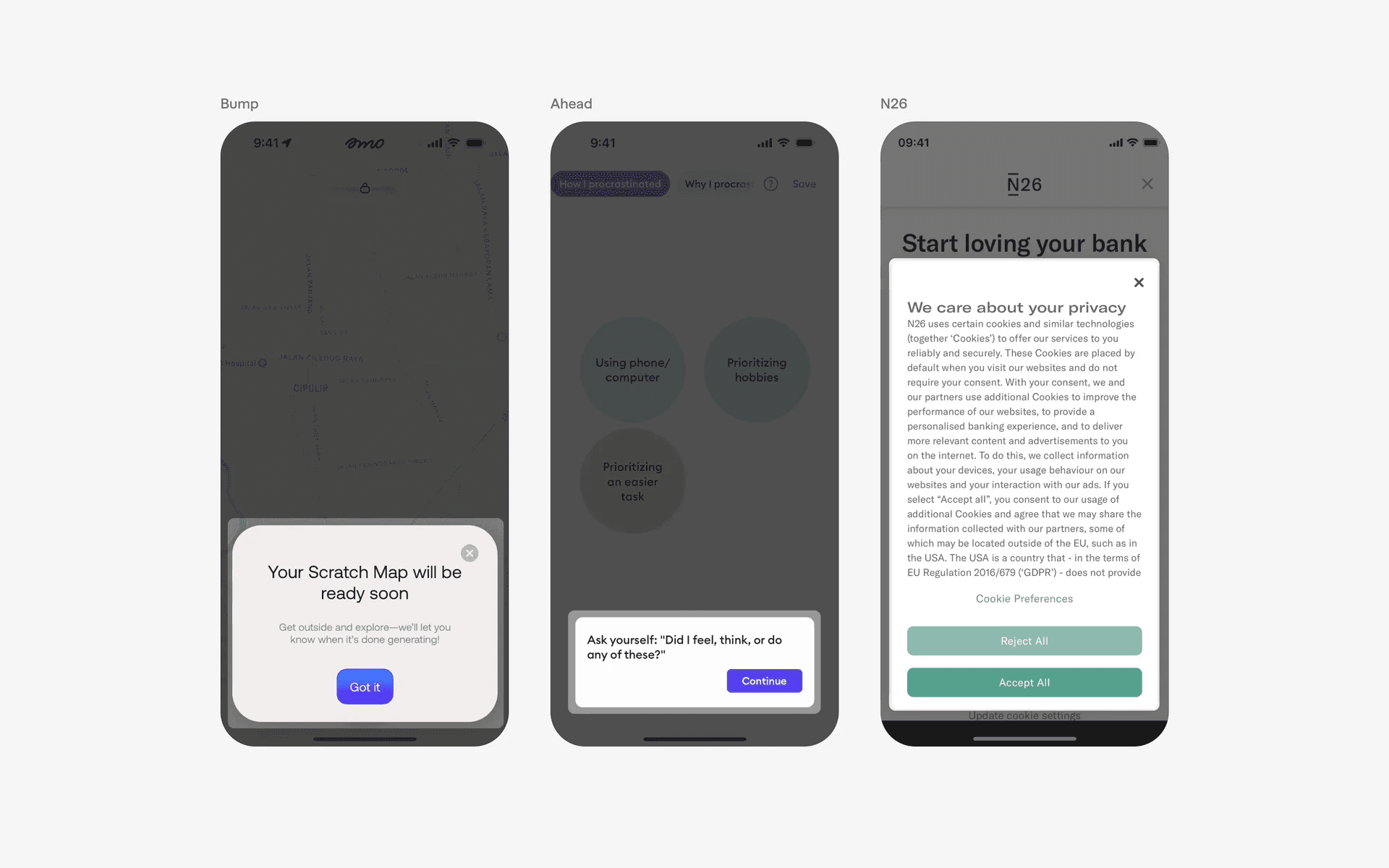
Examples of bottom aligned dialogs
And finally, top-aligned dialogs, which are rarer.
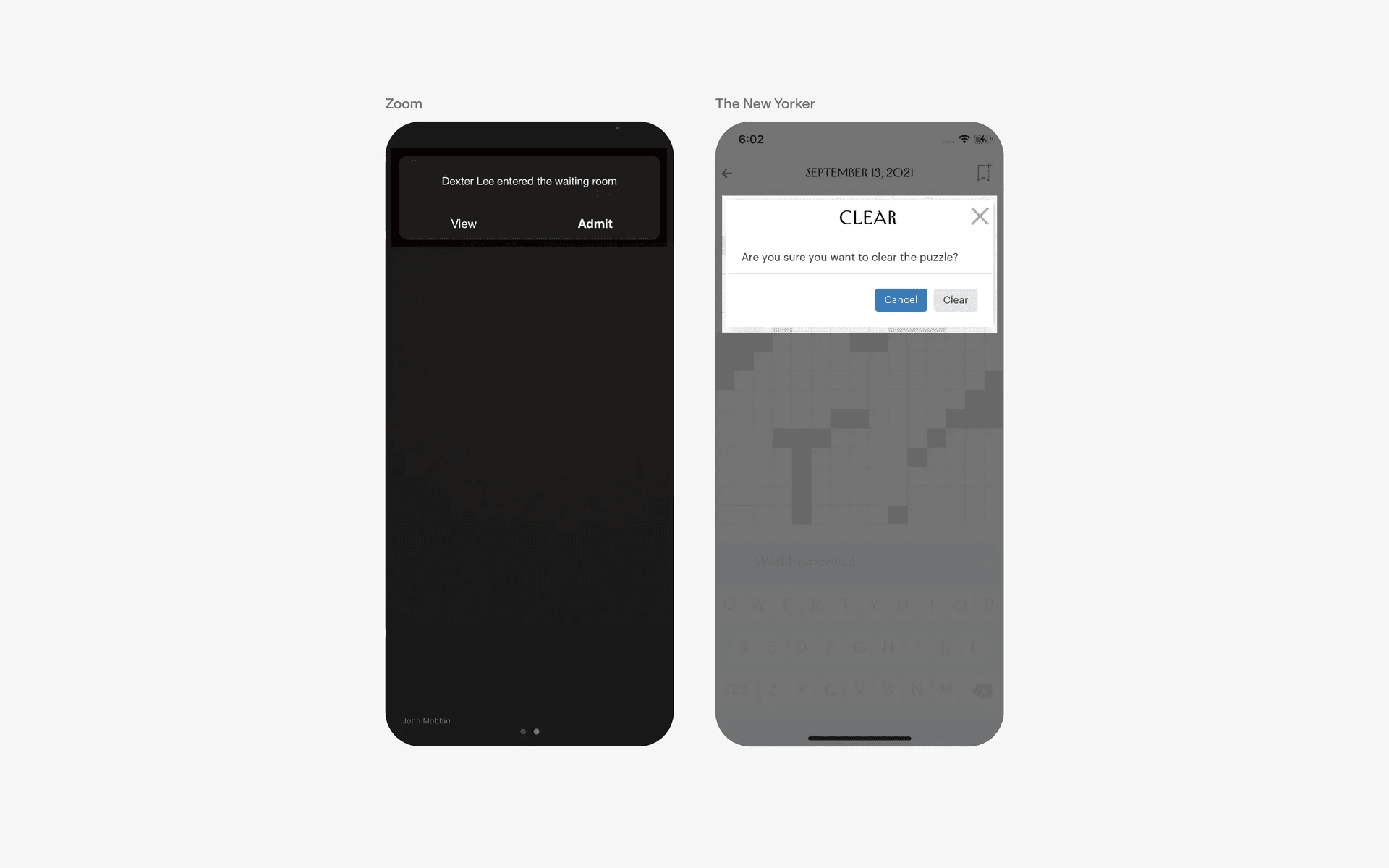
Examples of top-aligned dialogs.
4. Dialogs can contain other UI elements
Text fields are commonly seen in the dialog component. They are used when users are creating, editing, or deleting items.
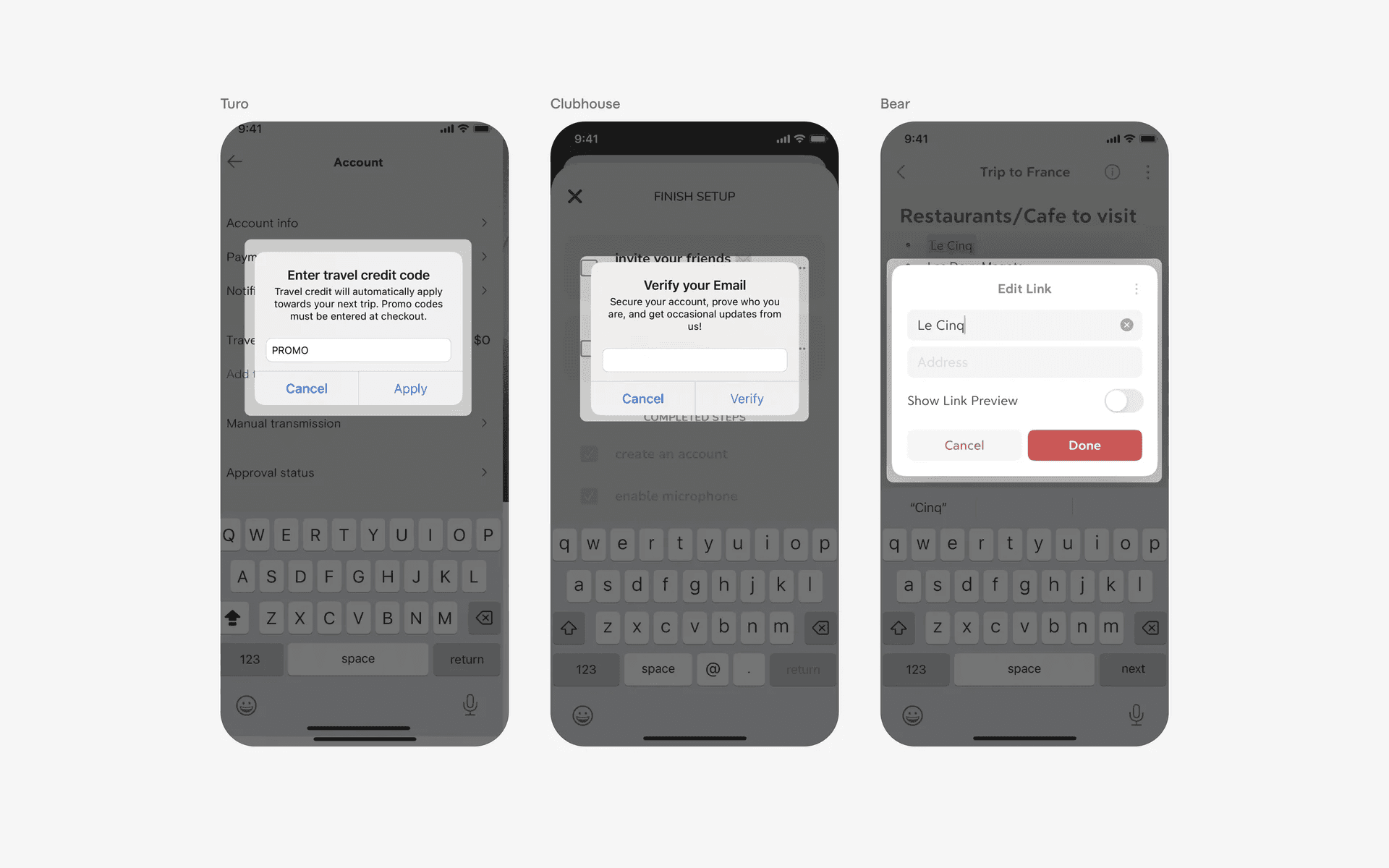
Examples of text fields in dialog widget
We've also observed other UI elements embedded within dialogs like radio buttons, chips and segmented controls.
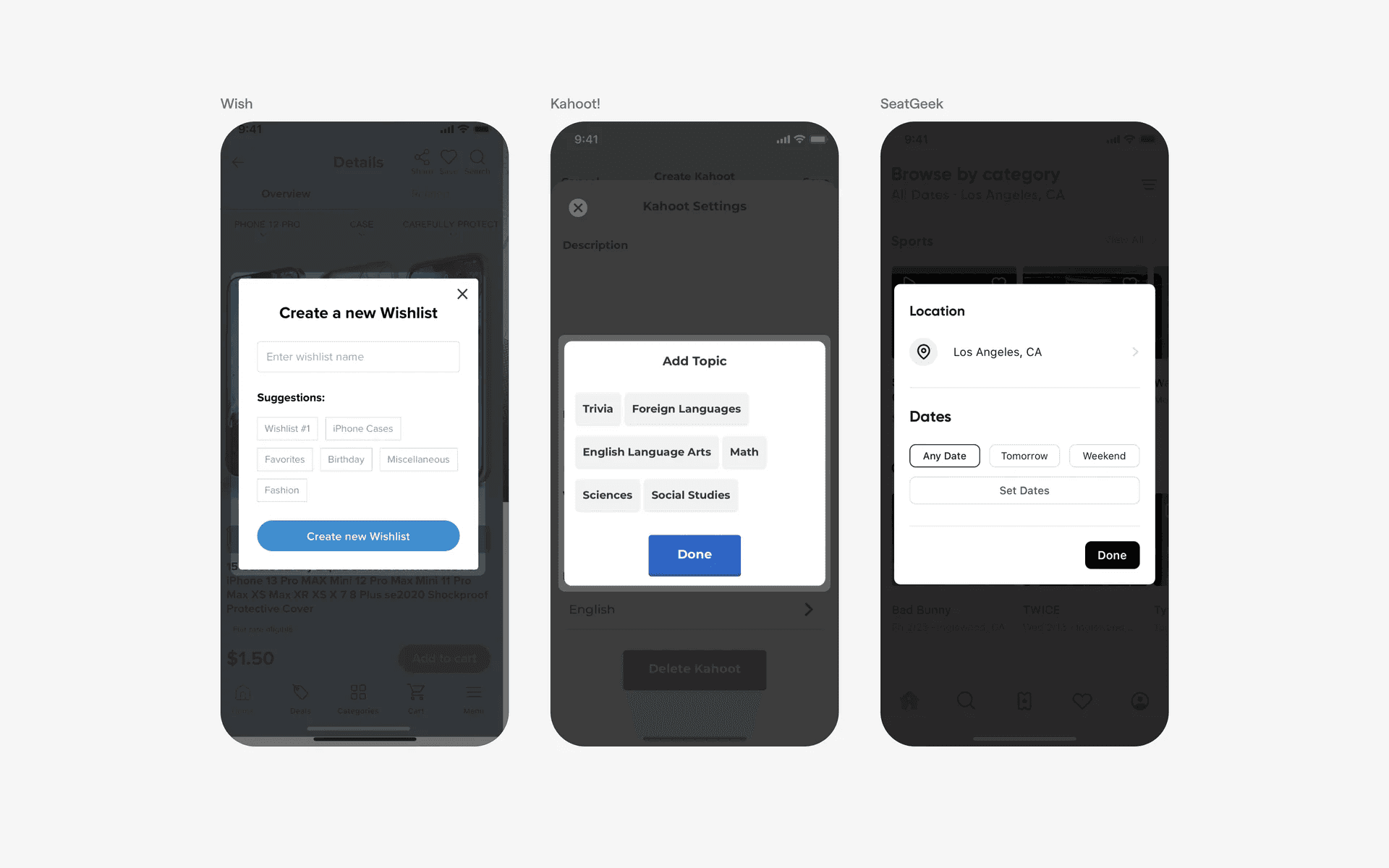
Examples of other UI elements in dialogs
5. Use single button dialogs for messages
Most confirmation dialogs come with two buttons (Cancel / Delete, No/Yes). You can consider using single button dialogs for messages.
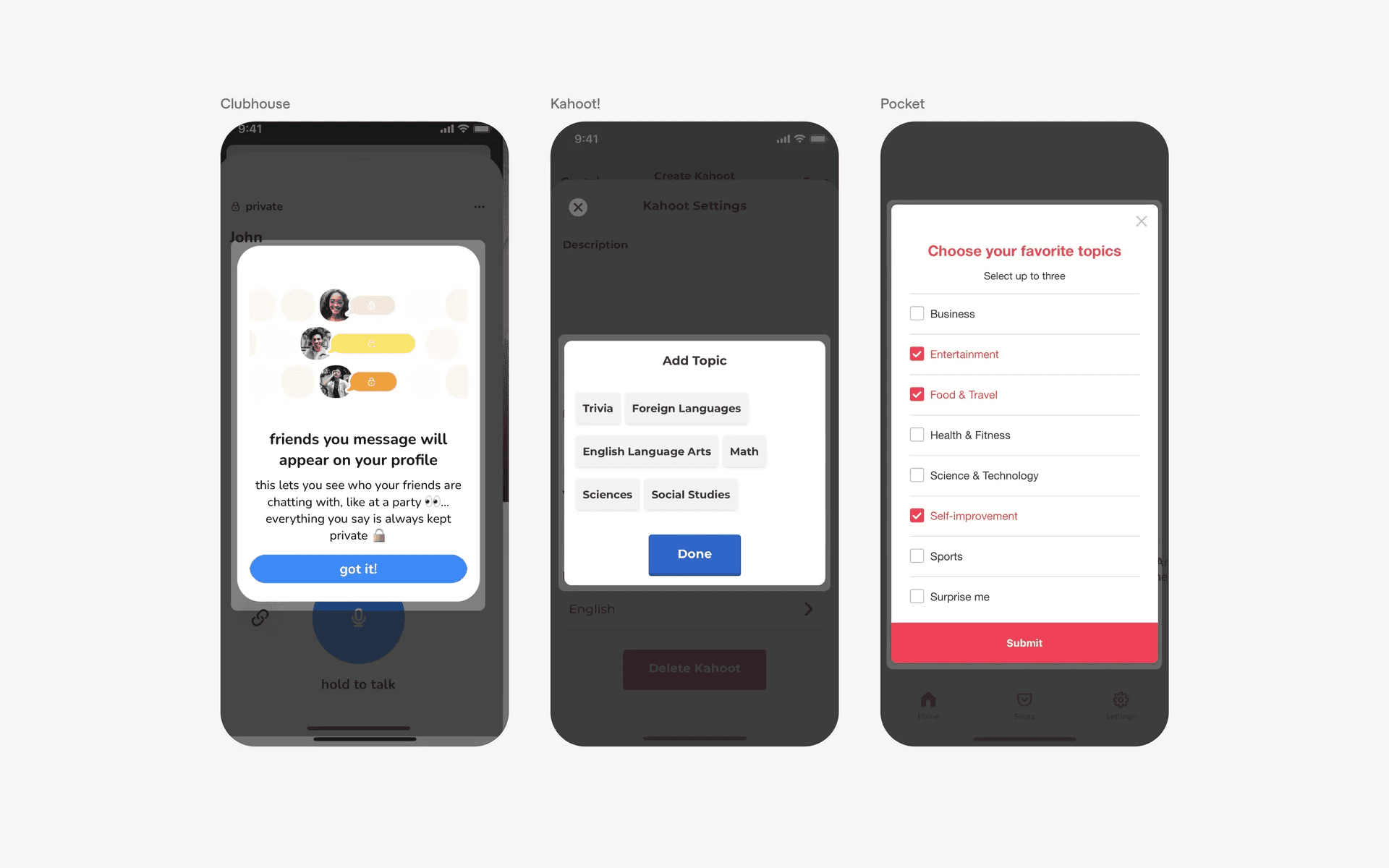
Examples of single button dialog
6. Highlight destructive dialogs in red
Most destructive dialogs come in red accent colors to emphasize the irreversibility and consequences of the action.
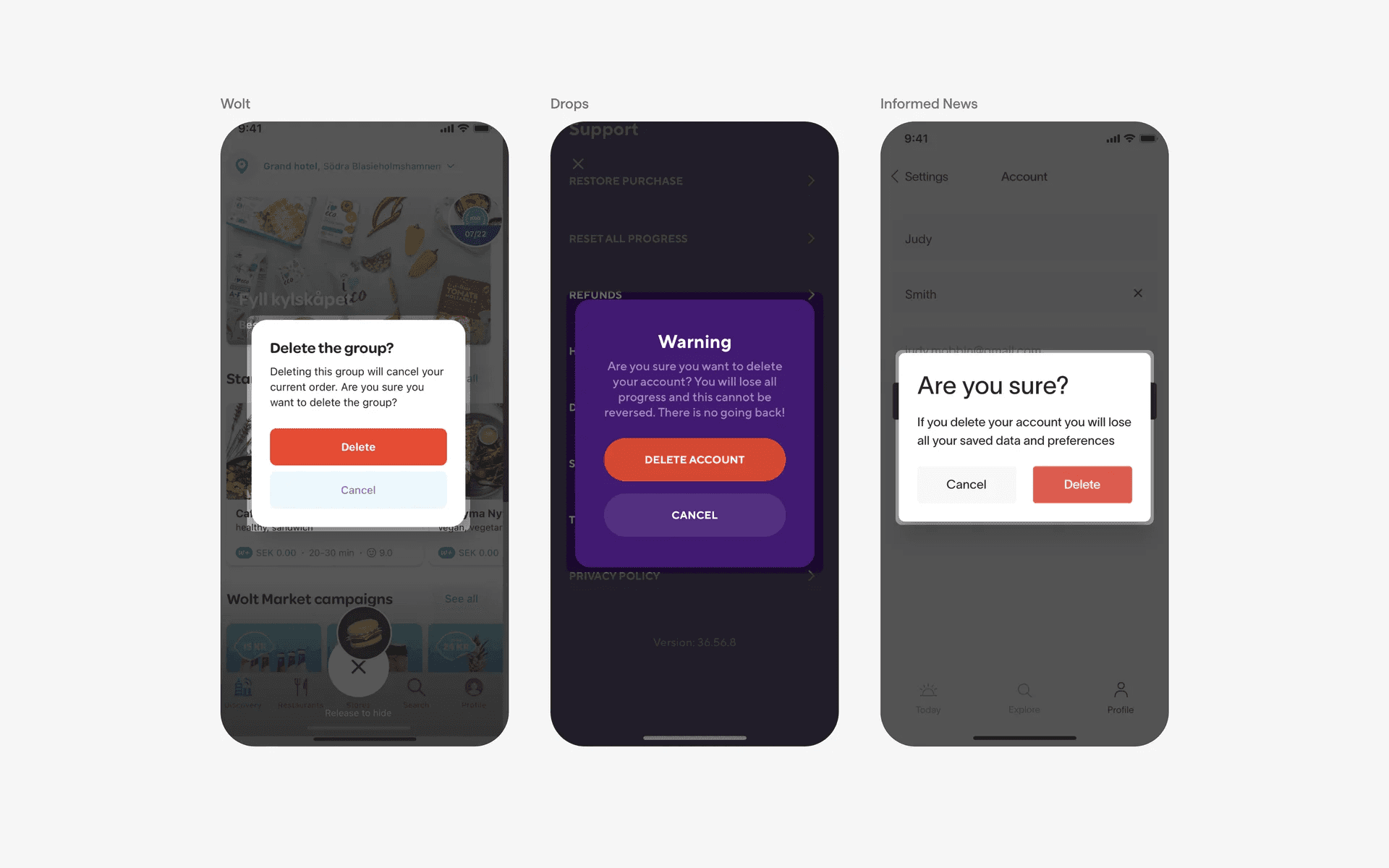
Examples of destructive dialogs
When to use a dialog component?
1. Alerts & Notifications
An alert dialog is often used to display important alerts, notifications, or system messages to the user. For example, when an error occurs, an alert dialog can be used to inform the user about the issue and provide relevant information.
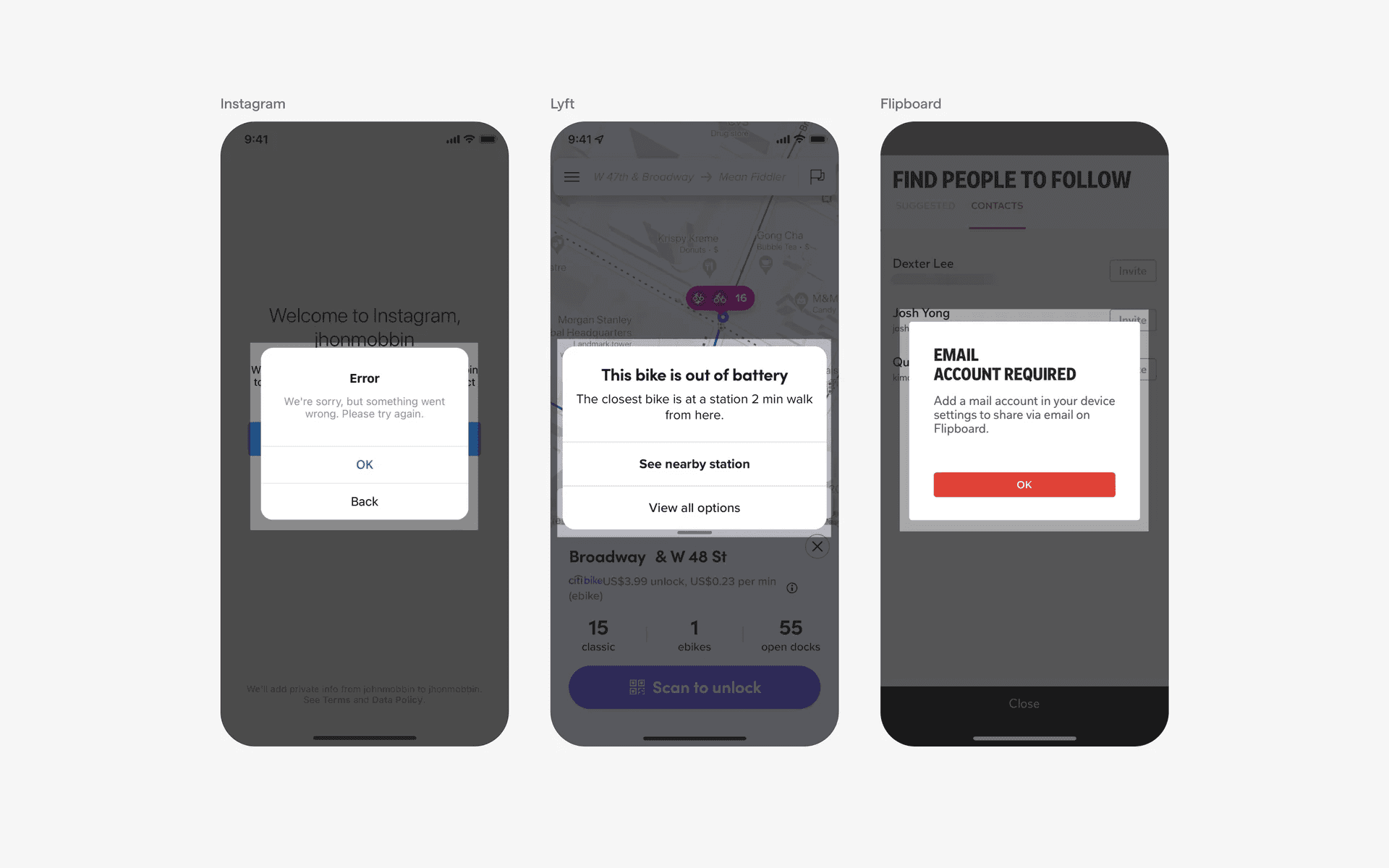
Examples of alert dialog
2. Confirmation
A confirmation dialog is used to seek confirmation from the user before proceeding with a critical action. For instance, when deleting a file or canceling a process, a confirmation dialog can ask the user to confirm their decision.
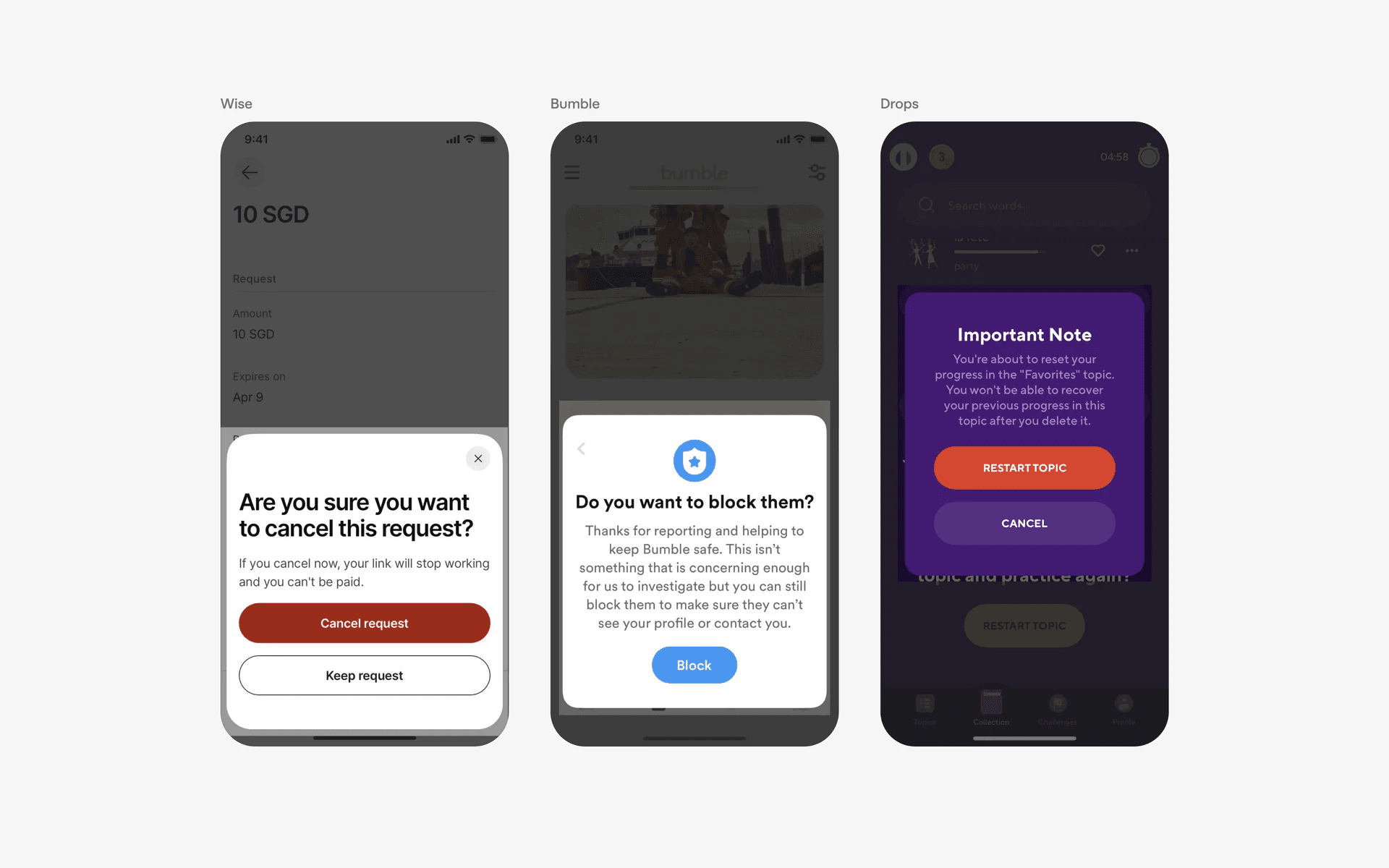
Examples of confirmation dialog
3. User input
Dialogs are frequently used to prompt the user for input, such as capturing text, selecting options, or choosing from a list. This can include login or registration forms, settings configuration, or any situation where user interaction is required.
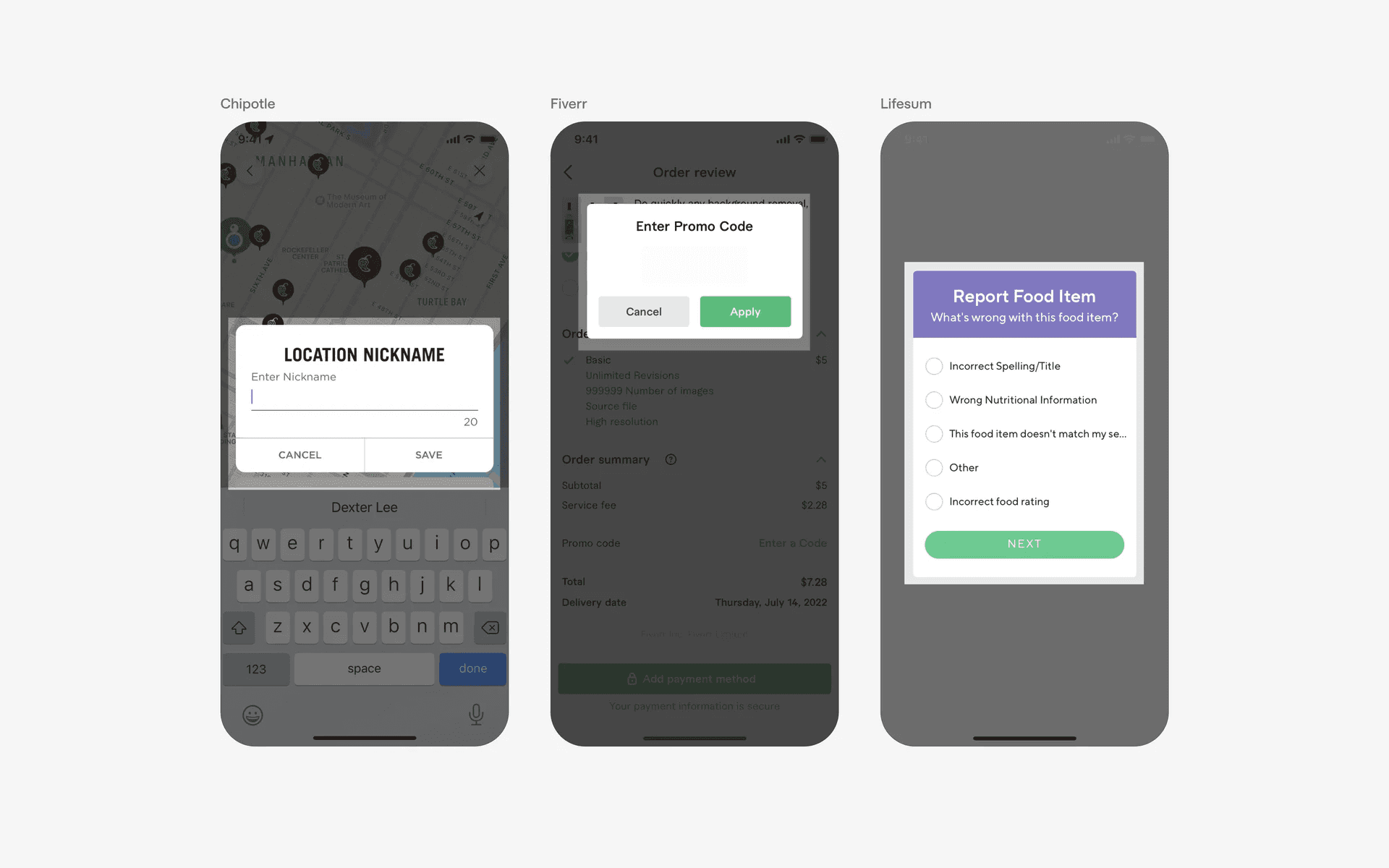
Examples of user input in dialog
Conflicting UI elements: Toast, Tooltip, Dropdown Menu
Dialog v.s. Toast
Toasts are usually temporary and disappear on their own while dialogs require user interaction to dismiss.
Dialogs require buttons (e.g action button, or at least a close button). Without them, there is no need for a user interaction to dismiss the dialog.
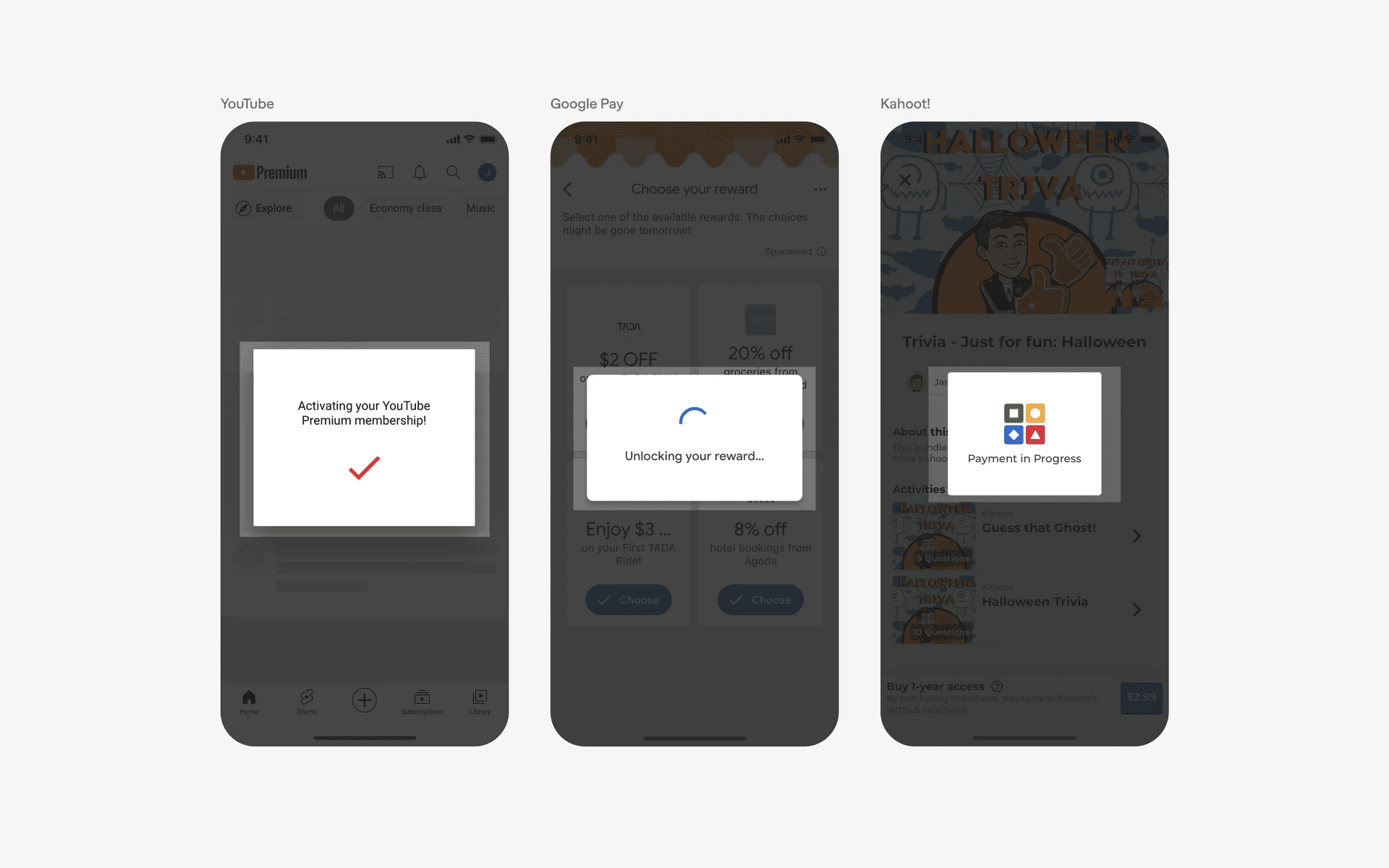
Examples of toast
Dialog v.s. Tooltip
A dialog is a small pop-up window that appears on a computer or mobile device screen. It usually contains information or a set of options and requires user input.
Dialogs are typically larger and more prominent than tooltips, making them suitable for more complex interactions. Tooltips instead, are used to provide instructions, alerts, or guide a user to learn or use a new feature.
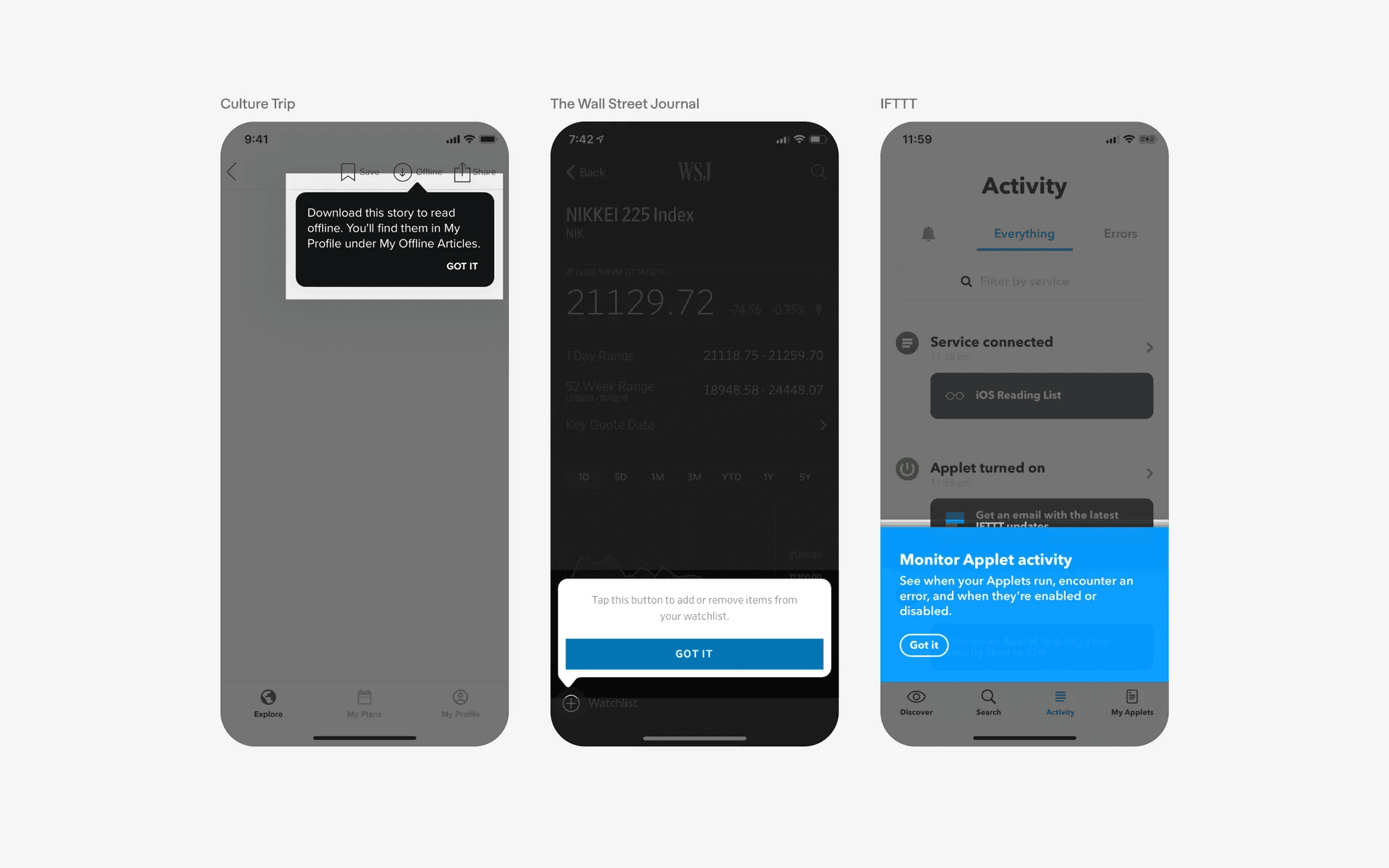
Examples of tooltips
Dialog v.s. Dropdown Menu
Dropdown menus are typically represented as a list of options that can be expanded or collapsed by clicking on a toggle element.
The purpose of dropdown menus is to provide a way for users to quickly access a list of choice. As such, they never content additional content aside for the range of options.
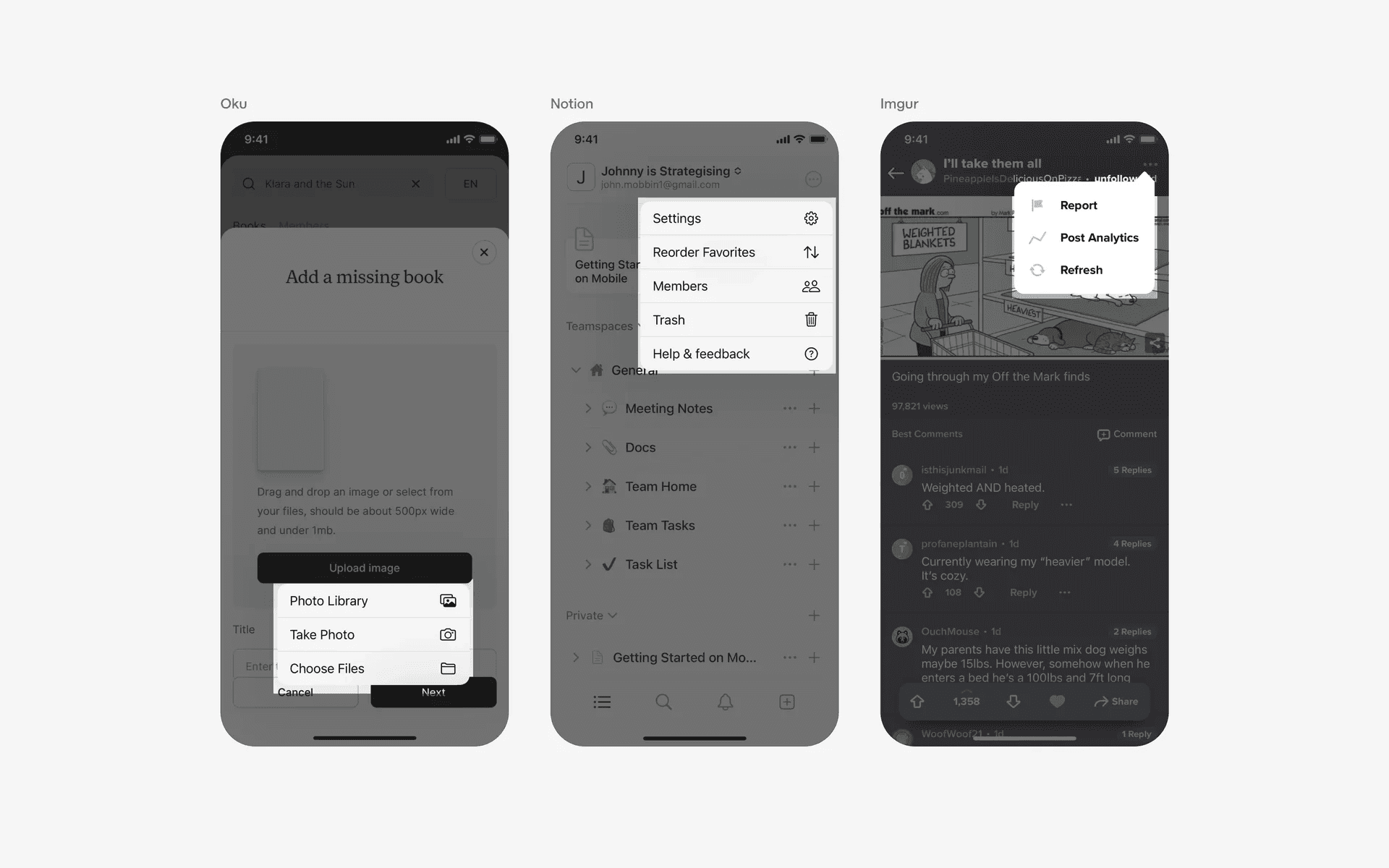
Examples of dropdown menus