Context Menu UI

What is a context menu component?
A context menu displays an action menu related to the element that the user right-clicks on.
It is a UI element found on the web interface - it is often triggered by right clicking an element. It can be closed by pressing the escape key, or clicking anywhere outside the menu.
This allows for additional options and actions to be accessed without cluttering the main interface.
Context menus are a type of non-modal overlay, and may be easily confused with dropdown menus.
Context menus are commonly used in right clicking functionality, specifically on web interfaces.
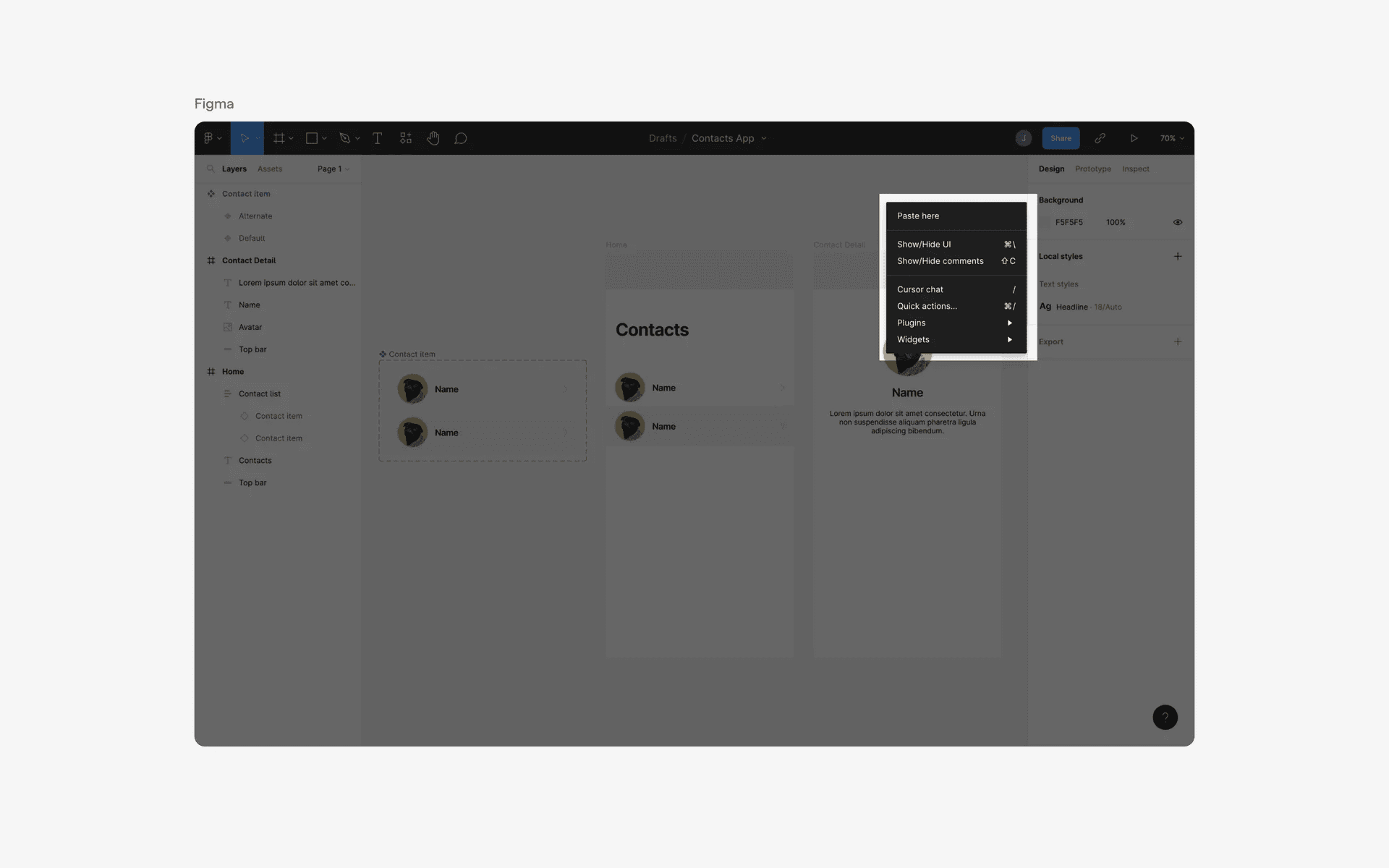
Examples of context menus
What is the anatomy of a context menu?
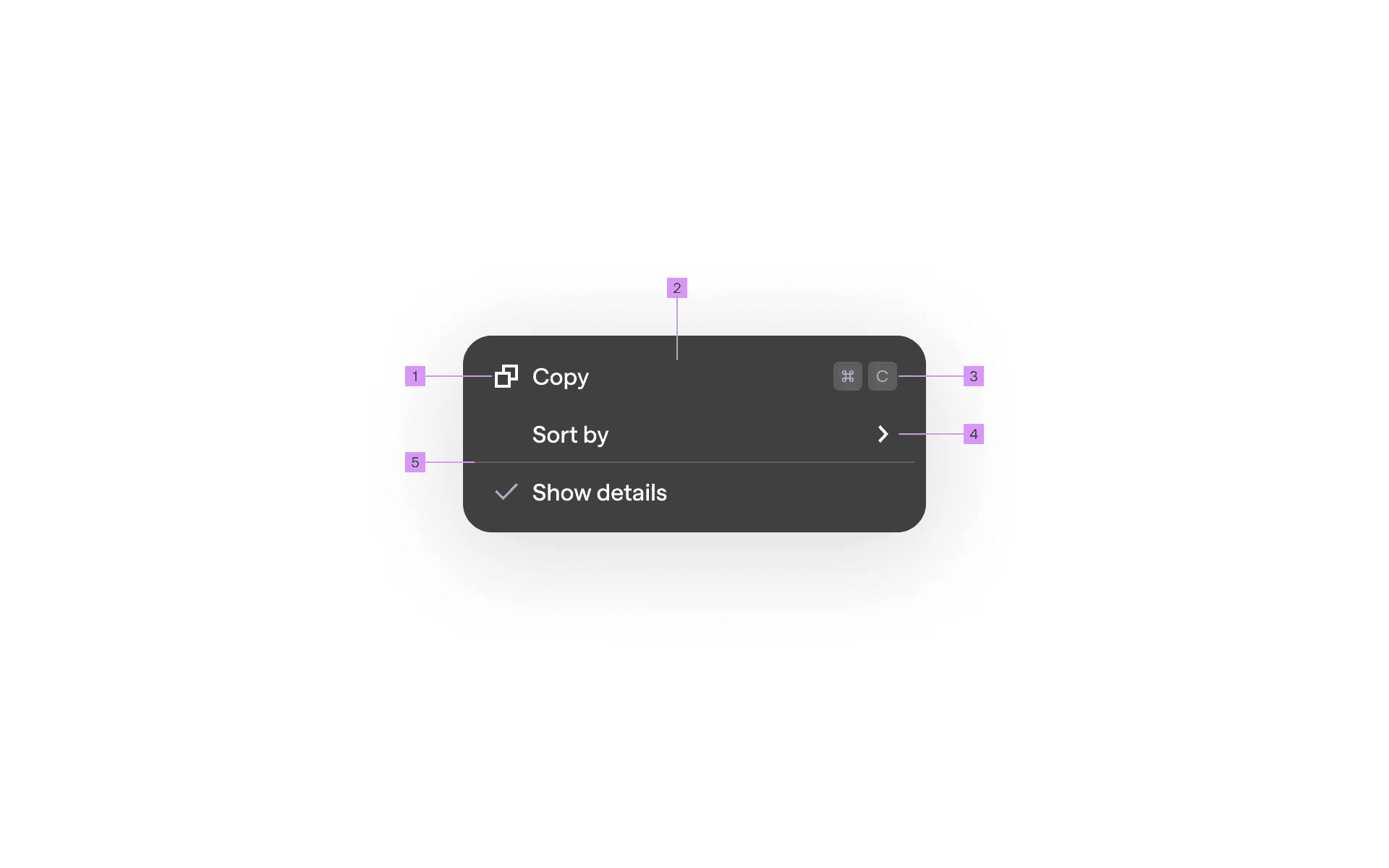
Anatomy of a context menu
1
Icon
2
Label
3
Keyboard Shortcuts (optional)
4
Submenu Icon (optional)
5
Divider (optional)
What are the design variants of a context menu?
We studied over 100+ context menu UI components on Mobbin, from real-world examples and found the following variants.
1. Context menu icons are optional
You can introduce icons to your context menu to make options stand out more.
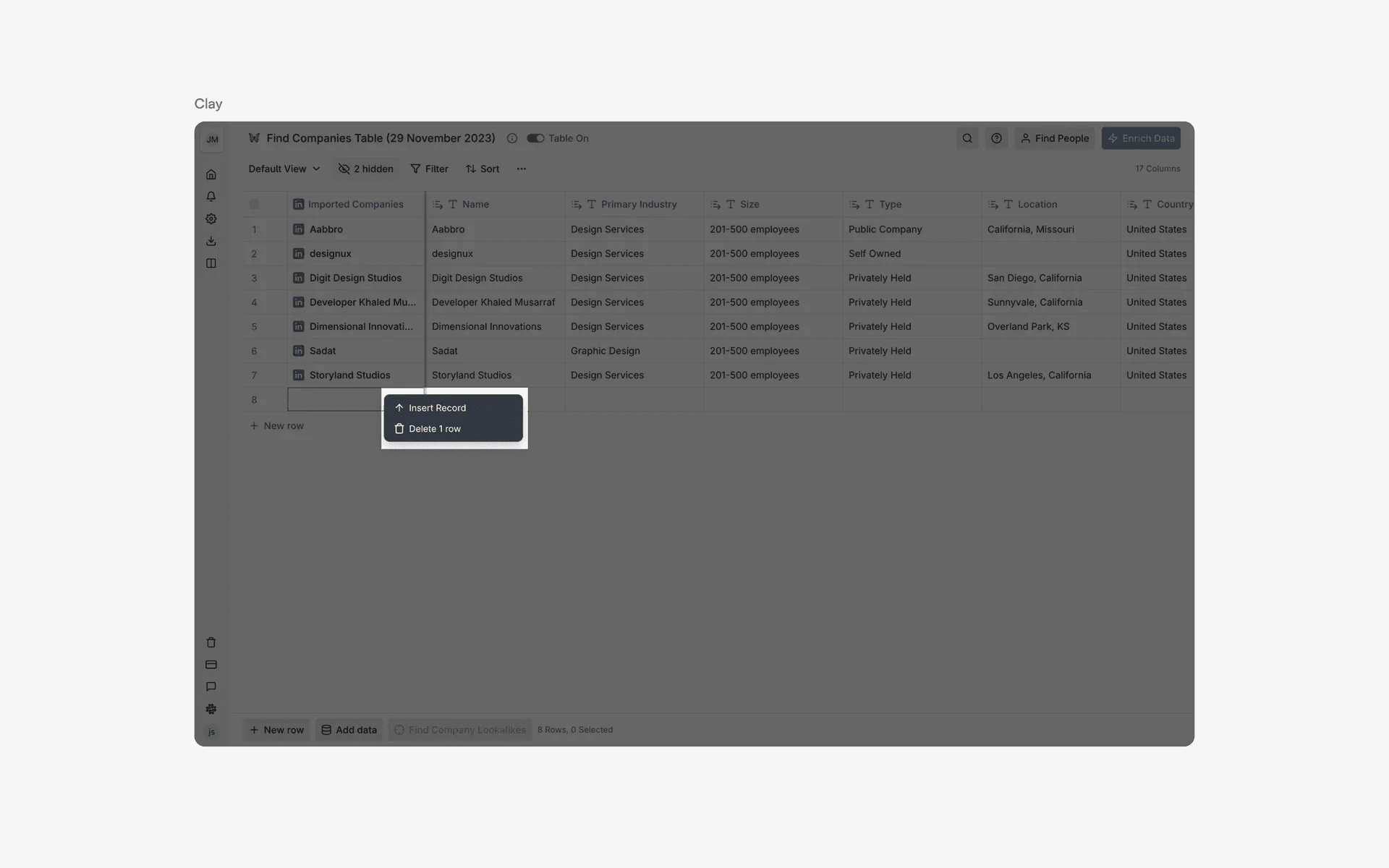
Examples of context menu with icons
Otherwise, you can simply choose to keep context menus simple and opt for context menu designs without icons.
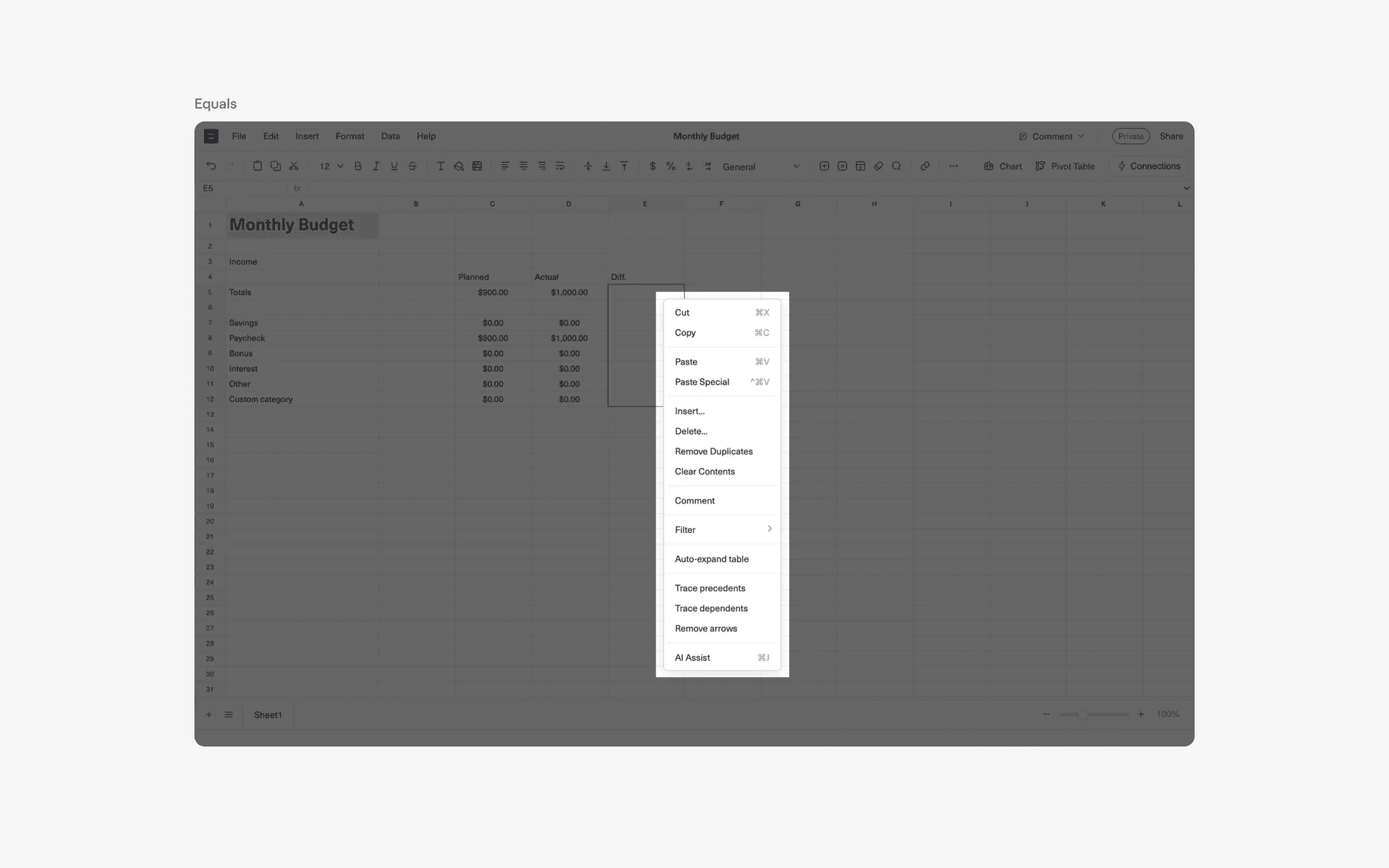
Examples of context menu with icons
2. Dividers can help organize complex context menus
If you have a long context menu, it is good to think about how you should arrange your context menu item in relation to each other. A well organized context menu helps increase usability.
For example, Rive's context menu is organized into 3 segments, seperated by dividers.
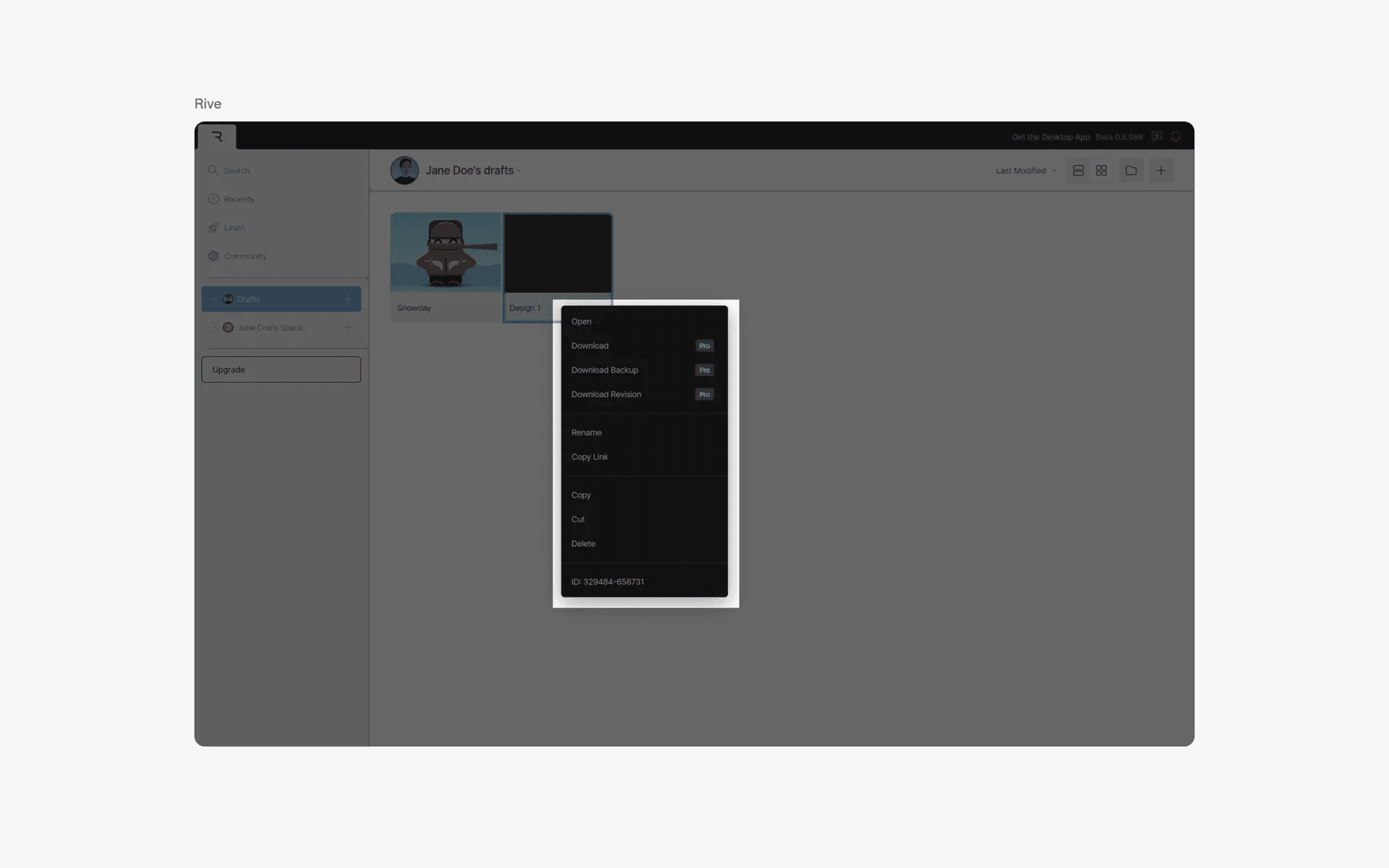
Example of figma's context menu organization
If your context menu is simple, you can skip the dividers and simply list your context menu items in a logical way.
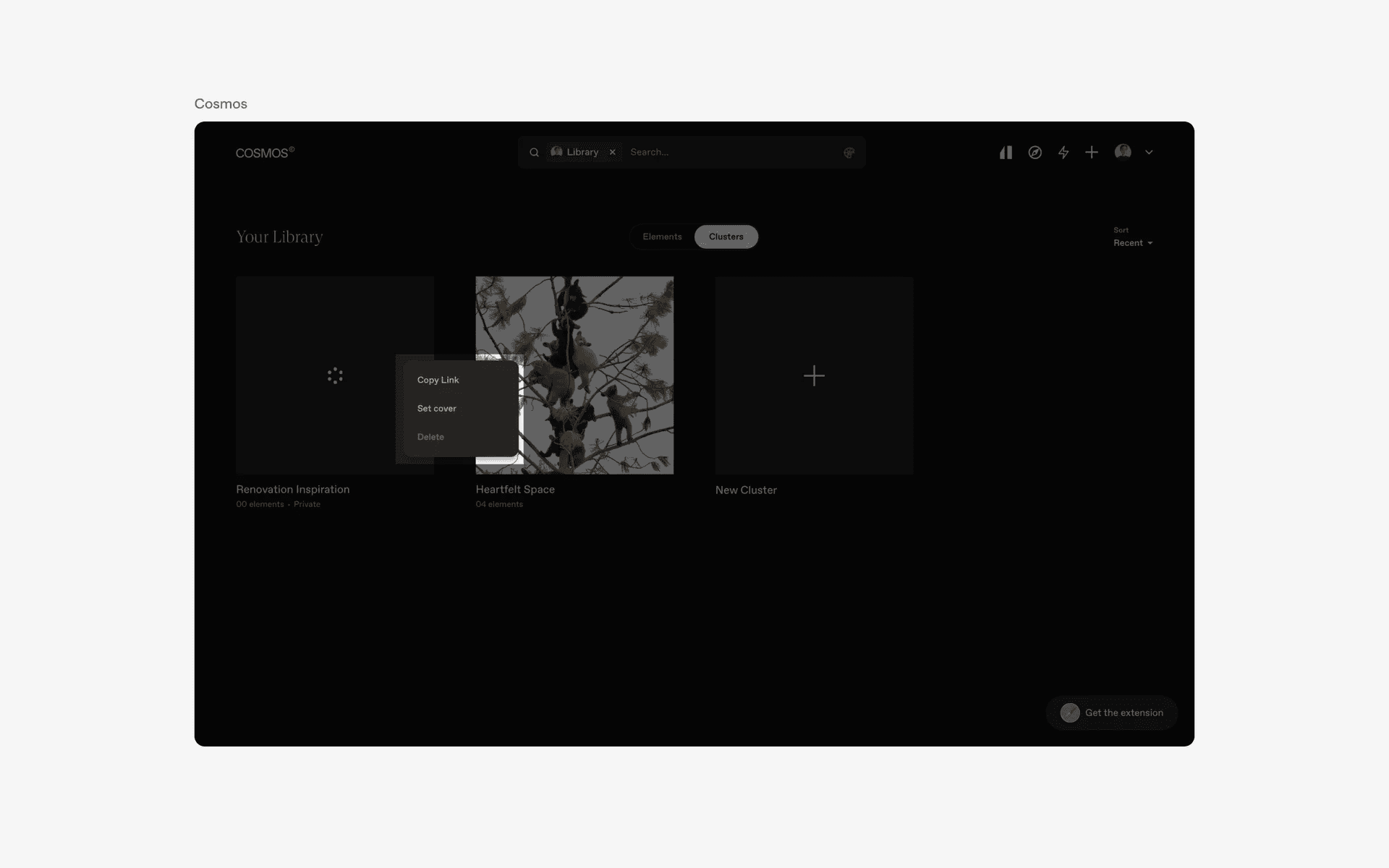
Example of simple context menu with no dividers.
3. Destructive items are highlighted in red
It is common to have delete actions in the context menu - it often is placed at the bottom of the context menu items and highlighted in the red accent color.
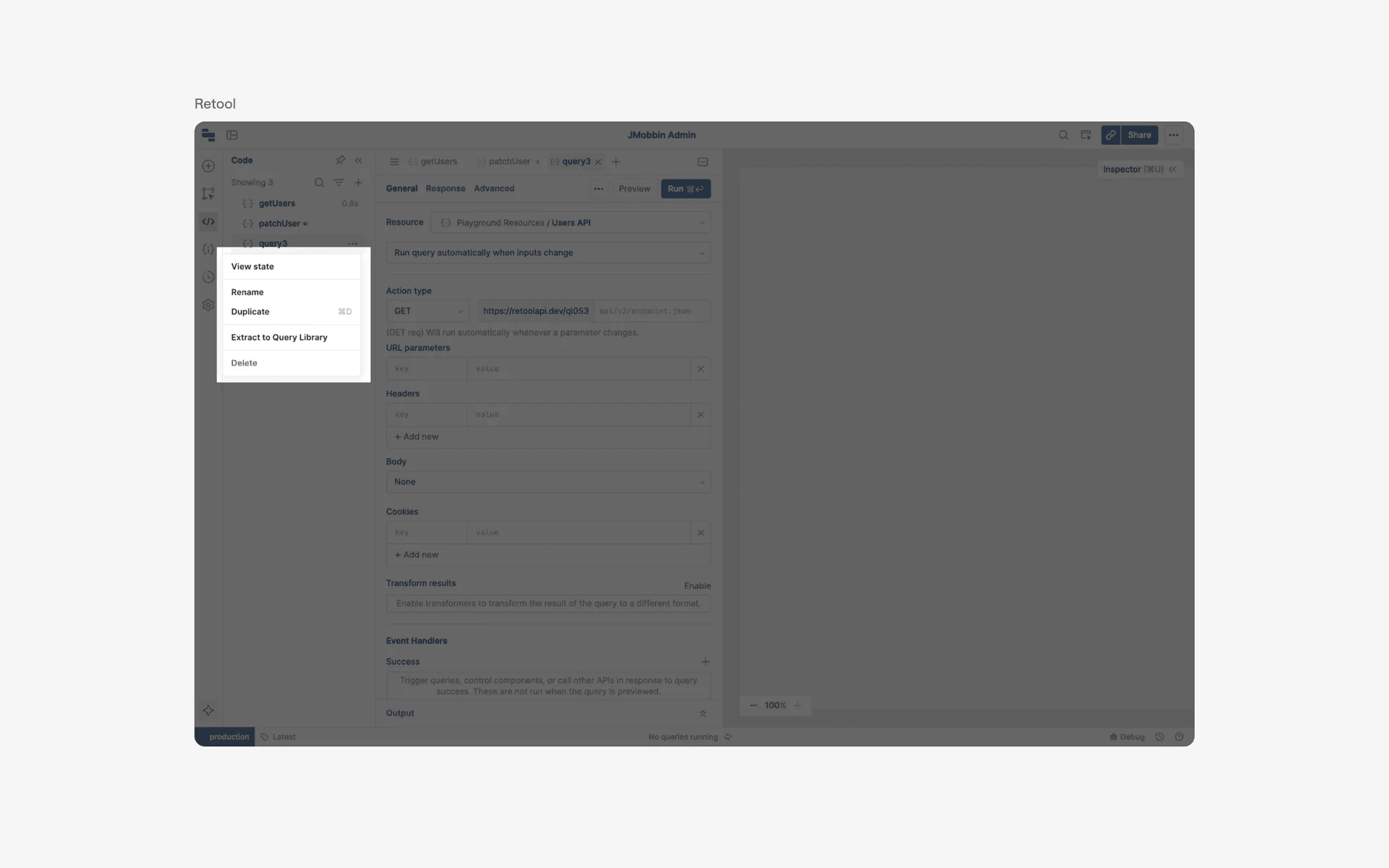
Example of destructive item highlighted in red
4. Context menus may have sub menus
More complex context menus might have sub menu items.
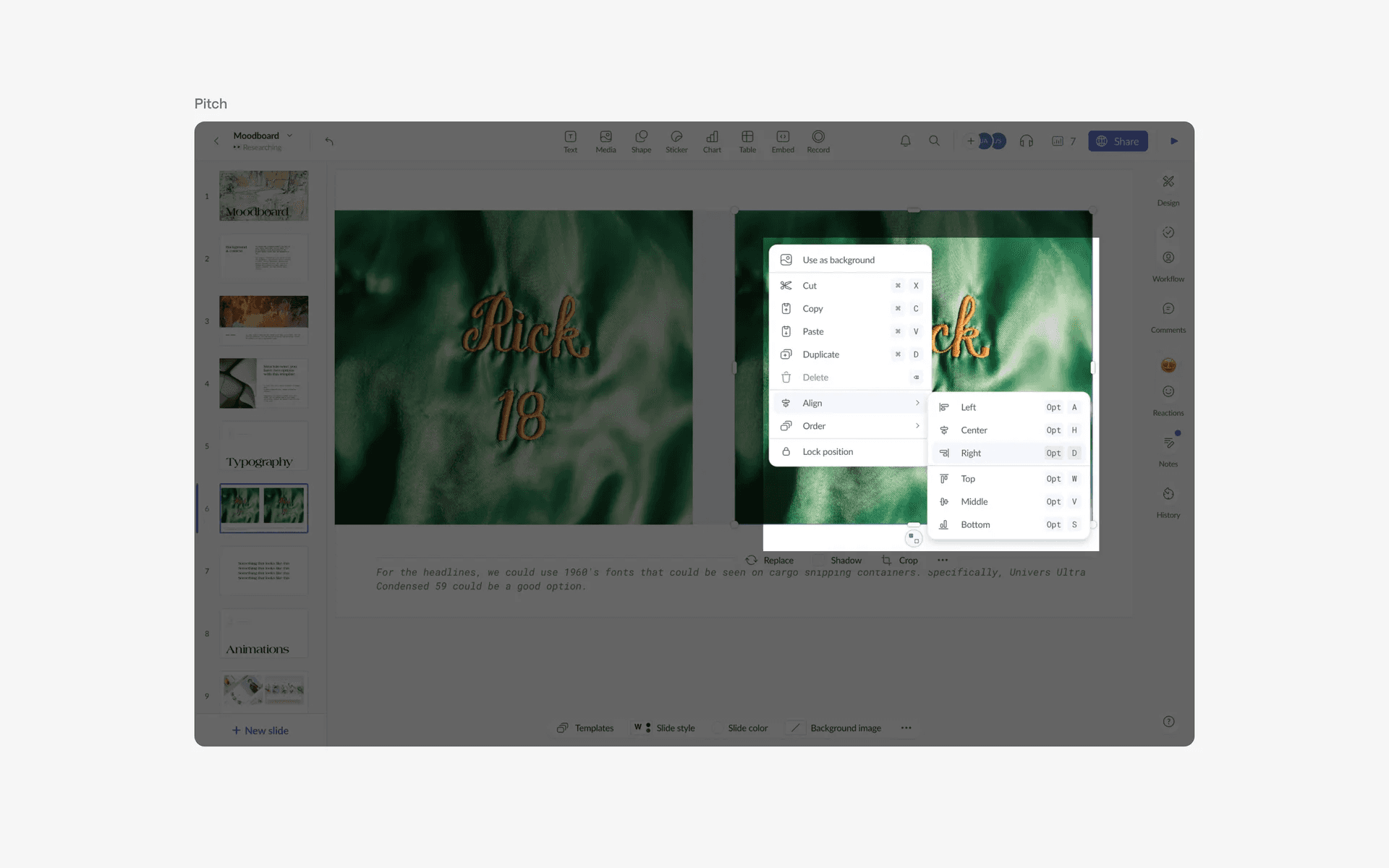
Examples of context menu with submenu items.
When to use a context menu?
1. Right-click functionality
On desktop websites, context menus are often triggered by right-clicking on an element. This allows for additional options and actions to be accessed without cluttering the main interface.
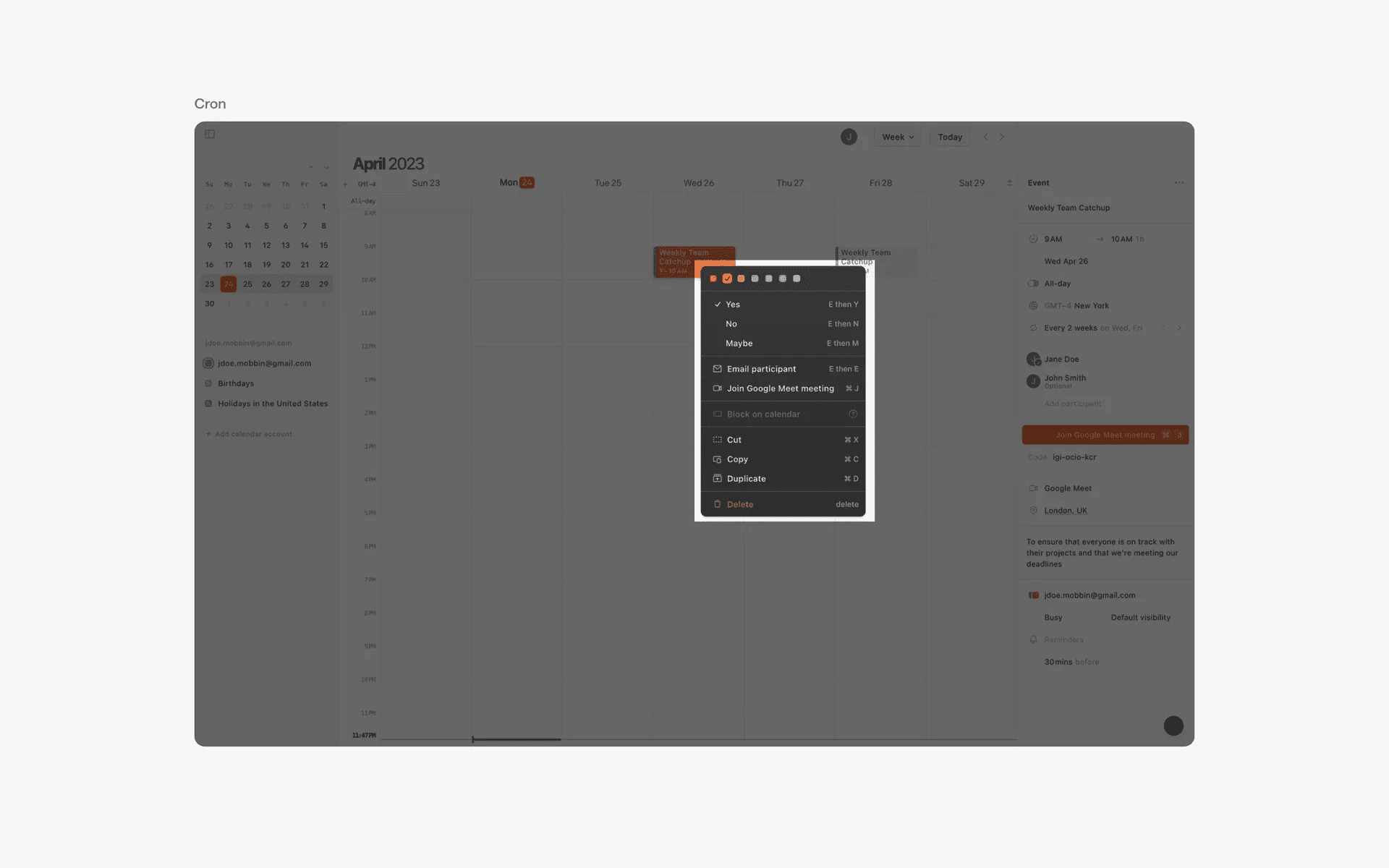
Examples of context menu in right click functionality
Conflicting UI elements: Dropdown menu
Context menu v.s. Dropdown menu
Context menu usually appears as a small and compact list of options that pops up when the user right-clicks on an element. It is typically positioned near the element that it is associated with and can have icons or text for each option.
However, a dropdown menu appears as a vertical list of options that can be accessed by tapping or clicking on a button or arrow.
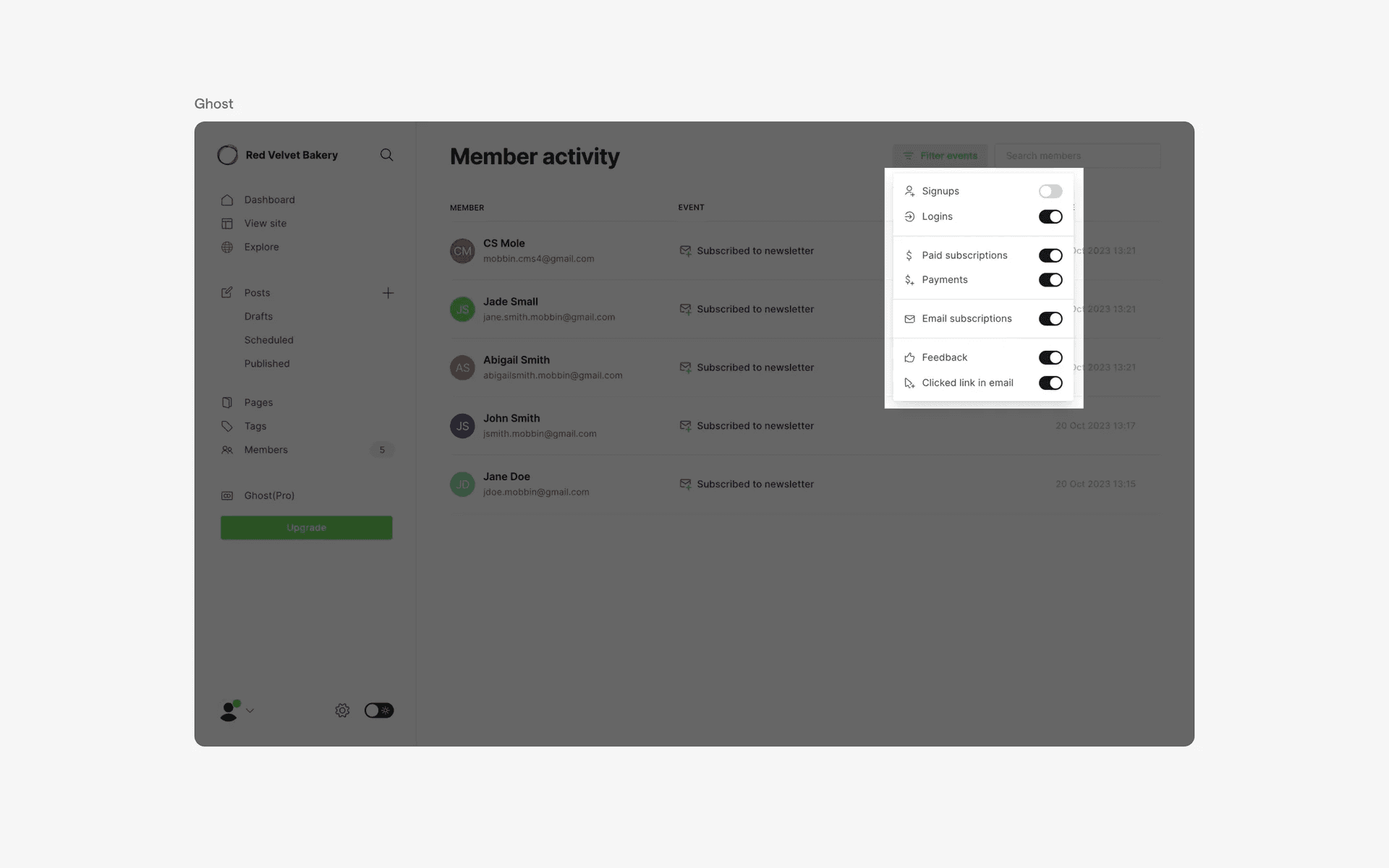
Examples of dropdown menus