
What is a card UI component?
A card groups related content and actions into a visually distinct unit.
A card is a container for content. It creates a visually distinct group of logically related information.
A card can either be static or link users to a destination when clicked.
A card can be displayed alone or in groups (grid, list, carousel).
Fun fact: The term "card" in UI/UX design draws inspiration from physical index cards, a playing card or business cards, which neatly organize small amounts of information into a compact, portable format.
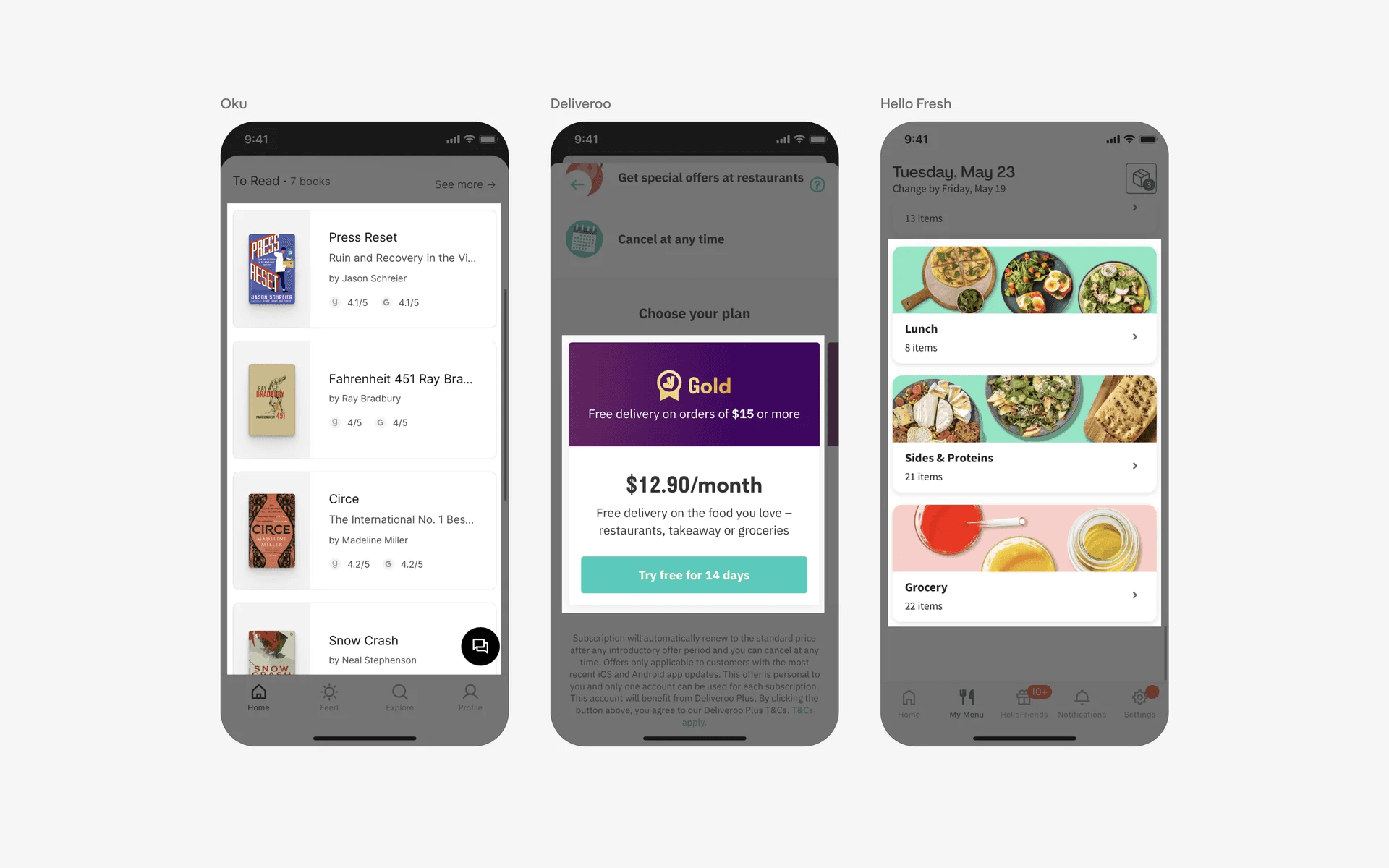
Examples of UI cards
What is the anatomy of a card?
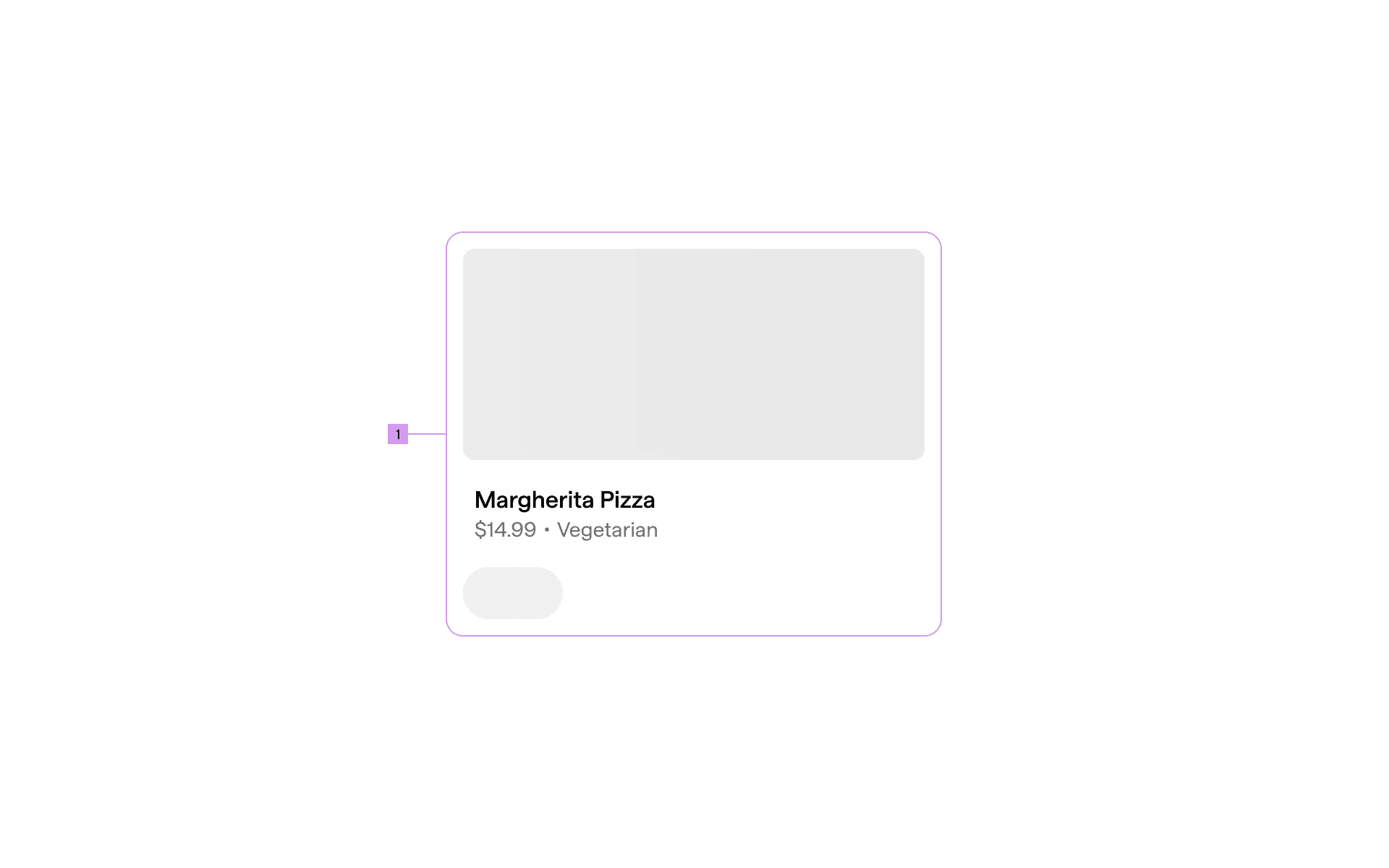
Anatomy of card UI design pattern
1
Container
What are the design variants of a card?
We studied over 12,000+ card UI components on Mobbin, from real-world examples and found the following variants.
1. Cards can have many different container styles
It is common to see card containers with an elevated style - this helps to contrast the cards from the background of the app, and can be achieved by adding a drop shadow.
Alternatively, here are some examples of UI cards with outlined containers.
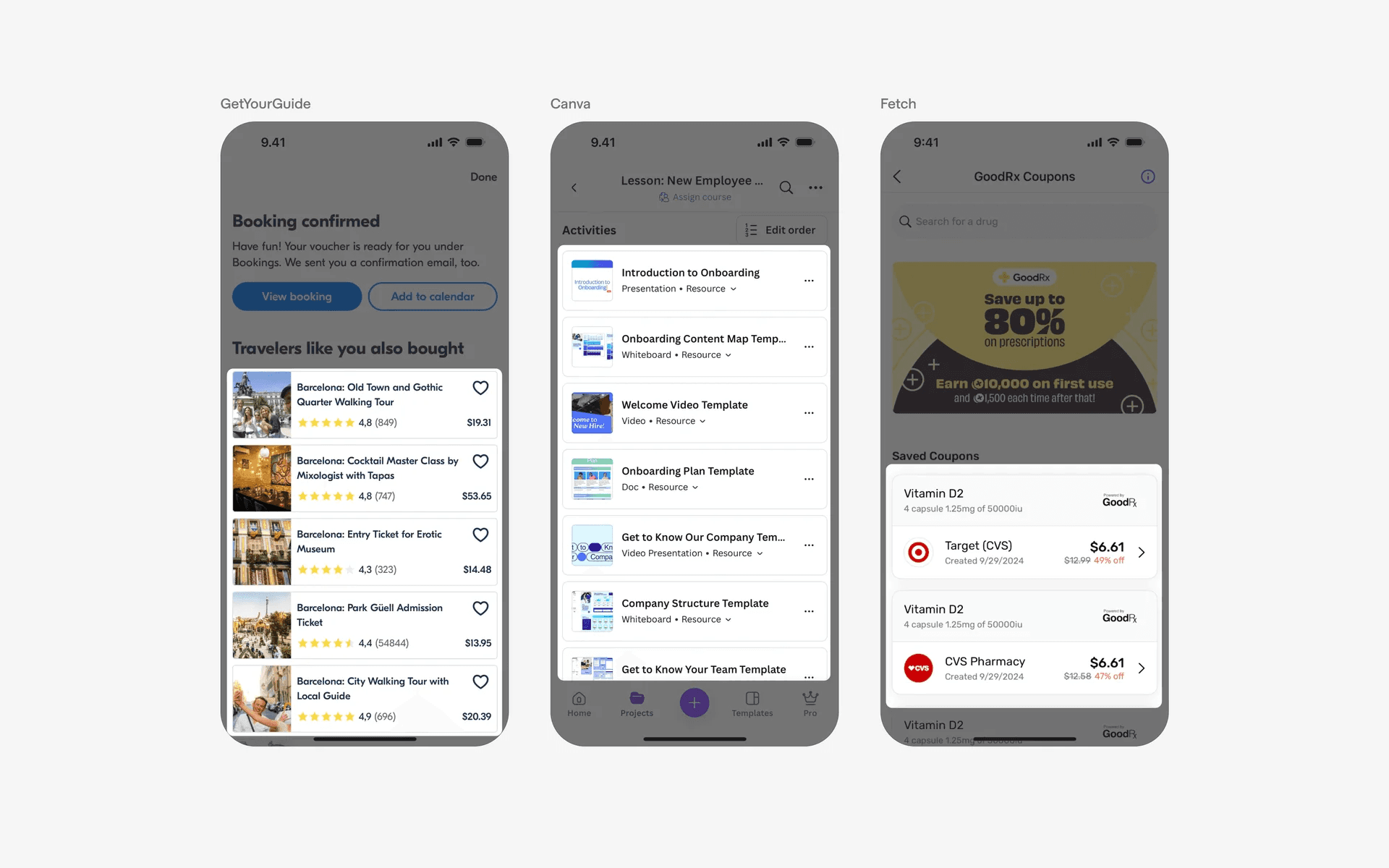
Examples of UI cards with a outlined containers
You can also consider using filled color containers to achieve the same effect.
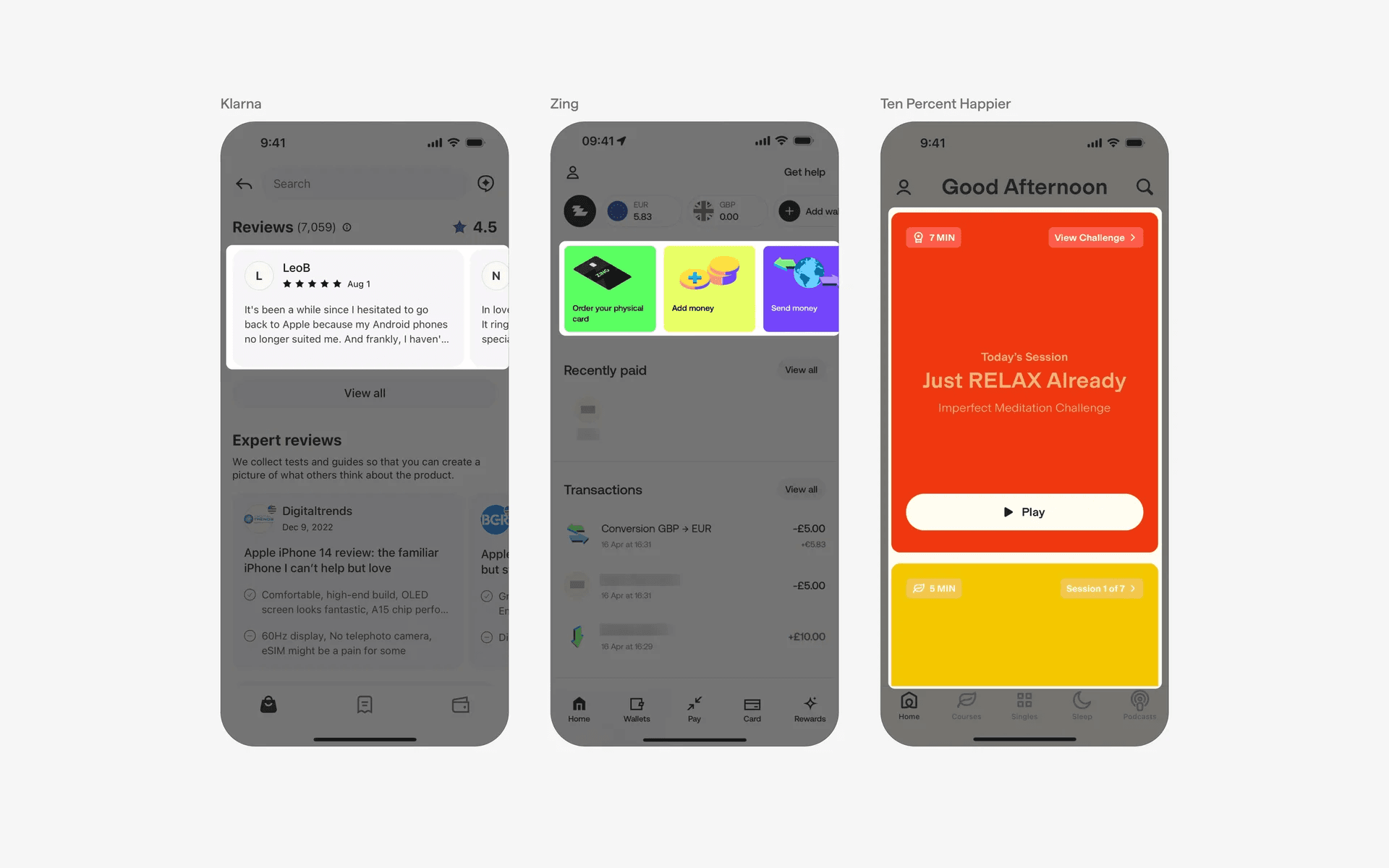
Examples of UI cards with a filled color containers
If your app has a collection of visually appealing rich media, you can consider using filled images instead.
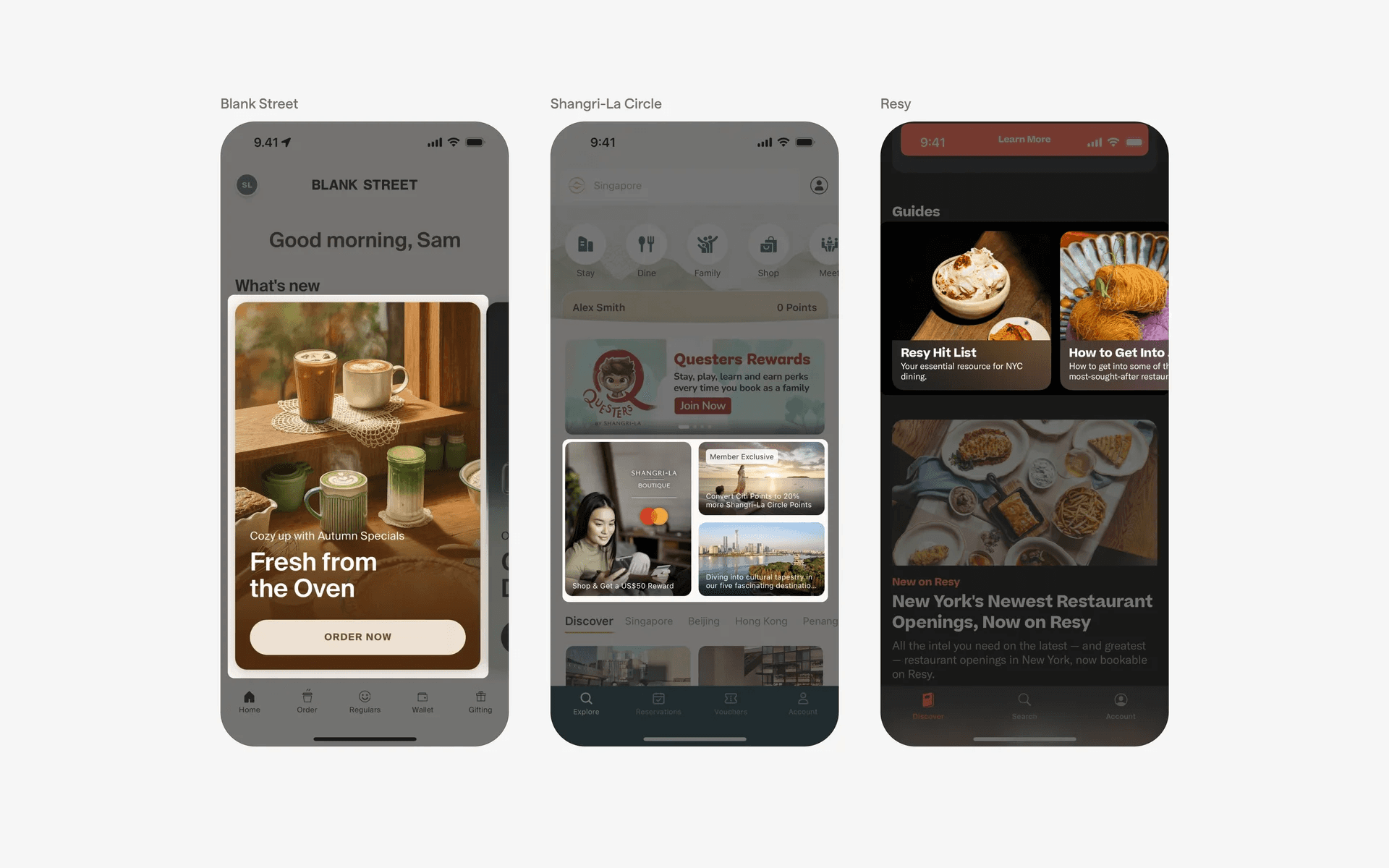
Examples of UI cards with filled image containers
2. Cards may have different thumbnail sizes
Over the years, we've observed cards ranging from large thumbnail sizes, to medium, small and no thumbnail. This depends on how different types of elements are grouped together in the card UI.
For example, an app like Netflix has a large thumbnail size that is very visually appealing. They've tested this extensively against smaller thumbnail sizes with text and found that users prefer larger thumbnails, akin to browsing movie titles in an a DVD shop.
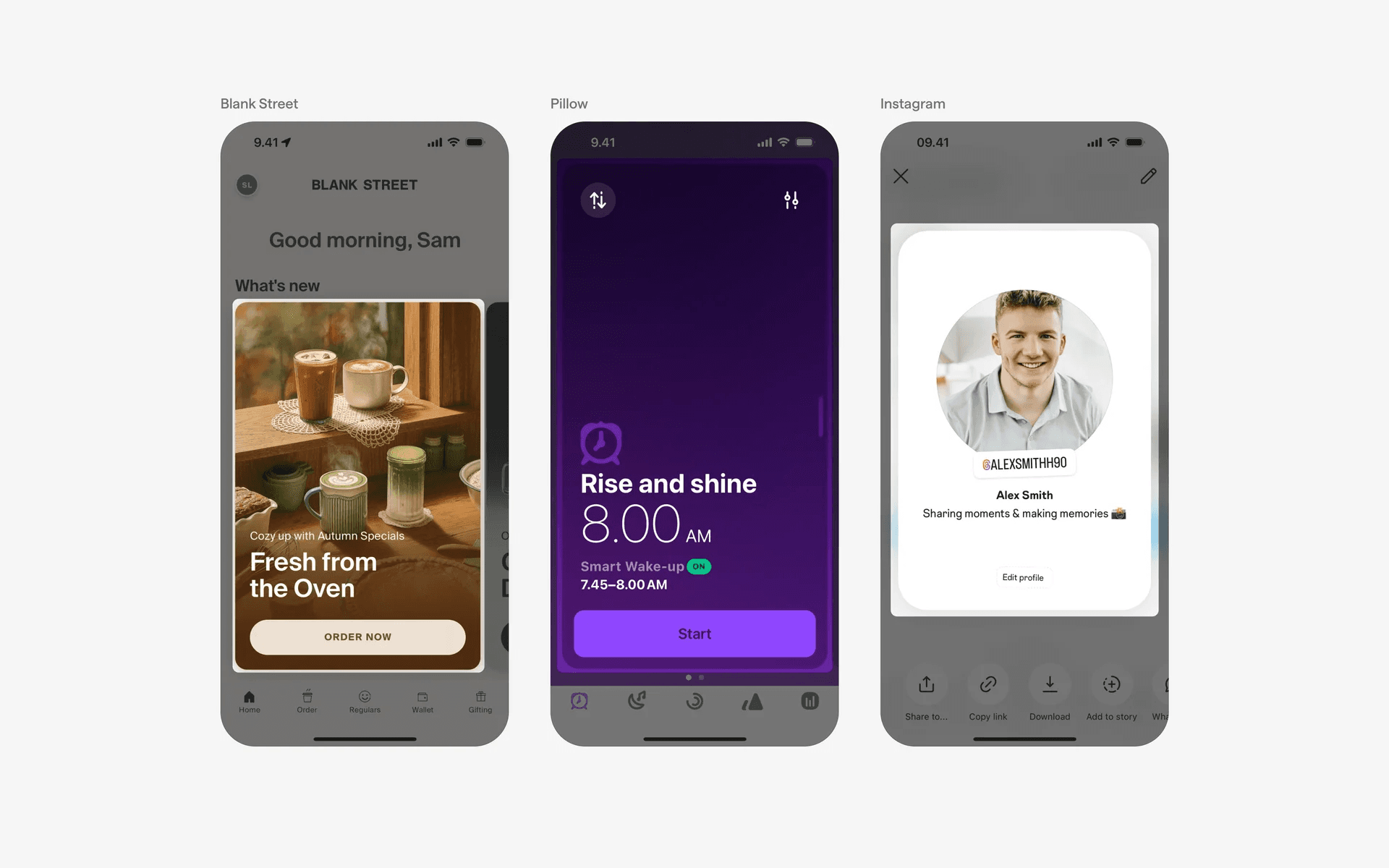
UI card with Large thumbnail size.
Apps like Klook, Expedia & Shake Shack have a medium thumbnail size. They give roughly 50% weightage to visuals and the other 50% to text elements that might be important for users.
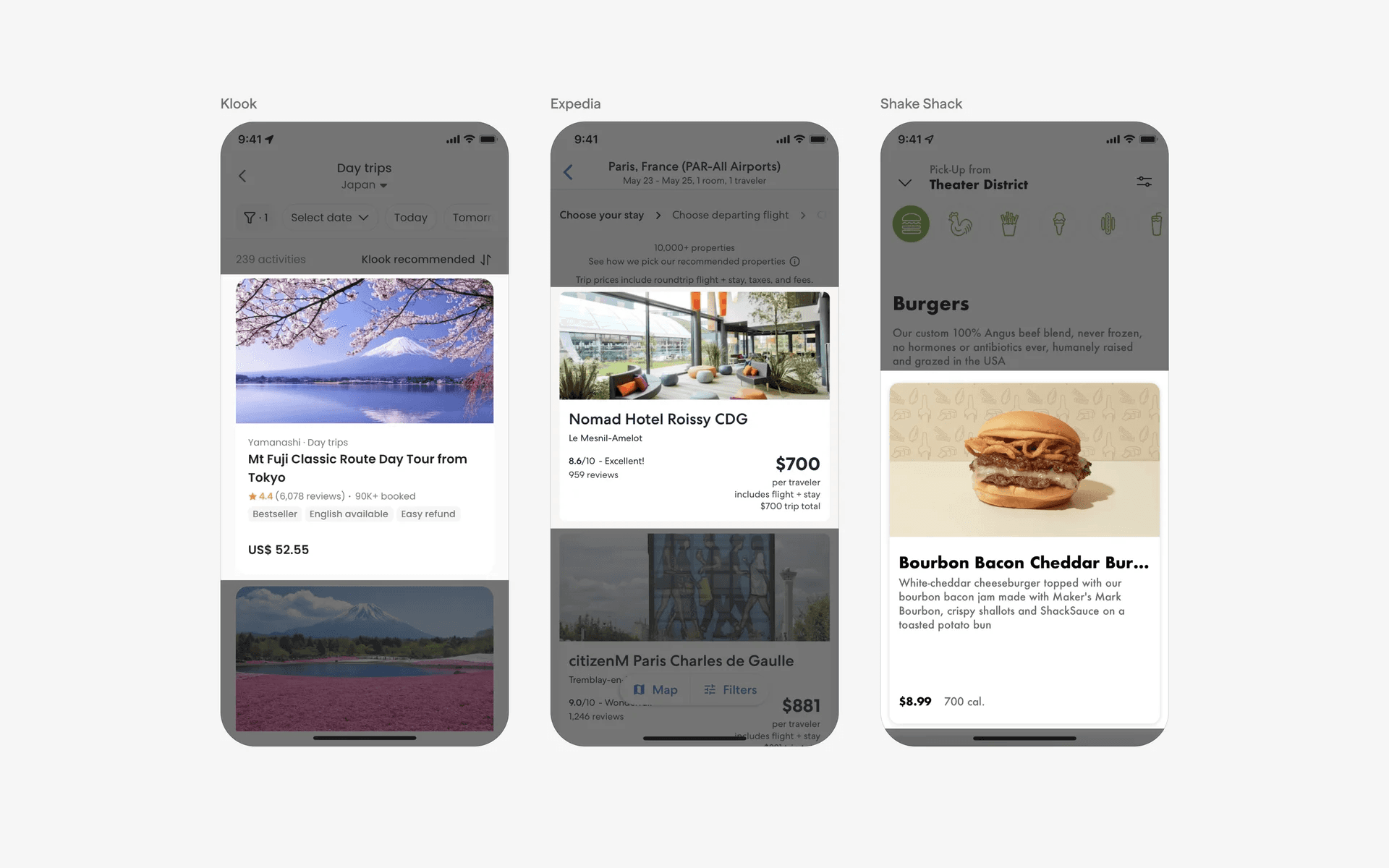
UI card with Medium thumbnail size.
And finally, apps that have smaller thumbnail sizes.
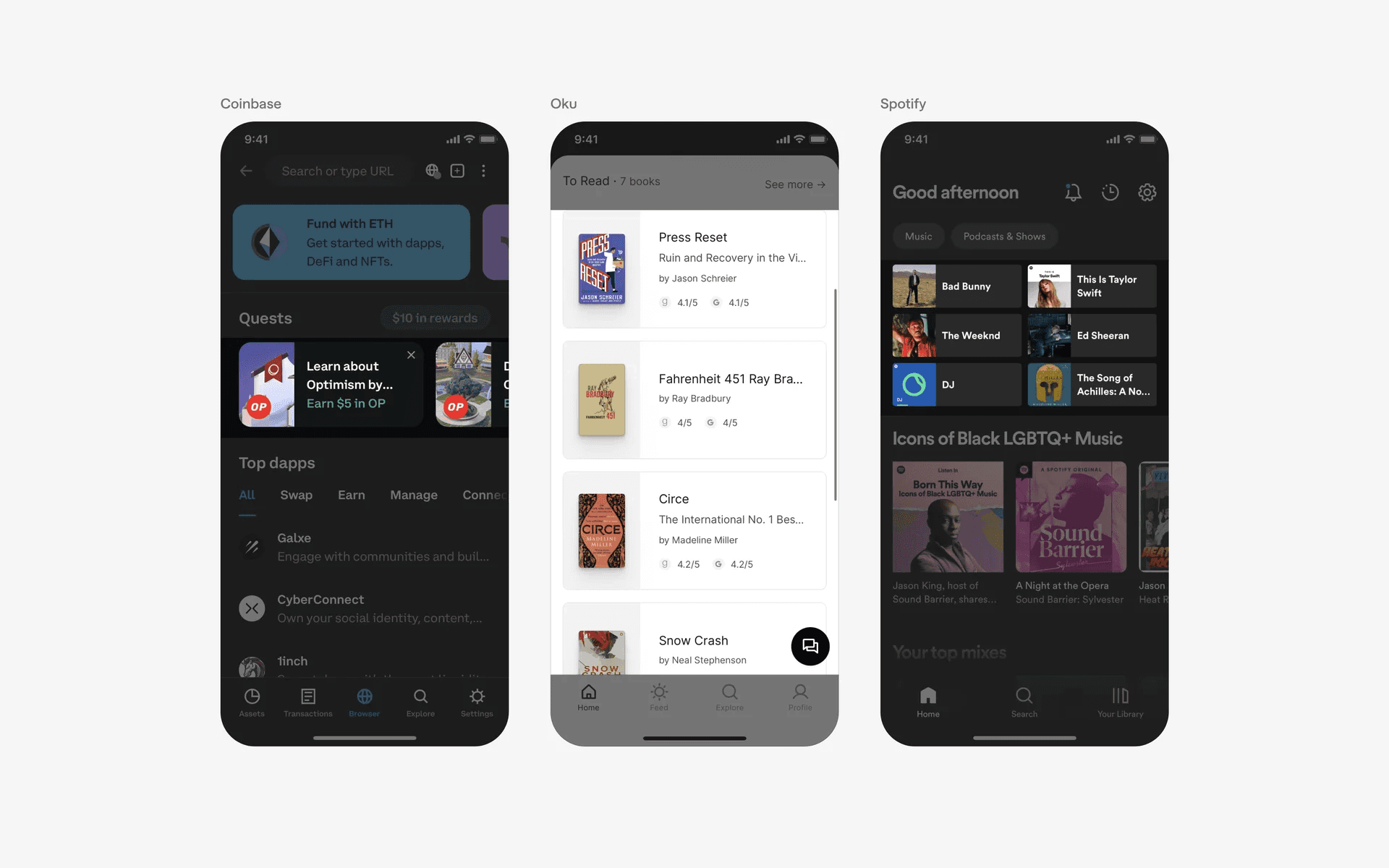
UI card with Small thumbnail size.
Lastly, we even see cards being used without thumbnails. As long as you need a visual grouping of UI elements, cards can be a great way to display your information in a cohesive manner.
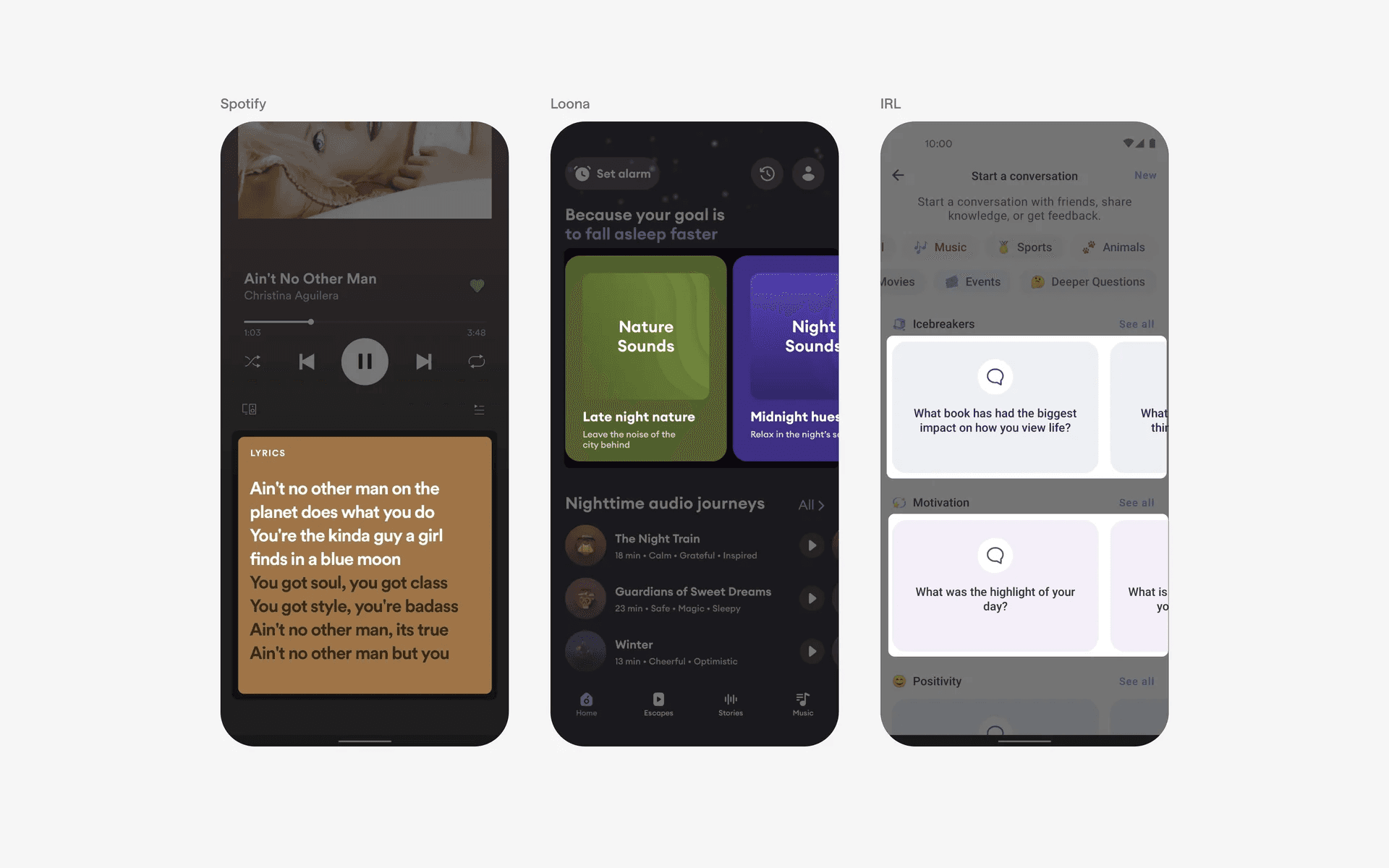
UI card with no thumbnail.
3. Buttons are optional in card based layout
Most of the time, having a card layout implies that they are clickable.
If you have a very important user action, it might be wise to include a call-to-action button within the card layout itself.
However, if you have multiple cards on the same screen as it might become repetitive.
Here are examples of buttons in a card based layout.
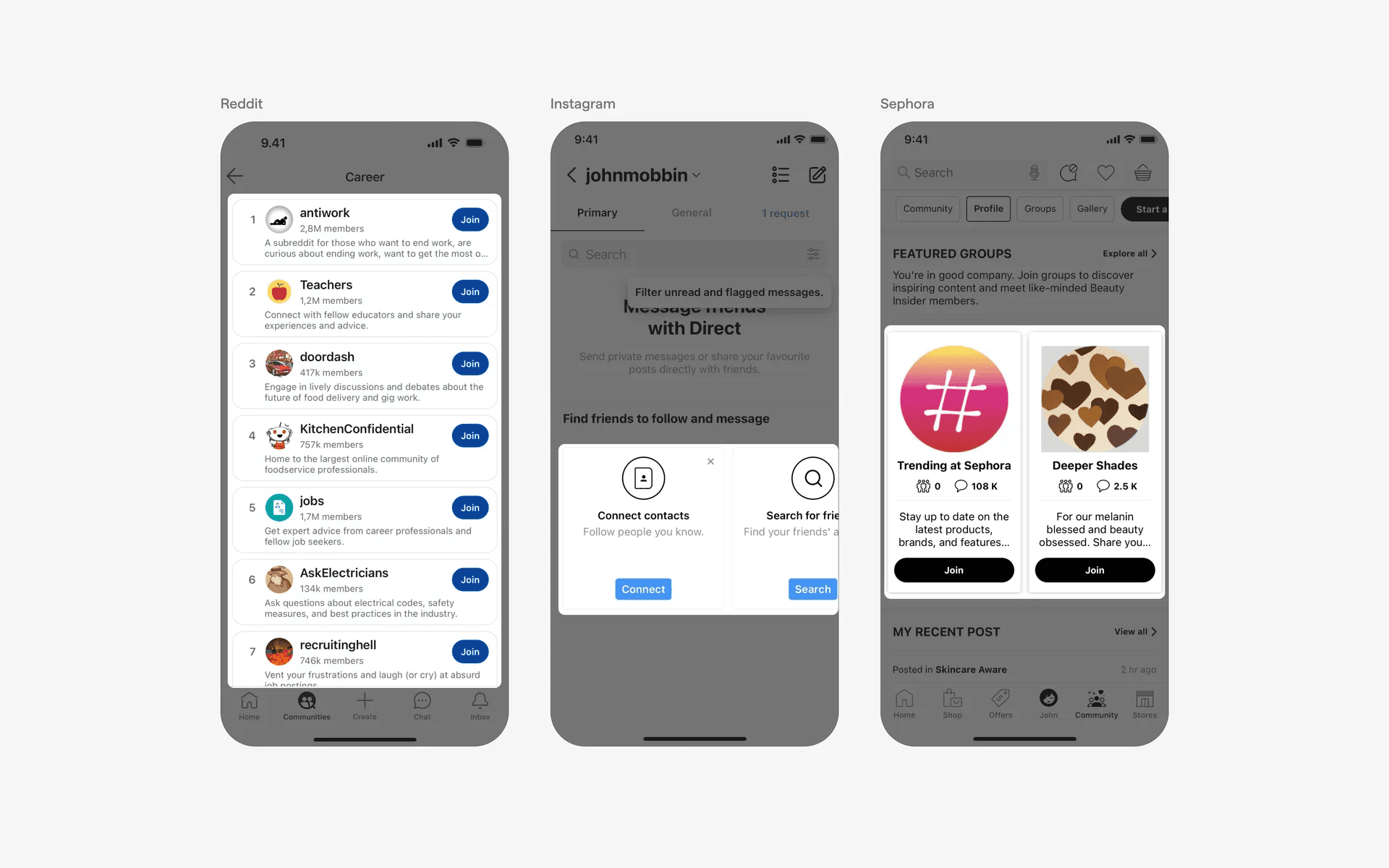
UI card with buttons
And more examples of a card based layout without buttons. There is less cognitive overload here without overly repetitive buttons.
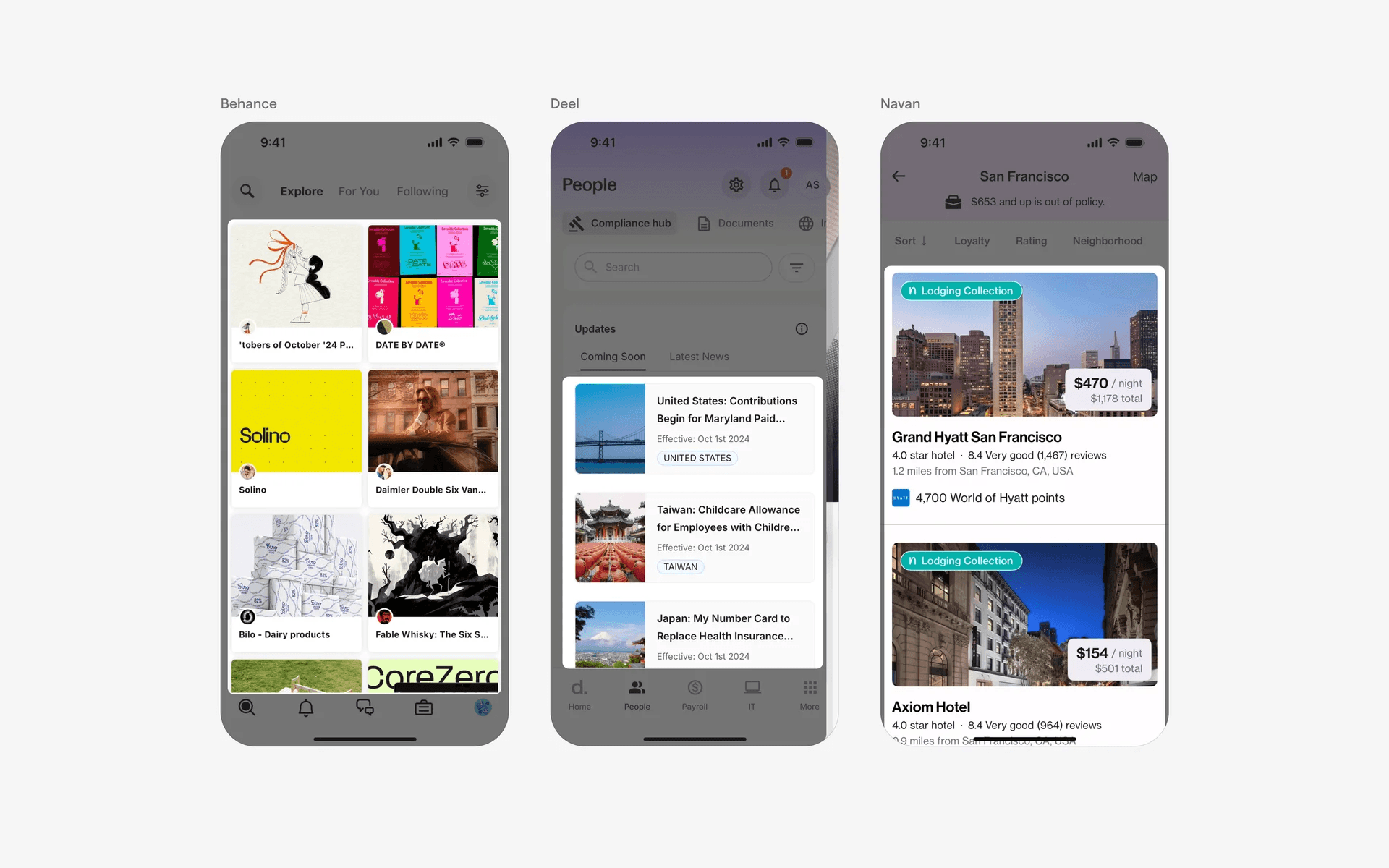
UI card with no buttons
When to use a card component?
Multimedia content display
Cards are often used for presenting multimedia content such as images, videos, or audio tracks. In media-focused apps, each card may represent a specific piece of media, providing a preview and options for playback or interaction.
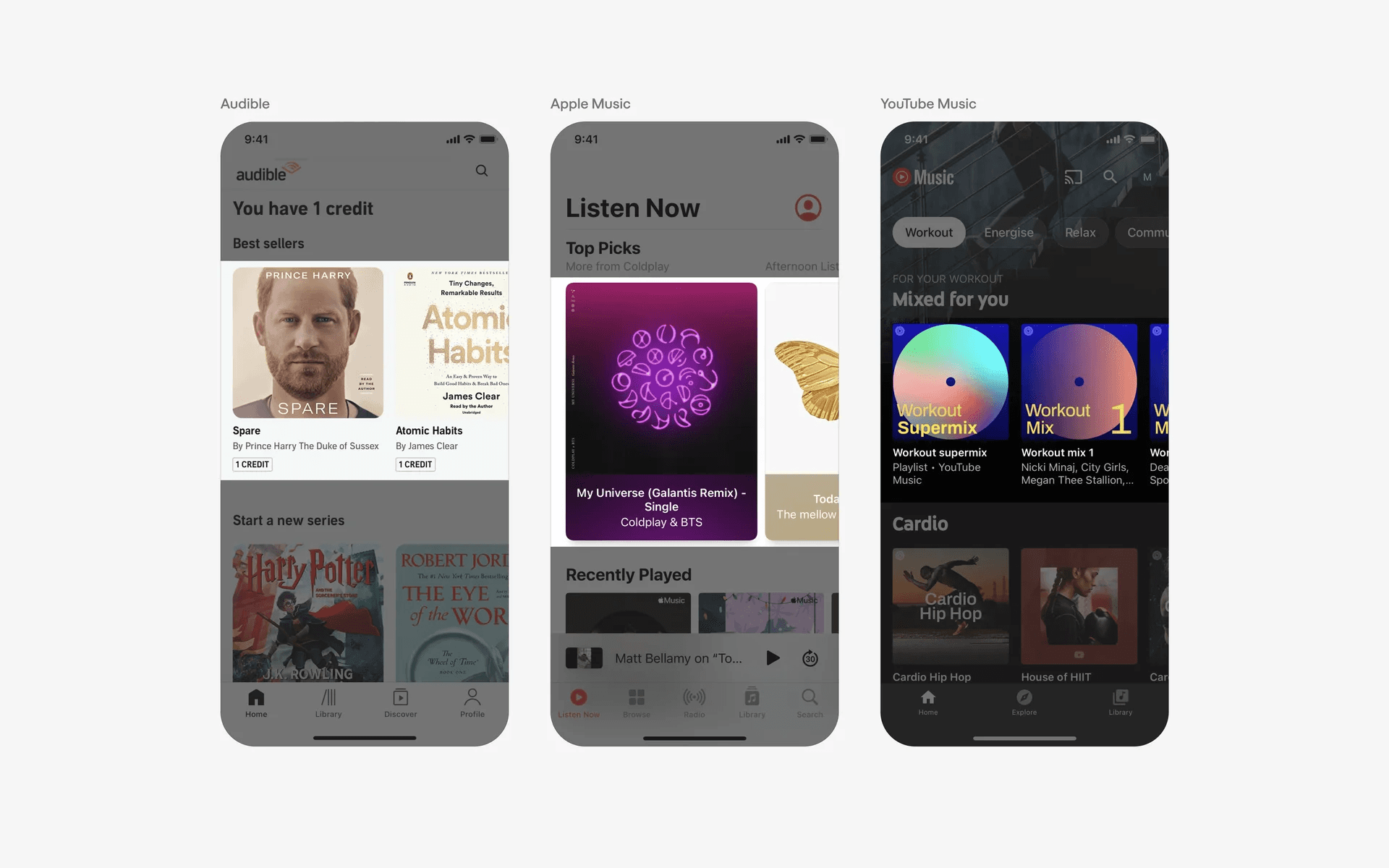
Examples of UI cards in multimedia content display
Product listings and e-commerce apps
In e-commerce applications, cards are commonly used to showcase products.
Each card represents an individual item for sale and typically includes an image, product name, price, and sometimes additional details like ratings or reviews. Users can click on a card to view more information or proceed with a purchase.
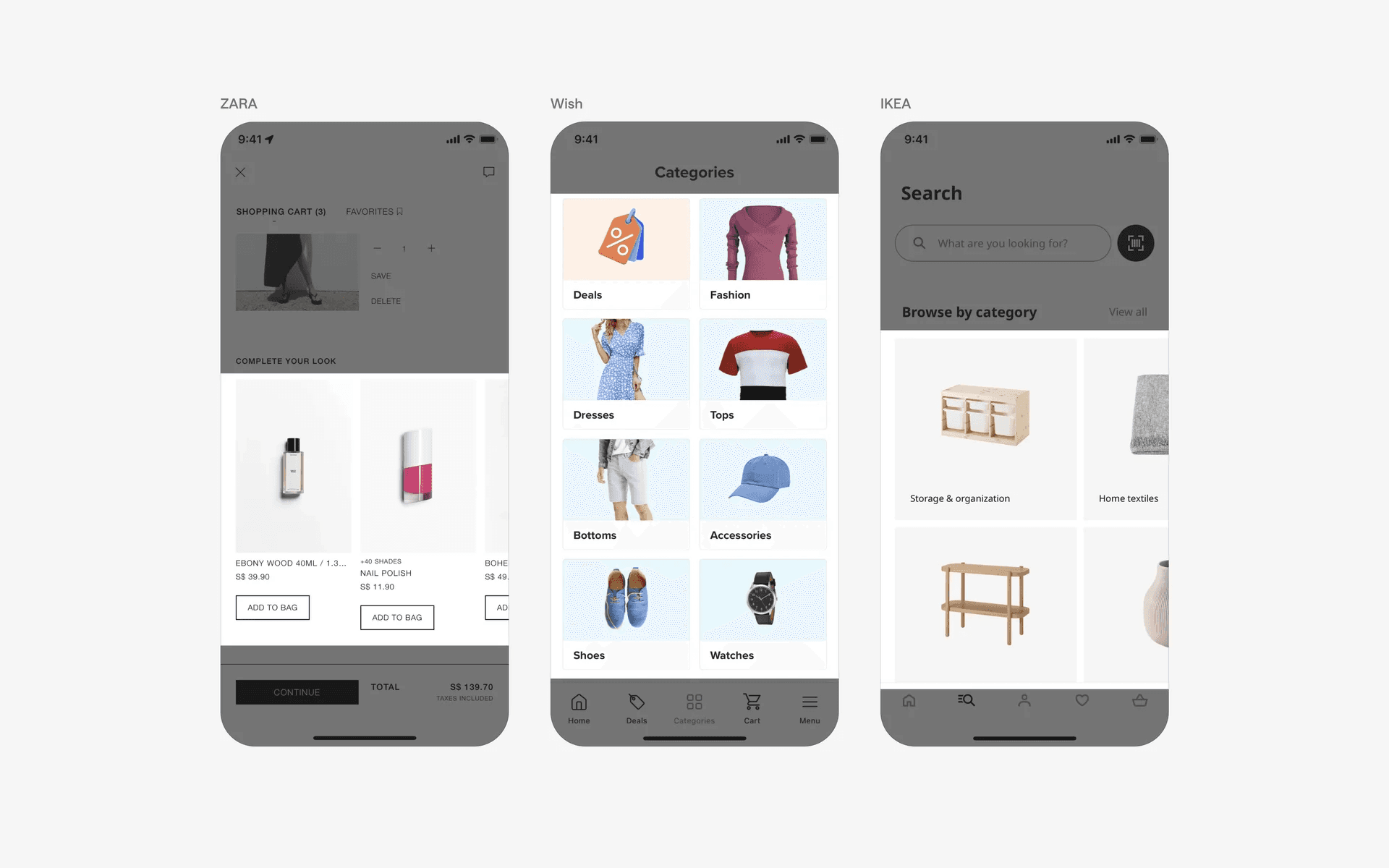
Examples of UI cards in product listings and e-commerce apps
News and social media feeds
A card based layout is frequently used in news and social media apps to display individual articles, posts, or updates.
Each card represents a separate piece of content and typically includes a headline, a brief summary, an image, and additional interactive elements like likes, comments, and share buttons.
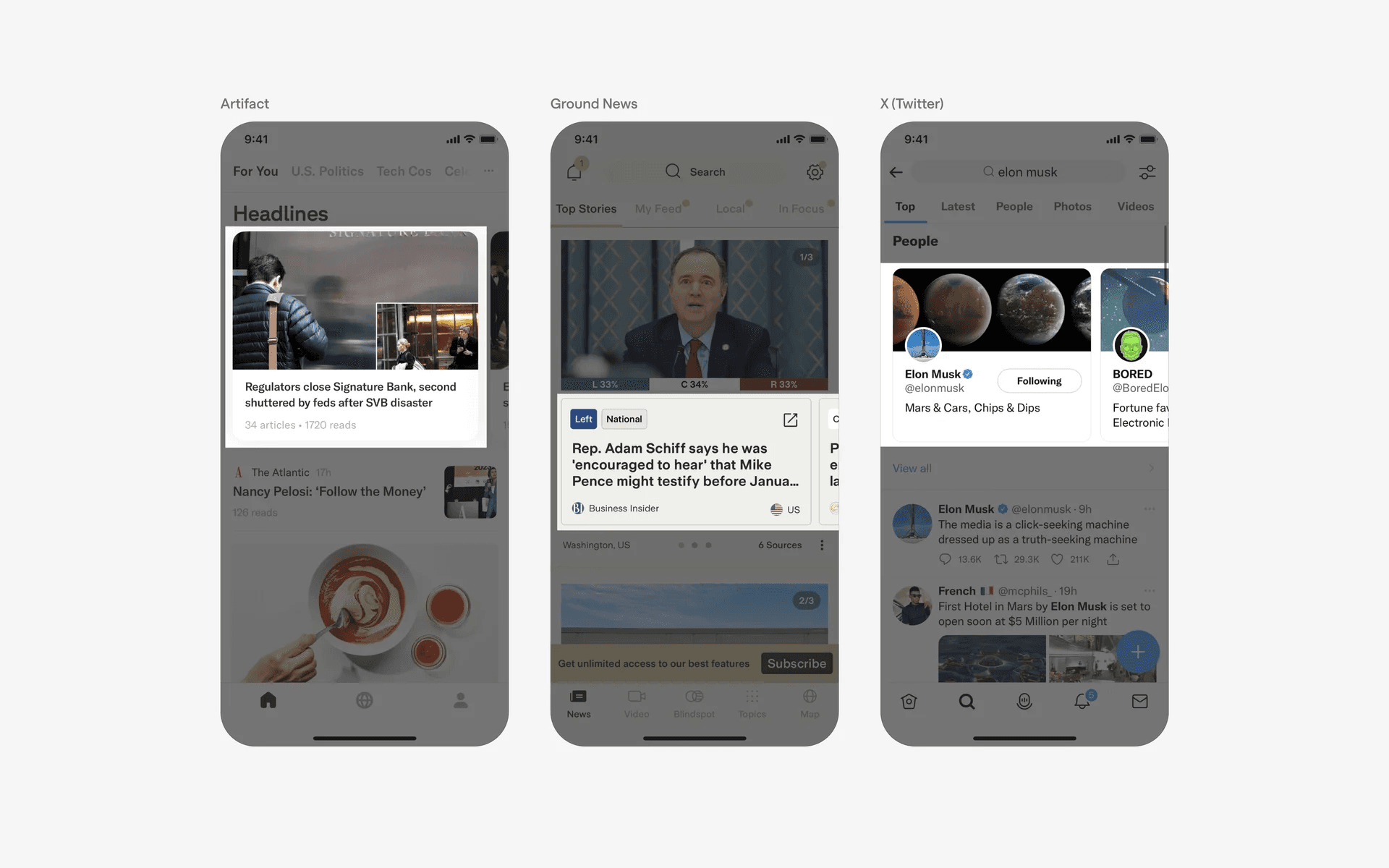
Examples of UI cards in news and social media feeds
Navigation
A card based layout is also used as part of navigation. Each card represents a separate content that can be accessed, typically includes a headline and a caret tip or arrow.
It is important to note that cards navigate TO a content, not START an action or flow.
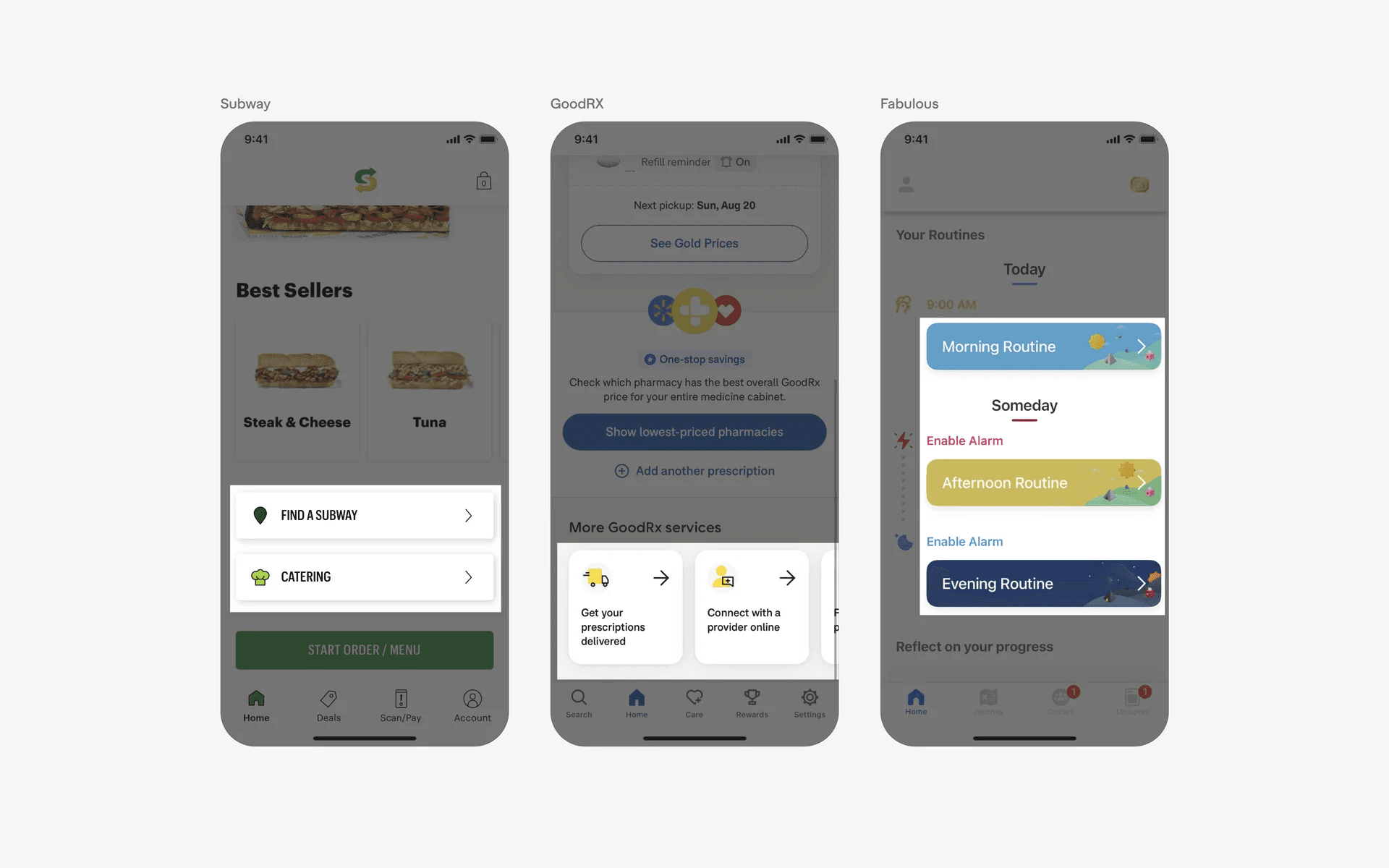
Examples of UI cards as part of navigation
Share cards
Cards are also used to share progress / content outside the app (e.g social media, messaging).
The most common design pattern is single card with a prominent share button at the bottom of the screen.
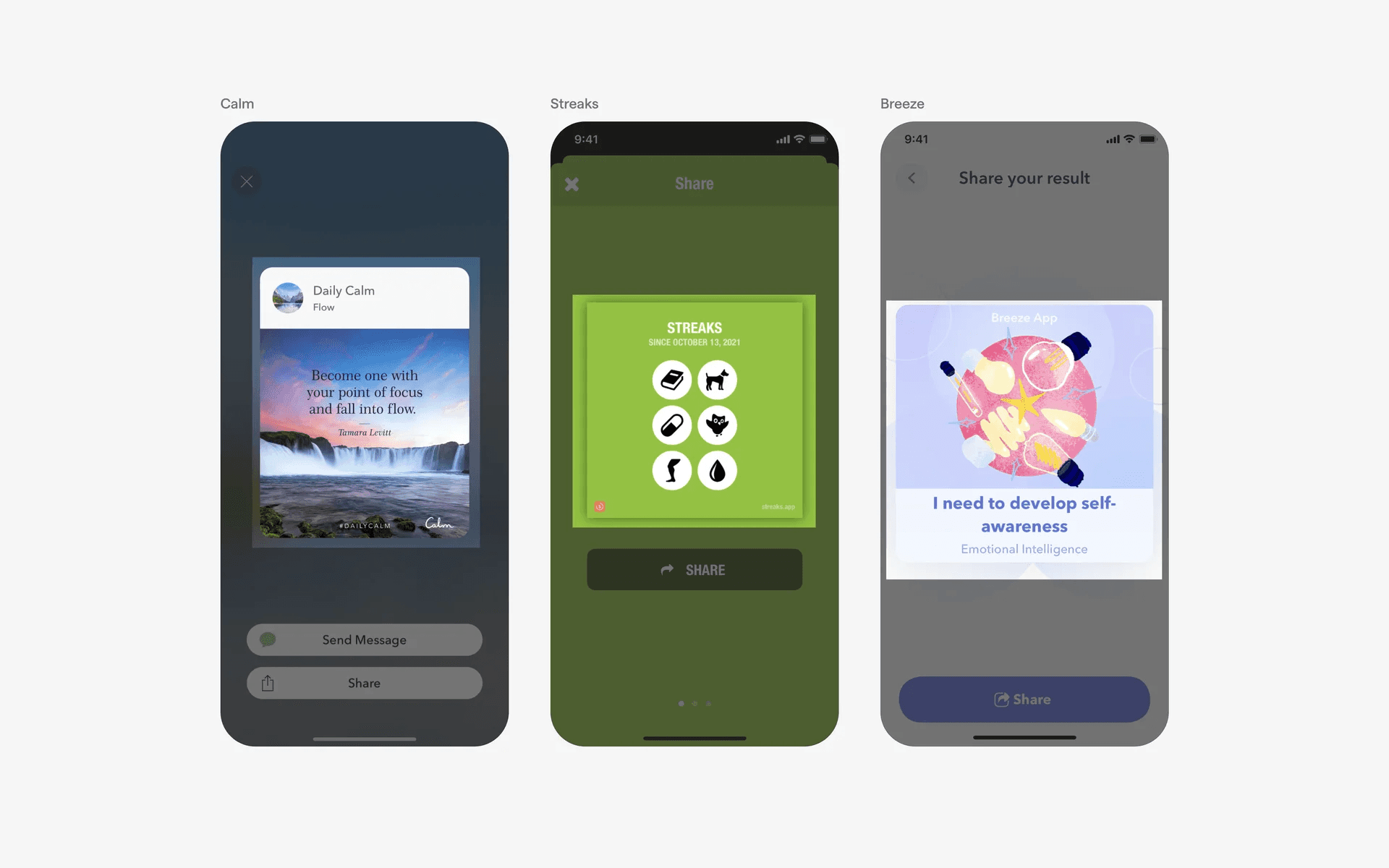
Examples of share cards
Conflicting UI elements: Tiles, Banner, Toast, Dialog, Tooltip, Photo
Card v.s. Tiles
The purpose of tiles is to allow users to select one or more items from a list of options.
The purpose of a card is to display a collection of related items, such as products or services.
While both are interactable, tapping on a card will allow the user to view more information about the item, while tapping on an item in a tile simply switches it to the selected state.
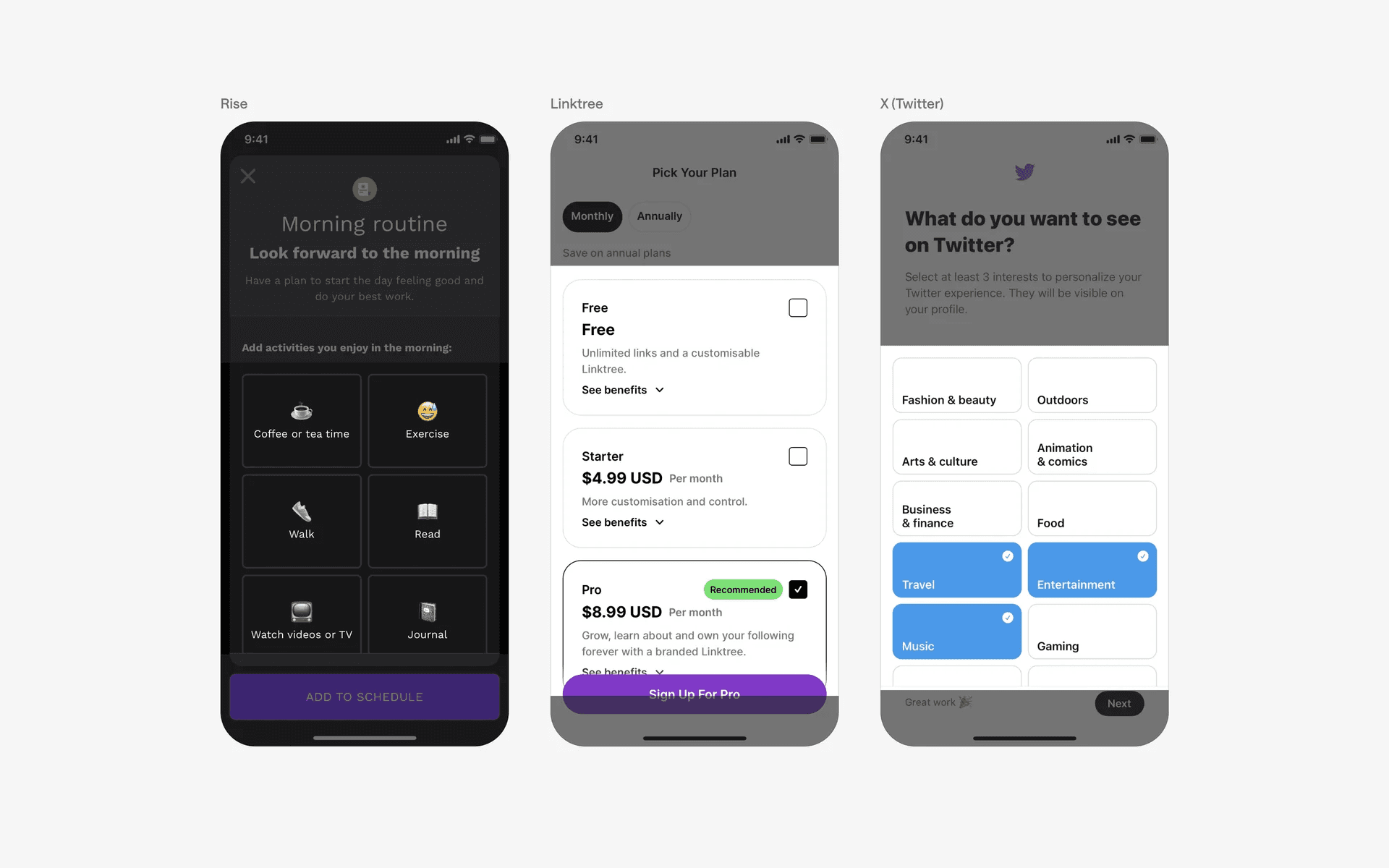
Examples of tiles.
Card v.s. Banner
Cards are used to display individual pieces of content, while banners are used to draw attention to important information or actions.
Banners are often used to highlight important information, such as promotions, announcements, or calls to action.
Lastly, cards are often organised in a grid or list, while banners tend to exist on their own to provide information and draw a user’s attention.
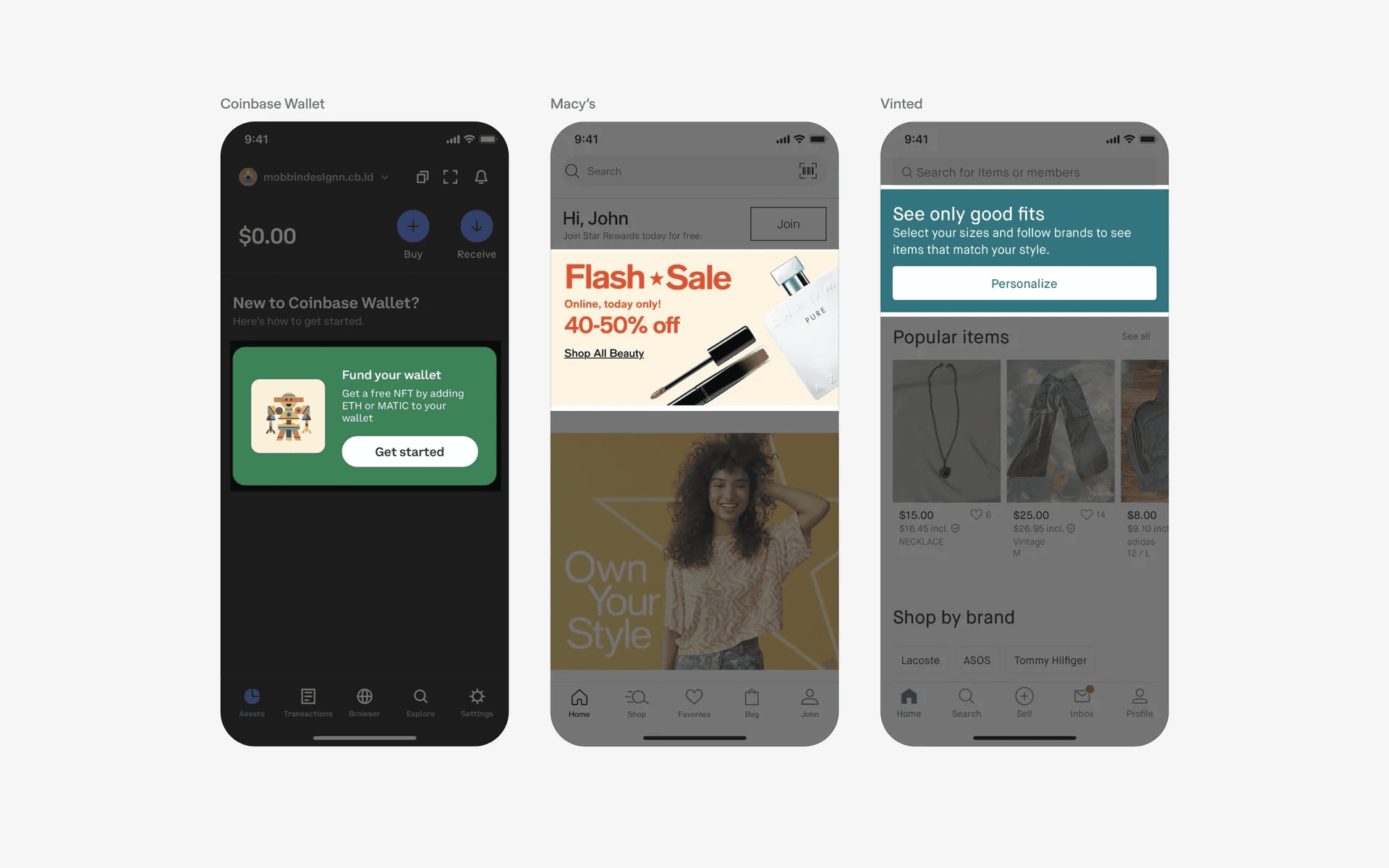
Examples of banners
Card v.s. Toast
The purpose of toast is to act as a short, temporary alert or notification. Its purpose is to quickly provide the user with information that does not require any action.
A card is usually used to contain a set of related information or content, such as a picture, a title, a description, etc. It is used to provide the user with more detailed information that may require further action or exploration.
Additionally, a toast does not typically provide any way to interact with it. It is usually dismissed automatically after a few seconds.
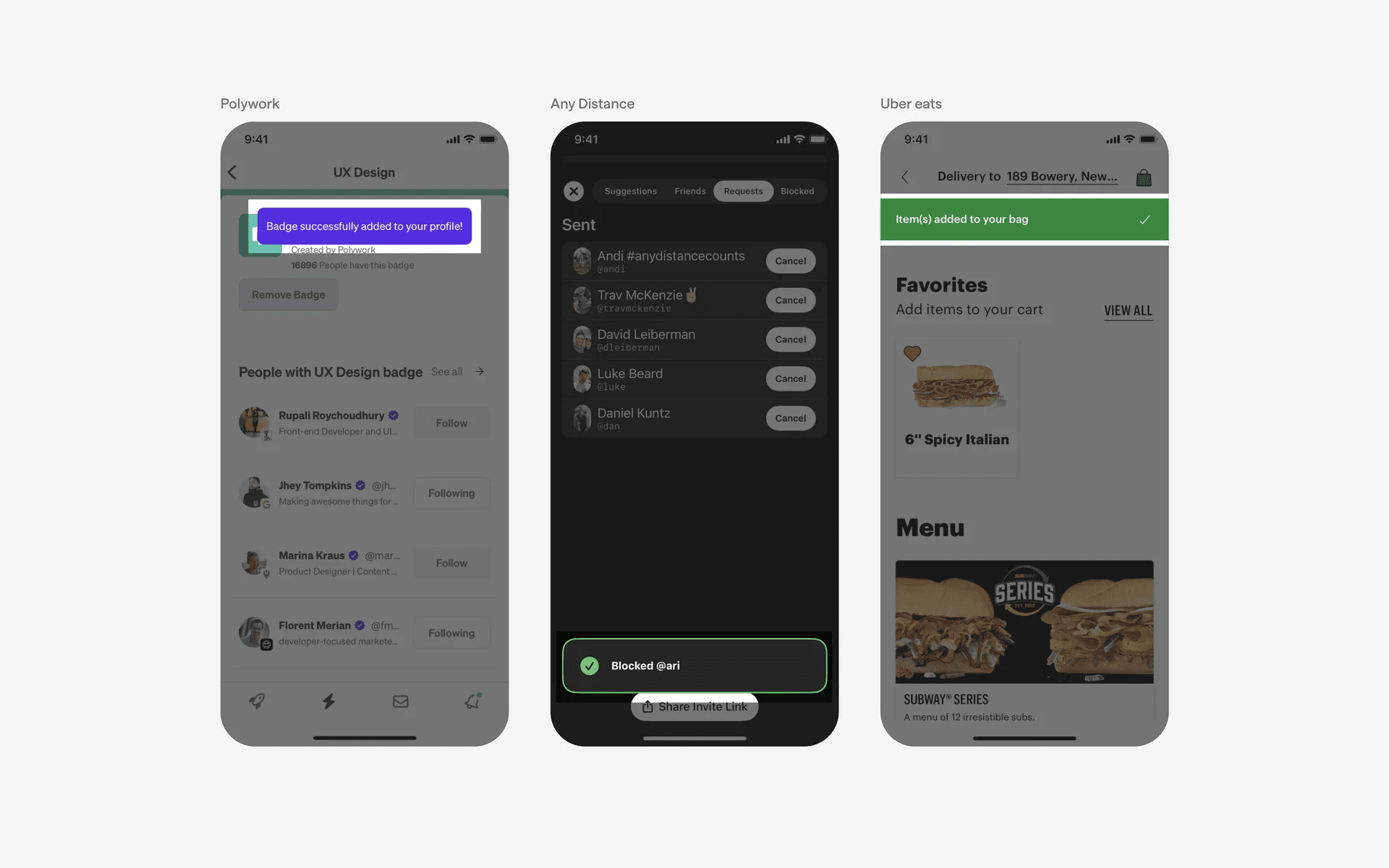
Examples of toast
Card v.s. Dialog
A Dialog is a pop-up box that appears on top of the existing content on the screen. It typically has a header, a body and an optional footer. It also has an “X” button to close it.
A Card is a UI element that typically has a header, a body, and an optional footer. It is typically rectangular and can hold text, images, and actionable elements.
The purpose of a Dialog is to provide information or prompt the user to take an action. It may also be used to present a list of options. The purpose of a Card is to provide the user with content or navigation options.
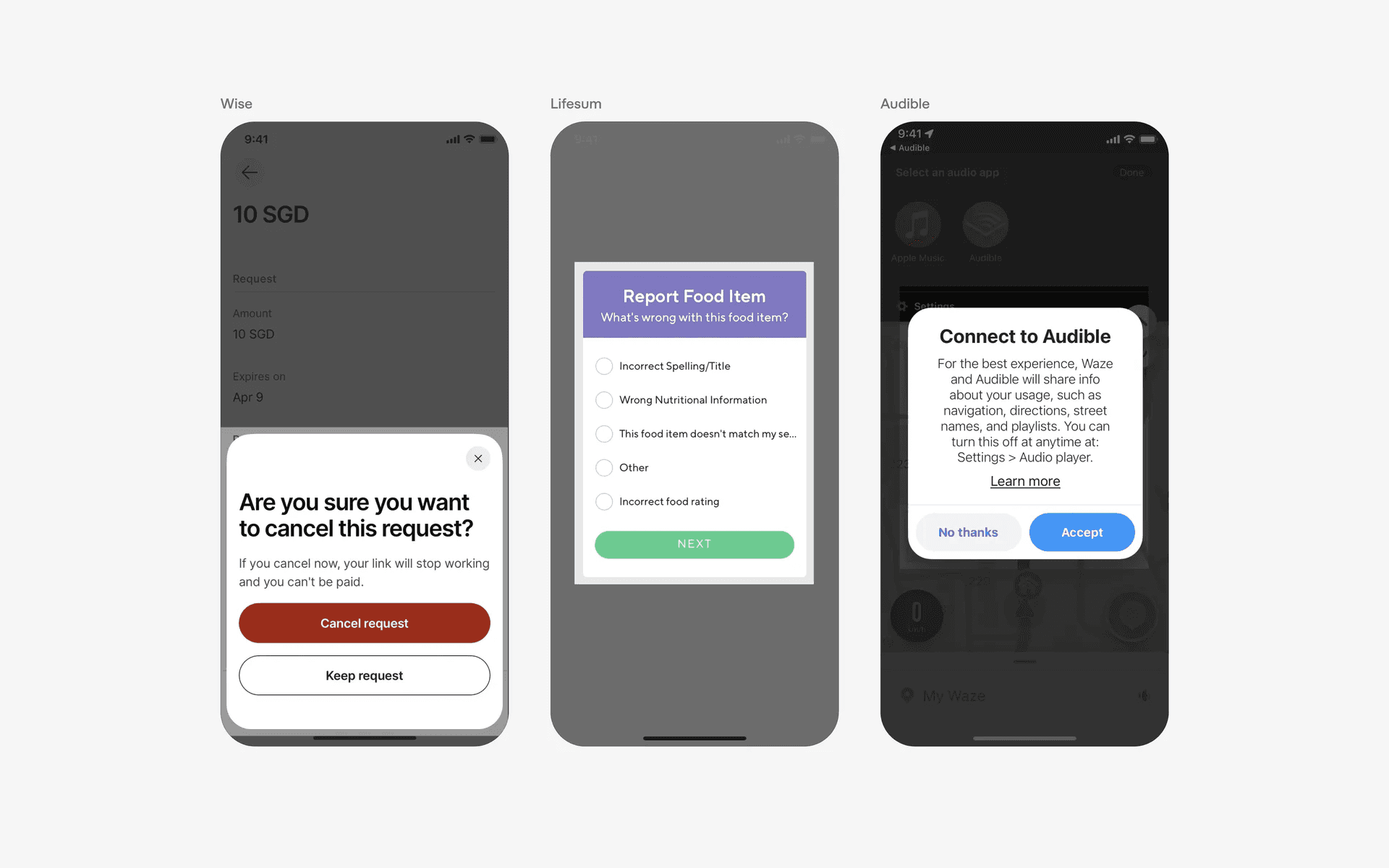
Examples of dialog
Card v.s. Tooltip
Tooltips are used to provide extra information about an element and usually appears on top of the existing content on the screen.
A card exists together with the existing content to organise content or navigation options.
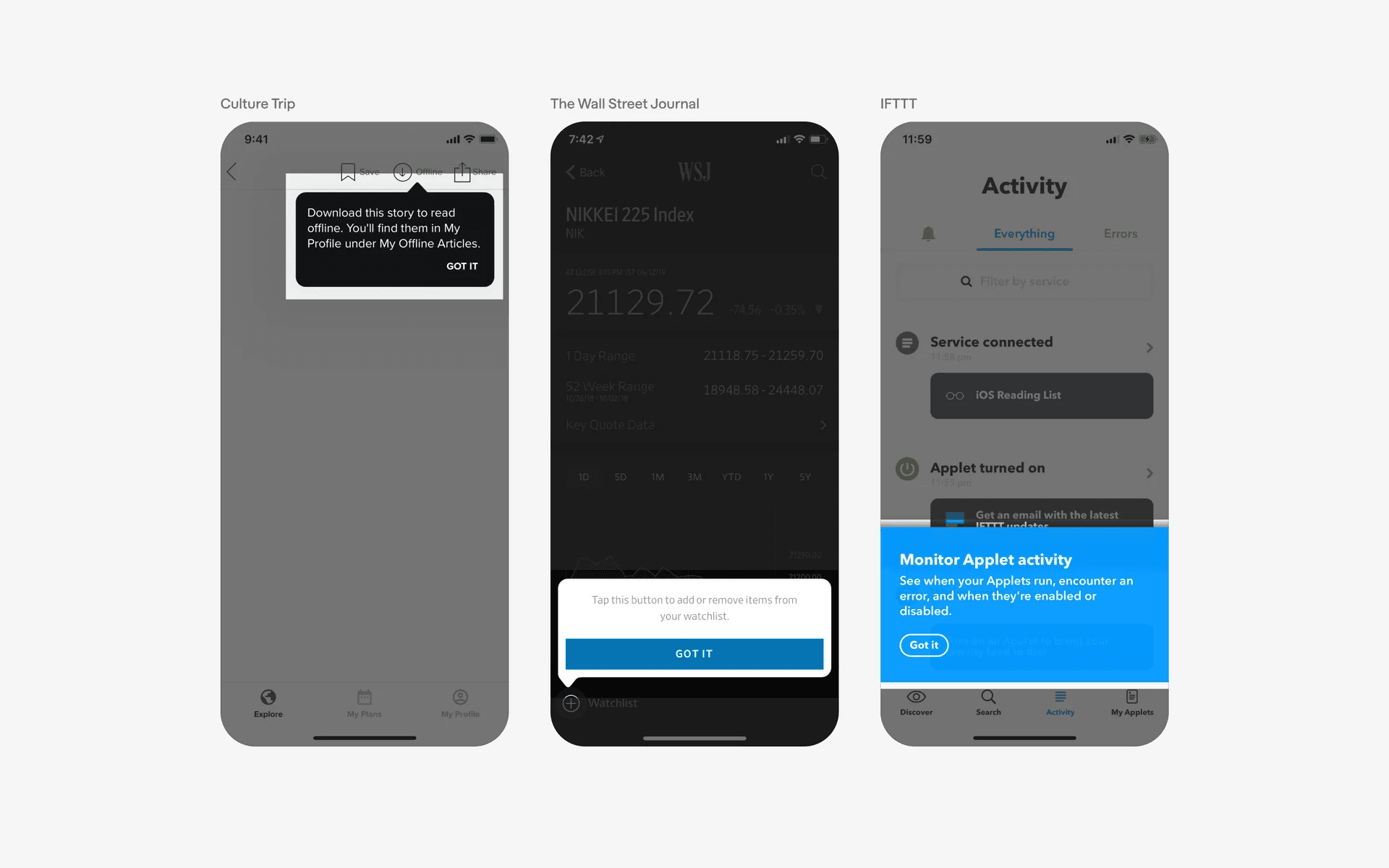
Examples of tooltip
Card v.s. Photo
A card with large thumbnail might be confused with a Photo.
Photos are usually static and cannot be interacted with unless they link to a separate page or additional content. Additionally, photos do not contain a headline, which is essential in distinguishing a card.
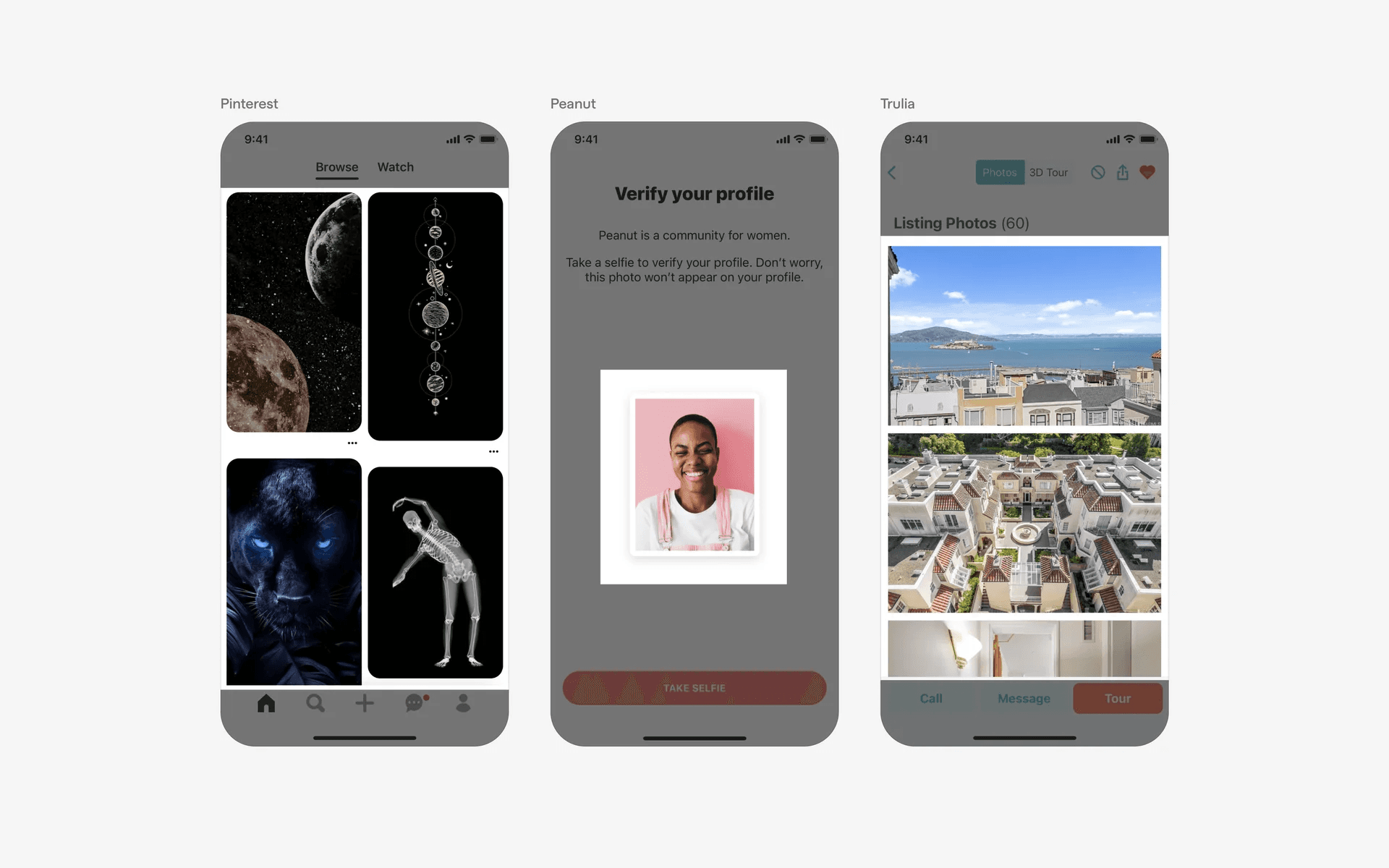
Examples of Photo