
What is a button component?
Buttons help users take action, such as sending an email, sharing a document, or liking a comment.
Button labels express what action will occur when the user interacts with it.
When designing buttons, consider the permutations of different states, styles, and sizes. See table below.
Importance (primary buttons, secondary buttons, tertiary buttons, disabled buttons, destructive buttons)
State (Default, disabled)
Size (Horizontal padding, Stretch, Wrap to text, Small buttons, Large buttons)
Buttons are commonly used for Form submission, Call to action, Confirmation and alerts.
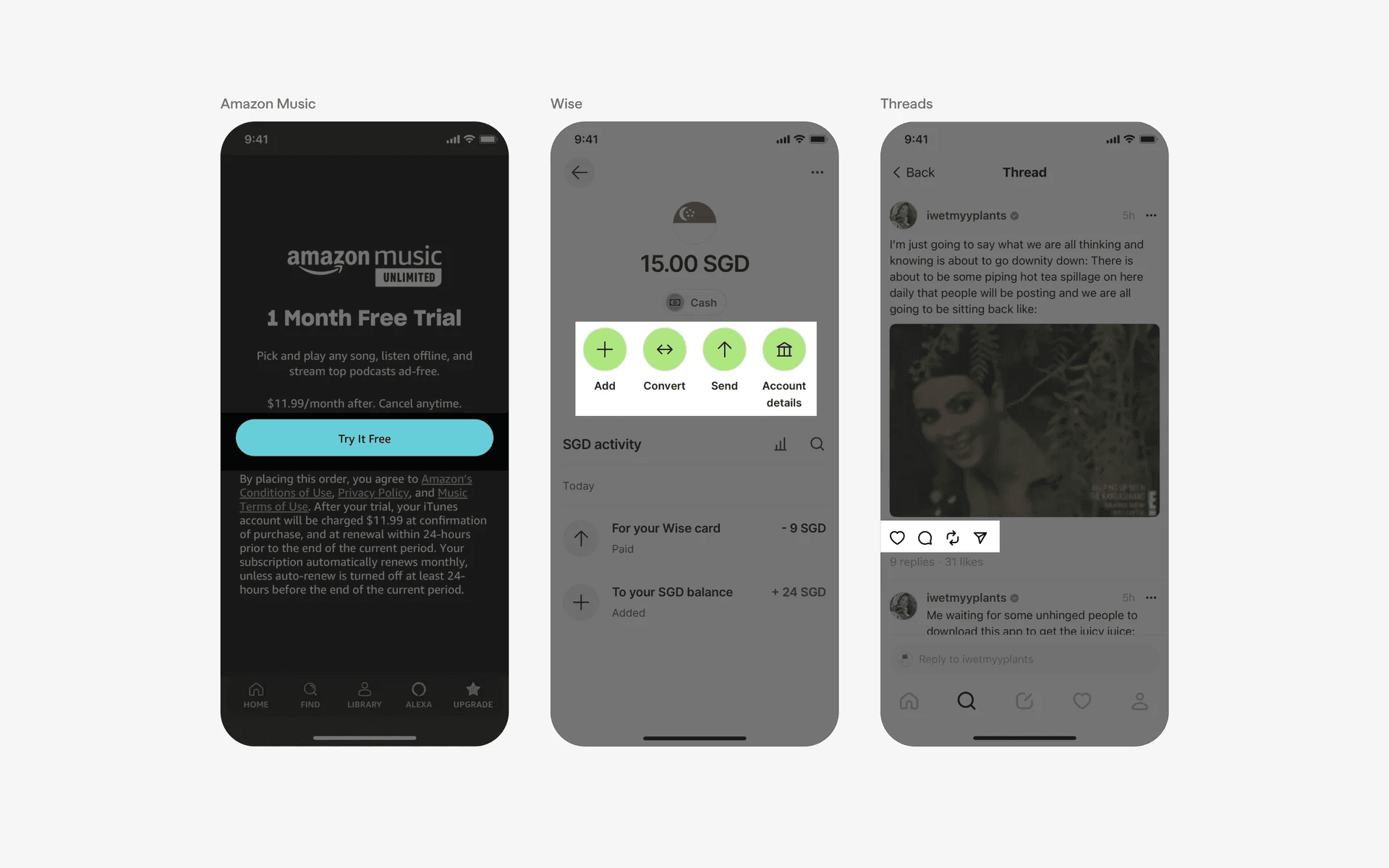
Examples of different types of buttons: Primary button, Icon button, Text button.
Bonus: Here is what Mobbin's button design variants looks like in our current design system.
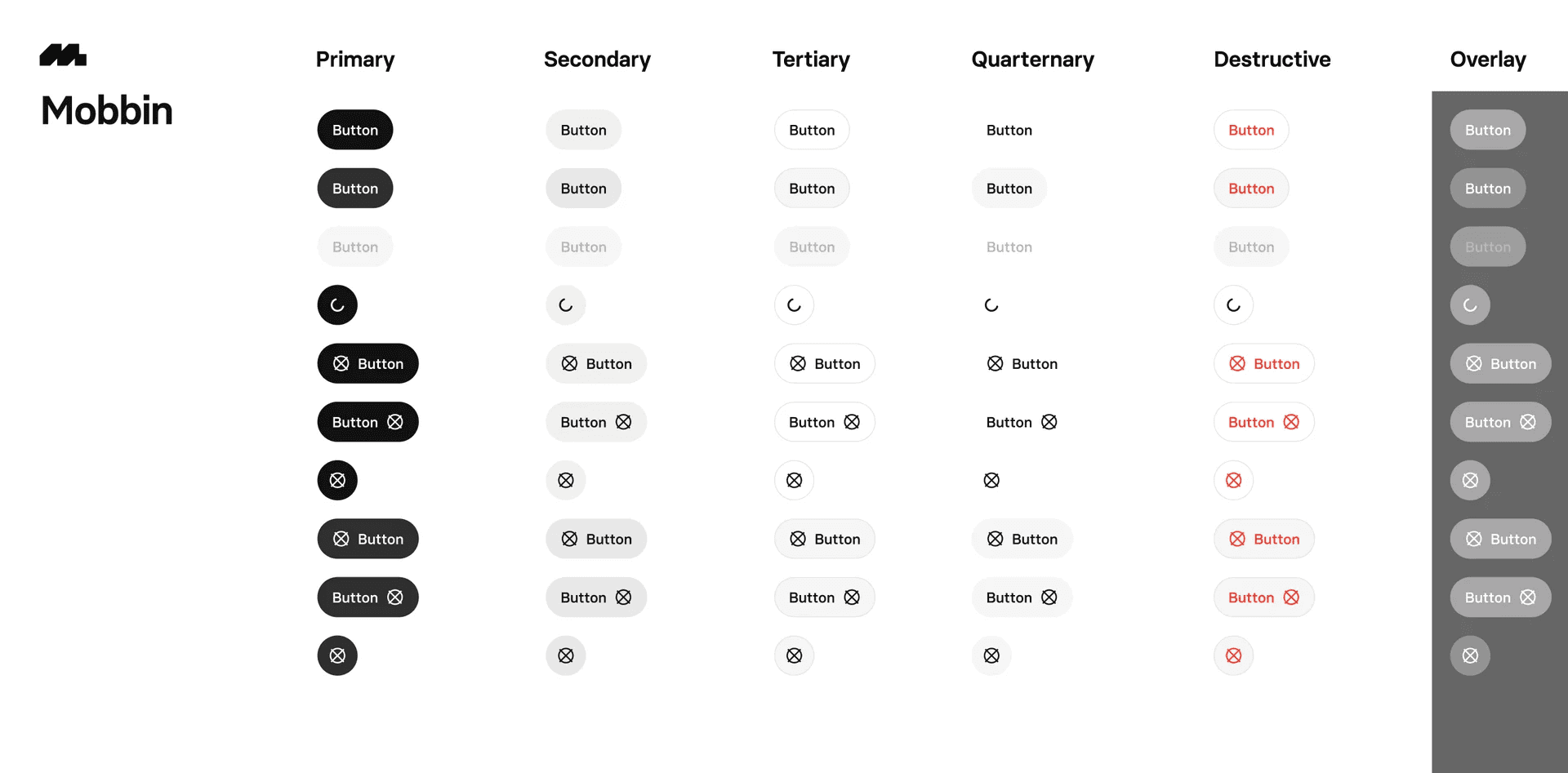
Mobbin's button variations: Primary button, Secondary button, Tertiary button, Quaternary button, Destructive button, Overlay button.
We've created a table that organizes types of buttons found across real-world examples. For visual examples, scroll down to the next section.
Note: This is dependant on each company's design system, and there is often a lot of 'convention breaking', or buttons that are surprising and delightful, but aren't listed in this table.
Primary Button: Highlights the main action on a screen, usually in the brand's primary color. Top of the hierarchy when it comes to button styling. Example Use Case: "Submit" or "Save" buttons in forms.
Secondary Button: Used for less important actions, often styled with less prominence. Example Use Case: "Cancel" or "Back" buttons.
Tertiary Button: Usually border outline buttons, for low-emphasis actions. Sometimes known as outline buttons or ghost buttons. Example Use Case: "Learn More" or "Preview" buttons.
Quaternary Button: Usually text-only buttons without border or fills, for low-emphasis buttons - these buttons might be easy to miss. Bottom of the hierarchy for button styling. Example Use Case: "Forgot Password?" or "See Details."
Icon Button: Contains only an icon to represent an action. Example Use Case: "Search" or "Share" icons.
Destructive Button: A button that indicates a potentially destructive and irreversible action. Example Use Case: "Delete", "Are you sure" buttons.
Disabled Button: A non-interactive button, indicating an action isn’t available. Example Use Case: "Submit" button before required fields are filled.
What is the anatomy of a button?
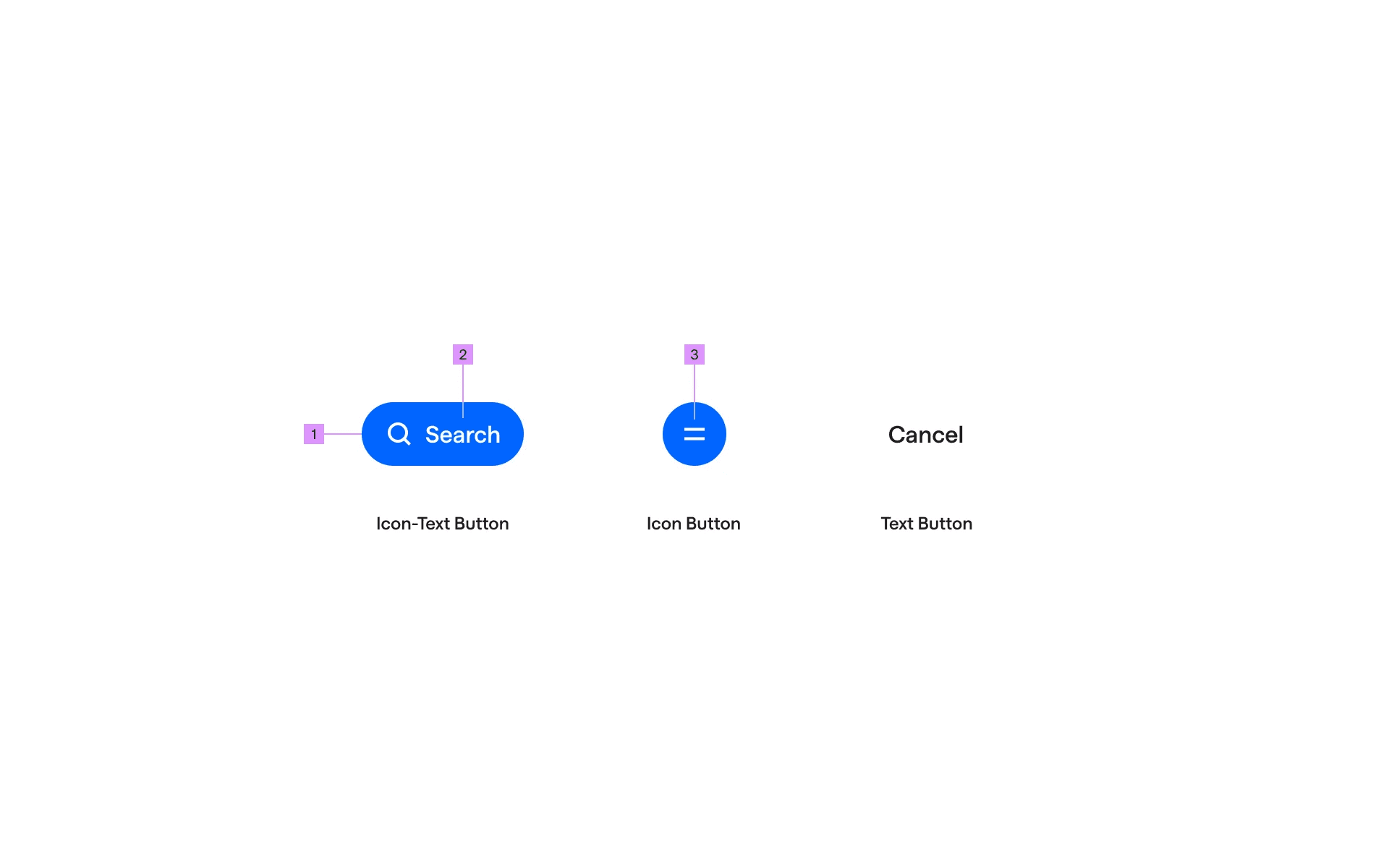
Anatomy of a button
1
Container
2
Label
3
Icon
What are the design variants of a button?
We studied over 40,000+ button UI components on Mobbin, from real-world examples and found the following variants.
1. Standard button variations: Container types, Icons, Shapes
Button container types
The most common button container is the classic filled button, also known as the primary button or primary action - this often comes in the app's primary color. Plain, old and boring - but it works!
It is a high emphasis button that is usually close to the bottom of the app's screen, which makes it easy for users interact with using one hand.
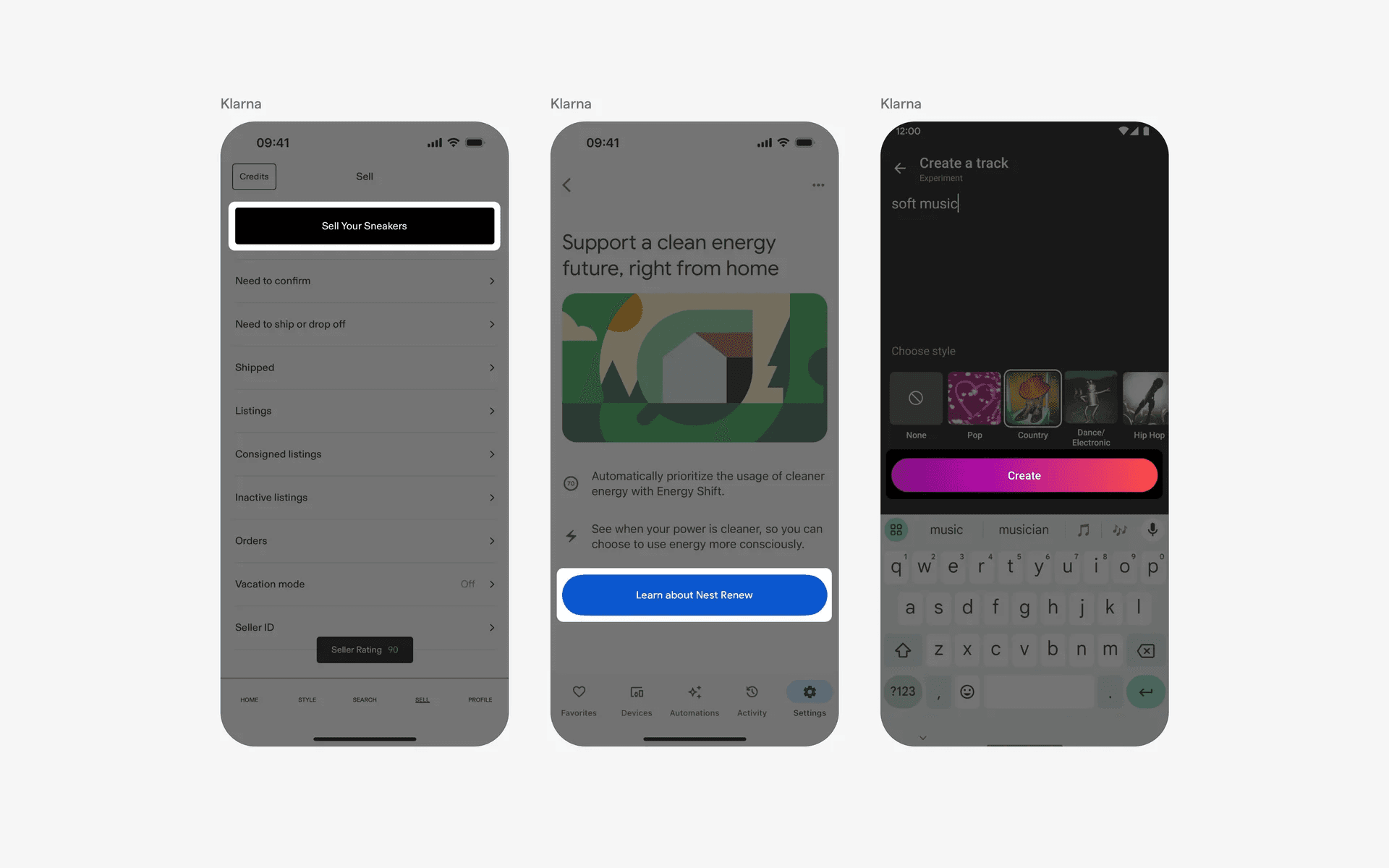
Examples of filled button
You can consider using outlined buttons if the action isn't of paramount importance. Having more than one button might clutter your user interface. But an outlined button helps to reduce that cognitive overload.
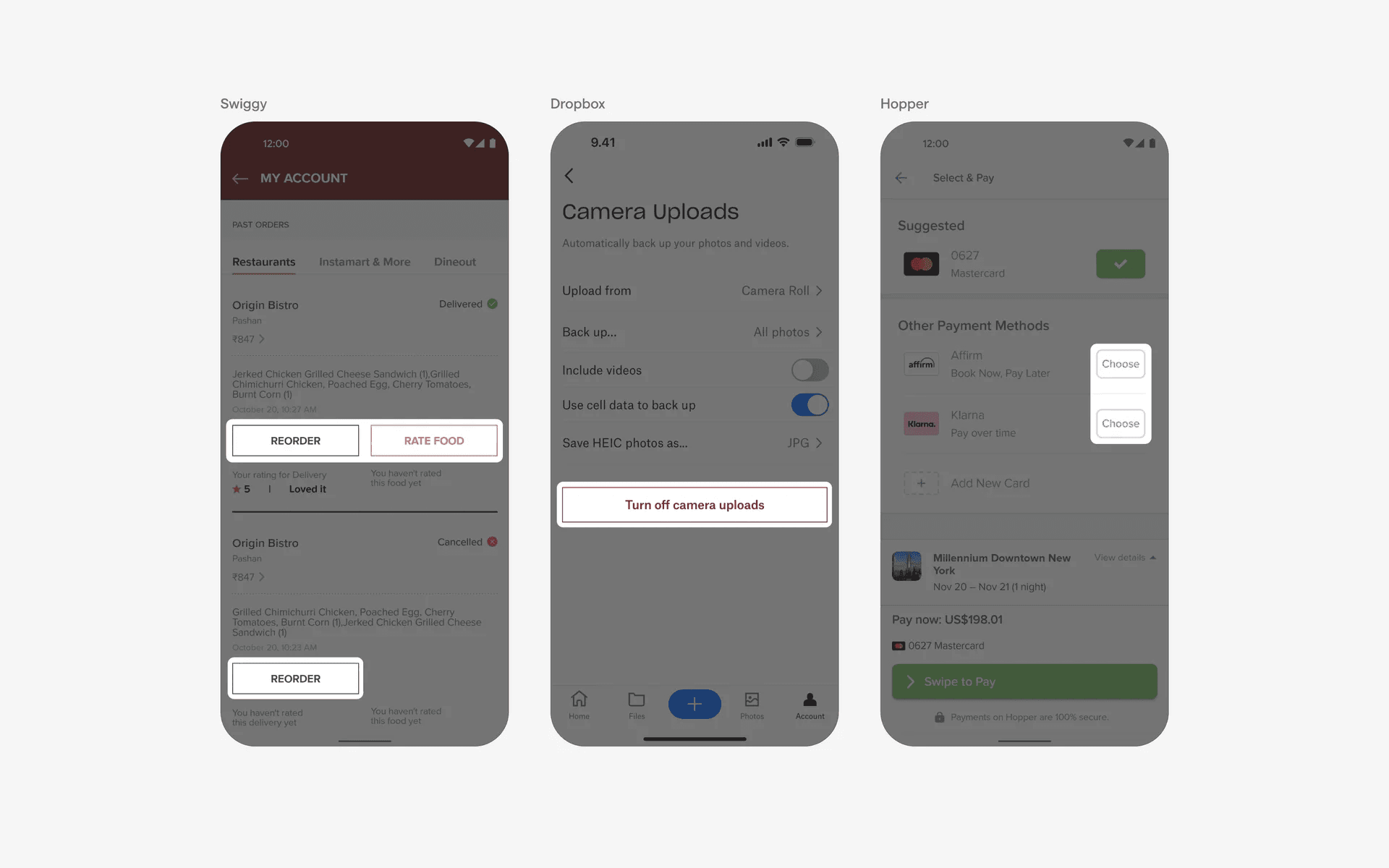
Examples of outlined button
Finally, if you are feeling playful, consider using a elevated button design. This gives your app a "raised" effect or 3D illusion, which makes it more eye catching and fun to click.
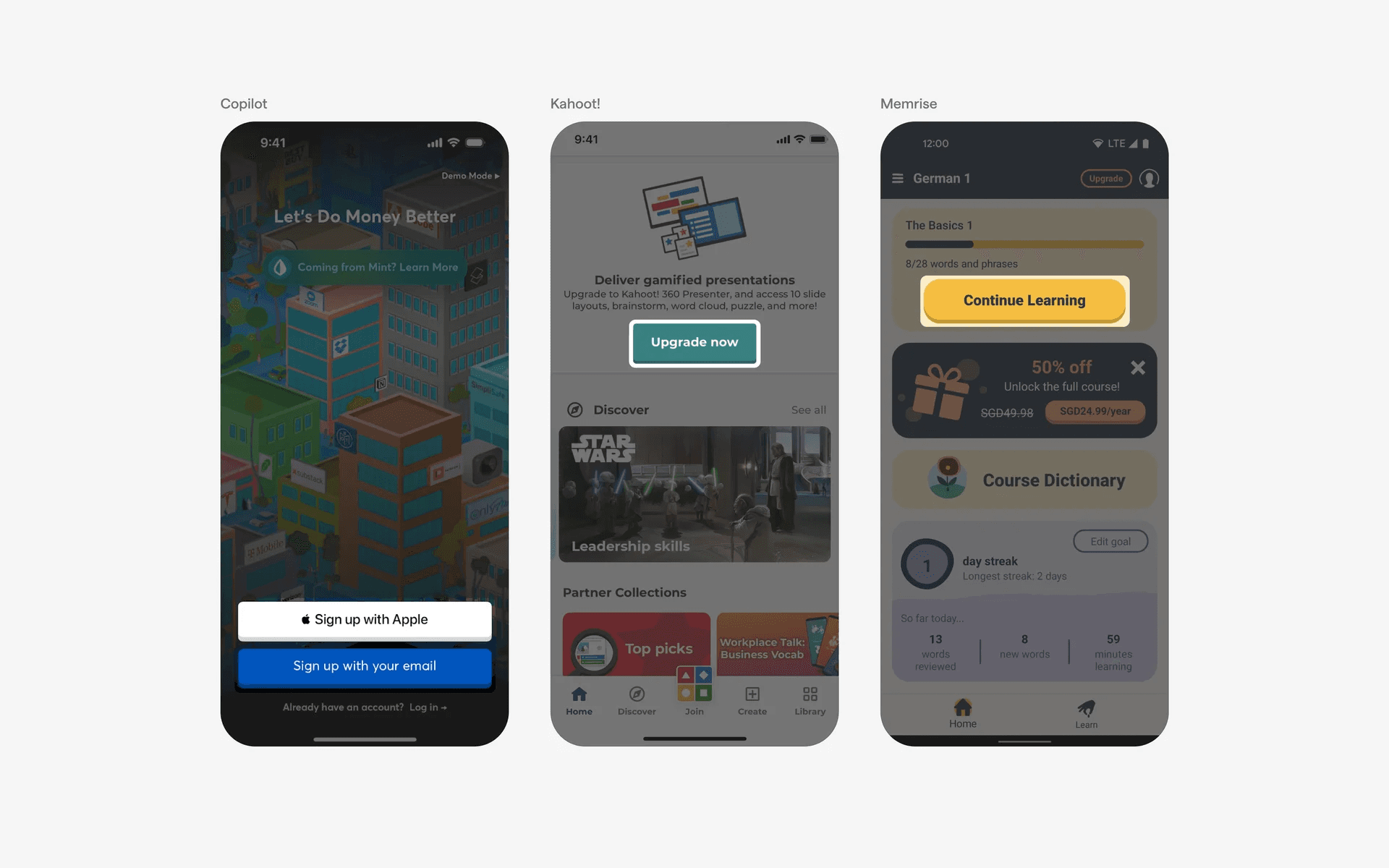
Examples of elevated button
Button icons
You can consider adding icons to your buttons if it helps communicate the intent of the button design. If you have multiple buttons, the icon might also help to differentiate between different buttons competing for a user's attention.
You can either choose to use a leading icon.
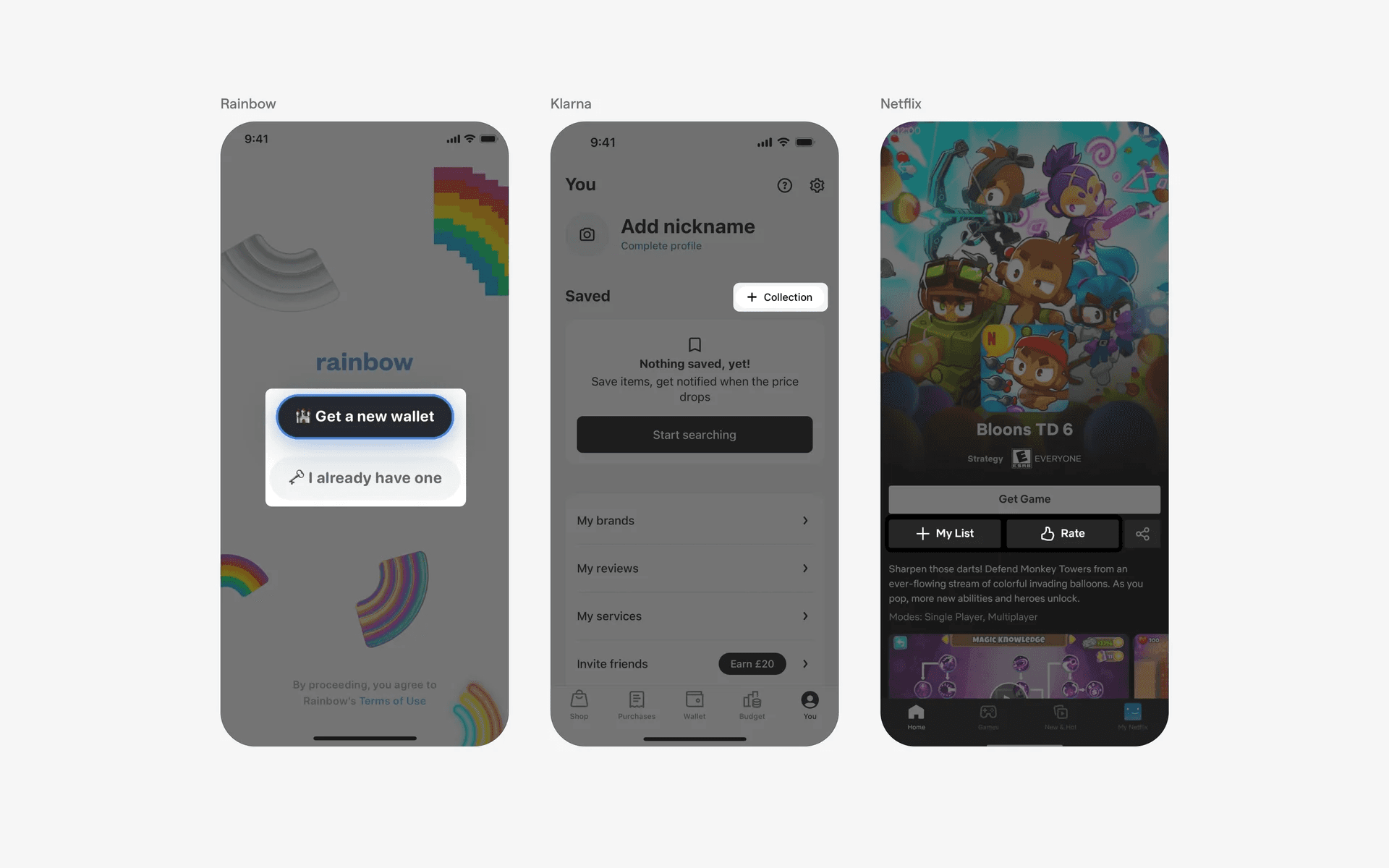
Examples of buttons with leading icon.
Or, a trailing icon.
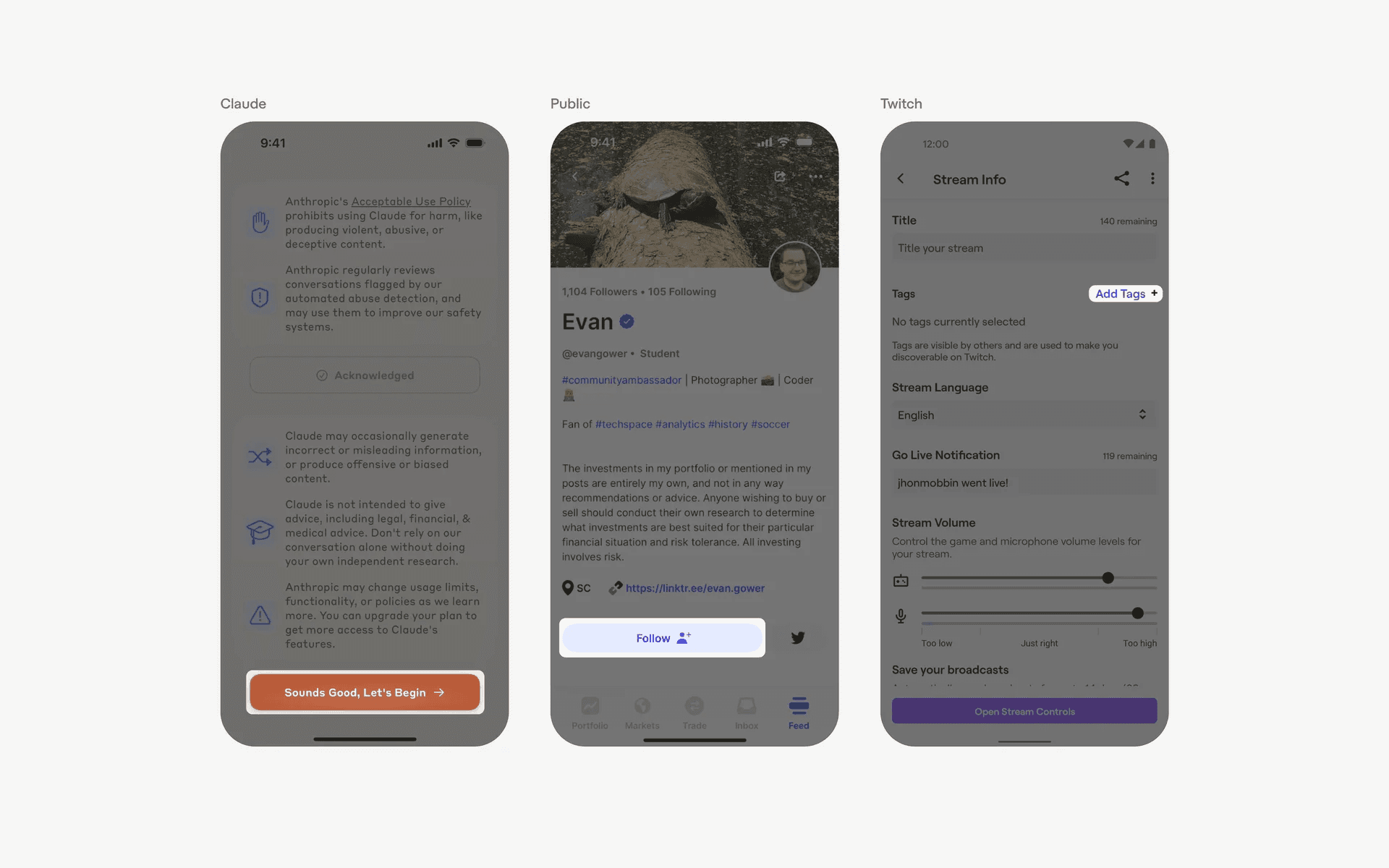
Examples of buttons with trailing icon.
Button shape
Finally, a button can come in many shapes, depending on one's design system.
A pill shape button design is considered to be 'friendlier'.
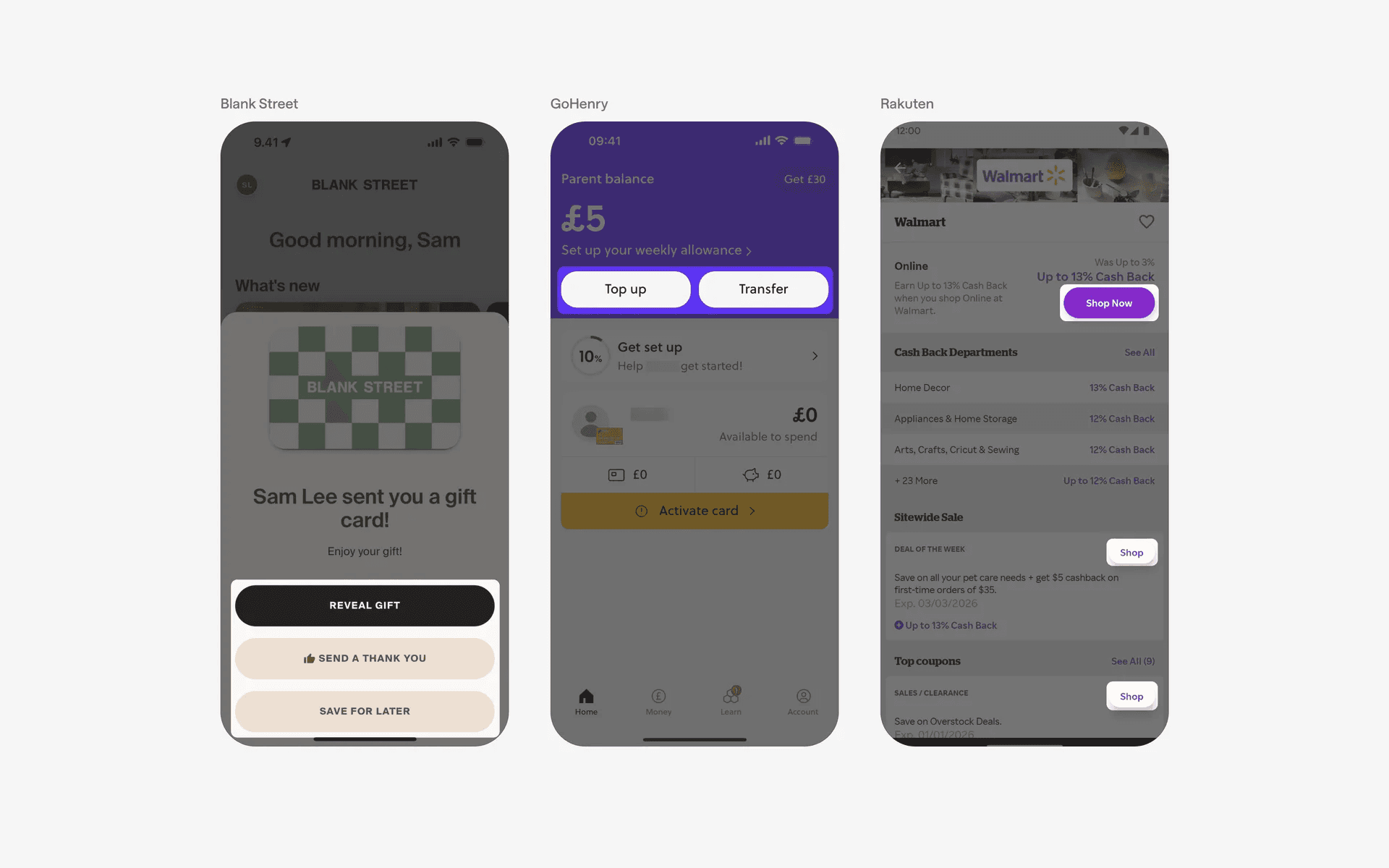
Example of pill shaped buttons
If your brand is more serious, consider using buttons with sharper corners instead.
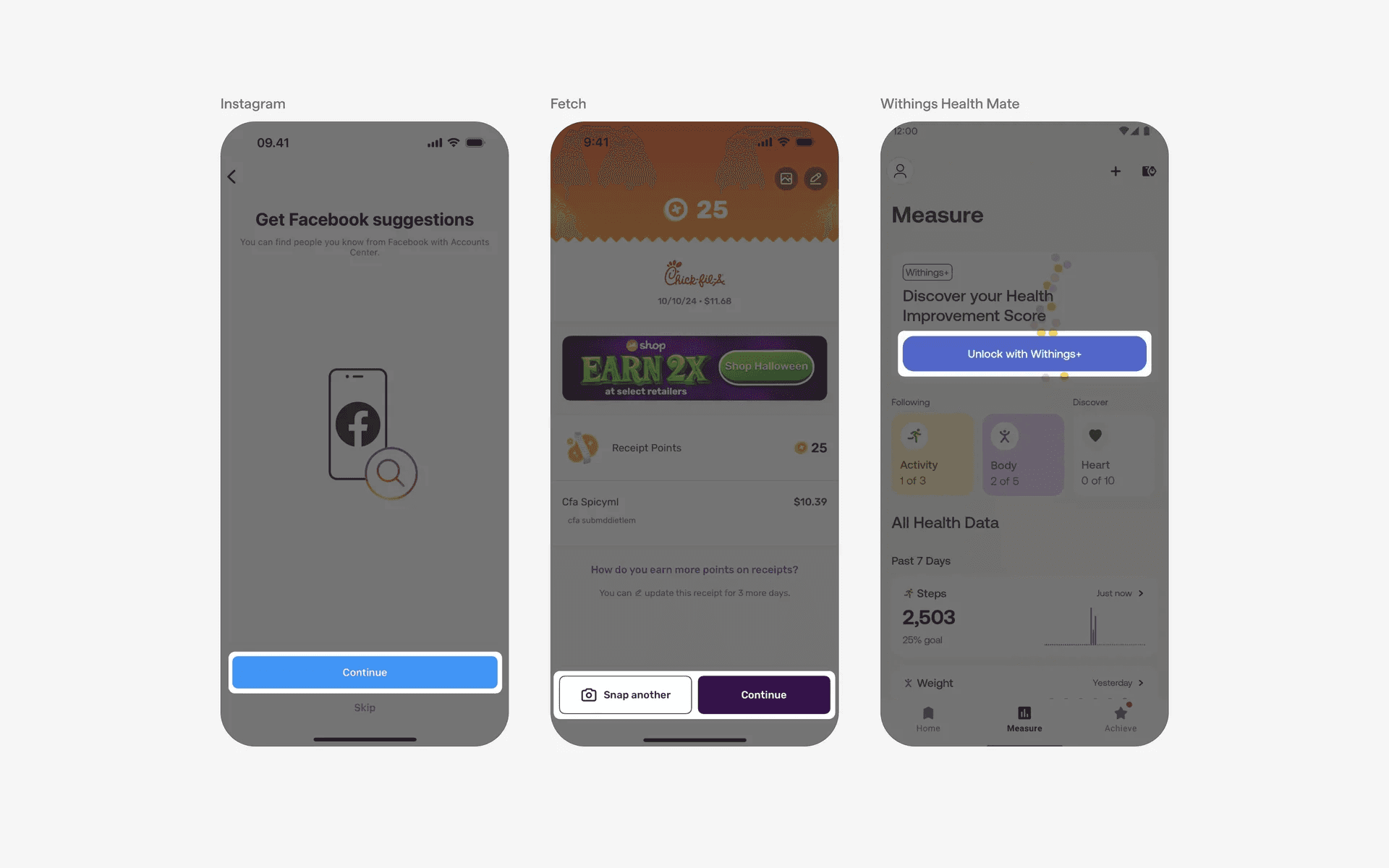
Example of rounded buttons
Otherwise, a sharp corner button will do just fine.
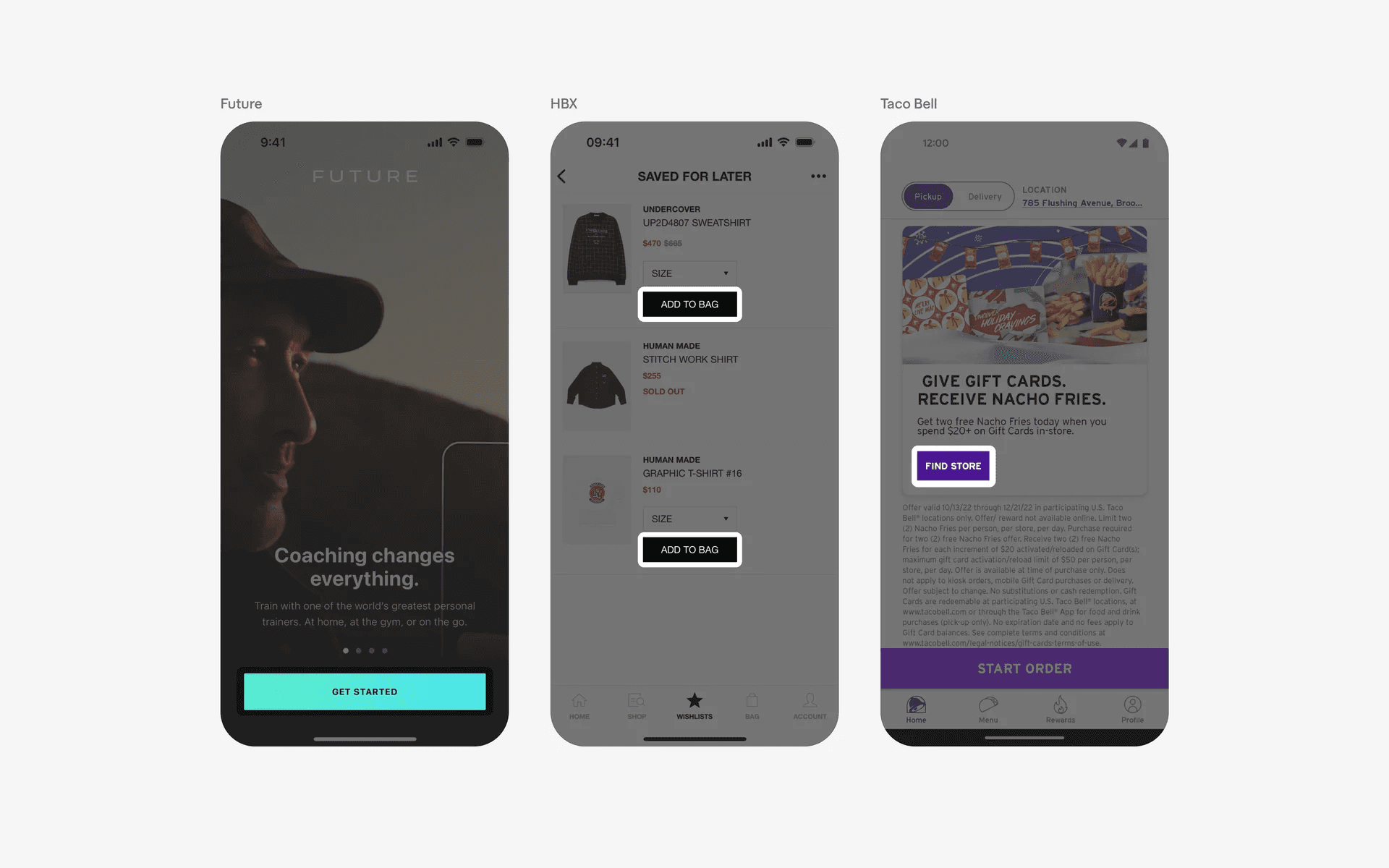
Example of sharp buttons
2. Icon buttons: Standard or Contained
You should consider using an icon button if you need to squeeze in multiple button actions in a small interface.
The standard icon buttons are very common in social media apps - and the icons themselves are well understood (bookmark, like, retweet, share, comment, etc.)
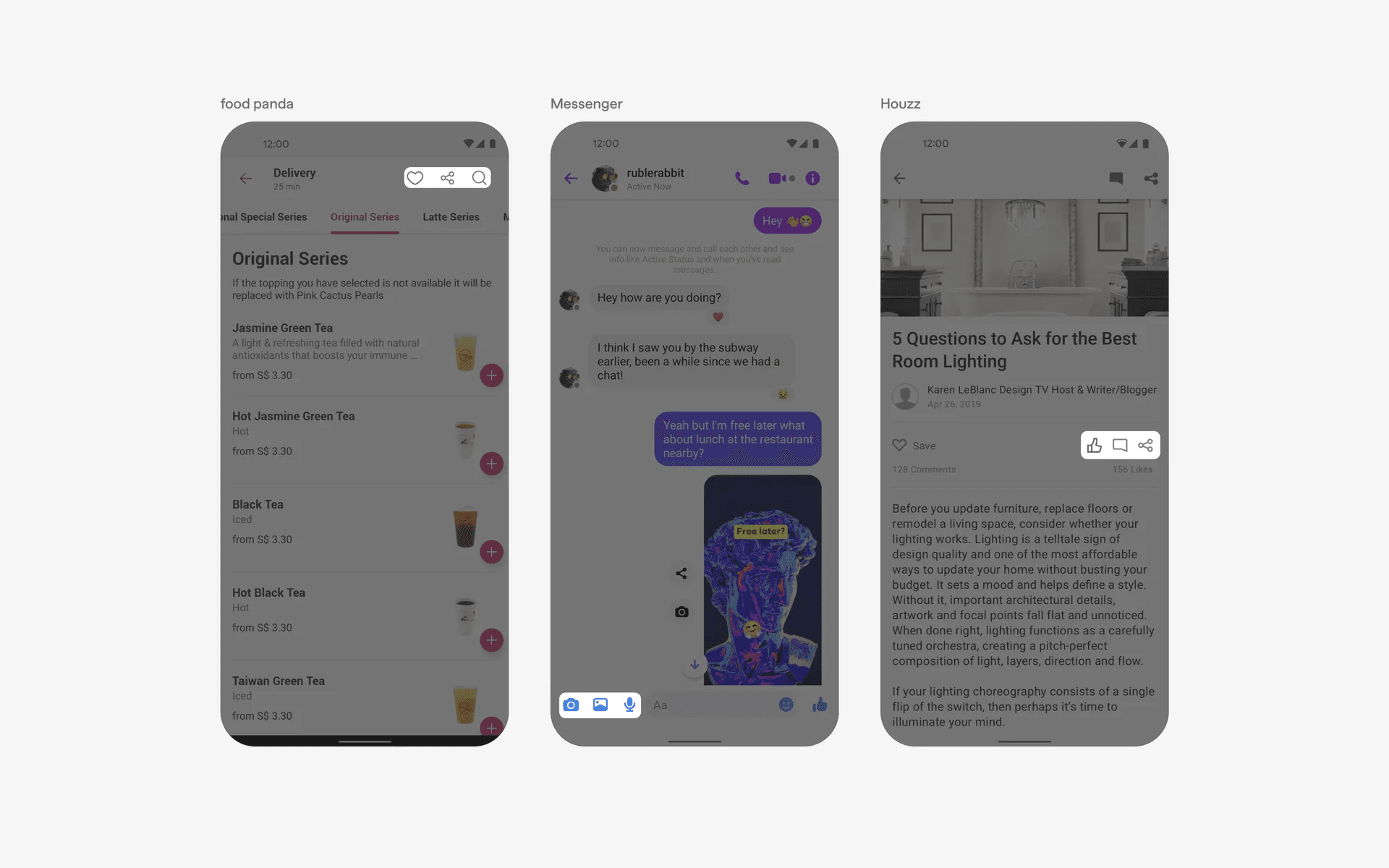
Example of standard icon buttons
Alternatively, you can add a filled container to your icon buttons to make it feel more clickable. Also consider adding in a text label if the icons aren't commonly used and there is a chance users might not understand what they mean.
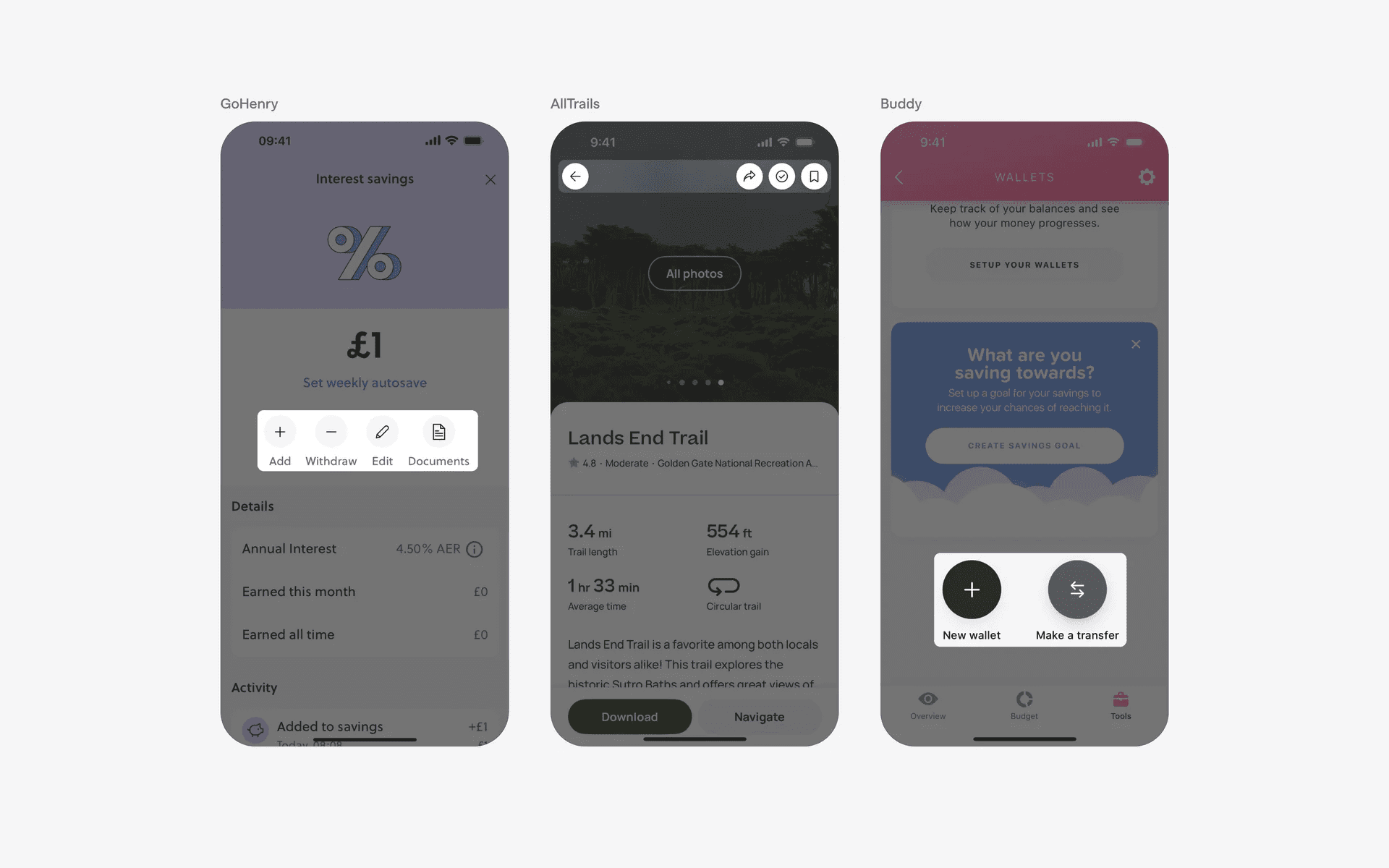
Example of contained icon buttons
3. Text buttons: Standard, Underlined, Icons
Text buttons are often used as tertiary or quaternary buttons, here are some standard text buttons. These buttons are used for low emphasis situations, and might be easily missed.
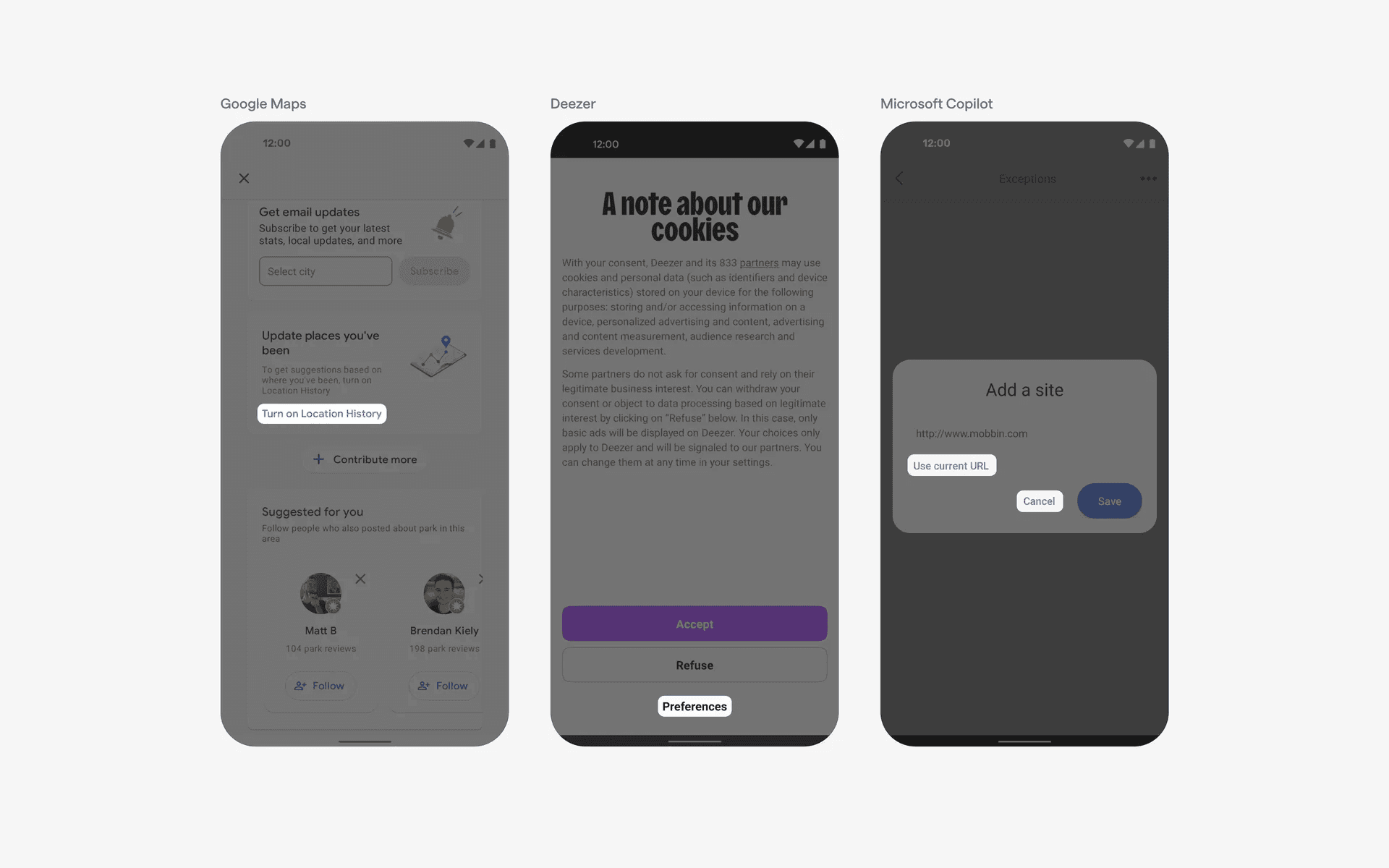
Examples of standard text buttons
If you want to draw more attention towards text buttons, you can consider underlining it.
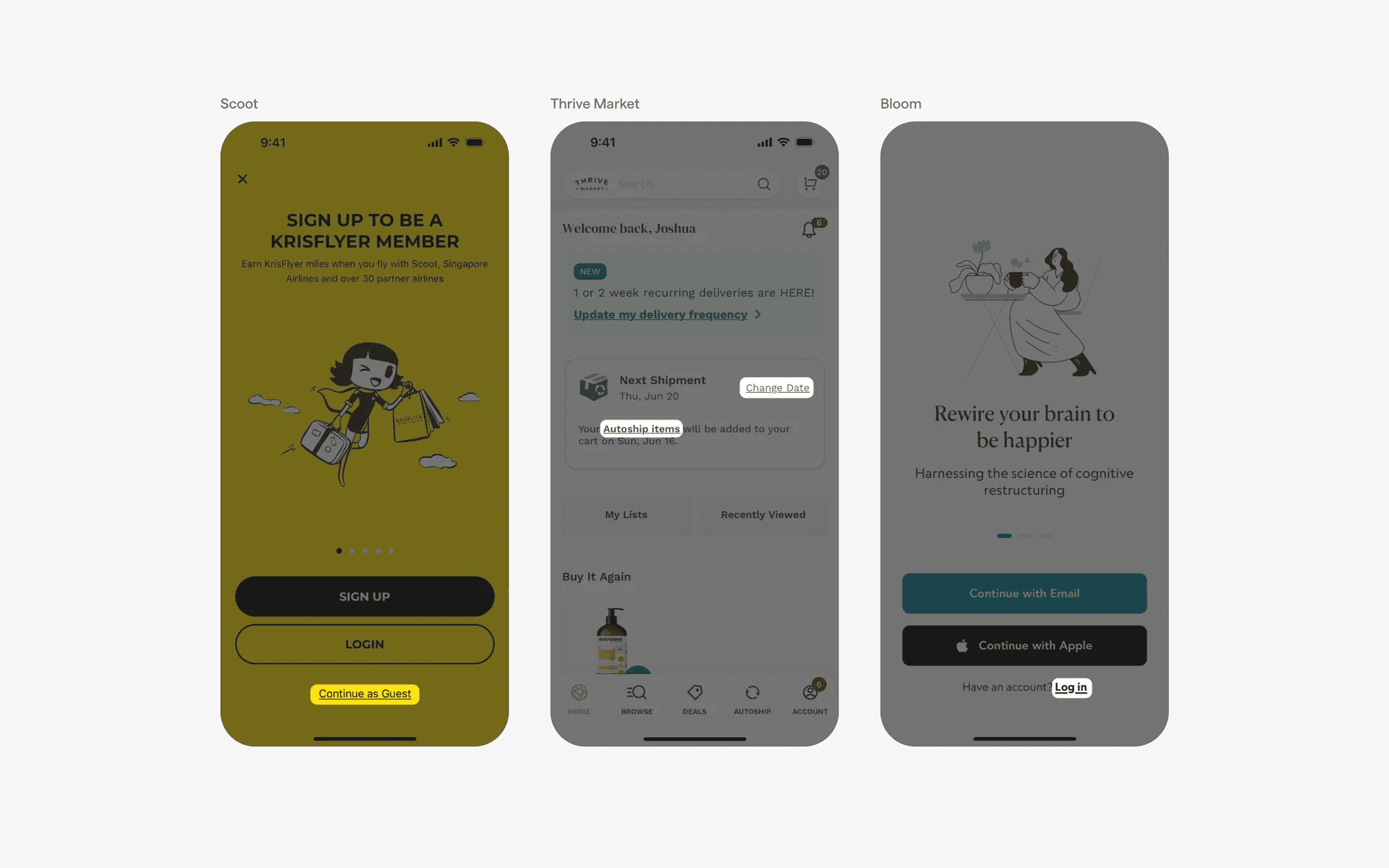
Examples of text buttons with underline
And finally, adding a leading icon to text buttons might help to further draw attention to it.
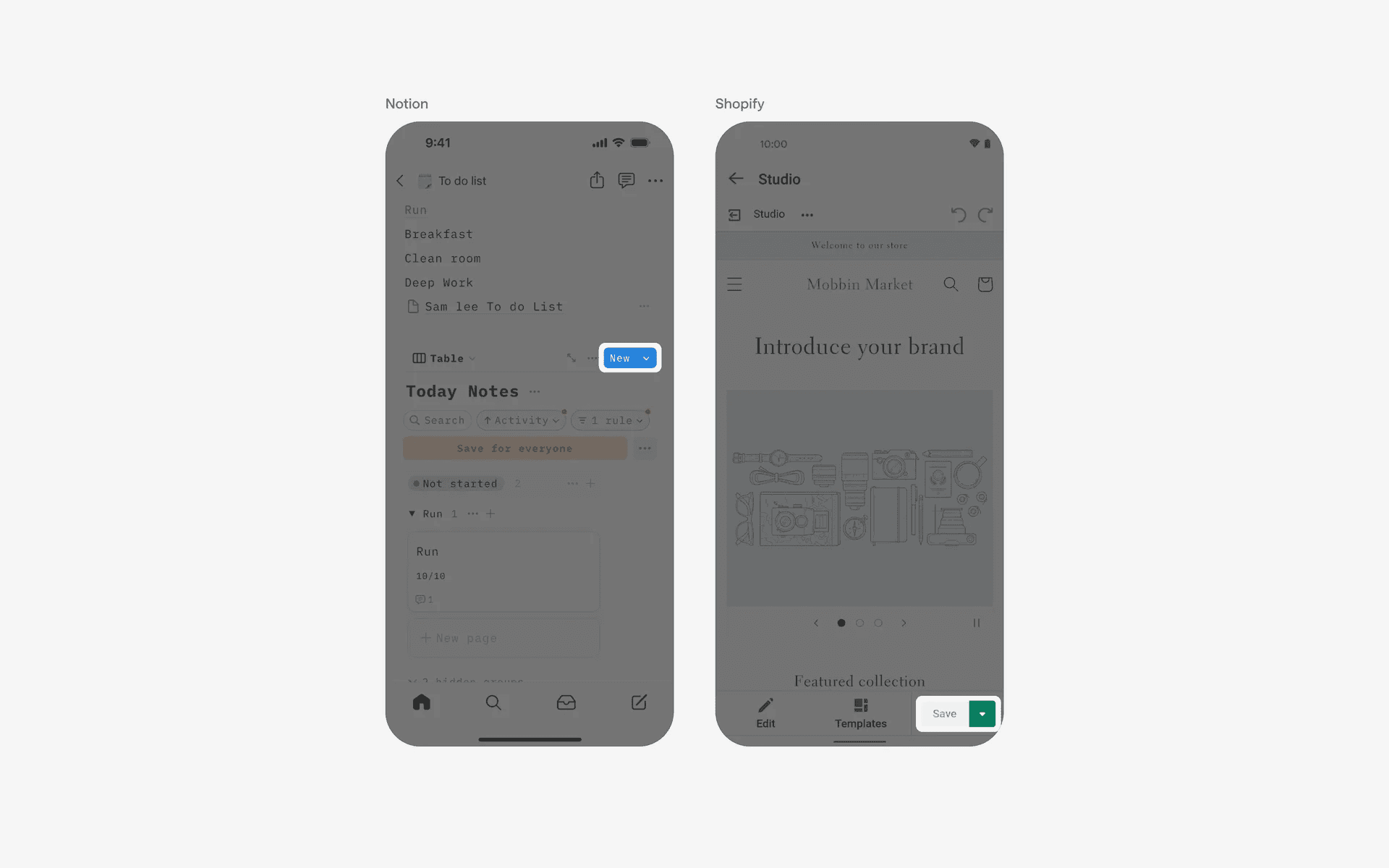
Examples of text button with leading icon
When to use buttons?
Form submission
Buttons are frequently used to submit forms, allowing users to send their input or perform an action.
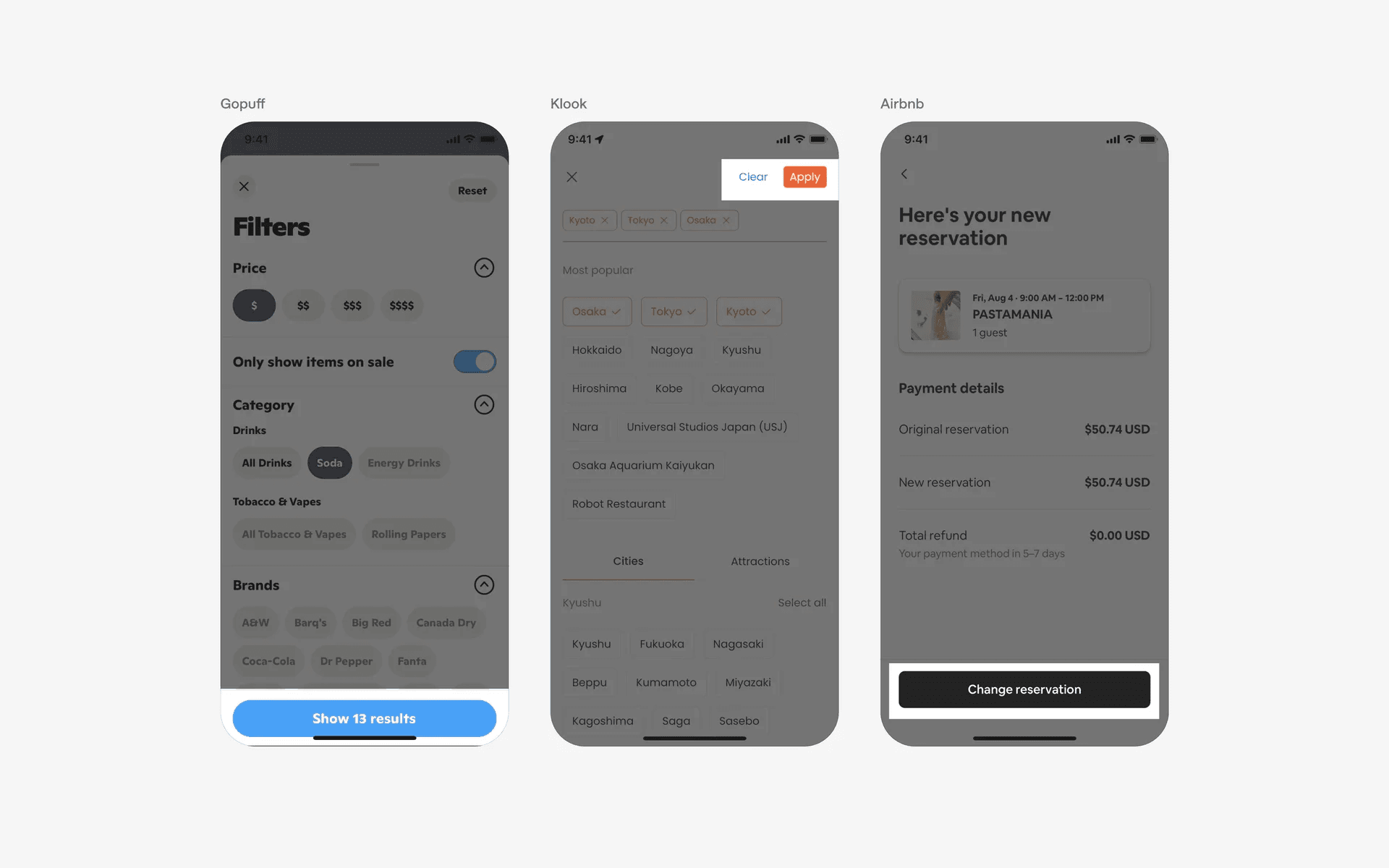
Examples of buttons in form submission
Call to action
Buttons are employed to prompt users to take specific actions, like signing up, making a purchase, or starting a process. These are usually primary buttons.
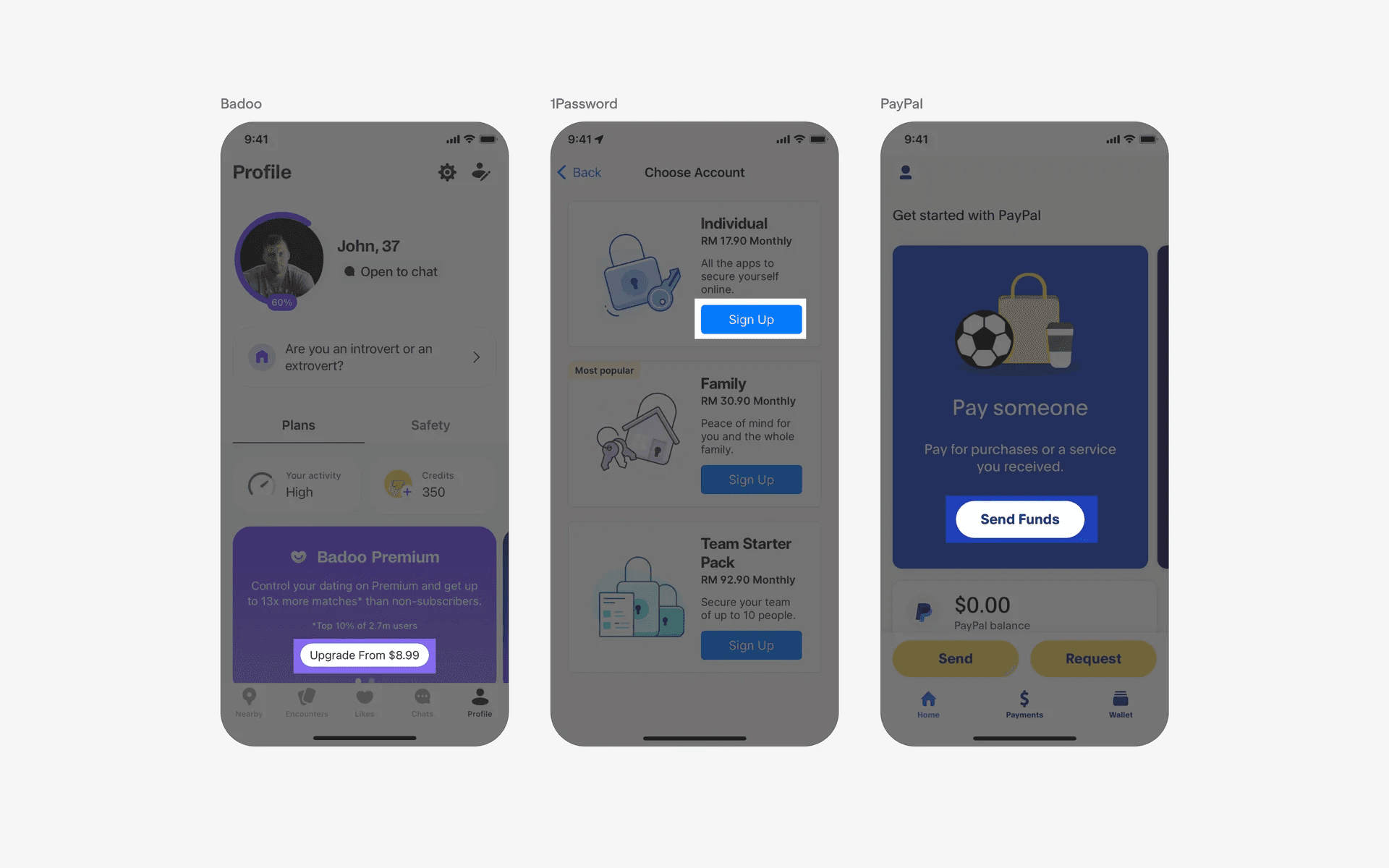
Examples of buttons in call to action
Confirmation and alerts
Buttons can be used to confirm or cancel actions, such as confirming a deletion or dismissing an alert.
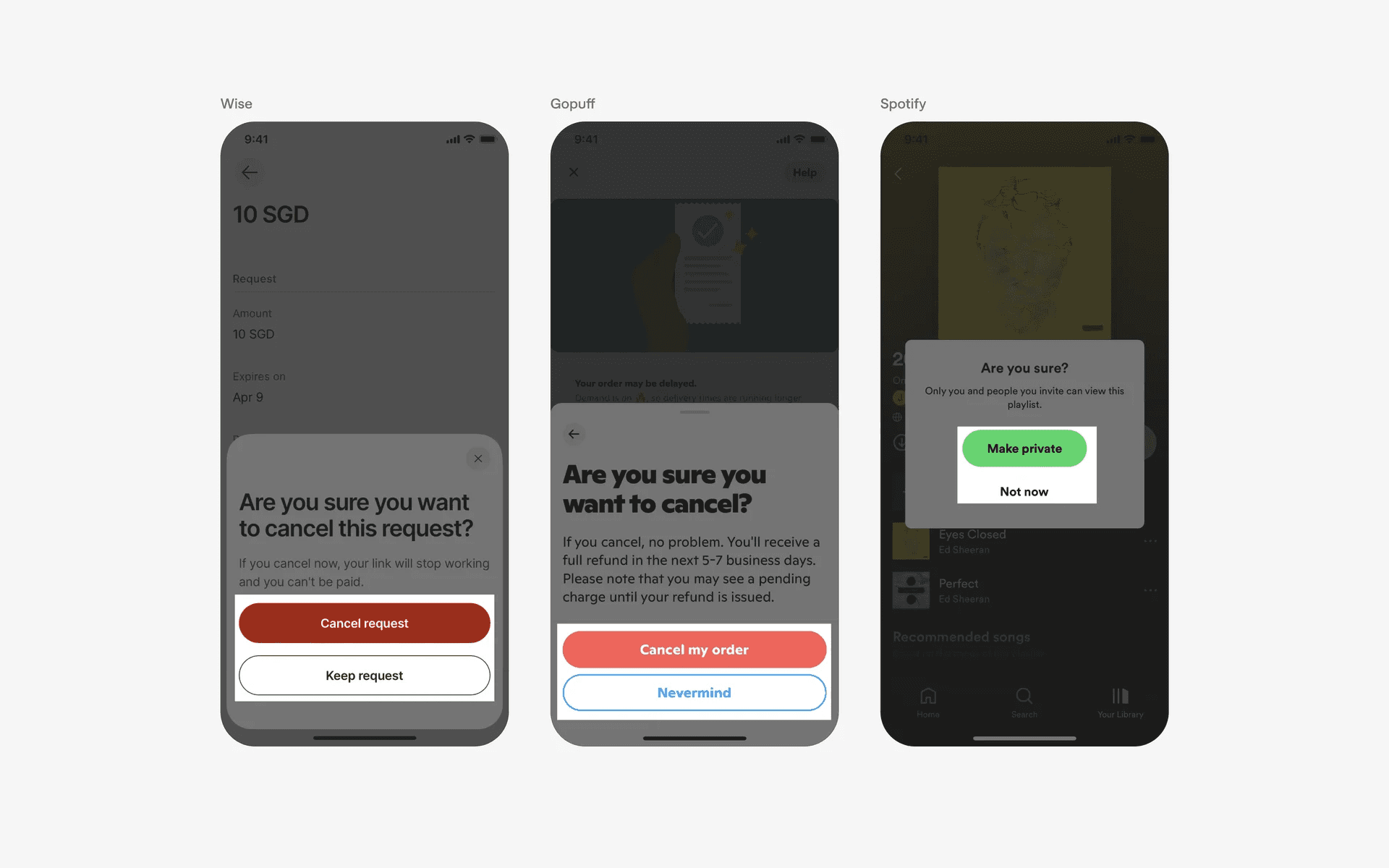
Examples of buttons in confirmation and alerts
Conflicting UI elements: Badges, Chips, Floating Action Button (FAB), Switches
Buttons v.s. Badges
Despite its visual appearance, buttons are used for a specific purpose which is to start or confirm an action. As such, the text they contain will be action-related (e.g add, verify, create, etc.).
On the other hand, a badge is simply used to convey information or the status of a process (e.g verified, new, recommended). Furthermore, a badge is non-interactable and does not require any user interaction or input.
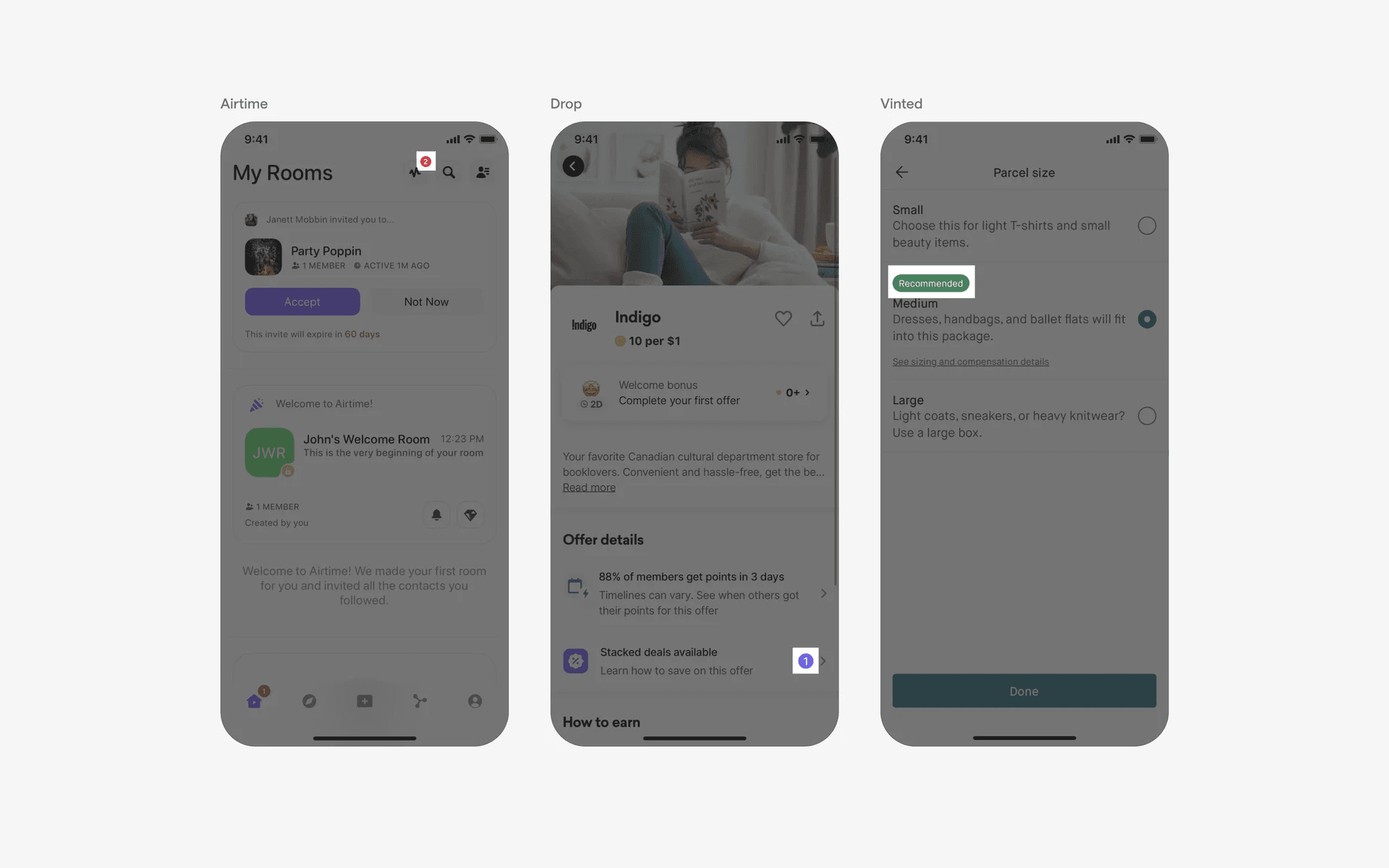
Example of badges
Buttons v.s. Chips
A suggestion tag is an element within a user interface that suggests a particular action or option to the user. It is usually presented as a list of choices that the user can select from. Suggestion tags are typically used to help guide the user to a particular action or decision.
However, a button is specifically for triggering an action or event within the app instead of acting as a quick shortcut to input values.
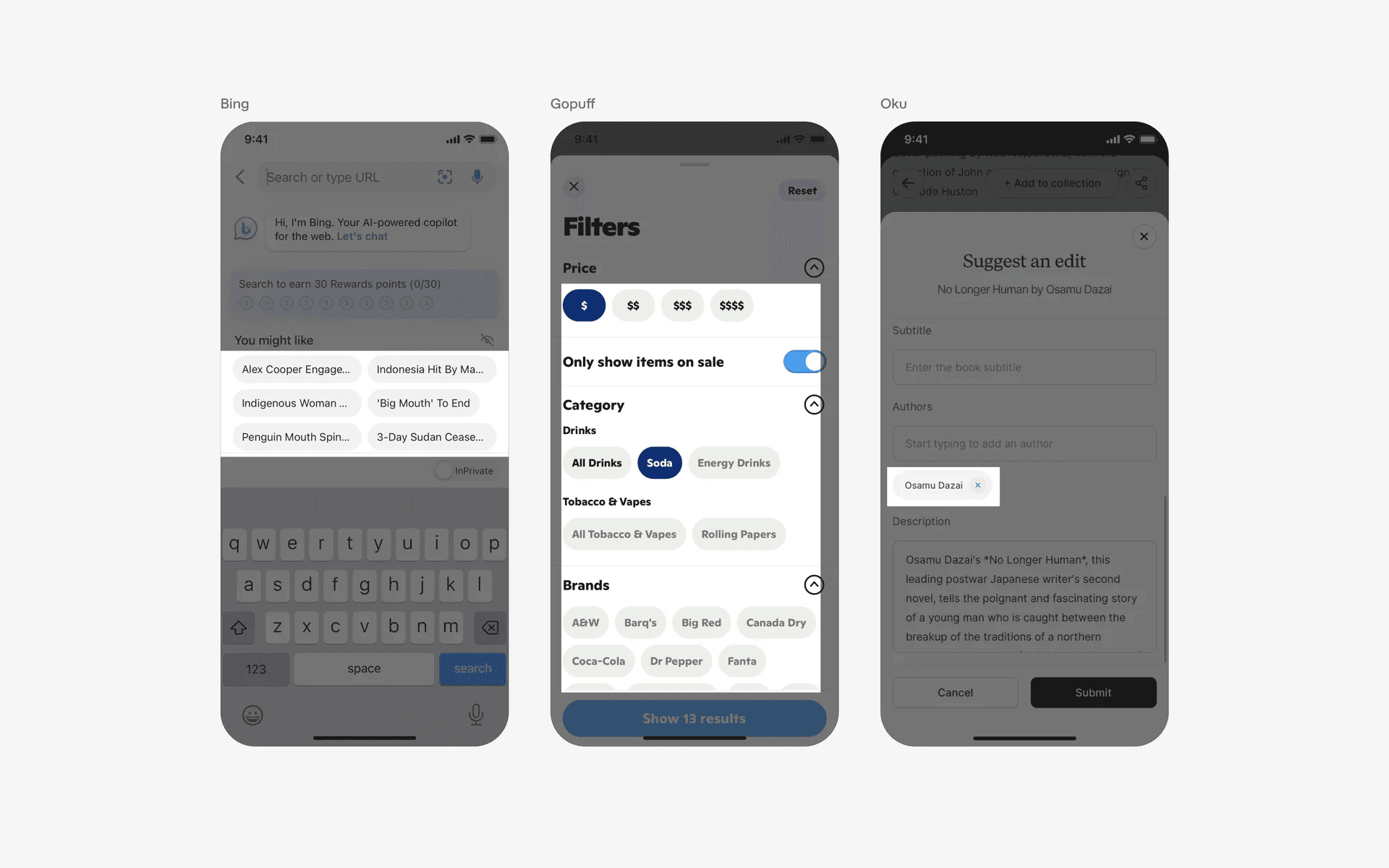
Example of chips
Buttons v.s. Floating Action Buttons (FAB)
The purpose of a Floating Action Button is to provide a quick access to the main action of an app. It is typically used to perform one of the most important actions of the app.
On the other hand, Buttons are used to perform a range of actions, like submitting forms, navigating through pages, and more. Additionally, buttons exist within its own section rather than “hovering” above other elements.
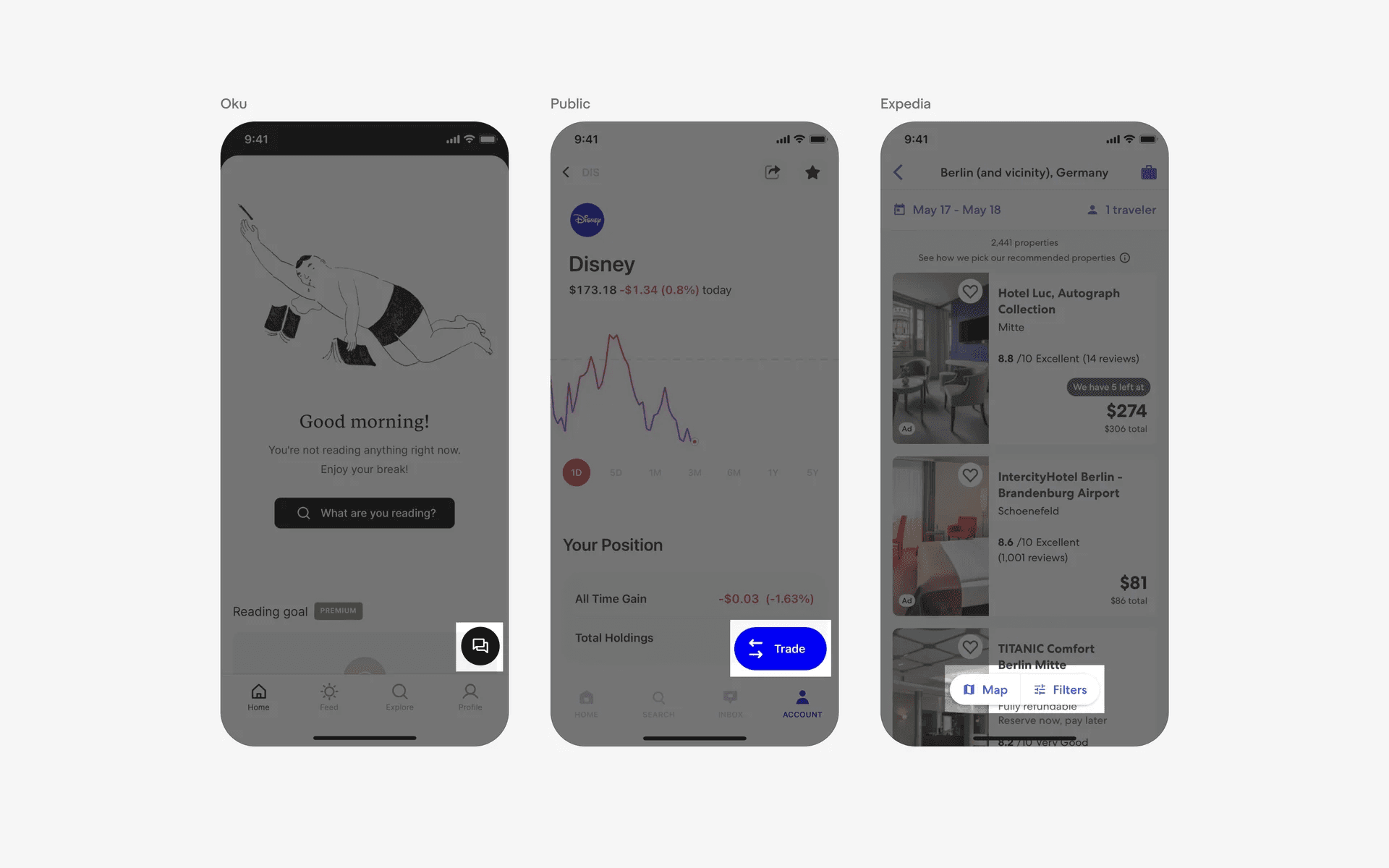
Example of Floating Action Buttons (FAB)
Buttons v.s. Switches
Switches are sometimes also called 'Toggle buttons'. A toggle switch is used for binary, mutually exclusive options.
On the other hand, Buttons are used to perform a range of actions - also, it does not need to be binary or mutually exclusive.