Toolbar UI

What is a toolbar component?
Toolbar provides a set of actions or tools that are relevant to the user's current task or view.
It is a group of buttons. They can be icon buttons or text buttons.
It is contextual. It provides users with quick access to actions tailored to the user's current context. These actions are related to the screen, e.g., creating an item, editing, marking up content.
If there are too many actions, consider putting non-essential actions under the action option icon to avoid cluttering the interface.
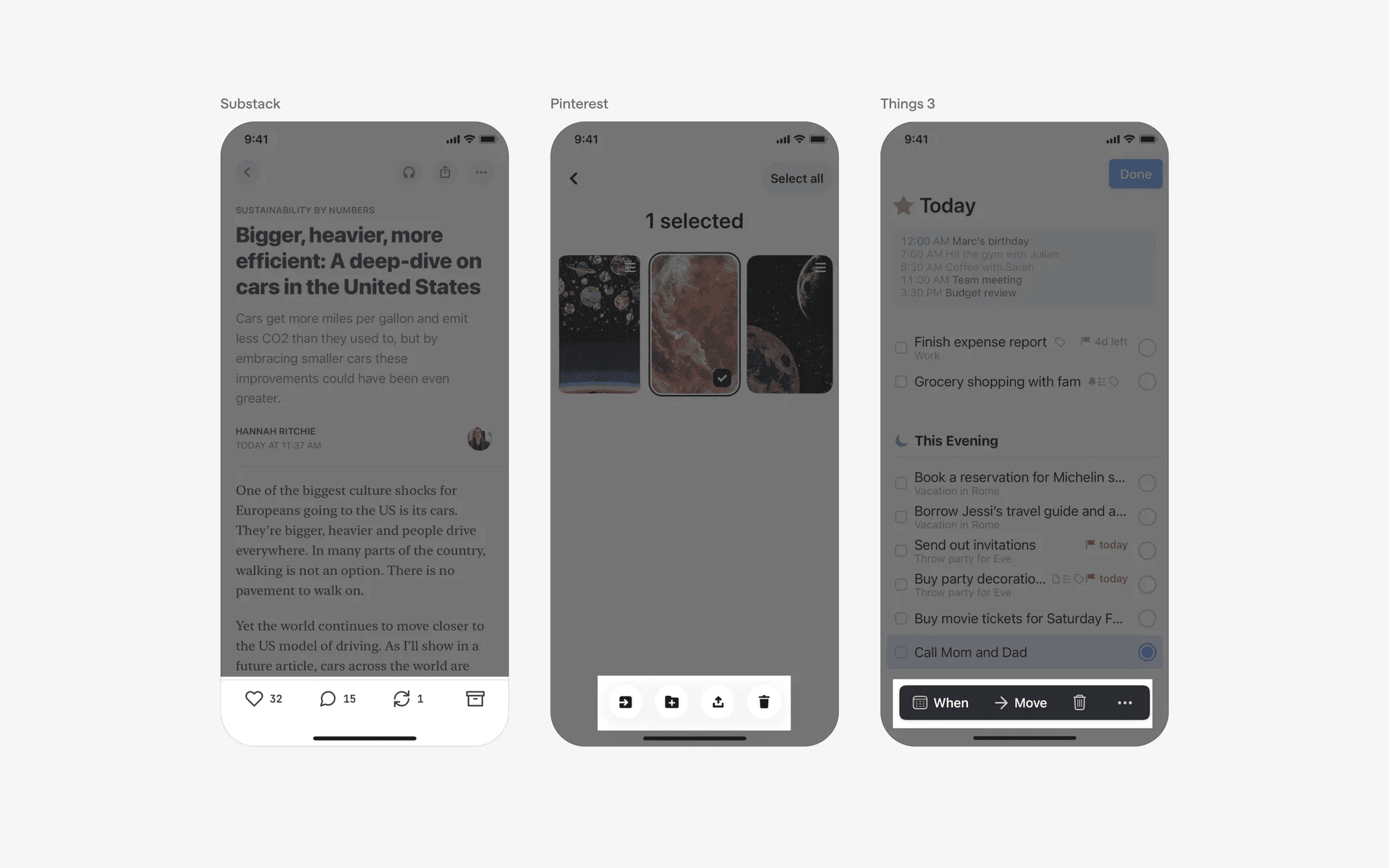
Examples of toolbars across different types of context
What is the anatomy of a toolbar?
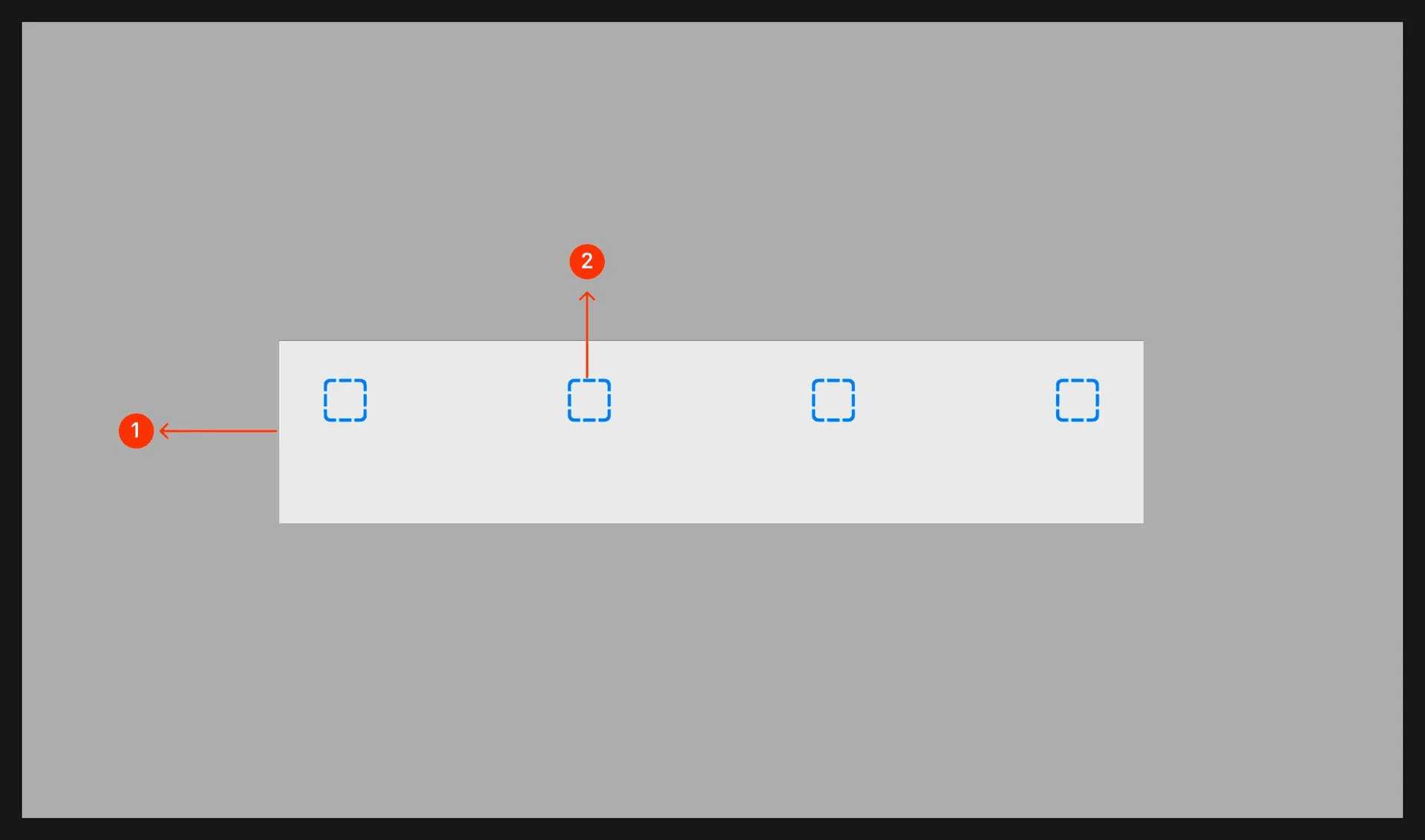
Anatomy of a toolbar
What are the design variants of a toolbar?
We studied over 2,300+ toolbar UI components on Mobbin, from real-world examples and found the following variants.
1. Toolbar button can be Icon or Text based
If an action is well-known and easily represented by an icon, using icons can keep the user interface clean. However, users might struggle to understand icons if they are less common.
Here are some icon-only toolbar buttons.
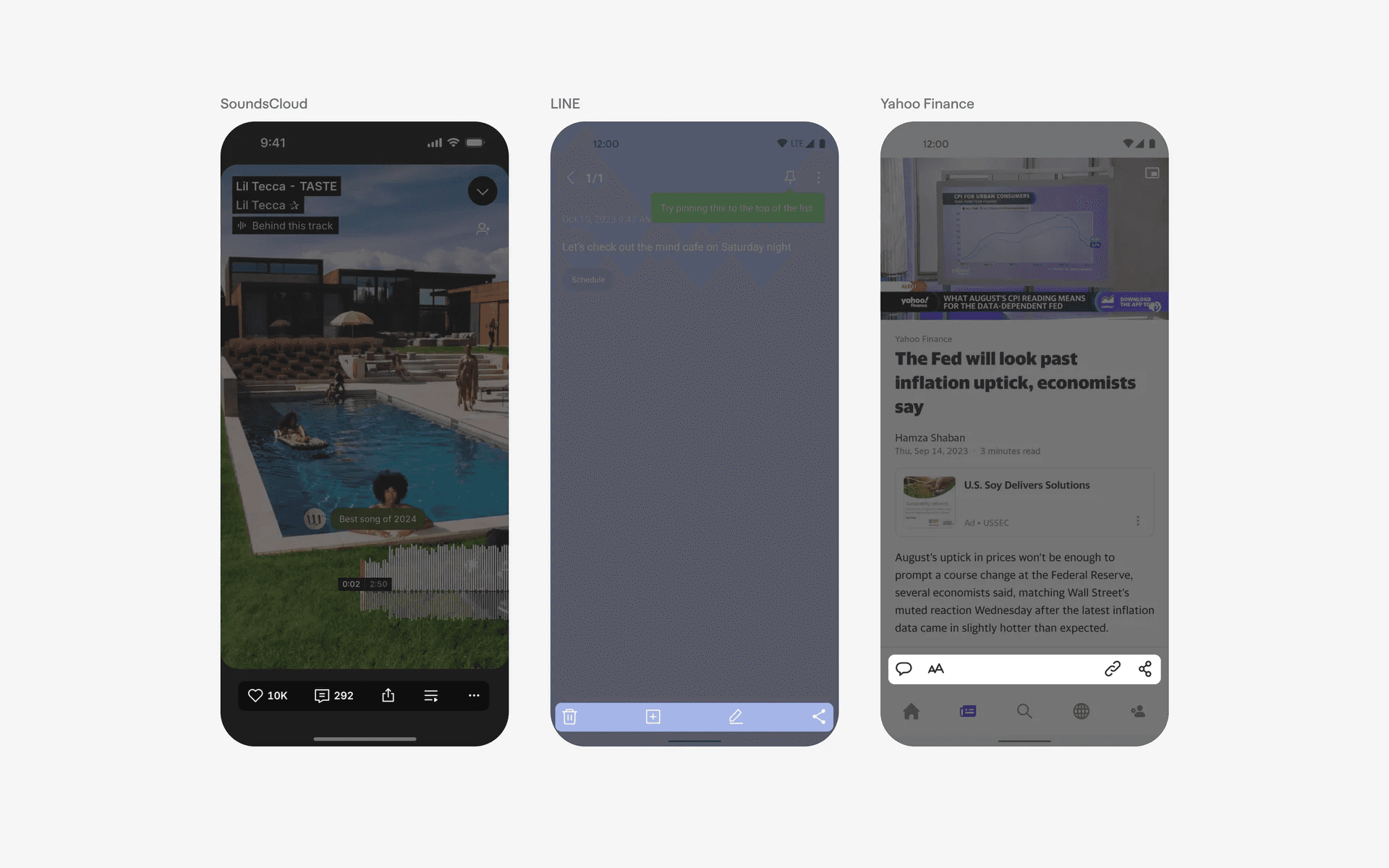
Examples of icon based toolbar button
Text-based icons might take up more space in the user interface, but they are a lot clearer.
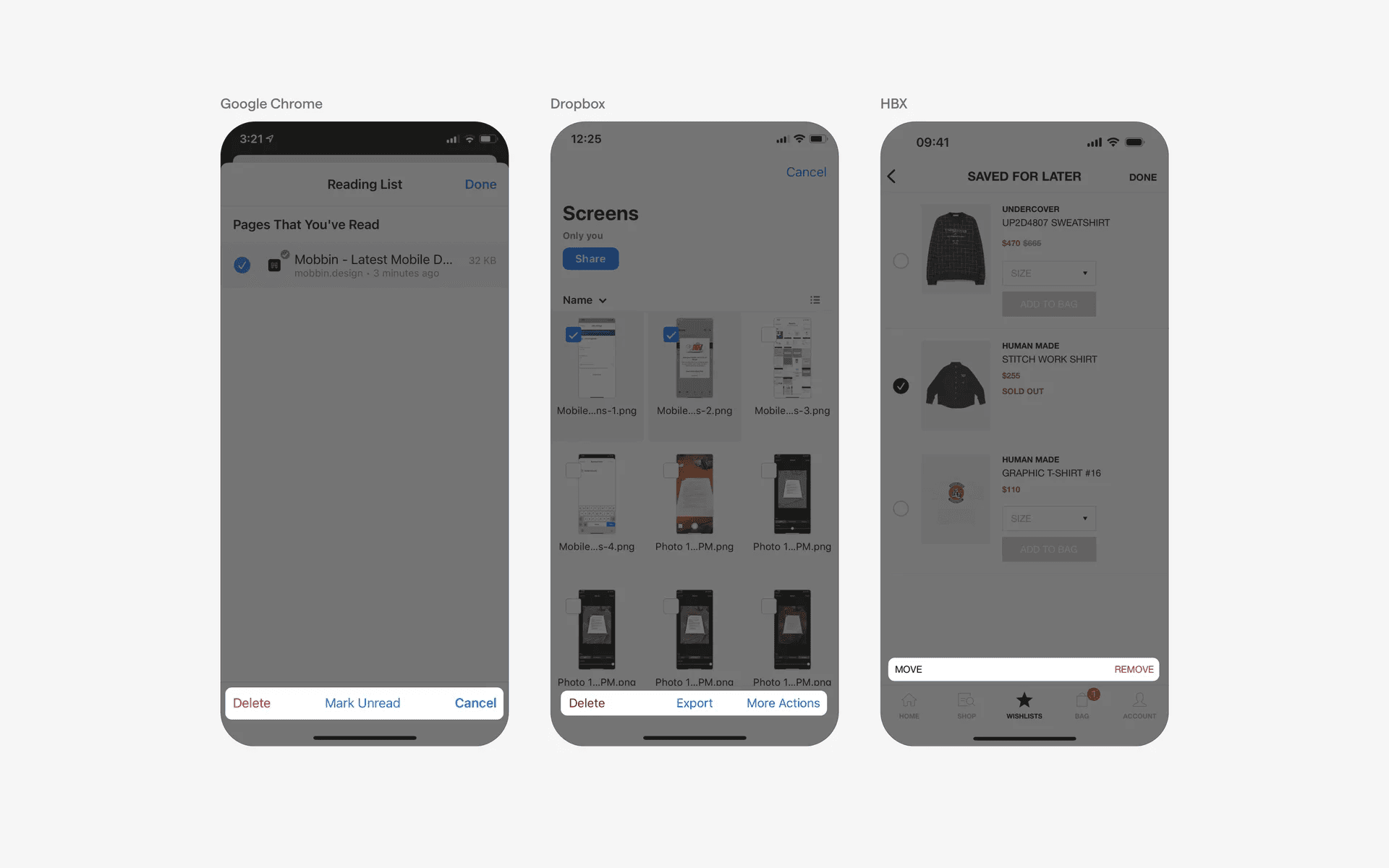
Examples of text based toolbar button
2. Horizontal & vertical toolbars
Depending on your needs, you can opt for a horizontal or vertical toolbar.
Here are some examples of horizontal toolbars.
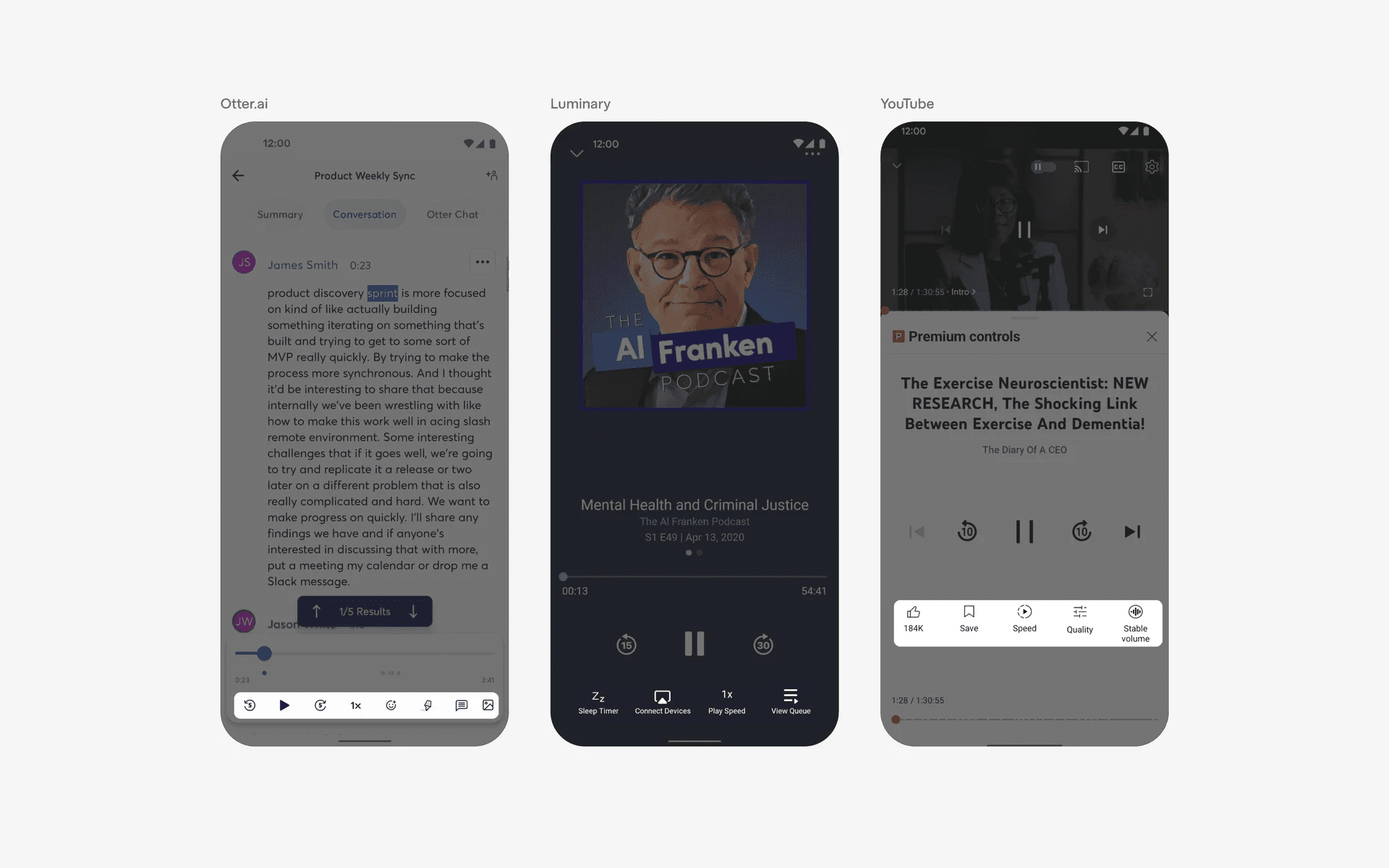
Examples of horizontal floating toolbar
On the other hand, vertical toolbars ar more popular in social media apps that are video or photo focused like TikTok or Instagram.
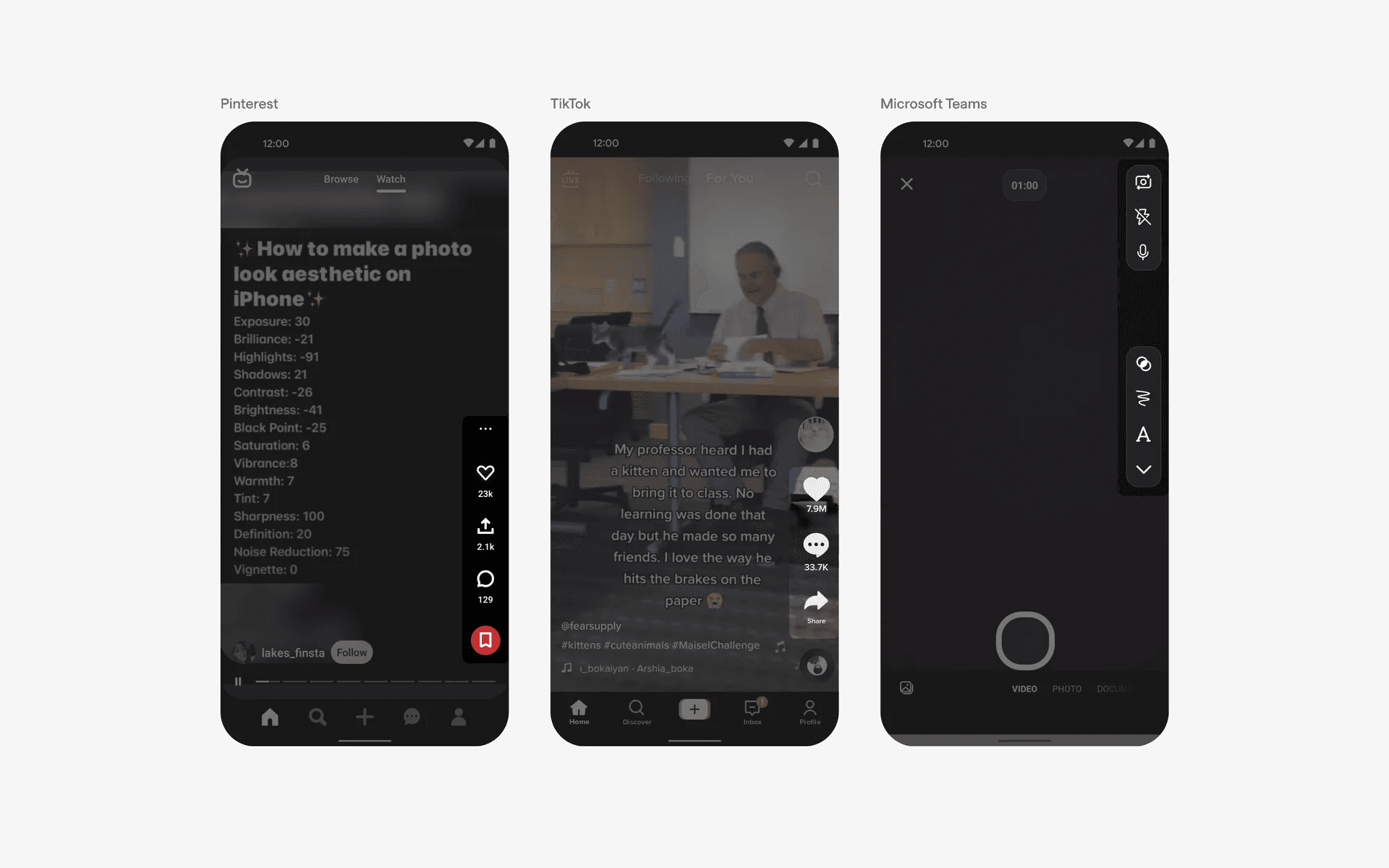
Examples of vertical floating toolbar buttons
3. Toolbar is contextual to underlying content
In different contexts, toolbars adapt to the specific needs of the user interface. Here are three common types of toolbars based on their input context.
Note taking apps have toolbars that often include basic text editor functionality like bold, italics, and strikethrough to help users format their notes easily.
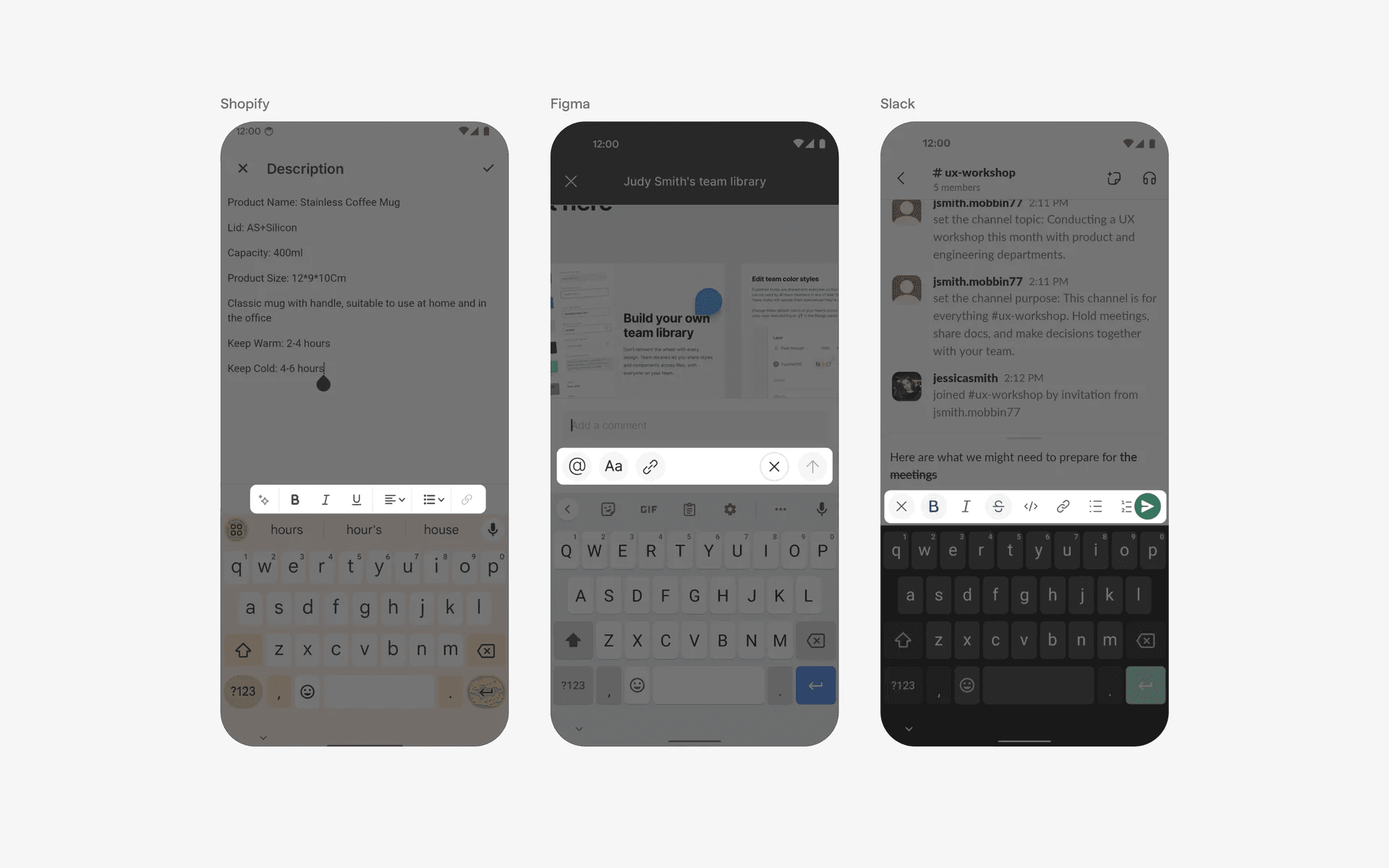
Example of toolbar in note taking apps
Chat apps have toolbars that include camera, microphone and file upload functionality, allowing users to send multimedia files and voice messages within the chat.
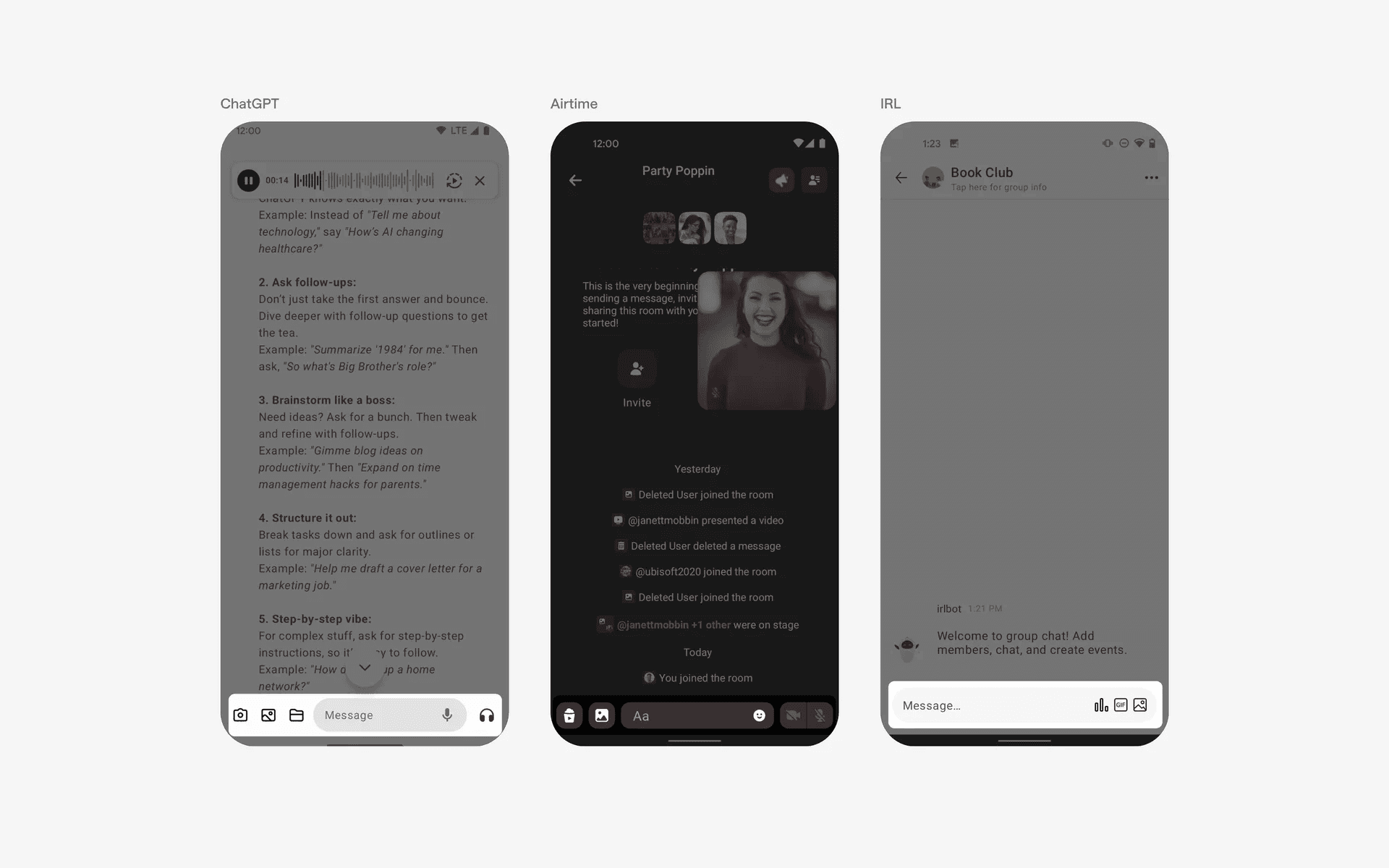
Example of toolbar in chat apps
Editing user flows have toolbars that allow for undo or redo buttons that allow users to easily manage changes while working on content or designs.
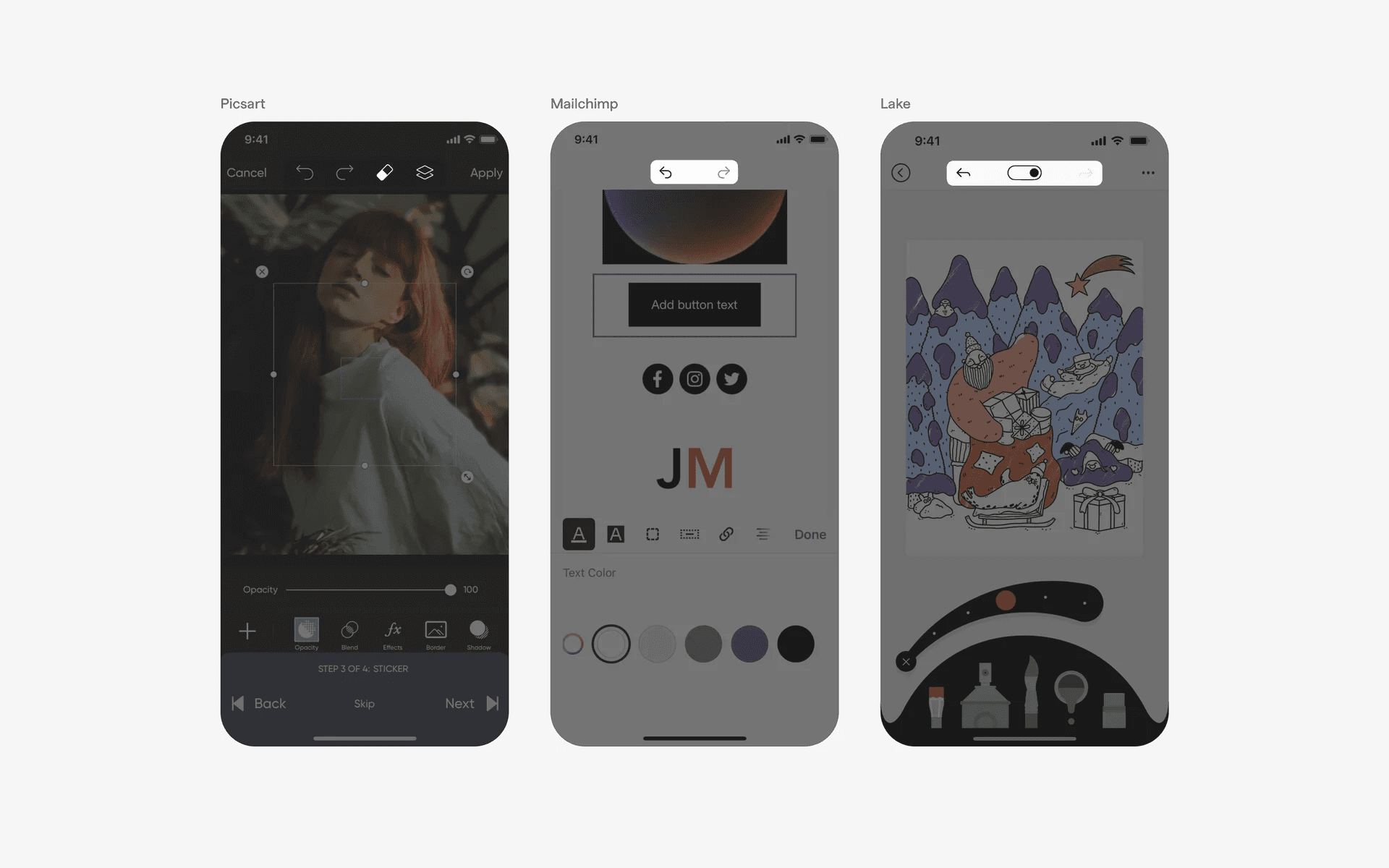
Example of toolbar in edit user flows
4. Usage of toolbars in media
Audio & video apps have a very specific toolbar design pattern that includes play/pause button, fast forward, and others.
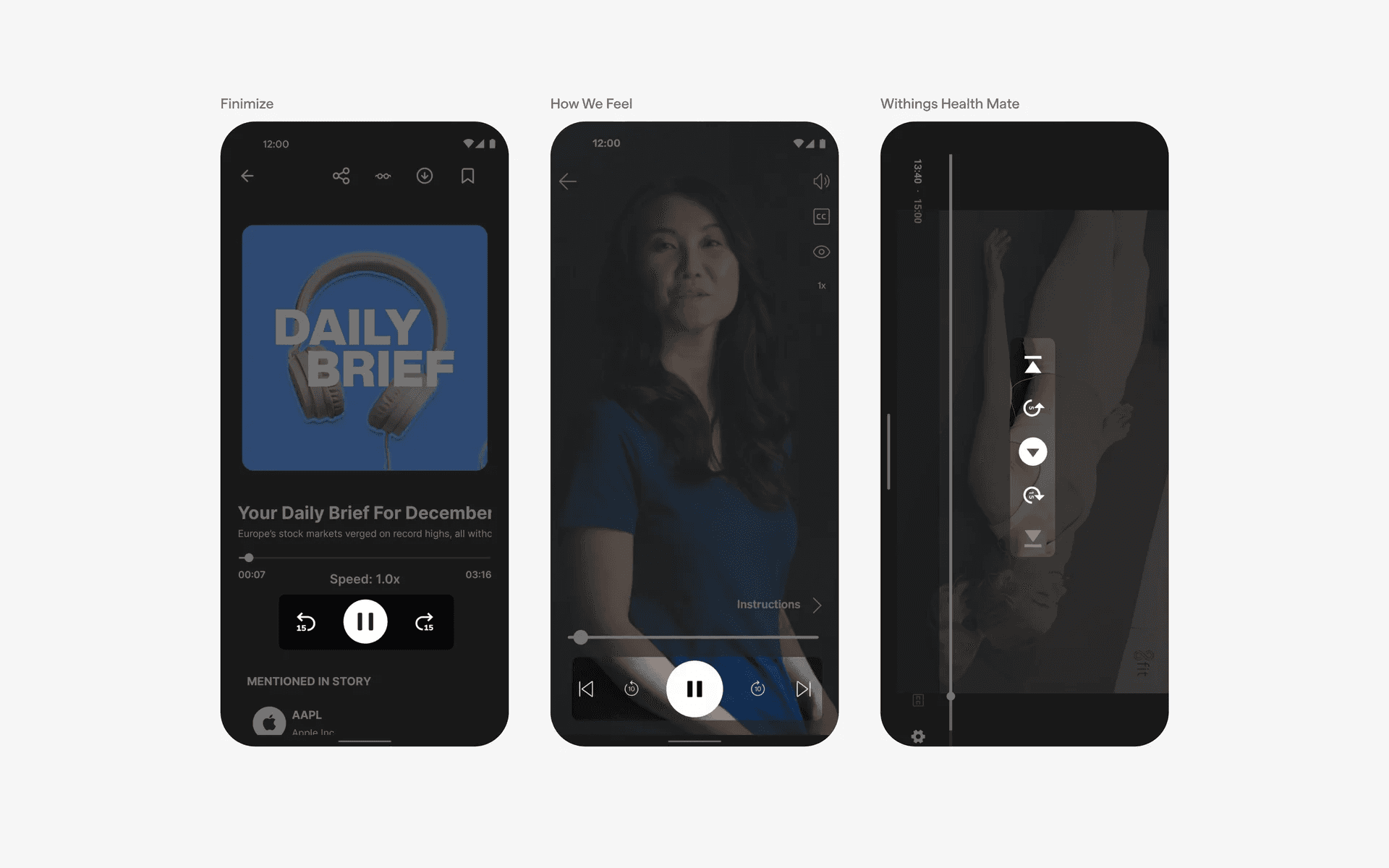
Example of toolbars in audio & video apps
Media editing apps often have complex toolbar functionality that allows granular and complex editing workflows.
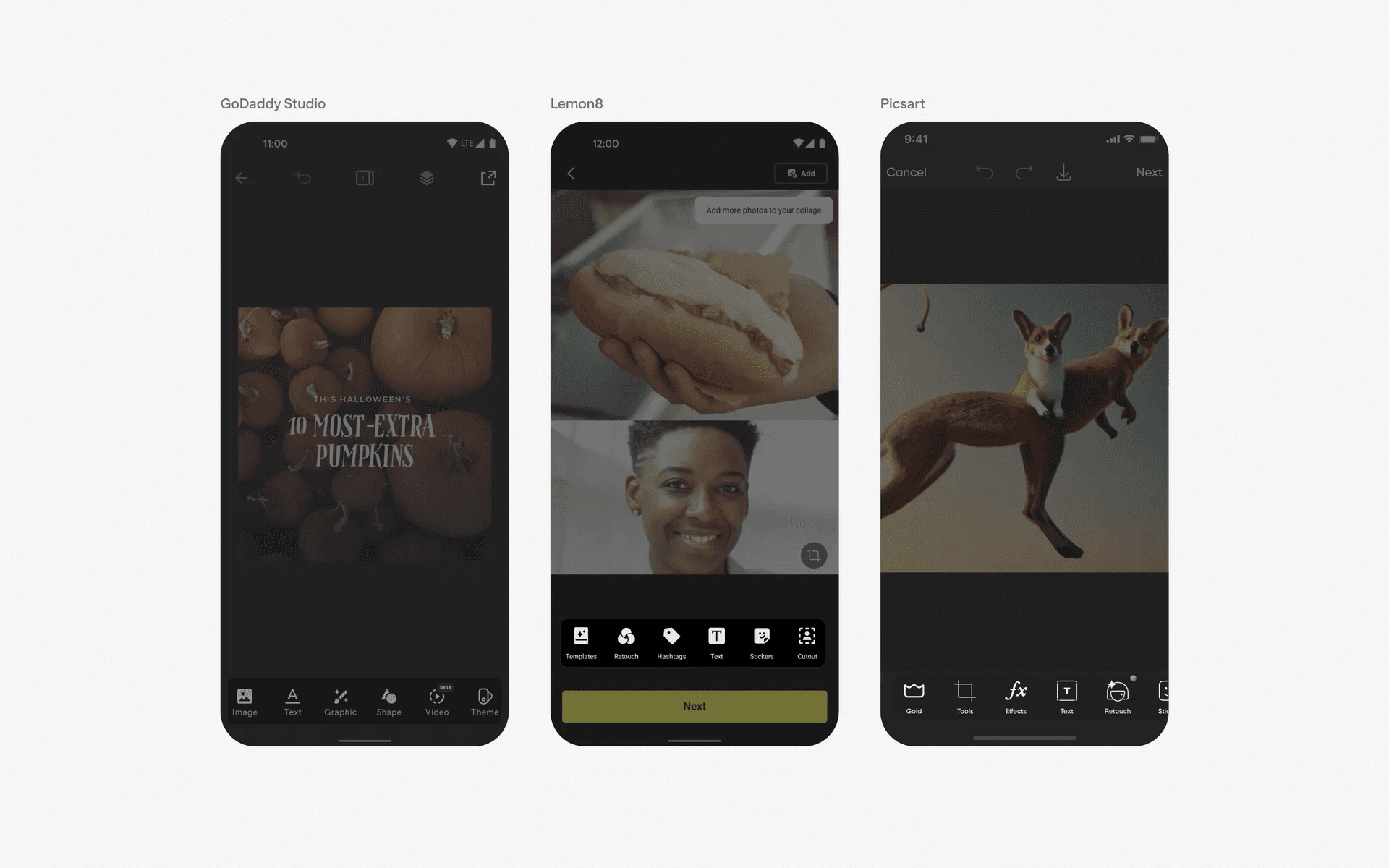
Examples of toolbars in media editing apps
When to use toolbars?
1. Action buttons
The toolbar may include buttons or icons for performing specific actions related to the current screen or context.
For example, in a messaging app, the toolbar might include icons for composing a new message, searching, or deleting conversations.
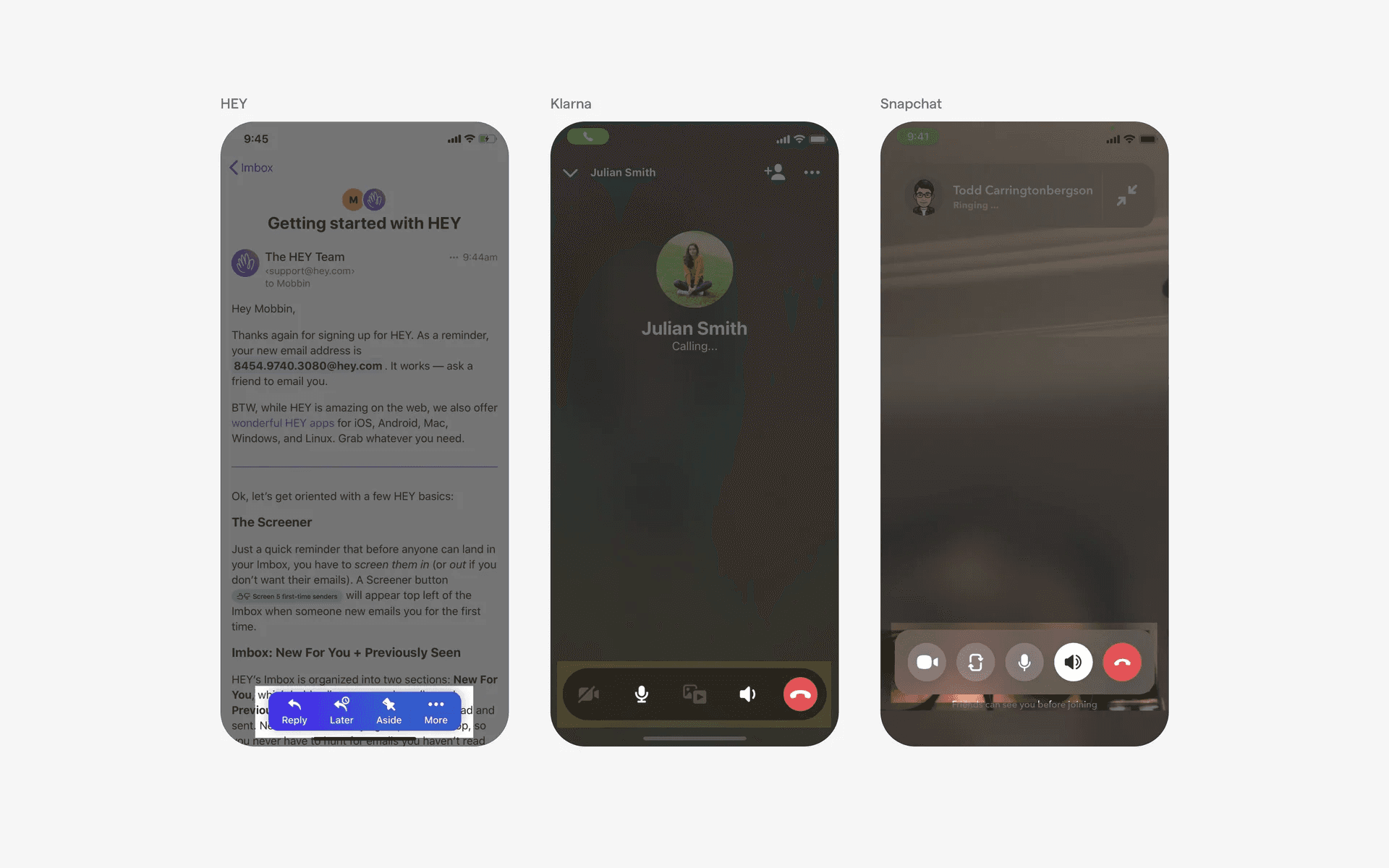
Example of toolbars and action buttons
2. Contextual actions
In certain contexts, such as selecting multiple items or editing content, the toolbar may display highly specific contextual actions.
For example, when editing a document, the toolbar might include buttons for formatting text, adding images, or saving changes.
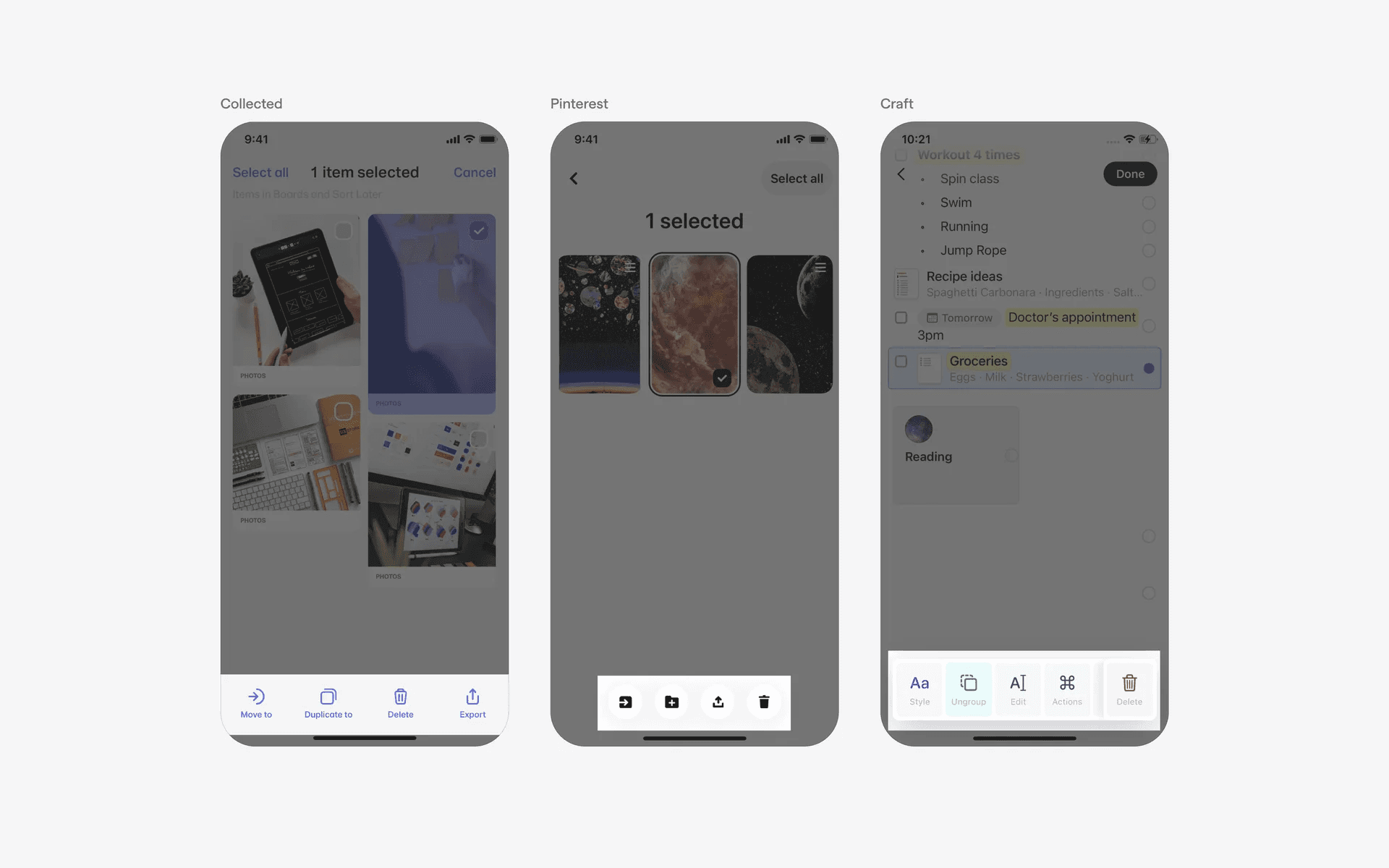
Example of toolbars and contextual actions
3. Media controls
In media playback apps, the toolbar often includes play/pause, forward, and backward buttons for controlling audio or video playback.
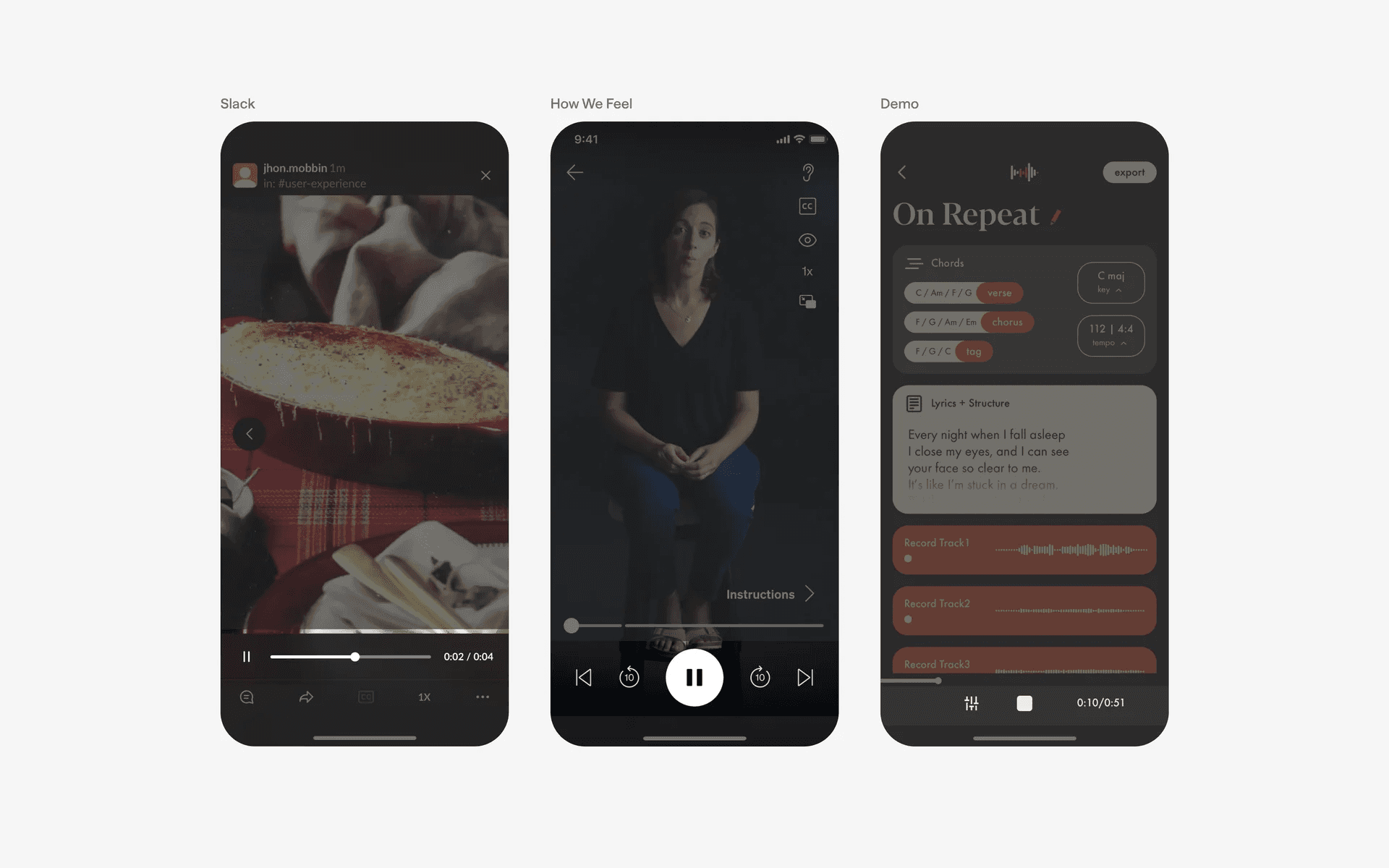
Examples of toolbars and media controls
Conflicting UI elements: Tab bar, Menu
1. Toolbar v.s. Tab bar
A tab bar is always located at the bottom of the screen, while a toolbar is not restricted to the bottom.
The primary purpose of a toolbar is to provide users with quick access to common tasks and actions within an app. A tab bar, on the other hand, is used to provide users with the ability to switch between different views or sections within an app.
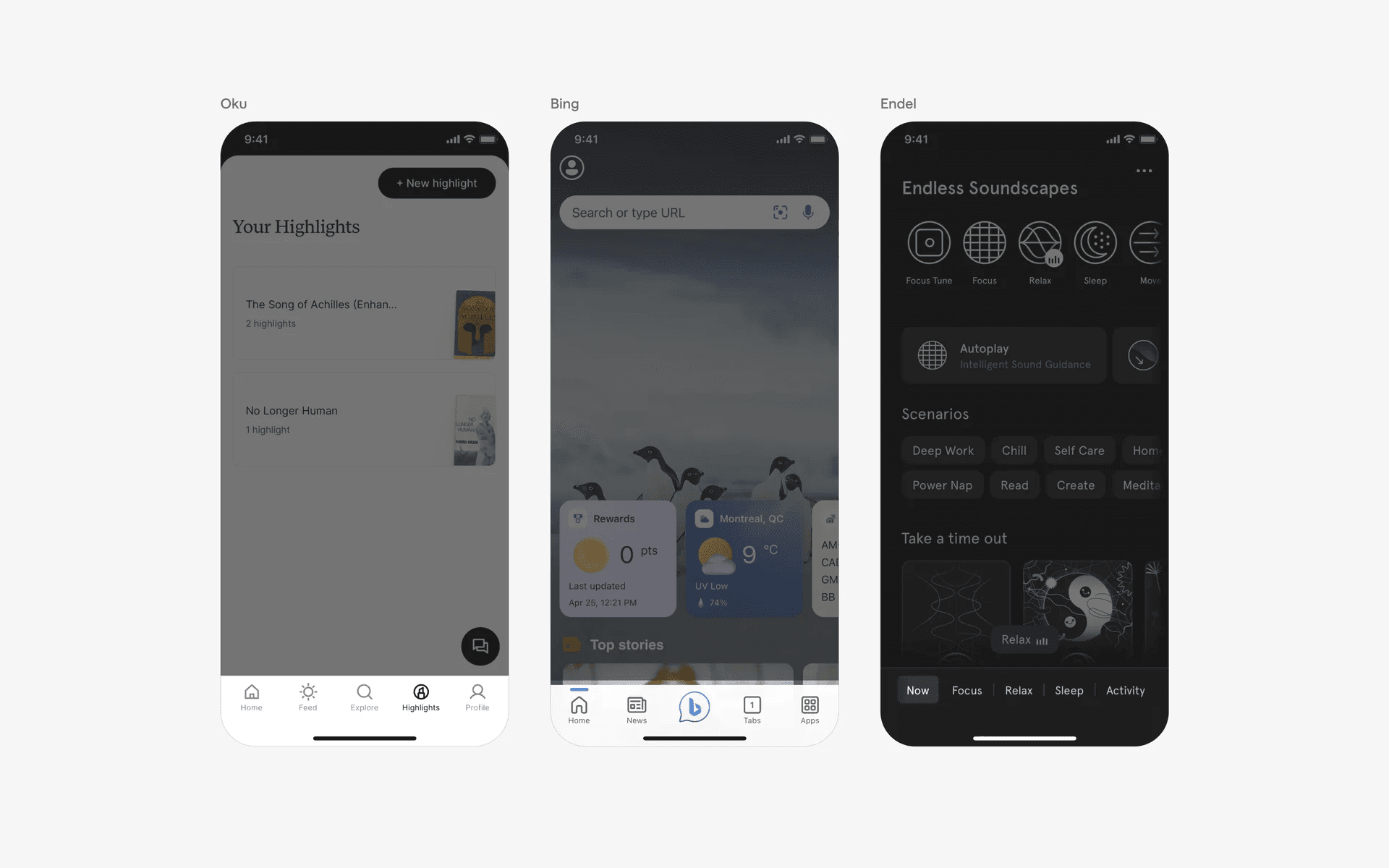
Examples of tab bar
2. Toolbar v.s. Menu
The purpose of a menu is to provide users with access to a wide range of options and actions that are not necessarily used frequently.
On the other hand, the purpose of a toolbar is to provide users with quick access to frequently used actions and features.
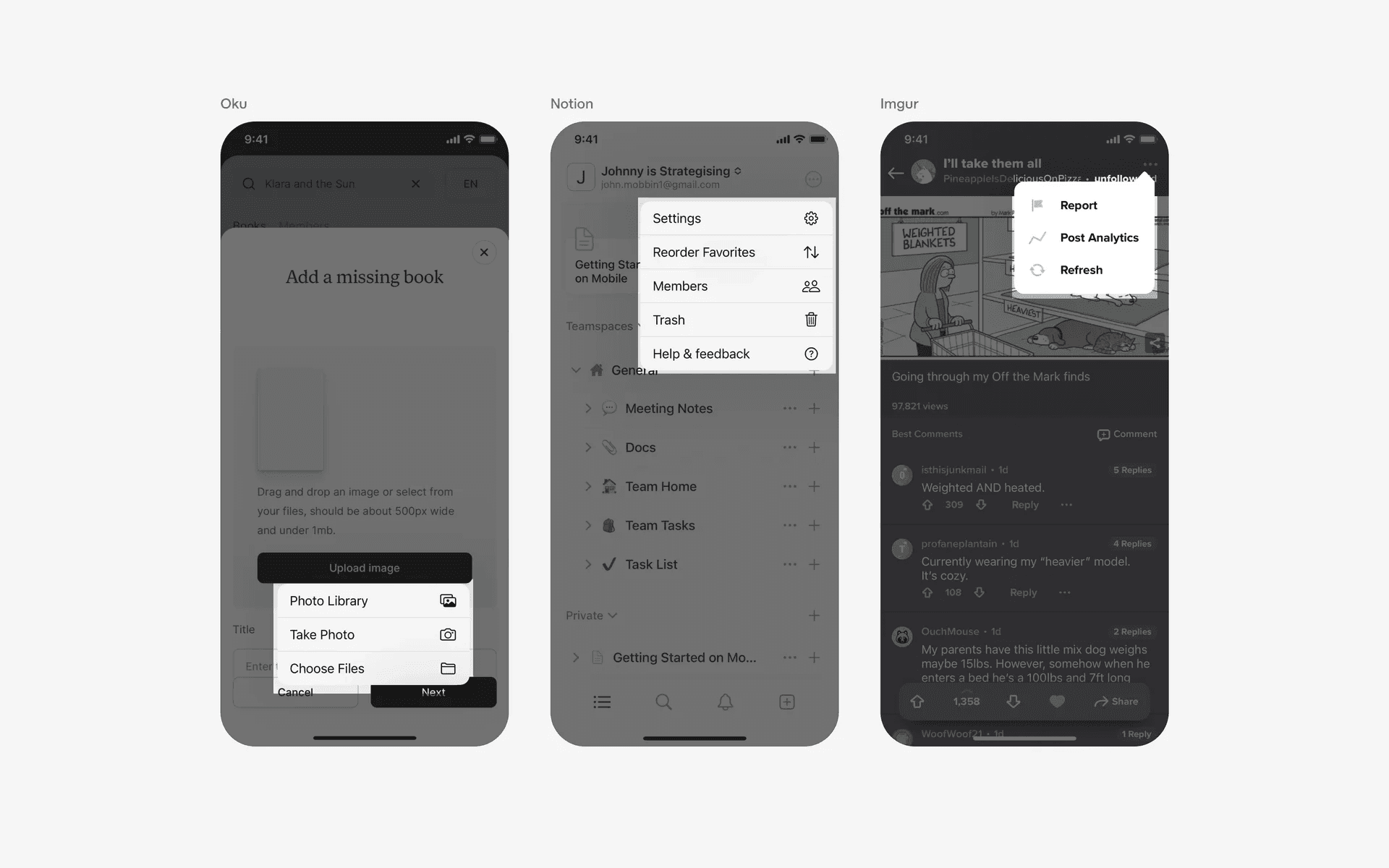
Examples of menu