Search Bar UI

What is a search bar component?
Search bar allows users to enter a keyword or phrase and get relevant information.
They can help users to find data more efficiently, and can be used at many different levels of the app hierarchy.
Global search: Searches through an entire app's content.
Page search: Searches through content on one page specifically.
Component search: Searches data in a specific component. For example, a search feature on a data table UI.
A familiar example of search hierarchy can be found in WhatsApp (2.9+ billion users).
It features a global search bar that lets users search across all conversations.
Additionally, each chat group offers a local search function, enabling users to search within the chat history of a specific group. This offers a more targeted search experience.
While the search bar design is usually simple, search bars can have different levels of complexity. This ranges from a simple & intuitive auto suggestions (Google), to more advanced search options (Slack).
The search bar UI design pattern is commonly found in: Home screens, Lists & collections, Contacts & Messaging.
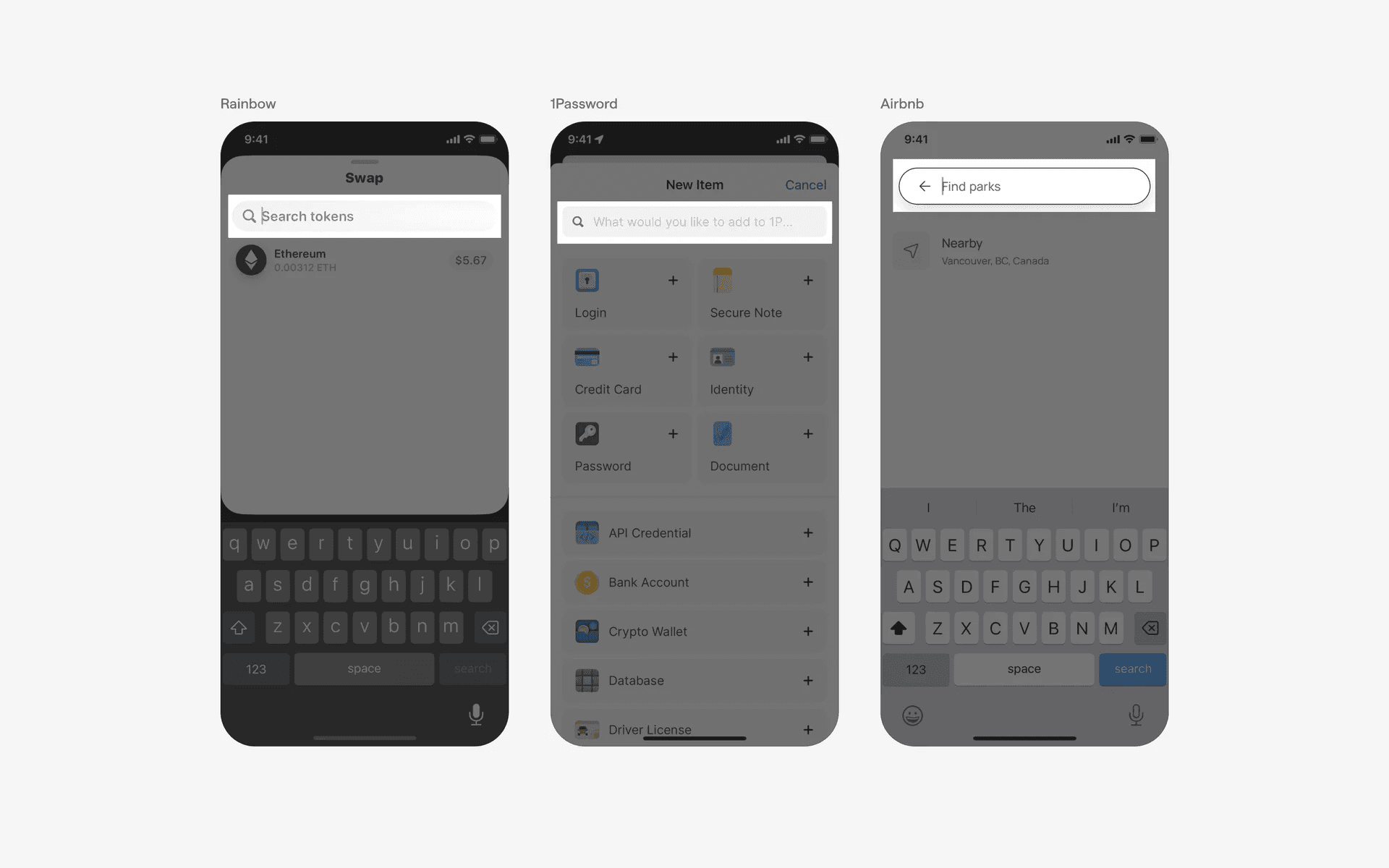
Search bar UI design examples
What is the anatomy of a search bar?
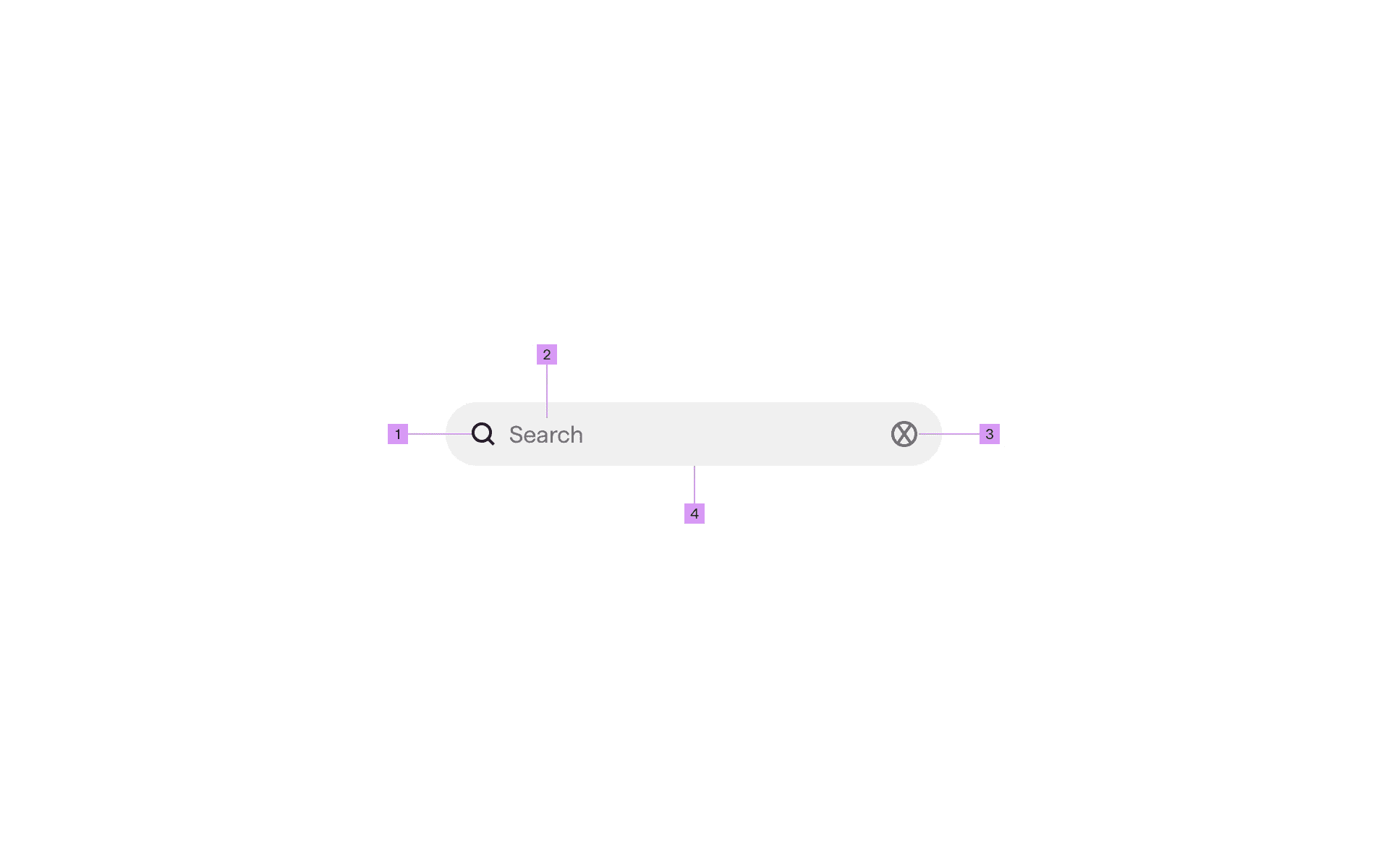
Anatomy of a search bar design
1
Leading Icon
2
Placeholder
3
Trailing Icon
4
Container
What are the design variants of a search bar?
We studied over 6,000+ search bar UI components on Mobbin, from real-world examples and found the following variants.
1. Search bar icons and placement
The standard icon that is most used is the magnifying glass icon (also known as the search glass icon).
The most common placement is having the icon on the left side of the search bar.
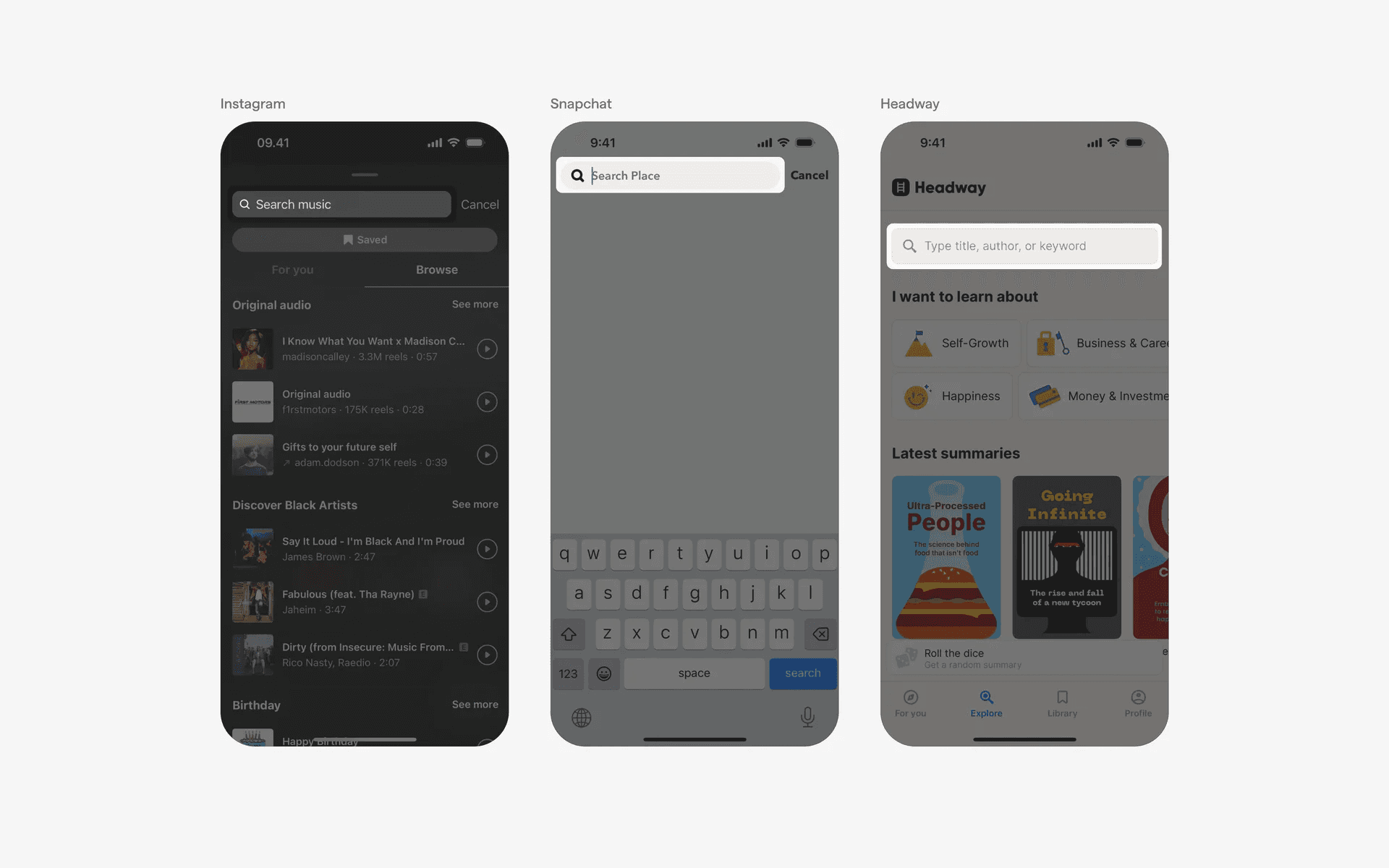
Examples of magnifying glass icon on the left side of the search bar
Alternatively, we've also found plenty of examples of magnifying glass icon place on the right side of the search bar design.
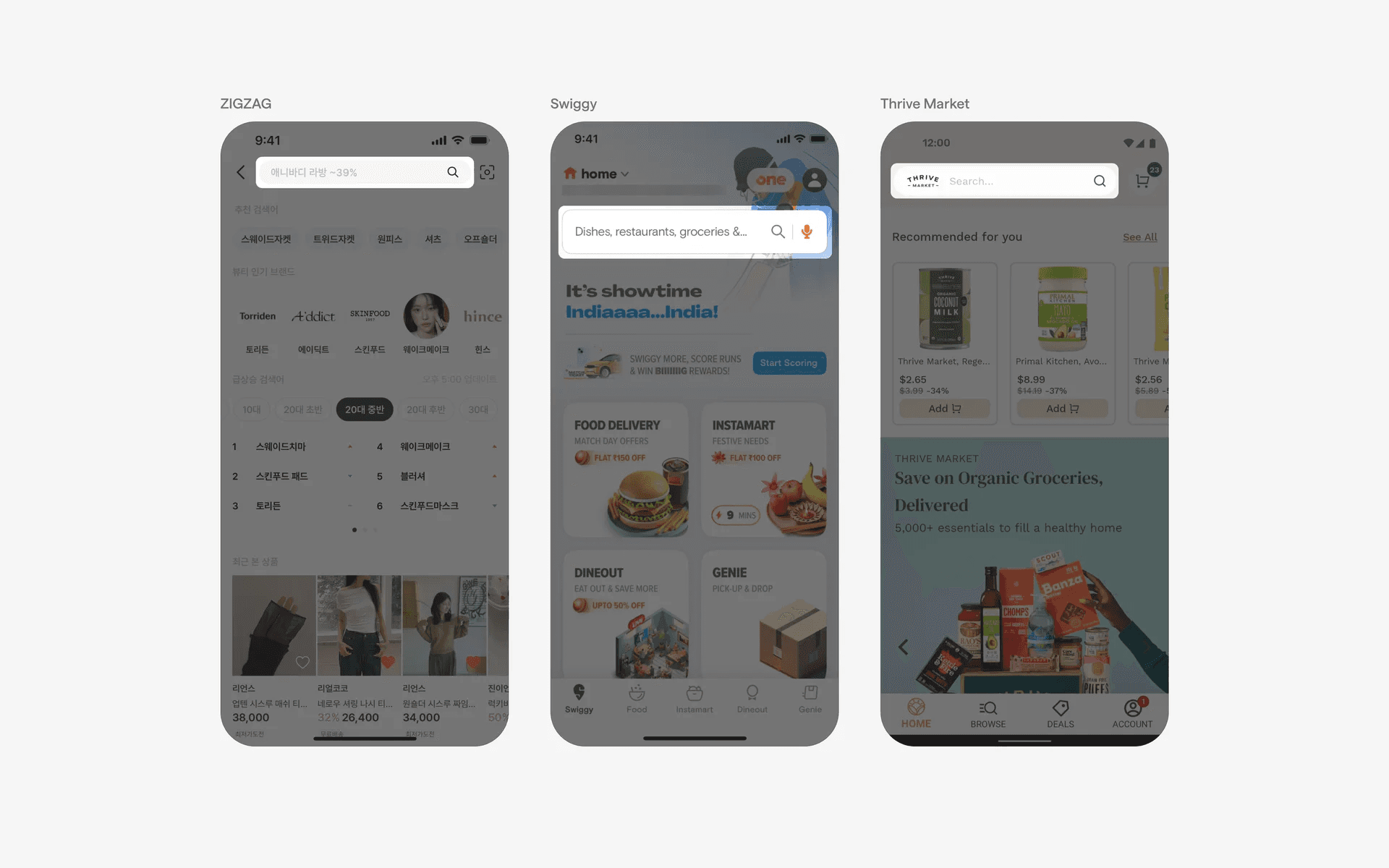
Examples of magnifying glass icon on the right side of the search bar
Finally, some apps choose to avoid the search bar icon altogether, and just go with a placeholder text.
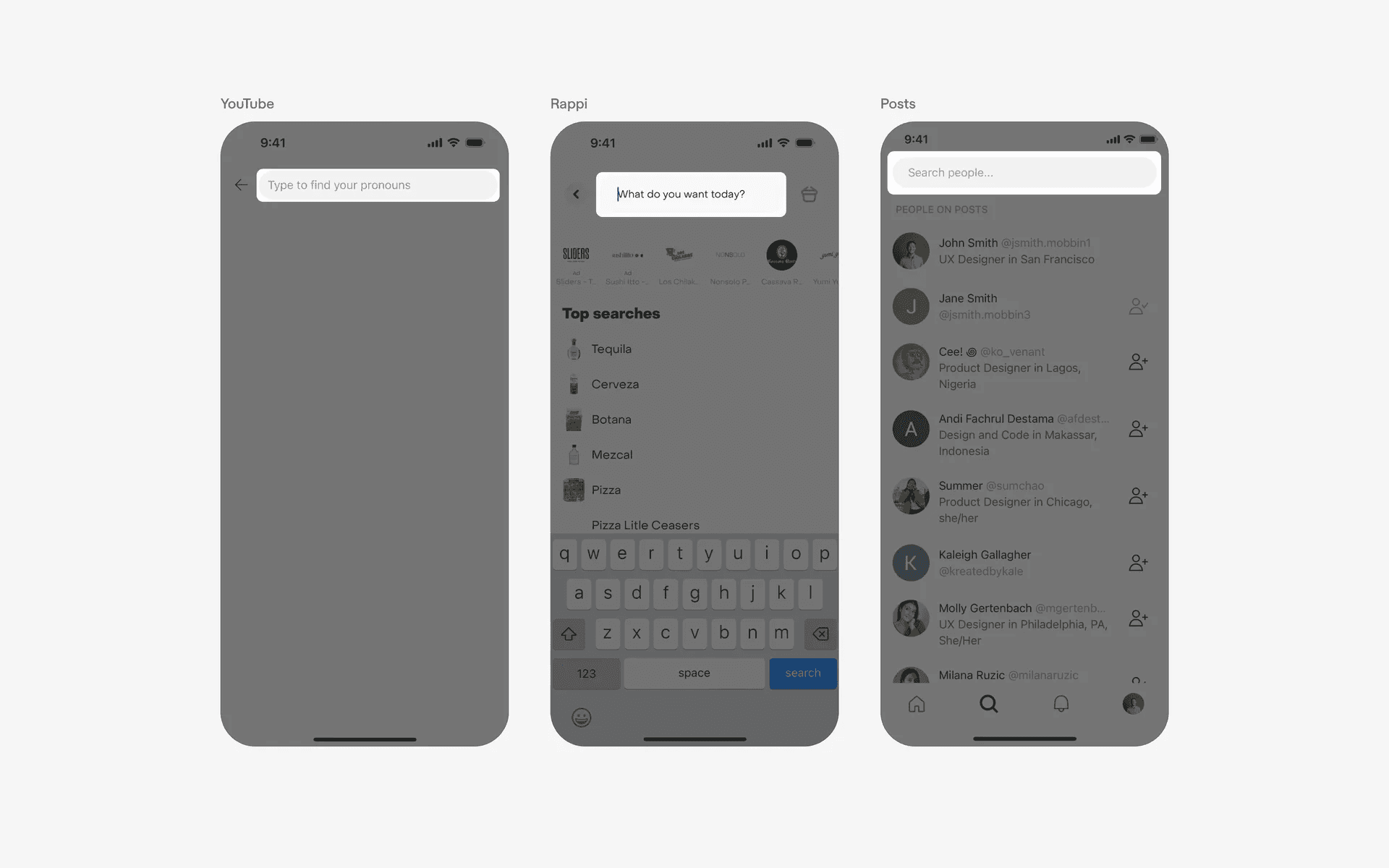
Search bar with no icons.
2. Auxiliary search button
The most common auxiliary search button on the search bar design is the 'clear' button. This makes it clearer to users that you can easily clear your searches so that you can input a fresh one.
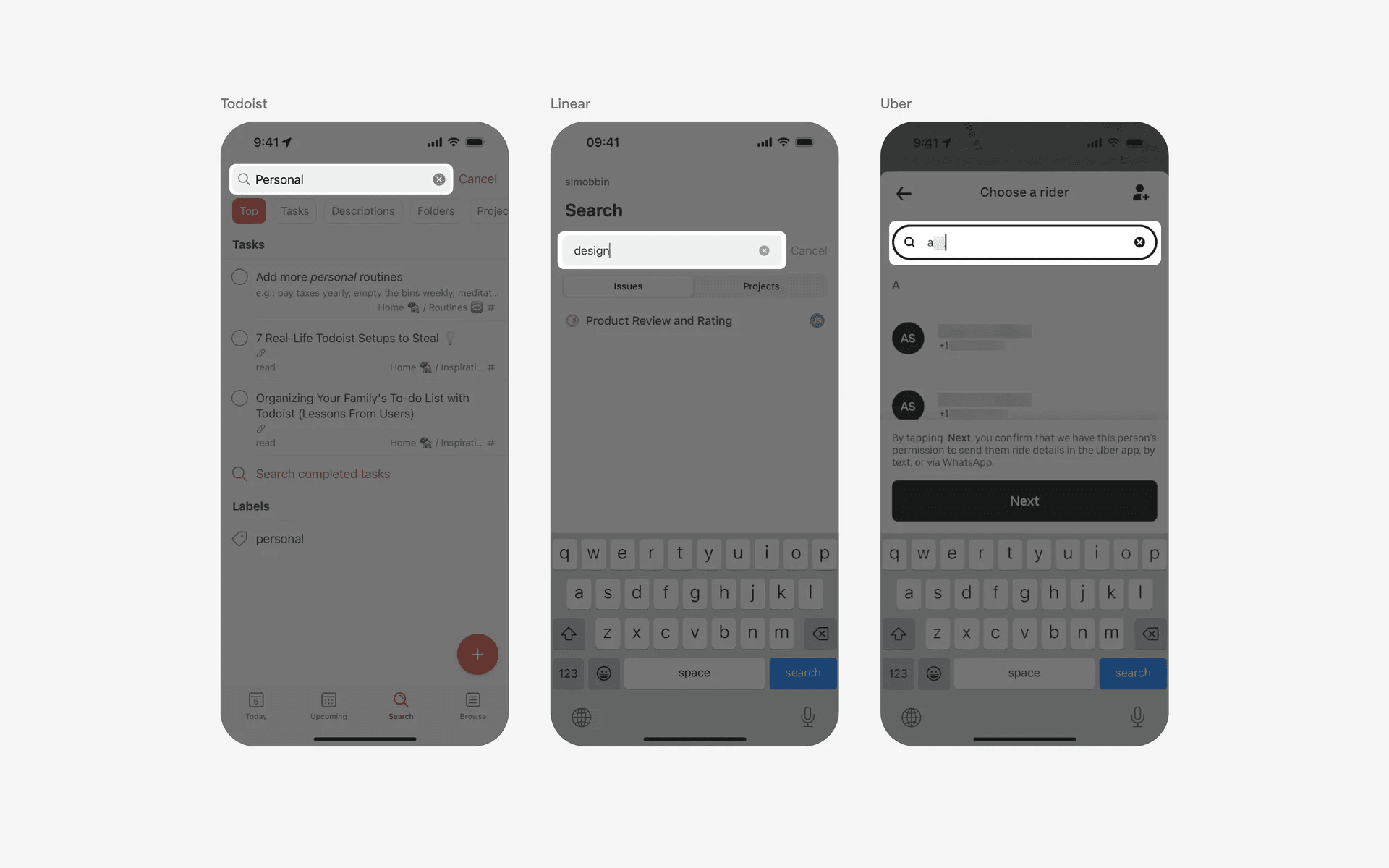
Clear auxiliary search button on search bars
We've also seen search bars with Audio search, Image search, and Filter auxiliary buttons.
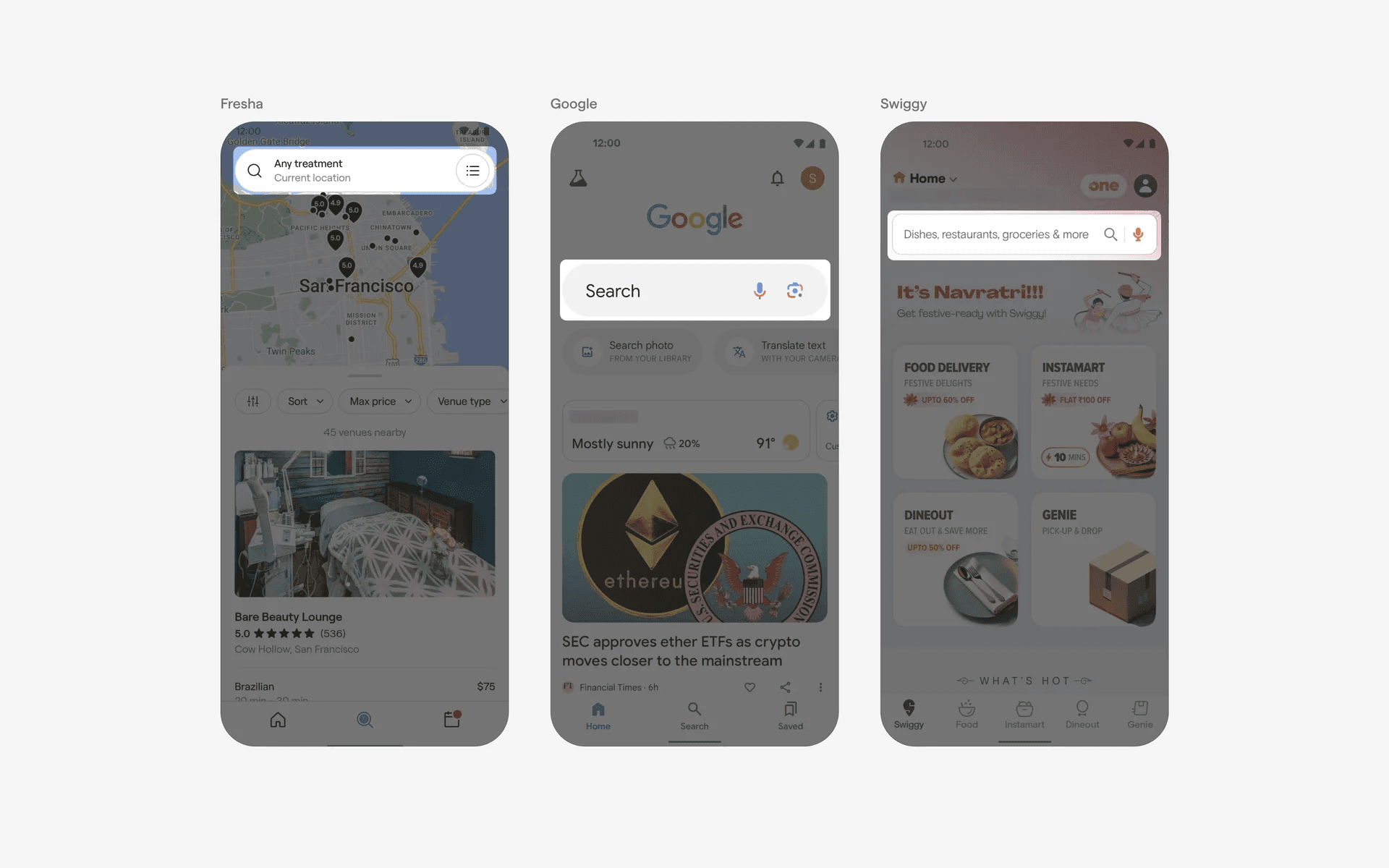
Audio search, Image search and Filter auxiliary search button.
3. Travel apps have a different search bar design
Travel apps have a slightly different search functionality.
Their search box design comes with a 'To' and 'From' input field.
Good example includes hotel and transport apps like Airbnb, Booking.com, Uber, Lyft.
The search functionality usually comes with location autocomplete suggestions since traveling is usually location based.
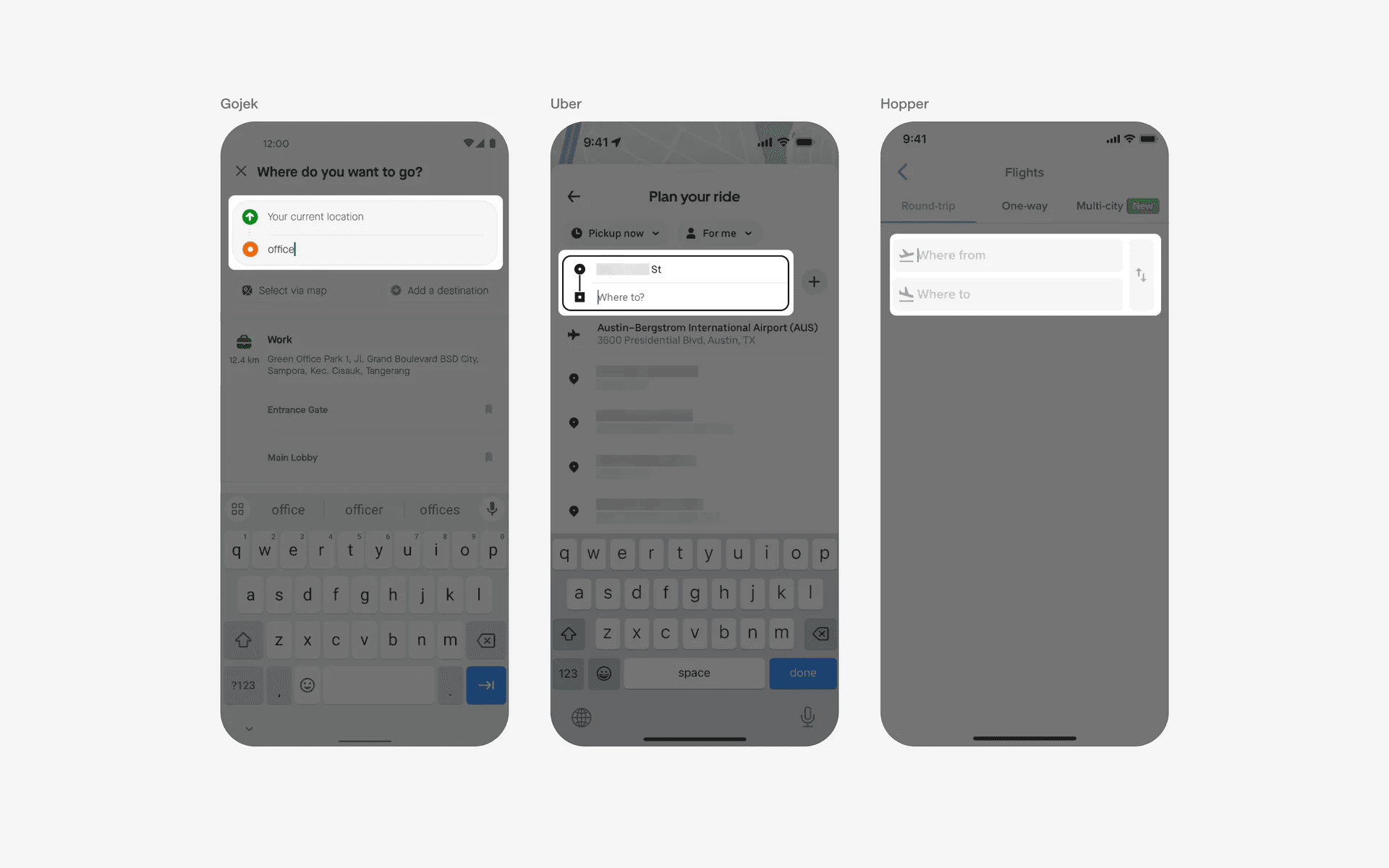
Examples of search bars in travel apps.
4. Search bars with no containers
We've also seen search bars with no containers - these apps usually sport a cleaner design interface.
If you're considering doing something similar, make sure that your search bar is still visible and intuitive to your users.
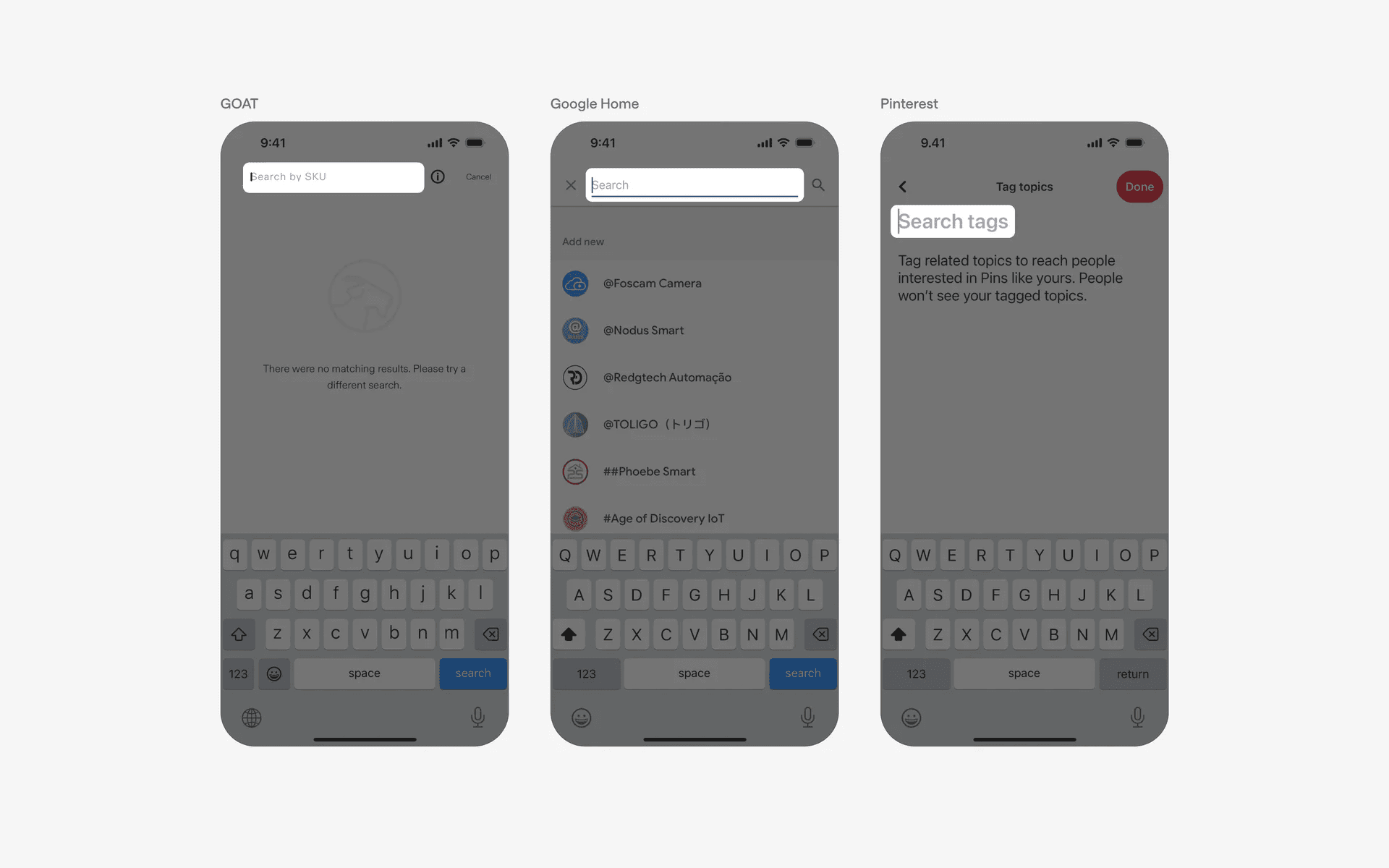
Examples of search bars with no containers.
When to use search bars?
1. Home screens / Navigation menus
Many apps include a search bar on the main home screen or dashboard, allowing users to search for content or navigate to specific sections within the app.
Examples of search bars in home screens or navigational menus.
2. Lists & collections / Content search bar
Apps often display lists or collections of items, such as contacts, products, articles, or media.
In these cases, a search bar is often included at the top of the list, enabling users to quickly search and filter the content based on their preferences.
Examples of search bars in lists & collections or content pages.
3. Contacts & messaging
Messaging apps often include a search bar to help users find specific contacts or conversations quickly.
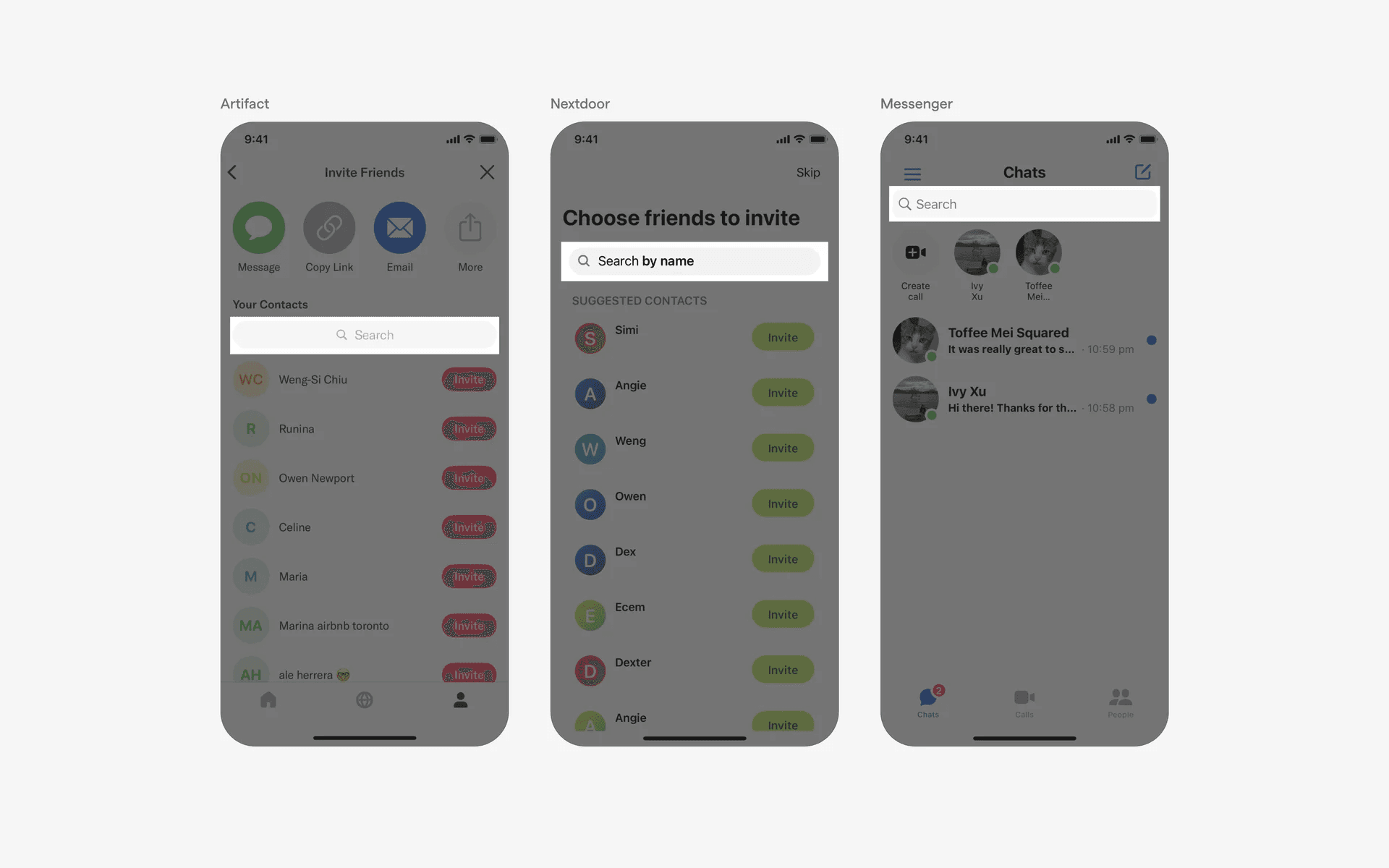
Examples of search in contacts & messaging.