Error Message UI

What is an error message?
An error message appears when an app fails to complete an expected action.
As frustrating as they can be, error messages play a vital UX role by informing users about problems or issues encountered during app use. Without them, users would be left confused, with no clue why their app isn’t working or how to fix it.
Take this infamous example from Windows 10, lovingly known as the "Blue Screen of Death" or simply BSOD.
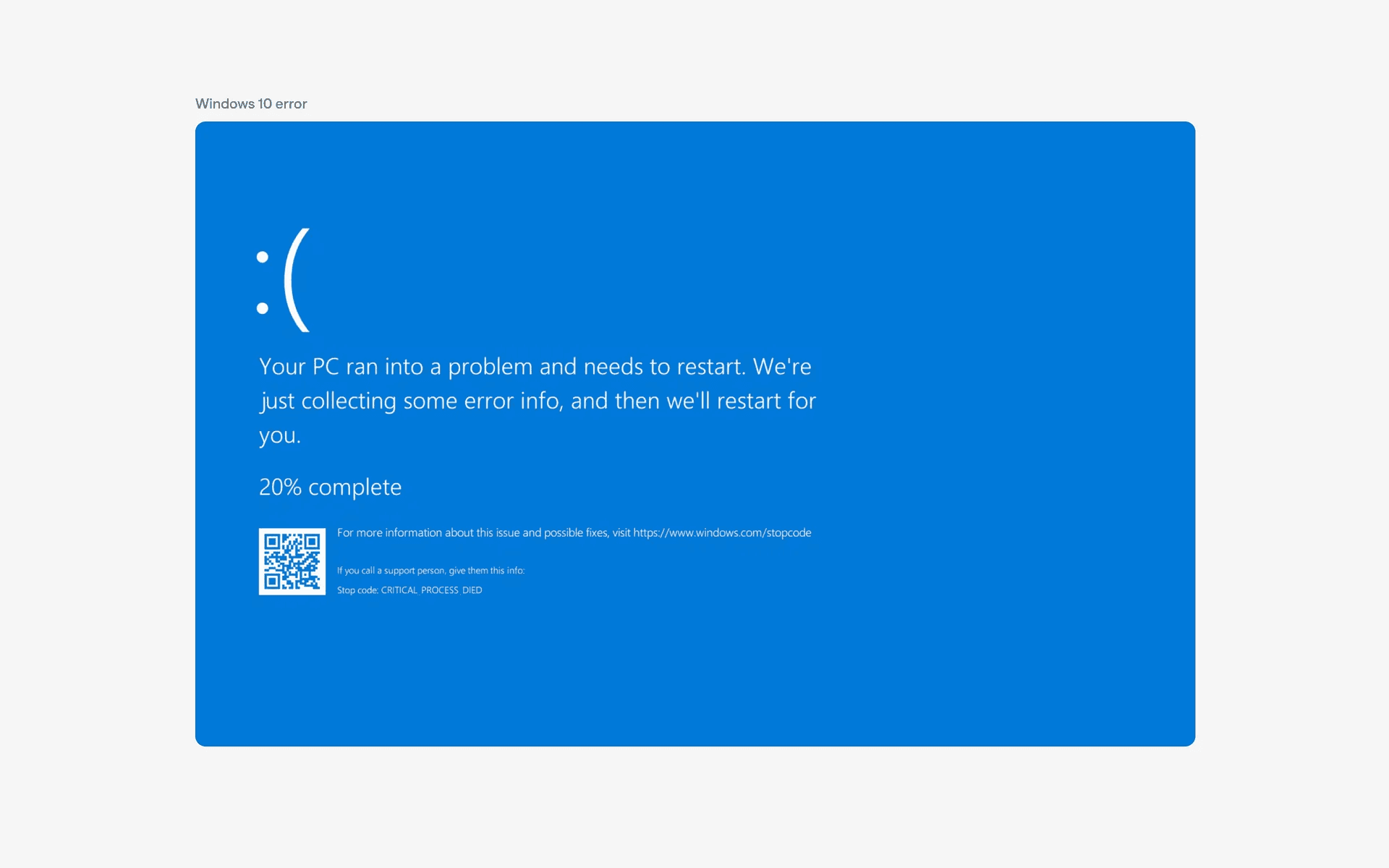
Windows 10 Error
While it’s funny in retrospect, vague error messages like this can frustrate users and harm the experience.
In this article, we will go through the do's and don'ts of error messages, and the top 7 real-life examples of how error messages are implemented in production, sourced directly from Mobbin's database with over 2,000+ error message examples.
Error messages: Dos and don’ts for a better UX
Designing error messages might seem simple, but a few key practices can make or break their effectiveness. Here’s a quick guide:
Additionally, choosing the right UI components is also key:
Important errors: Use Modals, Banners, or Overlays to grab attention and interrupt flow.
Minor errors: Use Toasts or inline hints to inform without disrupting the experience.
7 error message examples to inspire you
Here are seven unique error message designs from Mobbin’s collection, each leveraging different UI components to enhance UX.
1. Netflix
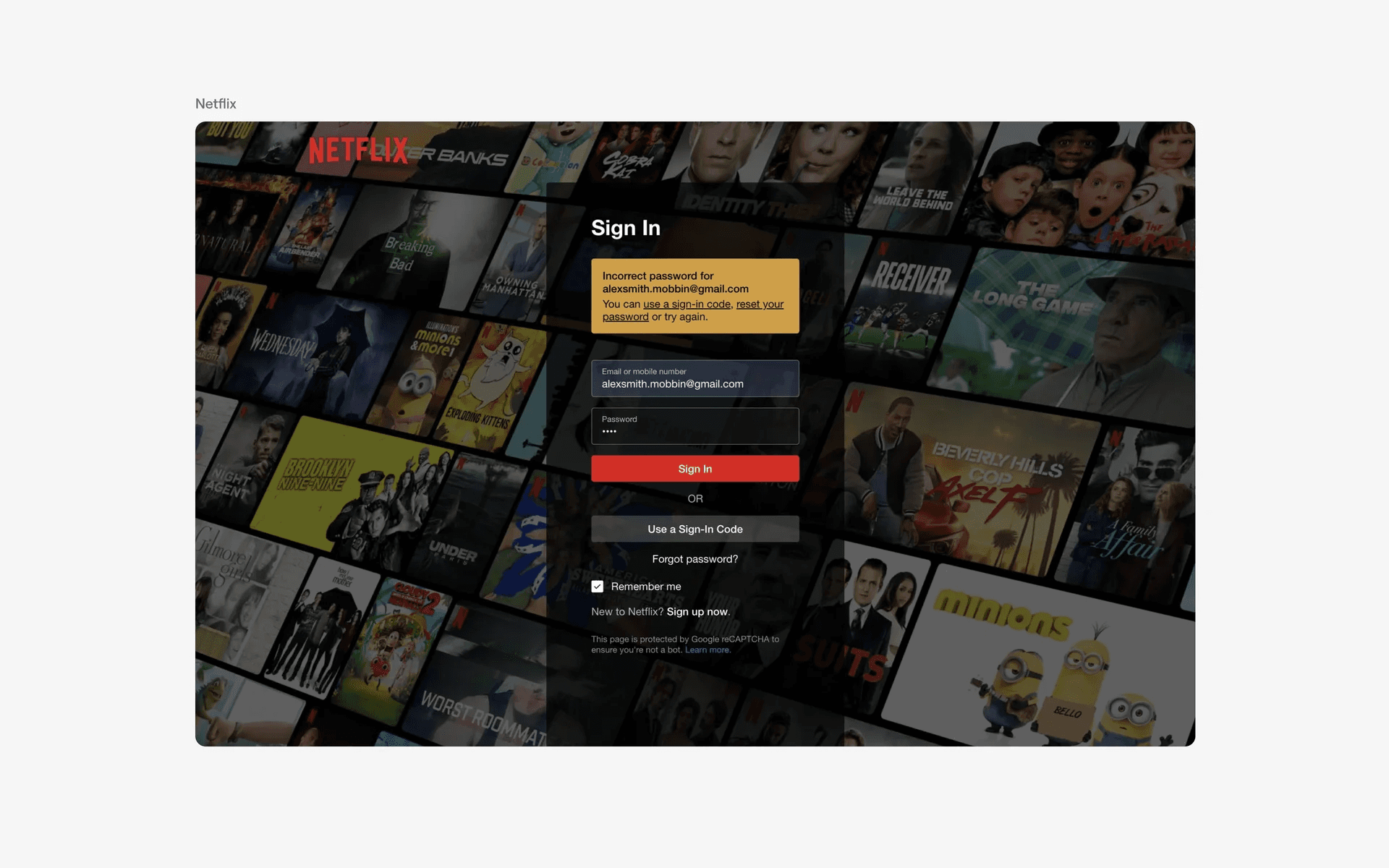
Netflix error banner
Unless you're living under a rock, you probably already know what Netflix is - and like us, you're probably already a subscriber.
Interestingly, Netflix has chosen to go with a Banner error message instead of an inline validation message on the sign in page. The likely reason for this design option is so that they can recommend very specific resolutions for the user's incorrect password problem - "Use a sign in code", "reset your password", or, try again. With an inline error message, it will be difficult to find enough space to fit in this copy.
Next, you'll notice that the banner background color is yellow instead of the more commonly used red color. This is likely because Netflix's primary button is already using the red accent - and a yellow error banner message is more suitable in drawing attention in this context.
Overall, this is a great example of a very clear error message - it calls out the problem directly, and suggests proposed solutions to the user's problem.
As you can imagine, a company like Netflix has almost 300 million paying subscribers. And this single design choice could make or break their customer support load.
2. Duolingo
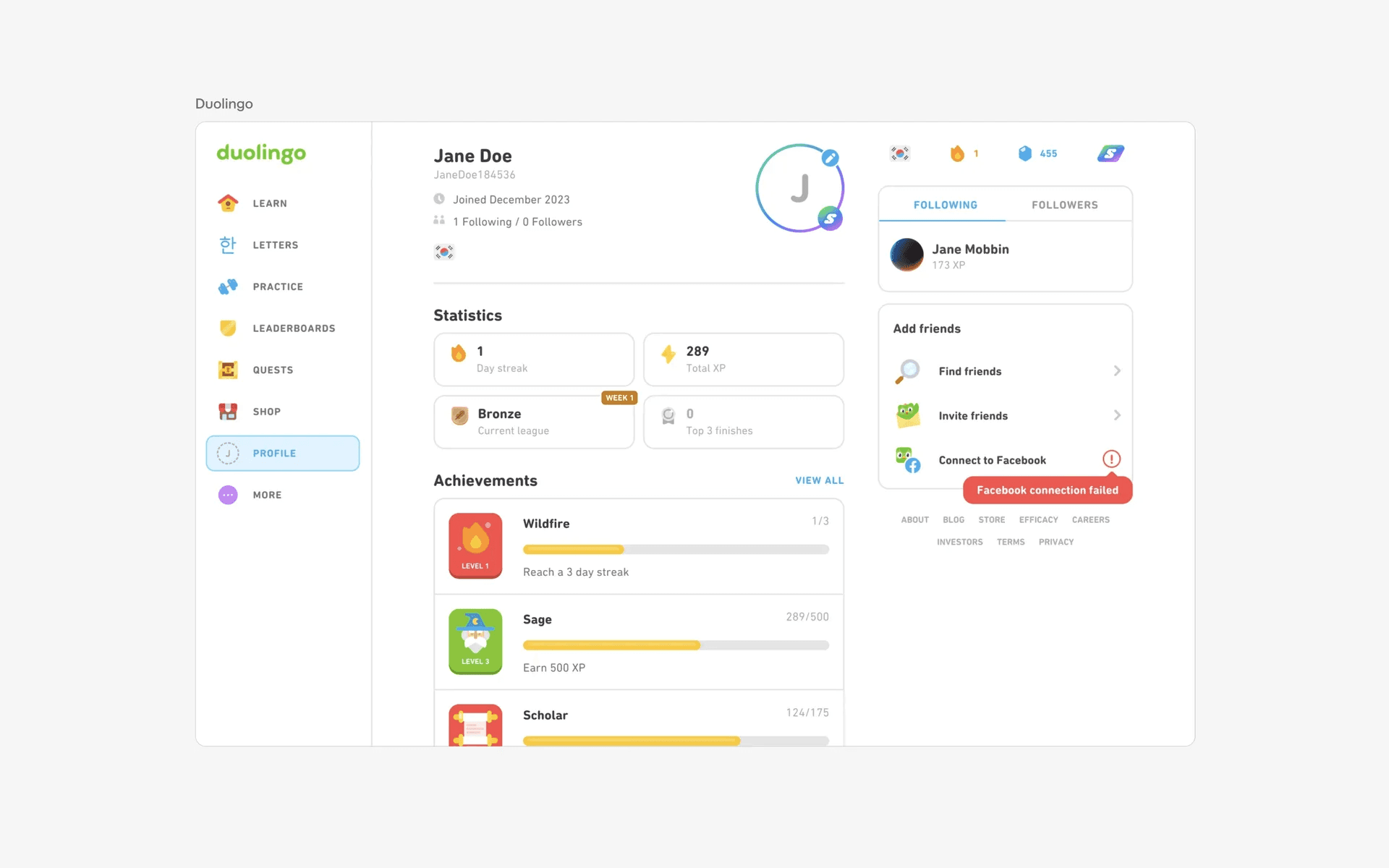
Duolingo error tooltip
Duolingo is a language learning app that is best known for it's green passive aggressive owl mascot. It also happens to be one of our favourite apps on Mobbin.
In this specific error message, they've opted to use a Tooltip error message that is tied to an error icon. This is a good example of a contextual error message that draws attention in a non-interruptive - it gently nudges users to correct the error while respecting the user's workflow.
3. Fresha
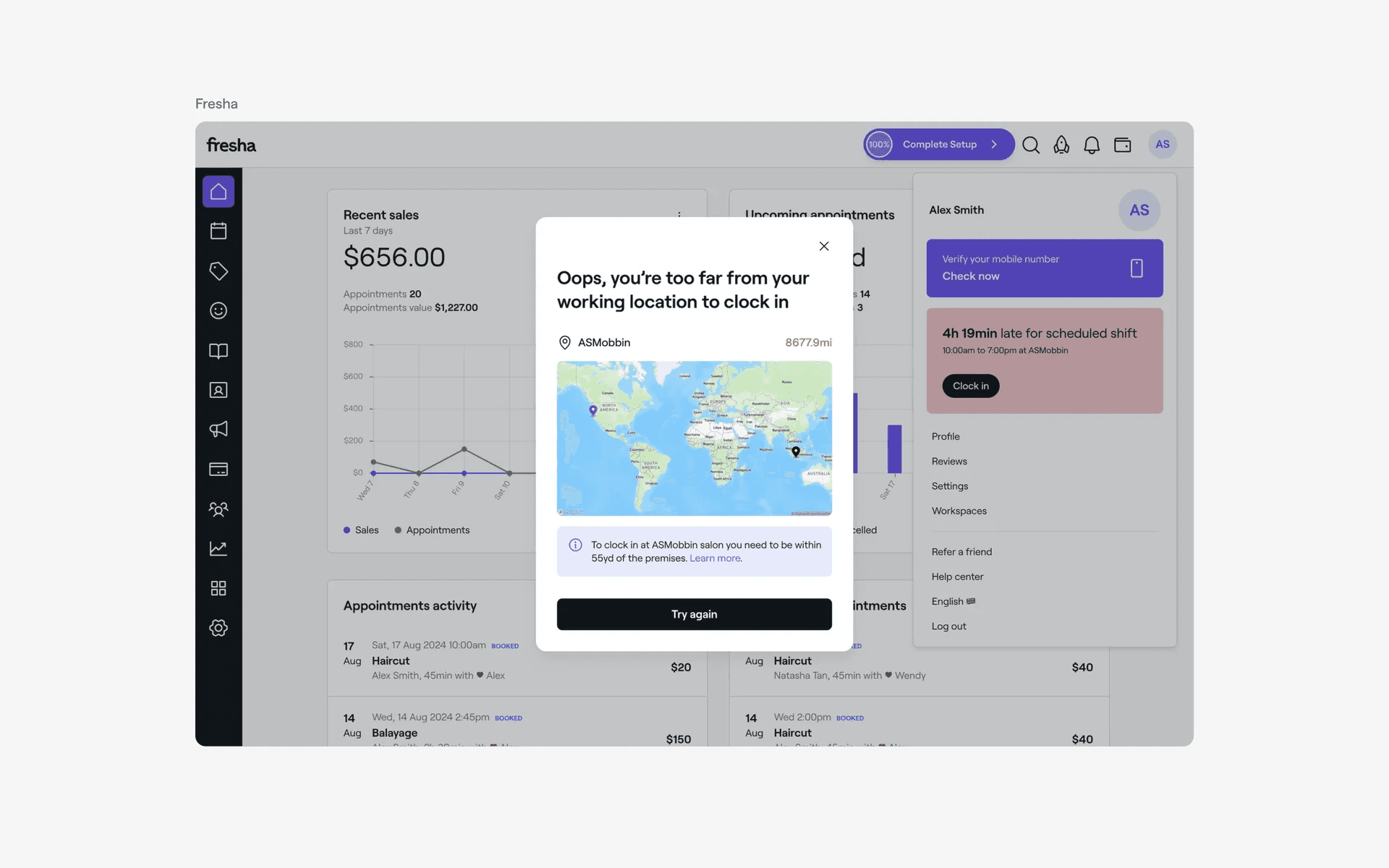
Fresha error modal
Fresha is an appointment booking app for beauty and wellness services. In this example, we have the B2B version of the app - where small business owners can manage their beauty or wellness services.
They've opted for a Modal component to bring maximum attention to the problem at hand - this is justified as users shouldn't be able to check in to work from the other side of the globe. To make this point even clearer, they've added a Map view to visually show you how far you are from the location, which is a tiny but impactful design decision.
Additionally, they've added a Banner below the map that shows you how to correct your error - and that you can only check in if you're within 55 yards of the premise.
4. VEED
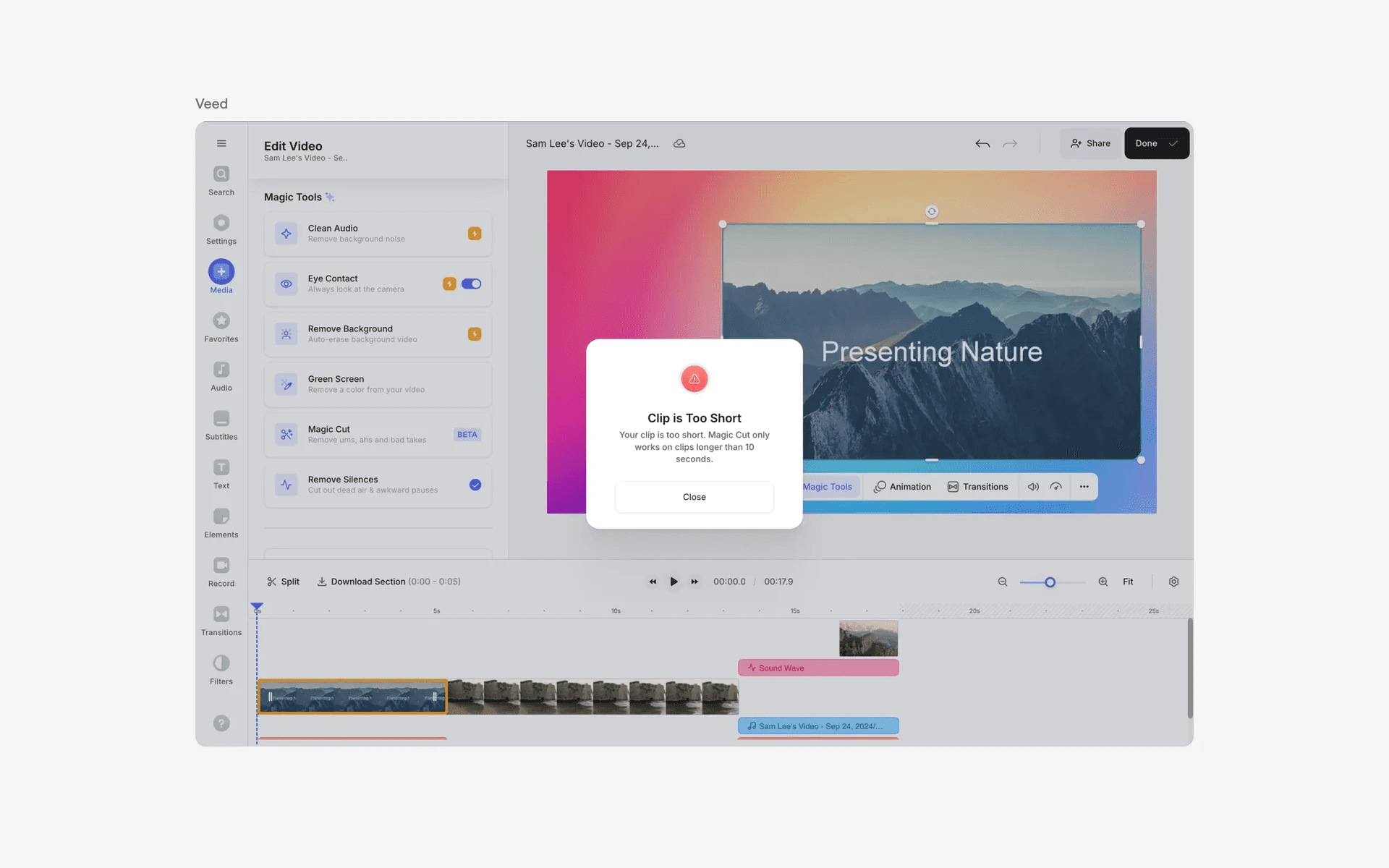
VEED error modal
VEED is a web-based AI video editor tool.
They've opted for a more intrusive Modal based error message. While it certainly brings maximum attention to the error message, it also interrupts the user's experience - and should be used with only for the most important issues.
In this case, they are bringing to attention the fact that the feature only works for clips that are longer than 10 seconds and that the clip is too short.
5. Remote
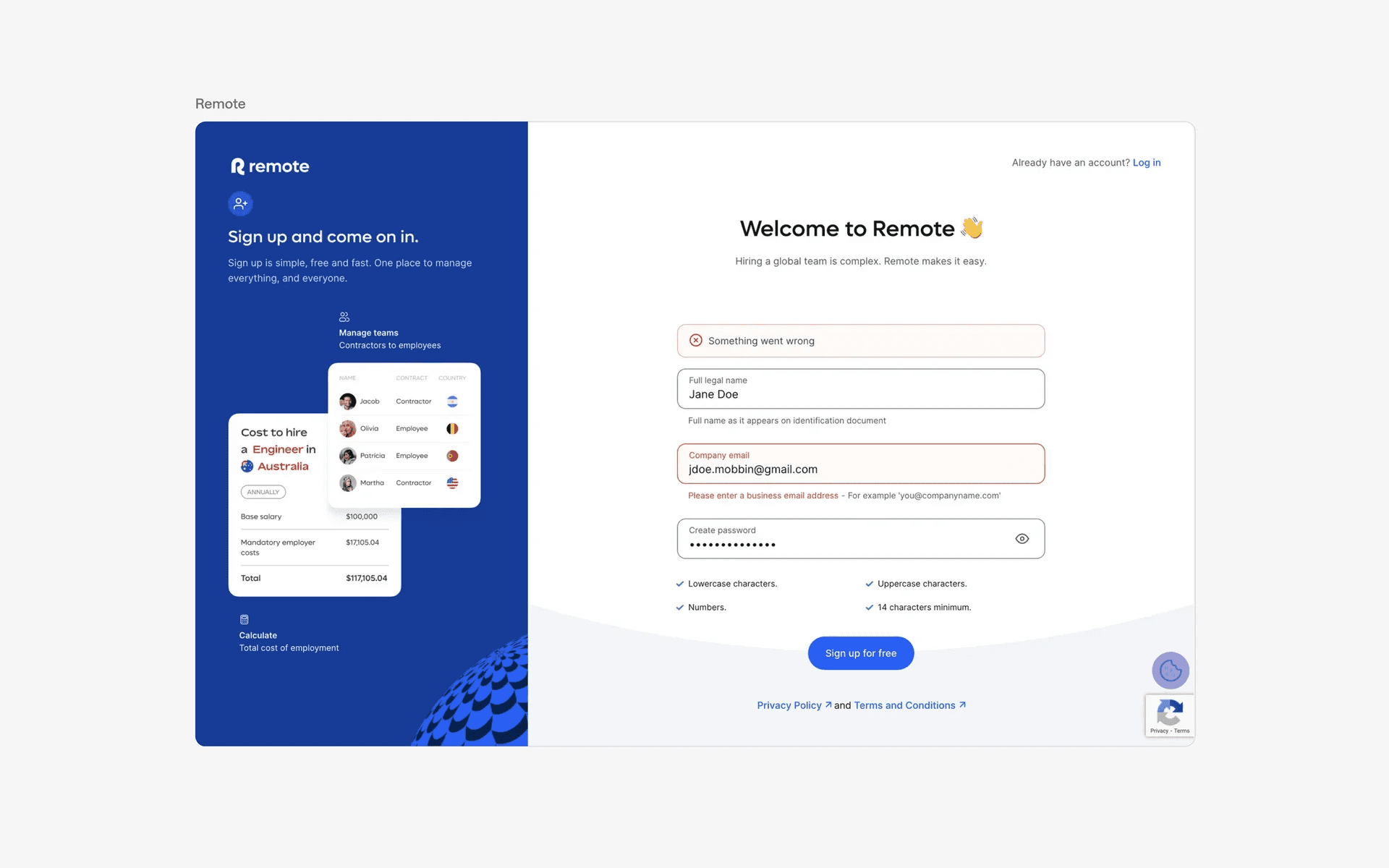
Remote inline error
Remote is a global HR solution & employment tool for distributed teams.
On Remote's signup screen, you'll notice that it is throwing an inline validation error message through a red outline, text and accent color - asking users to "please enter a business email".
Meanwhile, they have an additional error banner message at the top of the text field that draws extra attention, stating that "something went wrong".
Inline validation error messages like these are a common when designing error messages, especially when collecting user input through Text Fields like email, password, credit card, phone number, and address fields - where it is very important to collect the right data formats.
Display error messages inline just below the text box helps to provide immediate corrective action for the users to put in the necessary information.
6. Rive
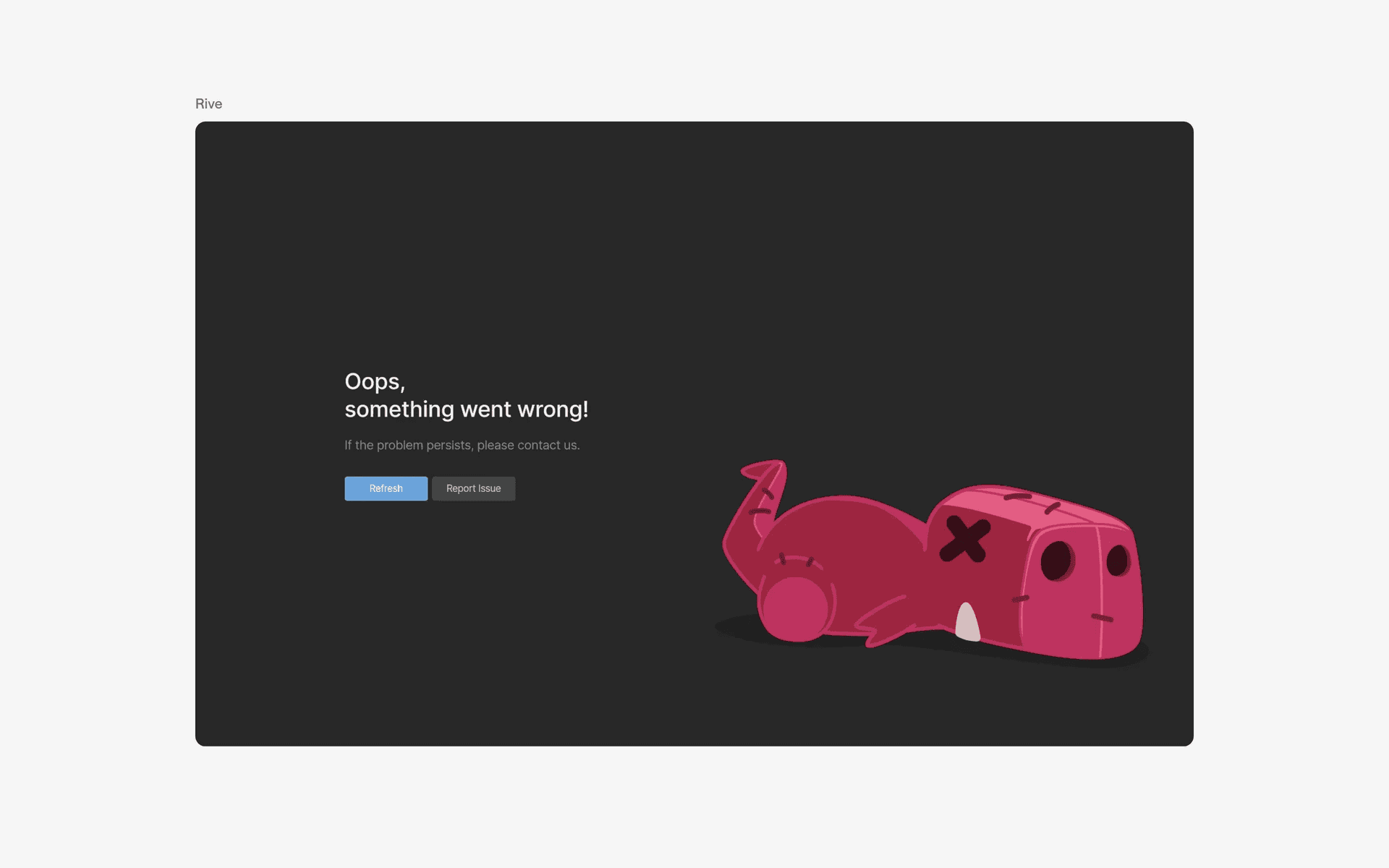
Rive error page
Rive is a tool that allows designers to build interactive animations that run anywhere.
This is a global system wide error - also known as a 'catch-all' error page that forces users to refresh or report an issue. As a rule of thumb, you should try to avoid having such an error page unless you really have no choice.
Rive's error page includes a cute illustration mascot, friendly copy, and a CTA to either refresh or report an issue.
FAQs
Why are error messages important in UX design?
Error messages help users understand and resolve issues, boosting usability and reducing frustration. They guide users back on track for efficient task completion.
What makes an error message effective?
An effective error message is:
Clear: Simple, straightforward explanation.
Actionable: Offers specific steps or a CTA.
Polite: Friendly and non-judgmental.
Visible: Stands out without over-intruding.
Where should error messages be displayed?
Inline: Near the error’s source (e.g., input fields).
Global: Top of the interface for system-wide issues.
Contextual: Tied to the user’s specific action.
How can error messages be made accessible?
Color: Red or yellow for visibility.
Icons: Warning signs or exclamation marks for visual cues.
What tone should error messages use?
Use a direct, friendly, empathetic, and constructive tone. Focus on solutions, avoiding passive-aggressive or accusatory language.